phone TOYOTA tC 2013 Accessories, Audio & Navigation (in English)
[x] Cancel search | Manufacturer: TOYOTA, Model Year: 2013, Model line: tC, Model: TOYOTA tC 2013Pages: 284, PDF Size: 32.36 MB
Page 61 of 284
DESTINATION SEARCH
60
V573_E
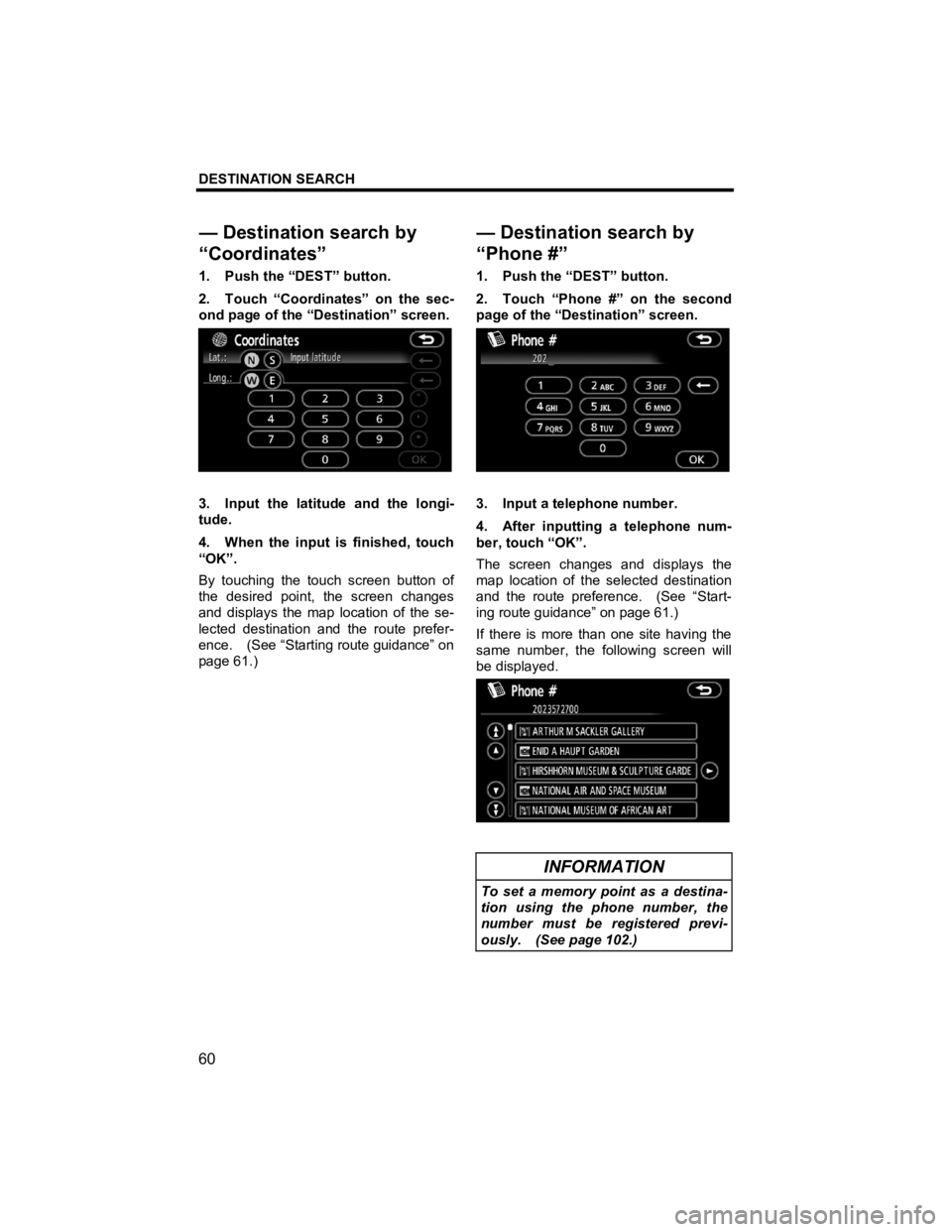
1. Push the “DEST” button.
2. Touch “Coordinates” on the sec-
ond page of the “Destination” screen.
3. Input the latitude and the longi-
tude.
4. When the input is finished, touch
“OK”.
By touching the touch screen button of
the desired point, the screen changes
and displays the map location of the se-
lected destination and the route prefer-
ence. (See “Starting route guidance” on
page 61.) 1. Push the “DEST” button.
2. Touch “Phone #” on the second
page of the “Destination” screen.
3. Input a telephone number.
4. After inputting a telephone num-
ber, touch “OK”.
The screen changes and displays the
map location of the selected destination
and the route preference. (See “Start-
ing route guidance” on page 61.)
If there is more than one site having the
same number, the following screen will
be displayed.
INFORMATION
To set a memory point as a destina-
tion using the phone number, the
number must be registered previ-
ously. (See page 102.)
— Destination search by
“Coordinates”
— Destination search by
“Phone #”
Page 62 of 284
DESTINATION SEARCH
61
V573_E
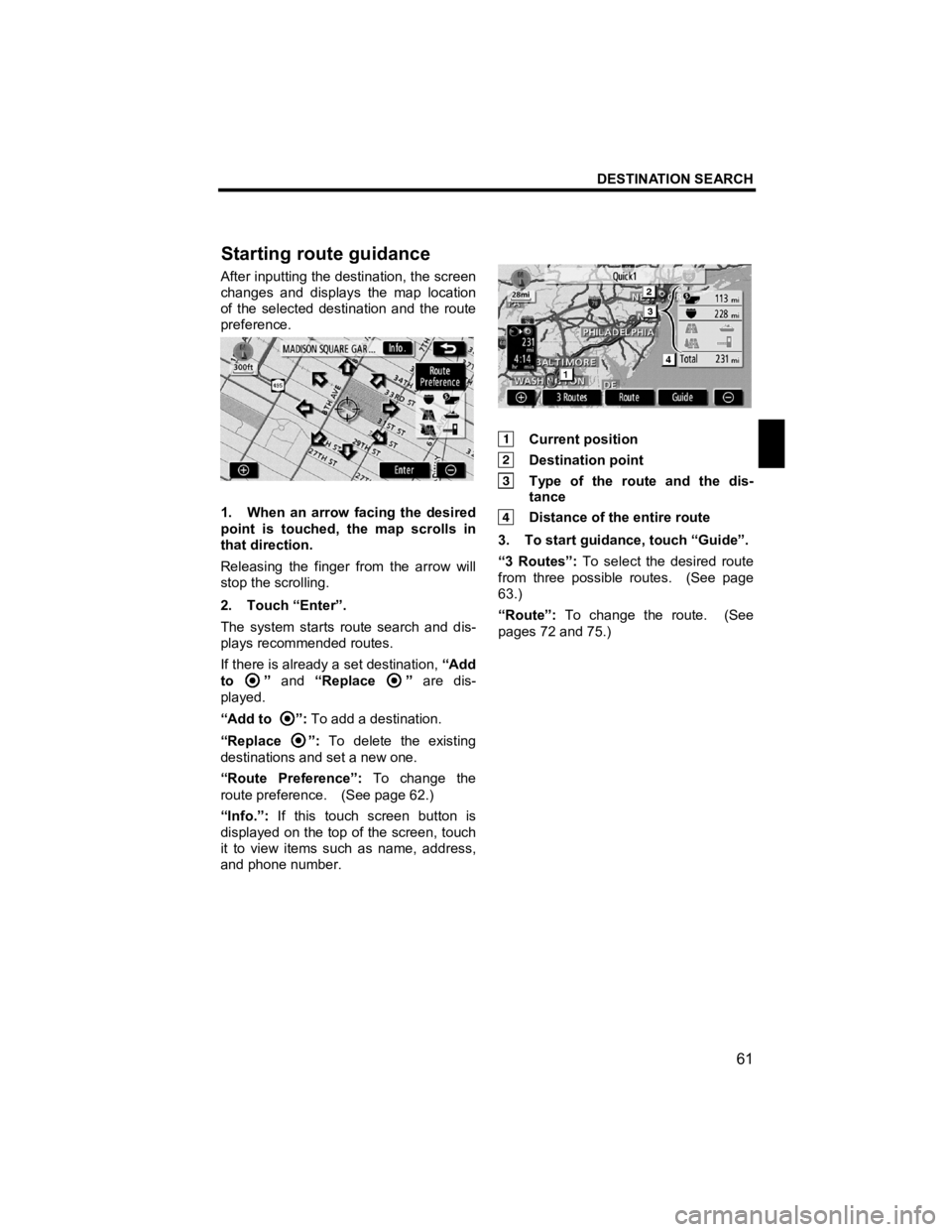
After inputting the destination, the screen
changes and displays the map location
of the selected destination and the route
preference.
1. When an arrow facing the desired
point is touched, the map scrolls in
that direction.
Releasing the finger from the arrow will
stop the scrolling.
2. Touch “Enter”.
The system starts route search and dis-
plays recommended routes.
If there is already a set destination, “Add
to
” and “Replace ” are dis-
played.
“Add to
”: To add a destination.
“Replace
”: To delete the existing
destinations and set a new one.
“Route Preference”: To change the
route preference. (See page 62.)
“Info.”: If this touch screen button is
displayed on the top of the screen, touch
it to view items such as name, address,
and phone number.
Current position
Destination point
Type of the route and the dis- tance
Distance of the entire route
3. To start guidance, touch “Guide”.
“3 Routes”: To select the desired route
from three possible routes. (See page
63.)
“Route”: To change the route. (See
pages 72 and 75.)
Startin
g route guidance
Page 99 of 284
ADVANCED FUNCTIONS
98
V573_E
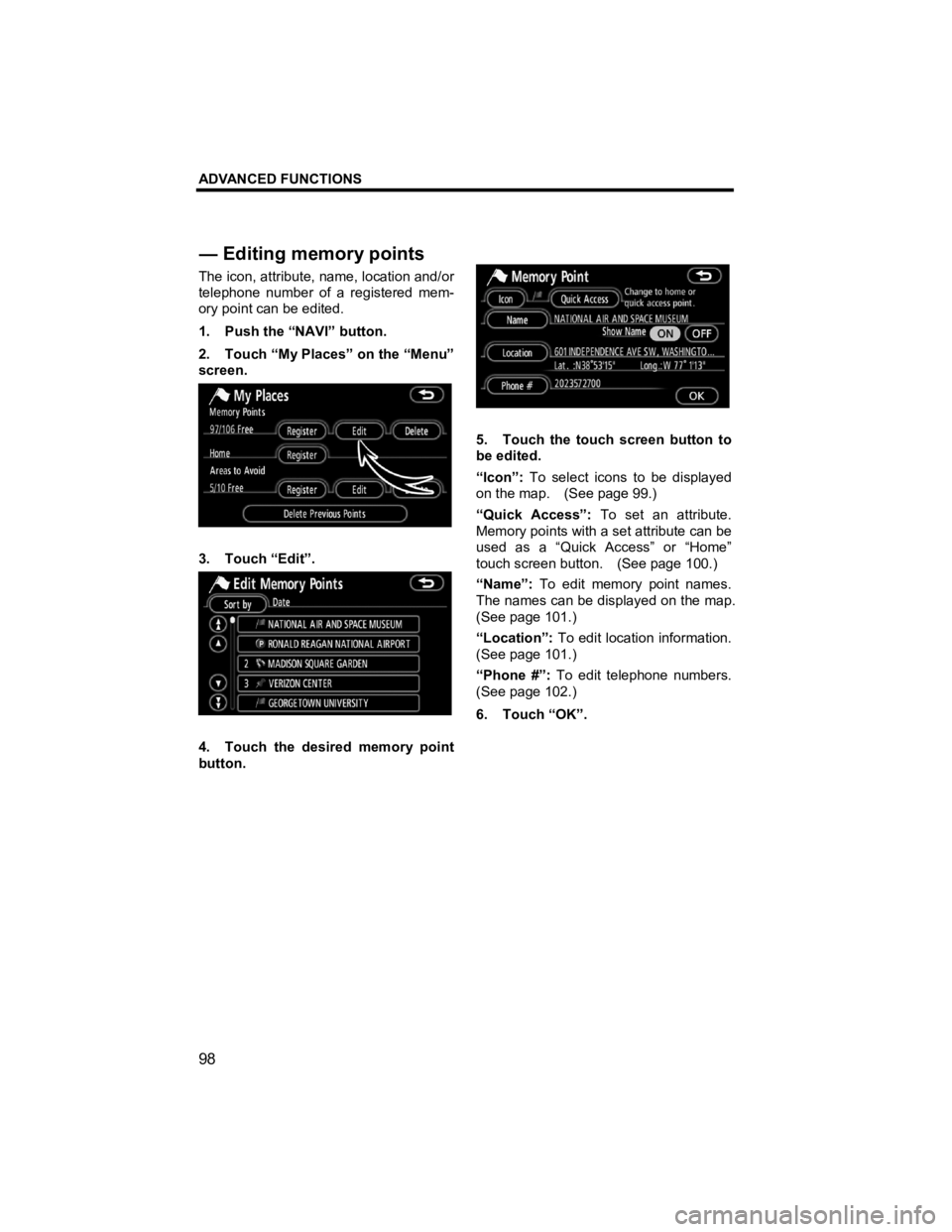
The icon, attribute, name, location and/or
telephone number of a registered mem-
ory point can be edited.
1. Push the “NAVI” button.
2. Touch “My Places” on the “Menu”
screen.
3. Touch “Edit”.
4. Touch the desired memory point
button.
5. Touch the touch screen button to
be edited.
“Icon”: To select icons to be displayed
on the map. (See page 99.)
“Quick Access”: To set an attribute.
Memory points with a set attribute can be
used as a “Quick Access” or “Home”
touch screen button. (See page 100.)
“Name”: To edit memory point names.
The names can be displayed on the map.
(See page 101.)
“Location”: To edit location information.
(See page 101.)
“Phone #”: To edit telephone numbers.
(See page 102.)
6. Touch “OK”.
— Editin
g memory points
Page 103 of 284
ADVANCED FUNCTIONS
102
V573_E
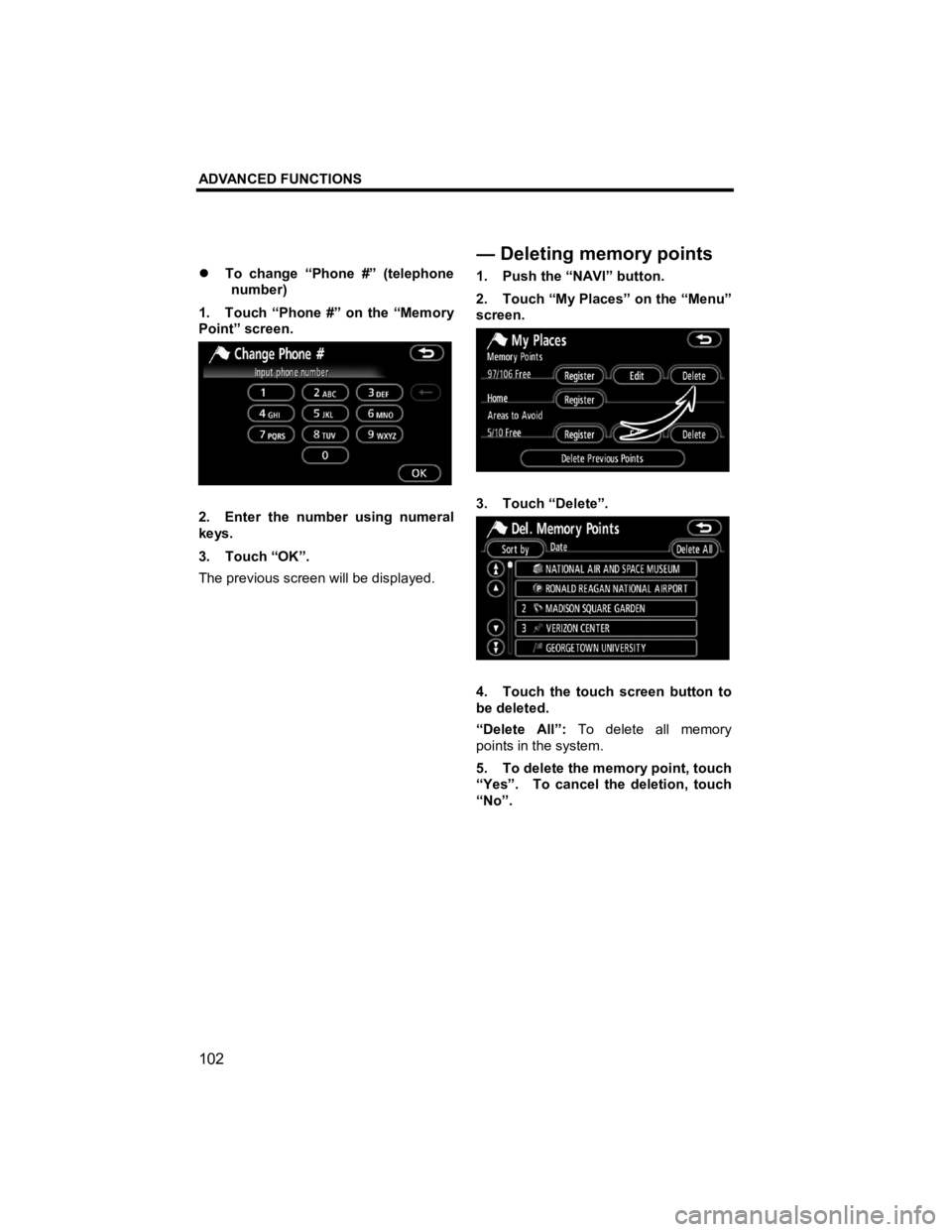
z To change “Phone #” (telephone
number)
1. Touch “Phone #” on the “Memory
Point” screen.
2. Enter the number using numeral
keys.
3. Touch “OK”.
The previous screen will be displayed. 1. Push the “NAVI” button.
2. Touch “My Places” on the “Menu”
screen.
3. Touch “Delete”.
4. Touch the touch screen button to
be deleted.
“Delete All”:
To delete all memory
points in the system.
5. To delete the memory point, touch
“Yes”. To cancel the deletion, touch
“No”.
—Deletingmemory points
Page 120 of 284
 OTHER FUNCTIONS
119
V573_E
SECTION 5
OTHER FUNCTIONS
z Maintenance information ··················\
··················\
··················\")
OTHER FUNCTIONS
119
V573_E
SECTION 5
OTHER FUNCTIONS
z Maintenance information ··················\
··················\
··················\
········· 120
Maintenance inform ation setting ··················\
··················\
················ 120
Dealer setting ··················\
··················\
··················\
··················\
········· 122
z Calendar with memo ··················\
··················\
··················\
················ 124
Adding a memo ··················\
··················\
··················\
··················\
······ 126
Editing a memo ··················\
··················\
··················\
··················\
······ 127
Memo list··················\
··················\
··················\
··················\
················ 127
z Hands-free system (for cellular phone) ··················\
··················\
···· 129
Register a Bluetooth
® phone··················\
··················\
··················\
···· 133
Call on the Bluetooth® phone ··················\
··················\
··················\
··· 137
Receive on the Bluetooth® phone ··················\
··················\
·············· 141
Talk on the Bluetooth® phone ··················\
··················\
··················\
·· 141
Change the settings of the Bluetooth® phone ··················\
·············· 143
Set a Bluetooth® phone··················\
··················\
··················\
············ 167
z Screen adjus tment··················\
··················\
··················\
··················\
···· 173
z Settings ··················\
··················\
··················\
··················\
··················\
··· 174
z Select language ··················\
··················\
··················\
··················\
········ 176
z Rear view camera system ··················\
··················\
··················\
·········· 176
Page 123 of 284
OTHER FUNCTIONS
122
V573_E
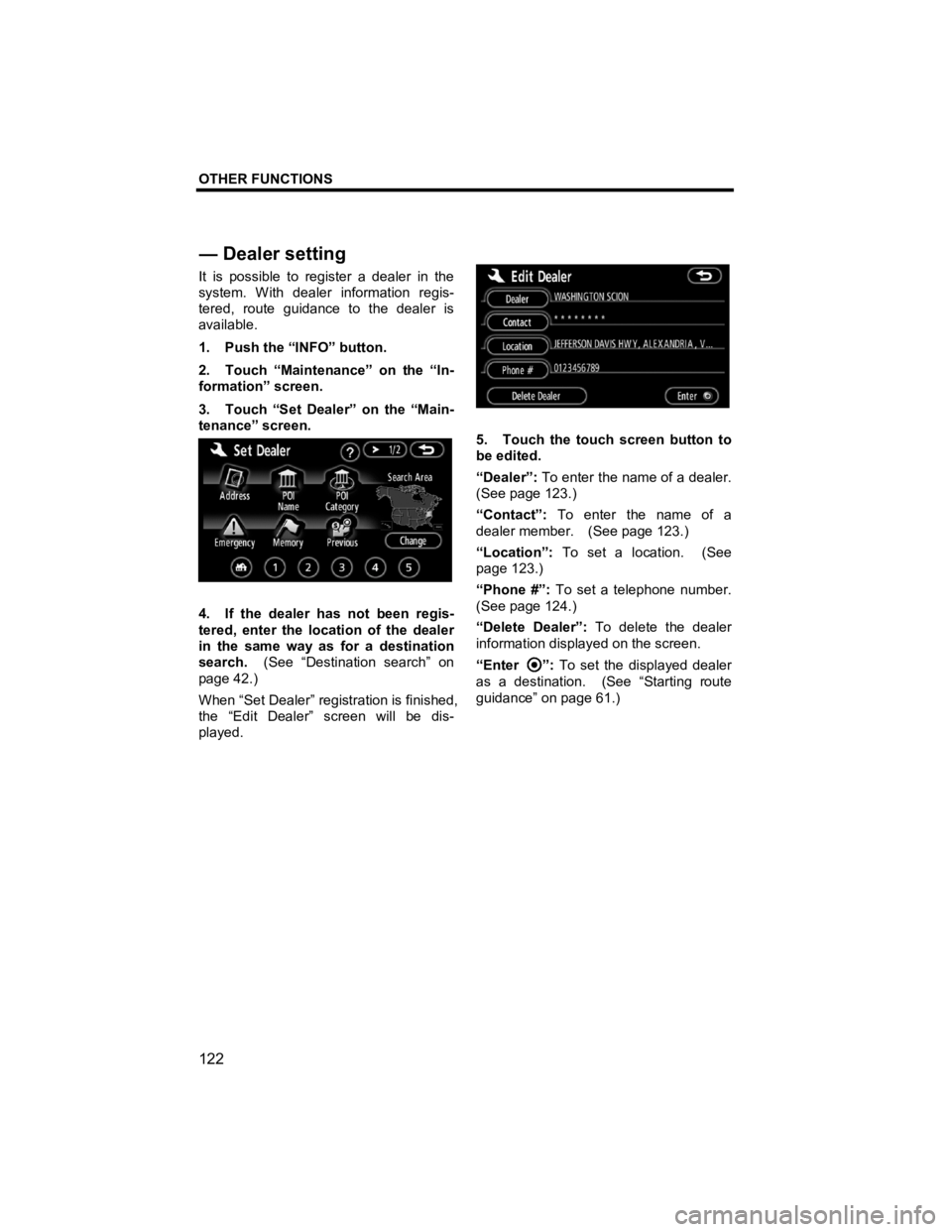
It is possible to register a dealer in the
system. With dealer information regis-
tered, route guidance to the dealer is
available.
1. Push the “INFO” button.
2. Touch “Maintenance” on the “In-
formation” screen.
3. Touch “Set Dealer” on the “Main-
tenance” screen.
4. If the dealer has not been regis-
tered, enter the location of the dealer
in the same way as for a destination
search. (See “Destination search” on
page 42.)
When “Set Dealer” registration is finished,
the “Edit Dealer” screen will be dis-
played.
5. Touch the touch screen button to
be edited.
“Dealer”: To enter the name of a dealer.
(See page 123.)
“Contact”: To enter the name of a
dealer member. (See page 123.)
“Location”: To set a location. (See
page 123.)
“Phone #”: To set a telephone number.
(See page 124.)
“Delete Dealer”: To delete the dealer
information displayed on the screen.
“Enter
”: To set the displayed dealer
as a destination. (See “Starting route
guidance” on page 61.)
— Dealer settin
g
Page 125 of 284
OTHER FUNCTIONS
124
V573_E
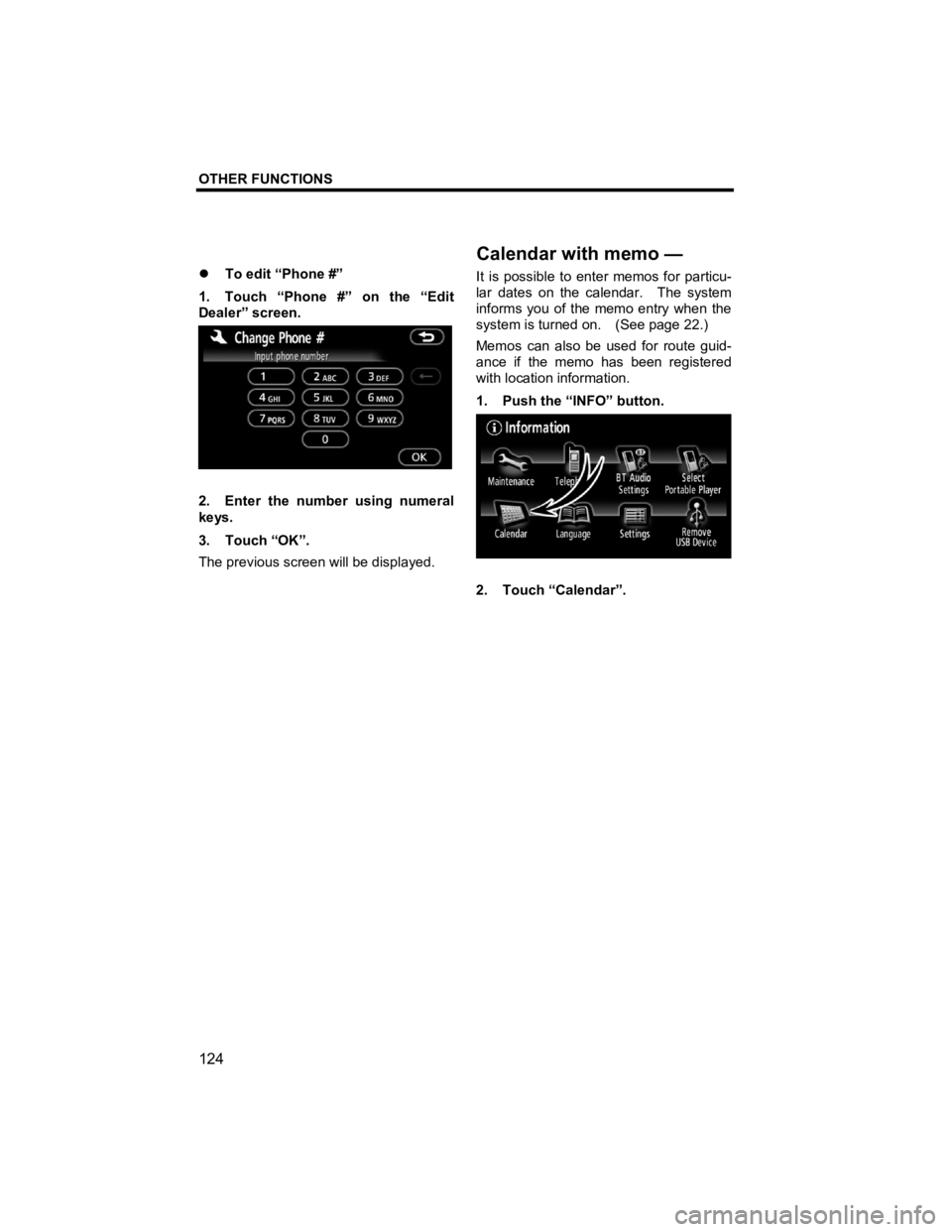
z To edit “Phone #”
1. Touch “Phone #” on the “Edit
Dealer” screen.
2. Enter the number using numeral
keys.
3. Touch “OK”.
The previous screen will be displayed. It is possible to enter memos for particu-
lar dates on the calendar. The system
informs you of the memo entry when the
system is turned on. (See page 22.)
Memos can also be used for route guid-
ance if the memo has been registered
with location information.
1. Push the “INFO” button.
2. Touch “Calendar”.
Calendar with memo
—
Page 130 of 284

OTHER FUNCTIONS
129
V573_E
Hands-free system allows you to
make or receive a call without taking
your hands off the steering wheel by
connecting your cellular phone.
This system supports Bluetooth
®. Blue-
tooth® is a wireless data system by
which you can call without your cellular
phone being connected with a cable or
placed on a cradle.
If your cellular phone does not support
Bluetooth
®, this system can not function.
CAUTION
Use a cellular phone or connect the
Bluetooth®phone only when safe
and legal to do so.
NOTICE
Do not leave your cellular phone in
the car. The temperature indoor
may be high and damage the phone.
INFORMATION
z
In the following conditions, the
system may not function.
z The cellular phone is turned off.
z The current position is outside
the communication area.
z The cellular phone is not con-
nected.
z The cellular phone has a low
battery.
z If Bluetooth
® devices are used for
hands-free phone and Bluetooth®
audio connections at the same
time, the following may occur.
z The Bluetooth
® connection may
be cut off.
z Noise may occur in the audio
played from the portable player.
z Even if using a cellular phone that
is capable of both hands-free
phone and Bluetooth
® audio
connections, simultaneous con-
nection may not be possible in
some cases.
Hands
−free system
(for cellular phone) —
Page 131 of 284
OTHER FUNCTIONS
130
V573_E
► Microphone
You can use the microphone above
when talking on the phone.
The other party’s voice outputs from the
driver’s speaker. When the received
calls or received voice outputs, the audio
from the Audio/video system or voice
guidance from the navigation system will
be muted.
INFORMATION
z Talk alternately with the other party
on the phone. If you talk at the same
time, the voice may not reach each
other. (It is not a malfunction.)
z Keep the volume of receiving voice
down. Otherwise, echo is coming
up. When you talk on the phone,
speak clearly towards the micro-
phone.
z In the following situations, your
voice may not reach the other party.
z Driving on unpaved road. (Mak-
ing a traffic noise.)
z Driving at the high speed.
z The window is open.
z Turning the air-conditioning vents
towards the microphone.
z The sound of the air-conditioning
fan is loud.
z The cellular phone network has a
problem.
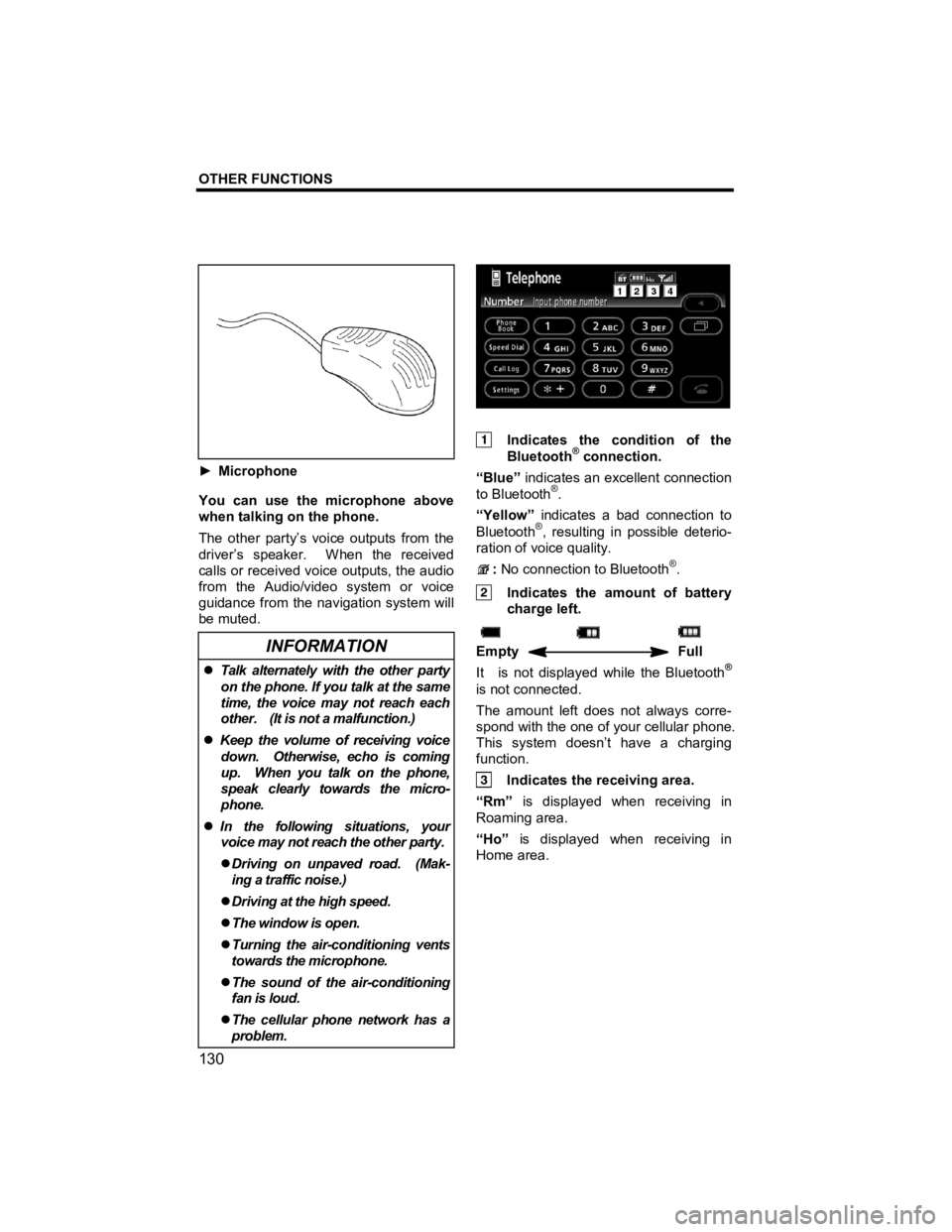
Indicates the condition of the
Bluetooth® connection.
“Blue” indicates an excellent connection
to Bluetooth
®.
“Yellow” indicates a bad connection to
Bluetooth
®, resulting in possible deterio-
ration of voice quality.
: No connection to Bluetooth®.
Indicates the amount of battery
charge left.
Empty Full
It is not displayed while the Bluetooth®
is not connected.
The amount left does not always corre-
spond with the one of your cellular phone.
This system doesn’t have a charging
function.
Indicates the receiving area.
“Rm” is displayed when receiving in
Roaming area.
“Ho” is displayed when receiving in
Home area.
Page 132 of 284
OTHER FUNCTIONS
131
V573_E
Indicates the level of reception.
Too bad Excellent
The level of reception does not always
correspond with the one of your cellular
phone.
INFORMATION
This system supports the following
service.
z HFP (Hands Free Profile) Ver. 1.0
z OPP (Object Push Profile) Ver. 1.1
If your cellular phone does not sup-
port HFP, you cannot enter the
Bluetooth
® phone, and take OPP
service individually.
The Bluetooth® connection utilizes
the Bluetooth® antenna. The indica-
tion of the Bluetooth® connection may
turn yellow and the system may not
function when you use the Bluetooth
®
phone in the following conditions:
z Your cellular phone is hidden behind
the display (behind the seat or in the
glove box or console box).
z Your cellular phone touches or is
covered with metal materials.
z Your cellular phone is in the trunk.
Leave the Bluetooth
® phone in a place
where the “Blue” indication is displayed.
Bluetooth is a trademark owned by
Bluetooth SIG, Inc.
When you change the ownership of
your car:
Personal information is stored when
using the hands-free system. To
protect your privacy, it is recom-
mended that you initialize the system
before changing the ownership of
your car.
If you initialize the system, previously
stored data will be deleted permanently.
Please be aware that once the system
has been initialized, deleted personal
data cannot be restored.
You can initialize the following data in
the system.
z Phone book data
z Dialed numbers and received calls
z Speed dial
z Bluetooth
® phone data
z Security code