phone TOYOTA TUNDRA 2012 2.G User Guide
[x] Cancel search | Manufacturer: TOYOTA, Model Year: 2012, Model line: TUNDRA, Model: TOYOTA TUNDRA 2012 2.GPages: 744, PDF Size: 15.3 MB
Page 387 of 744
387
3-3. Using the Bluetooth
® audio system
3
Interior and exterior features
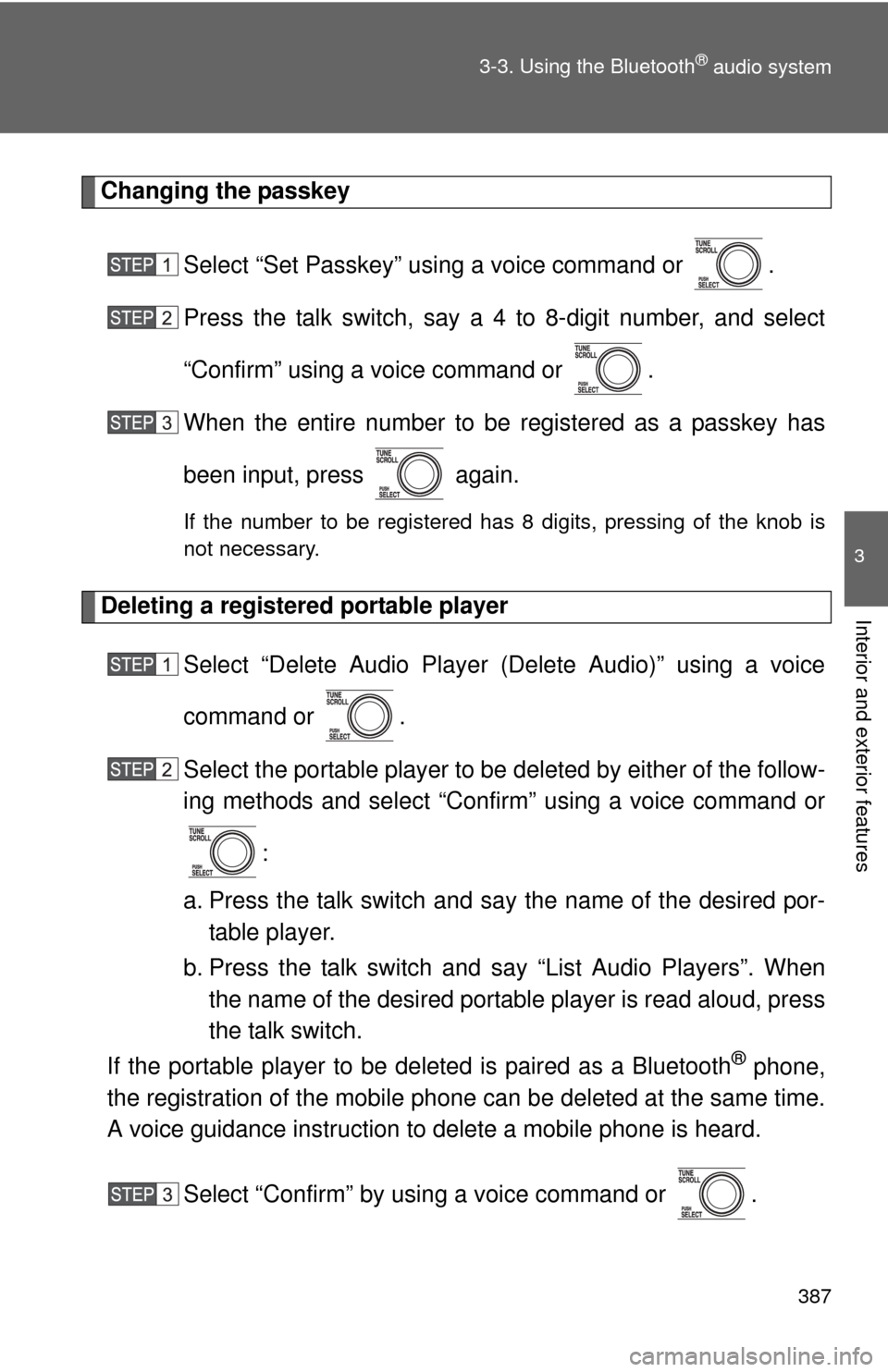
Changing the passkey
Select “Set Passkey” using a voice command or .
Press the talk switch, say a 4 to 8-digit number, and select
“Confirm” using a voice command or .
When the entire number to be registered as a passkey has
been input, press again.
If the number to be registered has 8 digits, pressing of the knob is
not necessary.
Deleting a registered portable playerSelect “Delete Audio Player (Delete Audio)” using a voice
command or .
Select the portable player to be deleted by either of the follow-
ing methods and select “Confirm” using a voice command or
:
a. Press the talk switch and say the name of the desired por- table player.
b. Press the talk switch and say “List Audio Players”. When
the name of the desired portable player is read aloud, press
the talk switch.
If the portable player to be deleted is paired as a Bluetooth
® phone,
the registration of the mobile phone can be deleted at the same time.
A voice guidance instruction to delete a mobile phone is heard.
Select “Confirm” by using a voice command or .
Page 397 of 744
397
3-4. Using the rear audio/video system
3
Interior and exterior features
■
Headphones
With some headphones generally available in the market, sound quality may
be poor. Toyota recommends the use of Toyota genuine wireless head-
phones.
Please contact your Toyota dealer for further details.
■ Vo l u m e
Conversational speech on some DVDs is recorded at a low volume to
emphasize the impact of sound effects. If you adjust the volume assuming
that the conversations represent the maximum volume level that the DVD
will play, you may be startled by louder sound effects or when you change to
a different audio source. Be sure to adjust the volume with this in mind.
CAUTION
■While driving
Do not use headphones.
Doing so may cause an accident, resulting in death or serious injury.
■ When the rear seat entert ainment system is not used
Keep the display closed.
In the event of an accident or sudden braking, the opened display may hit an
occupant’s body, resulting in injury.
■ To prevent accidents and electric shock
Do not disassemble or modify the remote controller.
■ When the remote controller is not used
Stow the remote controller.
Injuries may result in the event of an accident or sudden braking.
■ Removed batteries and other parts
Keep away from children.
These parts are small and if swallowed by a child they can cause choking.
Page 426 of 744
426
3-5. Using the hands-free phone system (for cellular phone)
Hands-free phone system (for cellular phone) features
: If equipped
This system supports Bluetooth®, which allows you to make or
receive calls without using cables to connect a cellular phone and
the system, and without oper ating the cellular phone.
Owners of models equipped with a navigation system should refer to
the “Navigation System Owner’s Manual”.
■ Hands-free system quick guide
Setting a cellular phone. ( P. 430)
Adding an entry to the phonebook (Up to 20 names can be
stored). ( P. 449)
Dialing by inputting a name. ( P. 439)
Page 427 of 744
427
3-5. Using the hand
s-free phone system (for cellular phone)
3
Interior and exterior features
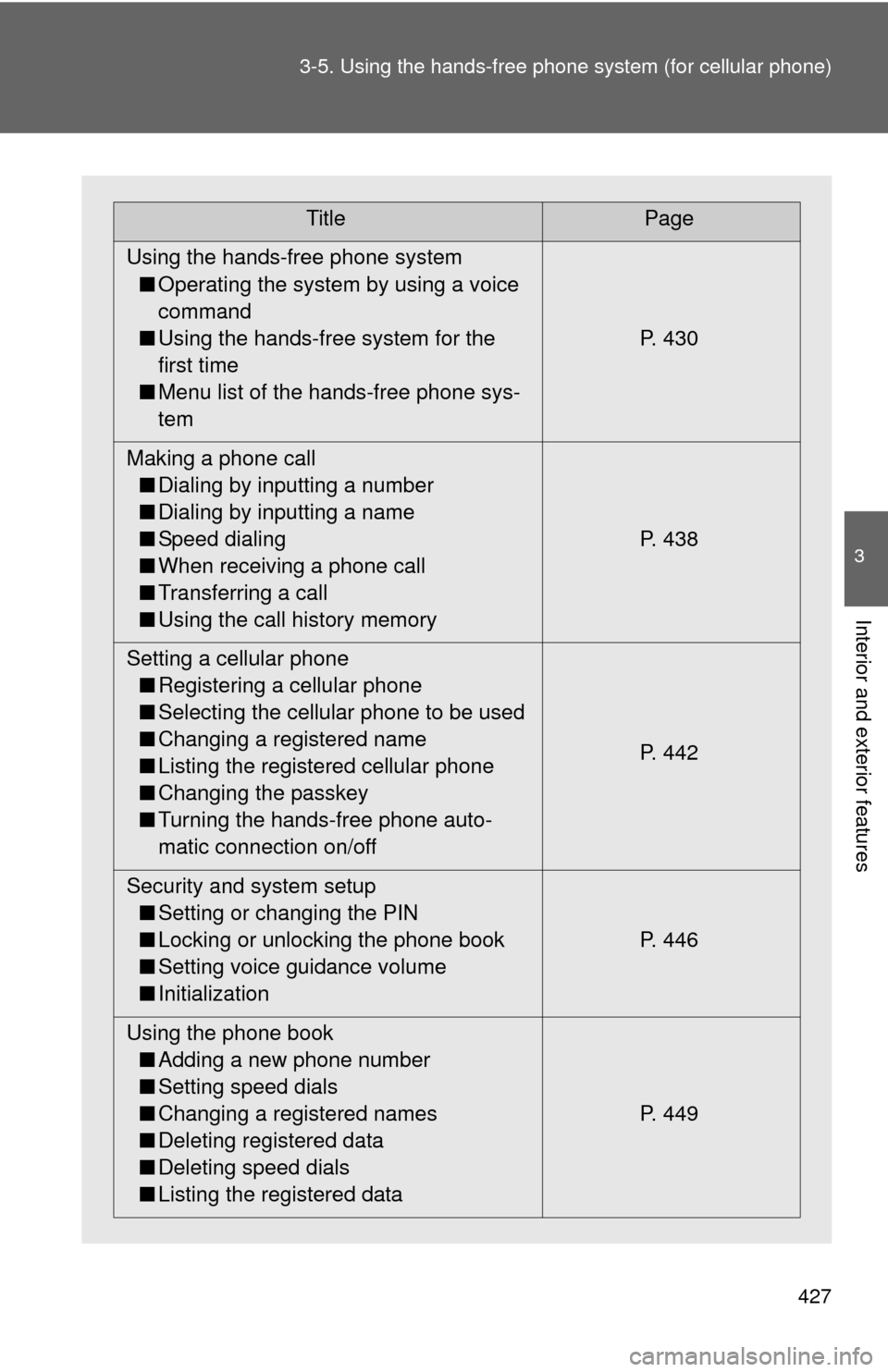
TitlePage
Using the hands-free phone system ■ Operating the system by using a voice
command
■ Using the hands-free system for the
first time
■ Menu list of the hands-free phone sys-
tem P. 430
Making a phone call ■ Dialing by inputting a number
■ Dialing by inputting a name
■ Speed dialing
■ When receiving a phone call
■ Transferring a call
■ Using the call history memory P. 438
Setting a cellular phone ■ Registering a cellular phone
■ Selecting the cellular phone to be used
■ Changing a registered name
■ Listing the registered cellular phone
■ Changing the passkey
■ Turning the hands-free phone auto-
matic connection on/off P. 442
Security and system setup ■ Setting or changing the PIN
■ Locking or unlocking the phone book
■ Setting voice guidance volume
■ Initialization P. 446
Using the phone book ■ Adding a new phone number
■ Setting speed dials
■ Changing a registered names
■ Deleting registered data
■ Deleting speed dials
■ Listing the registered data P. 449
Page 428 of 744
428 3-5. Using the hands-free phone system (for cellular phone)
■Conditions affecting operation
The hands-free phone system may not operate normally in the following situ-
ations:
●The cellular phone is turned off, or located outside the service area.
● The cellular phone has a low battery.
● The cellular phone is not connected to the system.
● The cellular phone is behind the seat or in the glove box, or metal mate-
rial covers or touches the phone.
■ When transferring ownership of the vehicle
Be sure to initialize the system to prevent personal data from being improp-
erly accessed.
■ Required profiles for the cellular phone
●HFP (Hands Free Profile) Ver. 1.0
● OPP (Object Push Profile) Ver. 1.1
■ For detailed information ab out Handsfree Phone System
For assistance with pairing and operating your cell phone, go to the website
www.toyota.letstalk.com.
■ About Bluetooth
®
■Certification for the hands-free phone system
FCC ID: ACJ932C5ZZZ035
IC ID: 216J-C5ZZZ035
MADE IN MEXICO
This device complies with Part 15 of the FCC Rules and RSS-210 Rules.
Operation is subject to the following two conditions; (1) This device may not
cause harmful interference, and (2) This device must accept any interfer-
ence received, including interference that may cause undesired operation\
.
Bluetooth is a registered trademark of
Bluetooth SIG. Inc.
Page 429 of 744
429
3-5. Using the hand
s-free phone system (for cellular phone)
3
Interior and exterior features
CAUTION
■FCC WARNING
Changes or modifications in construction not expressly approved by the
party responsible for compliance could void the user’s authority to operate
the equipment.
Radio frequency exposure. This device is approved for Mobile Application
only and, to comply with applicable FCC radio frequency exposure regula-
tions, must be used with a distance of at least 7.9 in. (20 cm) between the
antenna and the body of any person at all times during use.
■ Caution while driving
Do not use a cellular phone, or connect the Bluetooth
® phone.
NOTICE
■To prevent damage to a cellular phone
Do not leave a cellular phone in the vehicle. The temperature inside may
become high resulting in damage to the phone.
Page 430 of 744
430
3-5. Using the hands-free phone system (for cellular phone)
Using the hands-free phone system
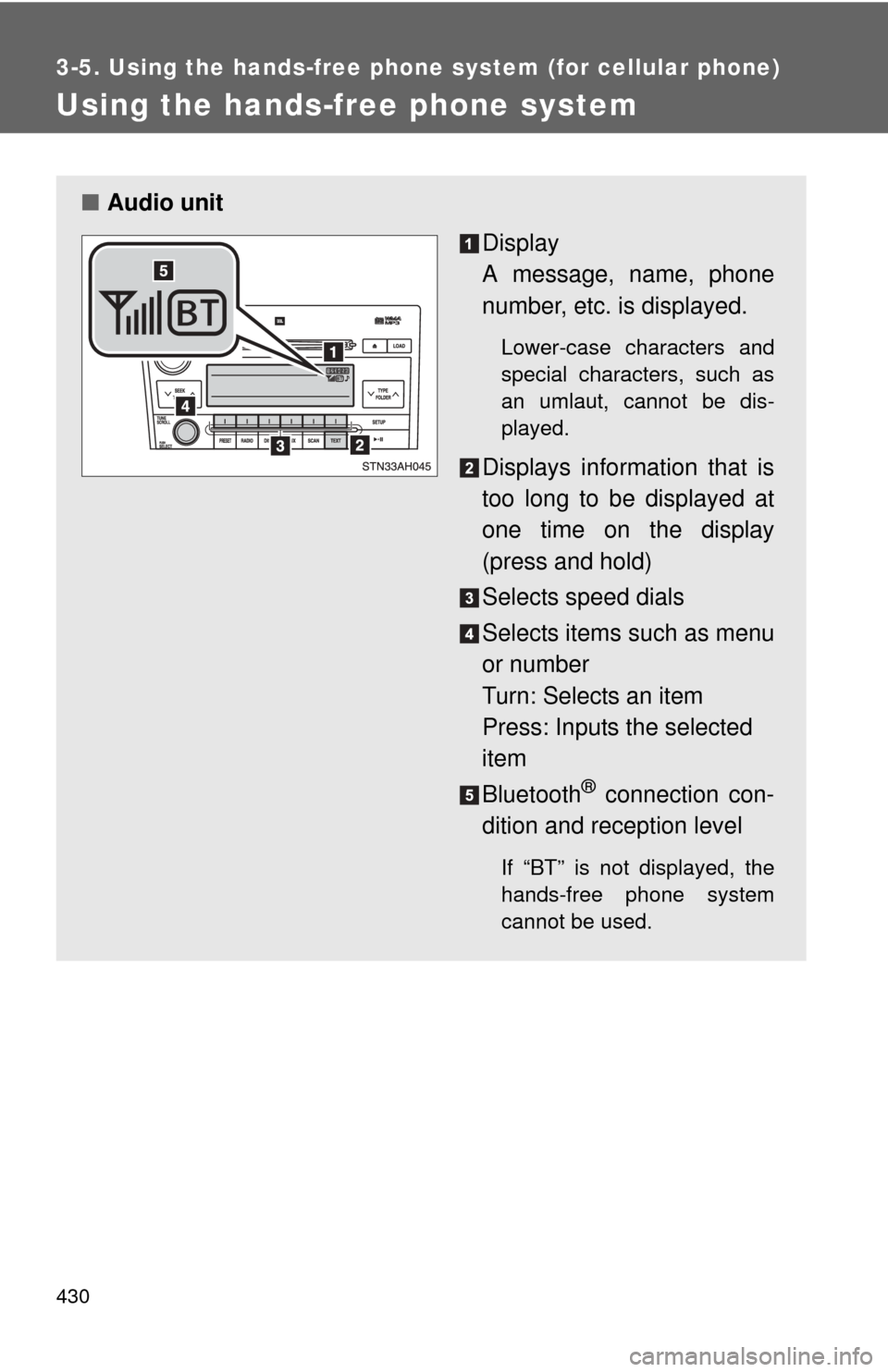
■Audio unit
Display
A message, name, phone
number, etc. is displayed.
Lower-case characters and
special characters, such as
an umlaut, cannot be dis-
played.
Displays information that is
too long to be displayed at
one time on the display
(press and hold)
Selects speed dials
Selects items such as menu
or number
Turn: Selects an item
Press: Inputs the selected
item
Bluetooth
® connection con-
dition and reception level
If “BT” is not displayed, the
hands-free phone system
cannot be used.
Page 431 of 744
431
3-5. Using the hand
s-free phone system (for cellular phone)
3
Interior and exterior features
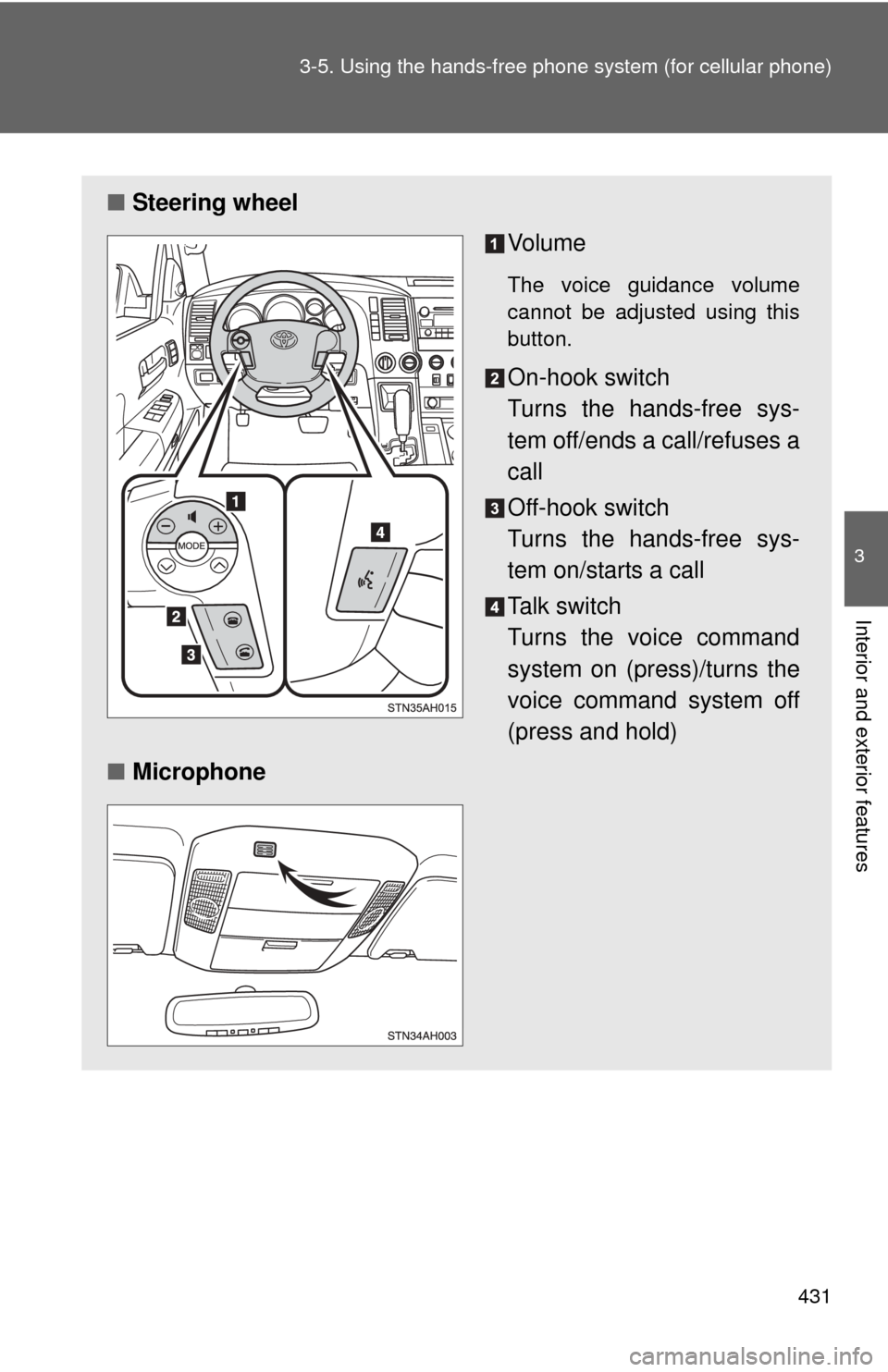
■Steering wheel
Vo l u m e
The voice guidance volume
cannot be adjusted using this
button.
On-hook switch
Turns the hands-free sys-
tem off/ends a call/refuses a
call
Off-hook switch
Turns the hands-free sys-
tem on/starts a call
Talk switch
Turns the voice command
system on (press)/turns the
voice command system off
(press and hold)
■ Microphone
Page 432 of 744
432 3-5. Using the hands-free phone system (for cellular phone)
Operating the system by using a voice command
By following the voice guidance inst ructions output from the speaker,
voice commands enable the operation of the hands-free phone sys-
tem without the need to check the display or operate .
■ Operation procedure when using a voice command
Press the talk switch and follow the voice guidance instructions.
■ Auxiliary commands when using a voice command
The following auxiliary commands can be used when operating the
system using a voice command:
“Cancel”: Exits the hands-free phone system
“Repeat”: Repeats the previous voice guidance instruction
“Go back”: Returns to the previous procedure
“Help”: Reads aloud the function summary if a help comment is
registered for the selected function
Using the hands-free phone system for the first time
Before using the hands-free phone system, it is necessary to register
a cellular phone in the system. Th e phone registration mode will be
entered automatically when starting the system with no cellular
phone registered. Follow the procedure below to register a cellular
phone:
Press the off-hook switch or the talk switch.
The introductory guidance and phone name registration instructions
are heard.
Select “Pair Phone” using a voice command or .
Page 433 of 744
433
3-5. Using the hand
s-free phone system (for cellular phone)
3
Interior and exterior features
Register a phone name by either of the following methods.
a. Select “Record Name” by using , and say a name to
be registered.
b. Press the talk switch and say a name to be registered.
A voice guidance instruction to confirm the input is heard.
Select “Confirm” by using a voice command or .
Registration to the hands-free phone system only
Select “Phone Only” using a voice command or .
Registration to the hands-free phone system and Bluetooth
® audio
system at the same time
Select “Internal Audio (Int. Audio)” using a voice command or
.
Select “Confirm” by using a voice command or .
A passkey is displayed and heard, and a voice guidance instruction
for inputting the passkey into the cellular phone is heard. Input the passkey into the cellular phone.
Refer to the manual that comes with the cellular phone for the oper-
ation of the phone.
Guidance for registration completion is heard.