display TOYOTA TUNDRA 2016 2.G Manual Online
[x] Cancel search | Manufacturer: TOYOTA, Model Year: 2016, Model line: TUNDRA, Model: TOYOTA TUNDRA 2016 2.GPages: 588, PDF Size: 13.44 MB
Page 327 of 588
3275-9. Bluetooth® phone
5
Multimedia
■Displaying the “Messaging Settings” screen in a different wayDisplay the phone screen. ( P. 303)
Select .
Select “Settings”.
Display the “Phone/Message Settings” screen. ( P. 317)
Select “Phone Display Settings”.
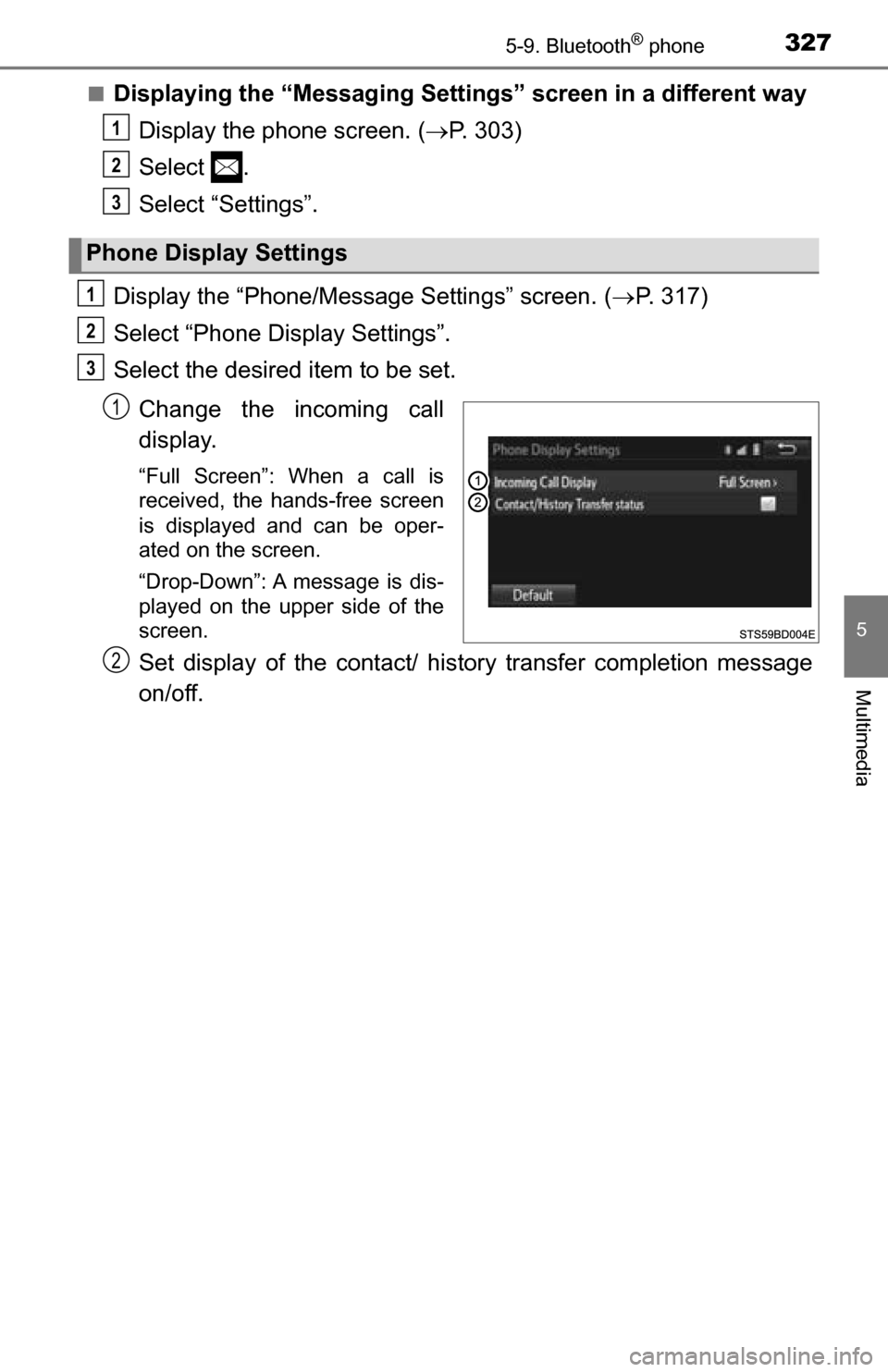
Select the desired item to be set.
Change the incoming call
display.
“Full Screen”: When a call is
received, the hands-free screen
is displayed and can be oper-
ated on the screen.
“Drop-Down”: A message is dis-
played on the upper side of the
screen.
Set display of the contact/ history transfer completion message
on/off.
Phone Display Settings
1
2
3
1
2
3
1
2
Page 329 of 588
3295-9. Bluetooth® phone
5
Multimedia
When registering/connecting a cellular phone
When making/receiving a call
A cellular phone cannot be registered.
An incorrect passcode was entered on the cellular phone.
Enter the correct passcode on the cellular phone.
The registration operation has not been completed on the cellular phone
side.
Complete the registration operation on the cellular phone (approve
registration on the phone).
Old registration information remains on either this system or the cellular
phone.
Delete the existing registration information from both this system
and the cellular phone, then regist er the cellular phone you wish to
connect to this system. ( P. 297)
A Bluetooth® connection cannot be made.
Another Bluetooth® device is already connected.
Manually connect the cellular phone you wish to use to this sys-
tem. ( P. 299)
Bluetooth® function is not enabled on the cellular phone.
Enable the Bluetooth® function on the cellular phone.
“Please check your device settings.” message is displayed.
Bluetooth® function is not enabled on the cellular phone.
Enable the Bluetooth® function on the cellular phone.
Old registration information remains on either this system or the cellular
phone.
Delete the existing registration information from both this system
and the cellular phone, then regist er the cellular phone you wish to
connect to this system. ( P. 297)
A call cannot be made/received.
Your vehicle is in a out of cellular service area.
Move to where “Out of cellular ser vice area. Please try again later.”
no longer appears on the display.
Page 330 of 588
3305-9. Bluetooth® phone
When using the contacts
When using the Bluetooth® message function
Contact data cannot be transferred manually/automatically.
The profile version of the connected cellular phone may not be compatible
with transferring contact data.
For a list of specific devices whic h operation has been confirmed
on this system, check with your To yota dealer or the following web-
site: http://www.toyota.com/bluetooth
Automatic contact transfer function on this system is set to off.
Set automatic contact transfer fu nction on this system to on.
( P. 319)
Passcode has not been entered on the cellular phone.
Enter the passcode on the cellular pho ne if requested (default pass-
code: 1234).
Transfer operation on the cellular phone has not completed.
Complete transfer operation on the cellular phone (approve trans-
fer operation on the phone).
Contact data cannot be edited.
Automatic contact transfer function on this system is set to on.
Set automatic contact transfer fu nction on this system to off.
( P. 319)
Messages cannot be viewed.
Message transfer is not enabled on the cellular phone.
Enable message transfer on the cellular phone (approve message
transfer on the phone).
Automatic transfer function on this system is set to off.
Set automatic transfer functi on on this system to on. (P. 326)
New message notifications are not displayed.
Notification of SMS/MMS/E-mail reception on this system is set to off.
Set notification of SMS/MMS/E-mail reception on this system to on.
( P. 326)
Automatic message transfer function is not enabled on the cellular phone.
Enable automatic transfer fu nction on the cellular phone.
Page 332 of 588
3325-10. Using the voice command system
Voice command system
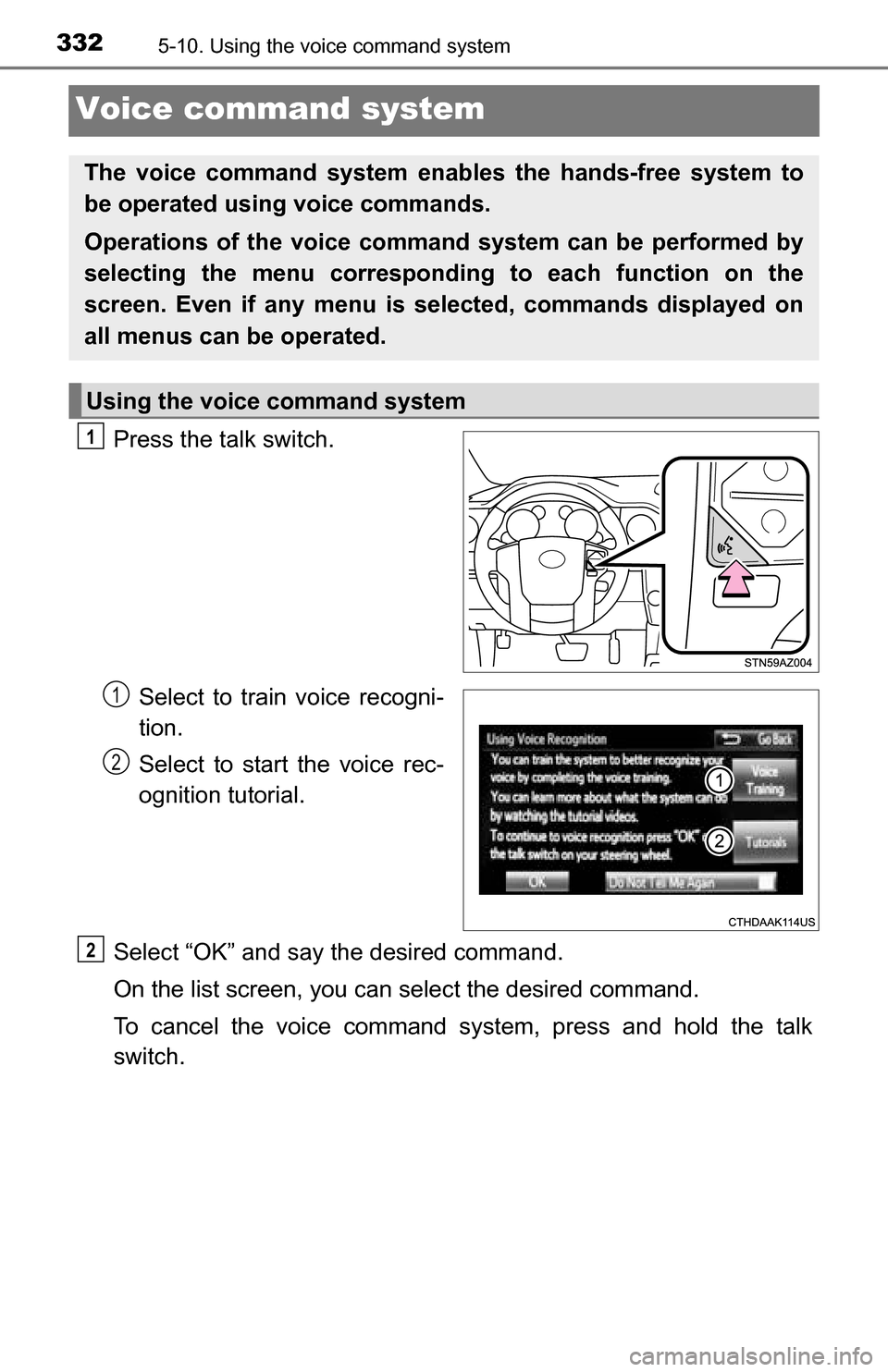
Press the talk switch.Select to train voice recogni-
tion.
Select to start the voice rec-
ognition tutorial.
Select “OK” and say the desired command.
On the list screen, you can select the desired command.
To cancel the voice command system, press and hold the talk
switch.
The voice command system enables the hands-free system to
be operated using voice commands.
Operations of the voice comm and system can be performed by
selecting the menu corresponding to each function on the
screen. Even if any menu is selected, commands displayed on
all menus can be operated.
Using the voice command system
1
1
2
2
Page 333 of 588
3335-10. Using the voice command system
5
Multimedia
■Microphone
P. 304
■ When using the microphone
●It is unnecessary to speak directly into the microphone when giving a com-
mand.
● Voice commands may not be recognized if:
• Spoken too quickly.
• Spoken at a low or high volume.
• The roof or windows are open.
• Passengers are talking while voice commands are spoken.
• The air conditioning speed is set high.
• The air conditioning vents are turned towards the microphone.
● In the following conditions, the system may not recognize the command
properly and using voice commands may not be possible:
• The command is incorrect or unclear. Note that certain words, accents or
speech patterns may be difficult for the system to recognize.
• There is excessive background noise, such as wind noise.
Due to natural language speech recognition technology, this system
enables recognition of a command when spoken naturally. However,
the system cannot recognize ev ery variation of each command.
In some situations, it is possibl e to omit the command for the proce-
dure and directly state the desired operation.
Not all voice commands are displayed in the short cut menu.
This function is available in English, Spanish and French.
■Expression examples for each function
Casual speech recognization
CommandExpression examples
“Call
Call
“Dial
Get me <3334445555>.
Page 334 of 588
3345-10. Using the voice command system
The Mobile Assistant feature will activate Apple’s Siri® Eyes Free
mode via the steering wheel switc hes. To operate the Mobile Assis-
tant, a compatible cellular phone must be registered and connected to
this system via Bluetooth
®. ( P. 296)
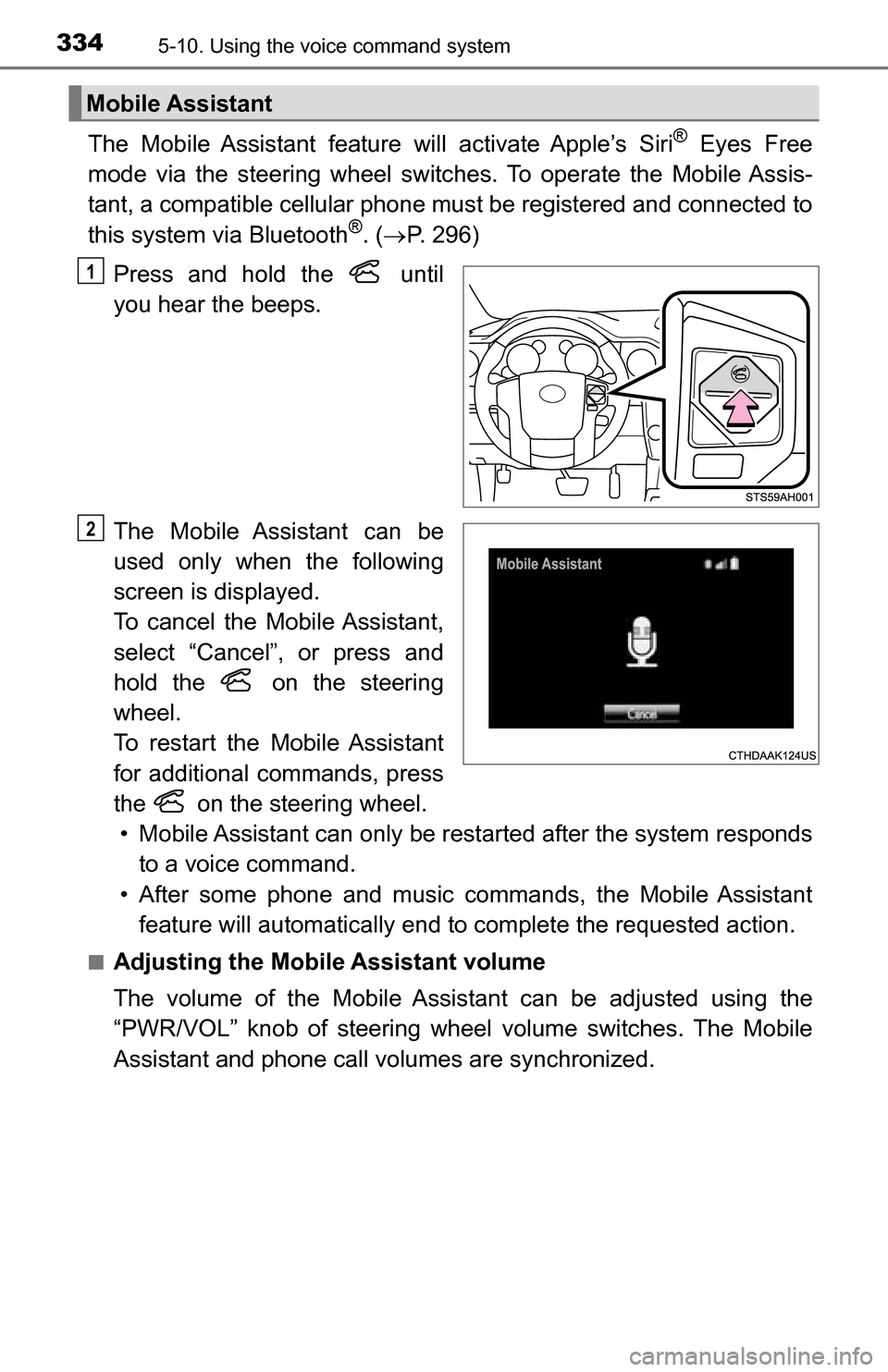
Press and hold the until
you hear the beeps.
The Mobile Assistant can be
used only when the following
screen is displayed.
To cancel the Mobile Assistant,
select “Cancel”, or press and
hold the on the steering
wheel.
To restart the Mobile Assistant
for additional commands, press
the on the steering wheel. • Mobile Assistant can only be rest arted after the system responds
to a voice command.
• After some phone and music commands, the Mobile Assistant feature will automatically end to complete the requested action.
■Adjusting the Mobile Assistant volume
The volume of the Mobile Assistant can be adjusted using the
“PWR/VOL” knob of steering wheel volume switches. The Mobile
Assistant and phone call volumes are synchronized.
Mobile Assistant
1
2
Page 335 of 588
3355-10. Using the voice command system
5
Multimedia
■Notes about Mobile Assistant
●The available features and functions may vary based on the iOS version
installed on the connected device.
● Some
Siri® features are limited in Eyes Free mode. If you attempt to use an
unavailable function,
Siri® will inform you that the function is not available.
● If
Siri® is not enabled on the cellular phone connected via Bluetooth®, an
error message will be displayed on the screen.
● While a phone call is active, the Mobile Assistant cannot be used.
● If using the navigation feature of the cellular phone, ensure the active audio
source is Bluetooth
® audio or iPod in order to hear turn by turn direction
prompts.
Page 337 of 588
3375-11. Bluetooth®
5
Multimedia
■Bluetooth® antenna
The antenna is built into the display.
If the portable audio player is behind the seat or in the glove box or console
box, or is touching or covered by metal objects, the connection status may
deteriorate.
If the cellular phone is behind the seat or in the console box, or touching or
covered by metal objects, the connection status may deteriorate.
■ Battery charge/signal status
●This display may not correspond exactly with the portable audio player or
cellular phone itself.
● This system does not have a charging function.
● The portable audio player or cellular phone battery will be depleted quickly
when the device is connected to Bluetooth
®.
■ When using the Bluetooth
® audio and hands-free system at the same
time
The following problems may occur.
● The Bluetooth
® audio connection may be interrupted.
● Noise may be heard during Bluetooth
® audio playback.
■ About the contact in this system
The following data is stored for every registered cellular phone. When
another phone is connecting, you cannot read the registered data.
●Contact data
● Call history
● Favorite
● Message
When removing a Bluetooth
® phone from the system, the above-mentioned
data is also deleted.
Page 343 of 588
343
6Interior features
6-1. Using the air conditioning system
Manual air conditioning system............................. 344
Automatic air conditioning system............................. 351
Seat heaters/ seat ventilators ................ 358
6-2. Using the interior lights Interior lights list ................ 361• Personal/interior lightsmain switch ................... 362
• Personal/interior
lights ............................. 362
• Cargo lamp main switch ............................ 363 6-3. Using the storage features
List of storage features ..... 364• Glove box...................... 366
• Console box (front separated type seat) ..... 367
• Card holder ................... 368
• Map holder (front bench type seat) ........... 370
• Pen holder .................... 371
• Tissue pocket................ 372
• Overhead console......... 373
• Cup holders .................. 374
• Bottle holders ................ 376
• Auxiliary boxes (front bench type seat) ........... 377
• Storage box .................. 379
Luggage compartment features ........................... 381
6-4. Using the other interior features Other interior features ....... 382• Sun visors ..................... 382
• Vanity mirrors................ 382
• Clock ............................. 383
• Outside temperature display........................... 384
• Power outlets ................ 385
• Armrest ......................... 387
• Assist grips ................... 388
Garage door opener.......... 389
Compass ........................... 395
Page 383 of 588
3836-4. Using the other interior features
6
Interior features
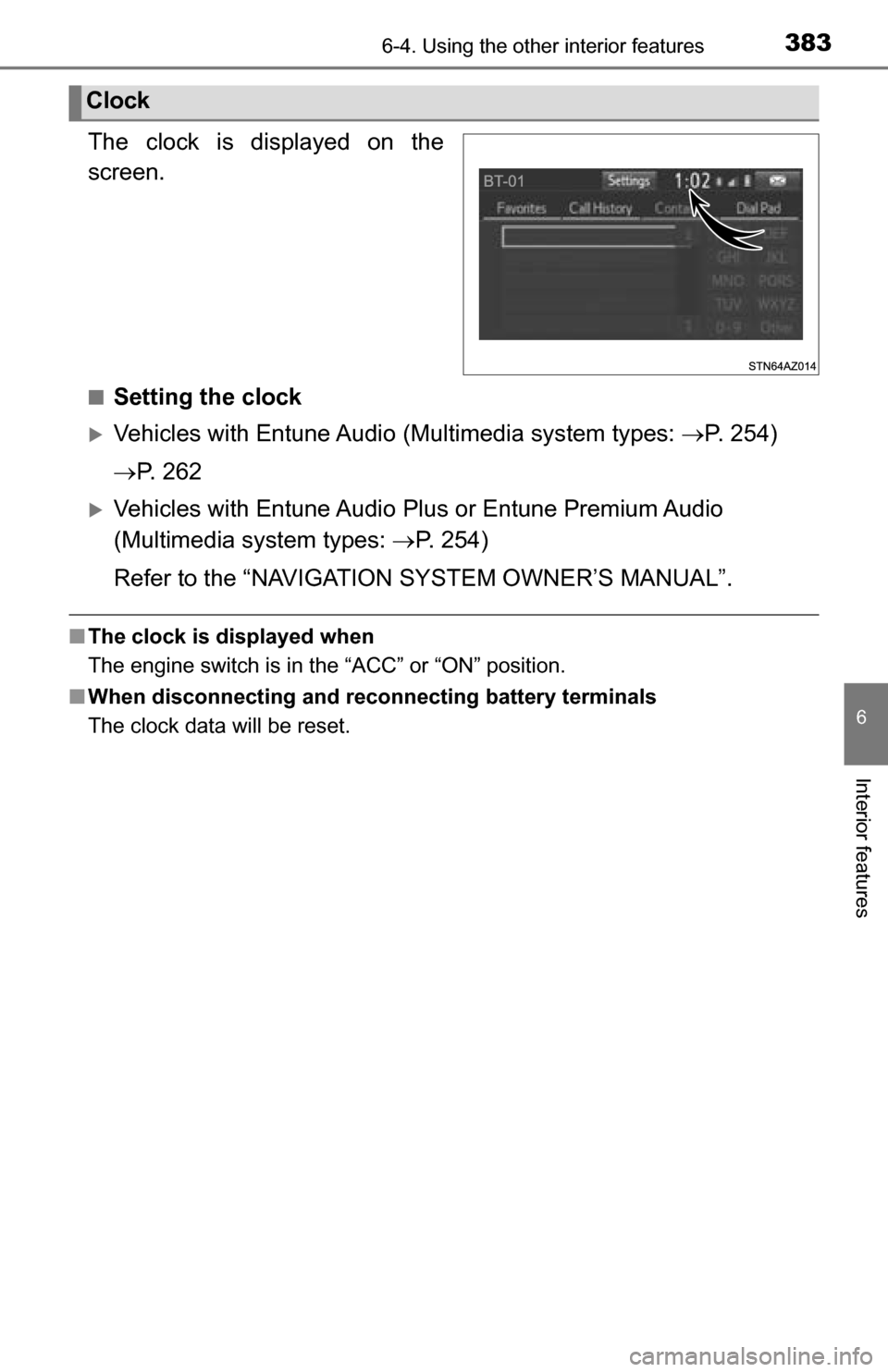
The clock is displayed on the
screen.
■Setting the clock
Vehicles with Entune Audio (Multimedia system types: P. 254)
P. 2 6 2
Vehicles with Entune Audio Plus or Entune Premium Audio
(Multimedia system types: P. 254)
Refer to the “NAVIGATION SYSTEM OWNER’S MANUAL”.
■ The clock is displayed when
The engine switch is in the “ACC” or “ON” position.
■ When disconnecting and reco nnecting battery terminals
The clock data will be reset.
Clock