audio TOYOTA TUNDRA 2019 Owners Manual (in English)
[x] Cancel search | Manufacturer: TOYOTA, Model Year: 2019, Model line: TUNDRA, Model: TOYOTA TUNDRA 2019Pages: 56, PDF Size: 3.12 MB
Page 3 of 56
1
OVERVIEW
FEATURES & OPERATIONS
TOYOTA SAFETY SENSE
SAFETY & EMERGENCY FEATURES
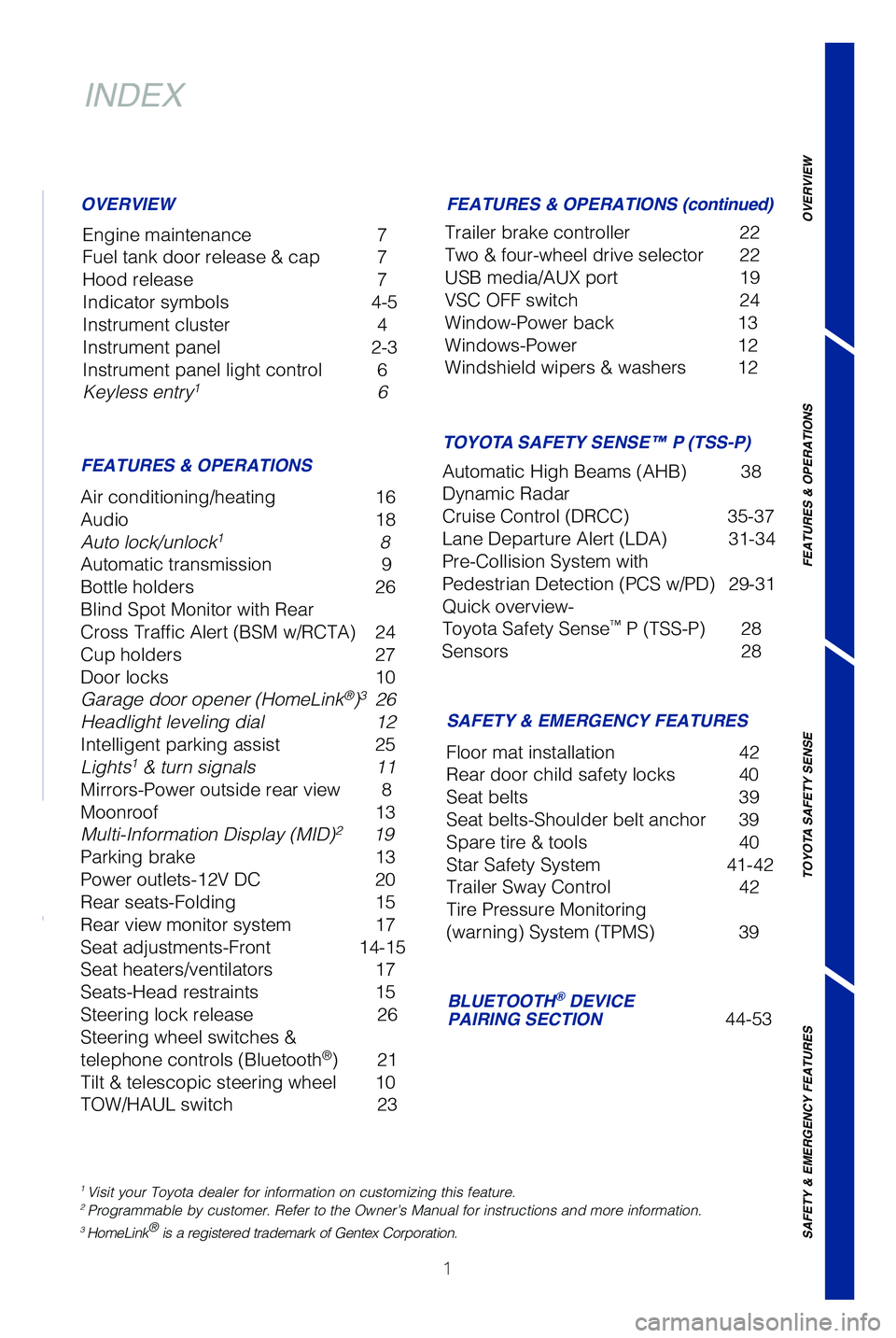
INDEX
Engine maintenance 7
Fuel tank door release & cap 7
Hood release 7
Indicator symbols 4-5
Instrument cluster 4
Instrument panel 2-3
Instrument panel light control 6
Keyless entry
1 6
OVERVIEW
FEATURES & OPERATIONS FEATURES & OPERATIONS (continued)
SAFETY & EMERGENCY FEATURES
Air conditioning/heating
16
Audio 18
Auto lock/unlock
1 8
Automatic transmission 9
Bottle holders 26
Blind Spot Monitor with Rear
Cross Traffic Alert (BSM w/RCTA) 24
Cup holders 27
Door locks 10
Garage door opener (HomeLink
®)3 26
Headlight leveling dial 12
Intelligent parking assist 25
Lights
1 & turn signals 11
Mirrors-Power outside rear view 8
Moonroof 13
Multi-Information Display (MID)
2 19
Parking brake 13
Power outlets-12V DC 20
Rear seats-Folding 15
Rear view monitor system 17
Seat adjustments-Front 14-15
Seat heaters/ventilators 17
Seats-Head restraints 15
Steering lock release 26
Steering wheel switches &
telephone controls (Bluetooth
®) 21
Tilt & telescopic steering wheel 10
TOW/HAUL switch 23Trailer brake controller
22
Two & four-wheel drive selector 22
USB media/AUX port 19
VSC OFF switch 24
Window-Power back 13
Windows-Power 12
Windshield wipers & washers 12
Floor mat installation 42
Rear door child safety locks 40
Seat belts 39
Seat belts-Shoulder belt anchor 39
Spare tire & tools 40
Star Safety System 41-42
Trailer Sway Control 42
Tire Pressure Monitoring
(warning) System (TPMS) 39
BLUETOOTH® DEVICE
PAIRING SECTION 44-53
1 Visit your Toyota dealer for information on customizing this feature.2 Programmable by customer. Refer to the Owner’s Manual for instruction\
s and more information.3 HomeLink® is a registered trademark of Gentex Corporation.
TOYOTA SAFETY SENSE™ P (TSS-P)
Automatic High Beams (AHB) 38
Dynamic Radar
Cruise Control (DRCC) 35-37
Lane Departure Alert (LDA) 31-34
Pre-Collision System with
Pedestrian Detection (PCS w/PD) 29-31
Quick overview-
Toyota Safety Sense
™ P (TSS-P) 28
Sensors 28
49087b_2019_Tundra_QRG_V2_ML_0714.indd 17/17/18 3:18 PM
Page 4 of 56
2
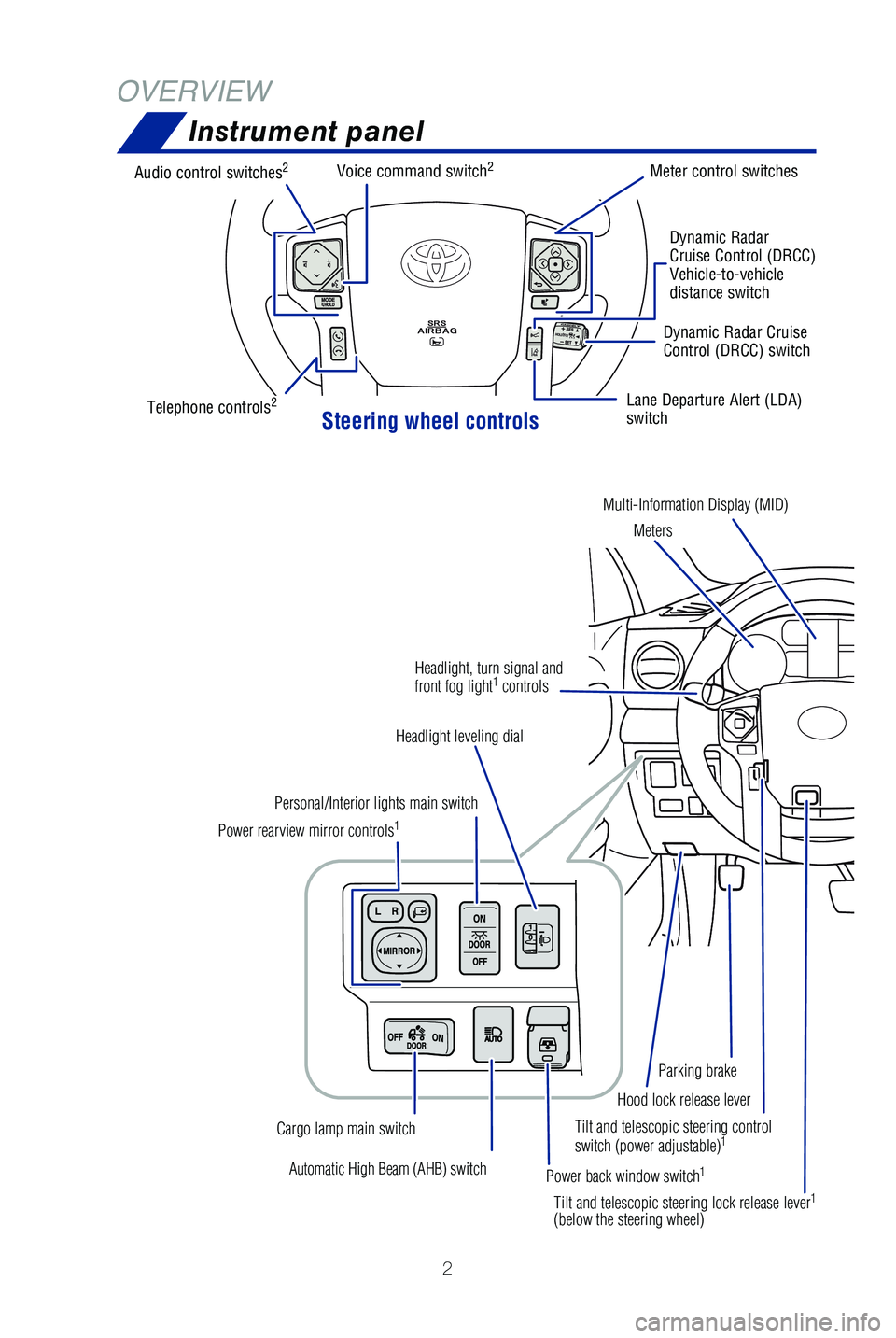
Instrument panel
OVERVIEW
Tilt and telescopic steering control
switch (power adjustable)1
Automatic High Beam (AHB) switch
Power rearview mirror controls
1
Personal/Interior lights main switch
Headlight leveling dial
Power back window switch
1
Cargo lamp main switch Tilt and telescopic steering lock release lever
1
(below the steering wheel)Hood lock release lever
Parking brake
Headlight, turn signal and
front fog light
1
controls
Steering wheel controls
Audio control switches2
Telephone controls2
Voice command switch2Meter control switches
Dynamic Radar
Cruise Control (DRCC)
Vehicle-to-vehicle
distance switch
Lane Departure Alert (LDA)
switch Dynamic Radar Cruise
Control (DRCC) switch
Multi-Information Display (MID) Meters
49087b_2019_Tundra_QRG_V2_ML_0714.indd 27/17/18 3:18 PM
Page 5 of 56
 3
OVERVIEW
FEATURES & OPERATIONS
TOYOTA SAFETY SENSE
SAFETY & EMERGENCY FEATURES
1 If equipped.2 For details, refer to the “Navigation and Multimedia System Owner’\
s Manual” and “2019
Entun")
3
OVERVIEW
FEATURES & OPERATIONS
TOYOTA SAFETY SENSE
SAFETY & EMERGENCY FEATURES
1 If equipped.2 For details, refer to the “Navigation and Multimedia System Owner’\
s Manual” and “2019
Entune™ Audio Quick Reference Guide.”
NOTE: Instrument panel features depend on the seat option, split seats o\
r bench.
Automatic transmission shift lever1
Windshield wiper and washer controls
Two and four-wheel drive selector
1
Display audio system2
Emergency flasher switch
Air conditioning controls
1
Tire Pressure Monitoring (warning)
System (TPMS) reset switch
Intuitive parking assist switch1
Trailer brake controller1
Power outlets-12V DC
Automatic shift lever
1
TOW/HAUL switch1
VSC OFF switch
Ignition
switch
Lane Departure Alert (LDA)
switch Dynamic Radar Cruise
Control (DRCC) switch
49087b_2019_Tundra_QRG_V2_ML_0714.indd 37/17/18 3:18 PM
Page 20 of 56
18
FEATURES & OPERATIONSAudio
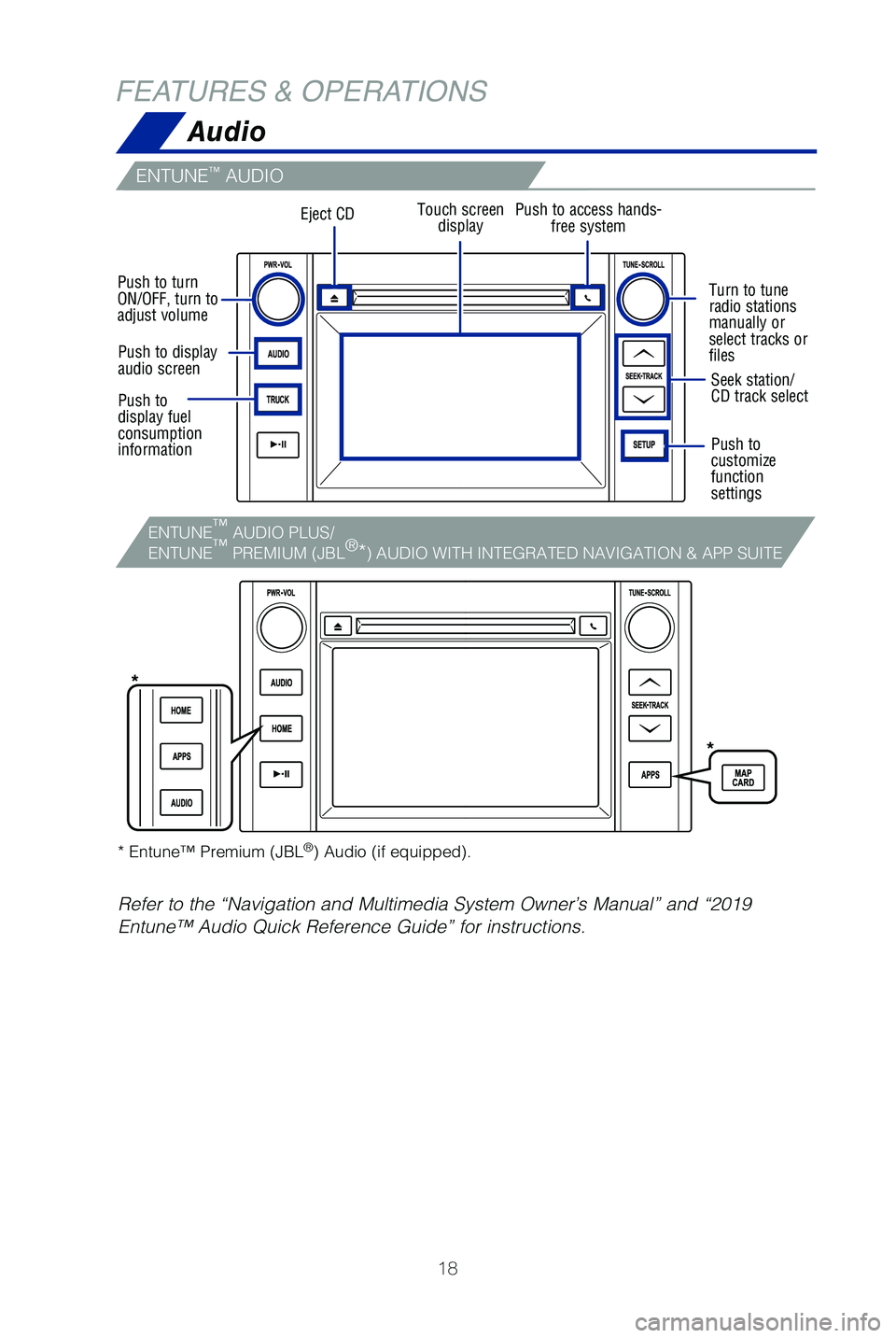
ENTUNE™ AUDIO
Touch screendisplay
Turn to tune
radio stations
manually or
select tracks or
files
Push to turn
ON/OFF, turn to
adjust volume
Seek station/
CD track select
Push to
customize
function
settings
* Entune™ Premium (JBL
®) Audio (if equipped).
Refer to the “Navigation and Multimedia System Owner’s Manual” \
and “2019
Entune™ Audio Quick Reference Guide” for instructions.
Push to display
audio screen
Push to
display fuel
consumption
information
Eject CDPush to access hands- free system
*
*
ENTUNE™
AUDIO PLUS/
ENTUNE ™
PREMIUM (JBL ®
*) AUDIO WITH INTEGRATED NAVIGATION & APP SUITE
49087b_2019_Tundra_QRG_V2_ML_0714.indd 187/17/18 3:18 PM
Page 21 of 56
 19
USB media port
By connecting a USB-compatible portable audio device or USB memory stick\
into
the USB media port, you can listen to music through the vehicle’s spe\
aker system.
AUX port
By ins")
19
USB media port
By connecting a USB-compatible portable audio device or USB memory stick\
into
the USB media port, you can listen to music through the vehicle’s spe\
aker system.
AUX port
By inserting an AUX cable into the AUX port, you can listen to music fro\
m a
portable audio device through the vehicle’s speaker system while in A\
UX mode.
Multi-Information Display (MID)
Refer to your Owner’s Manual for complete details.
Push “DISP” to scroll through the following:
Trip information
Navigation system-linked display including compass display (if equipped)
Vehicle information Audio system-linked display
Warning message display
Settings display
“” and “” Press to select an item/change
pages
USB media/AUX port
OVERVIEW
FEATURES & OPERATIONS
TOYOTA SAFETY SENSE
SAFETY & EMERGENCY FEATURES
Enter/Set:
Press to enter/set,
press and hold to
reset
Return to
previous screen
Switch menus/Display top screen
49087b_2019_Tundra_QRG_V2_ML_0714.indd 197/17/18 3:18 PM
Page 23 of 56
 21
Bluetooth
® technology allows dialing or receipt of calls without taking hands from\
the steering wheel or using a cable to connect the compatible telephone \
and the
system.
* Push and hold to")
21
Bluetooth
® technology allows dialing or receipt of calls without taking hands from\
the steering wheel or using a cable to connect the compatible telephone \
and the
system.
* Push and hold to access Mobile Assistant. When a compatible smartphone\
is
Bluetooth® connected push and hold the off hook switch 2-3 seconds to access
Siri® Eyes Free.
Refer to the “Bluetooth
® Device Pairing Section” in this guide for more information
about phone connections and compatibility.
Refer to the “Owner’s Manual” and “Navigation and Multimedia\
System Owner’s
Manual” for more details.
Microphone
Steering wheel telephone switches
Steering wheel switches
& telephone controls (Bluetooth®)
NOTE: Concentrating on the road should always be your first priority while
driving. Do not use the Entune system if it will distract you.
OVERVIEW
FEATURES & OPERATIONS
TOYOTA SAFETY SENSE
SAFETY & EMERGENCY FEATURES
“MODE/HOLD”
Push and hold to mute or pause current
operation or change audio source.
“”Use to search within the selected
audio medium (radio, CD, etc.).
Microphone location may vary by vehicle.
• Make a call
• Receive a call
• Display “Phone” screen
• Mobile Assistant access*
• End a call
• Refuse a call
“-, +” Volume control
Voice command switch
49087b_2019_Tundra_QRG_V2_ML_0714.indd 217/17/18 3:18 PM
Page 33 of 56

31
DISABLING PRE-COLLISION SYSTEM (PCS)
(1) Press “” switches and select from the Multi-Information Display (MID).
(2) Press “
” switches and select “PCS” from the MID and then press “”.
(3) Press “
” switches and select “PCS” and then press “” to select the desired
setting ON/OFF.
(4) Press “
” to go back to the menu. Also, use “” to switch menus or display
top screen.
Refer to a Toyota Owner’s Manual for additional information on PCS op\
eration,
settings adjustments, limitations, and precautions before attempting to \
use it.
Lane Departure Alert (LDA)
LDA in TSS-P uses an in-vehicle camera designed to detect visible white \
and yellow
lane markers in front of the vehicle and the vehicle’s position on th\
e road. If the
system determines that the vehicle is starting to unintentionally deviat\
e from its lane,
the system alerts the driver with an audio and visual alert. When the al\
erts occur, the
driver must check the surrounding road situation and carefully operate t\
he steering
wheel to move the vehicle back to the center part of their lane.
LDA is designed to function at speeds of approximately 32 mph (50 km/h) or higher
on relatively straight roadways.
OVERVIEW
FEATURES & OPERATIONS
TOYOTA SAFETY SENSE
SAFETY & EMERGENCY FEATURES
49087b_2019_Tundra_QRG_V2_ML_0714.indd 317/17/18 3:19 PM
Page 35 of 56
33
ADJUSTING LDA ALERT SENSITIVITY
The driver can adjust the sensitivity of the LDA (warning) function from the
Multi-Information Display (MID) customization screen.High - Is designed to warn approximately before the front
tire crosses the lane marker.
Normal - Is designed to warn approximately when the front
tire crosses the lane marker.
(1) Press “SETUP” or “APPS” switches on the multimedia system.
If you have Entune AudIo Plus, select “Setup” on the “Apps” \
screen.
(2) Select “Vehicle” on the “Setup” screen.
(3) Select “Vehicle Customization” on the “Vehicle Settings” screen.
(4) Choose a category to display the settings.
(5) Select the setting to be changed.
(6) Select “+” or “-” to choose the desired level, then select “OK.”
Note: Operation of the LDA system and setting adjustments continues in the
same condition regardless of Ignition cycle until changed by the driver or the
system is reset.
LANE DEPARTURE ALERT (CONTINUED)
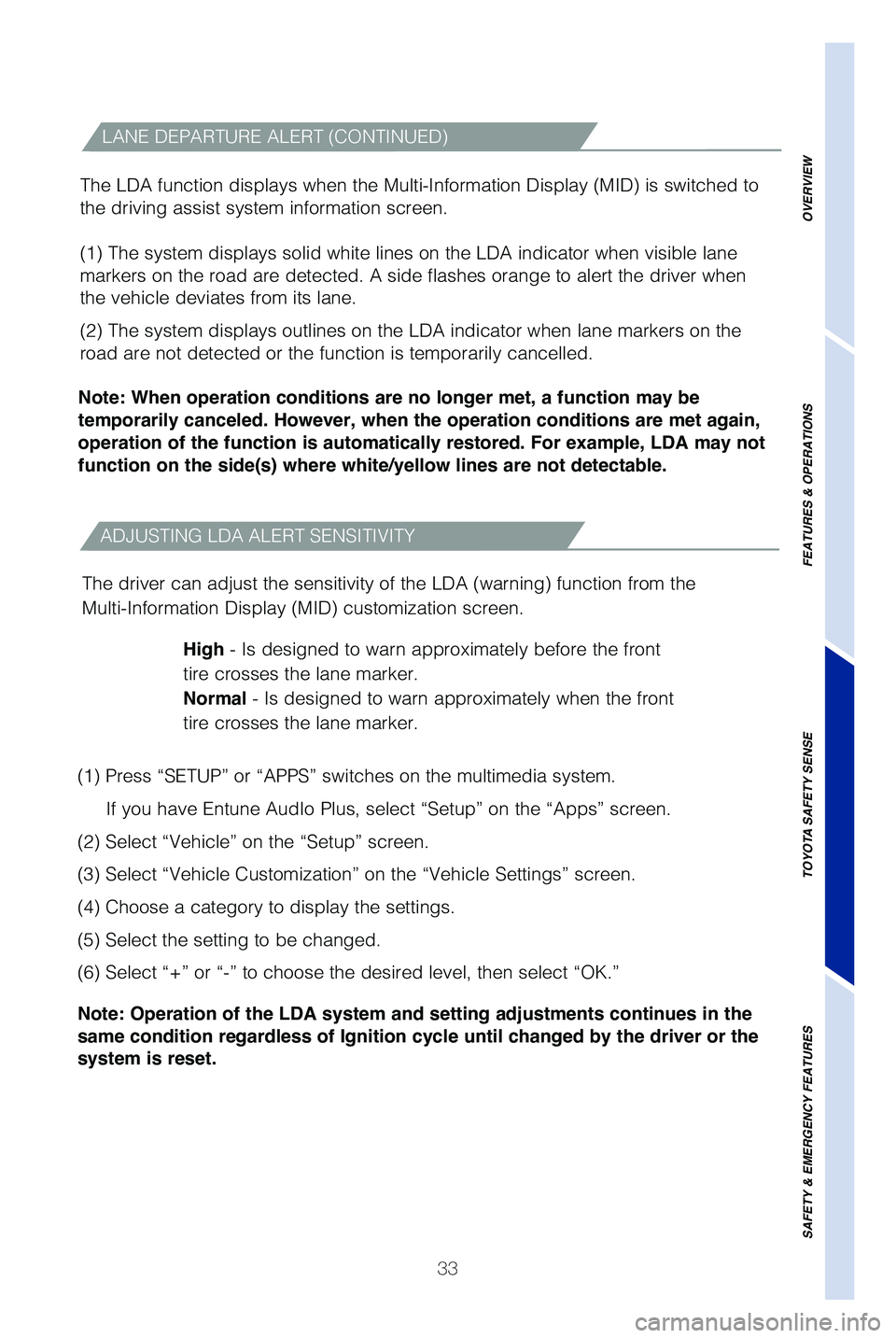
The LDA function displays when the Multi-Information Display (MID) is switched to
the driving assist system information screen.
(1) The system displays solid white lines on the LDA indicator when visible lane
markers on the road are detected. A side flashes orange to alert the dri\
ver when
the vehicle deviates from its lane.
(2) The system displays outlines on the LDA indicator when lane markers on the
road are not detected or the function is temporarily cancelled.
Note: When operation conditions are no longer met, a function may be
temporarily canceled. However, when the operation conditions are met again,
operation of the function is automatically restored. For example, LDA may not
function on the side(s) where white/yellow lines are not detectable.
OVERVIEW
FEATURES & OPERATIONS
TOYOTA SAFETY SENSE
SAFETY & EMERGENCY FEATURES
49087b_2019_Tundra_QRG_V2_ML_0714.indd 337/17/18 3:19 PM
Page 36 of 56
 34
TOYOTA SAFETY SENSE™
SWAY WARNING SYSTEM
SWS is a function of LDA and is designed to detect swaying based on the \
vehicle
location in the lane and the driver’s steering wheel operation. To he")
34
TOYOTA SAFETY SENSE™
SWAY WARNING SYSTEM
SWS is a function of LDA and is designed to detect swaying based on the \
vehicle
location in the lane and the driver’s steering wheel operation. To he\
lp prevent
swaying, the system alerts the driver using a buzzer sound and a warning\
displays
in the MID.
Continuous lane deviations from
swaying.
Gentle swaying from driver’s
inattentiveness.
Acute steering wheel operation after the
number of operations decrease due to driver’s
inattentiveness.
DISABLING LDA SWAY WARNING SYSTEM
ADJUSTING SWAY ALERT SENSITIVITY
(1) Press “” switches and select from the Multi-Information Display (MID).
(2) Press “
” switches and select the setting function and then press “.”
(3) Press “
” to go back to the menu. Also, use “” to switch menus or display
top screen.
(1) Press “SETUP” or “APPS” switches on the multimedia system.
If you have Entune AudIo Plus, select “Setup” on the “Apps” \
screen.
(2) Select “Vehicle” on the “Setup” screen.
(3) Select “Vehicle Customization” on the “Vehicle Settings” screen.
(4) Choose a category to display the settings.
(5) Select the setting to be changed.
(6) Select “+” or “-” to choose the desired level, then select “OK.”
Note: Operation of the LDA system and setting adjustments continues in the
same condition regardless of Ignition cycle until changed by the driver or the
system is reset.
49087b_2019_Tundra_QRG_V2_ML_0714.indd 347/17/18 3:19 PM
Page 47 of 56
 45
Pairing your phone is the first step in connecting with your Toyota for \
hands-free
calling and for audio streaming via Bluetooth. This pairing process is q\
uick and
easy: all Android mobile di")
45
Pairing your phone is the first step in connecting with your Toyota for \
hands-free
calling and for audio streaming via Bluetooth. This pairing process is q\
uick and
easy: all Android mobile digital devices have Bluetooth integrated; all \
you have to
do is setup the phone and multimedia system to “talk” to each othe\
r and form a
connection.
2
Initiate Bluetooth® on your Android®
STEP 1
STEP 5
STEP 2STEP 3STEP 4
From your APPS
SCREEN, select
SETTINGS. Select
CONNECTIONS and
select
BLUETOOTH. Ensure
BLUETOOTH
is
ON. Select
YOUR PHONE
DEVICE to make it
discoverable.
Phone will seek out
Bluetooth devices
while remaining
discoverable.
While your Android device is seeking
out Bluetooth devices, proceed to
your Entune Multimedia Head Unit on
your Toyota vehicle.
1 To determine which head unit is installed in your vehicle, refer to the\
Audio section in this guide. Entune™ Premium Audio screens are shown in this section. Screens and features \
may vary by
Entune™ system. 2 Some Android devices may have slightly different SETTINGS screen layout\
depending on manu- facturer of device and Android OS version.
To begin the Bluetooth® Pairing process, press the HOME button on the faceplate of
your Toyota Vehicle Entune™ Multimedia Head Unit.1
Bluetooth® Pairing for Android phone and
Entune™ touch screen system
49087b_2019_Tundra_QRG_V2_ML_0714.indd 457/17/18 3:19 PM