sat nav TOYOTA VENZA 2013 Accessories, Audio & Navigation (in English)
[x] Cancel search | Manufacturer: TOYOTA, Model Year: 2013, Model line: VENZA, Model: TOYOTA VENZA 2013Pages: 363, PDF Size: 5.62 MB
Page 2 of 363

2
VENZA (US) NAVI 73011U
12.02.17 09:52
Introduction
This manual explains the operation of the Navigation System. Please read this
manual carefully to ensure proper use. Keep this manual in your vehicle at all
times.
The screen shots in this document and the actual screens of the navigation sys-
tem differ depending on whether the functions and/or a contract existed and the
map data available at the time of producing this document.
The Navigation System is one of the most technologically advanced vehicle ac-
cessories ever developed. The system receives satellite signals from the Global
Positioning System (GPS) operated by the U.S. Department of Defense. Using
these signals and other vehicle sensors, the system indicates your present po-
sition and assists in locating a desired destination.
The navigation system is designed to select efficient routes from your present
starting location to your destination. The system is also designed to direct you
to a destination that is unfamiliar to you in an efficient manner. The system uses
DENSO maps. The calculated routes may not be the shortest nor the least traf-
fic congested. Your own personal local knowledge or “short cut” may at times
be faster than the calculated routes.
The navigation system’s database includes Point of Interest categories to allow
you to easily select destinations such as restaurants and hotels. If a d\
estination
is not in the database, you can enter the street address or a major intersection
close to it and the system will guide you there.
The system will provide both a visual map and audio instructions. The audio in-
structions will announce the distance remaining and the direction to tur\
n in when
approaching an intersection. These voice instructions will help you keep your
eyes on the road and are timed to provide enough time to allow you to maneu-
ver, change lanes or slow down.
Please be aware that all current vehicle navigation systems have certain limita-
tions that may affect their ability to perform properly. The accuracy of the vehi-
cle’s position depends on satellite conditions, road configuration, vehicle
condition or other circumstances. For more information on the limitations of the
system, refer to pages 126 through 128.
NAVIGATION SYSTEM OWNER’S MANUAL
NAVIGATION SYSTEM
Page 7 of 363
7
1
2
3
4
5
6
7
8
9
VENZA (US) NAVI 73011U
12.02.24 10:18
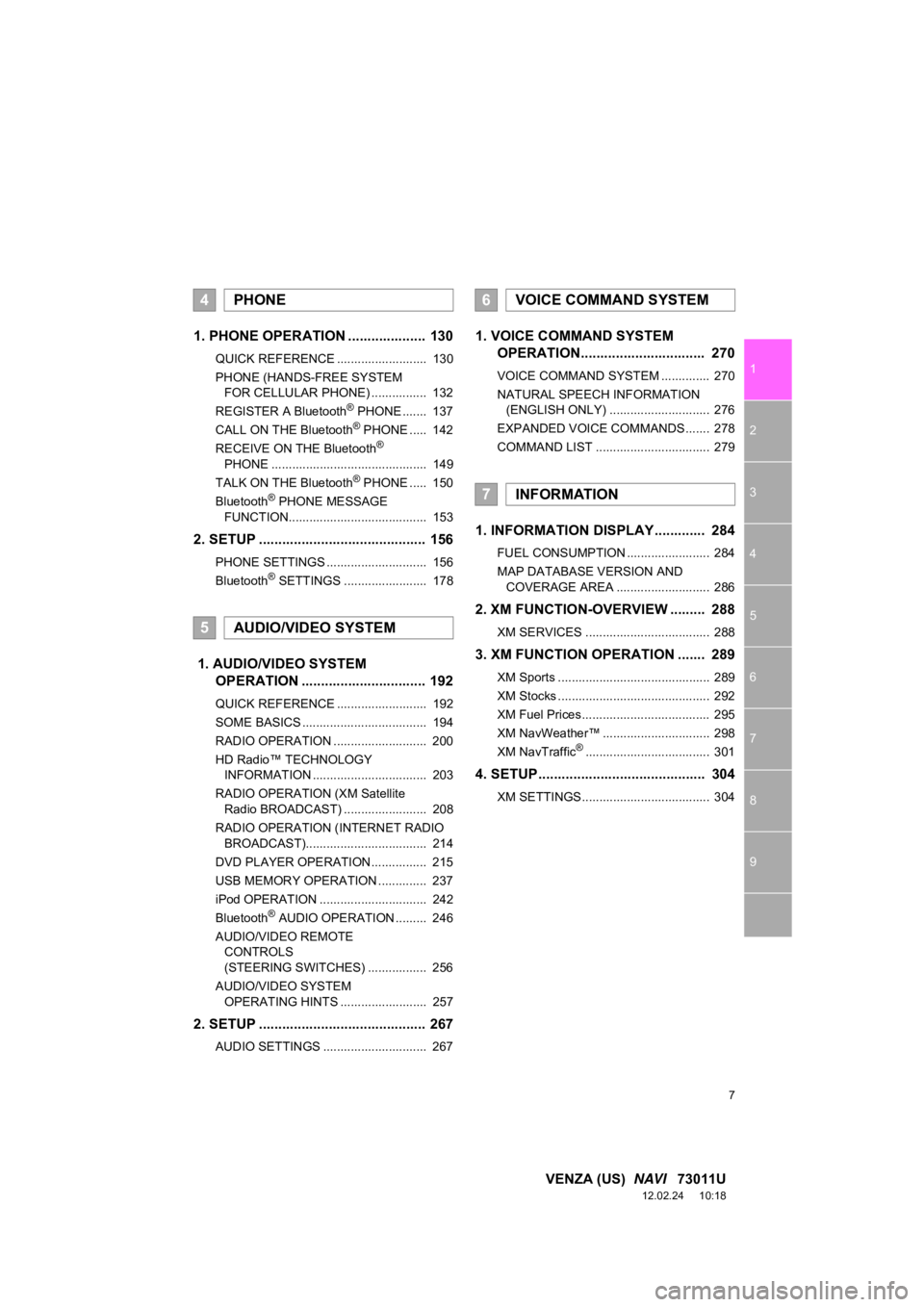
1. PHONE OPERATION .................... 130
QUICK REFERENCE .......................... 130
PHONE (HANDS-FREE SYSTEM
FOR CELLULAR PHONE) ................ 132
REGISTER A Bluetooth
® PHONE ....... 137
CALL ON THE Bluetooth® PHONE ..... 142
RECEIVE ON THE Bluetooth®
PHONE ............................................. 149
TALK ON THE Bluetooth
® PHONE ..... 150
Bluetooth® PHONE MESSAGE
FUNCTION........................................ 153
2. SETUP ........................................... 156
PHONE SETTINGS ............................. 156
Bluetooth® SETTINGS ........................ 178
1. AUDIO/VIDEO SYSTEM OPERATION ................................ 192
QUICK REFERENCE .......................... 192
SOME BASICS .................................... 194
RADIO OPERATION ........................... 200
HD Radio™ TECHNOLOGY
INFORMATION ................................. 203
RADIO OPERATION (XM Satellite Radio BROADCAST) ........................ 208
RADIO OPERATION (INTERNET RADIO BROADCAST)................................... 214
DVD PLAYER OPERATION................ 215
USB MEMORY OPERATION .............. 237
iPod OPERATION ............................... 242
Bluetooth
® AUDIO OPERATION ......... 246
AUDIO/VIDEO REMOTE CONTROLS
(STEERING SWITCHES) ................. 256
AUDIO/VIDEO SYSTEM OPERATING HINTS ......................... 257
2. SETUP ........................................... 267
AUDIO SETTINGS .............................. 267
1. VOICE COMMAND SYSTEM OPERATION................................ 270
VOICE COMMAND SYSTEM .............. 270
NATURAL SPEECH INFORMATION
(ENGLISH ONLY) ............................. 276
EXPANDED VOICE COMMANDS ....... 278
COMMAND LIST ................................. 279
1. INFORMATION DISPLAY ............. 284
FUEL CONSUMPTION ........................ 284
MAP DATABASE VERSION AND COVERAGE AREA ........................... 286
2. XM FUNCTION-O VERVIEW ......... 288
XM SERVICES .................................... 288
3. XM FUNCTION OPERATION ....... 289
XM Sports ............................................ 289
XM Stocks ............................................ 292
XM Fuel Prices..................................... 295
XM NavWeather™ ............................... 298
XM NavTraffic
®.................................... 301
4. SETUP ........................................... 304
XM SETTINGS..................................... 304
4PHONE
5AUDIO/VIDEO SYSTEM
6VOICE COMMAND SYSTEM
7INFORMATION
Page 24 of 363
24
3. QUICK REFERENCE
VENZA (US) NAVI 73011U
12.02.17 09:43
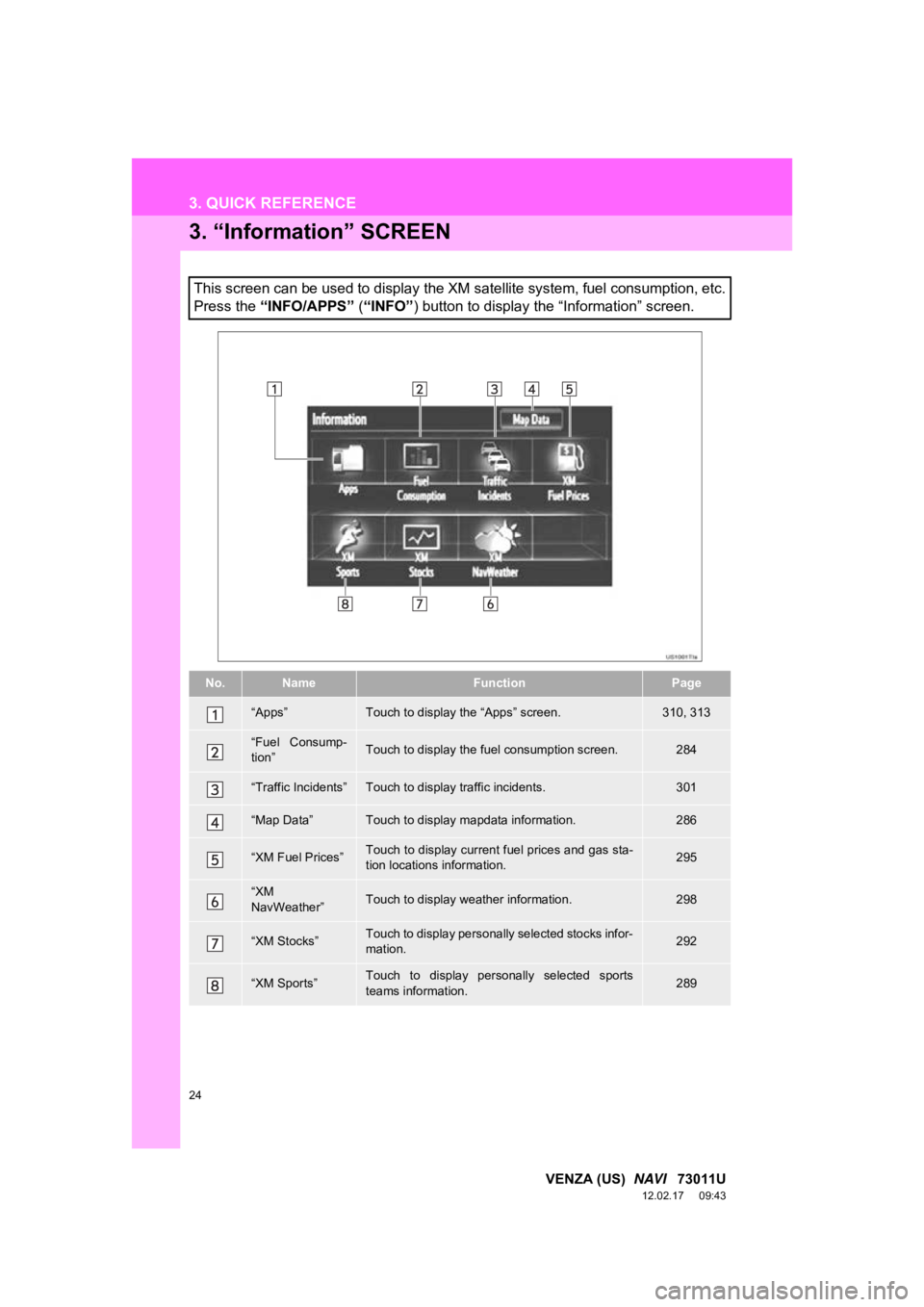
3. “Information” SCREEN
This screen can be used to display the XM satellite system, fuel consumption, etc.
Press the “INFO/APPS” (“INFO” ) button to display the “Information” screen.
No.NameFunctionPage
“Apps”Touch to display the “Apps” screen.310, 313
“Fuel Consump-
tion”Touch to display the fuel consumption screen.284
“Traffic Incidents”Touch to display traffic incidents.301
“Map Data”Touch to display mapdata information.286
“XM Fuel Prices”Touch to display current fuel prices and gas sta-
tion locations information.295
“XM
NavWeather”Touch to display weather information.298
“XM Stocks”Touch to display personally selected stocks infor-
mation.292
“XM Sports”Touch to display personally selected sports
teams information.289
Page 27 of 363
27
1. BASIC INFORMATION BEFORE OPERATION
2
BASIC FUNCTION
VENZA (US) NAVI 73011U
12.02.17 09:43
2. TOUCH SCREEN OPERATION
This system is operated mainly by the
buttons on the screen. (Referred to as
screen buttons in this manual.)
When a screen button is touched, a
beep sounds. (To set the beep sound,
see page 43.)
NOTICE
●To prevent damaging the screen, lightly
touch the screen buttons with your finger
pad.
● Do not operate or rub the screen with a
ballpoint pen, a mechanical pencil, fin-
ger nail, a pointy and/or hard object
because this will damage the screen.
● Do not use objects other than your finger
to touch the screen.
● When wiping the touch screen, it is
advisable to wipe with a soft and dry
cloth wrapped around the finger. Do not
use chemical cleaners to clean the
touch screen, as they may damage the
touch screen. Also, be careful not to
apply excessive force on the screen.
INFORMATION
● If the system does not respond to touch-
ing a screen button, move your finger
away from the screen and then touch it
again.
● Dimmed screen buttons cannot be oper-
ated.
● To operate the touch screen, press
touch screen buttons properly with finger
pad.
● When dew condensation occurs inside
the touch screen, it is sometimes difficult
to operate the display properly. In such
case, please leave the screen
untouched and do not operate the touch
screen until dew condensation disap-
pears.
● The displayed image may become
darker and moving images may be
slightly distorted when the screen is
cold.
● In extremely cold conditions, the map
may not be displayed and the data input
by a user may be deleted. Also, the
screen buttons may be harder than
usual to depress.
● When the screen is viewed through
polarized sunglasses, a rainbow pattern
may appear on the screen due to optical
characteristics of the screen. If this is
disturbing, please operate the screen
without polarized sunglasses.
Page 122 of 363
122
4. SETUP
VENZA (US) NAVI 73011U
12.02.17 09:43
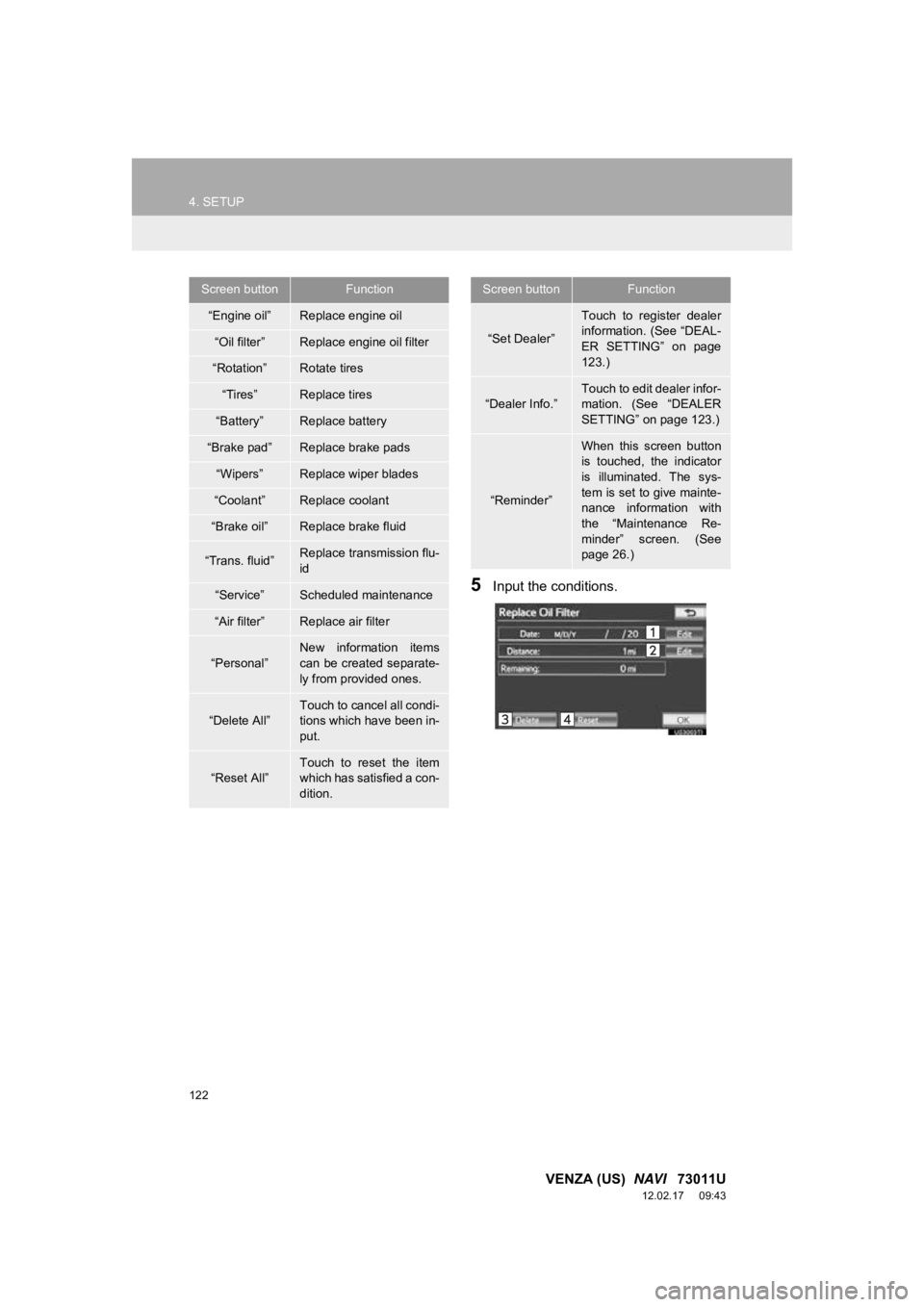
5Input the conditions.
Screen buttonFunction
“Engine oil”Replace engine oil
“Oil filter”Replace engine oil filter
“Rotation”Rotate tires
“Tires”Replace tires
“Battery”Replace battery
“Brake pad”Replace brake pads
“Wipers”Replace wiper blades
“Coolant”Replace coolant
“Brake oil”Replace brake fluid
“Trans. fluid”Replace transmission flu-
id
“Service”Scheduled maintenance
“Air filter”Replace air filter
“Personal”
New information items
can be created separate-
ly from provided ones.
“Delete All”
Touch to cancel all condi-
tions which have been in-
put.
“Reset All”Touch to reset the item
which has satisfied a con-
dition.
“Set Dealer”
Touch to register dealer
information. (See “DEAL-
ER SETTING” on page
123.)
“Dealer Info.”
Touch to edit dealer infor-
mation. (See “DEALER
SETTING” on page 123.)
“Reminder”
When this screen button
is touched, the indicator
is illuminated. The sys-
tem is set to give mainte-
nance information with
the “Maintenance Re-
minder” screen. (See
page 26.)
Screen buttonFunction
Page 126 of 363
126
VENZA (US) NAVI 73011U
12.02.17 09:43
5. GPS (GLOBAL POSITIONING SYSTEM)
1. LIMITATIONS OF THE NAVIGATION SYSTEM
The Global Positioning System (GPS) de-
veloped and operated by the U.S. Depart-
ment of Defense provides an accurate
current position, normally using 4 or more
satellites, and in so me case 3 satellites.
The GPS system has a certain level of in-
accuracy. While the navigation system will
compensate for this most of the time, oc-
casional positioning errors of up to 300 ft.
(100 m) can and should be expected. Gen-
erally, position errors will be corrected
within a few seconds. When the vehicle is receiving signals from
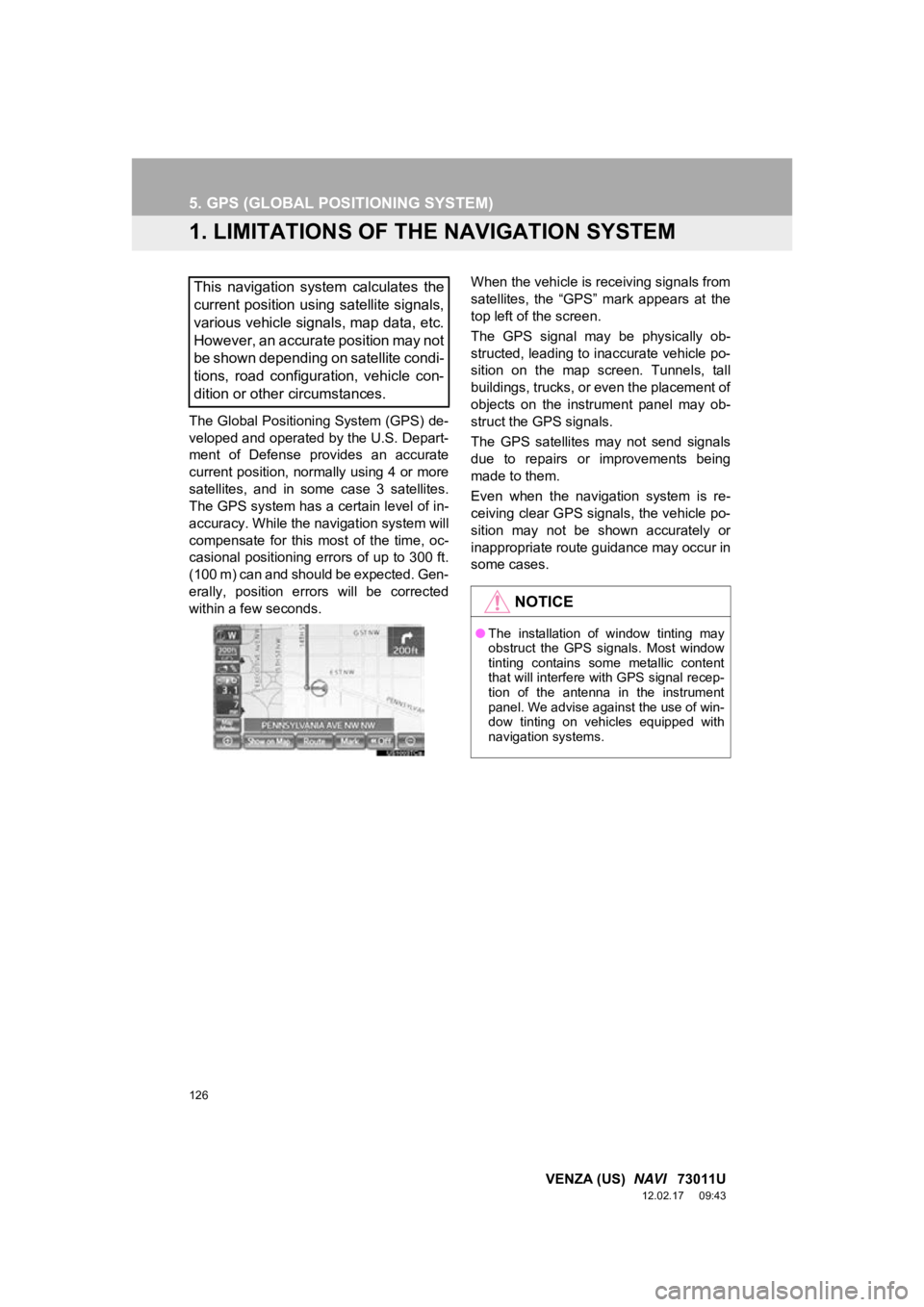
satellites, the “GPS” mark appears at the
top left of the screen.
The GPS signal may be physically ob-
structed, leading to inaccurate vehicle po-
sition on the map screen. Tunnels, tall
buildings, trucks, or even the placement of
objects on the instrument panel may ob-
struct the GPS signals.
The GPS satellites may not send signals
due to repairs or improvements being
made to them.
Even when the navigation system is re-
ceiving clear GPS signals, the vehicle po-
sition may not be shown accurately or
inappropriate route guidance may occur in
some cases.
This navigation system calculates the
current position using satellite signals,
various vehicle signals, map data, etc.
However, an accurate position may not
be shown depending on satellite condi-
tions, road configuration, vehicle con-
dition or other circumstances.
NOTICE
●
The installation of window tinting may
obstruct the GPS signals. Most window
tinting contains some metallic content
that will interfere with GPS signal recep-
tion of the antenna in the instrument
panel. We advise against the use of win-
dow tinting on vehicles equipped with
navigation systems.
Page 136 of 363

136
1. PHONE OPERATION
VENZA (US) NAVI 73011U
12.02.17 09:43
Canada
CAUTION
● NOTE
Operation is subject to the following two
conditions; (1) this device may not
cause interference, and (2) this device
must accept any interference, including
interference that may cause undesired
operation of the device.
L’utilisation de ce dispositif est autorisée
seulement aux deux conditions
suivantes : (1) il ne doit pas produire de
brouillage, et (2) l’utilisateur du dispositif
doit être prêt à accepter tout brouillage
radioélectrique reçu, même si ce
brouillage est susceptible de
compromettre le fonctionnement du
dispositif.
● This equipment complies with IC
radiation exposure limits set forth for
uncontrolled environment and meets
RSS-102 of the IC radio frequency (RF)
Exposure rules. This equipment has
very low levels of RF energy that it
deemed to comply without maximum
permissive exposure evaluation (MPE).
But it is desirable that it should be
installed and operated with at least 20
cm and more between the radiator and
person’s body (excluding extremities:
hands,wrists, feet and ankles).
Cet équipement se conforme aux limites
d’exposition aux radiations établies par
Industrie Canada pour un
environnement non contrôlé ainsi qu’aux
directives d’exposition aux fréquences
radioélectriques (RF) émises par
Industrie Canada dans la norme
CNR-102. Cet équipement émet un
niveau d’énergie RF faible à un point tel
qu’il se conforme sans devoir effectuer
d’évaluation d’exposition maximum
admissible (MPE). Lorsque l’équipement
est utilisé, il est toutefois souhaitable de
laisser au moins 20 cm entre l’antenne
et le corps (à l’exception des
extrémités : mains, poignets, pieds et
chevilles).
CAUTION
●Co-location: This transmitter must not be
co-located or operated in conjunction
with any other antenna or transmitter.
Co-implantation: cet émetteur ne doit
pas être co-implanté ou actionné en
même temps qu’aucune autre antenne
ou émetteur.
Page 191 of 363
5
191
1
2
3
4
5
6
7
8
9
VENZA (US) NAVI 73011U
12.02.17 09:52
5. RADIO OPERATION
(XM Satellite Radio
BROADCAST) ........... .................208
HOW TO SUBSCRIBE TO AN
XM Satellite Radio............................. 208
DISPLAYING THE RADIO ID .............. 209
LISTENING TO SATELLITE RADIO ............................................... 209
CHANNEL CATEGORY ...................... 210
PRESETTING A CHANNEL ................ 210
SELECTING A CHANNEL................... 210
DISPLAYING THE TITLE AND NAME ....................................... 211
IF THE SATELLITE RADIO TUNER MALFUNCTIONS .............................. 212
6. RADIO OPERATION (INTERNET RADIO
BROADCAST) ........... ................ 214
LISTENING TO INTERNET RADIO .... 214
7. DVD PLAYER OPERATION ........ 215
INSERTING A DISC ............................ 215
EJECTING A DISC .............................. 215
PLAYING A DISC ................................ 216
PLAYING AN AUDIO DISC ................. 217
PLAYING AN MP3/WMA DISC ........... 219
OPERATING A DVD DISC .................. 222
PLAYING A DVD DISC ....................... 223
DVD OPTIONS .................................... 225
IF THE PLAYER MALFUNCTIONS..... 234
DVD PLAYER AND DVD VIDEO
DISC INFORMATION ....................... 234
8. USB MEMORY OPERATION ...... 237
CONNECTING A USB MEMORY ........ 237
PLAYING A USB MEMORY ................ 238
9. iPod OPERATION ....................... 242
CONNECTING iPod ............................. 242
PLAYING iPod ..................................... 243
10. Bluetooth® AUDIO
OPERATION ............................. 246
CONNECTING A Bluetooth® AUDIO
PLAYER ............................................ 249
PLAYING Bluetooth
® AUDIO ............... 251
11. AUDIO/VIDEO REMOTE CONTROLS
(STEERING SWITCHES) ........... 256
12. AUDIO/VIDEO SYSTEM OPERATING HINTS.................. 257
RADIO RECEPTION ............................ 257
iPod ...................................................... 258
USB MEMORY .................................... 259
CARING FOR YOUR DVD PLAYER
AND DISC ......................................... 259
MP3/WMA FILES ................................. 261
CD-R AND CD-RW DISCS .................. 263
TERMS ................................................ 263
1. AUDIO SETTINGS ...................... 267
HD Radio™ SYSTEM SETTINGS ....... 267
iPod SETTINGS ................................... 268
2SETUP
AUDIO/VIDEO SYSTEM
Page 193 of 363
193
1. AUDIO/VIDEO SYSTEM OPERATION
5
AUDIO/VIDEO SYSTEM
VENZA (US) NAVI 73011U
12.02.24 10:20
No.NameFunctionPage
Function menu tabTouch the screen tabs to select the desired radio
or media mode.196
Function menu dis-
play screenTouch the screen buttons to control the selected
radio or media mode.196
“TUNE/SCROLL”
knob
Turn to step up and step down the station band,
change to the next or previous satellite radio
channel, or skip to the next or previous track,
DVD chapter, etc. Also, the knob can be used to
enter selections on the track/file and album/folder
screens by pressing it.200, 209,
217, 219,
223, 238, 243, 251
“SEEK/TRACK”
buttonPress the “” or “” button to seek up or down
for a station or channel, or to access a desired
track, file or chapter.201, 210,
217, 219,
223, 238, 243, 251
“SETUP” buttonPress to display the “Setup” screen.267
“ ” buttonPress to insert or eject a disc.199, 215
“MEDIA” buttonPress to display the media control screen.195
“RADIO” buttonPress to display the radio control screen.195
“POWER/
VOLUME” knobPress to turn the audio/video system on and off,
and turn to adjust the volume.195
Page 196 of 363
196
1. AUDIO/VIDEO SYSTEM OPERATION
VENZA (US) NAVI 73011U
12.02.24 10:20
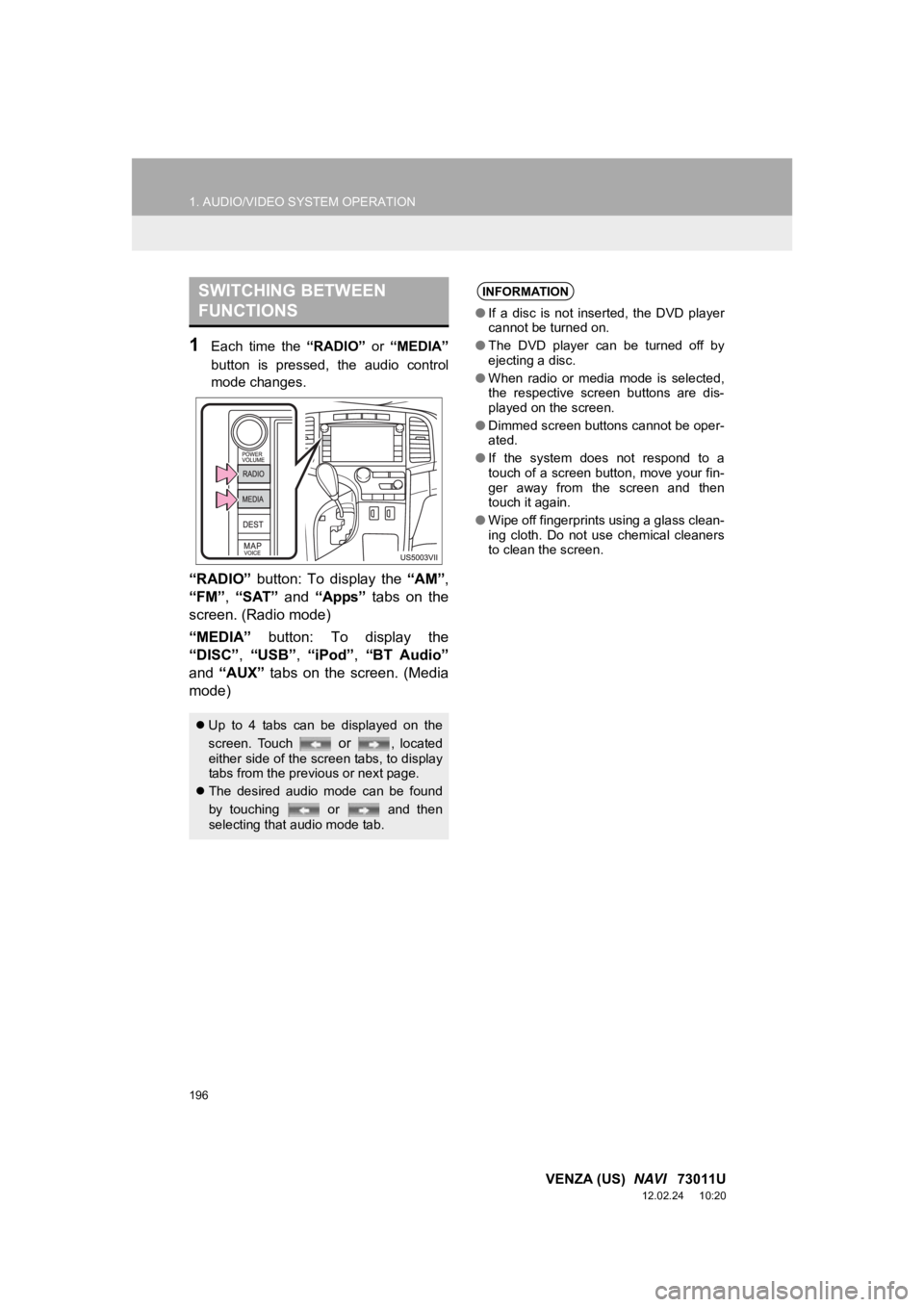
1Each time the “RADIO” or “MEDIA”
button is pressed, the audio control
mode changes.
“RADIO” button: To display the “AM”,
“FM” , “SAT” and “Apps” tabs on the
screen. (Radio mode)
“MEDIA” button: To display the
“DISC”, “USB”, “iPod”, “BT Audio”
and “AUX” tabs on the screen. (Media
mode)
SWITCHING BETWEEN
FUNCTIONS
Up to 4 tabs can be displayed on the
screen. Touch
or , located
either side of the screen tabs, to display
tabs from the previous or next page.
The desired audio mode can be found
by touching or and then
selecting that audio mode tab.
INFORMATION
●If a disc is not inserted, the DVD player
cannot be turned on.
● The DVD player can be turned off by
ejecting a disc.
● When radio or media mode is selected,
the respective screen buttons are dis-
played on the screen.
● Dimmed screen buttons cannot be oper-
ated.
● If the system does not respond to a
touch of a screen button, move your fin-
ger away from the screen and then
touch it again.
● Wipe off fingerprints using a glass clean-
ing cloth. Do not use chemical cleaners
to clean the screen.