fuel consumption TOYOTA VENZA 2014 Accessories, Audio & Navigation (in English)
[x] Cancel search | Manufacturer: TOYOTA, Model Year: 2014, Model line: VENZA, Model: TOYOTA VENZA 2014Pages: 363, PDF Size: 21.59 MB
Page 7 of 363
7
1
2
3
4
5
6
7
8
9
VENZA_Navi_OM73020U_(U)
13.05.13 14:12
1. PHONE OPERATION .................... 130
QUICK REFERENCE .......................... 130
PHONE (HANDS-FREE SYSTEM
FOR CELLULAR PHONE) ................ 132
REGISTER A Bluetooth
® PHONE ....... 137
CALL ON THE Bluetooth® PHONE ..... 142
RECEIVE ON THE Bluetooth®
PHONE ............................................. 149
TALK ON THE Bluetooth
® PHONE ..... 150
Bluetooth® PHONE MESSAGE
FUNCTION........................................ 153
2. SETUP ........................................... 156
PHONE SETTINGS ............................. 156
Bluetooth® SETTINGS ........................ 178
1. AUDIO/VIDEO SYSTEM
OPERATION ................................ 192
QUICK REFERENCE .......................... 192
SOME BASICS .................................... 194
RADIO OPERATION ........................... 200
HD Radio™ TECHNOLOGY
INFORMATION ................................. 203
RADIO OPERATION (XM Satellite
Radio BROADCAST) ........................ 208
RADIO OPERATION (INTERNET RADIO
BROADCAST)................................... 214
DVD PLAYER OPERATION ................ 215
USB MEMORY OPERATION .............. 237
iPod OPERATION ............................... 242
Bluetooth
® AUDIO OPERATION ......... 246
AUDIO/VIDEO REMOTE
CONTROLS
(STEERING SWITCHES) ................. 256
AUDIO/VIDEO SYSTEM
OPERATING HINTS ......................... 257
2. SETUP ........................................... 267
AUDIO SETTINGS .............................. 267
1. VOICE COMMAND SYSTEM
OPERATION................................ 270
VOICE COMMAND SYSTEM .............. 270
NATURAL SPEECH INFORMATION
(ENGLISH ONLY) ............................. 276
EXPANDED VOICE COMMANDS....... 278
COMMAND LIST ................................. 279
1. INFORMATION DISPLAY ............. 284
FUEL CONSUMPTION ........................ 284
MAP DATABASE VERSION AND
COVERAGE AREA ........................... 286
2. XM FUNCTION-OVERVIEW ......... 288
XM SERVICES .................................... 288
3. XM FUNCTION OPERATION ....... 289
XM Sports ............................................ 289
XM Stocks ............................................ 292
XM Fuel Prices..................................... 295
XM NavWeather™ ............................... 298
XM NavTraffic
®.................................... 301
4. SETUP........................................... 304
XM SETTINGS..................................... 304
4PHONE
5AUDIO/VIDEO SYSTEM
6VOICE COMMAND SYSTEM
7INFORMATION
Page 24 of 363
24
3. QUICK REFERENCE
VENZA_Navi_OM73020U_(U)
13.05.13 14:12
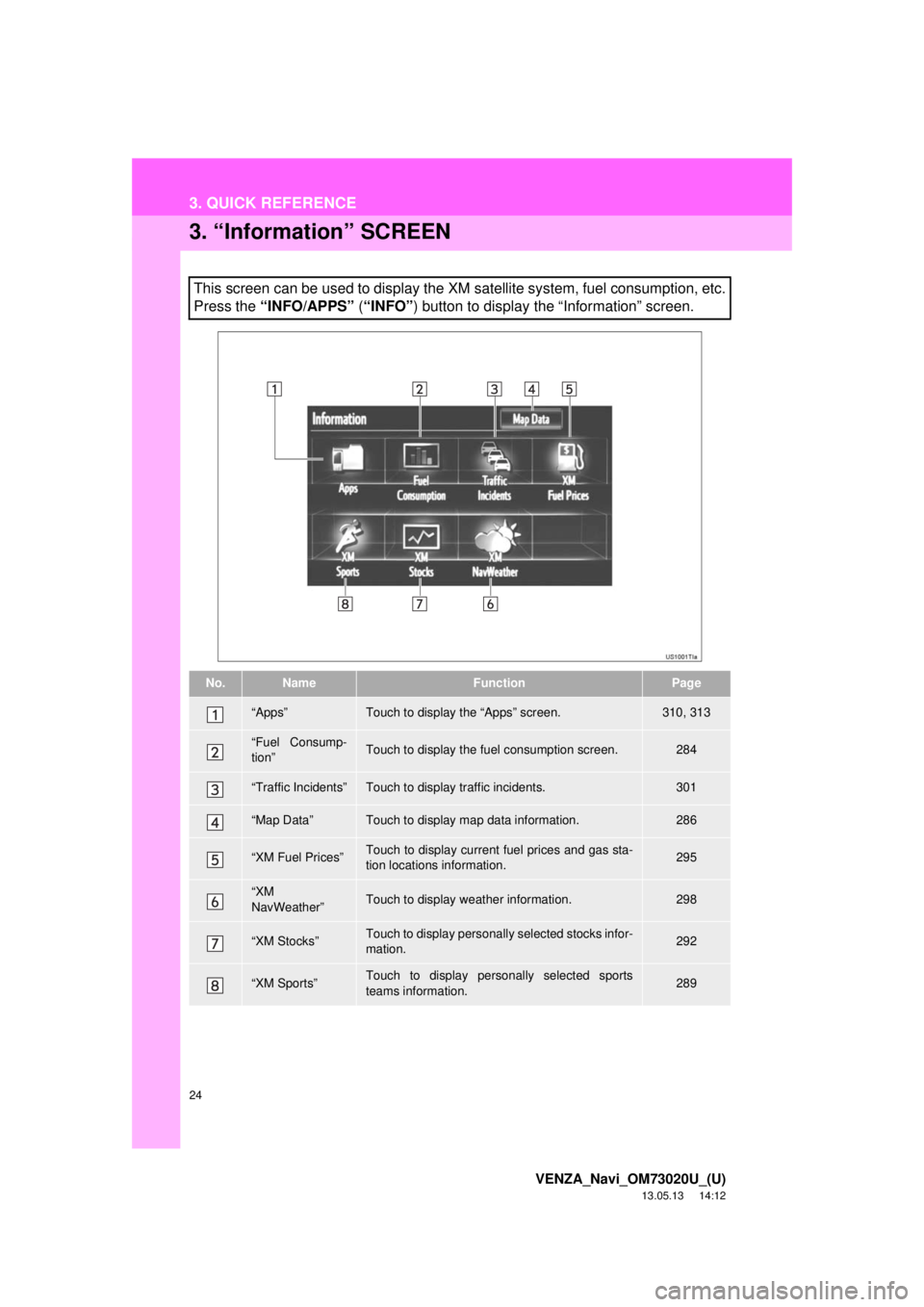
3. “Information” SCREEN
This screen can be used to display the XM satellite system, fuel consumption, etc.
Press the “INFO/APPS” (“INFO”) button to display the “Information” screen.
No.NameFunctionPage
“Apps”Touch to display the “Apps” screen.310, 313
“Fuel Consump-
tion”Touch to display the fuel consumption screen.284
“Traffic Incidents”Touch to display traffic incidents.301
“Map Data”Touch to display map data information.286
“XM Fuel Prices”Touch to display current fuel prices and gas sta-
tion locations information.295
“XM
NavWeather”Touch to display weather information.298
“XM Stocks”Touch to display personally selected stocks infor-
mation.292
“XM Sports”Touch to display personally selected sports
teams information.289
Page 38 of 363
38
1. BASIC INFORMATION BEFORE OPERATION
VENZA_Navi_OM73020U_(U)
13.05.13 14:12
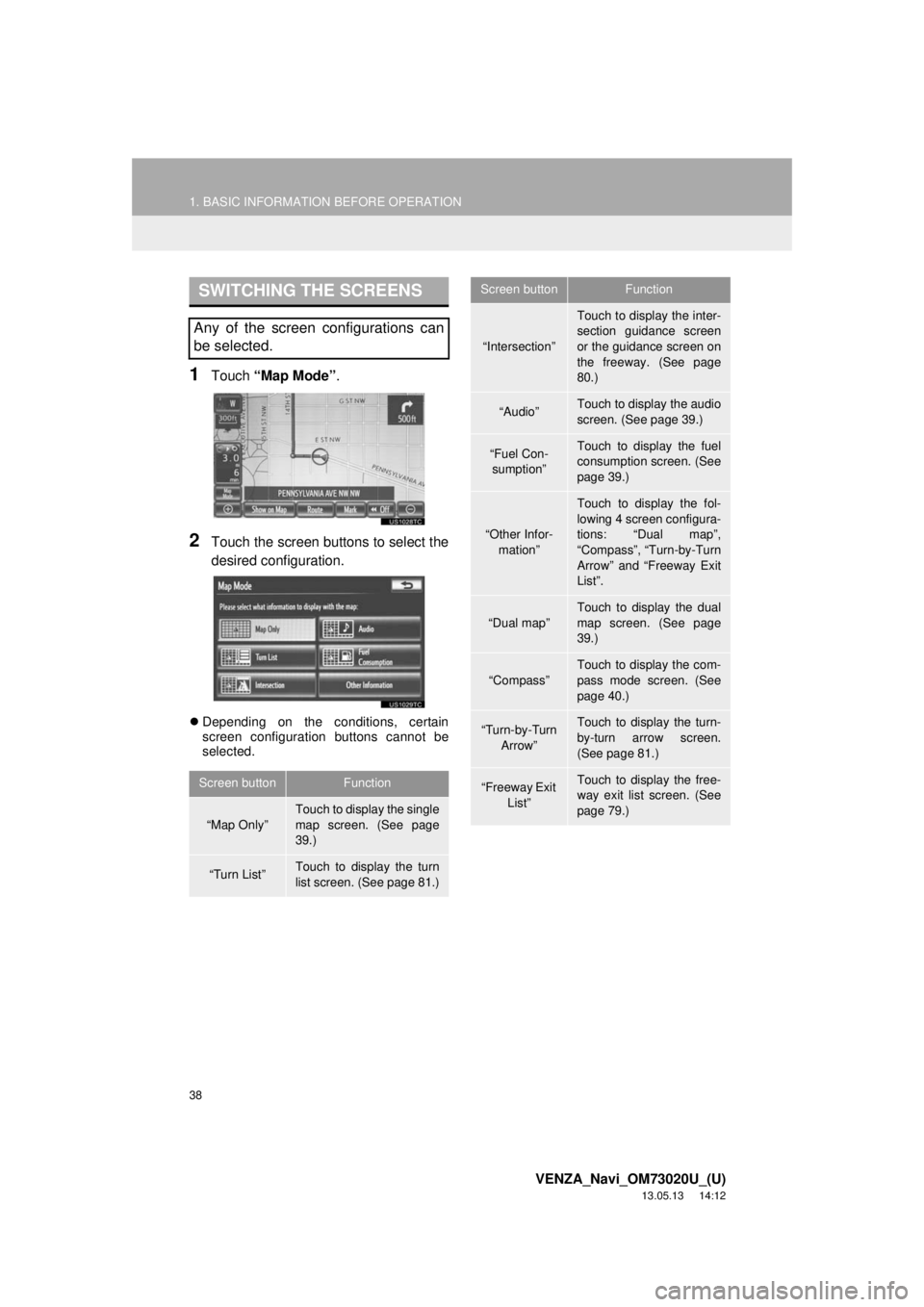
1Touch “Map Mode”.
2Touch the screen buttons to select the
desired configuration.
Depending on the conditions, certain
screen configuration buttons cannot be
selected.
SWITCHING THE SCREENS
Any of the screen configurations can
be selected.
Screen buttonFunction
“Map Only”
Touch to display the single
map screen. (See page
39.)
“Turn List”Touch to display the turn
list screen. (See page 81.)
“Intersection”
Touch to display the inter-
section guidance screen
or the guidance screen on
the freeway. (See page
80.)
“Audio”Touch to display the audio
screen. (See page 39.)
“Fuel Con-
sumption”Touch to display the fuel
consumption screen. (See
page 39.)
“Other Infor-
mation”
Touch to display the fol-
lowing 4 screen configura-
tions: “Dual map”,
“Compass”, “Turn-by-Turn
Arrow” and “Freeway Exit
List”.
“Dual map”
Touch to display the dual
map screen. (See page
39.)
“Compass”Touch to display the com-
pass mode screen. (See
page 40.)
“Turn-by-Turn
Arrow”Touch to display the turn-
by-turn arrow screen.
(See page 81.)
“Freeway Exit
List”Touch to display the free-
way exit list screen. (See
page 79.)
Screen buttonFunction
Page 39 of 363
39
1. BASIC INFORMATION BEFORE OPERATION
2
BASIC FUNCTION
VENZA_Navi_OM73020U_(U)
13.05.13 14:12
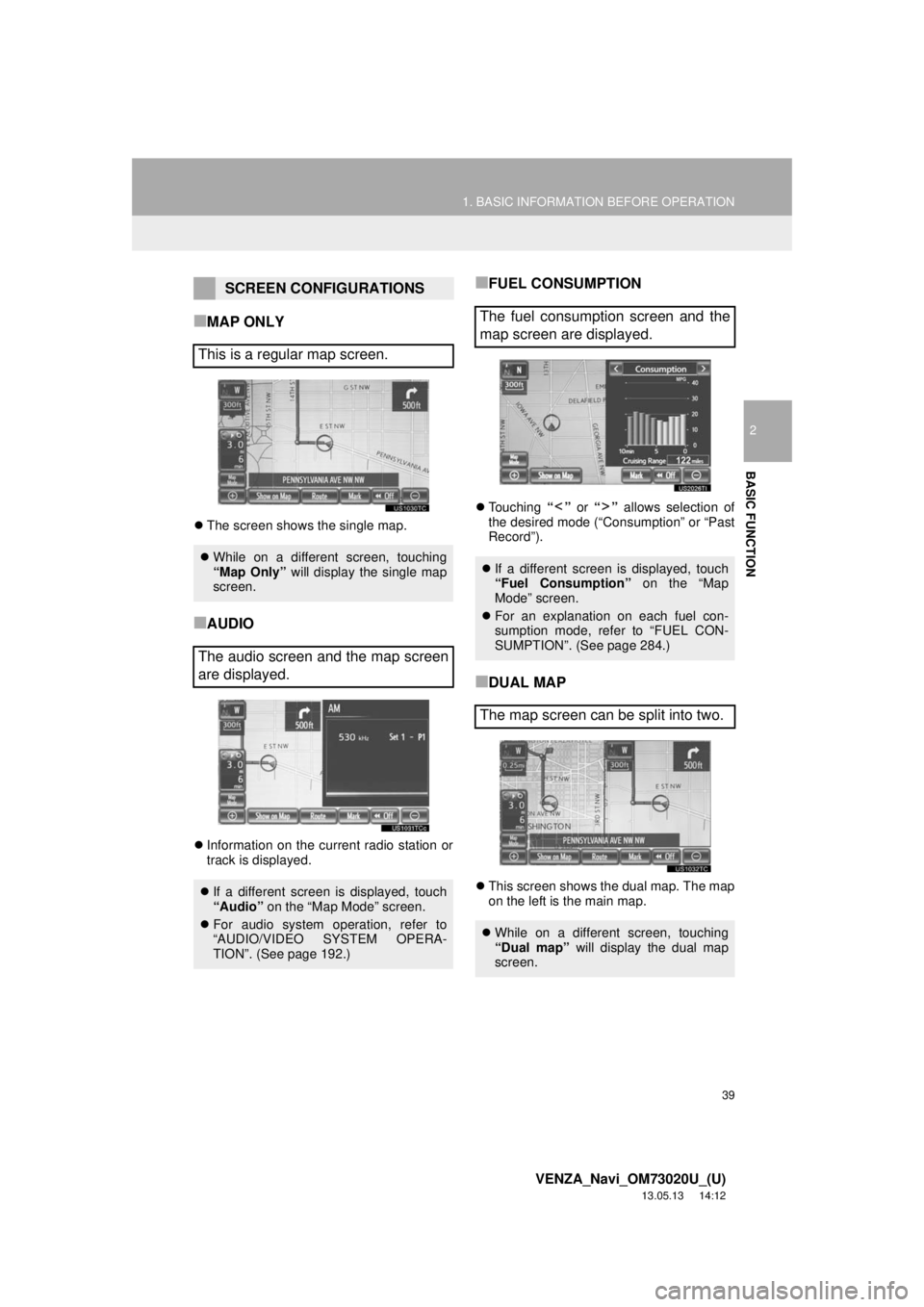
■MAP ONLY
The screen shows the single map.
■AUDIO
Information on the current radio station or
track is displayed.
■FUEL CONSUMPTION
Touching “” or “” allows selection of
the desired mode (“Consumption” or “Past
Record”).
■DUAL MAP
This screen shows the dual map. The map
on the left is the main map.
SCREEN CONFIGURATIONS
This is a regular map screen.
While on a different screen, touching
“Map Only” will display the single map
screen.
The audio screen and the map screen
are displayed.
If a different screen is displayed, touch
“Audio” on the “Map Mode” screen.
For audio system operation, refer to
“AUDIO/VIDEO SYSTEM OPERA-
TION”. (See page 192.)
The fuel consumption screen and the
map screen are displayed.
If a different screen is displayed, touch
“Fuel Consumption” on the “Map
Mode” screen.
For an explanation on each fuel con-
sumption mode, refer to “FUEL CON-
SUMPTION”. (See page 284.)
The map screen can be split into two.
While on a different screen, touching
“Dual map” will display the dual map
screen.
Page 283 of 363
7
283
1
2
3
4
5
6
7
8
9
VENZA_Navi_OM73020U_(U)
13.05.09 20:08
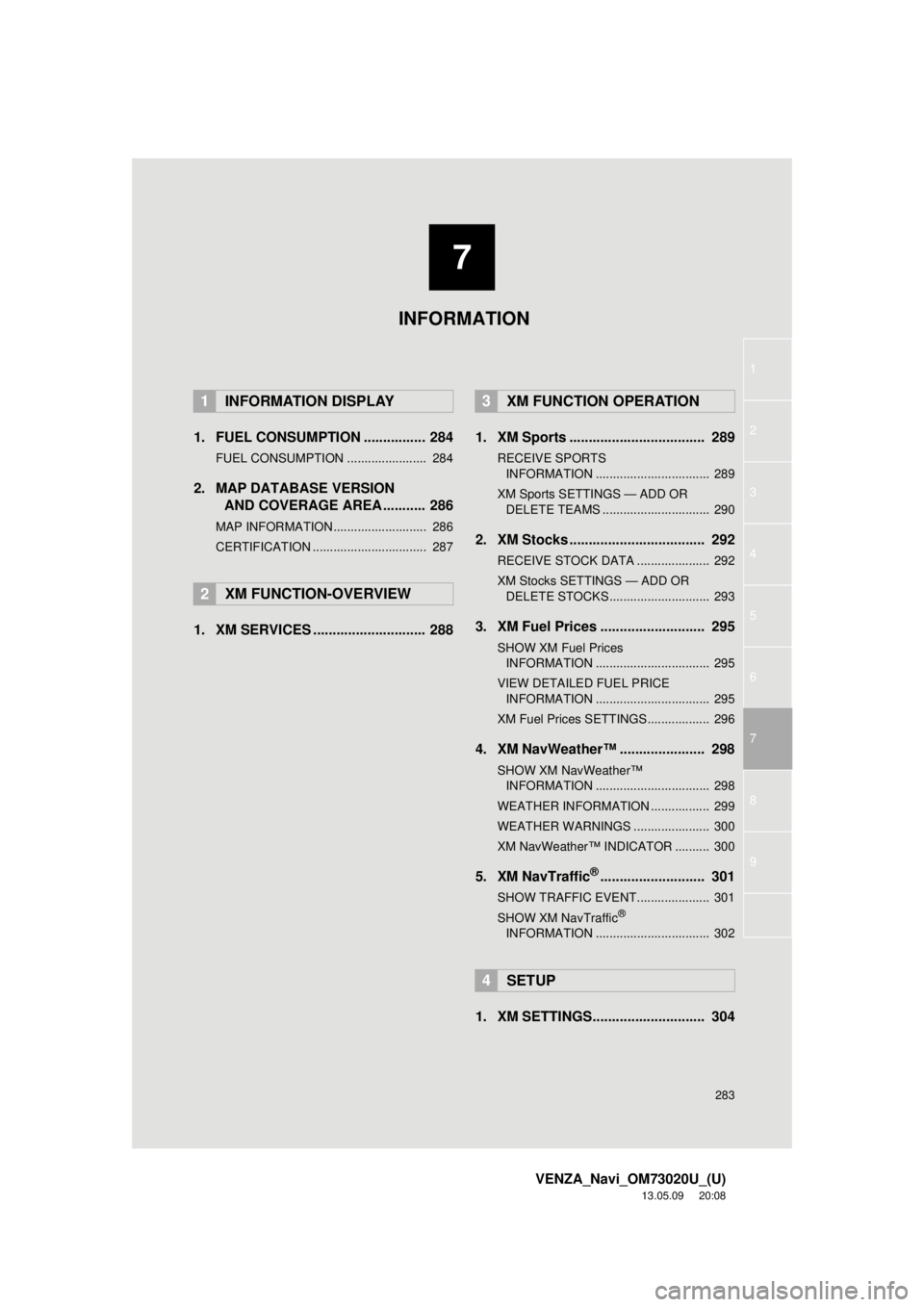
1. FUEL CONSUMPTION ................ 284
FUEL CONSUMPTION ....................... 284
2. MAP DATABASE VERSION
AND COVERAGE AREA ........... 286
MAP INFORMATION........................... 286
CERTIFICATION ................................. 287
1. XM SERVICES ............................. 2881. XM Sports ................................... 289
RECEIVE SPORTS
INFORMATION ................................. 289
XM Sports SETTINGS —ADD OR
DELETE TEAMS ............................... 290
2. XM Stocks ................................... 292
RECEIVE STOCK DATA ..................... 292
XM Stocks SETTINGS —ADD OR
DELETE STOCKS ............................. 293
3. XM Fuel Prices ........................... 295
SHOW XM Fuel Prices
INFORMATION ................................. 295
VIEW DETAILED FUEL PRICE
INFORMATION ................................. 295
XM Fuel Prices SETTINGS.................. 296
4. XM NavWeather™ ...................... 298
SHOW XM NavWeather™
INFORMATION ................................. 298
WEATHER INFORMATION ................. 299
WEATHER WARNINGS ...................... 300
XM NavWeather™ INDICATOR .......... 300
5. XM NavTraffic®........................... 301
SHOW TRAFFIC EVENT..................... 301
SHOW XM NavTraffic®
INFORMATION ................................. 302
1. XM SETTINGS............................. 304
1INFORMATION DISPLAY
2XM FUNCTION-OVERVIEW
3XM FUNCTION OPERATION
4SETUP
INFORMATION
Page 284 of 363
284
VENZA_Navi_OM73020U_(U)
13.05.09 20:08
1. INFORMATION DISPLAY
1. FUEL CONSUMPTION
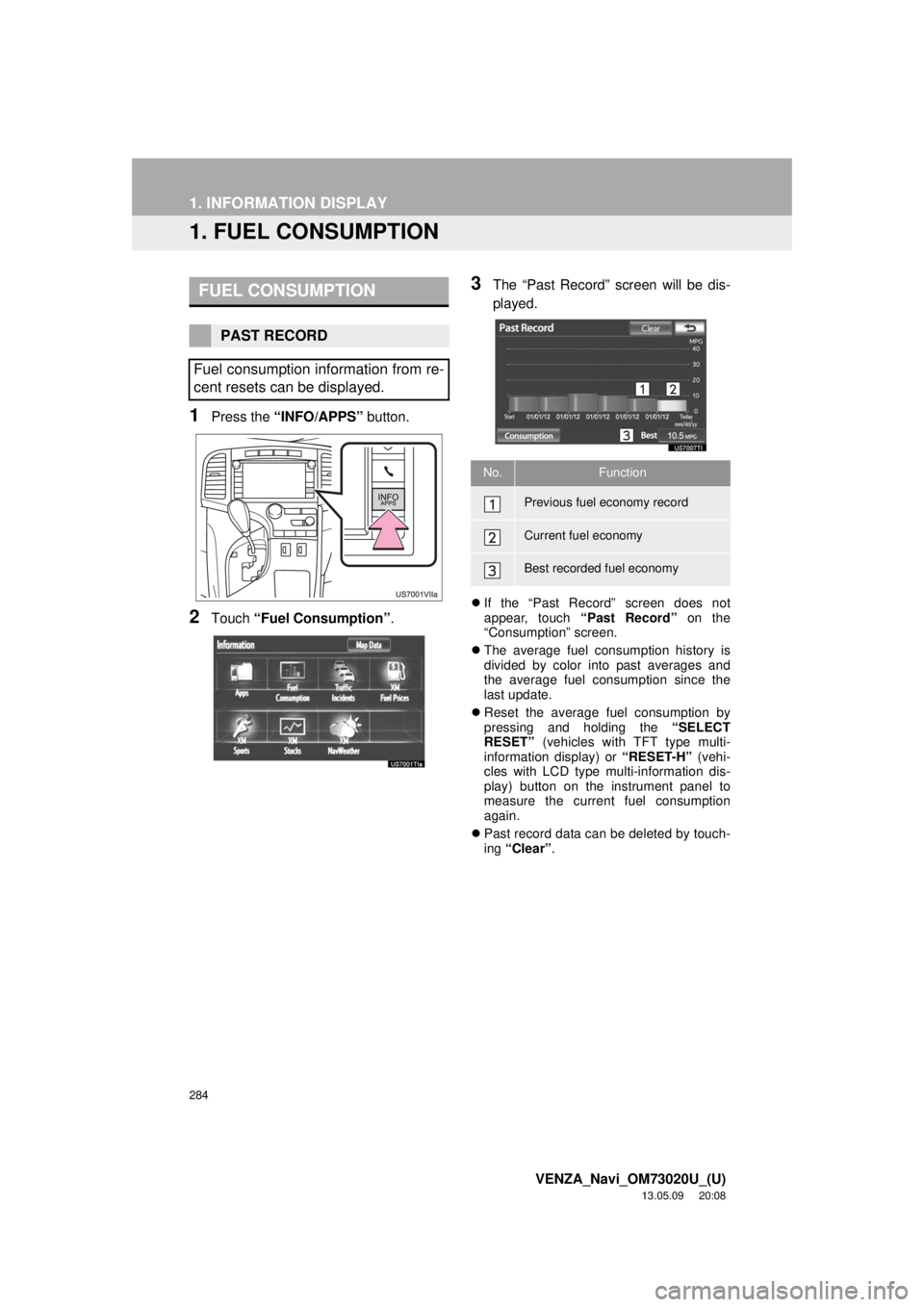
1Press the “INFO/APPS” button.
2Touch “Fuel Consumption”.
3The “Past Record” screen will be dis-
played.
If the “Past Record” screen does not
appear, touch “Past Record” on the
“Consumption” screen.
The average fuel consumption history is
divided by color into past averages and
the average fuel consumption since the
last update.
Reset the average fuel consumption by
pressing and holding the “SELECT
RESET” (vehicles with TFT type multi-
information display) or “RESET-H” (vehi-
cles with LCD type multi-information dis-
play) button on the instrument panel to
measure the current fuel consumption
again.
Past record data can be deleted by touch-
ing “Clear”.
FUEL CONSUMPTION
PAST RECORD
Fuel consumption information from re-
cent resets can be displayed.
No.Function
Previous fuel economy record
Current fuel economy
Best recorded fuel economy
Page 285 of 363
285
1. INFORMATION DISPLAY
7
INFORMATION
VENZA_Navi_OM73020U_(U)
13.05.09 20:08
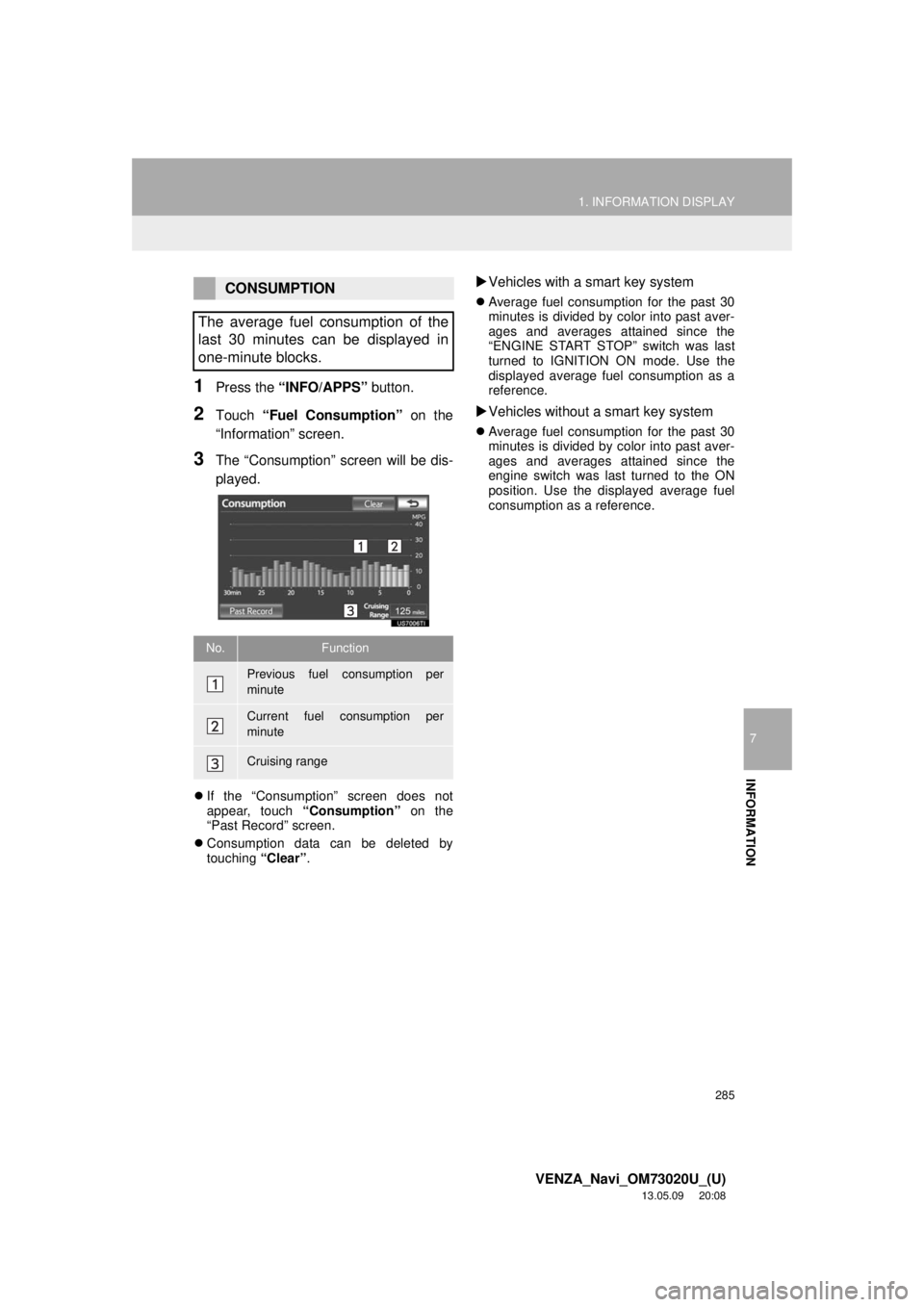
1Press the “INFO/APPS” button.
2Touch “Fuel Consumption” on the
“Information” screen.
3The “Consumption” screen will be dis-
played.
If the “Consumption” screen does not
appear, touch “Consumption” on the
“Past Record” screen.
Consumption data can be deleted by
touching “Clear”.
Vehicles with a smart key system
Average fuel consumption for the past 30
minutes is divided by color into past aver-
ages and averages attained since the
“ENGINE START STOP” switch was last
turned to IGNITION ON mode. Use the
displayed average fuel consumption as a
reference.
Vehicles without a smart key system
Average fuel consumption for the past 30
minutes is divided by color into past aver-
ages and averages attained since the
engine switch was last turned to the ON
position. Use the displayed average fuel
consumption as a reference.
CONSUMPTION
The average fuel consumption of the
last 30 minutes can be displayed in
one-minute blocks.
No.Function
Previous fuel consumption per
minute
Current fuel consumption per
minute
Cruising range
Page 331 of 363
331
VENZA_Navi_OM73020U_(U)
13.05.09 20:09
D
Deleting destinations ................................ 87
Deleting personal data .............................. 52
Deleting previous destinations ................ 111
Deleting set destinations........................... 74
DEST button ............................................. 10
“Destination” screen.................................. 20
Destination search .................................... 58
By “Address” ......................................... 60
By “Address Book” ................................ 69
By “Coordinates” ................................... 73
By “Emergency” .................................... 70
By home ................................................ 59
By “Intersection & Freeway” .................. 70
By “Map”................................................ 73
By “Point of Interest” ............................. 63
By preset destinations ........................... 59
By “Previous Destinations” .................... 69
Selecting the search area ..................... 58
Detailed navigation settings .................... 113
Detour setting ........................................... 88
Dial.................................................. 142, 146
Distance and time to destination............... 85
DSP control............................................. 197
DVD ........................................................ 215
DVD player ............................................. 215
DVD options ........................................ 225
DVD player and DVD video disc
information ....................................... 234
Ejecting a disc ..................................... 215
If the player malfunctions .................... 234
Inserting a disc .................................... 215
Operating a DVD disc ......................... 222
Playing a disc ...................................... 216
Playing a DVD disc ............................. 223
Playing an audio disc .......................... 217
Playing an MP3/WMA disc .................. 219
E
Emergency ................................................ 70
Entune..................................................... 306
Expanded voice commands .................... 278
F
FM ........................................................... 200
Fuel consumption.................................... 284
Function index........................................... 18
G
General settings ........................................ 43
GPS (Global Positioning System) ..... 10, 126
H
HD Radio™ ............................................. 203
Heading-up screen.................................... 41
Home ...................................... 12, 17, 59, 98
I
INFO/APPS (INFO) button ........................ 10
Information .............................................. 284
“Information” screen .................................. 24
Inputting letters and numbers ................... 28
Internet radio broadcast .......................... 214
iPod ......................................................... 242
Connecting iPod .................................. 242
Playing iPod ........................................ 243
K
Keyboard layout ........................................ 47