power steering TOYOTA VENZA 2014 Accessories, Audio & Navigation (in English)
[x] Cancel search | Manufacturer: TOYOTA, Model Year: 2014, Model line: VENZA, Model: TOYOTA VENZA 2014Pages: 363, PDF Size: 21.59 MB
Page 140 of 363
140
1. PHONE OPERATION
VENZA_Navi_OM73020U_(U)
13.05.13 14:12
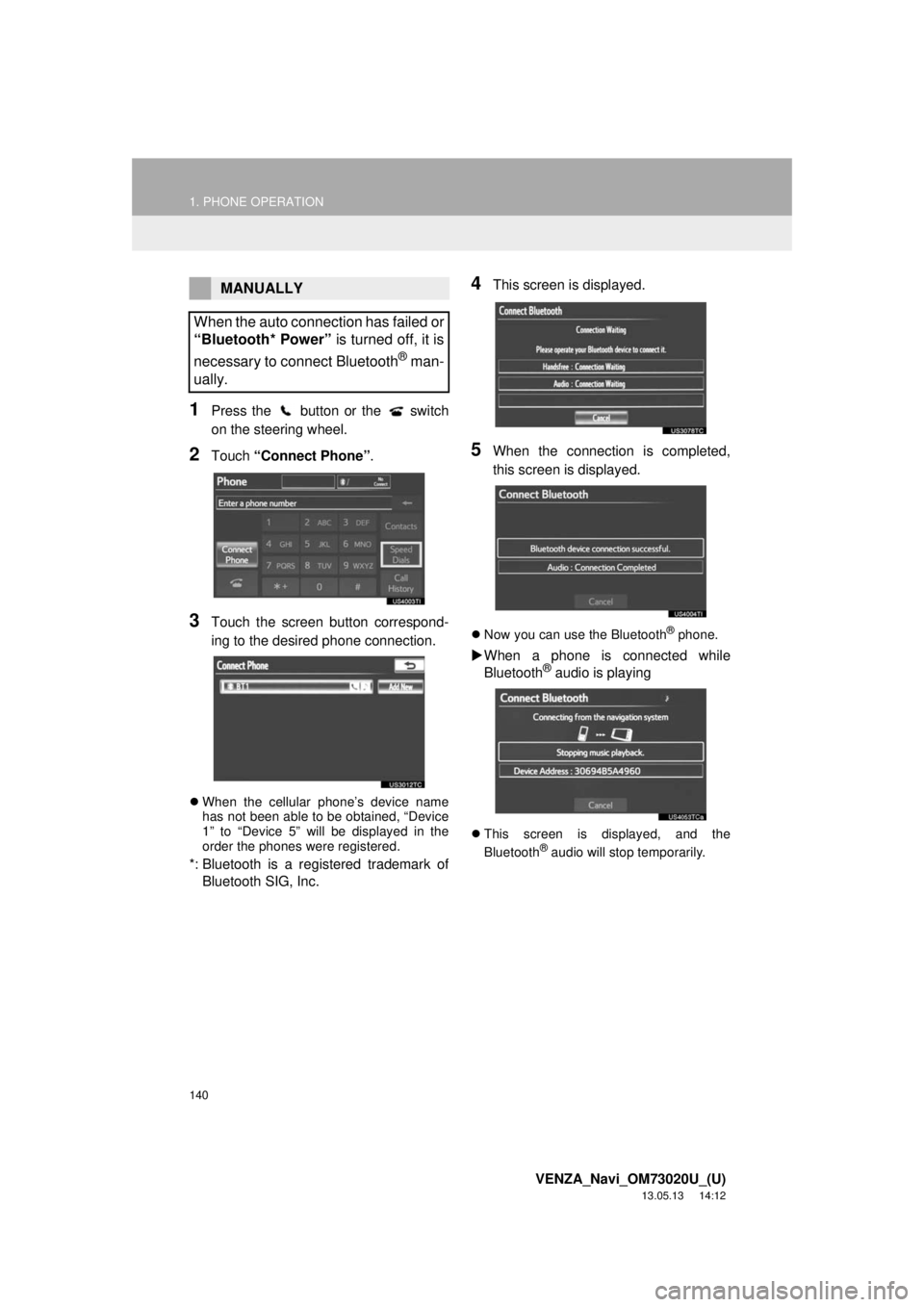
1Press the button or the switch
on the steering wheel.
2Touch “Connect Phone”.
3Touch the screen button correspond-
ing to the desired phone connection.
When the cellular phone’s device name
has not been able to be obtained, “Device
1” to “Device 5” will be displayed in the
order the phones were registered.
*: Bluetooth is a registered trademark of
Bluetooth SIG, Inc.
4This screen is displayed.
5When the connection is completed,
this screen is displayed.
Now you can use the Bluetooth® phone.
When a phone is connected while
Bluetooth® audio is playing
This screen is displayed, and the
Bluetooth® audio will stop temporarily.
MANUALLY
When the auto connection has failed or
“Bluetooth* Power” is turned off, it is
necessary to connect Bluetooth
® man-
ually.
Page 150 of 363
150
1. PHONE OPERATION
VENZA_Navi_OM73020U_(U)
13.05.13 14:12
6. TALK ON THE Bluetooth® PHONE
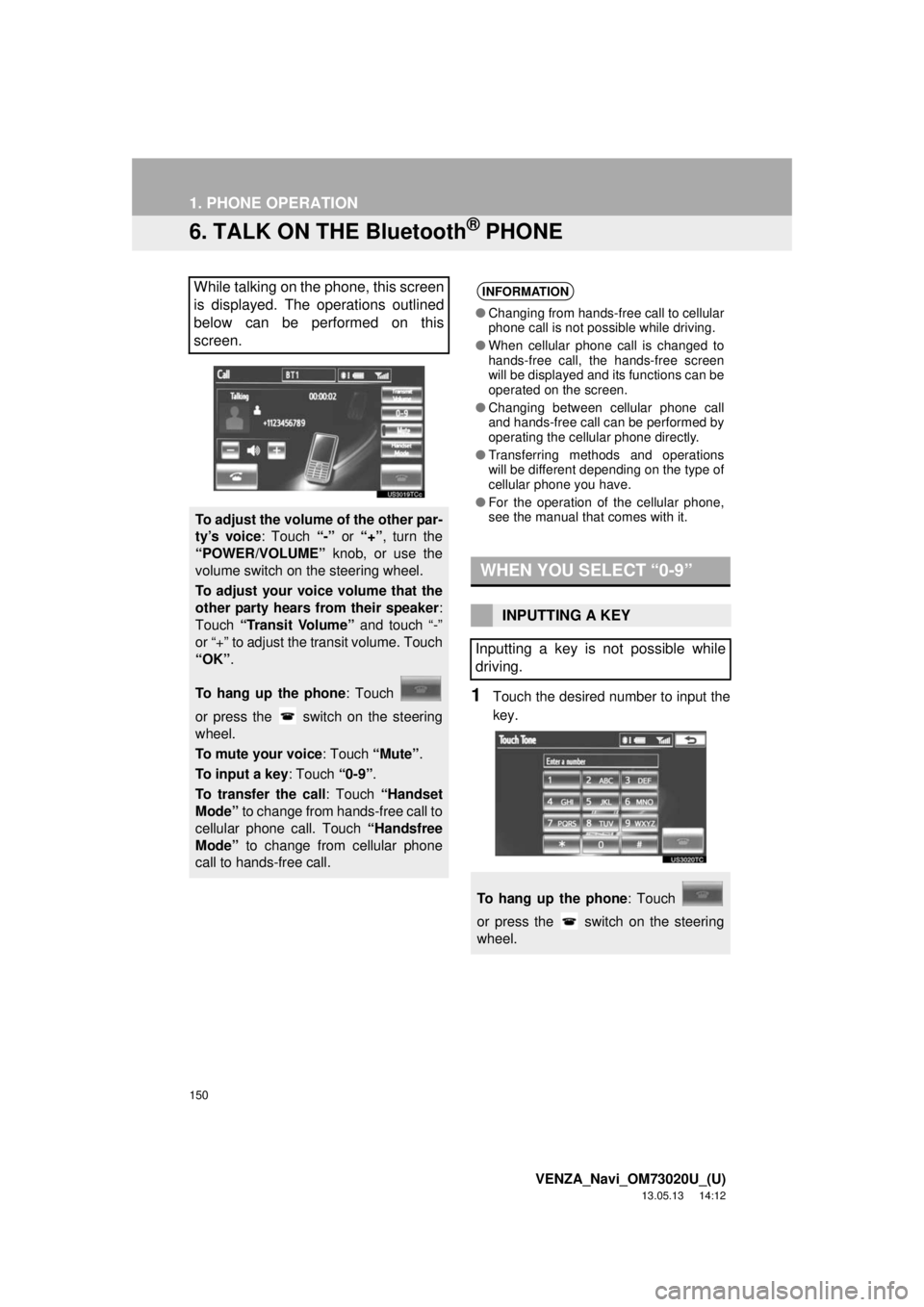
1Touch the desired number to input the
key.
While talking on the phone, this screen
is displayed. The operations outlined
below can be performed on this
screen.
To adjust the volume of the other par-
ty’s voice: Touch “-” or “+”, turn the
“POWER/VOLUME” knob, or use the
volume switch on the steering wheel.
To adjust your voice volume that the
other party hears from their speaker:
Touch “Transit Volume” and touch “-”
or “+” to adjust the transit volume. Touch
“OK”.
To hang up the phone: Touch
or press the switch on the steering
wheel.
To mute your voice: Touch “Mute”.
To input a key: Touch “0-9”.
To transfer the call: Touch “Handset
Mode” to change from hands-free call to
cellular phone call. Touch “Handsfree
Mode” to change from cellular phone
call to hands-free call.
INFORMATION
●Changing from hands-free call to cellular
phone call is not possible while driving.
●When cellular phone call is changed to
hands-free call, the hands-free screen
will be displayed and its functions can be
operated on the screen.
●Changing between cellular phone call
and hands-free call can be performed by
operating the cellular phone directly.
●Transferring methods and operations
will be different depending on the type of
cellular phone you have.
●For the operation of the cellular phone,
see the manual that comes with it.
WHEN YOU SELECT “0-9”
INPUTTING A KEY
Inputting a key is not possible while
driving.
To hang up the phone: Touch
or press the switch on the steering
wheel.
Page 153 of 363
153
1. PHONE OPERATION
4
PHONE
VENZA_Navi_OM73020U_(U)
13.05.13 14:12
7. Bluetooth® PHONE MESSAGE FUNCTION
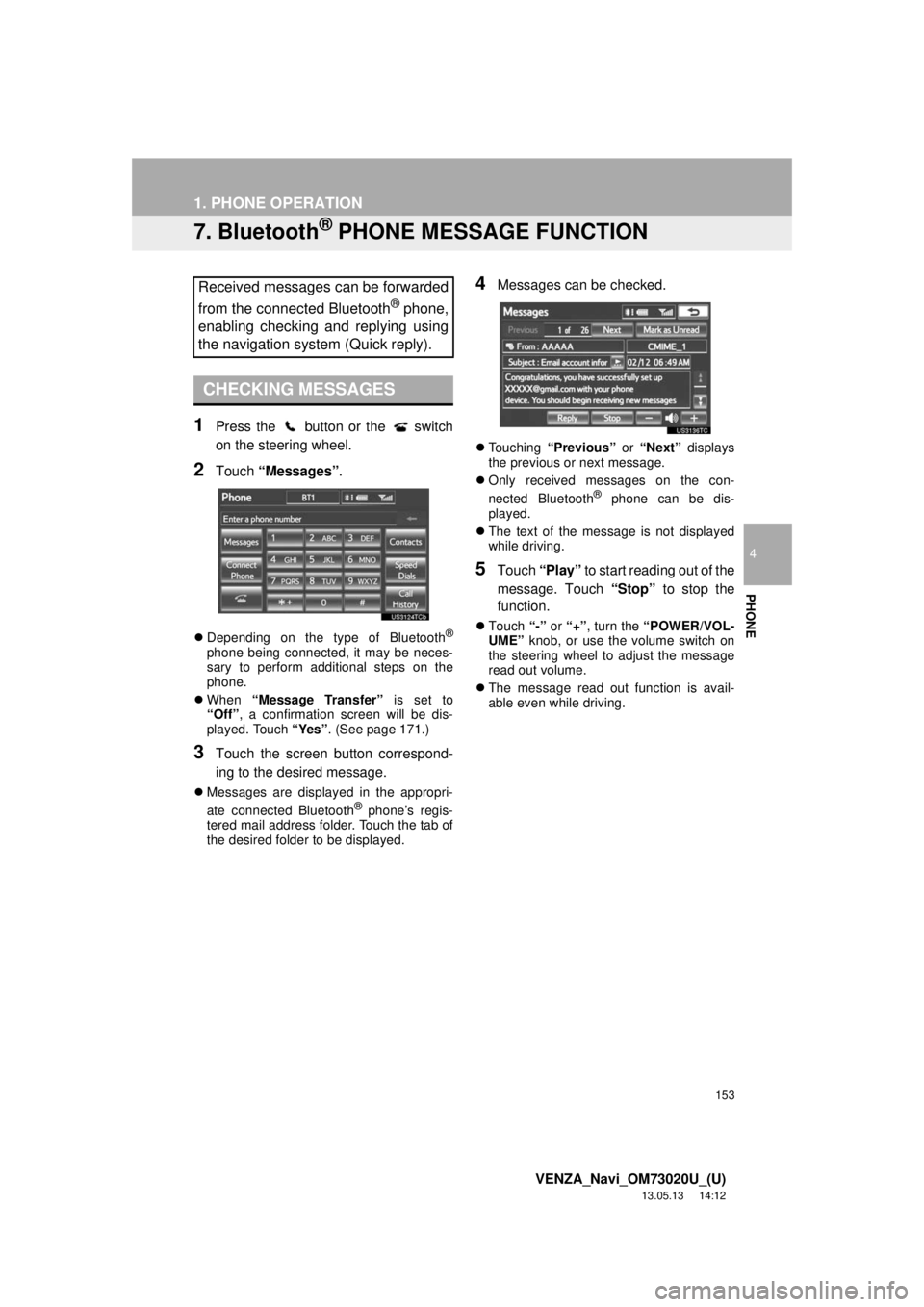
1Press the button or the switch
on the steering wheel.
2Touch “Messages”.
Depending on the type of Bluetooth®
phone being connected, it may be neces-
sary to perform additional steps on the
phone.
When “Message Transfer” is set to
“Off”, a confirmation screen will be dis-
played. Touch “Yes”. (See page 171.)
3Touch the screen button correspond-
ing to the desired message.
Messages are displayed in the appropri-
ate connected Bluetooth® phone’s regis-
tered mail address folder. Touch the tab of
the desired folder to be displayed.
4Messages can be checked.
Touching “Previous” or “Next” displays
the previous or next message.
Only received messages on the con-
nected Bluetooth
® phone can be dis-
played.
The text of the message is not displayed
while driving.
5Touch “Play” to start reading out of the
message. Touch “Stop” to stop the
function.
Touch “-” or “+”, turn the “POWER/VOL-
UME” knob, or use the volume switch on
the steering wheel to adjust the message
read out volume.
The message read out function is avail-
able even while driving.
Received messages can be forwarded
from the connected Bluetooth
® phone,
enabling checking and replying using
the navigation system (Quick reply).
CHECKING MESSAGES
Page 332 of 363
332
ALPHABETICAL INDEX
VENZA_Navi_OM73020U_(U)
13.05.09 20:09
L
Language .................................................. 46
Limitations of the navigation system ....... 126
List screen operation................................. 28
M
Map ........................................................... 73
Map database information and
updates................................................ 336
Map database version and
coverage area ..................................... 286
Map icons.................................................. 42
Map scale.................................................. 41
MAP/VOICE button ................................... 10
MEDIA button.......................................... 192
MP3......................................................... 219
N
Natural speech information ..................... 276
Navigation system..................................... 58
North-up screen ........................................ 41
O
Operation flow: Guiding the route ............. 16
Orientation of the map .............................. 41
Overview button and guidance screen...... 10
P
Pausing guidance......................................92
Phone ......................................................130
Phone (Hands-free system
for cellular phone) ................................132
About the phonebook
in this system ...................................135
Using the phone switch .......................133
Using the steering switches .................134
When selling or disposing
of the vehicle ....................................135
PHONE button ........................................130
Phone settings ........................................156
Message settings.................................171
Phone display settings.........................175
Phone sound settings ..........................156
Phonebook ..........................................158
Phonebook ......................................142, 158
POI call....................................................148
POI icons...................................................93
Point of Interest .........................................63
POWER/VOLUME knob..........................192
Preset destinations..............................14, 59
Previous destinations ................................69
Q
Quick guide ...............................................10
Quick reference .........................20, 130, 192