change wheel TOYOTA VERSO S 2011 Owners Manual
[x] Cancel search | Manufacturer: TOYOTA, Model Year: 2011, Model line: VERSO S, Model: TOYOTA VERSO S 2011Pages: 664, PDF Size: 160.56 MB
Page 44 of 664
441-1. For safe use
WARNING
●The SRS driver airbag deploys with considerable force, and can cause
death or serious injury especially if the driver is very close to the air-bag.
Since the risk zone for the driver’s air-
bag is the first 50 - 75 mm (2 - 3 in.) of
inflation, placing yourself 250 mm (10
in.) from your driver airbag provides
you with a clear margin of safety. This
distance is measured from the center
of the steering wheel to your breast-
bone. If you sit less than 250 mm (10
in.) away now, you can change your
driving position in several ways:
• Move your seat to the rear as far as
you can while still reaching the ped- als comfortably.
• Slightly recline the back of the seat. Although vehicle designs vary, many drivers can achieve the 250
mm (10 in.) distance, even with the driver seat all the way forward, sim-ply by reclining the back of the seat
somewhat. If reclining the back of your seat makes it hard to see the road, raise yourself by using a firm,
non-slippery cushion, or raise the seat if your vehicle has that feature.
• If your steering wheel is adjustable, tilt it downward. This points the air-bag toward your chest instead of
your head and neck.
The seat should be adjusted as rec- ommended above, while still main-
taining control of the foot pedals, steering wheel, and your view of the instrument panel controls.
●The SRS front passenger airbag also deploys with considerable force, and can cause death or seri-
ous injury especially if the front pas- senger is very close to the airbag. The front passenger seat should be
as far from the airbag as possible with the seatback adjusted, so the front passenger sits upright.
●Improperly seated and/or restrained infants and children can be killed or
seriously injured by a deploying air- bag. An infant or child who is too small to use a seat belt should be
properly secured using a child restraint system. Toyota strongly recommends that all infants and
children be placed in the rear seats of the vehicle and properly restrained. The rear seats are safer
for infants and children than the front passenger seat. ( P.50)
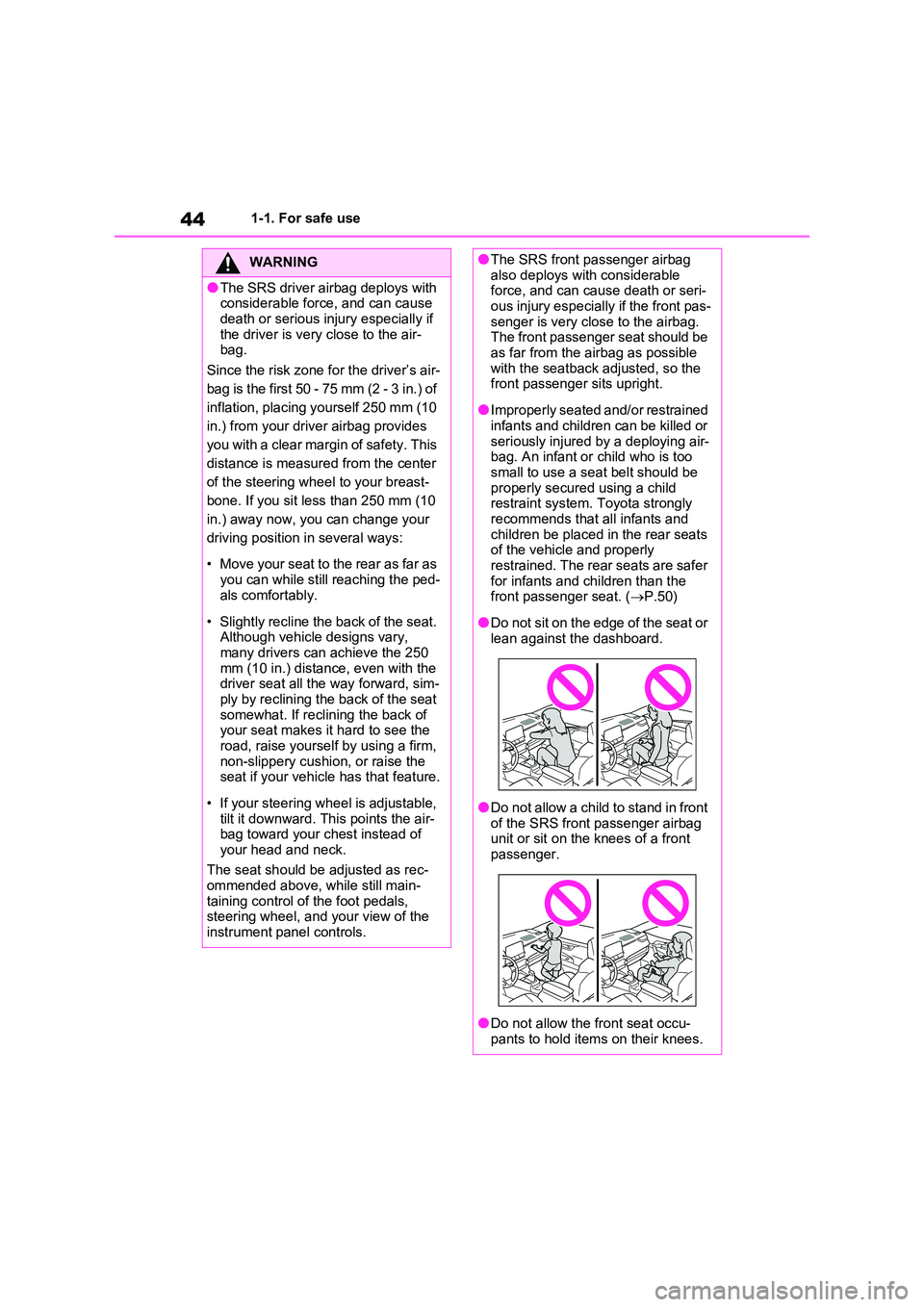
●Do not sit on the edge of the seat or lean against the dashboard.
●Do not allow a child to stand in front of the SRS front passenger airbag unit or sit on the knees of a front
passenger.
●Do not allow the front seat occu-
pants to hold items on their knees.
Page 180 of 664
1803-1. Instrument cluster
A variety of information can be dis-
played by selecting a menu icon.
Additionally, warning or sugges-
tion/advice pop-up displays will be dis-
played in some situations.
Menu icons ( P.180)
■The multi-information display is
displayed when
The power switch is in ON.
■When changing driving mode
●Background color of the multi-informa- tion display is changed following the selected driving mode. ( P.434)
●Background color of the multi-informa- tion display is changed following the
selected driving mode or when Trail Mode is turned on. ( P.434, 435)
■Liquid crystal display
Small spots or light spots may appear
on the display. This phenomenon is characteristic of liquid crystal displays, and there is no problem continuing to
use the display.
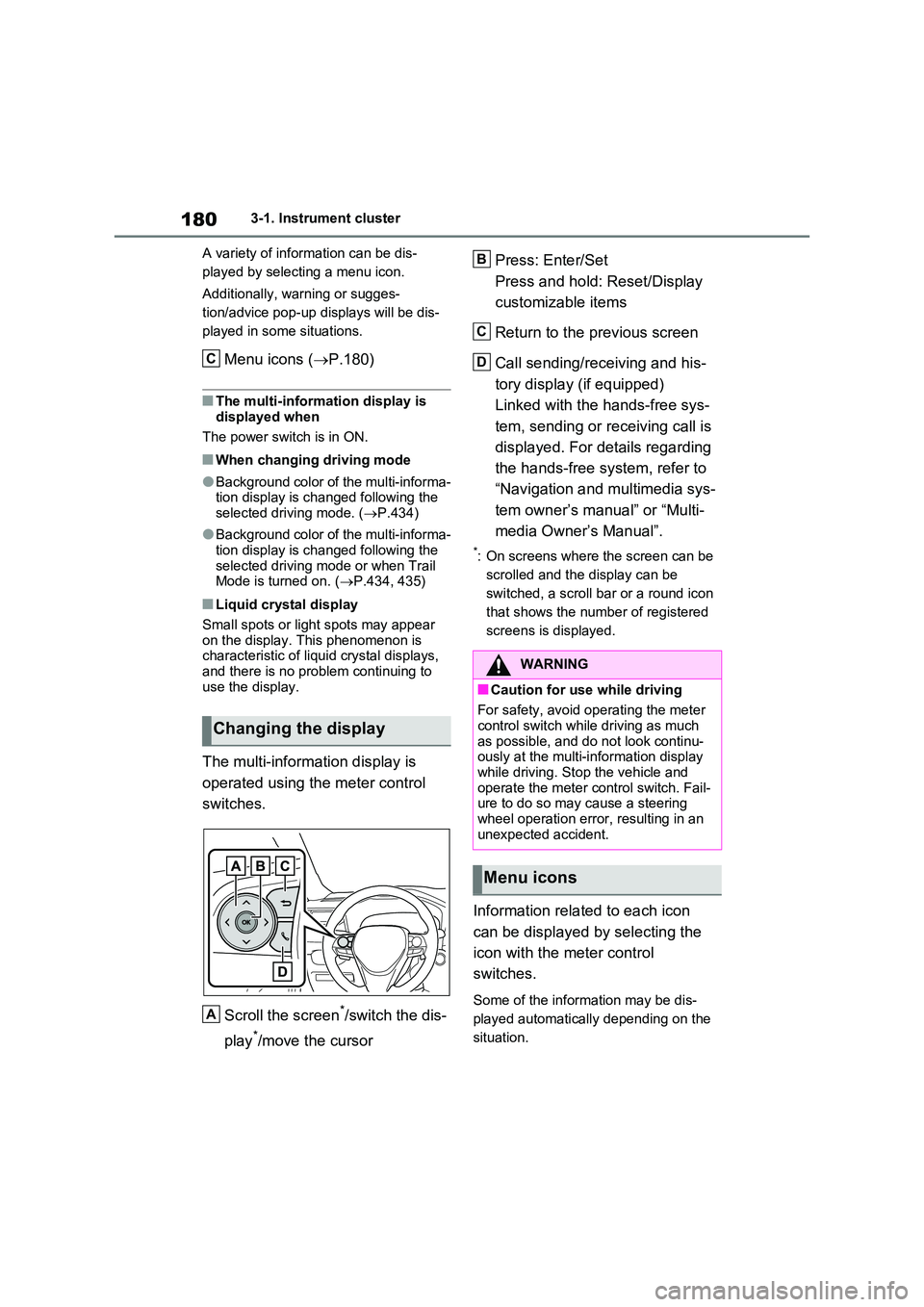
The multi-information display is
operated using the meter control
switches.
Scroll the screen*/switch the dis-
play*/move the cursor
Press: Enter/Set
Press and hold: Reset/Display
customizable items
Return to the previous screen
Call sending/receiving and his-
tory display (if equipped)
Linked with the hands-free sys-
tem, sending or receiving call is
displayed. For details regarding
the hands-free system, refer to
“Navigation and multimedia sys-
tem owner’s manual” or “Multi-
media Owner’s Manual”.
*: On screens where the screen can be
scrolled and the display can be
switched, a scroll bar or a round icon
that shows the number of registered
screens is displayed.
Information related to each icon
can be displayed by selecting the
icon with the meter control
switches.
Some of the information may be dis-
played automatically depending on the
situation.
Changing the display
C
A
WARNING
■Caution for use while driving
For safety, avoid operating the meter control switch while driving as much
as possible, and do not look continu- ously at the multi-information display while driving. Stop the vehicle and
operate the meter control switch. Fail- ure to do so may cause a steering wheel operation error, resulting in an
unexpected accident.
Menu icons
B
C
D
Page 185 of 664
185
3 3-1. Instrument cluster
Vehicle status information and indicators
■Drive information
2 items that are selected using the
“Drive Info Items” setting (average
speed, distance and total time) can
be displayed vertically.
The displayed information changes
according to the “Drive Info Type”
setting (since the system was
started or between resets).
(P.186)
Use the displayed information as a ref-
erence only.
Following items will be displayed.
“Trip”
• “Average Speed”: Displays the aver-
age vehicle speed since hybrid sys-
tem start
*
• “Distance”: Displays the distance
driven since hybrid system start*
• “Total Time”: Displays the elapsed
time since hybrid system start*
*
: These items are reset each time the
hybrid system stops.
“Total”
• “Average Speed”: Displays the aver-
age vehicle speed since the display
was reset
*
• “Distance”: Displays the distance
driven since the display was reset*
• “Total Time”: Displays the elapsed
time since the display was reset*
*
: To reset, display the desired item and
press and hold .
■Energy monitor
P.195
■Tire pressure
P.511
■AWD system display
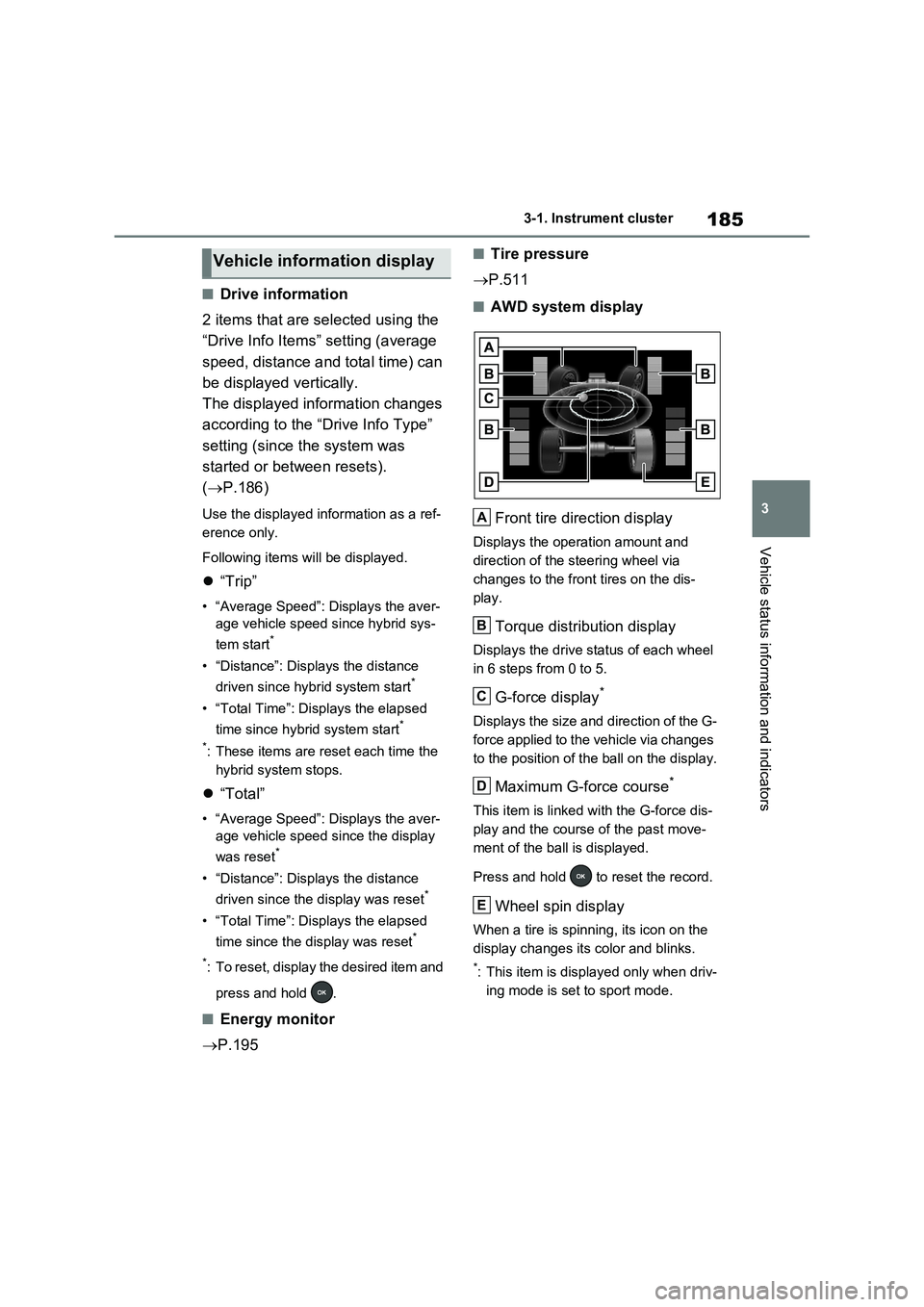
Front tire direction display
Displays the operation amount and
direction of the steering wheel via
changes to the front tires on the dis-
play.
Torque distribution display
Displays the drive status of each wheel
in 6 steps from 0 to 5.
G-force display*
Displays the size and direction of the G-
force applied to the vehicle via changes
to the position of the ball on the display.
Maximum G-force course*
This item is linked with the G-force dis-
play and the course of the past move-
ment of the ball is displayed.
Press and hold to reset the record.
Wheel spin display
When a tire is spinning, its icon on the
display changes its color and blinks.
*: This item is displayed only when driv-
ing mode is set to sport mode.
Vehicle information display
A
B
C
D
E
Page 186 of 664
1863-1. Instrument cluster
Vehicle settings and the content
displayed on the screen can be
changed by using the meter control
switches.
■Setting procedure
1Operate or of the meter
control switches and select .
2Operate or of the meter
control switches and select the
desired item.
• If the function is turned on and
off or the volume, etc. is changed
on the setting screen, the setting
is changed each time is
pressed.
• For functions that allow opera-
tion contents, display contents,
etc., of function to be selected,
the setting screen is displayed by
pressing and holding . When
the setting screen is displayed,
select the setting or desired
value (time, etc.) with .
3After changing the settings,
press of the meter control
switches.
■ LTA (Lane Tracing Assist)
(if equipped) (P.362)
Select to set up the following items.
“Lane Center”
Select to enable/disable the lane cen-
tering function.
“Steering Assist”
Select to enable/disable steering wheel
assistance.
“Alert”
Select to change each notification
method of the lane departure alert.
“Sensitivity”
Select to set the lane departure alert
sensitivity.
“Sway Warning”
Select to enable/disable the vehicle
sway warning.
“Sway Sensitivity”
Select to set the vehicle sway warning
sensitivity.
■ PCS (Pre-Collision Sys-
tem) (if equipped) (P.355)
Select to set up the following items.
PCS on/off
Select to enable/disable the pre-colli-
sion system.
“Sensitivity”
Select to change the pre-collision warn-
ing timing.
■ BSM (Blind Spot Monitor)
(if equipped) (P.393)
Select to set up the following items.
BSM (Blind Spot Monitor) on/off
Select to enable/disable the BSM sys-
tem.
“Brightness”
Select to switch the brightness of the
outside rear view mirror indicators.
(P.393)
“Sensitivity”
Select to change the alert timing for an
approaching vehicle.
Settings display
Page 188 of 664
1883-1. Instrument cluster
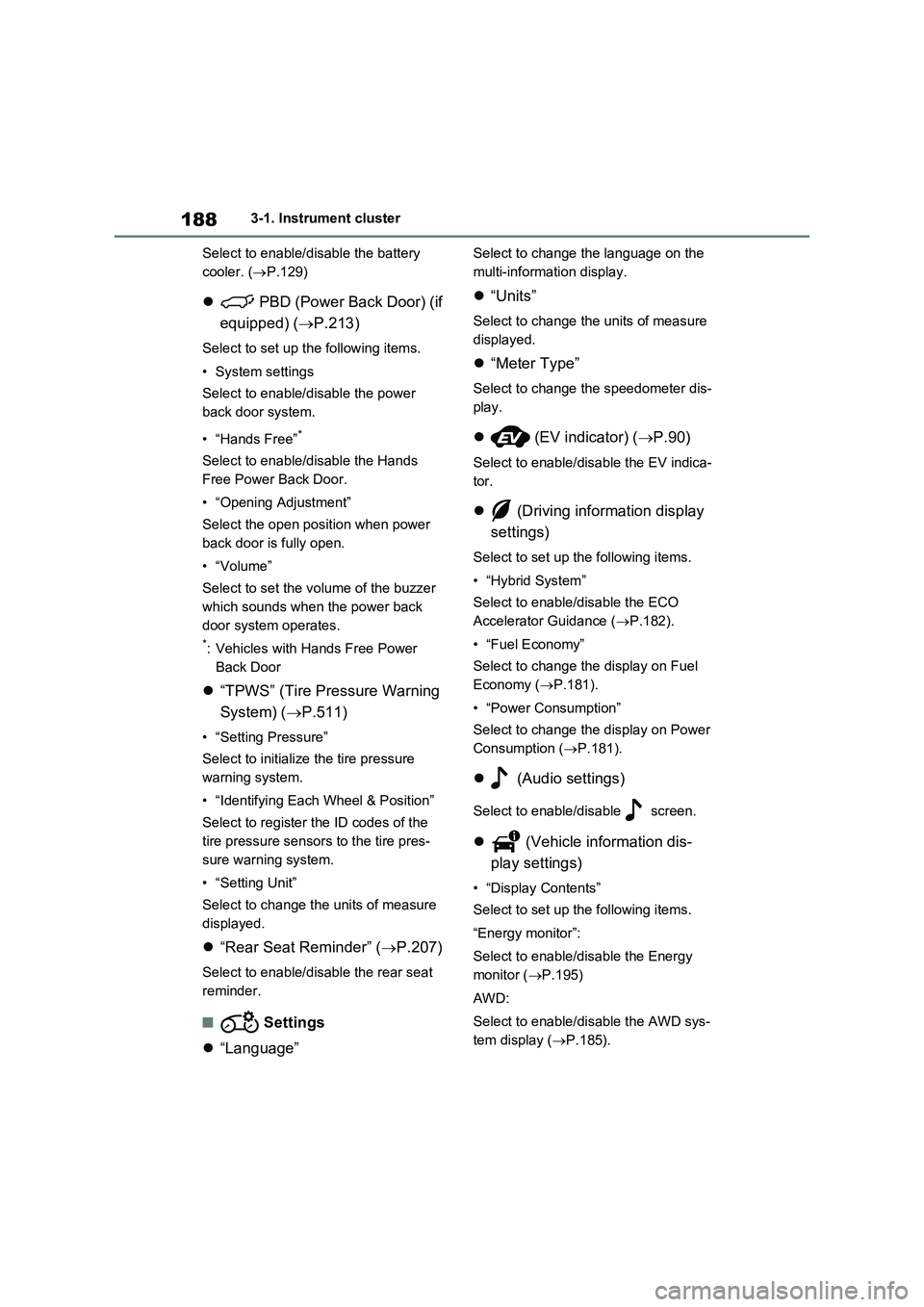
Select to enable/disable the battery
cooler. (P.129)
PBD (Power Back Door) (if
equipped) (P.213)
Select to set up the following items.
•System settings
Select to enable/disable the power
back door system.
•“Hands Free”
*
Select to enable/disable the Hands
Free Power Back Door.
• “Opening Adjustment”
Select the open position when power
back door is fully open.
•“Volume”
Select to set the volume of the buzzer
which sounds when the power back
door system operates.
*: Vehicles with Hands Free Power
Back Door
“TPWS” (Tire Pressure Warning
System) (P.511)
• “Setting Pressure”
Select to initialize the tire pressure
warning system.
• “Identifying Each Wheel & Position”
Select to register the ID codes of the
tire pressure sensors to the tire pres-
sure warning system.
•“Setting Unit”
Select to change the units of measure
displayed.
“Rear Seat Reminder” (P.207)
Select to enable/disable the rear seat
reminder.
■ Settings
“Language”
Select to change the language on the
multi-information display.
“Units”
Select to change the units of measure
displayed.
“Meter Type”
Select to change the speedometer dis-
play.
(EV indicator) (P.90)
Select to enable/disable the EV indica-
tor.
(Driving information display
settings)
Select to set up the following items.
•“Hybrid System”
Select to enable/disable the ECO
Accelerator Guidance (P.182).
• “Fuel Economy”
Select to change the display on Fuel
Economy (P.181).
• “Power Consumption”
Select to change the display on Power
Consumption (P.181).
(Audio settings)
Select to enable/disable screen.
(Vehicle information dis-
play settings)
• “Display Contents”
Select to set up the following items.
“Energy monitor”:
Select to enable/disable the Energy
monitor (P.195)
AWD:
Select to enable/disable the AWD sys-
tem display (P.185).
Page 194 of 664
1943-1. Instrument cluster
Brake Override System
(P.301)
Drive-Start Control (P.301)
Parking Support Brake function
(static objects) (if equipped)
(P.424)
Displayed content is the same as that
displayed on the meter. For details,
refer to the explanations of each sys-
tem.
■ / icons
Displays the following multi-infor-
mation display linked icons:
: Master warning icon
Displayed when a warning message is
displayed on the multi-information dis-
play.
: Information icon
Displayed when a suggestion/advice
pop-up display is displayed on the
multi-information display.
■Warning message
Some warning messages are dis-
played when necessary, according
to certain conditions.
Displayed content is the same as that
displayed on the multi-information dis-
play. For details, refer to the explana-
tions of each system.
■Audio system operation status
Displayed when an audio remote
control switch on the steering wheel
is operated.
■Hands-free system status (if
equipped)
Displayed when the hands-free system is operated.
■Outside temperature display
Displayed when the power switch is
turned to ON or when the low out-
side temperature indicator is flash-
ing.
■When a pop-up display is displayed
When a pop-up display is displayed, a
current display may no longer be dis-
played. In this case, the display will
return after the pop-up display disap-
pears.
■Outside temperature display
●When the ambient temperature is
approximately 3°C (37°F) or lower,
will flash for approximately 10
seconds and the outside temperature
display will turn off.
●In the following situations, the correct
outside temperature may not be dis-
played, or the display may take longer
than normal to change:
• When stopped (including when using
“My Room Mode”), or driving at low
speeds (less than 20 km/h [12 mph])
• When the outside temperature has
changed suddenly (at the
entrance/exit of a garage, tunnel, etc.)
●When “--” or “E” is displayed, the sys-
tem may be malfunctioning.
Take your vehicle to any authorized
Toyota retailer or Toyota authorized
repairer, or any reliable repairer.
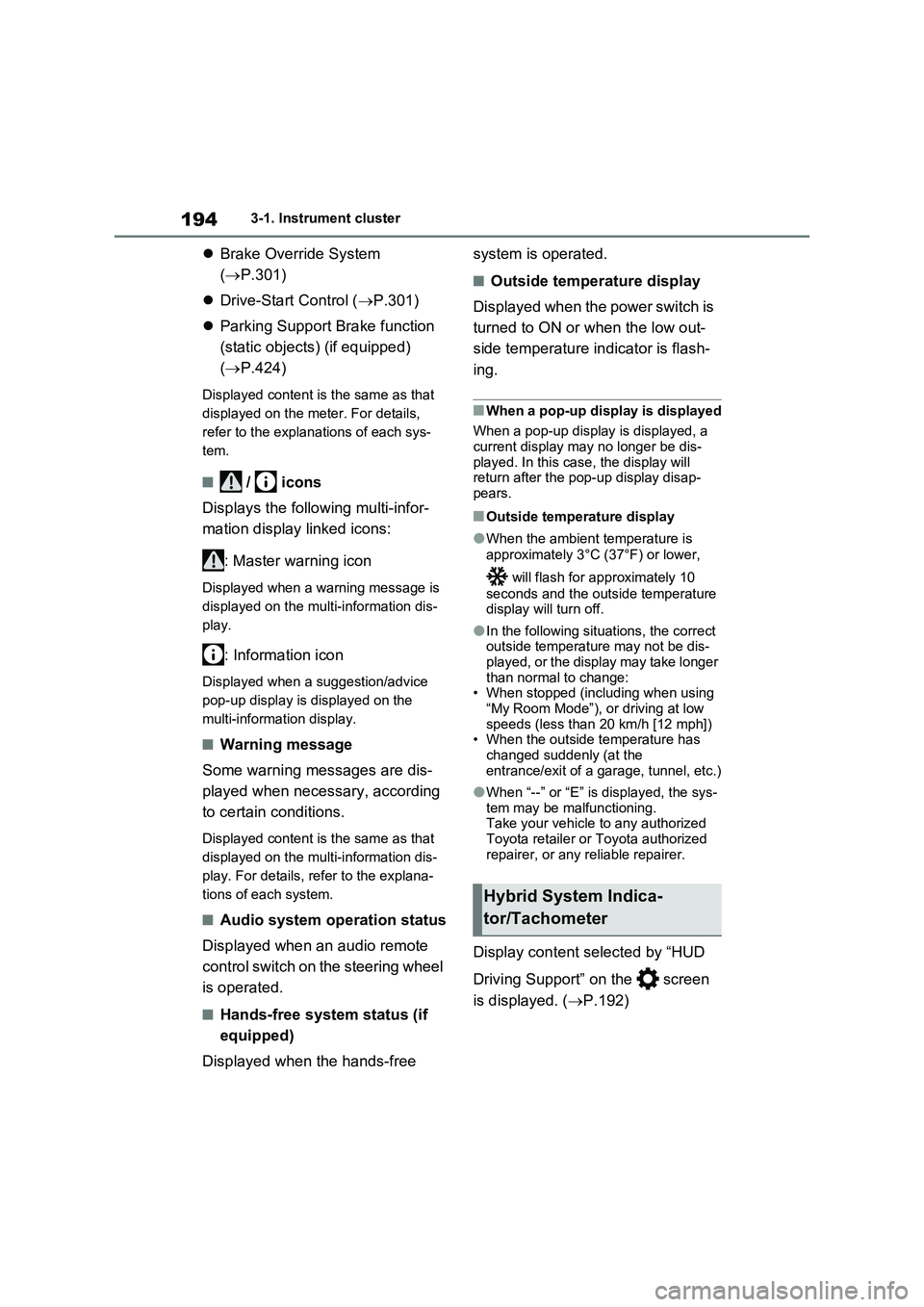
Display content selected by “HUD
Driving Support” on the screen
is displayed. (P.192)
Hybrid System Indica-
tor/Tachometer
Page 280 of 664
2804-4. Adjusting the steering wheel and mirrors
*: If equipped
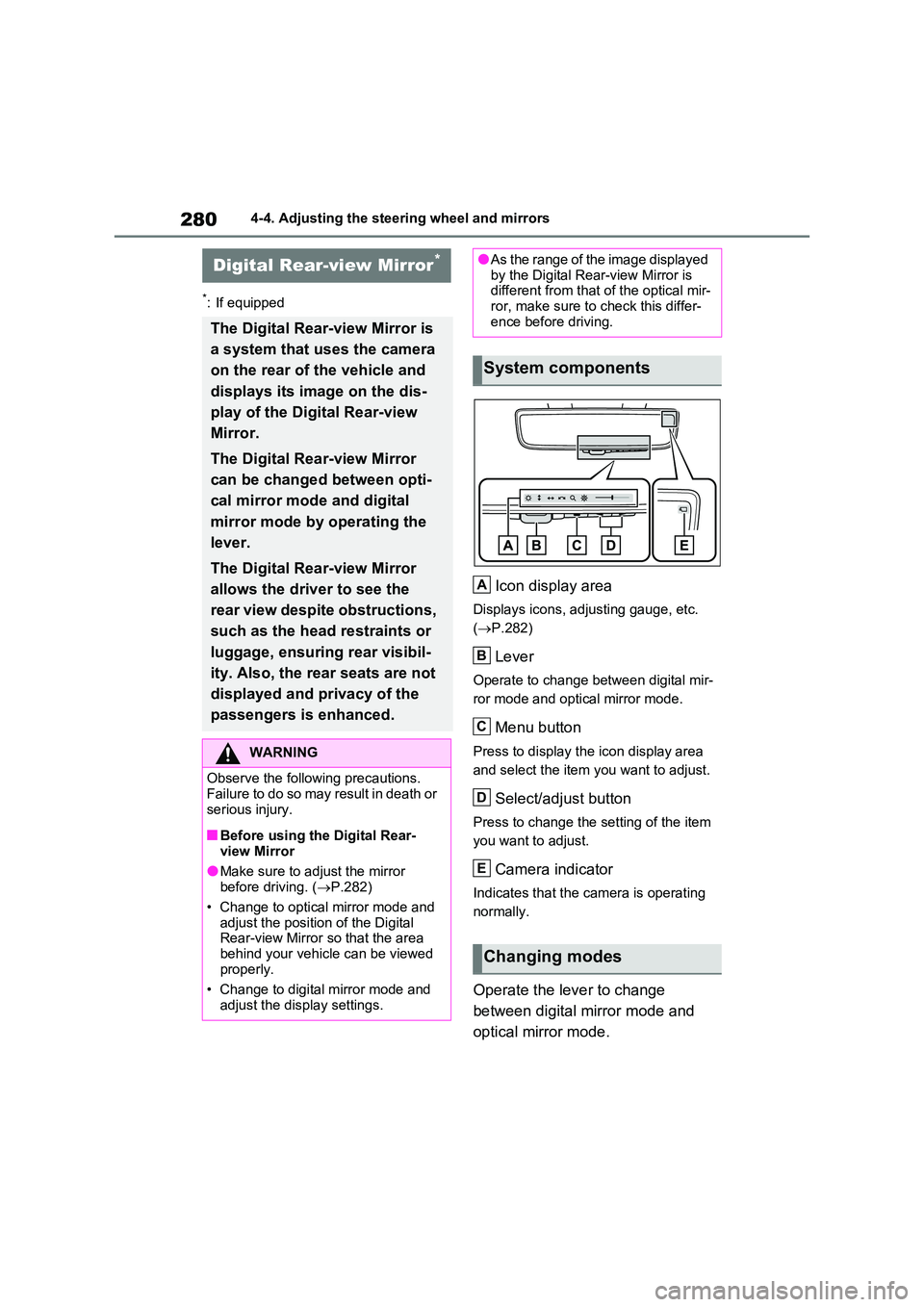
Icon display area
Displays icons, adjusting gauge, etc.
( P.282)
Lever
Operate to change between digital mir-
ror mode and optical mirror mode.
Menu button
Press to display the icon display area
and select the item you want to adjust.
Select/adjust button
Press to change the setting of the item
you want to adjust.
Camera indicator
Indicates that the camera is operating
normally.
Operate the lever to change
between digital mirror mode and
optical mirror mode.
Digital Rear-view Mirror*
The Digital Rear-view Mirror is
a system that uses the camera
on the rear of the vehicle and
displays its image on the dis-
play of the Digital Rear-view
Mirror.
The Digital Rear-view Mirror
can be changed between opti-
cal mirror mode and digital
mirror mode by operating the
lever.
The Digital Rear-view Mirror
allows the driver to see the
rear view despite obstructions,
such as the head restraints or
luggage, ensuring rear visibil-
ity. Also, the rear seats are not
displayed and privacy of the
passengers is enhanced.
WARNING
Observe the following precautions. Failure to do so may result in death or
serious injury.
■Before using the Digital Rear-
view Mirror
●Make sure to adjust the mirror before driving. ( P.282)
• Change to optical mirror mode and adjust the position of the Digital Rear-view Mirror so that the area
behind your vehicle can be viewed properly.
• Change to digital mirror mode and
adjust the display settings.
●As the range of the image displayed by the Digital Rear-view Mirror is different from that of the optical mir-
ror, make sure to check this differ- ence before driving.
System components
Changing modes
A
B
C
D
E
Page 281 of 664
281
4
4-4. Adjusting the steering wheel and mirrors
Before driving
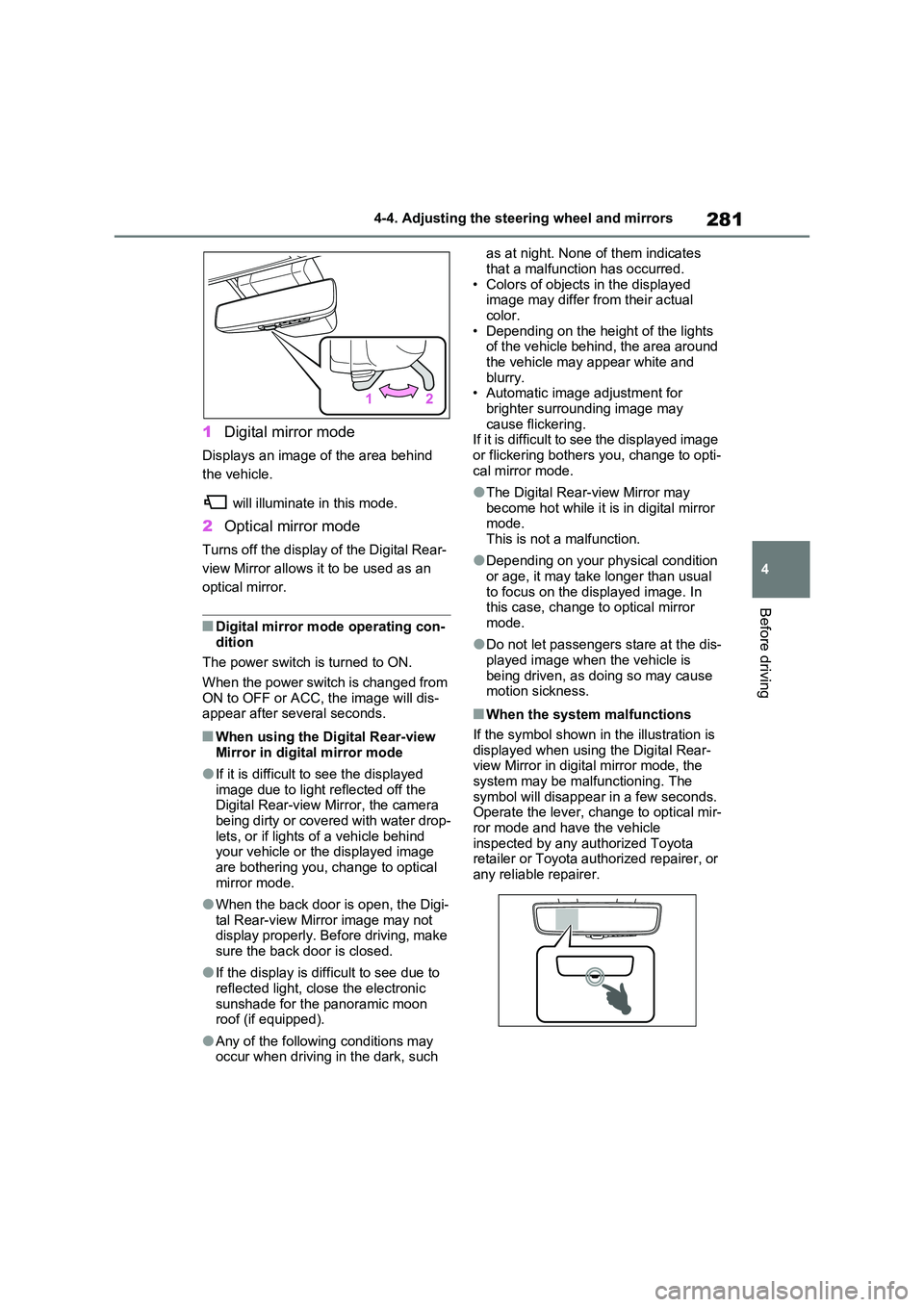
1 Digital mirror mode
Displays an image of the area behind
the vehicle.
will illuminate in this mode.
2 Optical mirror mode
Turns off the display of the Digital Rear-
view Mirror allows it to be used as an
optical mirror.
■Digital mirror mode operating con- dition
The power switch is turned to ON.
When the power switch is changed from ON to OFF or ACC, the image will dis-appear after several seconds.
■When using the Digital Rear-view
Mirror in digital mirror mode
●If it is difficult to see the displayed
image due to light reflected off the Digital Rear-view Mirror, the camera being dirty or covered with water drop-
lets, or if lights of a vehicle behind your vehicle or the displayed image are bothering you, change to optical
mirror mode.
●When the back door is open, the Digi-
tal Rear-view Mirror image may not display properly. Before driving, make sure the back door is closed.
●If the display is difficult to see due to reflected light, close the electronic
sunshade for the panoramic moon roof (if equipped).
●Any of the following conditions may occur when driving in the dark, such
as at night. None of them indicates
that a malfunction has occurred. • Colors of objects in the displayed image may differ from their actual
color. • Depending on the height of the lights of the vehicle behind, the area around
the vehicle may appear white and blurry.• Automatic image adjustment for
brighter surrounding image may cause flickering.If it is difficult to see the displayed image
or flickering bothers you, change to opti- cal mirror mode.
●The Digital Rear-view Mirror may become hot while it is in digital mirror mode.
This is not a malfunction.
●Depending on your physical condition
or age, it may take longer than usual to focus on the displayed image. In this case, change to optical mirror
mode.
●Do not let passengers stare at the dis-
played image when the vehicle is being driven, as doing so may cause motion sickness.
■When the system malfunctions
If the symbol shown in the illustration is displayed when using the Digital Rear-view Mirror in digital mirror mode, the
system may be malfunctioning. The symbol will disappear in a few seconds. Operate the lever, change to optical mir-
ror mode and have the vehicle inspected by any authorized Toyota retailer or Toyota authorized repairer, or
any reliable repairer.
Page 282 of 664
2824-4. Adjusting the steering wheel and mirrors
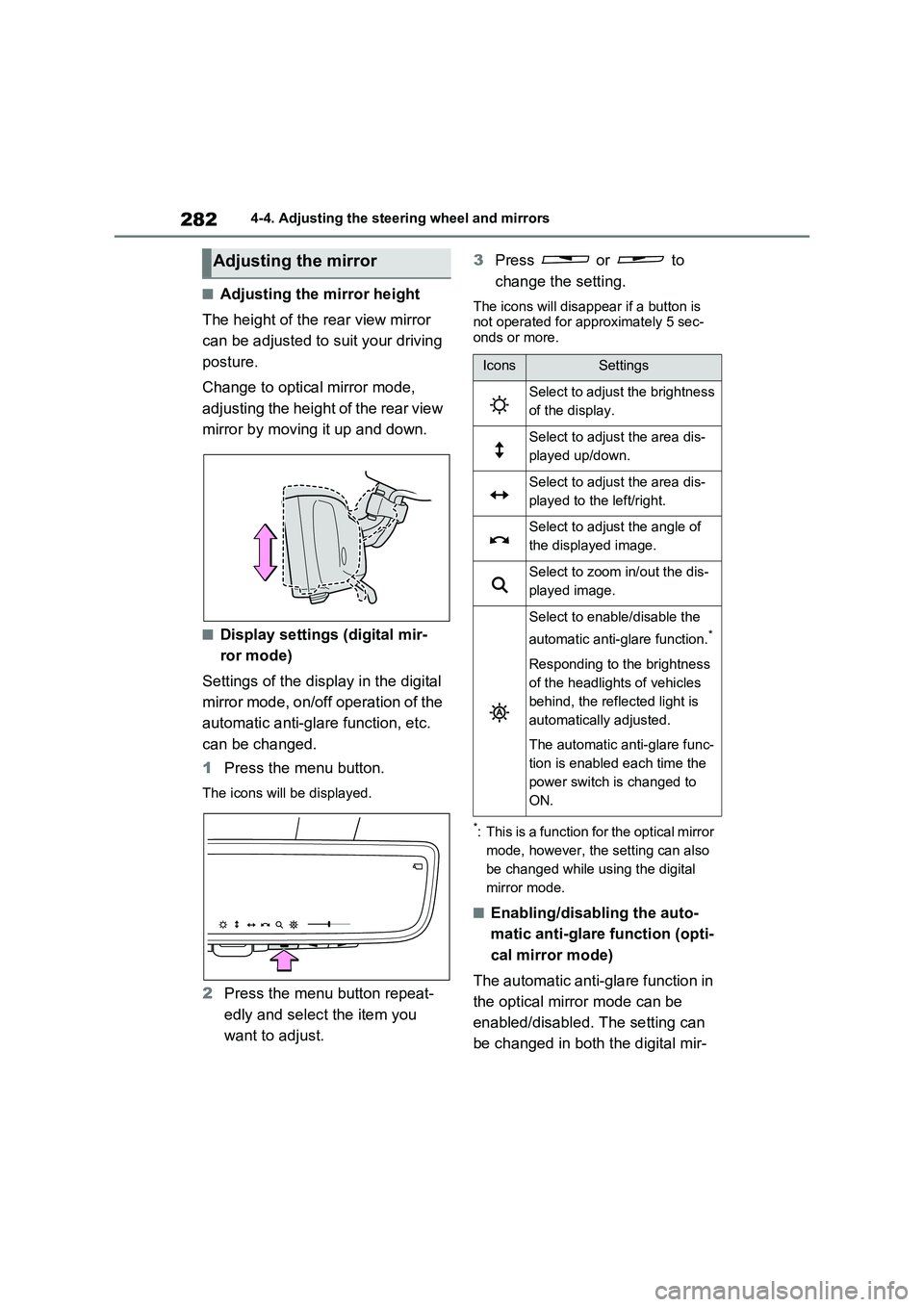
■Adjusting the mirror height
The height of the rear view mirror
can be adjusted to suit your driving
posture.
Change to optical mirror mode,
adjusting the height of the rear view
mirror by moving it up and down.
■Display settings (digital mir-
ror mode)
Settings of the display in the digital
mirror mode, on/off operation of the
automatic anti-glare function, etc.
can be changed.
1Press the menu button.
The icons will be displayed.
2Press the menu button repeat-
edly and select the item you
want to adjust.3Press or to
change the setting.
The icons will disappear if a button is
not operated for approximately 5 sec-
onds or more.
*: This is a function for the optical mirror
mode, however, the setting can also
be changed while using the digital
mirror mode.
■Enabling/disabling the auto-
matic anti-glare function (opti-
cal mirror mode)
The automatic anti-glare function in
the optical mirror mode can be
enabled/disabled. The setting can
be changed in both the digital mir-
Adjusting the mirror
IconsSettings
Select to adjust the brightness
of the display.
Select to adjust the area dis-
played up/down.
Select to adjust the area dis-
played to the left/right.
Select to adjust the angle of
the displayed image.
Select to zoom in/out the dis-
played image.
Select to enable/disable the
automatic anti-glare function.
*
Responding to the brightness
of the headlights of vehicles
behind, the reflected light is
automatically adjusted.
The automatic anti-glare func-
tion is enabled each time the
power switch is changed to
ON.
Page 283 of 664
283
4
4-4. Adjusting the steering wheel and mirrors
Before driving
ror mode and the optical mirror
mode.
When using the digital mirror
mode
P.282
When using the optical mirror
mode
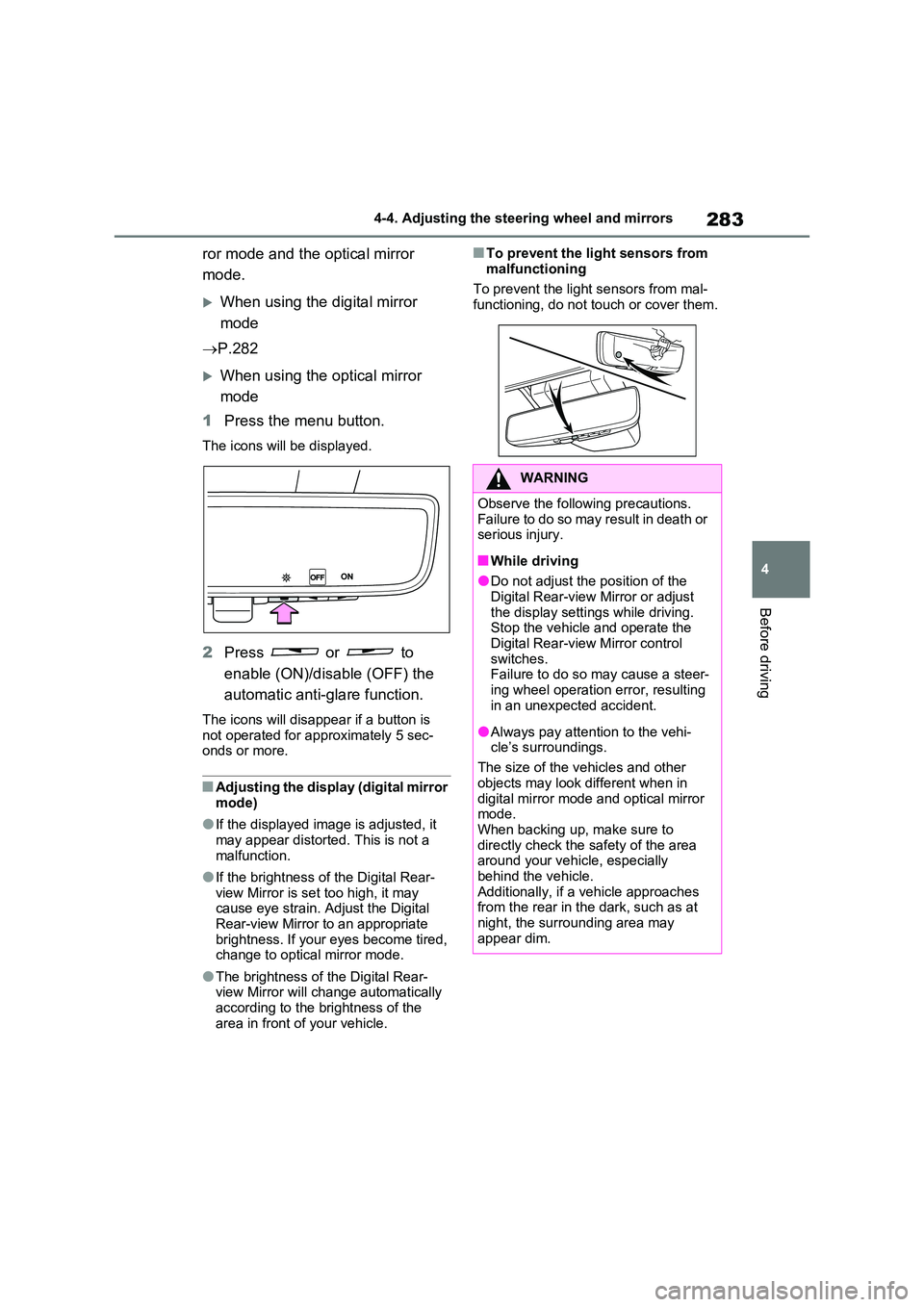
1 Press the menu button.
The icons will be displayed.
2Press or to
enable (ON)/disable (OFF) the
automatic anti-glare function.
The icons will disappear if a button is not operated for approximately 5 sec-onds or more.
■Adjusting the display (digital mirror mode)
●If the displayed image is adjusted, it may appear distorted. This is not a
malfunction.
●If the brightness of the Digital Rear-
view Mirror is set too high, it may cause eye strain. Adjust the Digital Rear-view Mirror to an appropriate
brightness. If your eyes become tired, change to optical mirror mode.
●The brightness of the Digital Rear-view Mirror will change automatically according to the brightness of the
area in front of your vehicle.
■To prevent the light sensors from
malfunctioning
To prevent the light sensors from mal- functioning, do not touch or cover them.
WARNING
Observe the following precautions.Failure to do so may result in death or serious injury.
■While driving
●Do not adjust the position of the
Digital Rear-view Mirror or adjust the display settings while driving.Stop the vehicle and operate the
Digital Rear-view Mirror control switches. Failure to do so may cause a steer-
ing wheel operation error, resulting in an unexpected accident.
●Always pay attention to the vehi-cle’s surroundings.
The size of the vehicles and other
objects may look different when in digital mirror mode and optical mirror mode.
When backing up, make sure to directly check the safety of the area around your vehicle, especially
behind the vehicle. Additionally, if a vehicle approaches from the rear in the dark, such as at
night, the surrounding area may appear dim.