change time TOYOTA VERSO S 2014 User Guide
[x] Cancel search | Manufacturer: TOYOTA, Model Year: 2014, Model line: VERSO S, Model: TOYOTA VERSO S 2014Pages: 560, PDF Size: 16.94 MB
Page 327 of 560
327
3-2. Using the audio system
3
Interior features
VERSO-S_EE
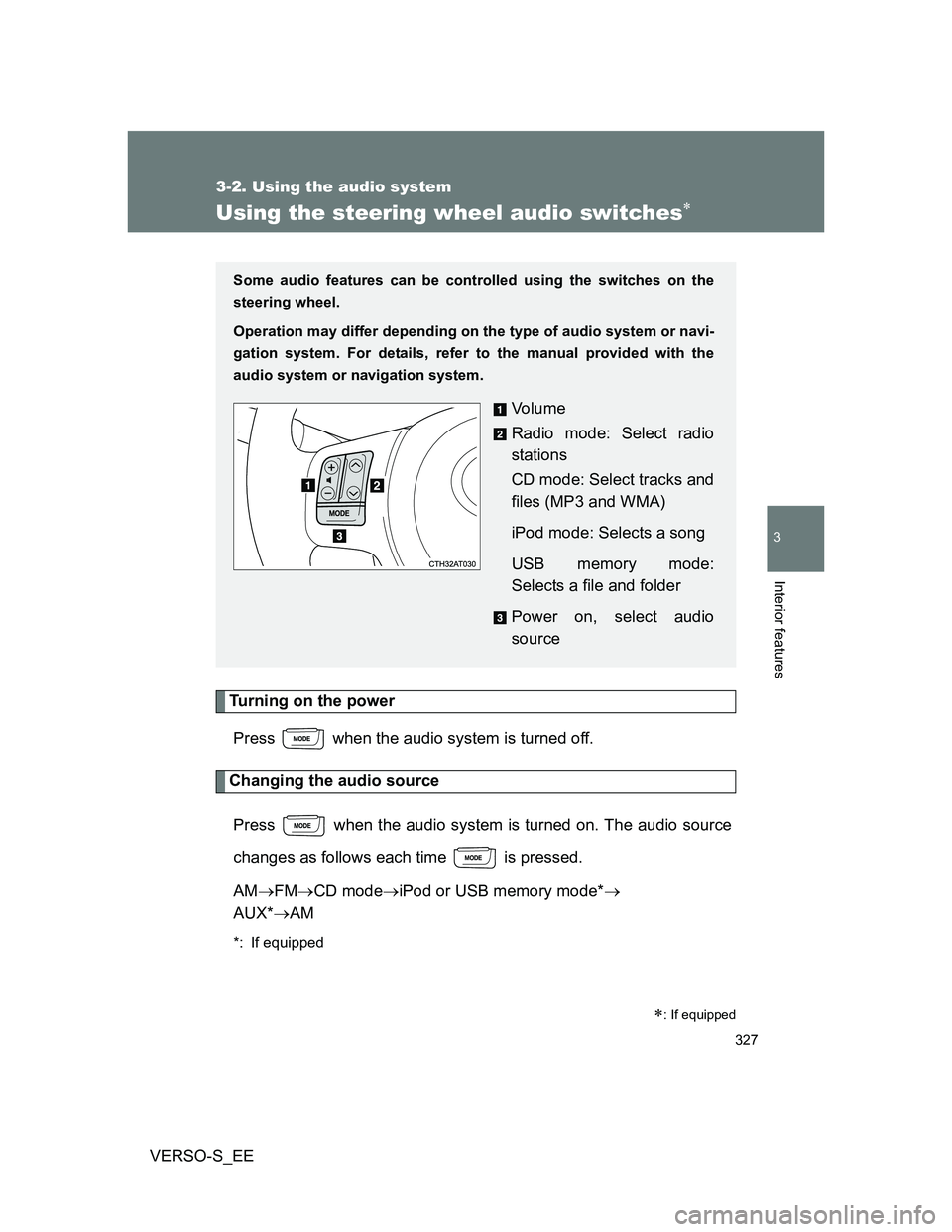
Using the steering wheel audio switches
Turning on the power
Press when the audio system is turned off.
Changing the audio source
Press when the audio system is turned on. The audio source
changes as follows each time is pressed.
AMFMCD modeiPod or USB memory mode*
AUX*AM
*: If equipped
: If equipped
Some audio features can be controlled using the switches on the
steering wheel.
Operation may differ depending on the type of audio system or navi-
gation system. For details, refer to the manual provided with the
audio system or navigation system.
Vo l u m e
Radio mode: Select radio
stations
CD mode: Select tracks and
files (MP3 and WMA)
iPod mode: Selects a song
USB memory mode:
Selects a file and folder
Power on, select audio
source
Page 332 of 560
332 3-3. Using the interior lights
VERSO-S_EE
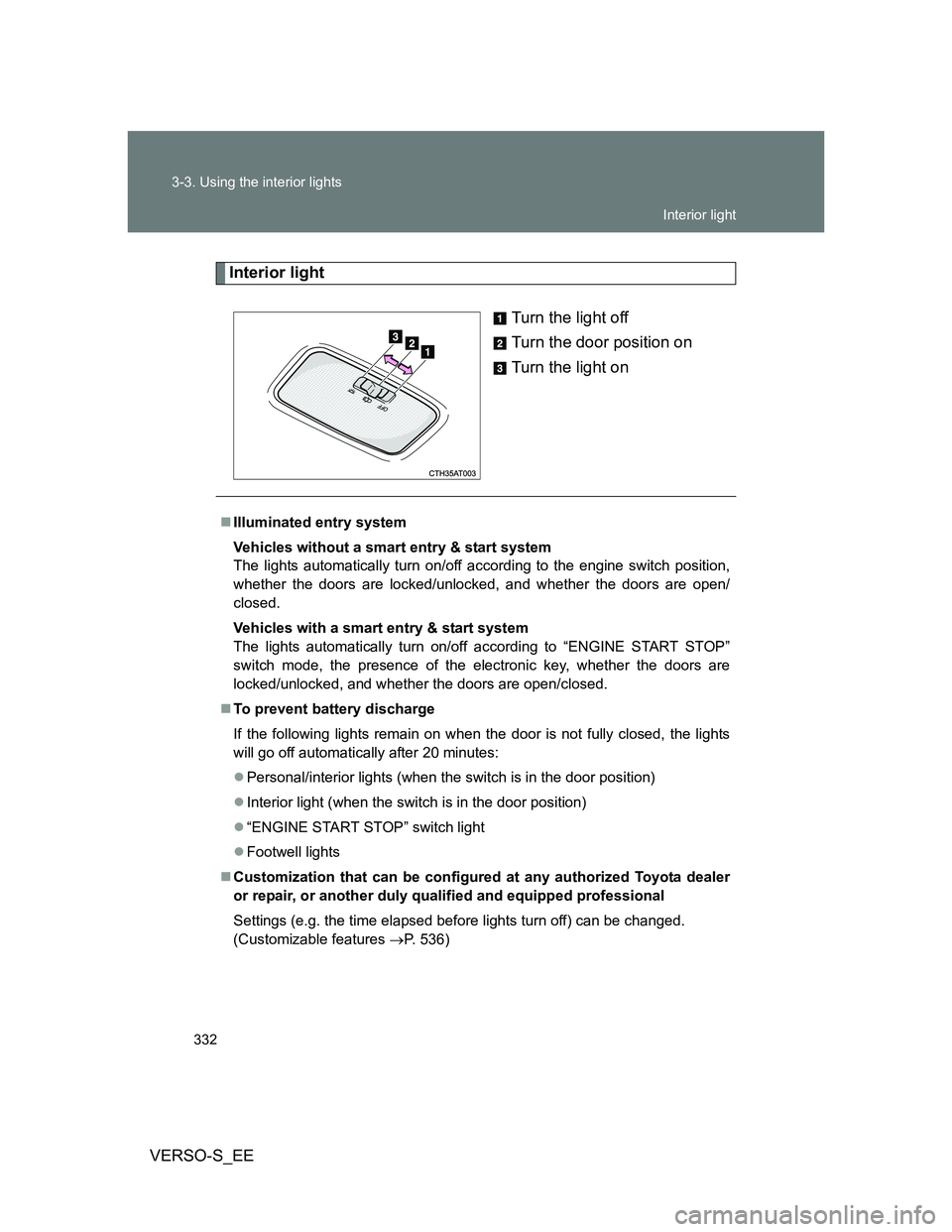
Interior light
Turn the light off
Turn the door position on
Turn the light on
Illuminated entry system
Vehicles without a smart entry & start system
The lights automatically turn on/off according to the engine switch position,
whether the doors are locked/unlocked, and whether the doors are open/
closed.
Vehicles with a smart entry & start system
The lights automatically turn on/off according to “ENGINE START STOP”
switch mode, the presence of the electronic key, whether the doors are
locked/unlocked, and whether the doors are open/closed.
To prevent battery discharge
If the following lights remain on when the door is not fully closed, the lights
will go off automatically after 20 minutes:
Personal/interior lights (when the switch is in the door position)
Interior light (when the switch is in the door position)
“ENGINE START STOP” switch light
Footwell lights
Customization that can be configured at any authorized Toyota dealer
or repair, or another duly qualified and equipped professional
Settings (e.g. the time elapsed before lights turn off) can be changed.
(Customizable features P. 536)
Interior light
Page 451 of 560
5
451 5-2. Steps to take in an emergency
When trouble arises
VERSO-S_EE
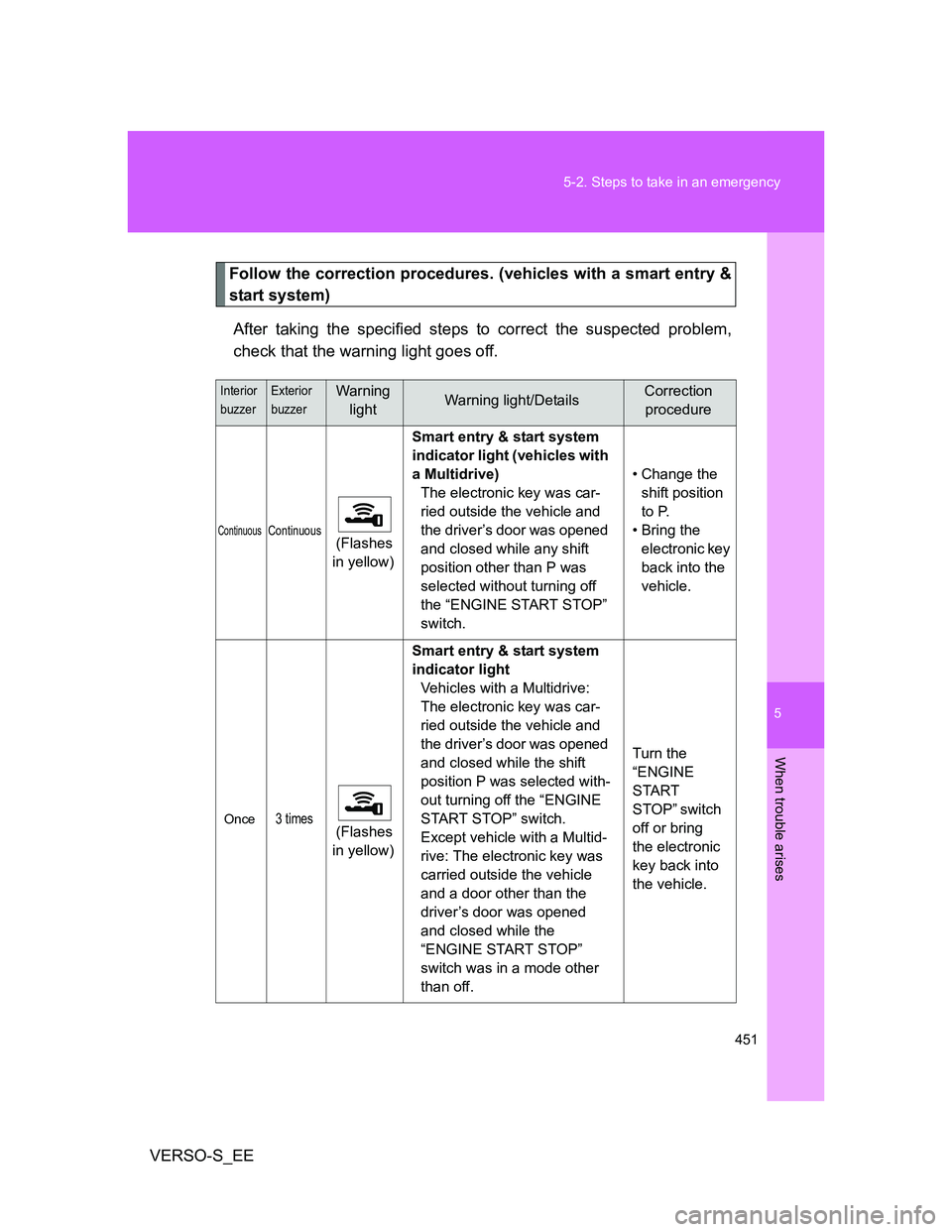
Follow the correction procedures. (vehicles with a smart entry &
start system)
After taking the specified steps to correct the suspected problem,
check that the warning light goes off.
Interior
buzzerExterior
buzzerWarning
lightWarning light/DetailsCorrection
procedure
ContinuousContinuous (Flashes
in yellow)Smart entry & start system
indicator light (vehicles with
a Multidrive)
The electronic key was car-
ried outside the vehicle and
the driver’s door was opened
and closed while any shift
position other than P was
selected without turning off
the “ENGINE START STOP”
switch.• Change the
shift position
to P.
• Bring the
electronic key
back into the
vehicle.
Once3 times (Flashes
in yellow)Smart entry & start system
indicator light
Vehicles with a Multidrive:
The electronic key was car-
ried outside the vehicle and
the driver’s door was opened
and closed while the shift
position P was selected with-
out turning off the “ENGINE
START STOP” switch.
Except vehicle with a Multid-
rive: The electronic key was
carried outside the vehicle
and a door other than the
driver’s door was opened
and closed while the
“ENGINE START STOP”
switch was in a mode other
than off.Turn the
“ENGINE
START
STOP” switch
off or bring
the electronic
key back into
the vehicle.
Page 493 of 560
5
493 5-2. Steps to take in an emergency
When trouble arises
VERSO-S_EE
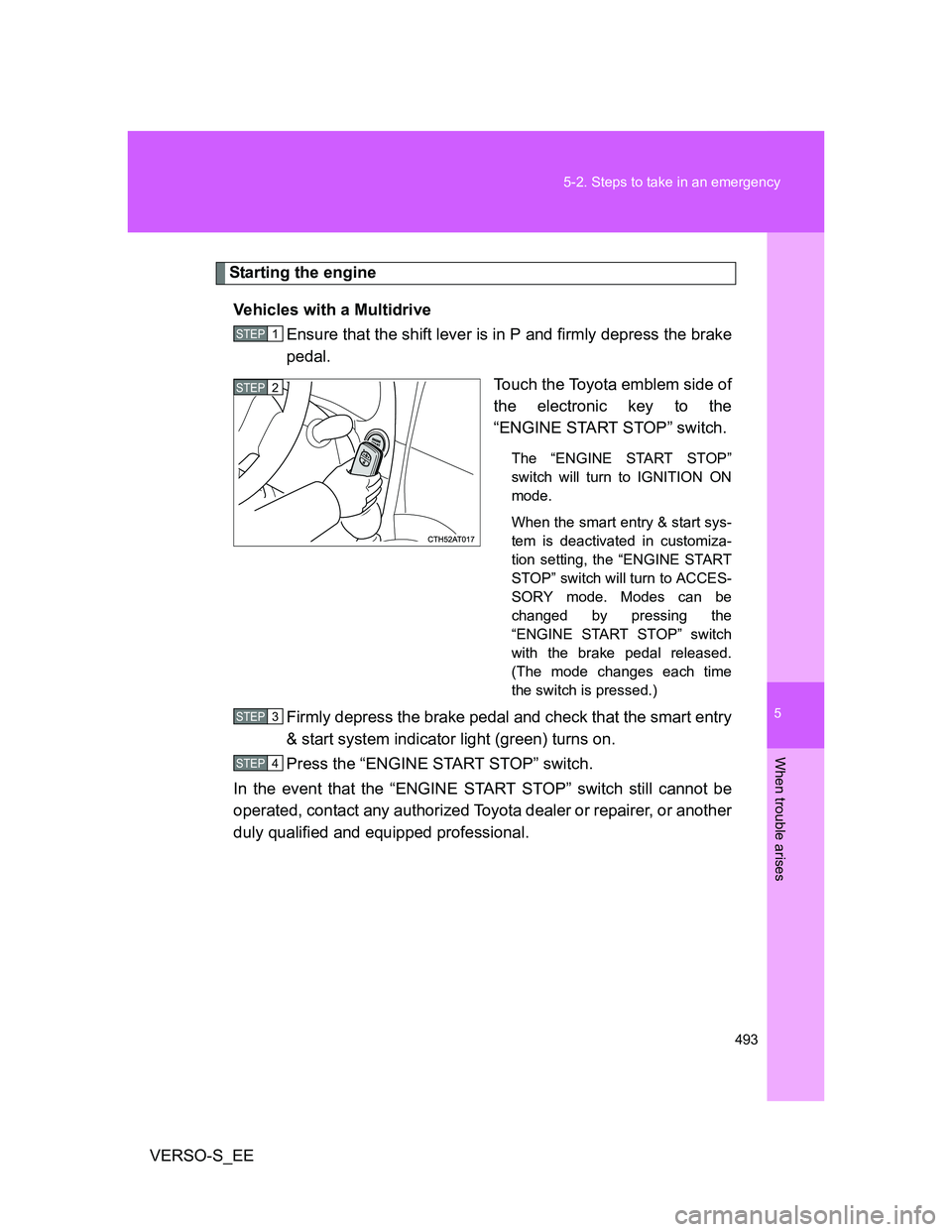
Starting the engine
Vehicles with a Multidrive
Ensure that the shift lever is in P and firmly depress the brake
pedal.
Touch the Toyota emblem side of
the electronic key to the
“ENGINE START STOP” switch.
The “ENGINE START STOP”
switch will turn to IGNITION ON
mode.
When the smart entry & start sys-
tem is deactivated in customiza-
tion setting, the “ENGINE START
STOP” switch will turn to ACCES-
SORY mode. Modes can be
changed by pressing the
“ENGINE START STOP” switch
with the brake pedal released.
(The mode changes each time
the switch is pressed.)
Firmly depress the brake pedal and check that the smart entry
& start system indicator light (green) turns on.
Press the “ENGINE START STOP” switch.
In the event that the “ENGINE START STOP” switch still cannot be
operated, contact any authorized Toyota dealer or repairer, or another
duly qualified and equipped professional.
STEP1
STEP2
STEP3
STEP4
Page 494 of 560
494 5-2. Steps to take in an emergency
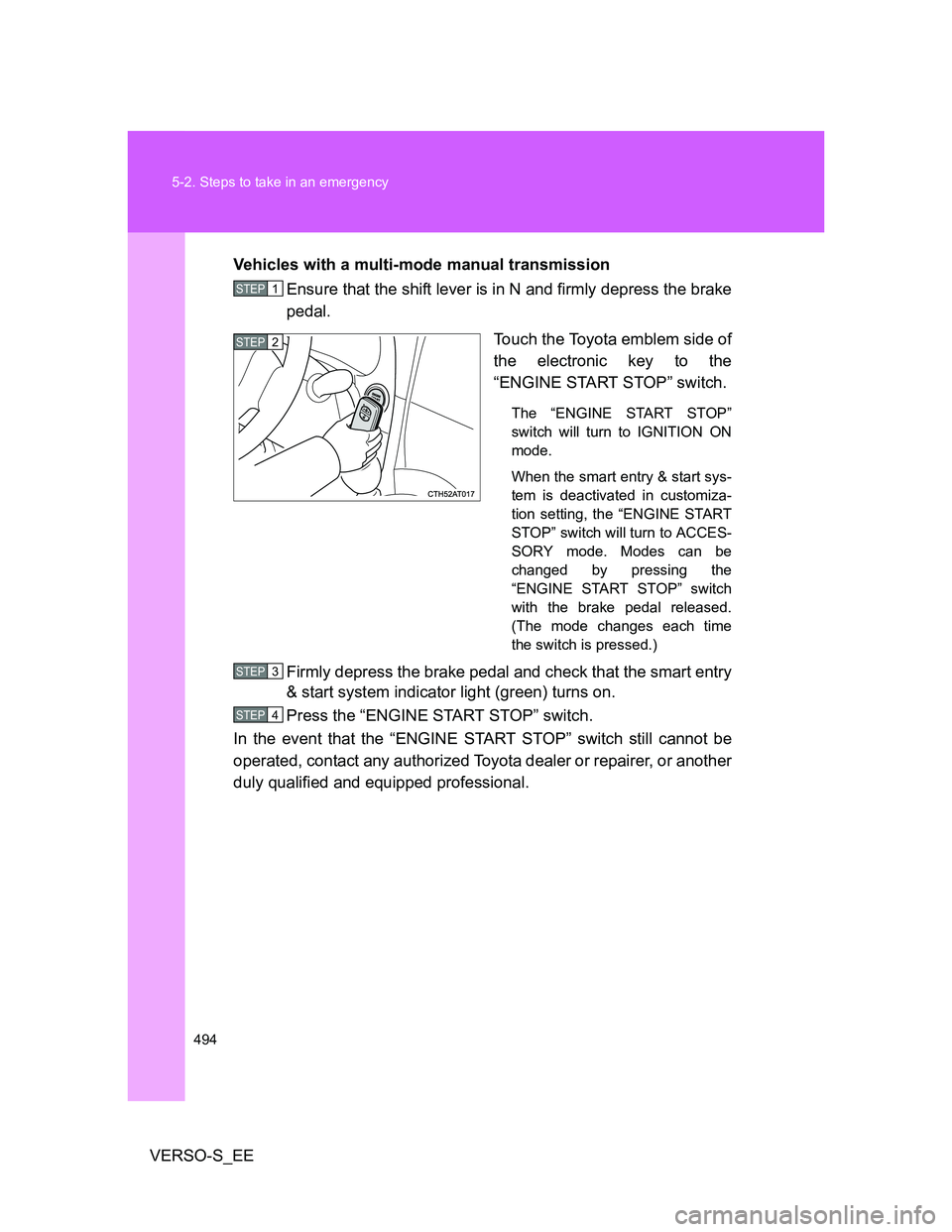
VERSO-S_EEVehicles with a multi-mode manual transmission
Ensure that the shift lever is in N and firmly depress the brake
pedal.
Touch the Toyota emblem side of
the electronic key to the
“ENGINE START STOP” switch.
The “ENGINE START STOP”
switch will turn to IGNITION ON
mode.
When the smart entry & start sys-
tem is deactivated in customiza-
tion setting, the “ENGINE START
STOP” switch will turn to ACCES-
SORY mode. Modes can be
changed by pressing the
“ENGINE START STOP” switch
with the brake pedal released.
(The mode changes each time
the switch is pressed.)
Firmly depress the brake pedal and check that the smart entry
& start system indicator light (green) turns on.
Press the “ENGINE START STOP” switch.
In the event that the “ENGINE START STOP” switch still cannot be
operated, contact any authorized Toyota dealer or repairer, or another
duly qualified and equipped professional.
STEP1
STEP2
STEP3
STEP4
Page 495 of 560
5
495 5-2. Steps to take in an emergency
When trouble arises
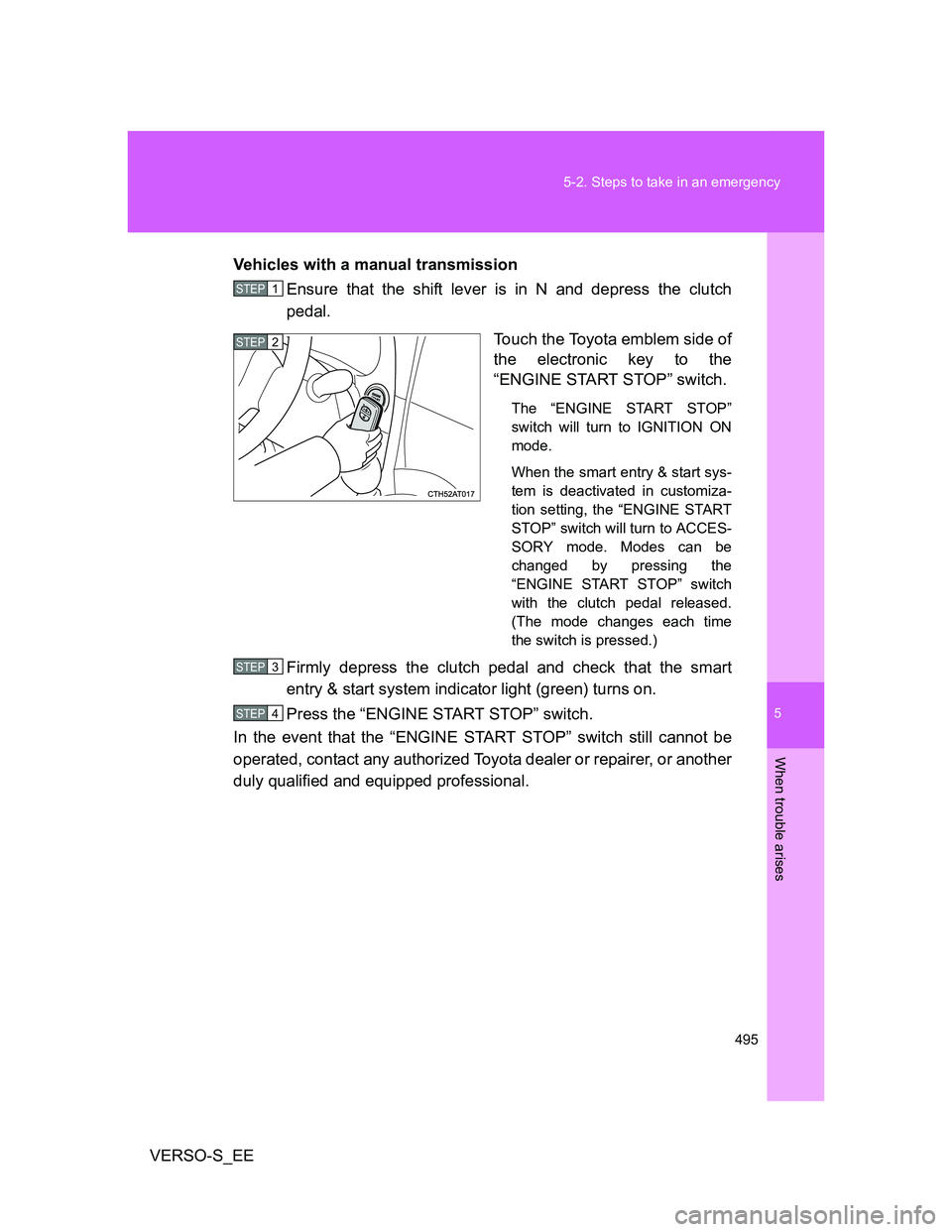
VERSO-S_EEVehicles with a manual transmission
Ensure that the shift lever is in N and depress the clutch
pedal.
Touch the Toyota emblem side of
the electronic key to the
“ENGINE START STOP” switch.
The “ENGINE START STOP”
switch will turn to IGNITION ON
mode.
When the smart entry & start sys-
tem is deactivated in customiza-
tion setting, the “ENGINE START
STOP” switch will turn to ACCES-
SORY mode. Modes can be
changed by pressing the
“ENGINE START STOP” switch
with the clutch pedal released.
(The mode changes each time
the switch is pressed.)
Firmly depress the clutch pedal and check that the smart
entry & start system indicator light (green) turns on.
Press the “ENGINE START STOP” switch.
In the event that the “ENGINE START STOP” switch still cannot be
operated, contact any authorized Toyota dealer or repairer, or another
duly qualified and equipped professional.
STEP1
STEP2
STEP3
STEP4
Page 496 of 560
496 5-2. Steps to take in an emergency
VERSO-S_EE
Stopping the engine
Vehicles with a Multidrive: Shift the shift lever to P and press the “ENGINE
START STOP” switch as you normally do when stopping the engine.
Except vehicles with a Multidrive: Shift the shift lever to N and press the
“ENGINE START STOP” switch as you normally do when stopping the
engine.
Replacing the key battery
As the above procedure is a temporary measure, it is recommended that the
electronic key battery be replaced immediately when the battery is depleted.
(P. 402)
Alarm (if equipped)
Using the mechanical key to lock the doors will not set the alarm system.
If a door is unlocked using the mechanical key when the alarm system is set,
the alarm may be triggered. (P. 119)
If the doors cannot be locked or unlocked by the smart entry & start
system
Lock and unlock the doors by the mechanical key or wireless remote control.
When the electronic key does not work properly
Make sure that the smart entry & start system has not been deactivated in
the customization setting. If it is off, turn the function on.
(Customizable features P. 536)
Changing “ENGINE START STOP” switch modes (if the smart entry &
start system has been deactivated in a customized setting)
Release the brake pedal (except for manual transmission) or clutch pedal
(for manual transmission) and press the “ENGINE START STOP” switch in
above.
The engine does not start and modes will be changed each time the switch
is pressed. (P. 180)
STEP3
Page 536 of 560
536
VERSO-S_EE
6-2. Customization
Customizable features
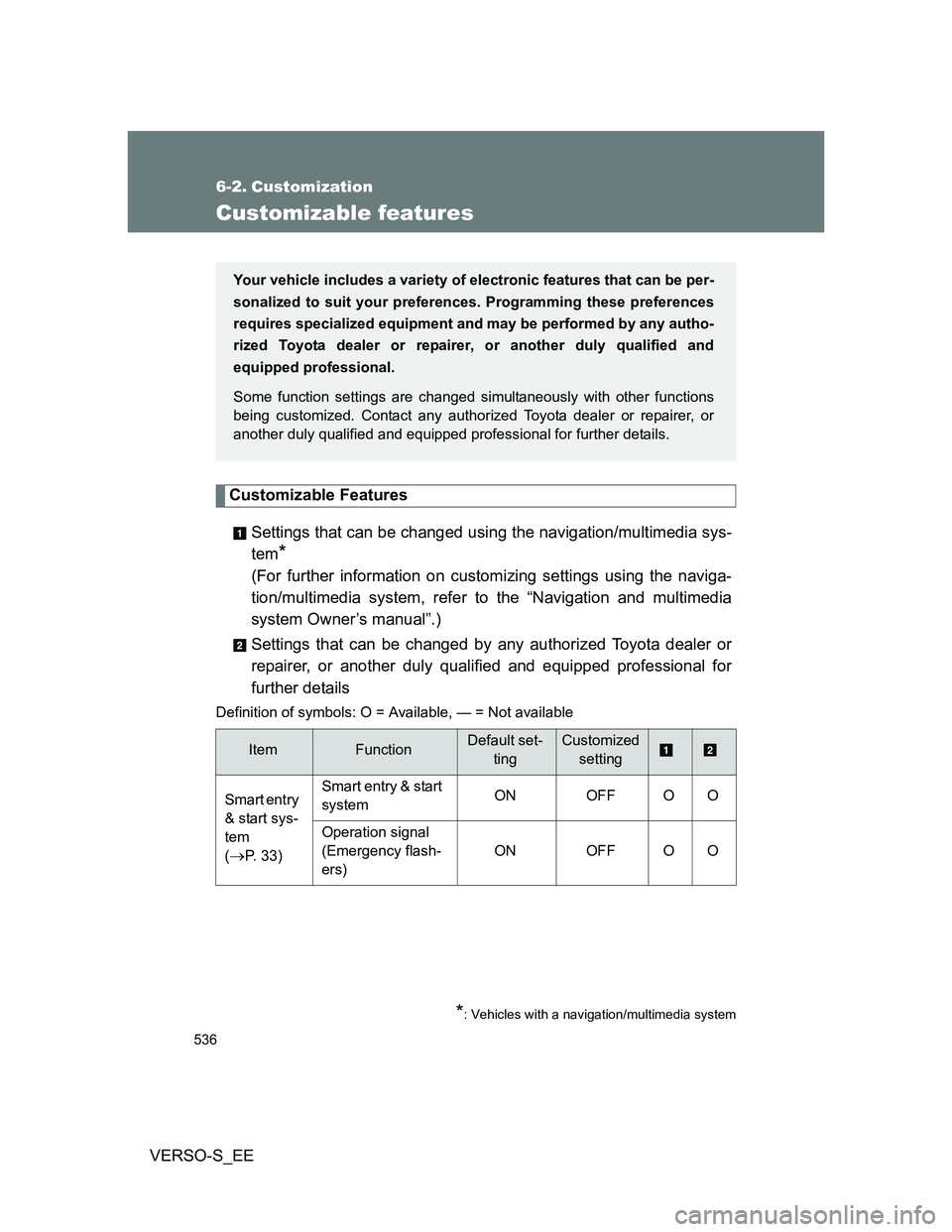
Customizable Features
Settings that can be changed using the navigation/multimedia sys-
tem
*
(For further information on customizing settings using the naviga-
tion/multimedia system, refer to the “Navigation and multimedia
system Owner’s manual”.)
Settings that can be changed by any authorized Toyota dealer or
repairer, or another duly qualified and equipped professional for
further details
Definition of symbols: O = Available, — = Not available
ItemFunctionDefault set-
tingCustomized
setting
Smart entry
& start sys-
tem
(
P. 33)Smart entry & start
systemON OFF O O
Operation signal
(Emergency flash-
ers) ON OFF O O
Your vehicle includes a variety of electronic features that can be per-
sonalized to suit your preferences. Programming these preferences
requires specialized equipment and may be performed by any autho-
rized Toyota dealer or repairer, or another duly qualified and
equipped professional.
Some function settings are changed simultaneously with other functions
being customized. Contact any authorized Toyota dealer or repairer, or
another duly qualified and equipped professional for further details.
*: Vehicles with a navigation/multimedia system