ECO mode TOYOTA YARIS 2019 Owner's Manual
[x] Cancel search | Manufacturer: TOYOTA, Model Year: 2019, Model line: YARIS, Model: TOYOTA YARIS 2019Pages: 700, PDF Size: 65.2 MB
Page 279 of 700
2794-3. Operating the lights and wipers
4
Driving
YARIS_F_OM_Europe_OM52K19E
■ If no windshield washer fluid sprays
Check that the washer nozzle is not blocked, if there is washer fluid in the
windshield washer fluid reservoir.
WARNING
■ Caution regarding the use of windshield wiper in “AUTO” mode (vehi-
cles with a rain-sensing windshield wiper)
The windshield wiper may operate unexpectedly if the sensor is touched or
the windshield is subject to vibration in “AUTO” mode. Take care that your
fingers, etc., do not become caught in the windshield wiper.
■ Caution regarding the use of washer fluid
When it is cold, do not use the washer fluid until the windshield becomes
warm. The fluid may freeze on the windshield and cause low visibility. This
may lead to an accident, resulting in death or serious injury.
NOTICE
■ When the windshield is dry
Do not use the wiper, as they may damage the windshield.
■ When there is no washer fluid spray from the nozzle
Damage to the washer fluid pump may be caused if the lever is pulled
toward you and held continually.
■ When a nozzle becomes blocked
In this case, contact any authorized Toyota retailer or Toyota authorized
repairer, or any reliable repairer.
Do not try to clear it with a pin or other object. The nozzle will be damaged.
Page 327 of 700
3274-5. Toyota Safety Sense
4
Driving
YARIS_F_OM_Europe_OM52K19E
■ When driving vehicle in country with different speed unit
Since RSA recognizes signs based on the set unit of the meter, it is neces-
sary to change the set unit of the meter. Adjust the set unit of the meter to the
speed unit of signs in the current location. ( P. 676)
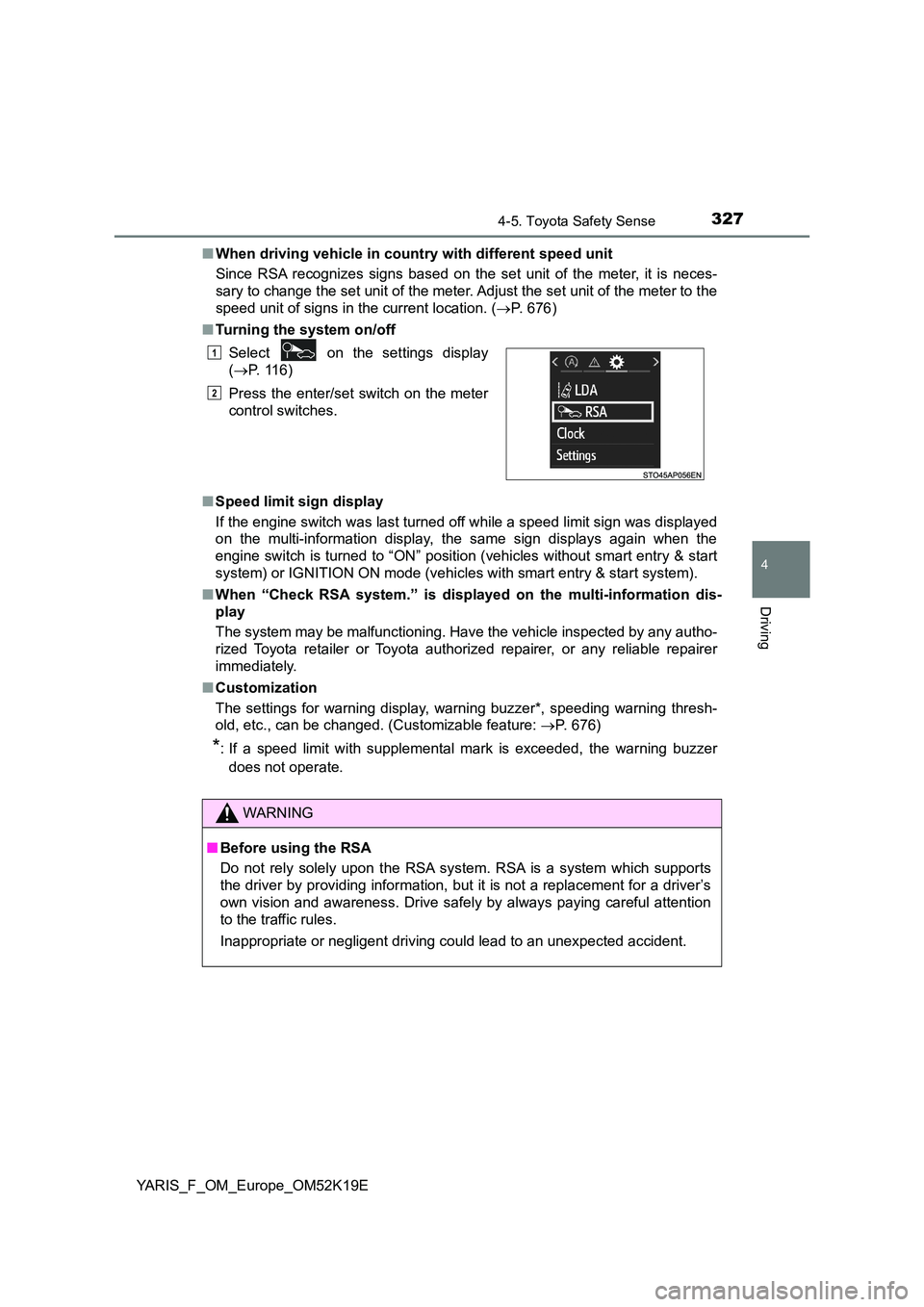
■ Turning the system on/off
■ Speed limit sign display
If the engine switch was last turned off while a speed limit sign was displayed
on the multi-information display, the same sign displays again when the
engine switch is turned to “ON” position (vehicles without smart entry & start
system) or IGNITION ON mode (vehicles with smart entry & start system).
■ When “Check RSA system.” is displayed on the multi-information dis-
play
The system may be malfunctioning. Have the vehicle inspected by any autho-
rized Toyota retailer or Toyota authorized repairer, or any reliable repairer
immediately.
■ Customization
The settings for warning display, warning buzzer*, speeding warning thresh-
old, etc., can be changed. (Customizable feature: P. 676)
*: If a speed limit with supplemental mark is exceeded, the warning buzzer
does not operate.
Select on the settings display
( P. 116)
Press the enter/set switch on the meter
control switches.
WARNING
■ Before using the RSA
Do not rely solely upon the RSA system. RSA is a system which supports
the driver by providing information, but it is not a replacement for a driver’s
own vision and awareness. Drive safely by always paying careful attention
to the traffic rules.
Inappropriate or negligent driving could lead to an unexpected accident.
1
2
Page 342 of 700
3424-6. Using the driving support systems
YARIS_F_OM_Europe_OM52K19E
■ The Stop & Start system protection feature
Vehicles without a smart entry & start system
When an excessively loud sound is being projected by the audio system, the
audio system may be automatically cut off in order to maintain power for the
Stop & Start system function.
If this occurs, turning the engine switch to the “LOCK” position then to the
“ACC” or “ON” position re -enables the audio system.
Vehicles with a smart entry & start system
When an excessively loud sound is being projected by the audio system, the
audio system may be automatically cut off in order to maintain power for the
Stop & Start system function.
If this occurs, turning the engine switch off then to ACCESSORY mode or
IGNITION ON mode re-enables the audio system.
■ Hood
Even if the hood is closed after the engine is started with the hood open, the
Stop & Start system will not operate. Close the hood, turn the engine switch
off, wait 30 seconds or more, and then start the engine. ( P. 243, 246)
Vehicles with a Multidrive: If the hood is opened while the engine is stopped
by the Stop & Start system and the shift lever is in N or P, the engine will
restart.
■ When to use the Stop & Start system
When the system does not operate, is canceled, or is malfunctioning, warning
messages (vehicles with color display only) and a warning buzzer are used to
inform the driver. ( P. 343)
■ Stop & Start system warning buzzer
If the engine is stopped by the Stop & Start system and either of the following
actions is performed, a buzzer will sound and the Stop & Start indicator will
flash (Multidrive), or a buzzer will sound (manual transmission). This indi-
cates that the engine is only stopped by the Stop & Start system, not that the
engine has been turned off completely.
Vehicles with a Multidrive
The driver’s door is opened when the shift lever is in D or M.
Vehicles with a manual transmission
The shift lever is shifted into a position other than N with the clutch pedal
released.
Page 373 of 700
3735-4. Playing audio CDs and MP3/WMA discs
5
Audio system
YARIS_F_OM_Europe_OM52K19E
■Switching the display
Press (“Text”) to display or hide the album title.
If there are continuing texts, is displayed.
Press and hold the button to display the remaining texts.
■ Display
Depending on the contents recorded, the characters may not be displayed
properly or may not be displayed at all.
■ Error messages
If an error message is displayed, refer to the following table and take the
appropriate measures. If the problem is not rectified, take the vehicle to any
authorized Toyota retailer or Toyota authorized repairer, or any reliable
repairer.
MessageCauseCorrection procedures
“CD check”
• The disc is dirty or
damaged.
• The disc is inserted
upside down.
• Clean the disc.
• Insert the disc cor-
rectly.
“Error”There is a malfunction
within the system.Eject the disc.
“Wait”
Operation has stopped
due to a high tempera-
ture inside the player.
Wait for a while and
then press the “MODE”
button.
Contact any autho-
rized Toyota retailer or
Toyota authorized
repairer, or any reliable
repairer if the CD still
cannot be played.
“No support”MP3/WMA files are not
included on the CD.Eject the disc.
Page 374 of 700
3745-4. Playing audio CDs and MP3/WMA discs
YARIS_F_OM_Europe_OM52K19E
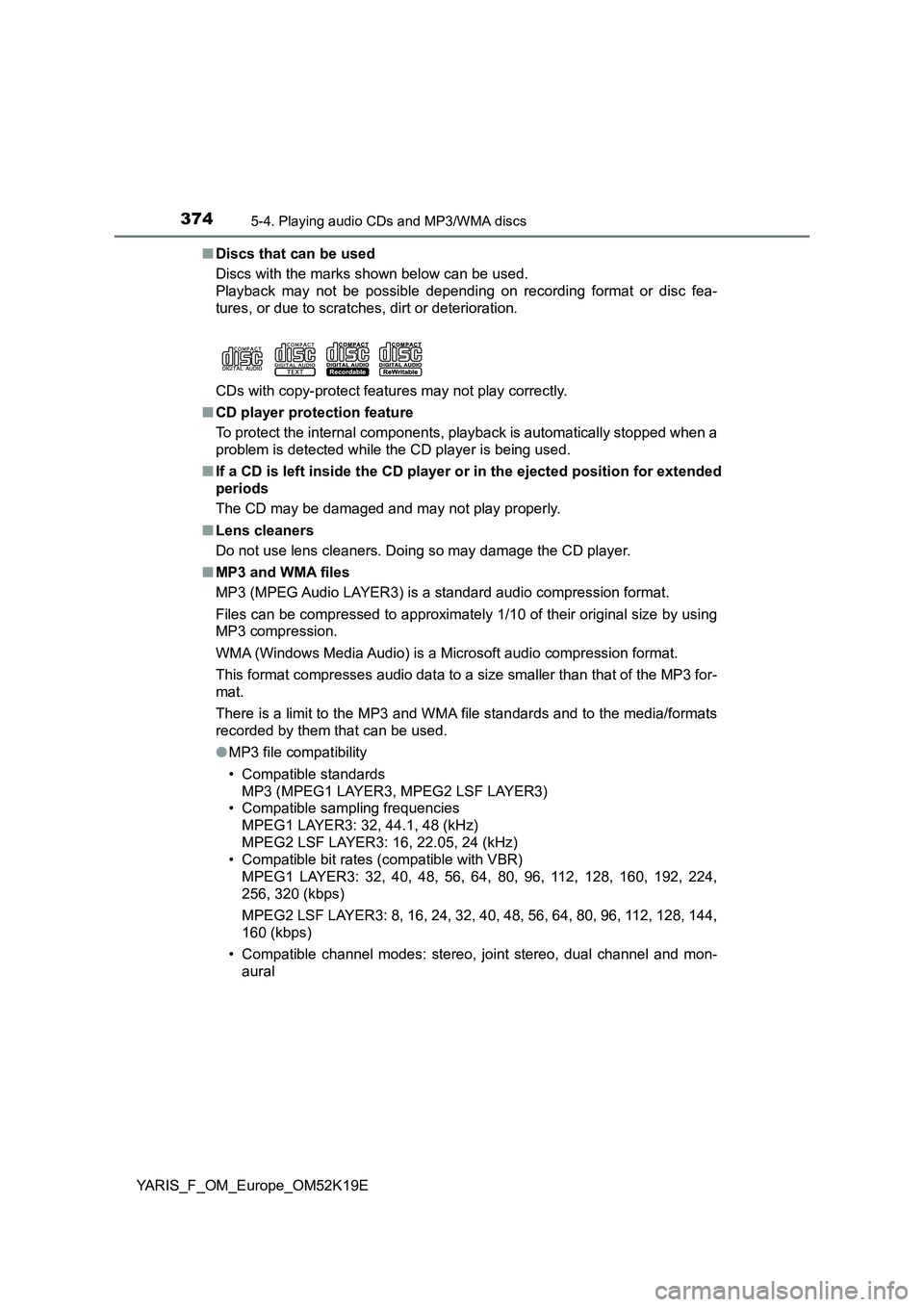
■ Discs that can be used
Discs with the marks shown below can be used.
Playback may not be possible depending on recording format or disc fea-
tures, or due to scratches, dirt or deterioration.
CDs with copy-protect features may not play correctly.
■ CD player protection feature
To protect the internal components, playback is automatically stopped when a
problem is detected while the CD player is being used.
■ If a CD is left inside the CD player or in the ejected position for extended
periods
The CD may be damaged and may not play properly.
■ Lens cleaners
Do not use lens cleaners. Doing so may damage the CD player.
■ MP3 and WMA files
MP3 (MPEG Audio LAYER3) is a standard audio compression format.
Files can be compressed to approximately 1/10 of their original size by using
MP3 compression.
WMA (Windows Media Audio) is a Microsoft audio compression format.
This format compresses audio data to a size smaller than that of the MP3 for-
mat.
There is a limit to the MP3 and WMA file standards and to the media/formats
recorded by them that can be used.
● MP3 file compatibility
• Compatible standards
MP3 (MPEG1 LAYER3, MPEG2 LSF LAYER3)
• Compatible sampling frequencies
MPEG1 LAYER3: 32, 44.1, 48 (kHz)
MPEG2 LSF LAYER3: 16, 22.05, 24 (kHz)
• Compatible bit rates (compatible with VBR)
MPEG1 LAYER3: 32, 40, 48, 56, 64, 80, 96, 112, 128, 160, 192, 224,
256, 320 (kbps)
MPEG2 LSF LAYER3: 8, 16, 24, 32, 40, 48, 56, 64, 80, 96, 112, 128, 144,
160 (kbps)
• Compatible channel modes: stereo, joint stereo, dual channel and mon-
aural
Page 375 of 700
3755-4. Playing audio CDs and MP3/WMA discs
5
Audio system
YARIS_F_OM_Europe_OM52K19E
● WMA file compatibility
• Compatible standards
WMA Ver. 7, 8, 9
• Compatible sampling frequencies
32, 44.1, 48 (kHz)
• Compatible bit rates (only compatible with 2-channel playback)
Ver. 7, 8: CBR 48—192 (kbps)
Ver. 9: CBR 32, 48, 64, 80, 96, 128, 160, 192, 256, 320 (kbps)
● Compatible media
Media that can be used for MP3 and WMA playback are CD-Rs and CD-
RWs.
Playback in some instances may not be possible, depending on the status
of the CD-R or CD-RW. Playback may not be possible or the audio may
jump if the disc is scratched or marked with fingerprints.
● Compatible disc formats
The following disc formats can be used.
• Disc formats: CD-ROM Mode 1 and Mode 2
CD-ROM XA Mode 2, Form 1 and Form 2
• File formats: ISO9660 Level 1, Level 2, (Romeo, Joliet)
MP3 and WMA files written in any format other than those listed above
may not play correctly, and their file names and folder names may not be
displayed correctly.
Items related to standards and limitations are as follows.
• Maximum directory hierarchy: 8 levels
• Maximum length of folder names/file names: 32 characters
• Maximum number of folders: 192 (including the root)
• Maximum number of files per disc: 255
● File names
The only files that can be recognized as MP3/WMA and played are those
with the extension .mp3 or .wma.
● Multi-sessions
As the audio system is compatible with multi-sessions, it is possible to play
discs that contain MP3 and WMA files. However, only the first session can
be played.
Page 380 of 700
3805-5. Using an external device
YARIS_F_OM_Europe_OM52K19E
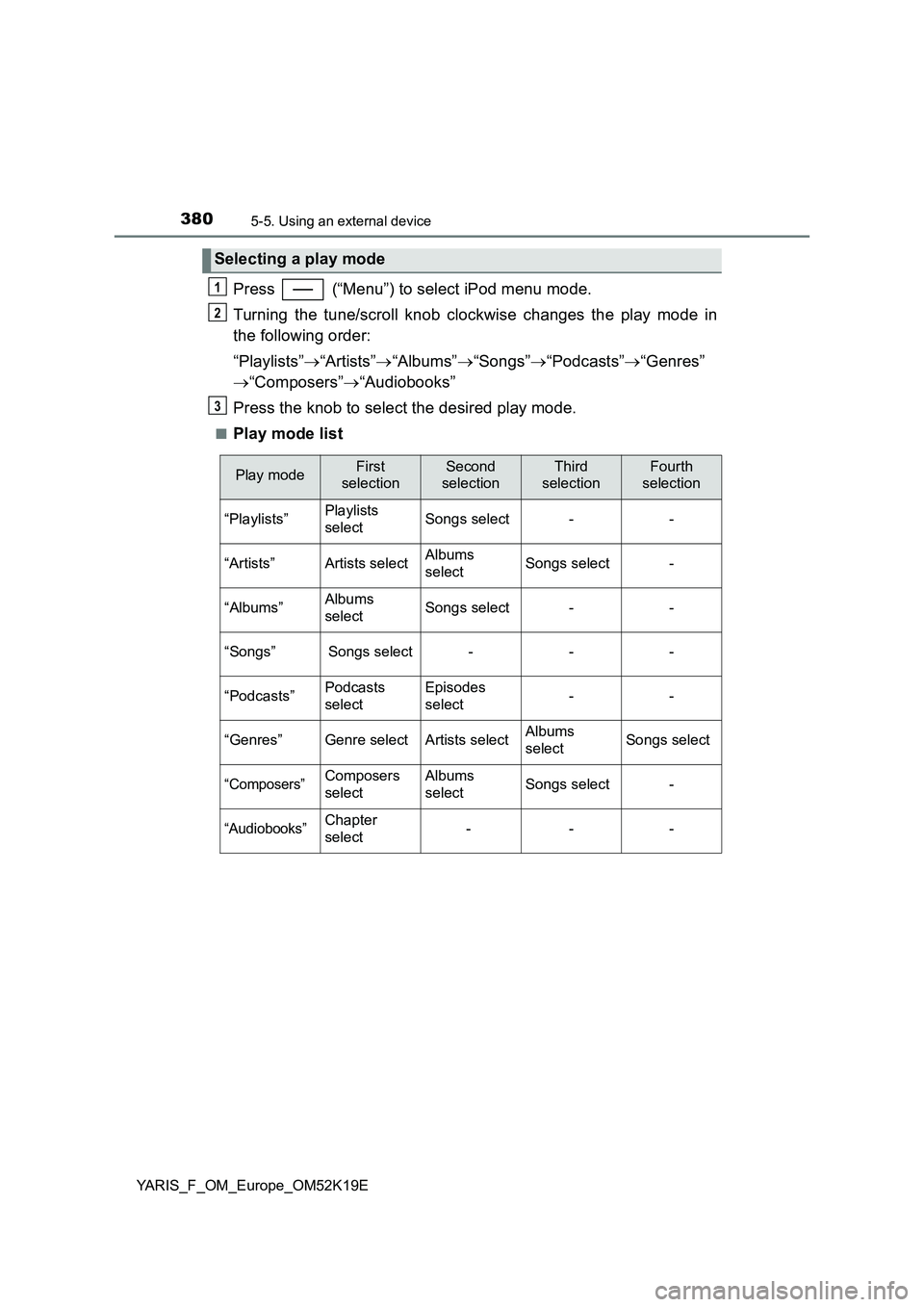
Press (“Menu”) to select iPod menu mode.
Turning the tune/scroll knob clockwise changes the play mode in
the following order:
“Playlists” “Artists”“Albums”“Songs”“Podcasts”“Genres”
“Composers”“Audiobooks”
Press the knob to select the desired play mode.
■Play mode list
Selecting a play mode
1
2
3
Play modeFirst
selection
Second
selection
Third
selection
Fourth
selection
“Playlists”Playlists
selectSongs select--
“Artists”Artists selectAlbums
selectSongs select-
“Albums”Albums
selectSongs select--
“Songs”Songs select---
“Podcasts”Podcasts
select
Episodes
select--
“Genres”Genre selectArtists selectAlbums
selectSongs select
“Composers”Composers
select
Albums
selectSongs select-
“Audiobooks”Chapter
select---
Page 383 of 700
3835-5. Using an external device
5
Audio system
YARIS_F_OM_Europe_OM52K19E
■ iPod functions
● When an iPod is connected and the audio source is changed to iPod mode,
the iPod will resume play from the same point in which it was last used.
● Depending on the iPod that is connected to the system, certain functions
may not be available. If a function is unavailable due to a malfunction (as
opposed to a system specification), disconnecting the device and recon-
necting it once again may resolve the problem.
● While connected to the system, the iPod cannot be operated with its own
controls. It is necessary to use the controls of the vehicle’s audio system
instead.
● When the battery level of an iPod is very low, the iPod may not operate. If
so, charge the iPod before use.
● Supported models (P. 385)
■ iPod problems
To resolve most problems encountered when using your iPod, disconnect
your iPod from the vehicle iPod connection and reset it.
For instructions on how to reset your iPod, refer to your iPod Owner’s Man-
ual.
■ Display
P. 373
Page 390 of 700
3905-5. Using an external device
YARIS_F_OM_Europe_OM52K19E
■ USB memory
● Compatible devices
USB memory that can be used for MP3 and WMA playback
● Compatible device formats
The following device formats can be used:
• USB communication formats: USB2.0 FS (12 Mbps)
• File formats: FAT12/16/32 (Windows)
• Correspondence class: Mass storage class
MP3 and WMA files written in any format other than those listed above may
not play correctly, and their file names and folder names may not be dis-
played correctly.
Items related to standards and limitations are as follows:
• Maximum directory hierarchy: 8 levels
• Maximum number of folders in a device: 999 (including the root)
• Maximum number of files in a device: 9999
• Maximum number of files per folder: 255
● MP3 and WMA files
MP3 (MPEG Audio LAYER 3) is a standard audio compression format.
Files can be compressed to approximately 1/10 of their original size by
using MP3 compression.
WMA (Windows Media Audio) is a Microsoft audio compression format.
This format compresses audio data to a size smaller than that of the MP3
format.
There is a limit to the MP3 and WMA file standards and to the media/for-
mats recorded by them that can be used.
● MP3 file compatibility
• Compatible standards
MP3 (MPEG1 AUDIO LAYERII, III, MPEG2 AUDIO LAYERII, III, MPEG2.5)
• Compatible sampling frequencies
MPEG1 AUDIO LAYERII, III: 32, 44.1, 48 (kHz)
MPEG2 AUDIO LAYERII, III: 16, 22.05, 24 (kHz)
• Compatible bit rates (compatible with VBR)
MPEG1 AUDIO LAYERII, III: 32-320 (kbps)
MPEG2 AUDIO LAYERII, III: 8-160 (kbps)
• Compatible channel modes: stereo, joint stereo, dual channel and mon-
aural
Page 391 of 700
3915-5. Using an external device
5
Audio system
YARIS_F_OM_Europe_OM52K19E
● WMA file compatibility
• Compatible standards
WMA Ver. 7, 8, 9
• Compatible sampling frequencies
32, 44.1, 48 (kHz)
• Compatible bit rates (only compatible with 2-channel playback)
Ver. 7, 8: CBR 48, 64, 80, 96, 128, 160, 192 (kbps)
Ver. 9: CBR 32, 48, 64, 80, 96, 128, 160, 192, 256, 320 (kbps)
● File names
The only files that can be recognized as MP3/WMA and played are those
with the extension .mp3 or .wma.
● ID3 and WMA tags
ID3 tags can be added to MP3 files, making it possible to record the track
title, artist name, etc.
The system is compatible with ID3 Ver. 1.0, 1.1, and Ver. 2.2, 2.3, 2.4 ID3
tags. (The number of characters is based on ID3 Ver. 1.0 and 1.1.)
WMA tags can be added to WMA files, making it possible to record the
track title and artist name in the same way as with ID3 tags.
● MP3 and WMA playback
• When a device containing MP3 or WMA files is connected, all files in the
USB memory are checked. Once the file check is finished, the first MP3
or WMA file is played. To make the file check finish more quickly, we rec-
ommend that you do not include any files other than MP3 or WMA files or
create any unnecessary folders.
• When the USB memory is connected and the audio source is changed to
USB memory mode, the USB memory will start playing the first file in the
first folder.
If the same device is removed and reinserted (and the contents have not
been changed), the USB memory will resume play from the same point in
which it was last used.