buttons TOYOTA YARIS HATCHBACK 2018 Owners Manual
[x] Cancel search | Manufacturer: TOYOTA, Model Year: 2018, Model line: YARIS HATCHBACK, Model: TOYOTA YARIS HATCHBACK 2018Pages: 520, PDF Size: 8.69 MB
Page 21 of 520
21Pictorial index
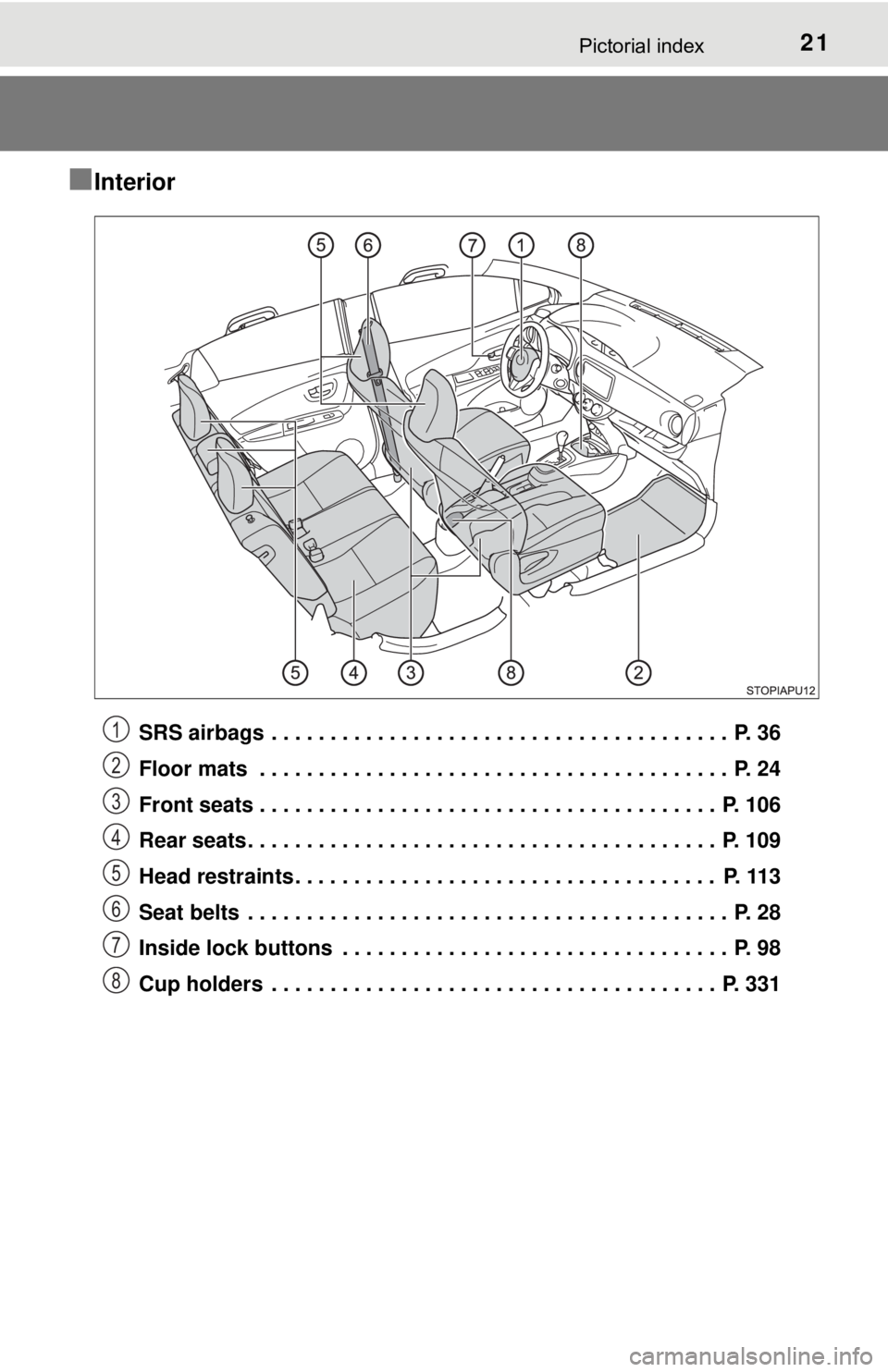
■Interior
SRS airbags . . . . . . . . . . . . . . . . . . . . . . . . . . . . . . . . . . . . . . . P. 36
Floor mats . . . . . . . . . . . . . . . . . . . . . . . . . . . . . . . . . . . . . . . . P. 24
Front seats . . . . . . . . . . . . . . . . . . . . . . . . . . . . . . . . . . . . . . . P. 106
Rear seats . . . . . . . . . . . . . . . . . . . . . . . . . . . . . . . . . . . . . . . . P. 109
Head restraints . . . . . . . . . . . . . . . . . . . . . . . . . . . . . . . . . . . . P. 113
Seat belts . . . . . . . . . . . . . . . . . . . . . . . . . . . . . . . . . . . . . . . . . P. 28
Inside lock buttons . . . . . . . . . . . . . . . . . . . . . . . . . . . . . . . . . P. 98
Cup holders . . . . . . . . . . . . . . . . . . . . . . . . . . . . . . . . . . . . . . P. 3311
2
3
4
5
6
7
8
Page 69 of 520
691-2. Child safety
1
For safety and security
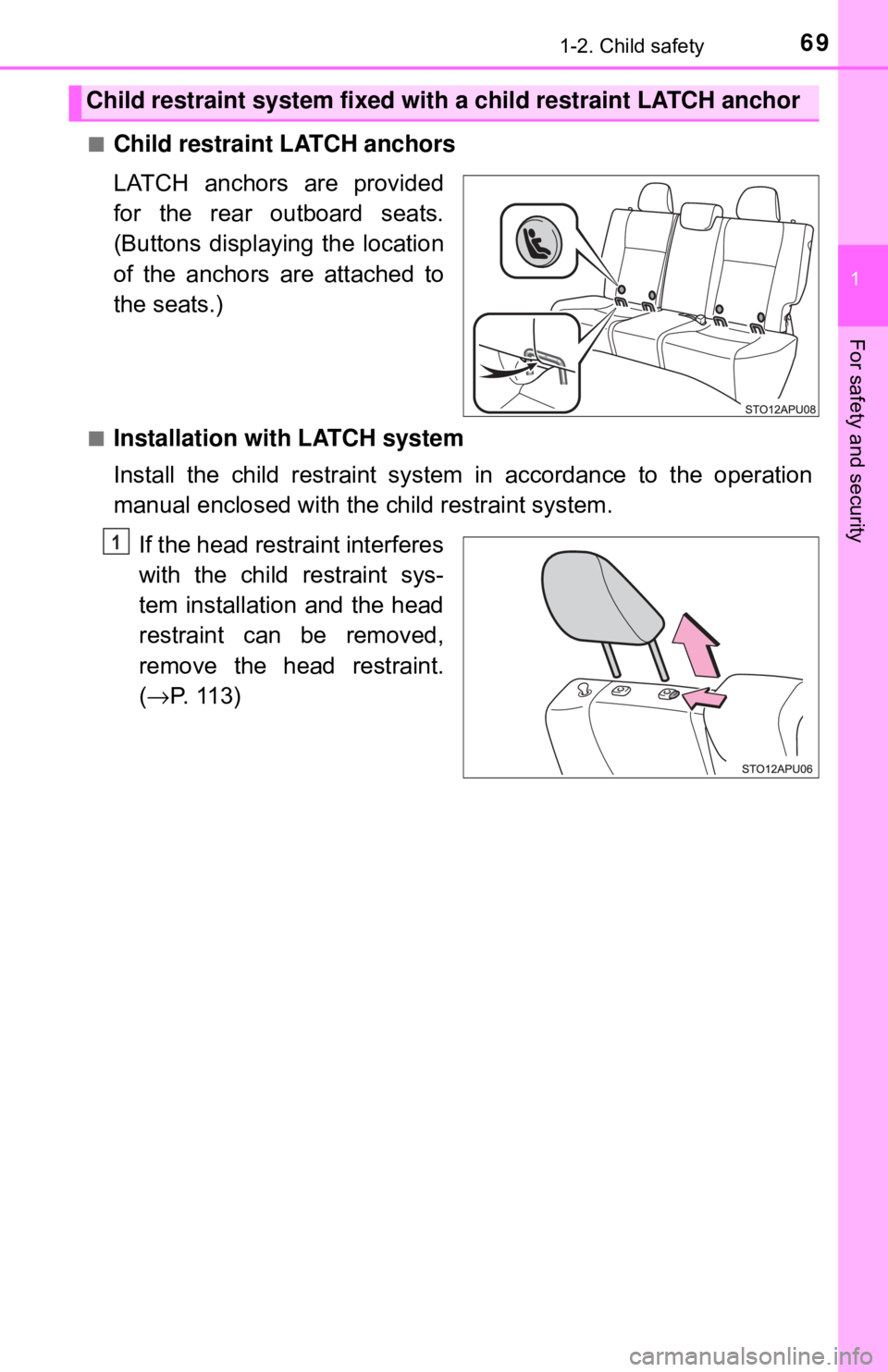
■Child restraint LATCH anchors
LATCH anchors are provided
for the rear outboard seats.
(Buttons displaying the location
of the anchors are attached to
the seats.)
■Installation with LATCH system
Install the child restraint system in accordance to the operation
manual enclosed with the child restraint system.If the head restraint interferes
with the child restraint sys-
tem installation and the head
restraint can be removed,
remove the head restraint.
(→ P. 113)
Child restraint system fixed with a child restraint LATCH anchor
1
Page 83 of 520
832. Instrument cluster
2
Instrument cluster
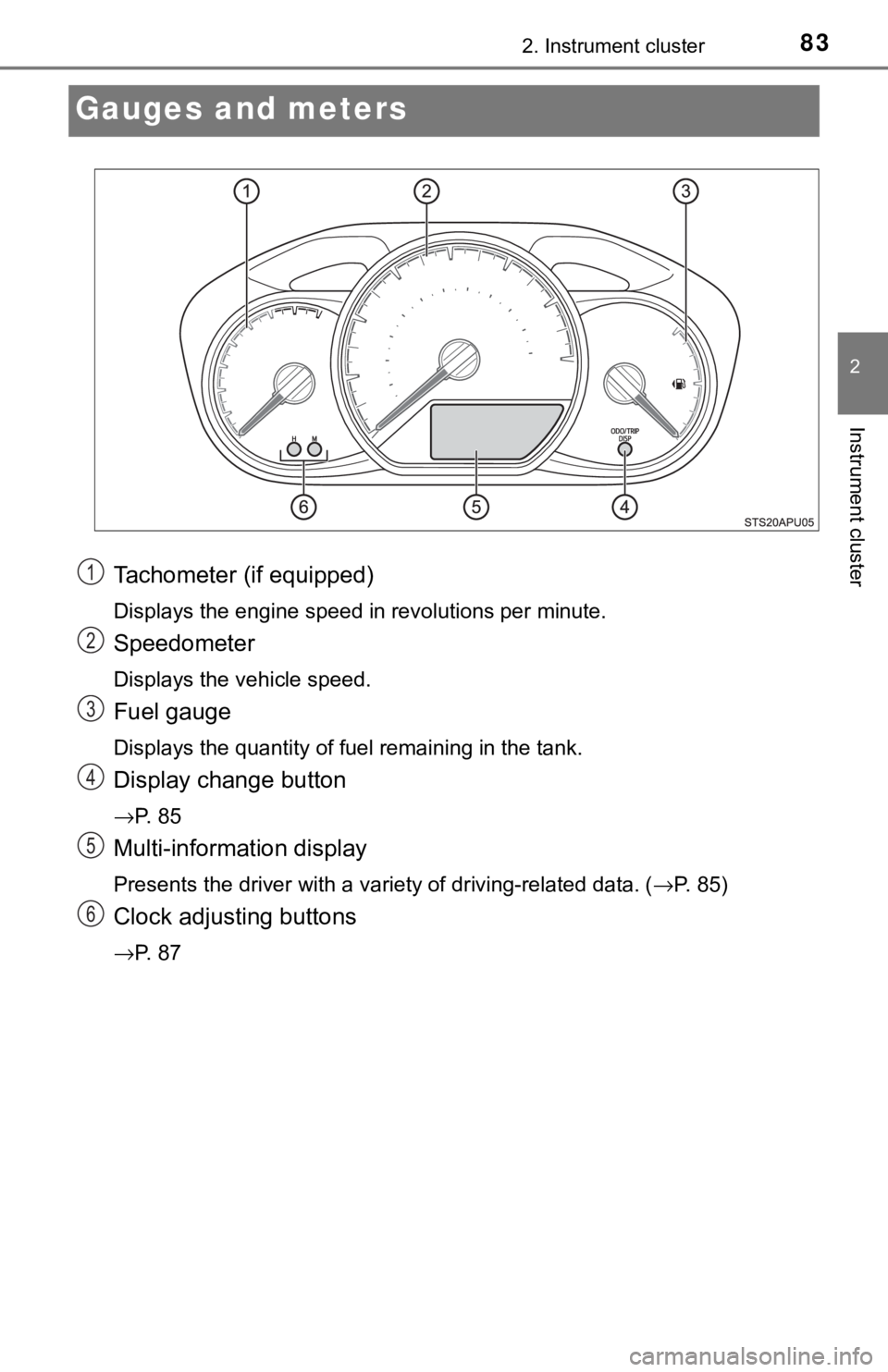
Gauges and meters
Tachometer (if equipped)
Displays the engine speed in revolutions per minute.
Speedometer
Displays the vehicle speed.
Fuel gauge
Displays the quantity of fuel remaining in the tank.
Display change button
→P. 8 5
Multi-information display
Presents the driver with a variety of driving-related data. (→P. 85)
Clock adjusting buttons
→P. 8 7
1
2
3
4
5
6
Page 87 of 520
872. Instrument cluster
2
Instrument cluster
Eco Driving Indicator Light can be activated or deactivated by press-
ing the display change button when the Eco Driving Indicator Light
customization display is displayed.
To change the Eco Driving Indicator Light customization display, display the
odometer and press and hold the display change button until the display
changes.
After customization, press the display change button for more than 2 sec-
onds to return to the odometer.
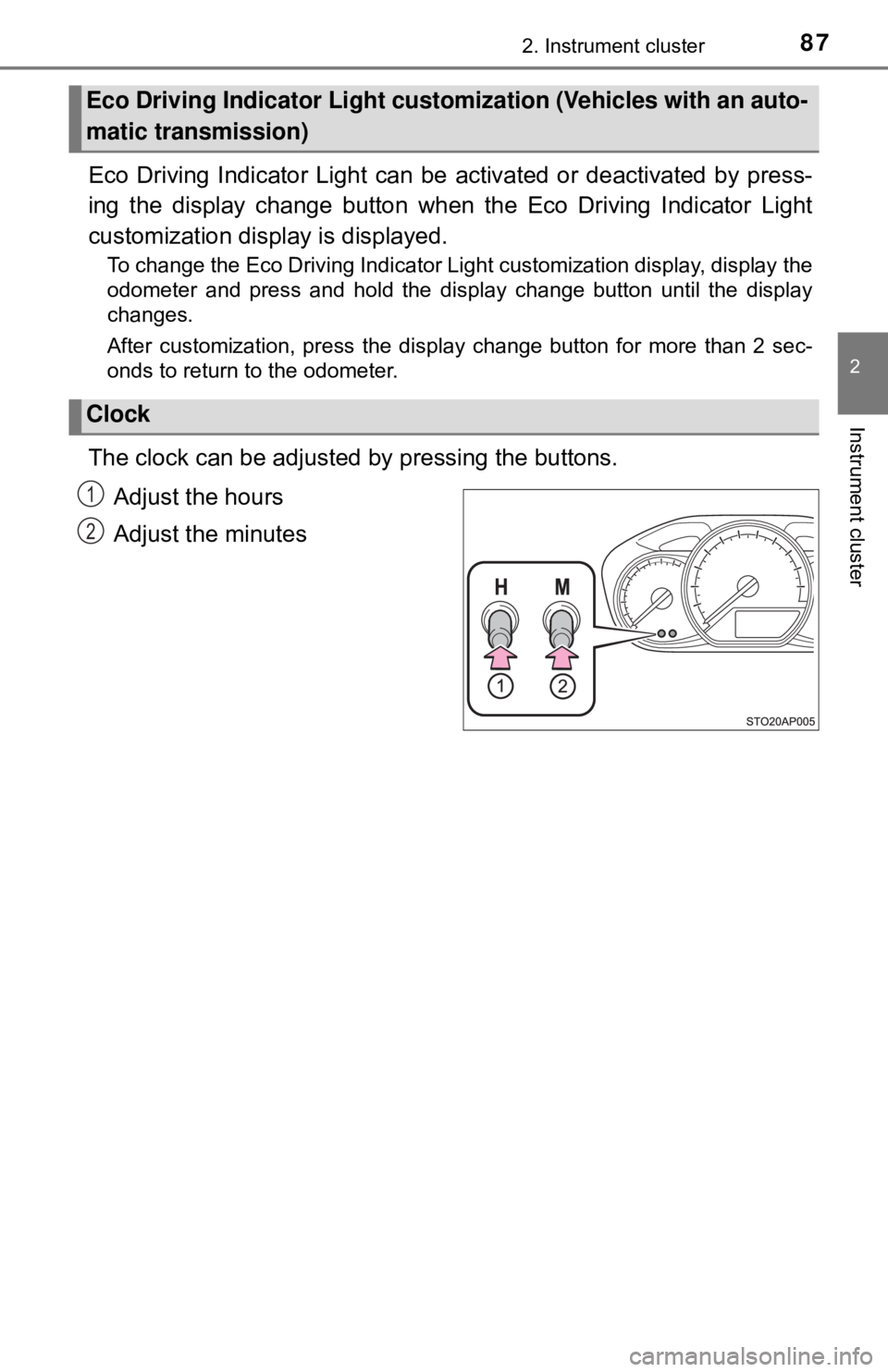
The clock can be adjusted by pressing the buttons.
Adjust the hours
Adjust the minutes
Eco Driving Indicator Light custom ization (Vehicles with an auto-
matic transmission)
Clock
1
2
Page 94 of 520
943-1. Key information
■If you lose your keys
New genuine keys can be made by your Toyota dealer using the other key
and the key number stamped on your key number plate. Keep the plate in a
safe place such as your wallet, not in the vehicle.
■ When riding in an aircraft
When bringing a key with wireless remote control function onto an aircraft,
make sure you do not press any buttons on the key while inside the aircraft
cabin. If you are carrying a key in your bag etc., ensure that the buttons are
not likely to be pressed accidentally. Pressing a button may cause the key to
emit radio waves that could interfere with the operation of the aircraft.
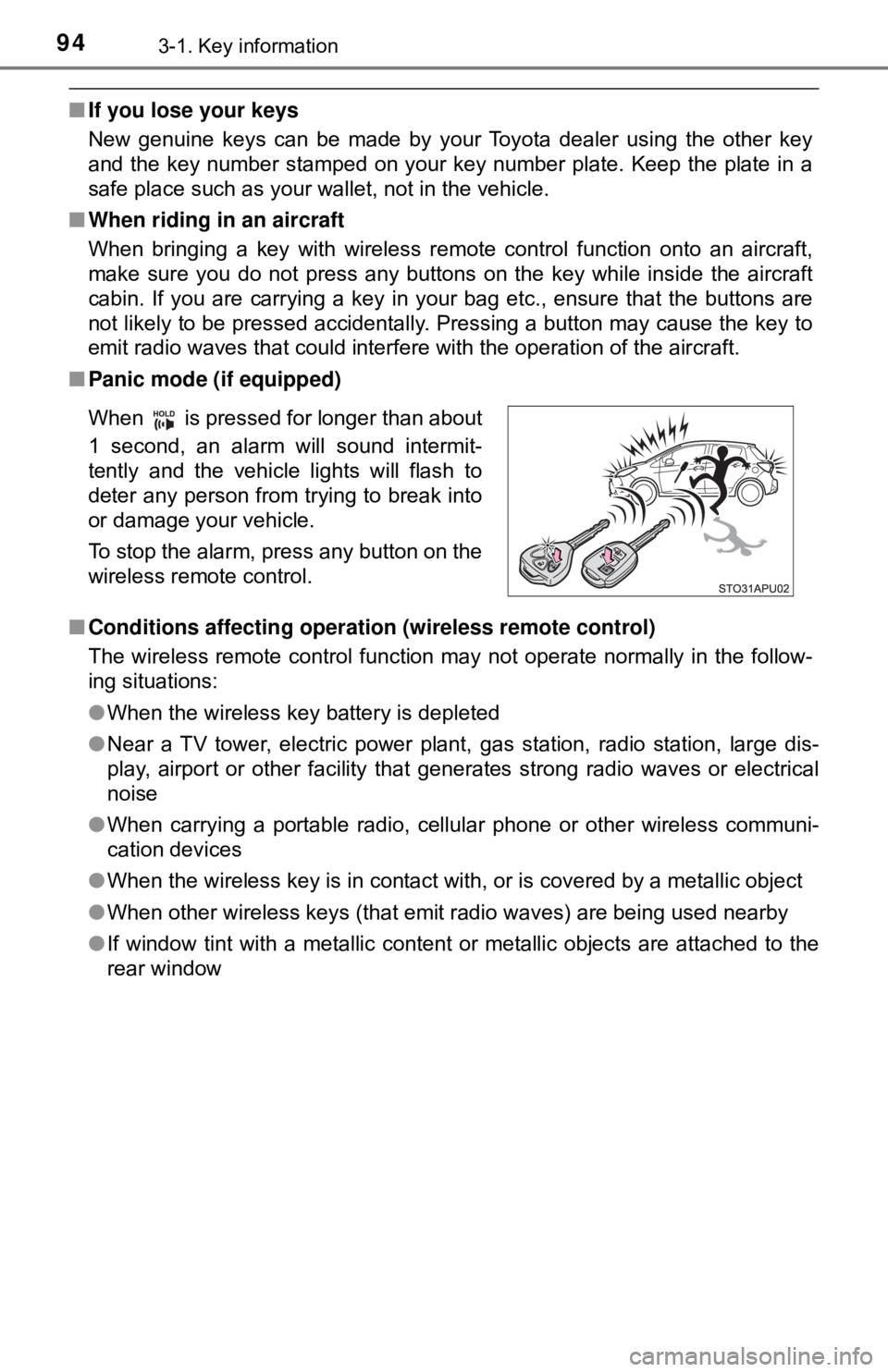
■ Panic mode (if equipped)
■ Conditions affecting operation (wireless remote control)
The wireless remote control function may not operate normally in the follow-
ing situations:
●When the wireless key battery is depleted
● Near a TV tower, electric power plant, gas station, radio station, large dis-
play, airport or other facility that generates strong radio waves or electrical
noise
● When carrying a portable radio, cellul ar phone or other wireless communi-
cation devices
● When the wireless key is in contact with, or is covered by a metallic object
● When other wireless keys (that emit radio waves) are being used nearby
● If window tint with a metallic content or metallic objects are attached to the
rear window
When is pressed for longer than about
1 second, an alarm will sound intermit-
tently and the vehicle lights will flash to
deter any person from trying to break into
or damage your vehicle.
To stop the alarm, press any button on the
wireless remote control.
Page 98 of 520
983-2. Opening, closing and locking the doors
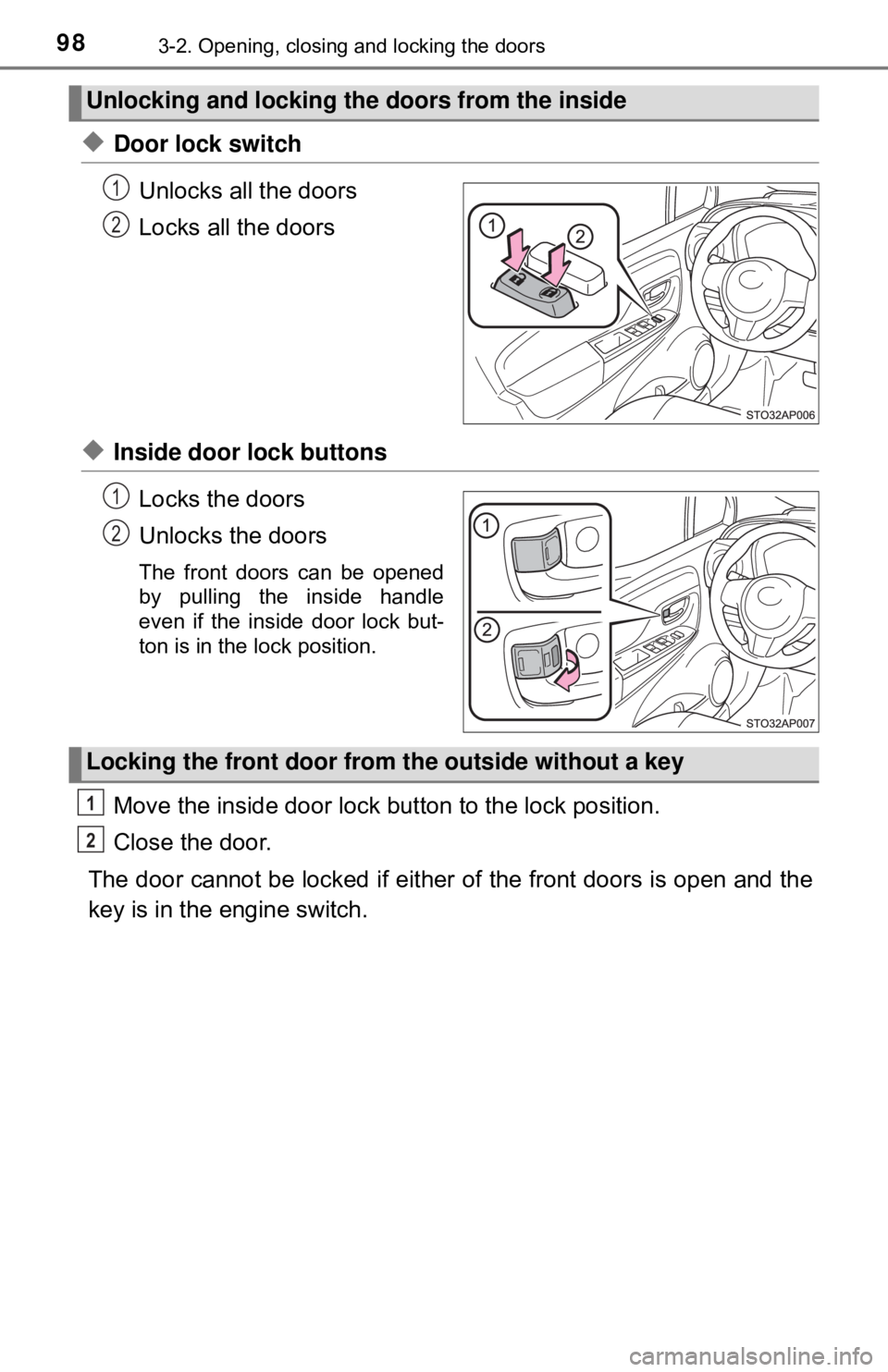
◆Door lock switchUnlocks all the doors
Locks all the doors
◆Inside door lock buttonsLocks the doors
Unlocks the doors
The front doors can be opened
by pulling the inside handle
even if the inside door lock but-
ton is in the lock position.
Move the inside door lock button to the lock position.
Close the door.
The door cannot be locked if either of the front doors is open and the
key is in the engine switch.
Unlocking and locking the doors from the inside
1
2
1
2
Locking the front door from the outside without a key
1
2
Page 100 of 520

1003-2. Opening, closing and locking the doors
WARNING
■To prevent an accident
Observe the following precautions while driving the vehicle.
Failure to do so may result in a door opening and an occupant falling out,
resulting in death or serious injury.
● Always use a seat belt.
● Always lock all the doors.
● Ensure that all the doors are properly closed.
● Do not pull the inside handle of the doors while driving.
The doors may be opened and the passengers are thrown out of the vehi-
cle and it may result in serious injury or death.
Be especially careful for the front doors, as the doors may be opened
even if the inside lock buttons are in locked position.
● 5-door models only: Set the rear door child-protector locks when children
are seated in the rear seats.
Page 229 of 520
2295-1. Basic Operations
5
Multimedia system
Audio system
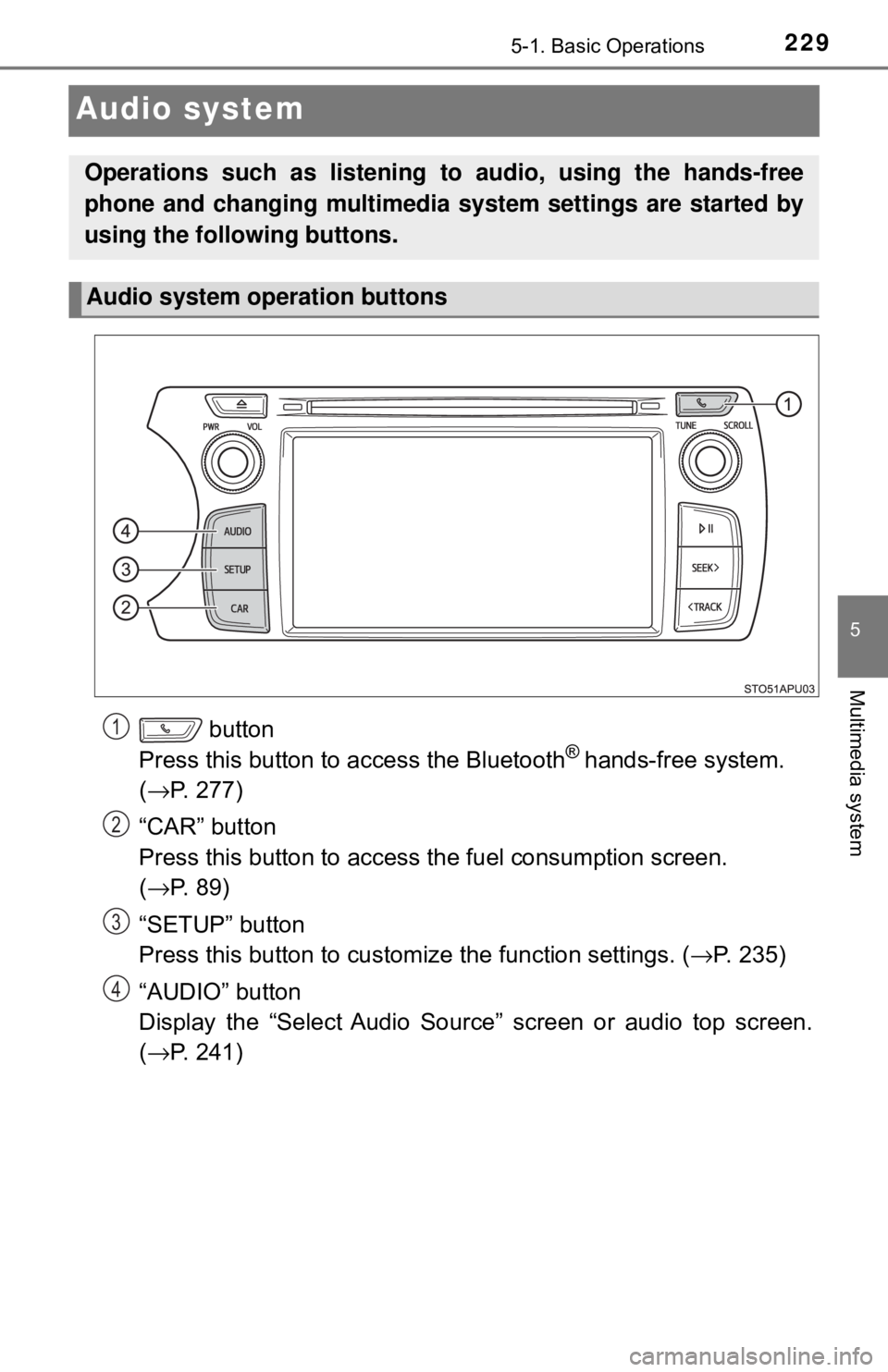
button
Press this button to access the Bluetooth® hands-free system.
( → P. 277)
“CAR” button
Press this button to access the fuel consumption screen.
( → P. 89)
“SETUP” button
Press this button to customize the function settings. ( →P. 235)
“AUDIO” button
Display the “Select Audio Source” screen or audio top screen.
( → P. 241)
Operations such as listening to audio, using the hands-free
phone and changing multimedia system settings are started by
using the following buttons.
Audio system operation buttons
1
2
3
4
Page 230 of 520
2305-1. Basic Operations
By touching the screen with your finger, you can control the multime-
dia system, etc.
■Drag*
Touch the screen with your finger, and move the screen to the
desired position.
● Scrolling the lists
■Flick*
Touch the screen with your finger and then quickly move the screen
by flicking your finger.
●Scrolling the main screen page
*: The above operations may not be performed on all screens.
■When using the touch screen
●If the screen is cold, the display may be dark, or the system may seem to be
operating slightly slower than normal.
● The screen may seem dark and hard to see when viewed through sun-
glasses. Change your angle of viewing, adjust the display on the “Display
Settings” screen ( →P. 239) or remove your sunglasses.
● Flick operations may not be performed smoothly in high altitudes.
Operating the touch screen
NOTICE
■To avoid damaging the touch screen
● To prevent damaging the screen, lightly touch the screen buttons with your
finger.
● Do not use objects other than your finger to touch the screen.
● Wipe off fingerprints using a glass cleaning cloth. Do not use chemical
cleaners to clean the screen, as they may damage the touch screen.
Page 242 of 520
2425-3. Using the multimedia system
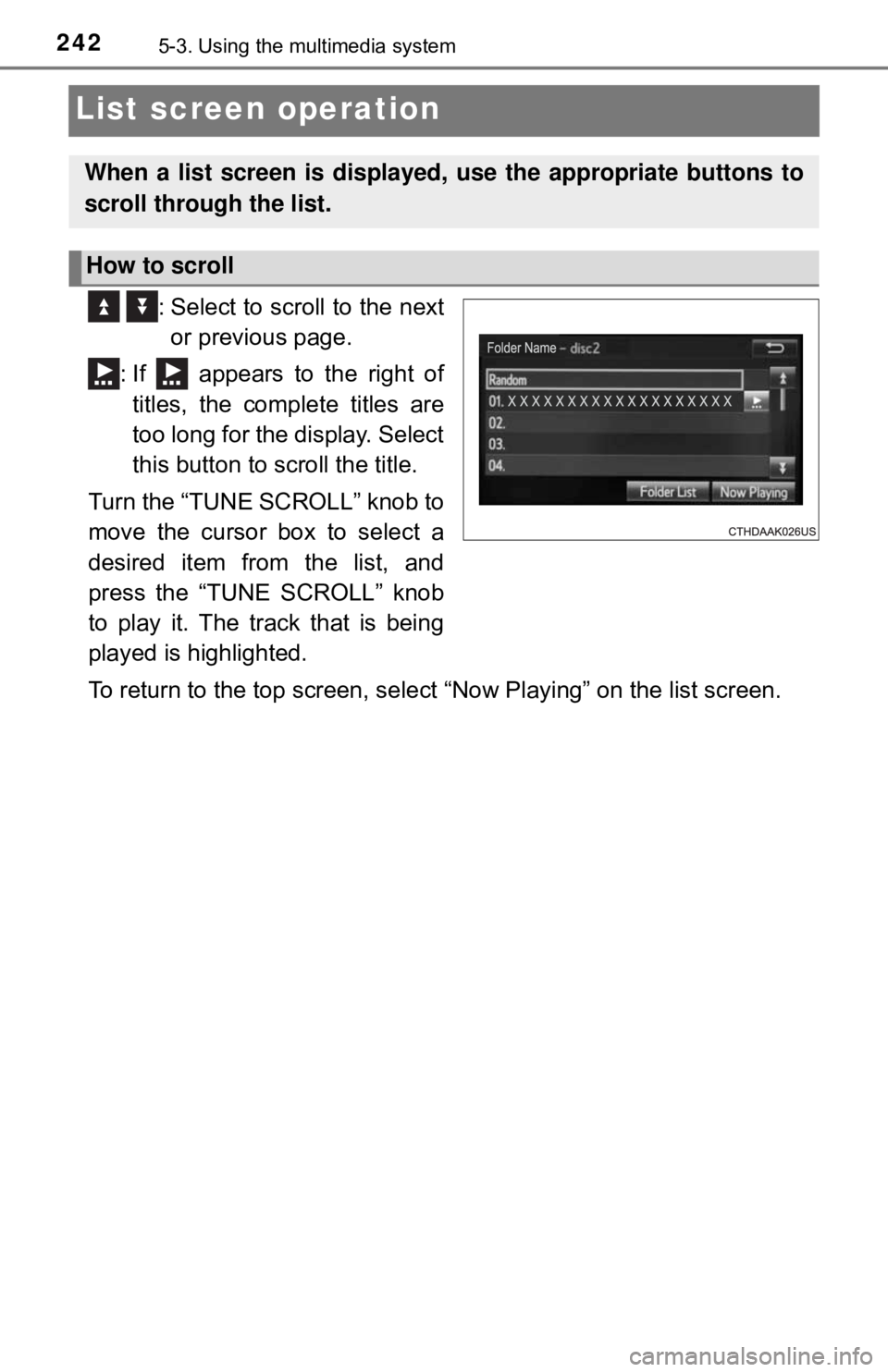
List screen operation
: Select to scroll to the nextor previous page.
: If appears to the right of titles, the complete titles are
too long for the display. Select
this button to scroll the title.
Turn the “TUNE SCROLL” knob to
move the cursor box to select a
desired item from the list, and
press the “TUNE SCROLL” knob
to play it. The track that is being
played is highlighted.
To return to the top screen, select “Now Playing” on the list screen.
When a list screen is displayed, use the appropriate buttons to
scroll through the list.
How to scroll