ESP TOYOTA YARIS HYBRID 2012 User Guide
[x] Cancel search | Manufacturer: TOYOTA, Model Year: 2012, Model line: YARIS HYBRID, Model: TOYOTA YARIS HYBRID 2012Pages: 704, PDF Size: 27.58 MB
Page 253 of 704
253 2-1. Driving procedures
2
When driving
YARIS_F (including HV)_WE_52C79E
Shift position purpose
*: To improve fuel efficiency and reduce noises, set the shift lever in the D
position for normal driving.
Selecting Eco drive mode
Suitable for improving the fuel economy, because the torque cor-
responding to the accelerator pedal depression amount can be
generated more smoothly than it is in normal conditions and the
operation of the air conditioning system (heating/cooling) will be
minimized.
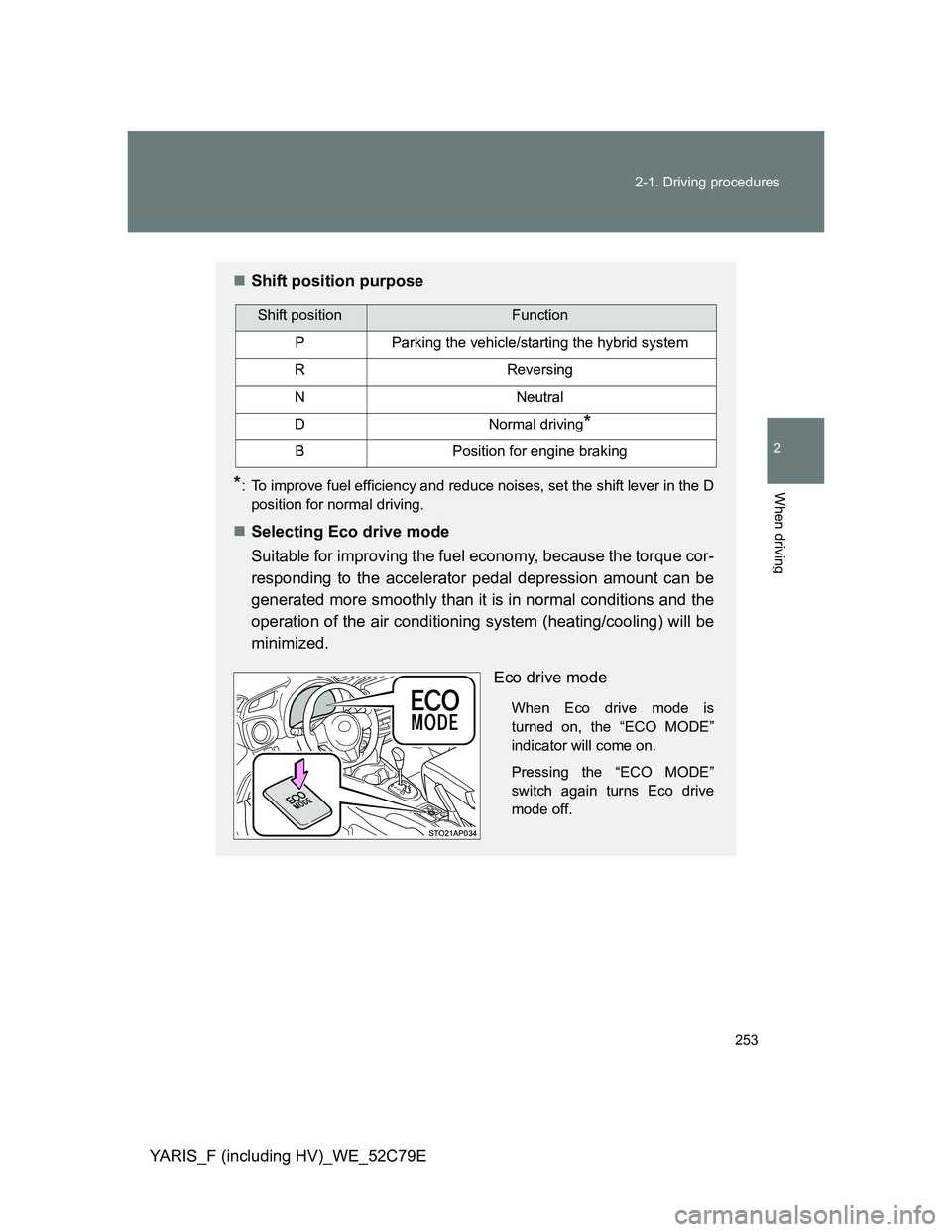
Eco drive mode
When Eco drive mode is
turned on, the “ECO MODE”
indicator will come on.
Pressing the “ECO MODE”
switch again turns Eco drive
mode off.
Shift positionFunction
PParking the vehicle/starting the hybrid system
RReversing
NNeutral
DNormal driving*
BPosition for engine braking
Page 292 of 704
292 2-2. Instrument cluster
YARIS_F (including HV)_WE_52C79E
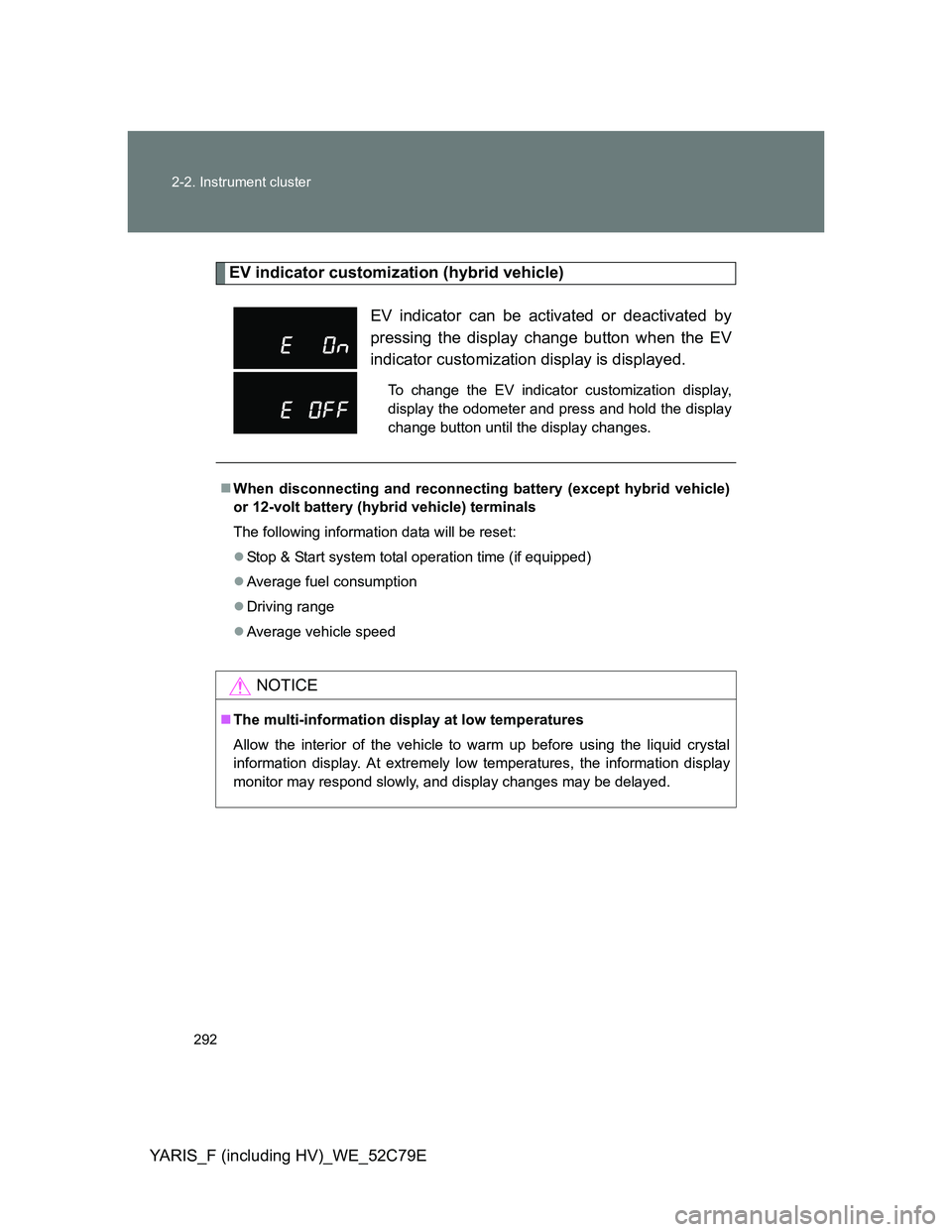
EV indicator customization (hybrid vehicle)
EV indicator can be activated or deactivated by
pressing the display change button when the EV
indicator customization display is displayed.
To change the EV indicator customization display,
display the odometer and press and hold the display
change button until the display changes.
When disconnecting and reconnecting battery (except hybrid vehicle)
or 12-volt battery (hybrid vehicle) terminals
The following information data will be reset:
Stop & Start system total operation time (if equipped)
Average fuel consumption
Driving range
Average vehicle speed
NOTICE
The multi-information display at low temperatures
Allow the interior of the vehicle to warm up before using the liquid crystal
information display. At extremely low temperatures, the information display
monitor may respond slowly, and display changes may be delayed.
Page 326 of 704
326
2-4. Using other driving systems
YARIS_F (including HV)_WE_52C79E
Driving assist systems
To help enhance driving safety and performance, the following sys-
tems operate automatically in response to various driving situations.
Be aware, however, that these systems are supplementary and
should not be relied upon too heavily when operating the vehicle.
ABS (Anti-lock Brake System)
Helps to prevent wheel lock when the brakes are applied suddenly, or if
the brakes are applied while driving on a slippery road surface
Brake assist
Generates an increased level of braking force after the brake pedal is
depressed when the system detects a panic stop situation
VSC (Vehicle Stability Control) (if equipped)
Helps the driver to control skidding when swerving suddenly or turning
on slippery road surfaces
TRC (Traction Control) (if equipped)
Helps to maintain drive power and prevent the drive wheels from spin-
ning when starting the vehicle or accelerating on slippery roads
Hill-start assist control
Except hybrid vehicle (vehicles with a Stop & Start system and a
Multidrive)
Helps to prevent the vehicle from rolling backward when the brake
pedal is released to restart the engine
Hybrid vehicle
P. 332
EPS (Electric Power Steering)
Employs an electric motor to reduce the amount of effort needed to turn
the steering wheel
Page 331 of 704
331 2-4. Using other driving systems
2
When driving
YARIS_F (including HV)_WE_52C79E
CAUTION
When the VSC is activated
The slip indicator light flashes. Always drive carefully. Reckless driving may
cause an accident. Exercise particular care when the indicator light flashes.
When the TRC/VSC systems are turned off (except hybrid vehicle)
Be especially careful and drive at a speed appropriate to the road condi-
tions. Do not turn the TRC/VSC systems off unless necessary, as these are
the systems to ensure vehicle stability and driving force by automatically
controlling braking and engine outputs.
Replacing tires
Make sure that all tires are of the specified size, brand, tread pattern and
total load capacity. In addition, make sure that the tires are inflated to the
recommended tire inflation pressure level.
The ABS, TRC and VSC systems will not function correctly if different tires
are installed on the vehicle.
Contact any authorized Toyota dealer or repairer, or another duly qualified
and equipped professional for further information when replacing tires or
wheels.
Handling of tires and the suspension
Using tires with any kind of problem or modifying the suspension will affect
the driving assist systems, and may cause a system to malfunction.
Page 351 of 704
351 2-5. Driving information
2
When driving
YARIS_F (including HV)_WE_52C79EIncreasing vehicle-to-vehicle distance
At a speed of 10 km/h (6 mph), the distance to the vehicle running
ahead of you should be equivalent to or greater than the combined
length of your vehicle and trailer. Avoid sudden braking that may
cause skidding. Otherwise, the vehicle may spin out of control.
This is especially true when driving on wet or slippery road sur-
faces.
Sudden acceleration/steering input/cornering
Executing sharp turns when towing may result in the trailer collid-
ing with your vehicle. Decelerate well in advance when approach-
ing turns and take them slowly and carefully to avoid sudden
braking.
Important points regarding turning
The wheels of the trailer will travel closer to the inside of the curve
than the wheels of the vehicle. To make allowance for this, take the
turns wider than you would normally do.
Important points regarding stability
Vehicle movement resulting from uneven road surfaces and strong
crosswinds will affect handling. The vehicle may also be rocked by
passing buses or large trucks. Frequently check behind when mov-
ing alongside such vehicles. As soon as such vehicle movement
occurs, immediately start to decelerate smoothly by slowly apply-
ing the brakes. Always steer the vehicle straight ahead while brak-
ing.
Passing other vehicles
Consider the total combined length of your vehicle and trailer and
ensure that the vehicle-to-vehicle distance is sufficient before exe-
cuting lane changes.
Page 377 of 704
377 3-2. Using the audio system
3
Interior features
YARIS_F (including HV)_WE_52C79E
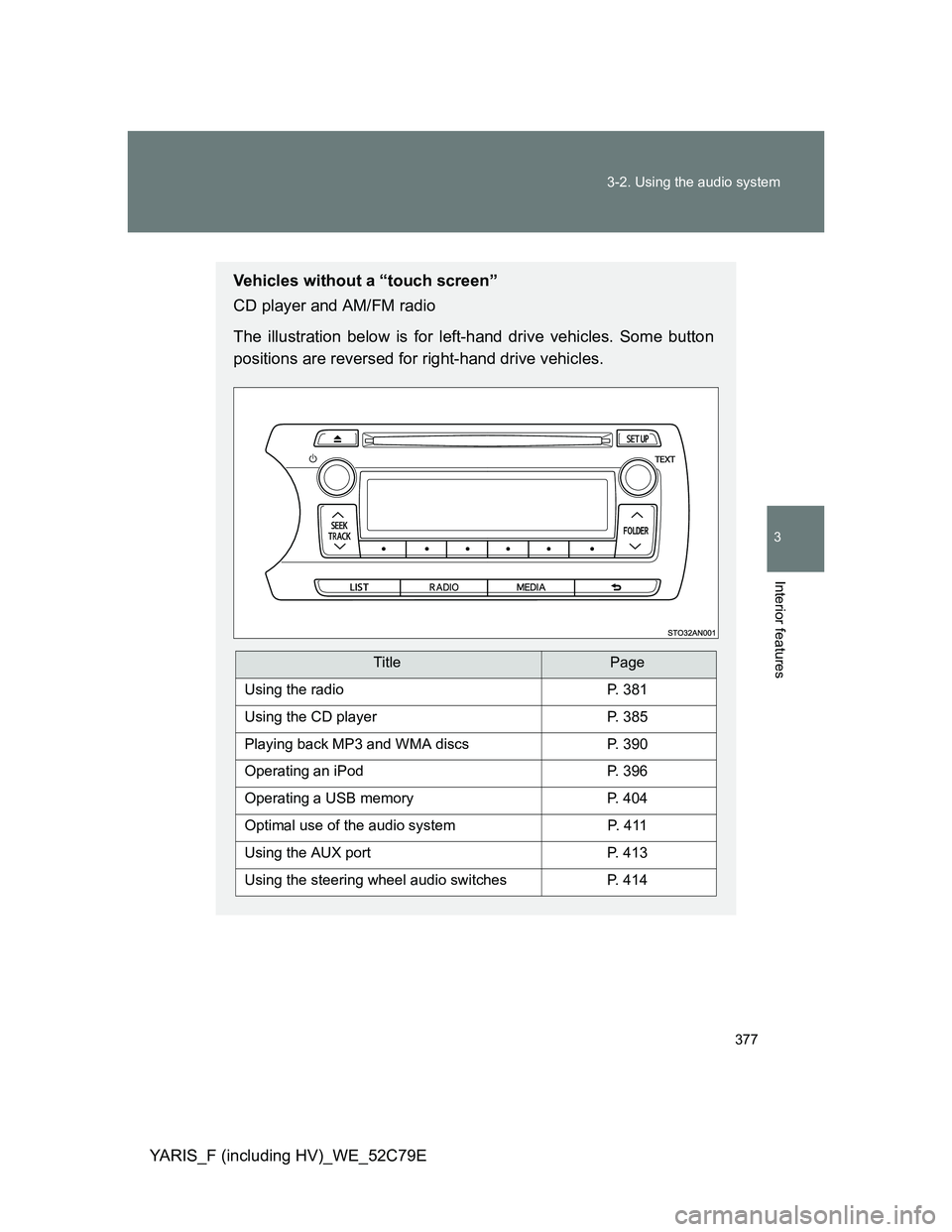
Vehicles without a “touch screen”
CD player and AM/FM radio
The illustration below is for left-hand drive vehicles. Some button
positions are reversed for right-hand drive vehicles.
TitlePage
Using the radioP. 381
Using the CD playerP. 385
Playing back MP3 and WMA discsP. 390
Operating an iPodP. 396
Operating a USB memoryP. 404
Optimal use of the audio systemP. 4 1 1
Using the AUX portP. 413
Using the steering wheel audio switchesP. 414
Page 380 of 704
380 3-2. Using the audio system
YARIS_F (including HV)_WE_52C79E
About Bluetooth® (vehicles with a “touch screen”)
NOTICE
To prevent battery discharge (except hybrid vehicle)
Do not leave the audio system on longer than necessary when the engine is
stopped.
To prevent 12-volt battery discharge (hybrid vehicle)
Do not leave the audio system on longer than necessary when the hybrid
system is off.
To avoid damaging the audio system
Take care not to spill drinks or other fluids over the audio system.
The Bluetooth word mark and logos are
owned by the Bluetooth SIG, Inc. and any
use of such marks by Fujitsu Ten Limited
is under license. Other trademarks and
trade names are those of their respective
owners.
Page 382 of 704
382 3-2. Using the audio system
YARIS_F (including HV)_WE_52C79E
Using the station list
Updating the station list
Press .
The station list will be displayed.
Press (UPDATE) to update the list.
“Updating” is displayed while the searching is in process, and then
available stations will be listed on the display.
To cancel the updating process, press .
Selecting a station from the station list
Press .
The station list will be displayed.
Turn to select a station.
Press to tune in the station.
To return to the previous display, press .
RDS (Radio Data System)
This feature allows your radio to receive station.
Listening to stations of the same network
Press .
Turn to “RADIO” and press .
Turn as corresponds to the desired mode: “FM AF” or
“Region code”.
Page 401 of 704
401 3-2. Using the audio system
3
Interior features
YARIS_F (including HV)_WE_52C79E
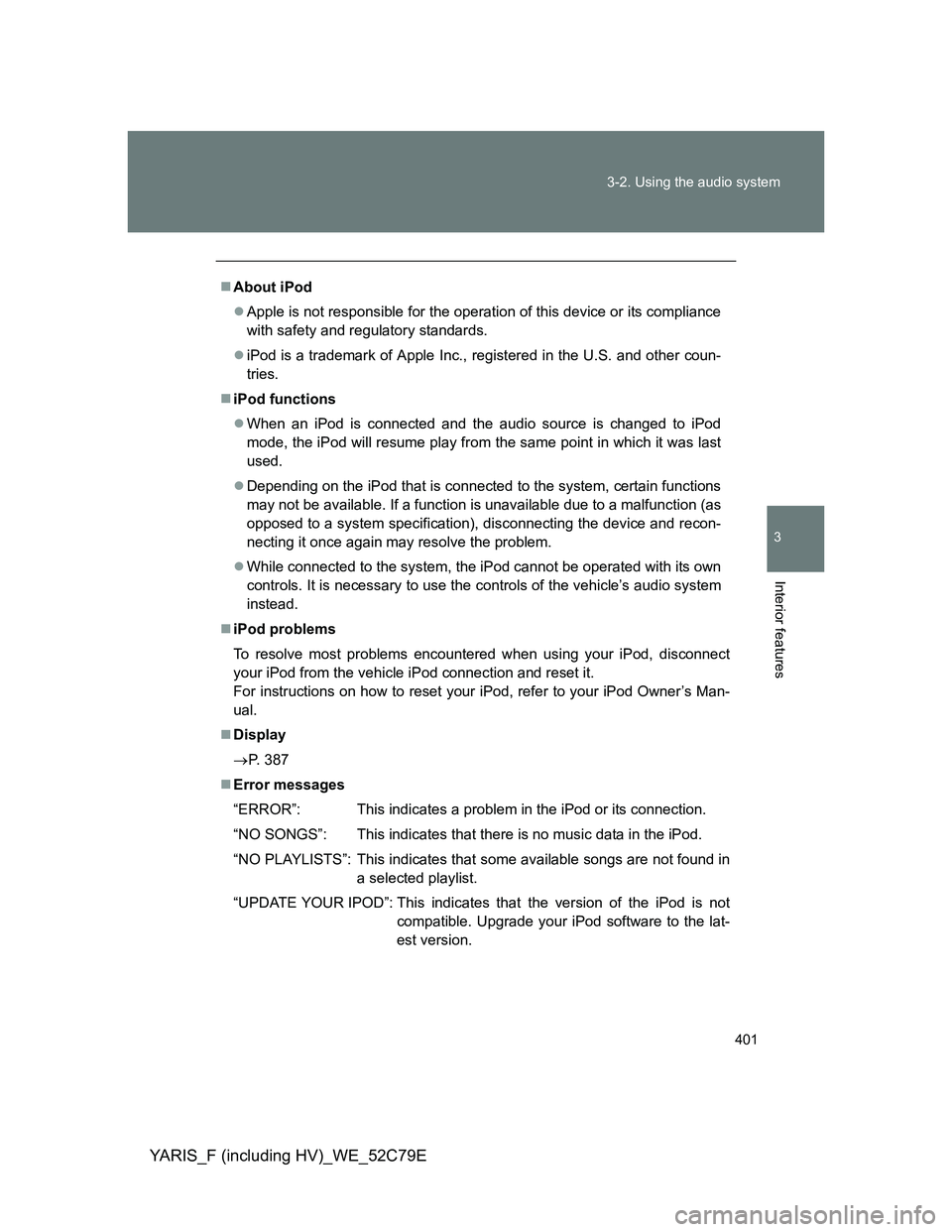
About iPod
Apple is not responsible for the operation of this device or its compliance
with safety and regulatory standards.
iPod is a trademark of Apple Inc., registered in the U.S. and other coun-
tries.
iPod functions
When an iPod is connected and the audio source is changed to iPod
mode, the iPod will resume play from the same point in which it was last
used.
Depending on the iPod that is connected to the system, certain functions
may not be available. If a function is unavailable due to a malfunction (as
opposed to a system specification), disconnecting the device and recon-
necting it once again may resolve the problem.
While connected to the system, the iPod cannot be operated with its own
controls. It is necessary to use the controls of the vehicle’s audio system
instead.
iPod problems
To resolve most problems encountered when using your iPod, disconnect
your iPod from the vehicle iPod connection and reset it.
For instructions on how to reset your iPod, refer to your iPod Owner’s Man-
ual.
Display
P. 387
Error messages
“ERROR”: This indicates a problem in the iPod or its connection.
“NO SONGS”: This indicates that there is no music data in the iPod.
“NO PLAYLISTS”: This indicates that some available songs are not found in
a selected playlist.
“UPDATE YOUR IPOD”: This indicates that the version of the iPod is not
compatible. Upgrade your iPod software to the lat-
est version.
Page 408 of 704
408 3-2. Using the audio system
YARIS_F (including HV)_WE_52C79E
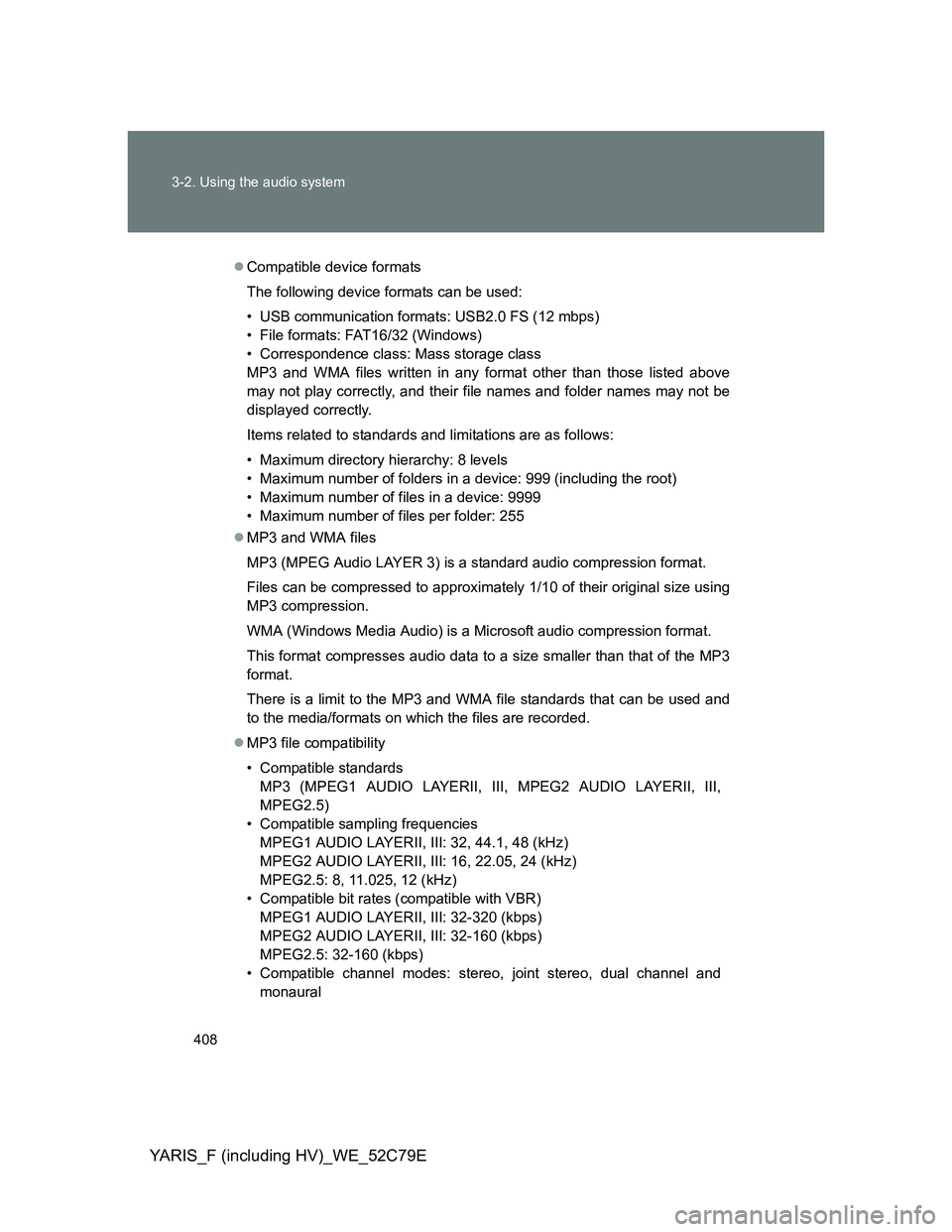
Compatible device formats
The following device formats can be used:
• USB communication formats: USB2.0 FS (12 mbps)
• File formats: FAT16/32 (Windows)
• Correspondence class: Mass storage class
MP3 and WMA files written in any format other than those listed above
may not play correctly, and their file names and folder names may not be
displayed correctly.
Items related to standards and limitations are as follows:
• Maximum directory hierarchy: 8 levels
• Maximum number of folders in a device: 999 (including the root)
• Maximum number of files in a device: 9999
• Maximum number of files per folder: 255
MP3 and WMA files
MP3 (MPEG Audio LAYER 3) is a standard audio compression format.
Files can be compressed to approximately 1/10 of their original size using
MP3 compression.
WMA (Windows Media Audio) is a Microsoft audio compression format.
This format compresses audio data to a size smaller than that of the MP3
format.
There is a limit to the MP3 and WMA file standards that can be used and
to the media/formats on which the files are recorded.
MP3 file compatibility
• Compatible standards
MP3 (MPEG1 AUDIO LAYERII, III, MPEG2 AUDIO LAYERII, III,
MPEG2.5)
• Compatible sampling frequencies
MPEG1 AUDIO LAYERII, III: 32, 44.1, 48 (kHz)
MPEG2 AUDIO LAYERII, III: 16, 22.05, 24 (kHz)
MPEG2.5: 8, 11.025, 12 (kHz)
• Compatible bit rates (compatible with VBR)
MPEG1 AUDIO LAYERII, III: 32-320 (kbps)
MPEG2 AUDIO LAYERII, III: 32-160 (kbps)
MPEG2.5: 32-160 (kbps)
• Compatible channel modes: stereo, joint stereo, dual channel and
monaural