display TOYOTA YARIS HYBRID 2012 Owner's Guide
[x] Cancel search | Manufacturer: TOYOTA, Model Year: 2012, Model line: YARIS HYBRID, Model: TOYOTA YARIS HYBRID 2012Pages: 704, PDF Size: 27.58 MB
Page 355 of 704
3Interior features
355
YARIS_F (including HV)_WE_52C79E
3-1. Using the air conditioning
system and defogger
Manual air conditioning
system ............................ 356
Automatic air conditioning
system ............................ 363
Power heater .................... 372
Rear window and outside
rear view mirror
defoggers ....................... 374
3-2. Using the audio system
Audio system types .......... 376
Using the radio ................. 381
Using the CD player ......... 385
Playing back MP3 and
WMA discs...................... 390
Operating an iPod............. 396
Operating a
USB memory .................. 404
Optimal use of the audio
system ............................ 411
Using the AUX port ........... 413
Using the steering wheel
audio switches ................ 414
3-3. Using the interior lights
Interior lights list................ 417
• Personal lights ................ 418
• Interior light ..................... 4183-4. Using the storage features
List of storage features ..... 420
• Glove box ....................... 421
• Cup holders .................... 422
• Bottle holders.................. 423
3-5. Other interior features
Sun visors ......................... 425
Vanity mirrors.................... 426
Clock ................................. 428
Outside temperature
display ............................ 429
Portable ashtray................ 430
Cigarette lighter ................ 431
Power outlet ...................... 432
Seat heaters ..................... 434
Armrest ............................. 436
Panoramic roof shade....... 437
Assist grips ....................... 438
Floor mat........................... 439
Luggage compartment
features........................... 441
Page 363 of 704
363
3-1. Using the air conditioning system and defogger
3
Interior features
YARIS_F (including HV)_WE_52C79E
Automatic air conditioning system
Using the automatic mode
Press .
Air outlets and fan speed are automatically adjusted according to the
temperature setting.
: If equipped
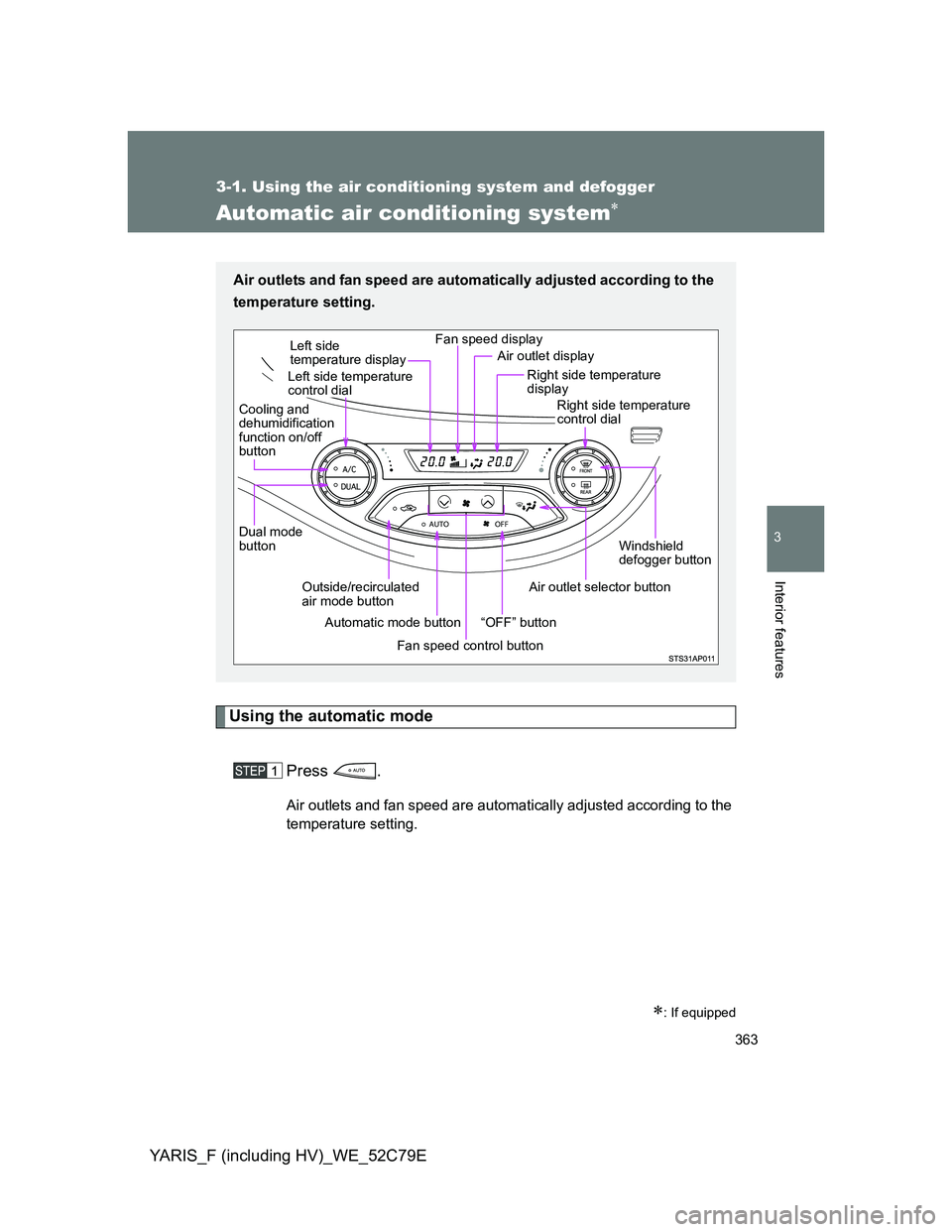
Air outlets and fan speed are automatically adjusted according to the
temperature setting.
Left side
temperature display
Fan speed control button“OFF” button Automatic mode buttonFan speed display
Air outlet selector buttonOutside/recirculated
air mode button
Windshield
defogger button
Cooling and
dehumidification
function on/off
button
Left side temperature
control dialAir outlet display
Right side temperature
control dial
Right side temperature
display
Dual mode
button
Page 381 of 704
381
3-2. Using the audio system
3
Interior features
YARIS_F (including HV)_WE_52C79E
Using the radio
Setting station presets
Search for desired stations by turning or pressing “
”or
“” on .
Press and hold the button (from [1] to [6]) the
station is to be set to until you hear a beep.
: If equipped
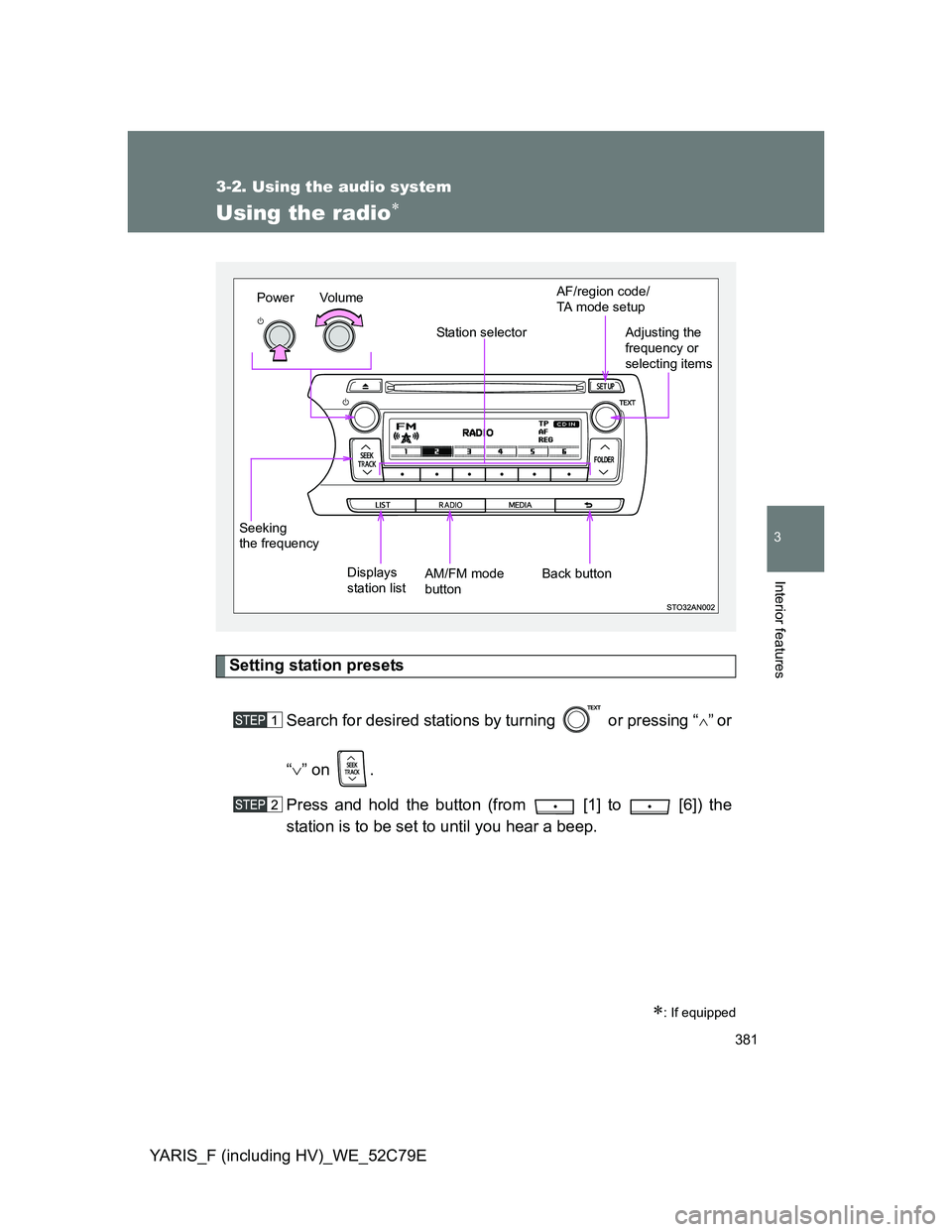
Vo l u m e
Displays
station listStation selector
Seeking
the frequencyAdjusting the
frequency or
selecting items
AM/FM mode
buttonPowerAF/region code/
TA mode setup
Back button
Page 382 of 704
382 3-2. Using the audio system
YARIS_F (including HV)_WE_52C79E
Using the station list
Updating the station list
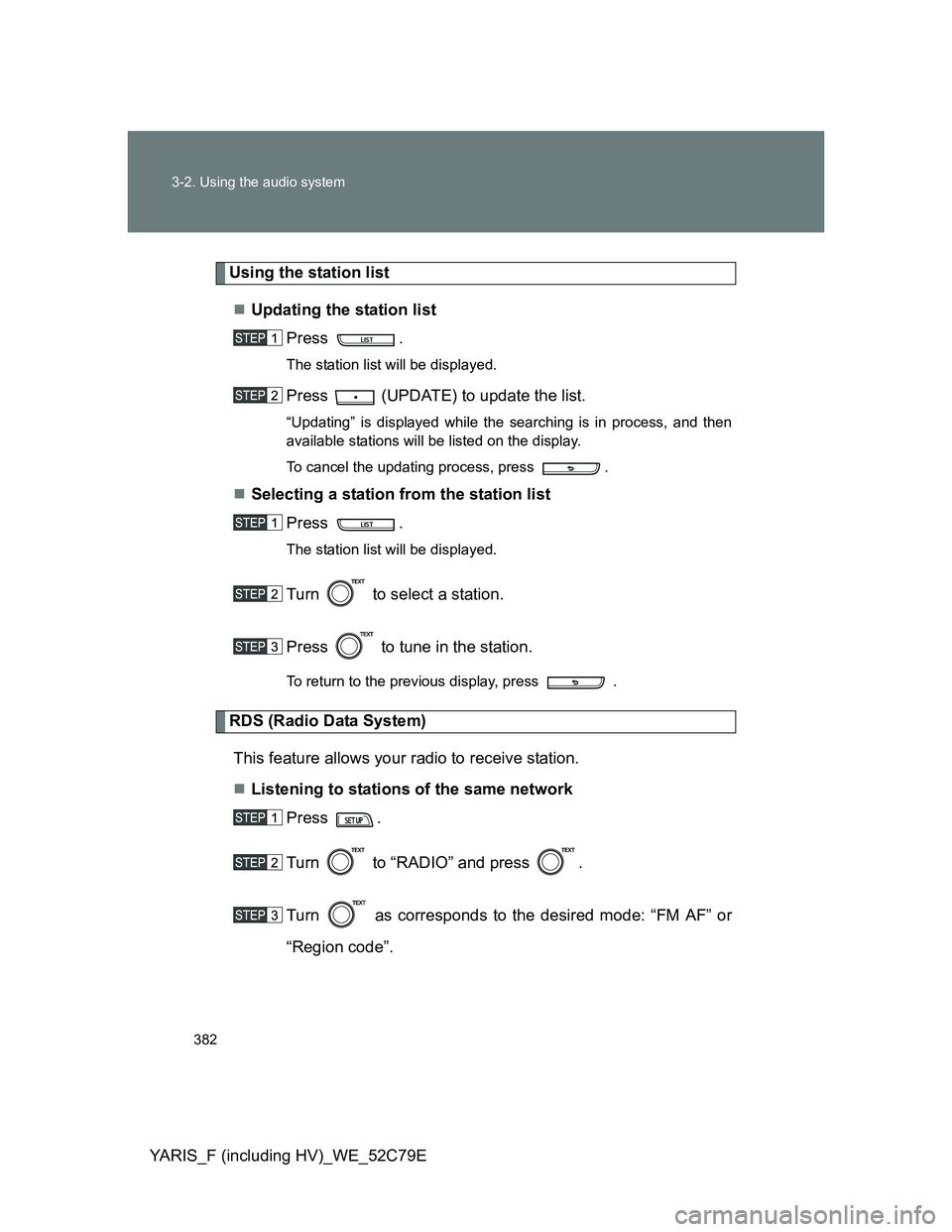
Press .
The station list will be displayed.
Press (UPDATE) to update the list.
“Updating” is displayed while the searching is in process, and then
available stations will be listed on the display.
To cancel the updating process, press .
Selecting a station from the station list
Press .
The station list will be displayed.
Turn to select a station.
Press to tune in the station.
To return to the previous display, press .
RDS (Radio Data System)
This feature allows your radio to receive station.
Listening to stations of the same network
Press .
Turn to “RADIO” and press .
Turn as corresponds to the desired mode: “FM AF” or
“Region code”.
Page 385 of 704
385
3-2. Using the audio system
3
Interior features
YARIS_F (including HV)_WE_52C79E
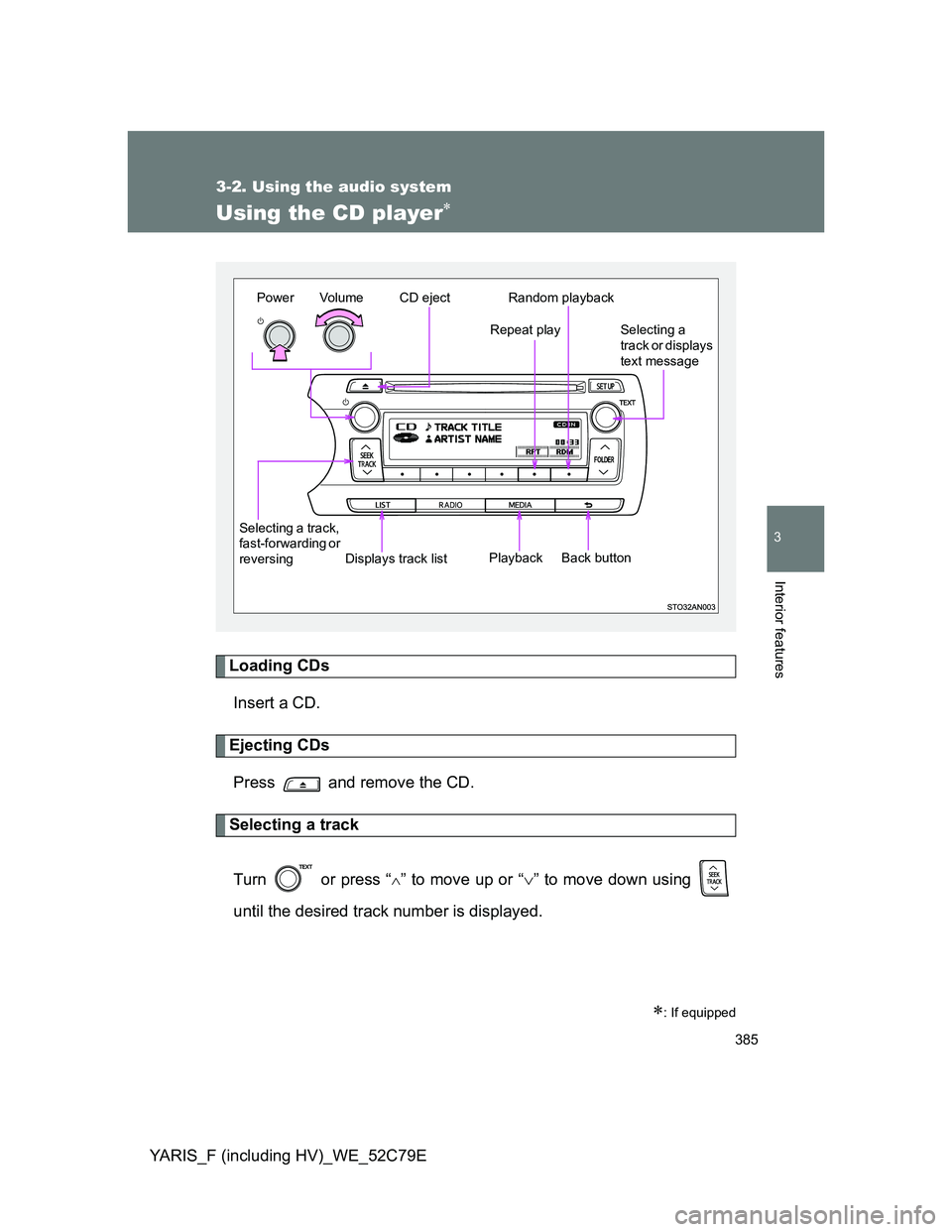
Using the CD player
Loading CDs
Insert a CD.
Ejecting CDs
Press and remove the CD.
Selecting a track
Turn or press “
” to move up or “” to move down using
until the desired track number is displayed.
: If equipped
Random playback
Repeat play
PlaybackCD eject
Displays track listBack button
Vo l u m e Power
Selecting a track,
fast-forwarding or
reversingSelecting a
track or displays
text message
Page 386 of 704
386 3-2. Using the audio system
YARIS_F (including HV)_WE_52C79E
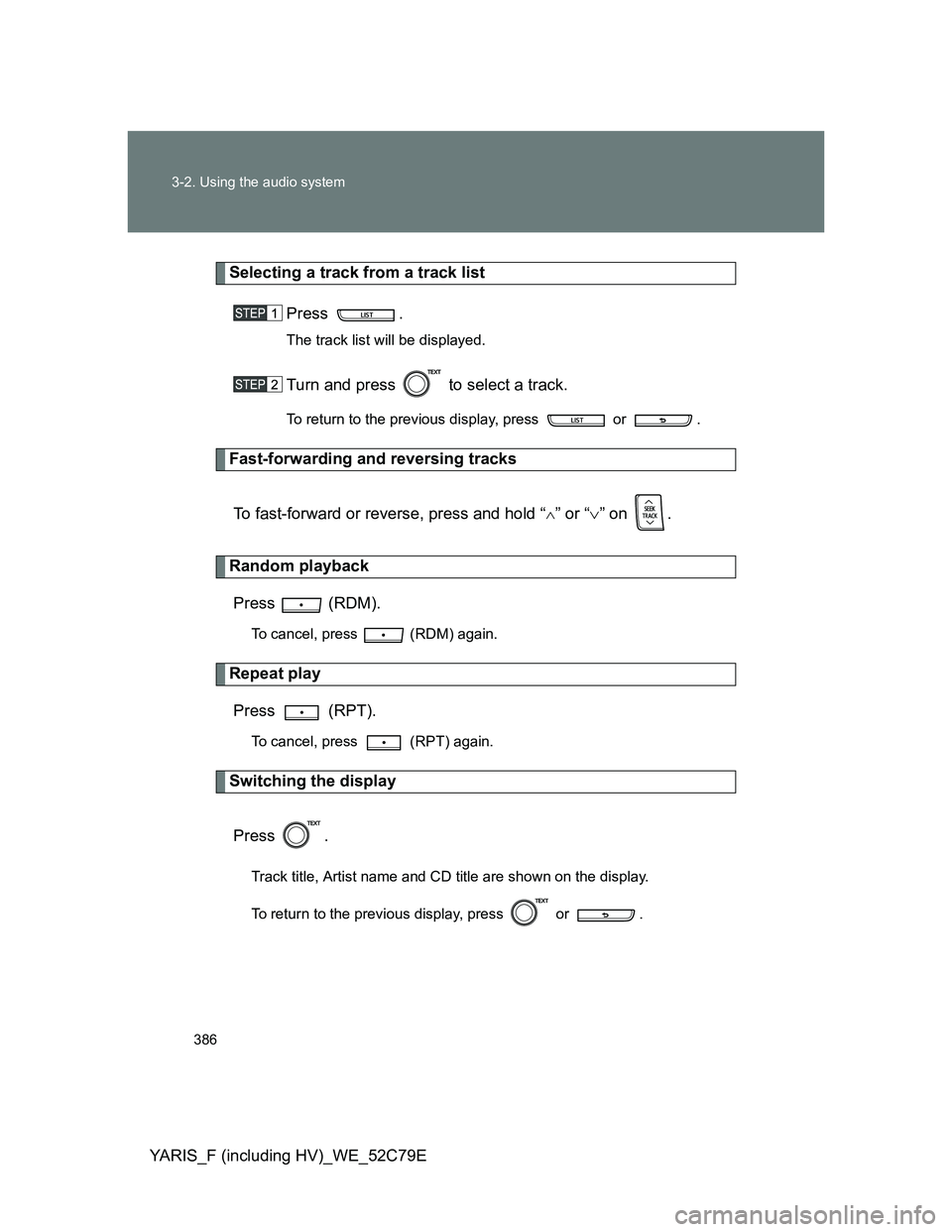
Selecting a track from a track list
Press .
The track list will be displayed.
Turn and press to select a track.
To return to the previous display, press or .
Fast-forwarding and reversing tracks
To fast-forward or reverse, press and hold “
” or “” on .
Random playback
Press (RDM).
To cancel, press (RDM) again.
Repeat play
Press (RPT).
To cancel, press (RPT) again.
Switching the display
Press .
Track title, Artist name and CD title are shown on the display.
To return to the previous display, press or .
Page 387 of 704
387 3-2. Using the audio system
3
Interior features
YARIS_F (including HV)_WE_52C79E
Display
Up to 24 characters can be displayed.
Depending on the contents recorded, the characters may not be displayed
properly or may not be displayed at all.
Error messages
“ERROR”: This indicates a problem either in the CD or inside the player.
“CD CHECK”: The CD may be dirty, damaged or inserted up-side down.
“WAIT”: Operation has stopped due to a high temperature inside the
player. Wait for a while and then press . If the CD
still cannot be played back, contact any authorized Toyota
dealer or repairer, or another duly qualified and equipped pro-
fessional.
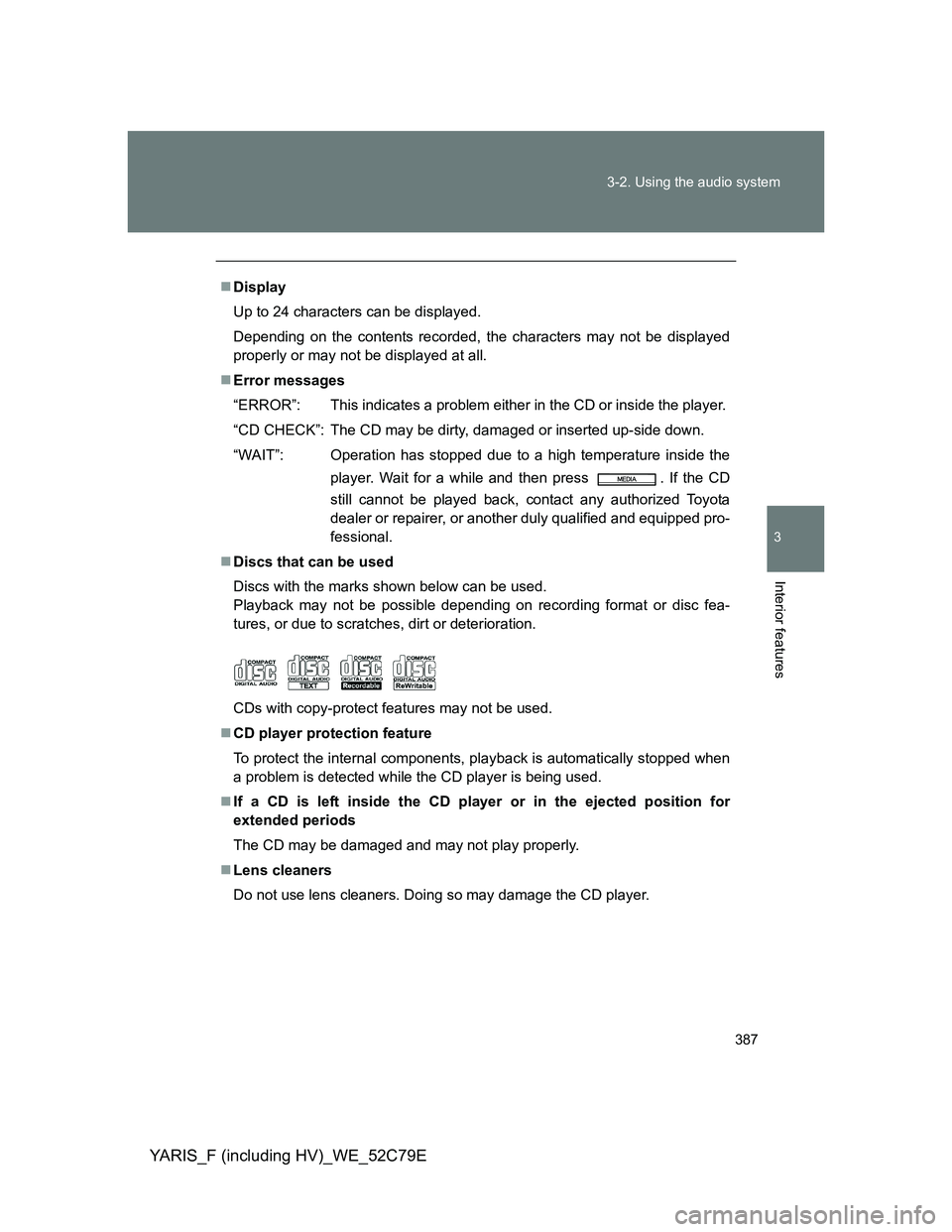
Discs that can be used
Discs with the marks shown below can be used.
Playback may not be possible depending on recording format or disc fea-
tures, or due to scratches, dirt or deterioration.
CDs with copy-protect features may not be used.
CD player protection feature
To protect the internal components, playback is automatically stopped when
a problem is detected while the CD player is being used.
If a CD is left inside the CD player or in the ejected position for
extended periods
The CD may be damaged and may not play properly.
Lens cleaners
Do not use lens cleaners. Doing so may damage the CD player.
Page 390 of 704
390
3-2. Using the audio system
YARIS_F (including HV)_WE_52C79E
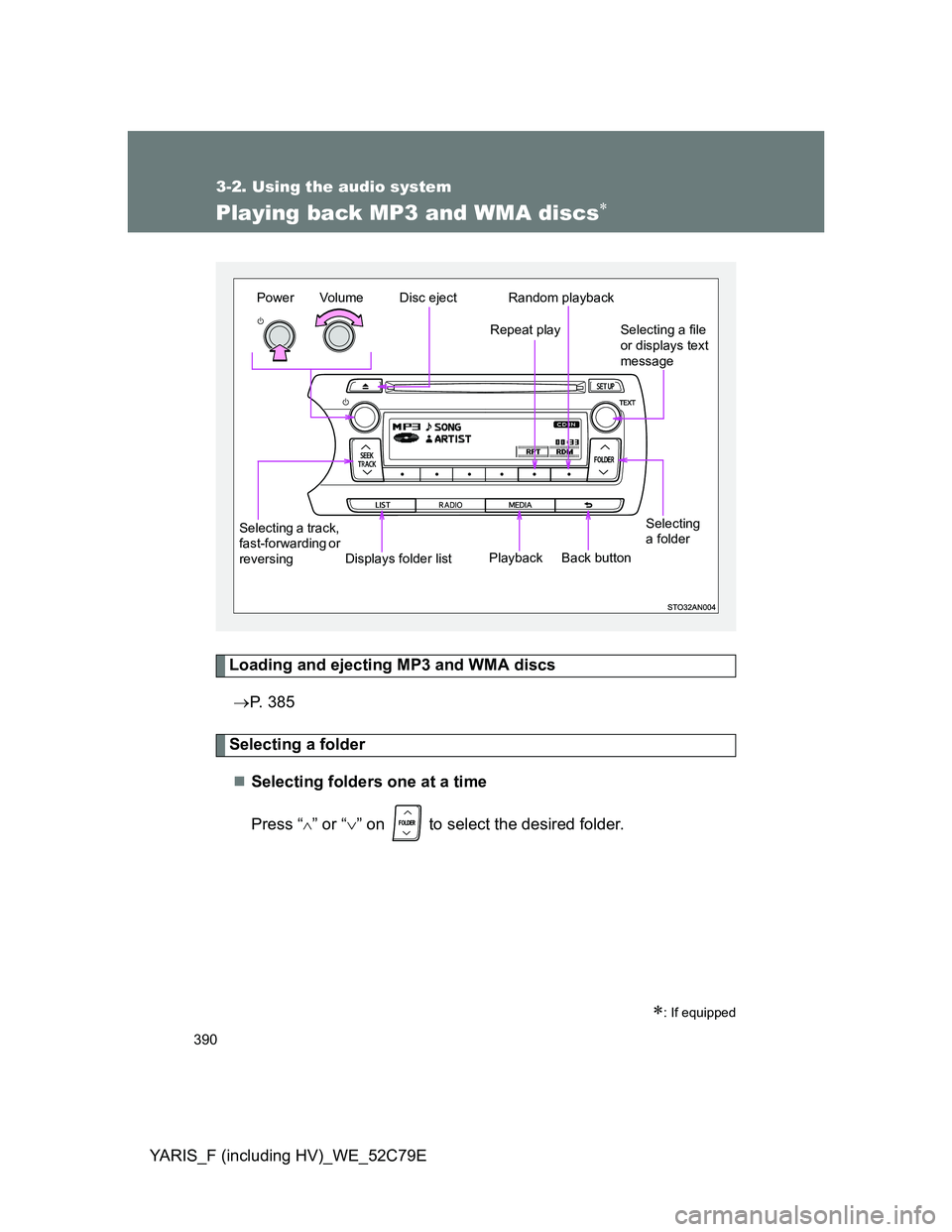
Playing back MP3 and WMA discs
Loading and ejecting MP3 and WMA discs
P. 385
Selecting a folder
Selecting folders one at a time
Press “
” or “” on to select the desired folder.
: If equipped
Selecting
a folder
Vo l u m e Power
Selecting a track,
fast-forwarding or
reversingSelecting a file
or displays text
message Random playback
Repeat play
PlaybackDisc eject
Displays folder listBack button
Page 391 of 704
391 3-2. Using the audio system
3
Interior features
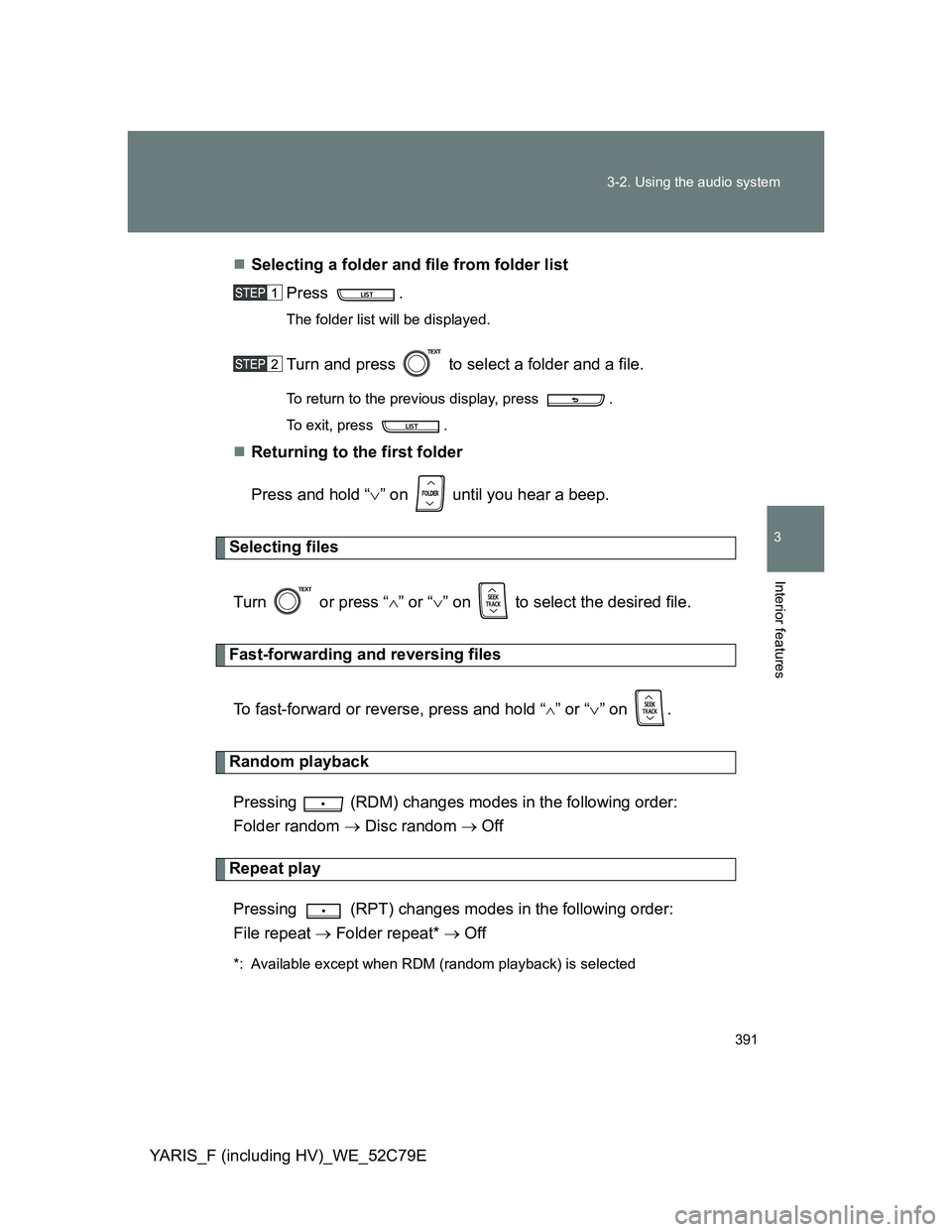
YARIS_F (including HV)_WE_52C79ESelecting a folder and file from folder list
Press .
The folder list will be displayed.
Turn and press to select a folder and a file.
To return to the previous display, press .
To exit, press .
Returning to the first folder
Press and hold “” on until you hear a beep.
Selecting files
Turn or press “” or “” on to select the desired file.
Fast-forwarding and reversing files
To fast-forward or reverse, press and hold “
” or “” on .
Random playback
Pressing (RDM) changes modes in the following order:
Folder random Disc random Off
Repeat play
Pressing (RPT) changes modes in the following order:
File repeat Folder repeat* Off
*: Available except when RDM (random playback) is selected
Page 392 of 704
392 3-2. Using the audio system
YARIS_F (including HV)_WE_52C79E
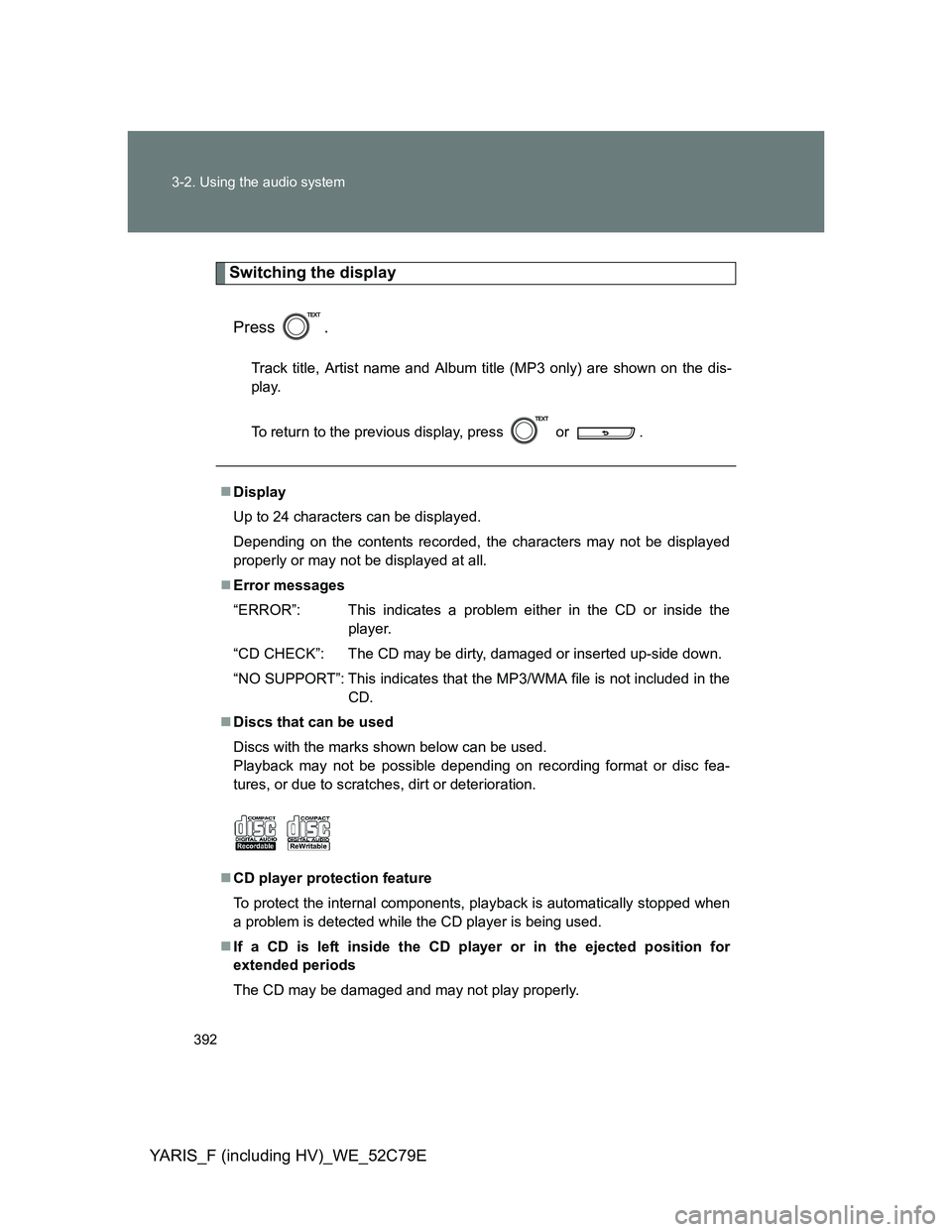
Switching the display
Press .
Track title, Artist name and Album title (MP3 only) are shown on the dis-
play.
To return to the previous display, press or .
Display
Up to 24 characters can be displayed.
Depending on the contents recorded, the characters may not be displayed
properly or may not be displayed at all.
Error messages
“ERROR”: This indicates a problem either in the CD or inside the
player.
“CD CHECK”: The CD may be dirty, damaged or inserted up-side down.
“NO SUPPORT”: This indicates that the MP3/WMA file is not included in the
CD.
Discs that can be used
Discs with the marks shown below can be used.
Playback may not be possible depending on recording format or disc fea-
tures, or due to scratches, dirt or deterioration.
CD player protection feature
To protect the internal components, playback is automatically stopped when
a problem is detected while the CD player is being used.
If a CD is left inside the CD player or in the ejected position for
extended periods
The CD may be damaged and may not play properly.