USB TOYOTA YARIS HYBRID 2013 Owners Manual
[x] Cancel search | Manufacturer: TOYOTA, Model Year: 2013, Model line: YARIS HYBRID, Model: TOYOTA YARIS HYBRID 2013Pages: 700, PDF Size: 28.68 MB
Page 4 of 700
TABLE OF CONTENTSIndex
YARIS_F (including HV)_WE_52D27E
4
3-1. Using the air conditioning
system and defogger
Manual air conditioning
system .............................. 354
Automatic air conditioning
system .............................. 361
Power heater ...................... 370
Rear window and outside
rear view mirror
defoggers.......................... 372
3-2. Using the audio system
Audio system types............. 374
Using the radio.................... 379
Using the CD player............ 383
Playing back MP3 and
WMA discs........................ 388
Operating an iPod ............... 394
Operating a USB memory... 402
Optimal use of the audio
system .............................. 409
Using the AUX port ............. 411
Using the steering wheel
audio switches .................. 4123-3. Using the interior lights
Interior lights list ................. 415
• Personal lights ................. 416
• Interior light ...................... 416
3-4. Using the storage features
List of storage features....... 418
• Glove box ......................... 419
• Cup holders...................... 420
• Bottle holders ................... 422
3-5. Other interior features
Sun visors .......................... 423
Vanity mirrors ..................... 424
Clock .................................. 426
Outside temperature
display .............................. 427
Portable ashtray ................. 428
Cigarette lighter .................. 429
Power outlet ....................... 430
Seat heaters ....................... 432
Armrest............................... 434
Panoramic roof shade ........ 435
Assist grips ......................... 436
Floor mat ............................ 437
Luggage compartment
features ............................ 439
3Interior features
Page 19 of 700
YARIS_F (including HV)_WE_52D27E
19
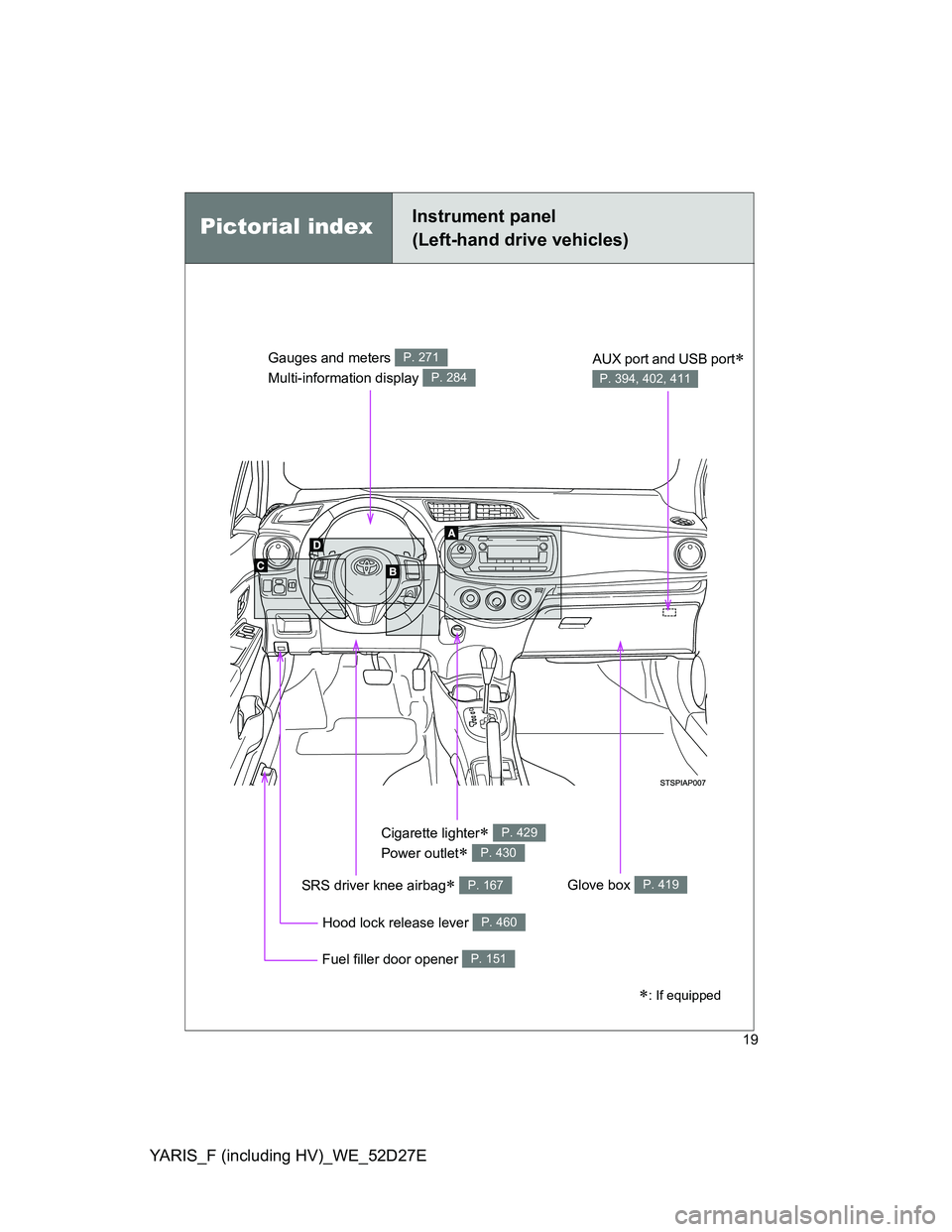
Hood lock release lever P. 460
Gauges and meters
Multi-information display P. 271
P. 284
SRS driver knee airbag P. 167
Fuel filler door opener P. 151
Cigarette lighter
Power outlet
P. 429
P. 430
Pictorial indexInstrument panel
(Left-hand drive vehicles)
Glove box P. 419
AUX port and USB port
P. 394, 402, 411
: If equipped
Page 31 of 700
YARIS_F (including HV)_WE_52D27E
31
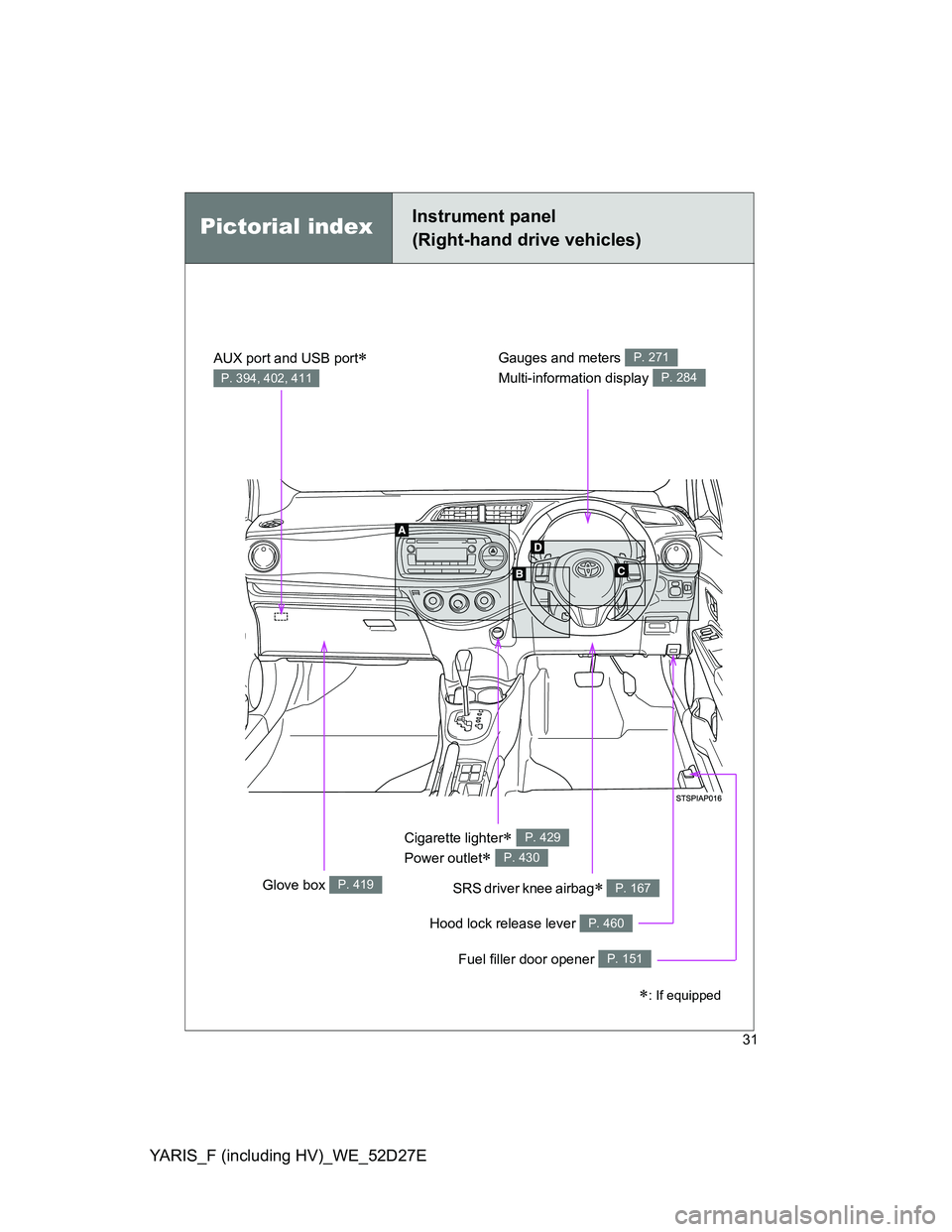
Hood lock release lever P. 460
Gauges and meters
Multi-information display P. 271
P. 284
SRS driver knee airbag P. 167
Fuel filler door opener P. 151
Cigarette lighter
Power outlet
P. 429
P. 430
Glove box P. 419
AUX port and USB port
P. 394, 402, 411
Pictorial indexInstrument panel
(Right-hand drive vehicles)
: If equipped
Page 353 of 700
3Interior features
353
YARIS_F (including HV)_WE_52D27E
3-1. Using the air conditioning
system and defogger
Manual air conditioning
system ............................ 354
Automatic air conditioning
system ............................ 361
Power heater .................... 370
Rear window and outside
rear view mirror
defoggers ....................... 372
3-2. Using the audio system
Audio system types .......... 374
Using the radio ................. 379
Using the CD player ......... 383
Playing back MP3 and
WMA discs...................... 388
Operating an iPod............. 394
Operating a USB
memory........................... 402
Optimal use of the audio
system ............................ 409
Using the AUX port ........... 411
Using the steering wheel
audio switches ................ 412
3-3. Using the interior lights
Interior lights list................ 415
• Personal lights ................ 416
• Interior light ..................... 4163-4. Using the storage features
List of storage features ..... 418
• Glove box ....................... 419
• Cup holders .................... 420
• Bottle holders.................. 422
3-5. Other interior features
Sun visors ......................... 423
Vanity mirrors.................... 424
Clock ................................. 426
Outside temperature
display ............................ 427
Portable ashtray................ 428
Cigarette lighter ................ 429
Power outlet ...................... 430
Seat heaters ..................... 432
Armrest ............................. 434
Panoramic roof shade....... 435
Assist grips ....................... 436
Floor mat........................... 437
Luggage compartment
features........................... 439
Page 375 of 700
375 3-2. Using the audio system
3
Interior features
YARIS_F (including HV)_WE_52D27E
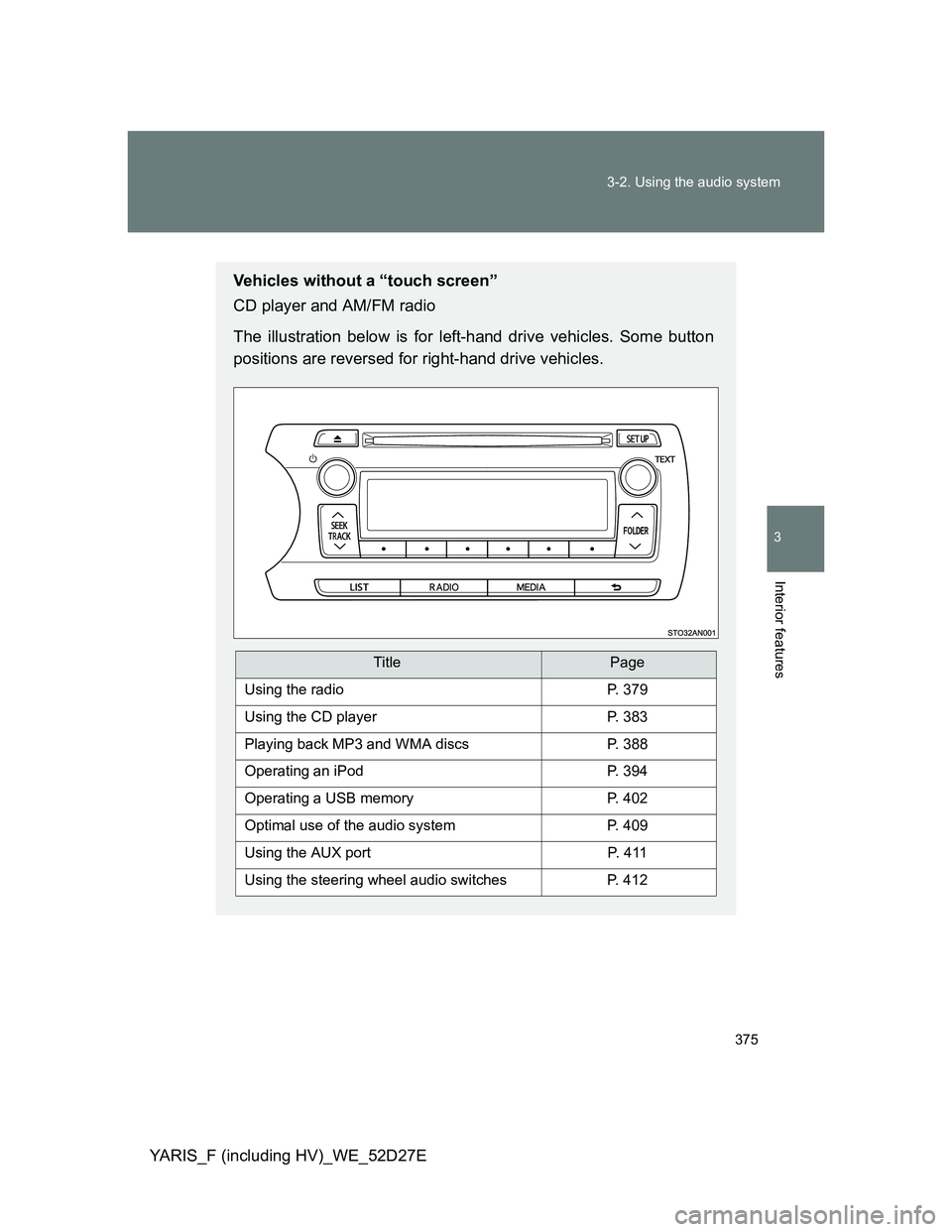
Vehicles without a “touch screen”
CD player and AM/FM radio
The illustration below is for left-hand drive vehicles. Some button
positions are reversed for right-hand drive vehicles.
TitlePage
Using the radioP. 379
Using the CD playerP. 383
Playing back MP3 and WMA discsP. 388
Operating an iPodP. 394
Operating a USB memoryP. 402
Optimal use of the audio systemP. 409
Using the AUX portP. 4 1 1
Using the steering wheel audio switchesP. 412
Page 402 of 700
402
3-2. Using the audio system
YARIS_F (including HV)_WE_52D27E
Operating a USB memor y
: If equipped
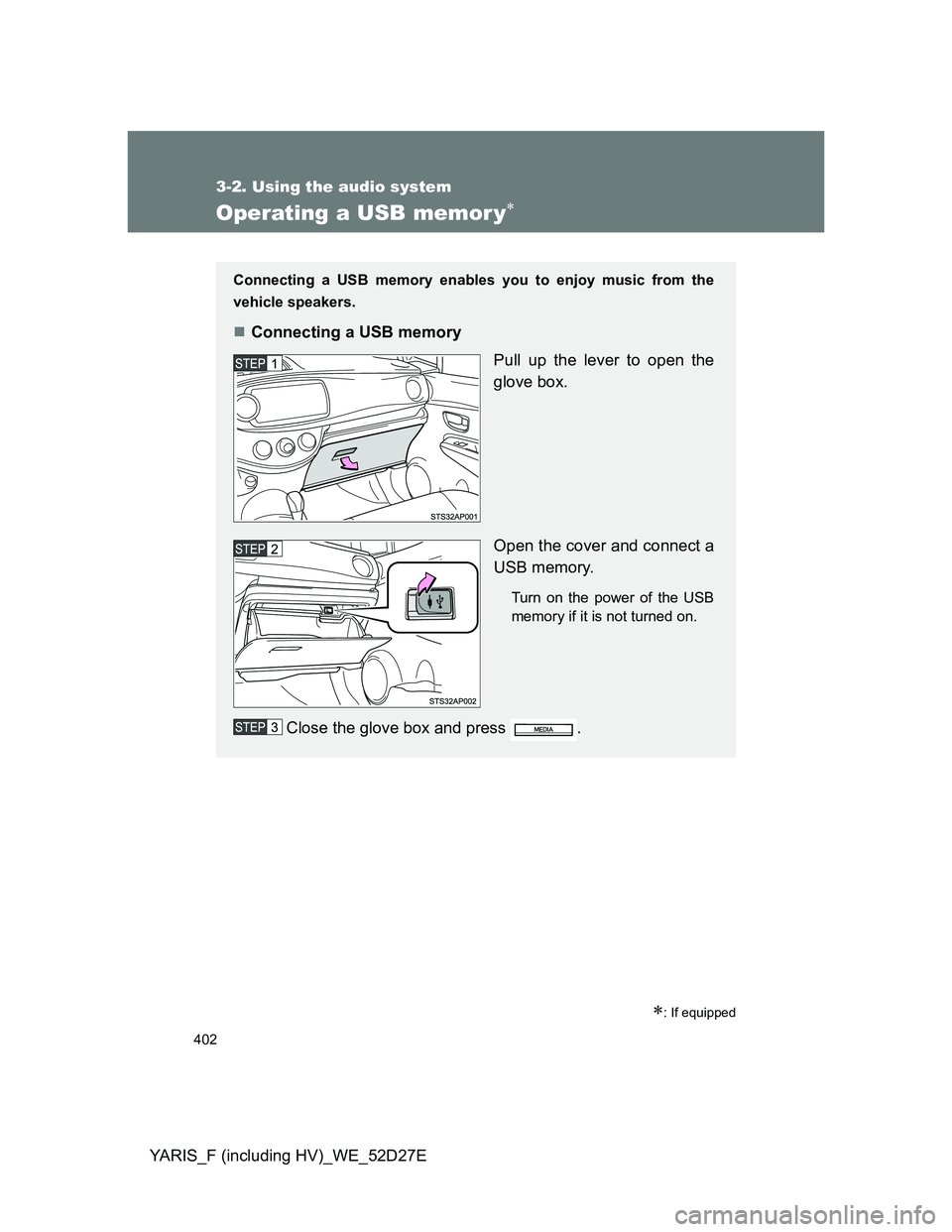
Connecting a USB memory enables you to enjoy music from the
vehicle speakers.
Connecting a USB memory
Pull up the lever to open the
glove box.
Open the cover and connect a
USB memory.
Turn on the power of the USB
memory if it is not turned on.
Close the glove box and press .
Page 405 of 700
405 3-2. Using the audio system
3
Interior features
YARIS_F (including HV)_WE_52D27E
Switching the display
Press .
Track title, Artist name and Album title (MP3 only) are shown on the dis-
play.
To return to the previous display, press or .
USB memory functions
Depending on the USB memory that is connected to the system, the
device itself may not be operable and certain functions may not be avail-
able. If the device is inoperable or a function is unavailable due to a mal-
function (as opposed to a system specification), disconnecting the device
and reconnecting it once again may resolve the problem.
If the USB memory still does not begin operation after being discon-
nected and reconnected, format the memory.
Display
P. 385
Error messages
“ERROR”: This indicates a problem in the USB memory or its connection.
“NO MUSIC”: This indicates that no MP3/WMA files are included in the USB
memory.
USB memory
Compatible devices
USB memory that can be used for MP3 and WMA playback
Page 406 of 700
406 3-2. Using the audio system
YARIS_F (including HV)_WE_52D27E
Compatible device formats
The following device formats can be used:
• USB communication formats: USB2.0 FS (12 mbps)
• File formats: FAT16/32 (Windows)
• Correspondence class: Mass storage class
MP3 and WMA files written in any format other than those listed above
may not play correctly, and their file names and folder names may not be
displayed correctly.
Items related to standards and limitations are as follows:
• Maximum directory hierarchy: 8 levels
• Maximum number of folders in a device: 999 (including the root)
• Maximum number of files in a device: 9999
• Maximum number of files per folder: 255
MP3 and WMA files
MP3 (MPEG Audio LAYER 3) is a standard audio compression format.
Files can be compressed to approximately 1/10 of their original size using
MP3 compression.
WMA (Windows Media Audio) is a Microsoft audio compression format.
This format compresses audio data to a size smaller than that of the MP3
format.
There is a limit to the MP3 and WMA file standards that can be used and
to the media/formats on which the files are recorded.
MP3 file compatibility
• Compatible standards
MP3 (MPEG1 AUDIO LAYERII, III, MPEG2 AUDIO LAYERII, III,
MPEG2.5)
• Compatible sampling frequencies
MPEG1 AUDIO LAYERII, III: 32, 44.1, 48 (kHz)
MPEG2 AUDIO LAYERII, III: 16, 22.05, 24 (kHz)
MPEG2.5: 8, 11.025, 12 (kHz)
• Compatible bit rates (compatible with VBR)
MPEG1 AUDIO LAYERII, III: 32-320 (kbps)
MPEG2 AUDIO LAYERII, III: 32-160 (kbps)
MPEG2.5: 32-160 (kbps)
• Compatible channel modes: stereo, joint stereo, dual channel and
monaural
Page 407 of 700
407 3-2. Using the audio system
3
Interior features
YARIS_F (including HV)_WE_52D27E
WMA file compatibility
• Compatible standards
WMA Ver. 9
• Compatible sampling frequencies
HIGH PROFILE 32, 44.1, 48 (kHz)
• Compatible bit rates
HIGH PROFILE 32-320 (kbps, VBR)
File names
The only files that can be recognized as MP3/WMA and played are those
with the extension .mp3 or .wma.
ID3 and WMA tags
ID3 tags can be added to MP3 files, making it possible to record the track
title, artist name, etc.
The system is compatible with ID3 Ver. 1.0, 1.1, and Ver. 2.2, 2.3, 2.4 ID3
tags. (The number of characters is based on ID3 Ver. 1.0 and 1.1.)
WMA tags can be added to WMA files, making it possible to record the
track title and artist name in the same way as with ID3 tags.
MP3 and WMA playback
• When a device containing MP3 or WMA files is connected, all files in
the USB memory are checked. Once the file check is finished, the first
MP3 or WMA file is played. To make the file check finish more quickly,
we recommend that you do not include any files other than MP3 or
WMA files or create any unnecessary folders.
• When the USB memory is connected and the audio source is changed
to USB memory mode, the USB memory will start playing the first file in
the first folder. If the same device is removed and reinserted (and the
contents have not been changed), the USB memory will resume play
from the same point in which it was last used.
Extensions
If the file extensions .mp3 and .wma are used for files other than MP3 and
WMA files, they will be skipped (not played).
Page 408 of 700
408 3-2. Using the audio system
YARIS_F (including HV)_WE_52D27E
Playback
• To play MP3 files with steady sound quality, we recommend a fixed bit
rate of at least 128 kbps and a sampling frequency of 44.1 kHz.
• There is a wide variety of freeware and other encoding software for
MP3 and WMA files on the market, and depending on the status of the
encoding and the file format, poor sound quality or noise at the start of
playback may result. In some cases, playback may not be possible at
all.
• Microsoft, Windows, and Windows Media are registered trademarks of
Microsoft Corporation in the U.S.A. and other countries.
CAUTION
Caution while driving
Do not connect USB memory or operate the controls.
NOTICE
If the glove box cannot be fully closed
Depending on the size and shape of the USB memory that is connected to
the system, the glove box may not close fully. In this case, do not try to forci-
bly close the glove box, as this may damage the USB memory or the termi-
nal, etc. Remove the USB memory, and use a different USB memory with a
size and shape that allows the glove box to close fully when connected to
the system.
To prevent damage to USB memory
Do not leave USB memory in the vehicle. The temperature inside the vehi-
cle may become high, resulting in damage to the player.
Do not push down on or apply unnecessary pressure to the USB memory
while it is connected as this may damage the USB memory or its terminal.
Do not insert foreign objects into the port as this may damage the USB
memory or its terminal.