display TOYOTA YARIS iA 2018 Accessories, Audio & Navigation (in English)
[x] Cancel search | Manufacturer: TOYOTA, Model Year: 2018, Model line: YARIS iA, Model: TOYOTA YARIS iA 2018Pages: 91, PDF Size: 1.64 MB
Page 20 of 91
21
1
2
3
4
5
6
Yaris iA_Navi_OM99Q50z_(U)
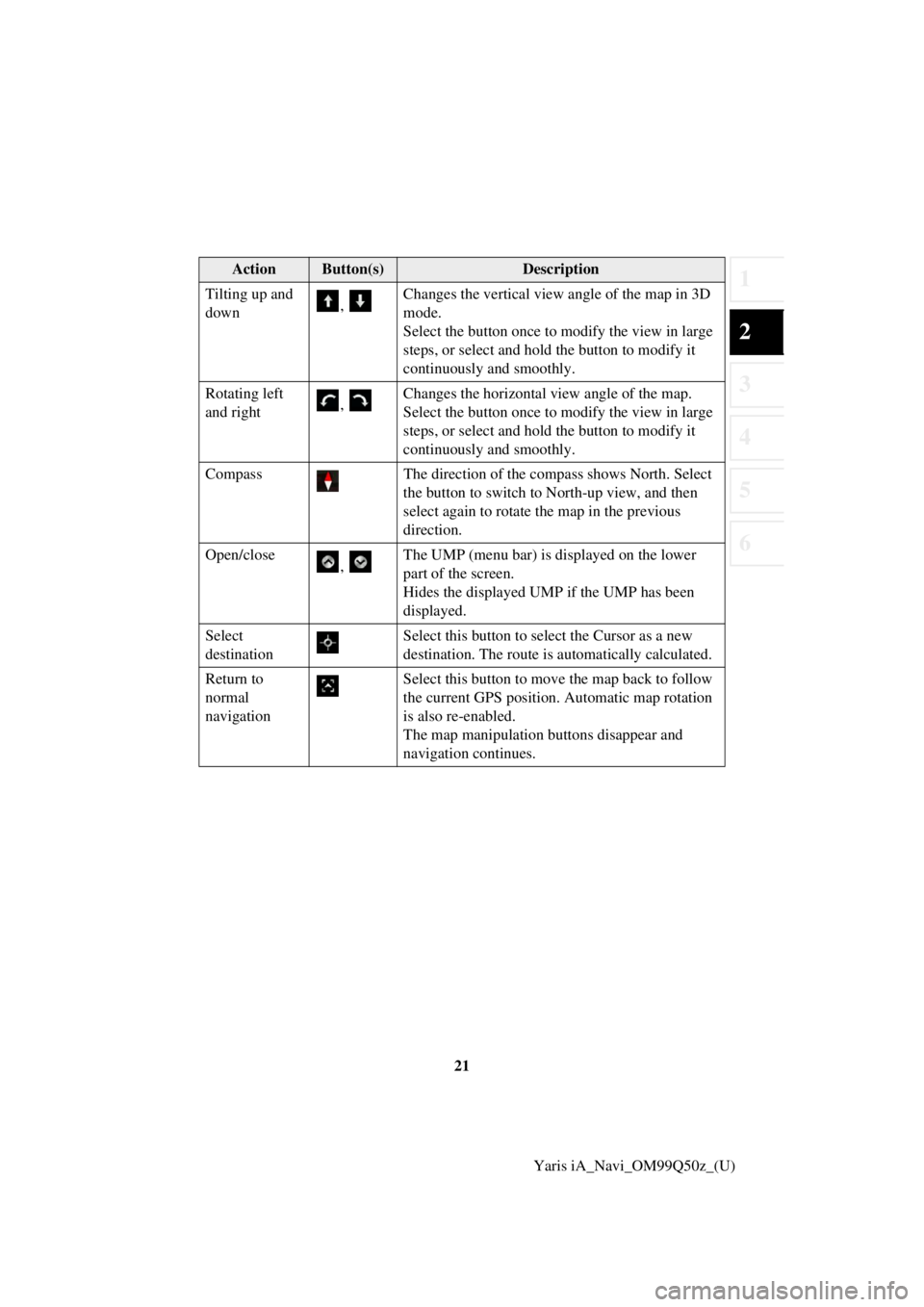
Tilting up and
down
, Changes the vertical view
angle of the map in 3D
mode.
Select the button once to mo dify the view in large
steps, or select and hold the button to modify it
continuously and smoothly.
Rotating left
and right , Changes the horizontal view angle of the map.
Select the button once to mo
dify the view in large
steps, or select and hold the button to modify it
continuously and smoothly.
Compass The direction of the compass shows North. Select
the button to switch to North-up view, and then
select again to rotate the map in the previous
direction.
Open/close , The UMP (menu bar) is displayed on the lower
part of the screen.
Hides the displayed UMP if the UMP has been
displayed.
Select
destination Select this button to select the Cursor as a new
destination. The route is automatically calculated.
Return to
normal
navigation Select this button to move the map back to follow
the current GPS position. Automatic map rotation
is also re-enabled.
The map manipulation buttons disappear and
navigation continues.
ActionButton(s)Description
Page 21 of 91
22Yaris iA_Navi_OM99Q50z_(U)
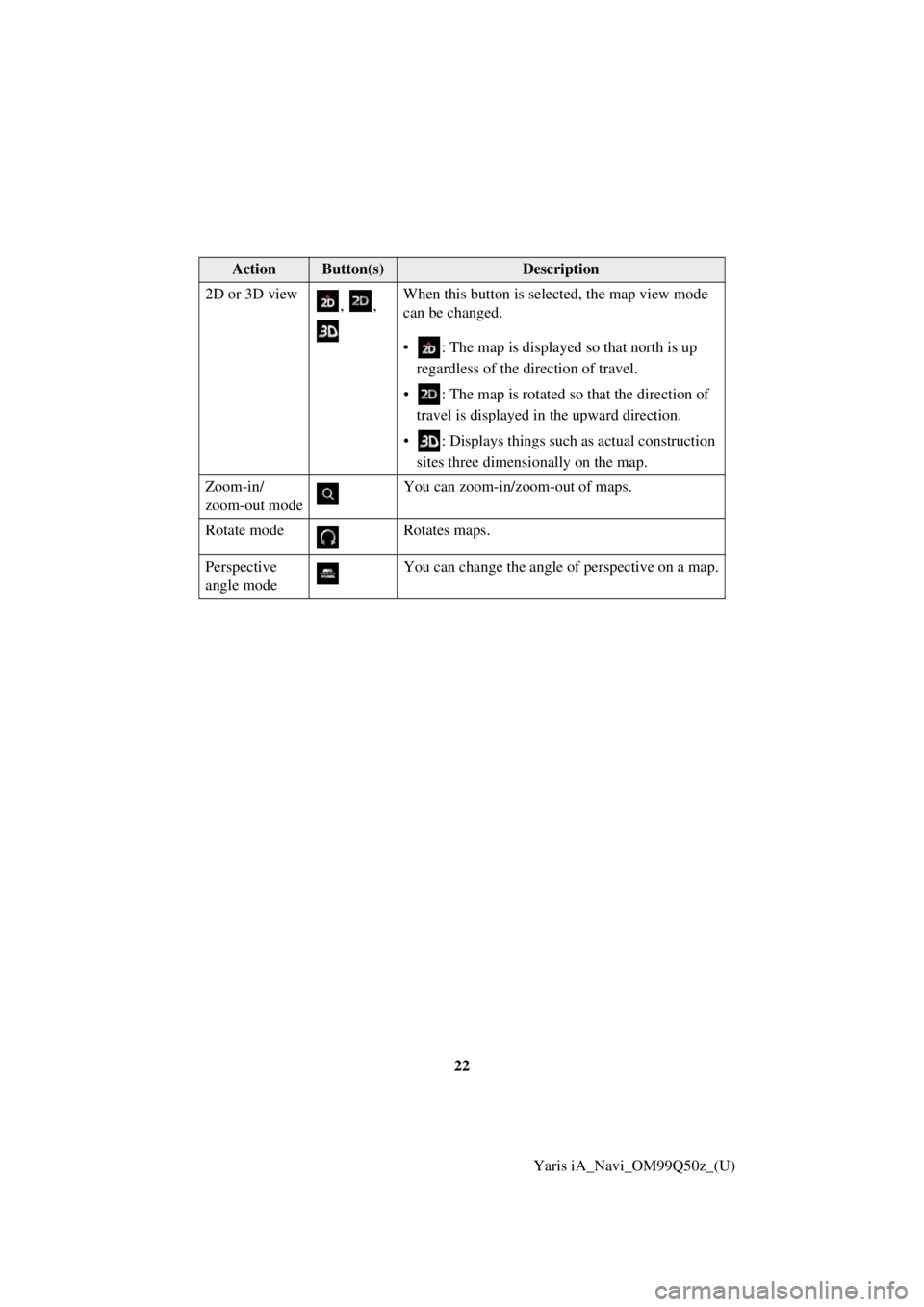
2D or 3D view
, , When this button is selected, the map view mode
can be changed.
• : The map is displayed so that north is up
regardless of the direction of travel.
• : The map is rotated so that the directi on of
t ravel is displayed in the upward direction.
• : Displays things such as actual constructio n
si tes three dimensionally on the map.
Zoom-in/
zoom-out mode You can zoom-in/zoom-out of maps.
Rotate mode Rotates maps.
Perspective
angle mode You can change the angle of perspective on a map.
ActionButton(s)Description
Page 23 of 91
24Yaris iA_Navi_OM99Q50z_(U)
2.5 Voice Recognition
Some items can be operated by voice using the vehicle’s microphone.1. Press the talk button on the steering switch.
2. After “Say a command” is output from the speaker and the beep sound is
h eard, say your commands.
screen). 1) Press the talk button on the steering switch.
2) After “Say a command” is output from the speaker and the beep sound is
heard, say, “New Destination”.
3) After “Which type of destination would you like?” is output from th e speaker
and the beep sound is heard, say, “Gas station”.
4) After “Gas station, say the desired line number. You can also say: Try again”
is output from the speaker and the b eep sound is heard, say, “Number one”
(Desti nation is gas station on the first row).
5) After “To begin navigation, say start” is output from the speaker and the b eep
so und is heard, say, “Start” to start route guidance.
2.5.1 Voice command list
If you have seven or more candidates, say the command, “Page down” to move the
list.
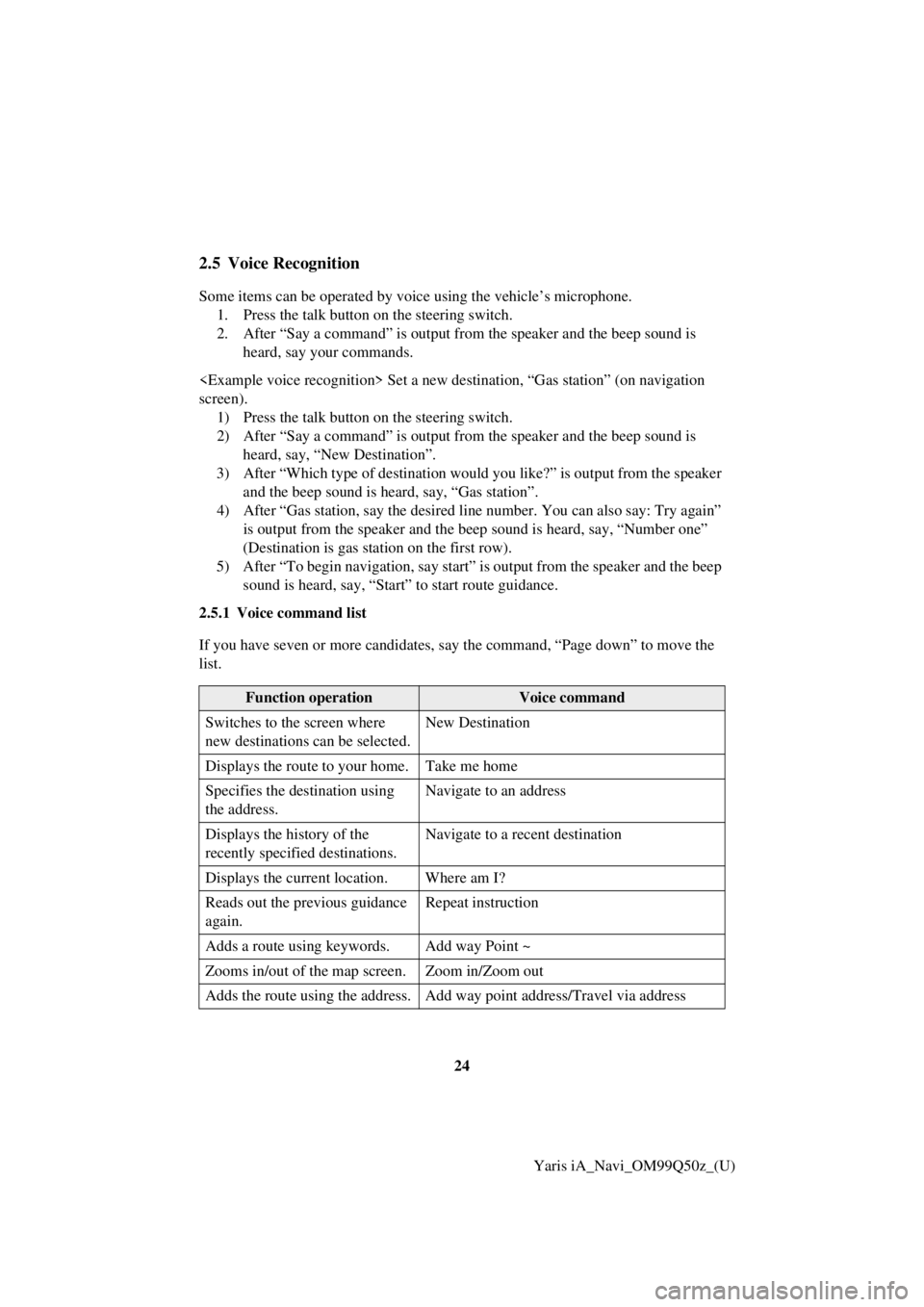
Function operationVoice command
Switches to the screen where
new destinations can be selected. New Destination
Displays the route to your home. Take me home
Specifies the de stination using
the address. Navigate to an address
Displays the history of the
recently specified destinations. Navigate to a recent destination
Displays the current location. Where am I?
Reads out the previous guidance
again. Repeat instruction
Adds a route using keywords. Add way Point ~
Zooms in/out of the map screen. Zoom in/Zoom out
Adds the route using the address. Add way point address/Travel via address
Page 26 of 91
27
1
2
3
4
5
6
Yaris iA_Navi_OM99Q50z_(U)
3.1.1 Entering an address or a part of the address
If you know at least a part of the addres
s, it is the quickest way to select the
destination of the route.
Using the same screen, you can find an address by entering:
• Destination address
• The center of a city
• An intersection
• The midpoint of a street
3.1.1.1 Entering an address
To enter an address as the destination, do as follows:
1. Select
after selectin g on the MAP screen.
2. Select .
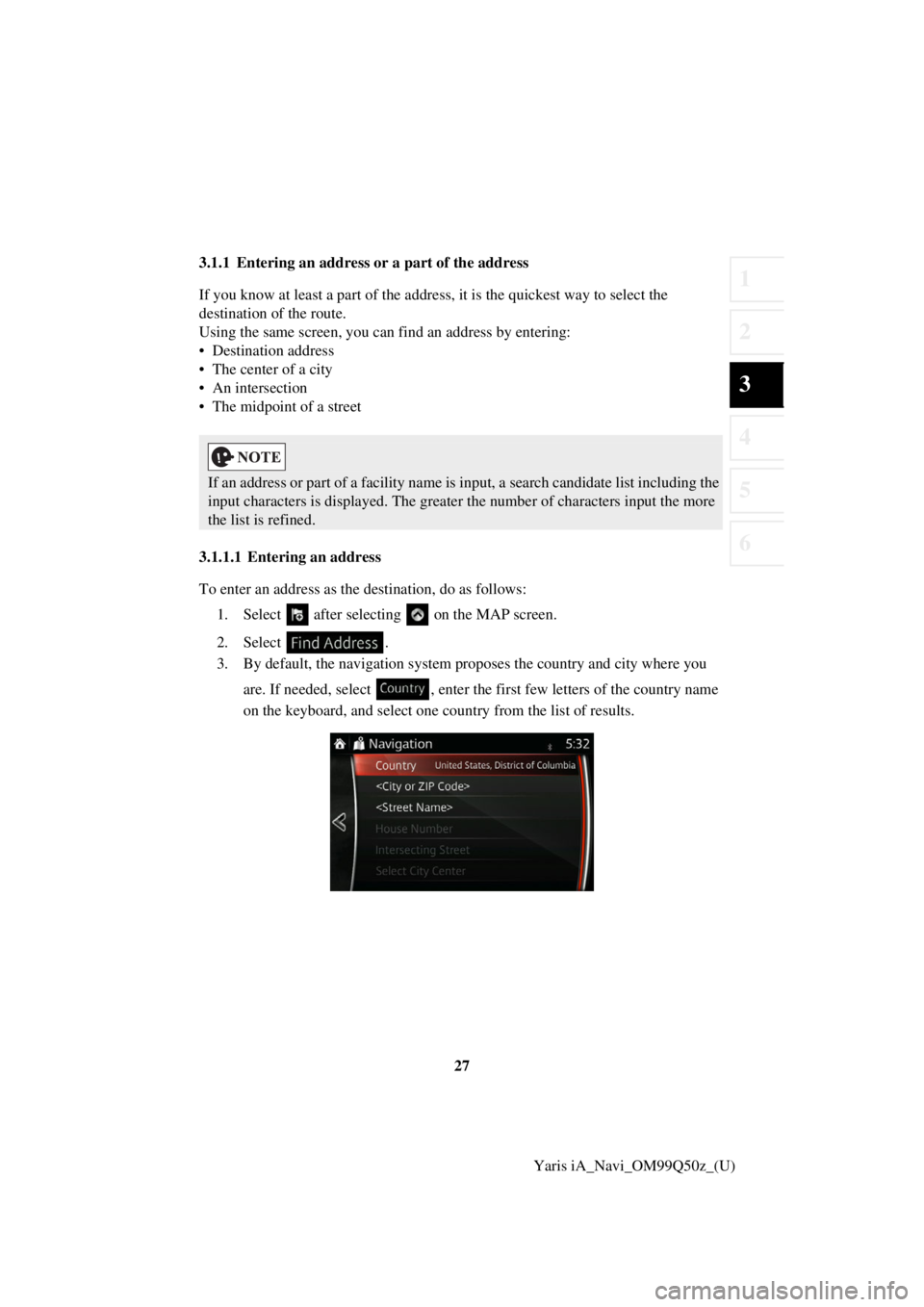
3. By default, the navigation system pr oposes the country and city where you
are. If needed, select , enter the first few letters of the country name
on the keyboard, and select one country from the list of results.
If an address or part of a facility name is input, a search candidate list including the
input characters is displayed. The greater the number of characters input the more
the list is refined.
Page 29 of 91
30Yaris iA_Navi_OM99Q50z_(U)
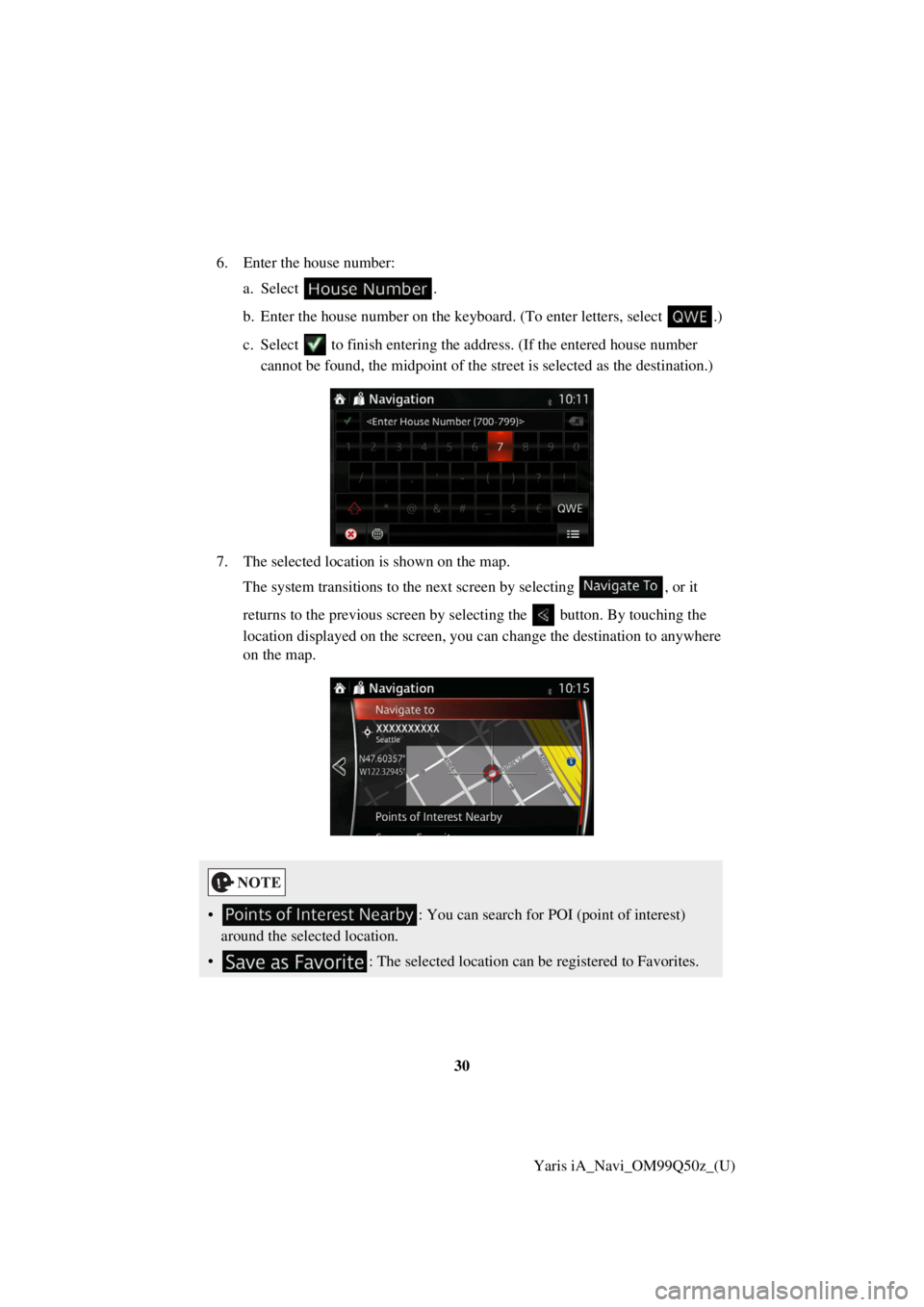
6. Enter the house number:
a.Select .
b . Enter the house number on the keyboard. (To enter le tters, select.)
c. Select to finish entering the ad dress. (If the entered house number
can not be found, the midpoint of the street is selected as the destination.)
7. The selected location is shown on the map. The system transitions to the next screen by selectin g
, or it
returns to the previous screen by selectin g the button. By touching the
location displayed on the screen, you can change the destination to anyw here
on the map.
• : You can search for POI (point of interest)
around the selected location.
• : The selected location can be registered to Favorites.
Page 30 of 91
31
1
2
3
4
5
6
Yaris iA_Navi_OM99Q50z_(U)
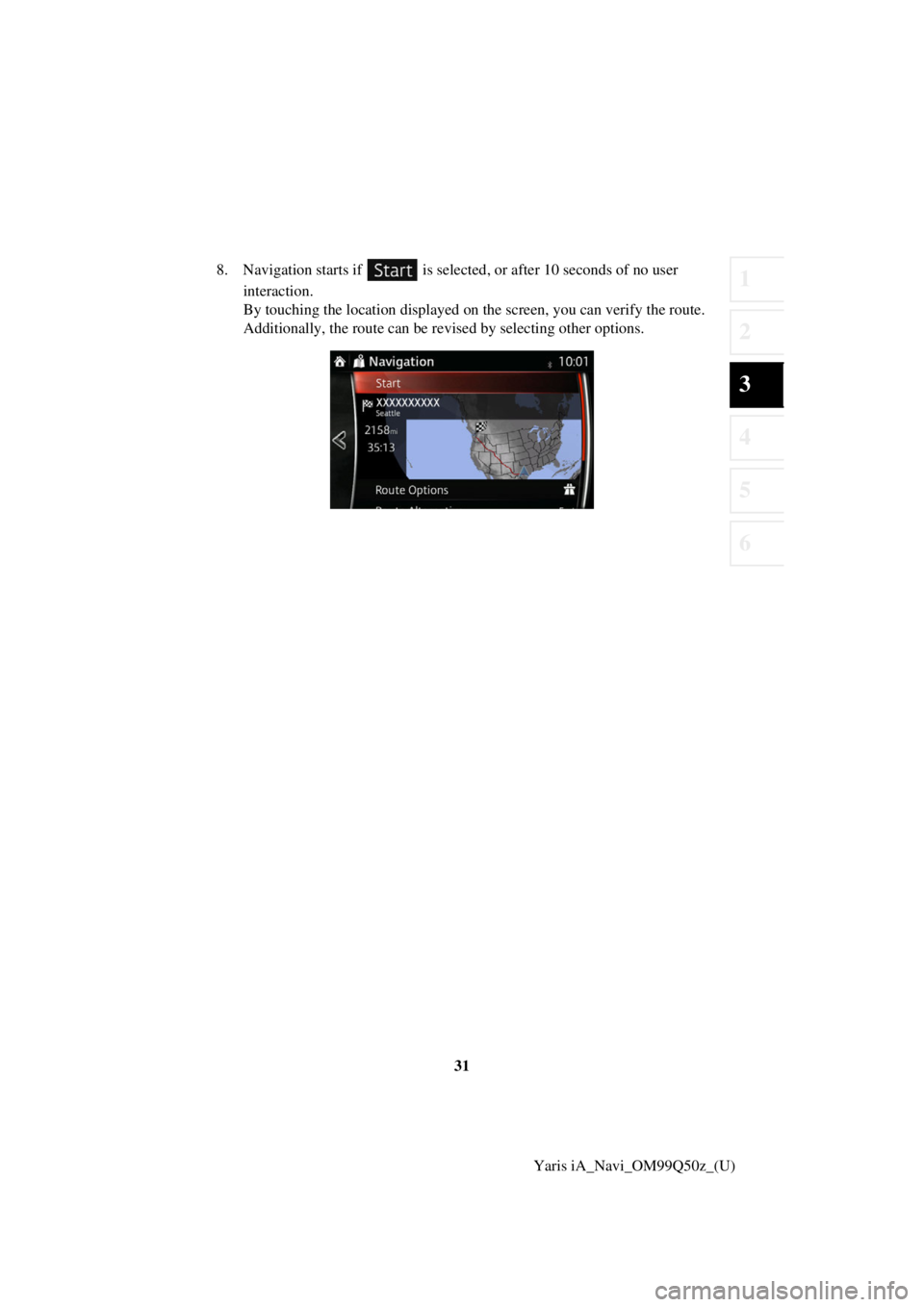
8. Navigation starts if is selected
, or after 10 seconds of no user
i nteraction.
By touching the location displayed on the screen, you can verify the rout e.
A dditionally, the route can be revised by selecting other options.
Page 32 of 91
33
1
2
3
4
5
6
Yaris iA_Navi_OM99Q50z_(U)
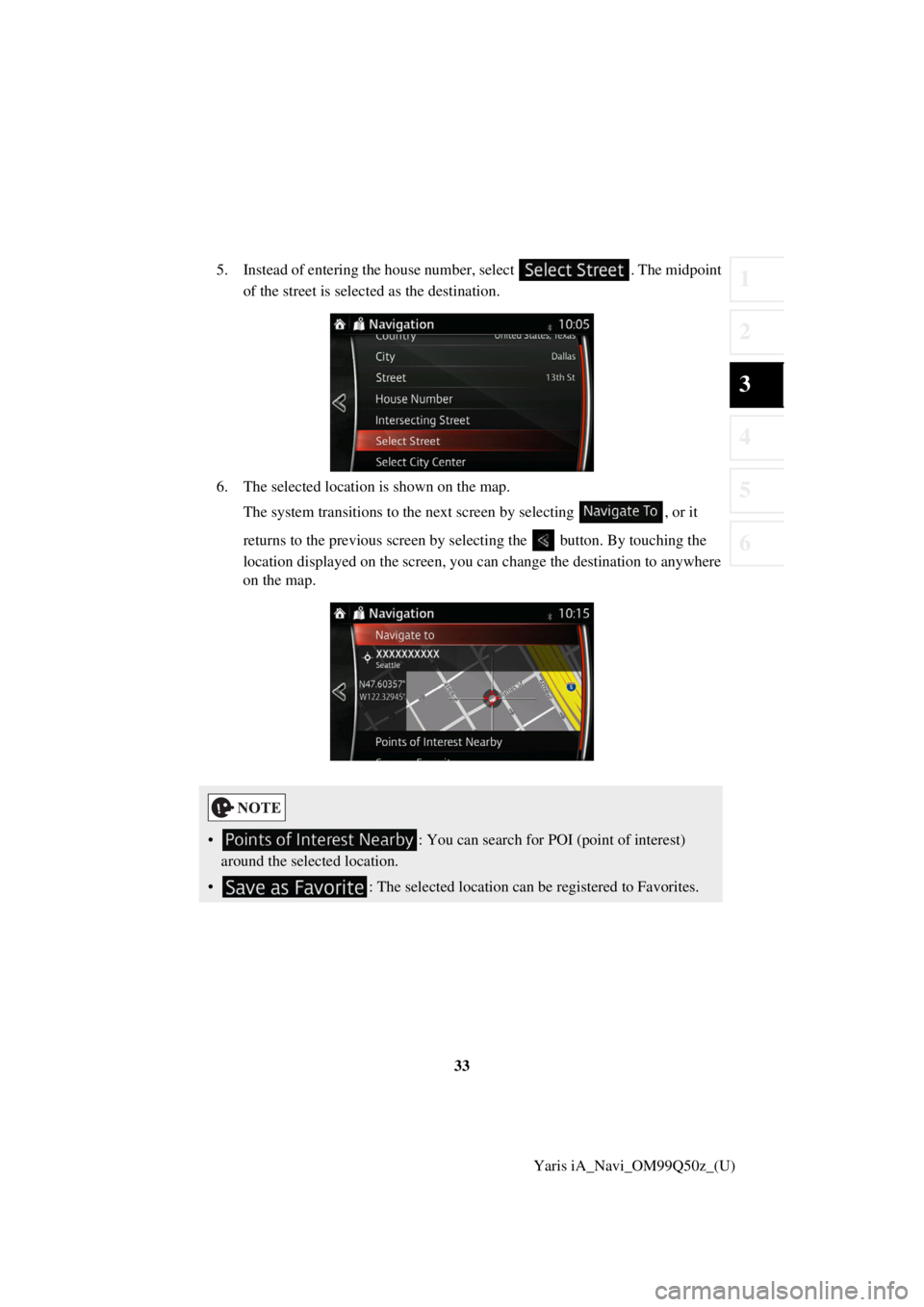
5. Instead of entering the house number, sel
ect. The midpoint
of the street is select ed as the destination.
6. The selected location is shown on the map.
Th e system transitions to the next screen by selectin g, or it
returns to the previous screen by selectin g the button. By touching the
location displayed on the screen, you can change the destination to anyw here
on the map.
•
: You can search for POI (point of interest)
around the selected location.
• : The selected location can be registered to Favorites.
Page 33 of 91
34Yaris iA_Navi_OM99Q50z_(U)
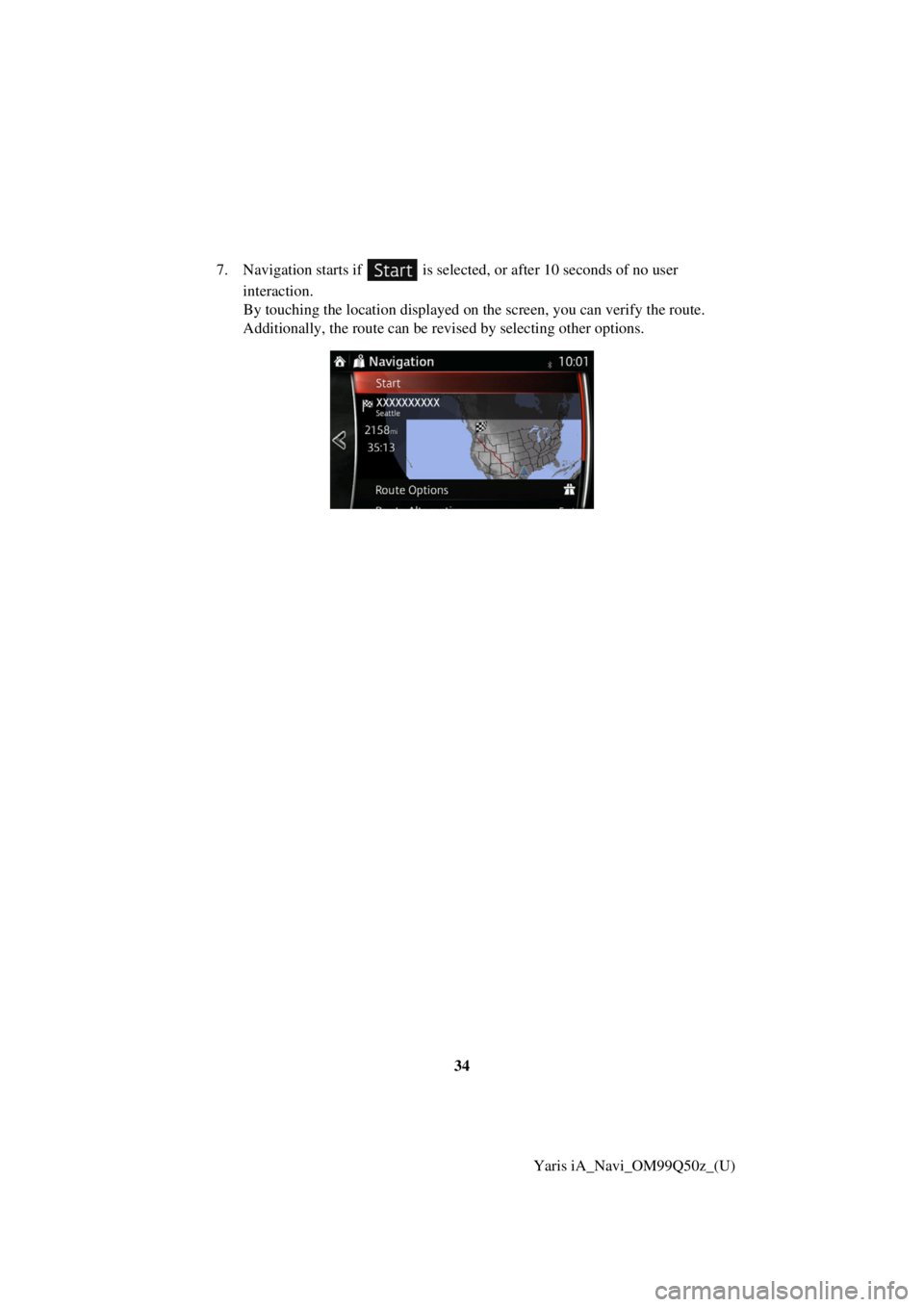
7. Navigation starts if is selected
, or after 10 seconds of no user
i nteraction.
By touching the location displayed on the screen, you can verify the rout e.
A dditionally, the route can be revised by selecting other options.
Page 36 of 91
37
1
2
3
4
5
6
Yaris iA_Navi_OM99Q50z_(U)
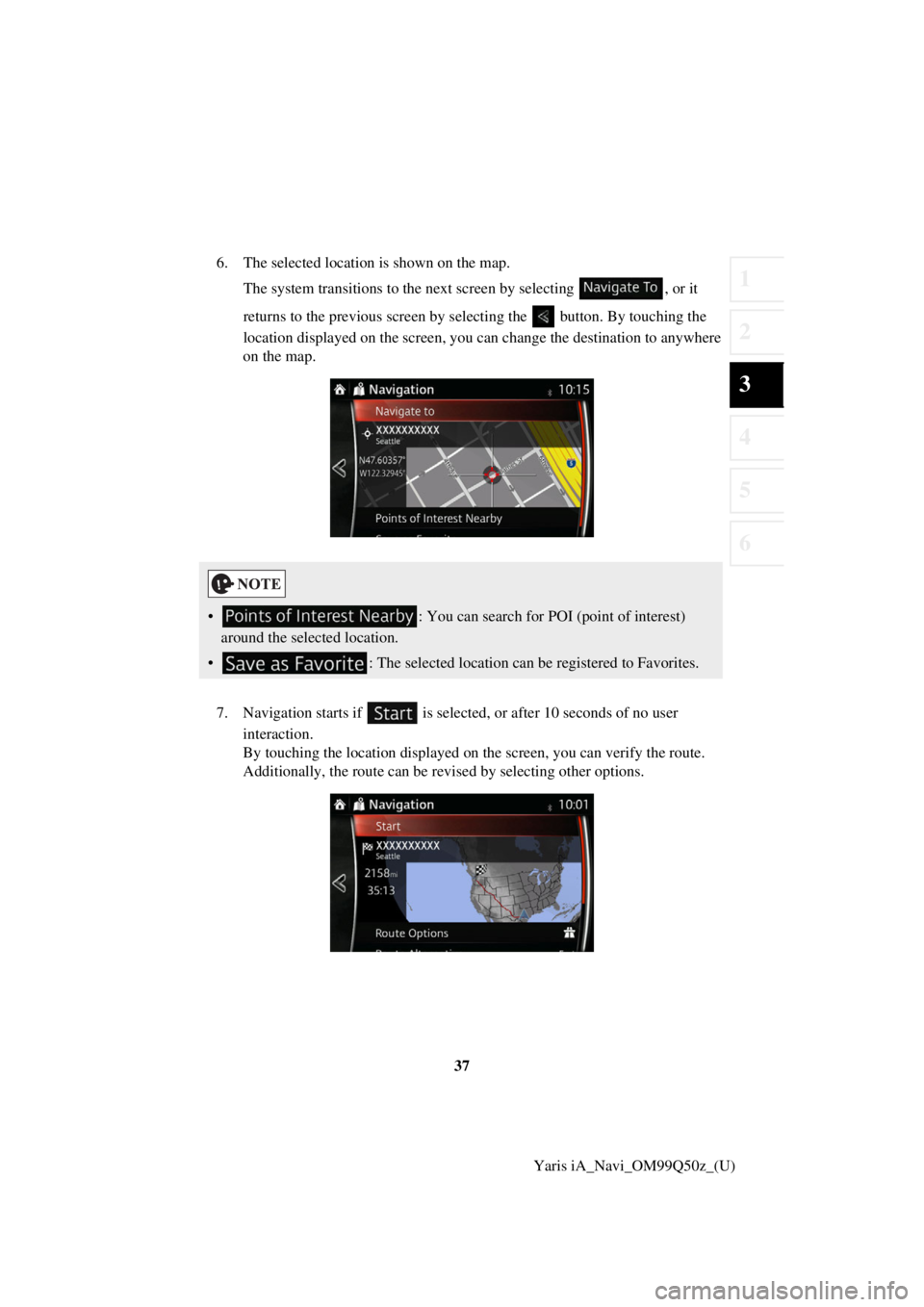
6. The selected location is shown on the map.
The system transitions to the next screen by selecting , or it
returns to the previous screen by selectin g the button. By touching the
location displayed on the screen, you can change the destination to anyw here
on the map.
7. Navigation starts if is selected , or after 10 seconds of no user
i nteraction.
By touching the location displayed on the screen, you can verify the rout e.
A dditionally, the route can be revised by selecting other options.
• : You can search for POI (point of interest)
around the selected location.
• : The selected location can be registered to Favorites.
Page 37 of 91
38Yaris iA_Navi_OM99Q50z_(U)
3.1.1.4 Selecting a city cen
ter as the destination
The city center is not the geometric center of the city but an arbitrary point on the
map the creators have chosen. In cities and villages, it is usually the most important
intersection; in larger cities, it is one of the important intersections.
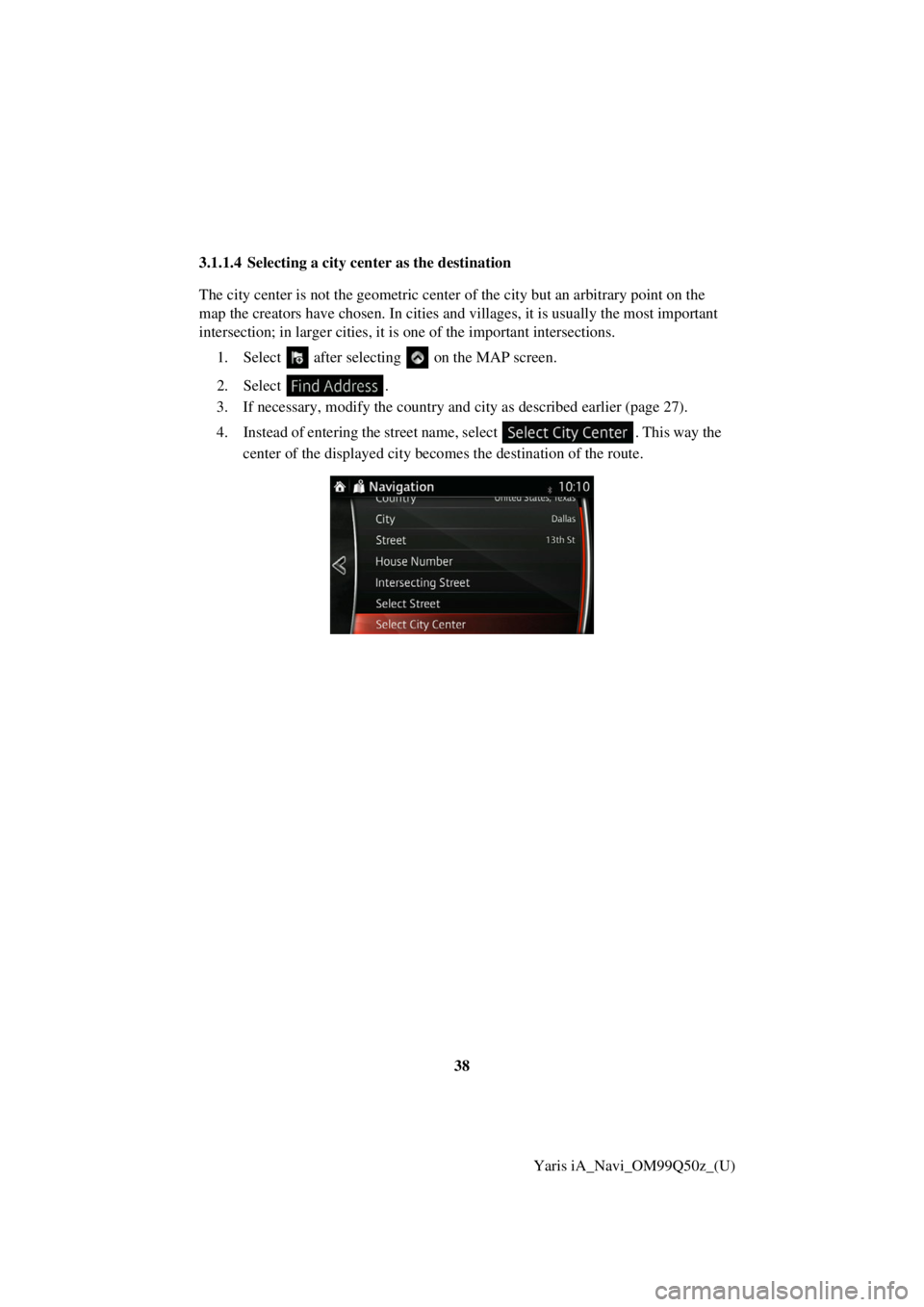
1. Select after selectin g on the MAP screen.
2. Select .
3. If necessary, modify the country and city as described earlier (page 27).
4. Instead of entering the street name, select . This way the
center of the displayed city beco mes the destination of the route.