radio TOYOTA YARIS iA 2018 (in English) User Guide
[x] Cancel search | Manufacturer: TOYOTA, Model Year: 2018, Model line: YARIS iA, Model: TOYOTA YARIS iA 2018Pages: 576, PDF Size: 5.5 MB
Page 258 of 576
![TOYOTA YARIS iA 2018 (in English) User Guide 258
YARIS iA_OM_OM99Q46z_(U)
4-2. Audio System
Audio Set (Type A [non-touchscreen])∗
●Power/Volume/Sound Controls ( →P. 259)
● Clock ( →P. 262)
● Operating the Radio ( →P. 263)
● Opera](/img/14/43168/w960_43168-257.png "TOYOTA YARIS iA 2018 (in English) User Guide 258
YARIS iA_OM_OM99Q46z_(U)
4-2. Audio System
Audio Set (Type A [non-touchscreen])∗
●Power/Volume/Sound Controls ( →P. 259)
● Clock ( →P. 262)
● Operating the Radio ( →P. 263)
● Opera")
258
YARIS iA_OM_OM99Q46z_(U)
4-2. Audio System
Audio Set (Type A [non-touchscreen])∗
●Power/Volume/Sound Controls ( →P. 259)
● Clock ( →P. 262)
● Operating the Radio ( →P. 263)
● Operating the Compact Disc (CD) Player ( →P. 266)
● How to use Auxiliary jack/USB port ( →P. 273)
● Error Indications ( →P. 273)
∗: If equipped
Page 263 of 576
YARIS iA_OM_OM99Q46z_(U)
2634-2. Audio System
4
Interior Features
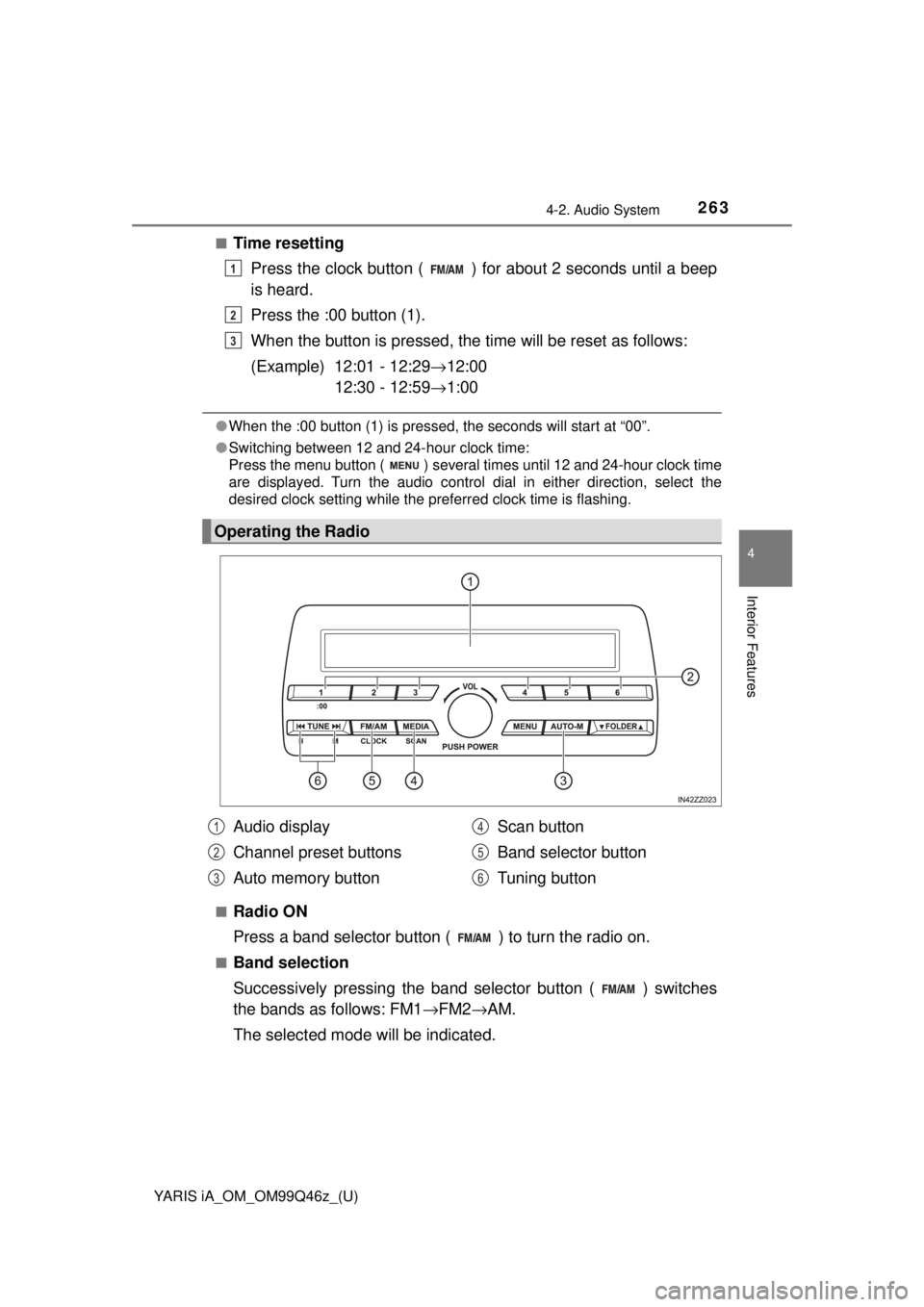
■Time resettingPress the clock button ( ) fo r about 2 seconds until a beep
is heard.
Press the :00 button (1).
When the button is pressed, the ti me will be reset as follows:
(Example) 12:01 - 12:29 →12:00
12:30 - 12:59 →1:00
●When the :00 button (1) is pressed, the seconds will start at “00”\
.
● Switching between 12 and 24-hour clock time:
Press the menu button ( ) several times until 12 and 24-hour clock time
are displayed. Turn the audio control dial in either direction, select the
desired clock setting while the preferred clock time is flashing.
■
Radio ON
Press a band selector button ( ) to turn the radio on.
■Band selection
Successively pressing the band selector button ( ) switches
the bands as follows: FM1 →FM2 →AM.
The selected mode will be indicated.
Operating the Radio
1
2
3
Audio display
Channel preset buttons
Auto memory button Scan button
Band selector button
Tuning button1
2
3
4
5
6
Page 264 of 576
264
YARIS iA_OM_OM99Q46z_(U)
4-2. Audio System
■Tuning
The radio has the following tuning methods: Manual, Seek, Scan,
Preset channel, and Auto memory tuning. The easiest way to tune
stations is to set them on preset channels.
● Manual tuning
Select the station by pressing the tuning button ( , )
lightly.
● Seek tuning
Automatic search for radio stations starts when the tuning button
( , ) is pressed until a beep sound is heard. The
search stops when a station is found.
If you continue to press and hold the button, the frequency will con-
tinue changing without stopping.
●Scan tuning
Press and hold the scan button ( ) to automatically sample
strong stations. Scanning stops at each station for about 5 sec-
onds. To hold a station, press and hold the scan button ( )
again during this interval.
● Preset channel tuning
The 6 preset channels can be used to store 6 AM and 12 FM sta-
tions.
To set a channel first select AM, FM1, or FM2. Tune to the
desired station.
Press a channel preset button for about 2 seconds until a beep
is heard. The preset channel number or station frequency will
be displayed. The station is now held in the memory.
Repeat this operation for the other stations and bands you
want to store. To tune one in the memory, select AM, FM1, or
FM2 and then press its channel pr eset button. The station fre-
quency or the channel number will be displayed.
1
2
3
Page 275 of 576
YARIS iA_OM_OM99Q46z_(U)
2754-2. Audio System
4
Interior Features
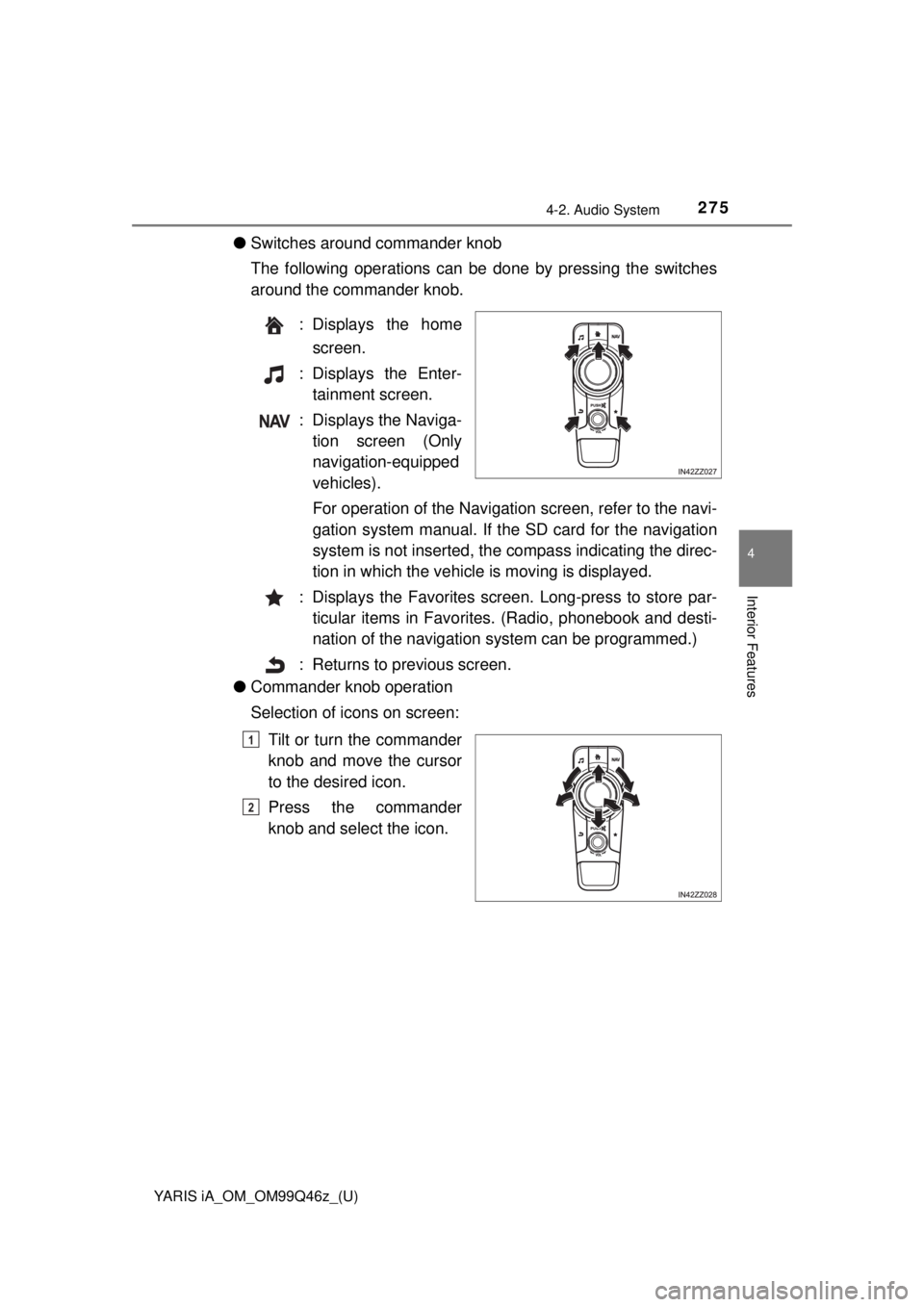
●Switches around commander knob
The following operations can be done by pressing the switches
around the commander knob.
: Displays the homescreen.
: Displays the Enter- tainment screen.
: Displays the Naviga- tion screen (Only
navigation-equipped
vehicles).
For operation of the Navigation screen, refer to the navi-
gation system manual . If the SD card for the navigation
system is not inserted, the compass indicating the direc-
tion in which the vehicle is moving is displayed.
: Displays the Favorites screen. Long-press to store par- ticular items in Favorites. (Radio, phonebook and desti-
nation of the navigation sy stem can be programmed.)
: Returns to previous screen.
● Commander knob operation
Selection of icons on screen:
Tilt or turn the commander
knob and move the cursor
to the desired icon.
Press the commander
knob and select the icon.
1
2
Page 278 of 576
278
YARIS iA_OM_OM99Q46z_(U)
4-2. Audio System
■Return to previous screen
Touch the .
■Displaying the home screen
Touch the .
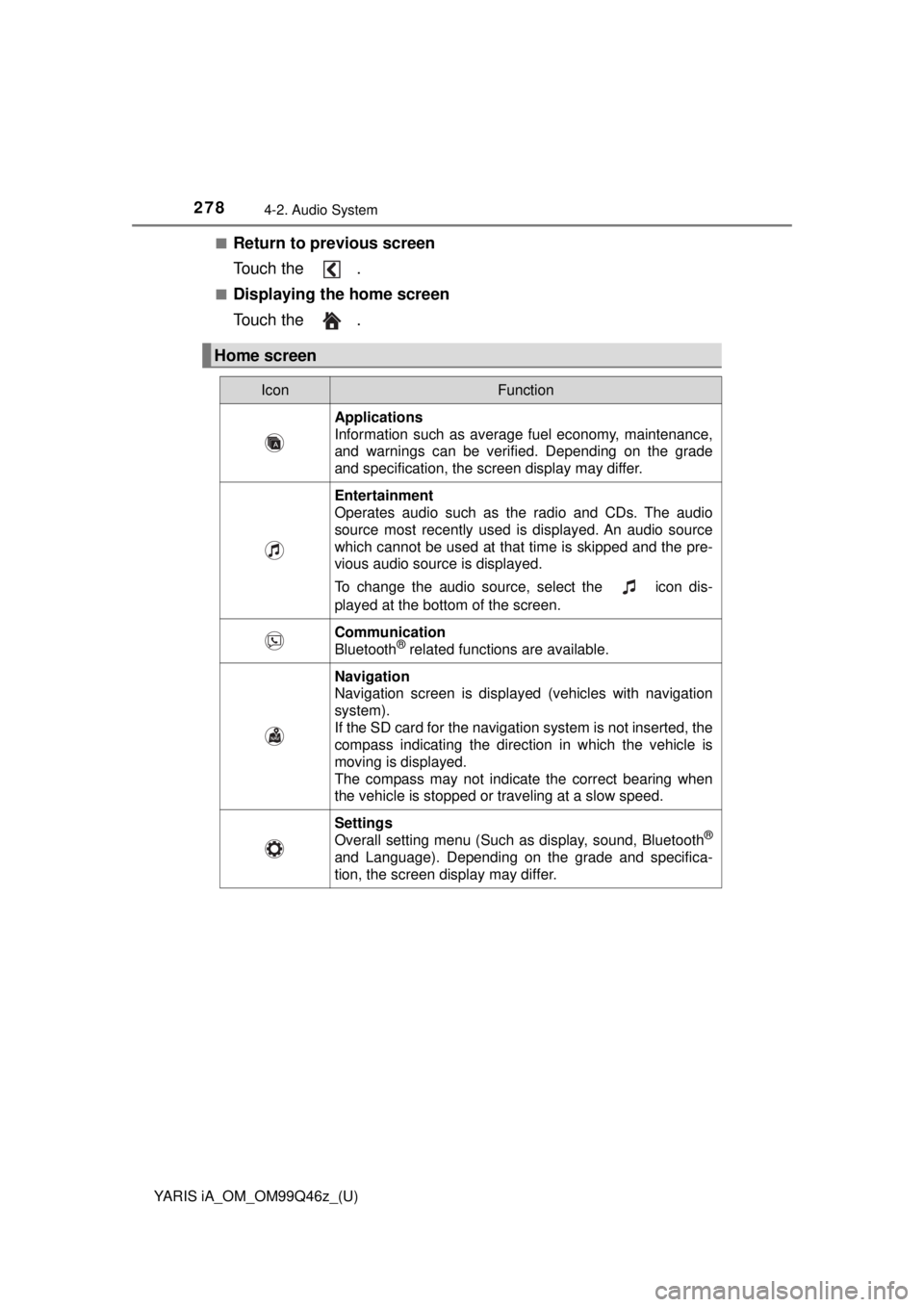
Home screen
IconFunction
Applications
Information such as average fuel economy, maintenance,
and warnings can be verified. Depending on the grade
and specification, the screen display may differ.
Entertainment
Operates audio such as the radio and CDs. The audio
source most recently used is displayed. An audio source
which cannot be used at that time is skipped and the pre-
vious audio source is displayed.
To change the audio source, select the icon dis-
played at the bottom of the screen.
Communication
Bluetooth® related functions are available.
Navigation
Navigation screen is displayed (vehicles with navigation
system).
If the SD card for the navigation system is not inserted, the
compass indicating the direction in which the vehicle is
moving is displayed.
The compass may not indicate the correct bearing when
the vehicle is stopped or traveling at a slow speed.
Settings
Overall setting menu (Such as display, sound, Bluetooth®
and Language). Depending on the grade and specifica-
tion, the screen display may differ.
Page 281 of 576
YARIS iA_OM_OM99Q46z_(U)
2814-2. Audio System
4
Interior Features
●ALC (Automatic volume adjustment)
The automatic level control (ALC) is a feature that automatically
adjusts audio volume and sound quality according to the vehicle
speed. The volume increases in accordance with the increase in
vehicle speed, and decreases as vehicle speed decreases.
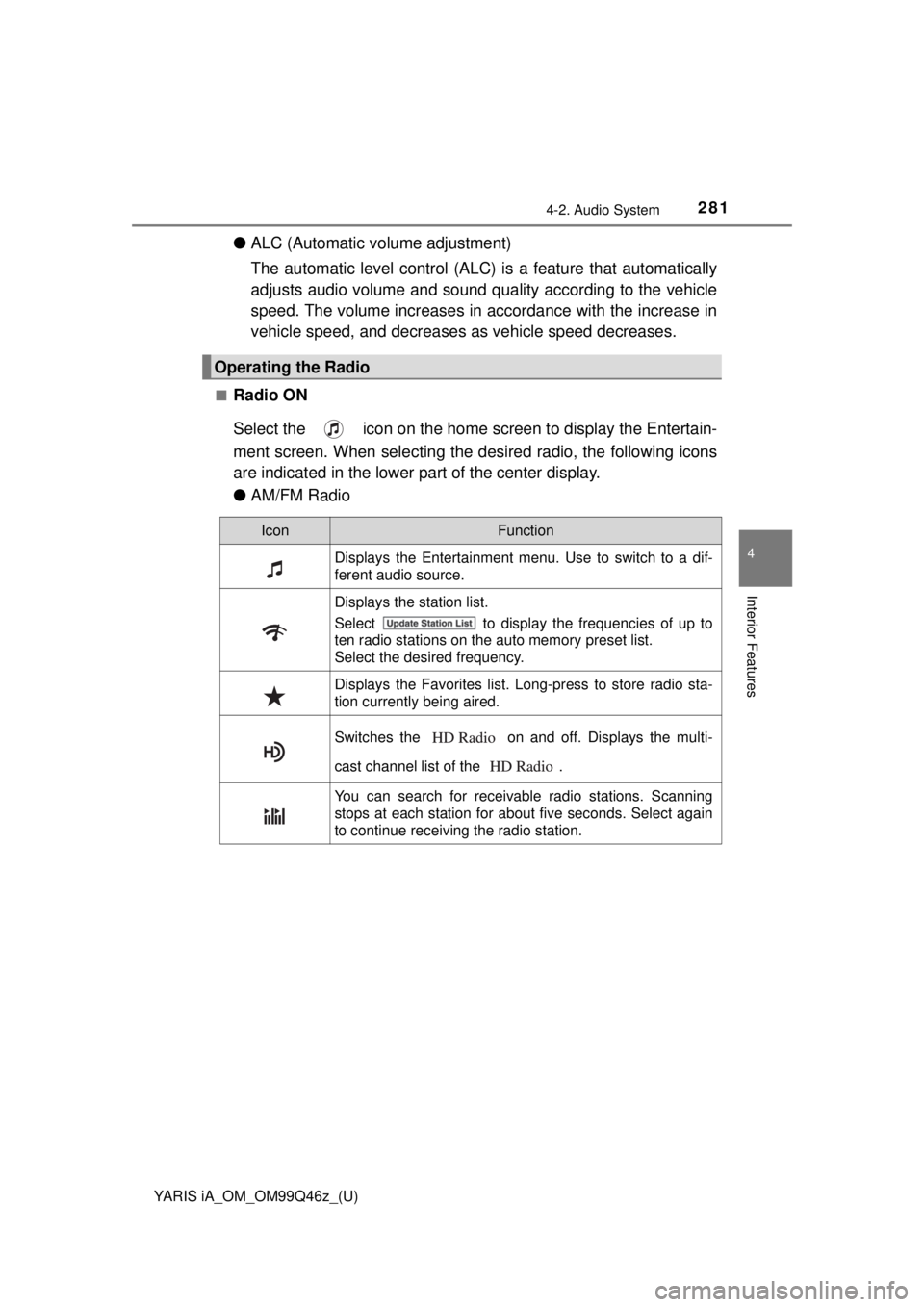
■Radio ON
Select the icon on the home screen to display the Entertain-
ment screen. When selecting the desired radio, the following icons
are indicated in the lower part of the center display.
●AM/FM Radio
Operating the Radio
IconFunction
Displays the Entertainment menu. Use to switch to a dif-
ferent audio source.
Displays the station list.
Select to display the frequencies of up to
ten radio stations on the auto memory preset list.
Select the desired frequency.
Displays the Favorites list. Long-press to store radio sta-
tion currently being aired.
Switches the on and off. Displays the multi-
cast channel list of the .
You can search for receivable radio stations. Scanning
stops at each station for about five seconds. Select again
to continue receiving the radio station.
Page 282 of 576
282
YARIS iA_OM_OM99Q46z_(U)
4-2. Audio System
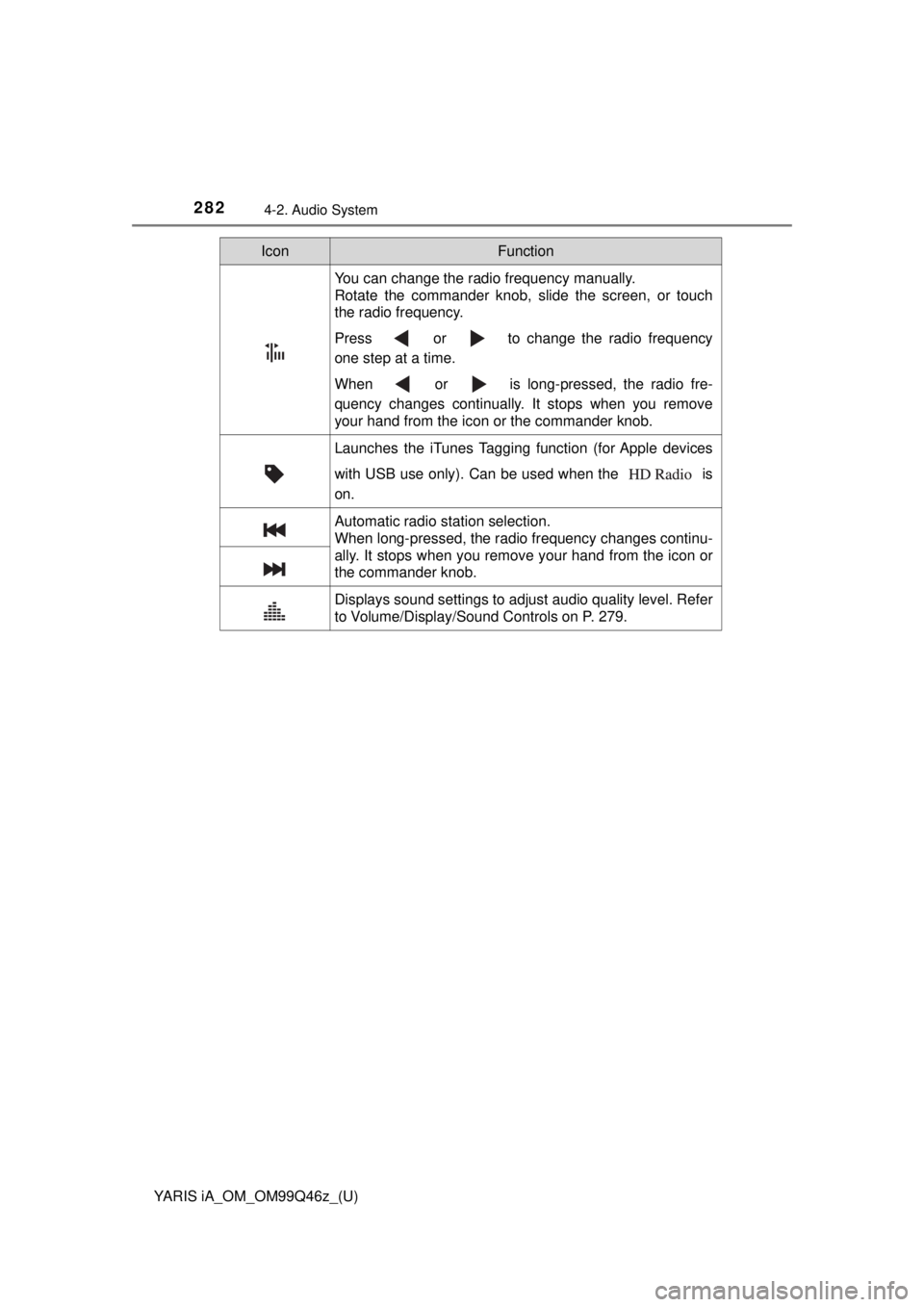
You can change the radio frequency manually.
Rotate the commander knob, slide the screen, or touch
the radio frequency.
Press or to change the radio frequency
one step at a time.
When or is long-pressed, the radio fre-
quency changes continually. It stops when you remove
your hand from the icon or the commander knob.
Launches the iTunes Tagging function (for Apple devices
with USB use only). Can be used when the is
on.
Automatic radio station selection.
When long-pressed, the radio frequency changes continu-
ally. It stops when you remove your hand from the icon or
the commander knob.
Displays sound settings to adjust audio quality level. Refer
to Volume/Display/Sound Controls on P. 279.
IconFunction
Page 283 of 576
YARIS iA_OM_OM99Q46z_(U)
2834-2. Audio System
4
Interior Features
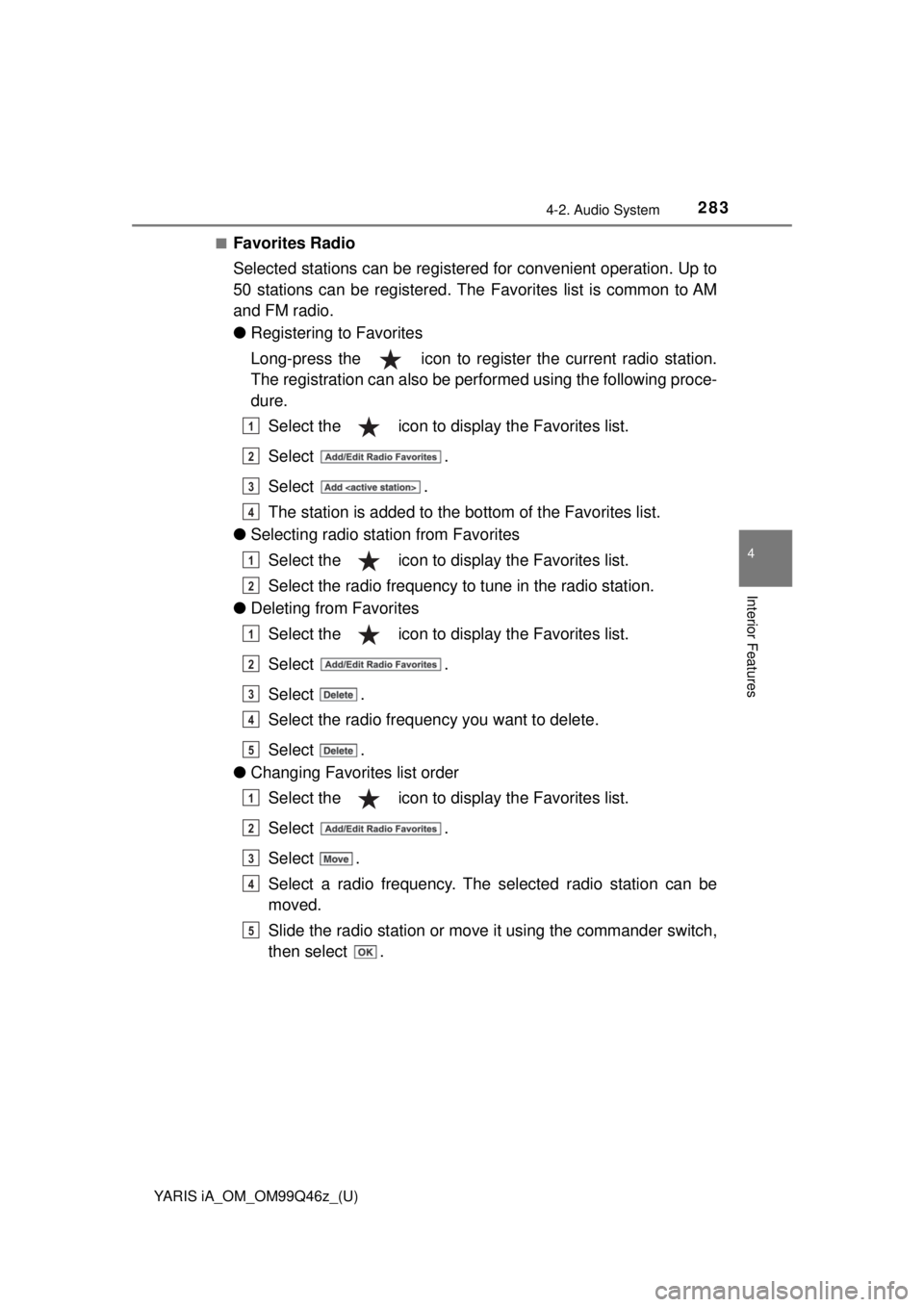
■Favorites Radio
Selected stations can be registered for convenient operation. Up to
50 stations can be registered. The Favorites list is common to AM
and FM radio.
● Registering to Favorites
Long-press the icon to register the current radio station.
The registration can also be performed using the following proce-
dure.
Select the icon to display the Favorites list.
Select .
Select .
The station is added to the bottom of the Favorites list.
● Selecting radio station from Favorites
Select the icon to display the Favorites list.
Select the radio frequency to tune in the radio station.
● Deleting from Favorites
Select the icon to display the Favorites list.
Select .
Select .
Select the radio frequency you want to delete.
Select .
● Changing Favorites list order
Select the icon to display the Favorites list.
Select .
Select .
Select a radio frequency. The selected radio station can be
moved.
Slide the radio station or move it using the commander switch,
then select .
1
2
3
4
1
2
1
2
3
4
5
1
2
3
4
5
Page 284 of 576
284
YARIS iA_OM_OM99Q46z_(U)
4-2. Audio System
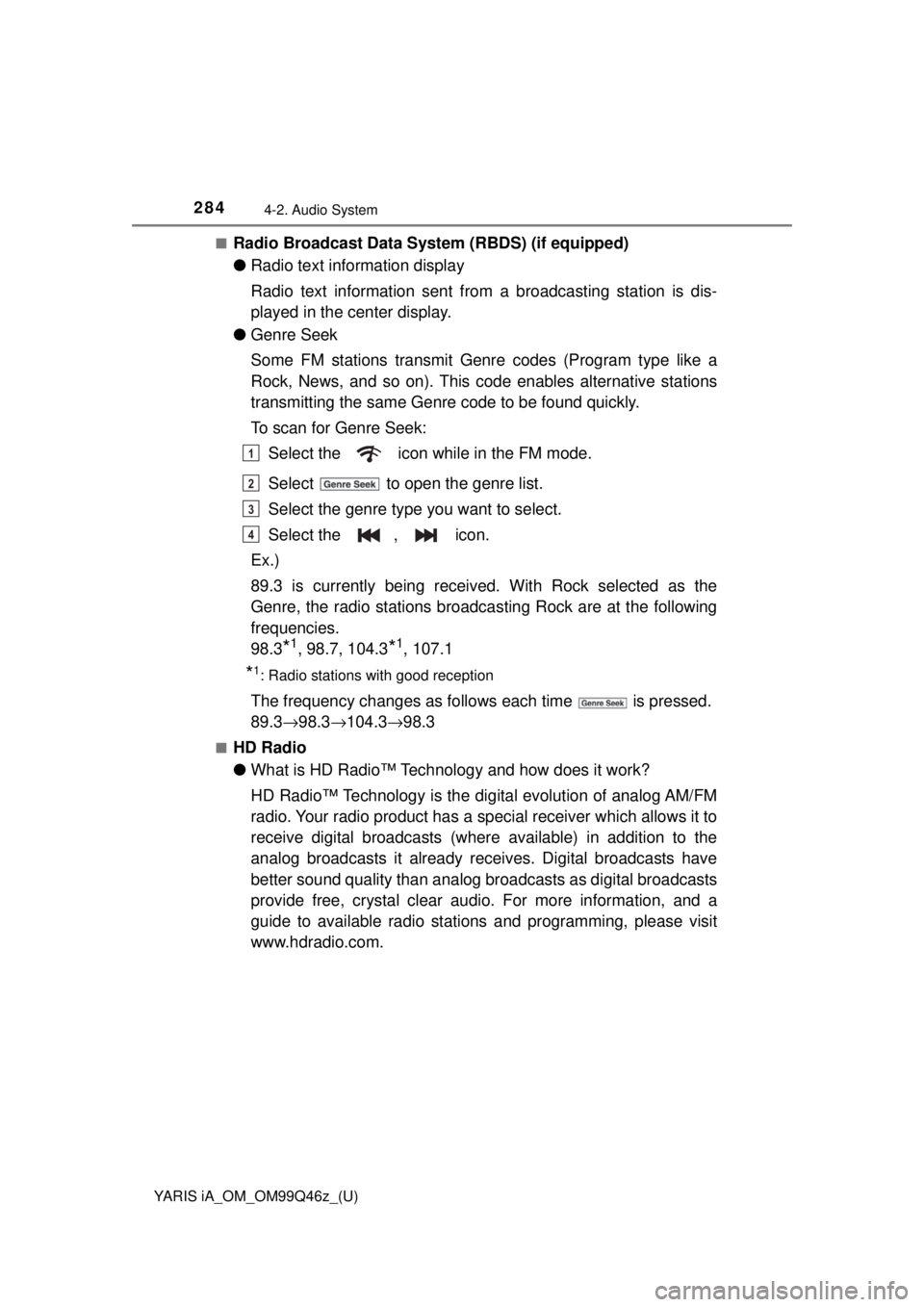
■Radio Broadcast Data System (RBDS) (if equipped)
● Radio text information display
Radio text information sent from a broadcasting station is dis-
played in the center display.
● Genre Seek
Some FM stations transmit Genre codes (Program type like a
Rock, News, and so on). This co de enables alternative stations
transmitting the same Genre code to be found quickly.
To scan for Genre Seek:
Select the icon while in the FM mode.
Select to open the genre list.
Select the genre type you want to select.
Select the , icon.
Ex.)
89.3 is currently being received. With Rock selected as the
Genre, the radio stations broadca sting Rock are at the following
frequencies.
98.3
*1, 98.7, 104.3*1, 107.1
*1: Radio stations with good reception
The frequency changes as foll ows each time is pressed.
89.3 →98.3 →104.3→ 98.3
■HD Radio
●What is HD Radio™ Technology and how does it work?
HD Radio™ Technology is the di gital evolution of analog AM/FM
radio. Your radio product has a sp ecial receiver which allows it to
receive digital broadcasts (where available) in addition to the
analog broadcasts it already receives. Digital broadcasts have
better sound quality than analog broadcasts as digital broadcasts
provide free, crystal clear audio. For more information, and a
guide to available radio stations and programming, please visit
www.hdradio.com.
1
2
3
4
Page 285 of 576
YARIS iA_OM_OM99Q46z_(U)
2854-2. Audio System
4
Interior Features
●Benefits of HD Radio™ Technology
Information:
The song title, artist name, album name and genre will appear on
the screen when available by the radio station.
Multicast:
On the FM radio frequency most digital stations have “multiple”
or supplemental programs on each FM station.
● Listening to HD Radio™ Technology
If icon turns on by selecting a radio station which is an
broadcasting station, the analog broadcast is
switched to an broadcast automatically after a few
seconds and then received.
If the broadcast is stopped and changed to an analog
broadcast, press down to turn off .