radio VAUXHALL ANTARA 2015 Infotainment system
[x] Cancel search | Manufacturer: VAUXHALL, Model Year: 2015, Model line: ANTARA, Model: VAUXHALL ANTARA 2015Pages: 151, PDF Size: 2.82 MB
Page 22 of 151
22Radio
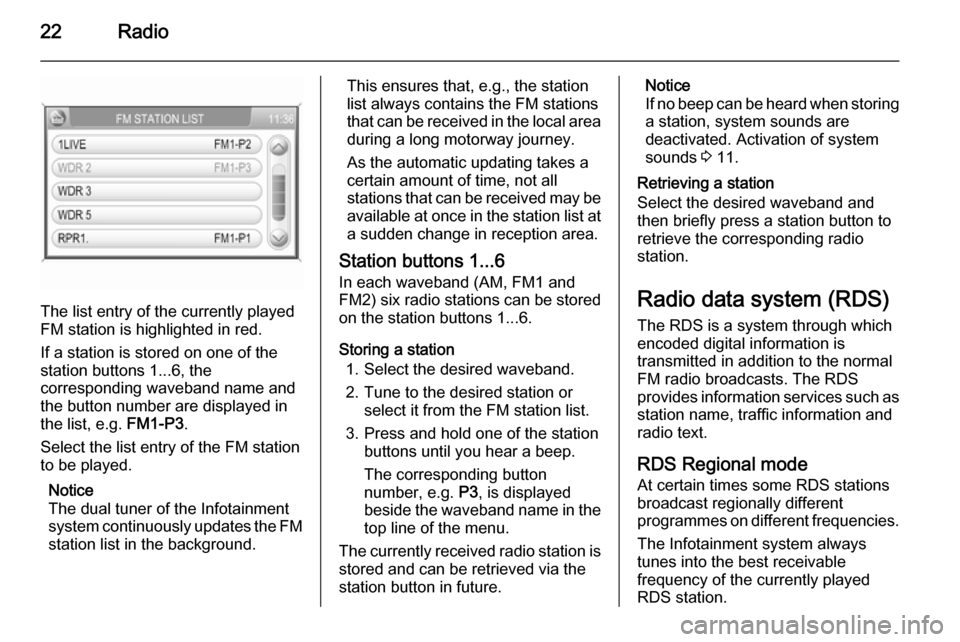
The list entry of the currently played
FM station is highlighted in red.
If a station is stored on one of the
station buttons 1...6, the
corresponding waveband name and
the button number are displayed in
the list, e.g. FM1-P3.
Select the list entry of the FM station
to be played.
Notice
The dual tuner of the Infotainment
system continuously updates the FM
station list in the background.
This ensures that, e.g., the station
list always contains the FM stations
that can be received in the local area during a long motorway journey.
As the automatic updating takes a certain amount of time, not all
stations that can be received may be
available at once in the station list at a sudden change in reception area.
Station buttons 1...6
In each waveband (AM, FM1 and
FM2) six radio stations can be stored
on the station buttons 1...6.
Storing a station 1. Select the desired waveband.
2. Tune to the desired station or select it from the FM station list.
3. Press and hold one of the station buttons until you hear a beep.
The corresponding button
number, e.g. P3, is displayed
beside the waveband name in the
top line of the menu.
The currently received radio station is stored and can be retrieved via the
station button in future.Notice
If no beep can be heard when storing
a station, system sounds are
deactivated. Activation of system
sounds 3 11.
Retrieving a station
Select the desired waveband and
then briefly press a station button to
retrieve the corresponding radio
station.
Radio data system (RDS) The RDS is a system through which
encoded digital information is
transmitted in addition to the normal
FM radio broadcasts. The RDS
provides information services such as station name, traffic information and
radio text.
RDS Regional mode At certain times some RDS stations
broadcast regionally different
programmes on different frequencies.
The Infotainment system always
tunes into the best receivable
frequency of the currently played RDS station.
Page 23 of 151
Radio23
If RDS Regional mode is activated,
only frequencies of the currently
received RDS station with the same
regional programme are considered.
If RDS Regional mode is deactivated,
also frequencies of the currently
received RDS station with different
regional programmes are considered.
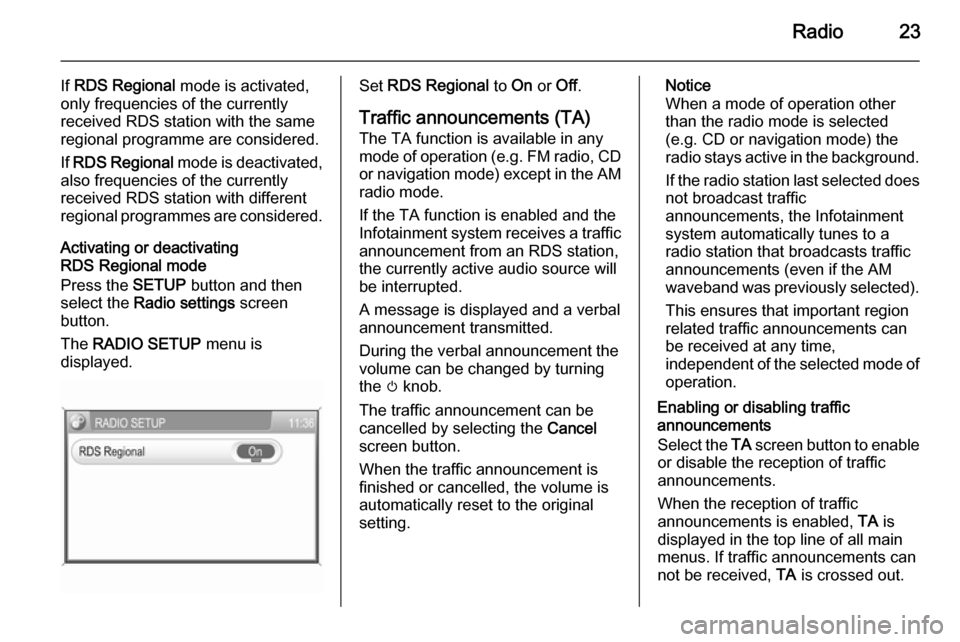
Activating or deactivating
RDS Regional mode
Press the SETUP button and then
select the Radio settings screen
button.
The RADIO SETUP menu is
displayed.Set RDS Regional to On or Off.
Traffic announcements (TA)
The TA function is available in any
mode of operation ( e.g. FM radio, CD
or navigation mode) except in the AM
radio mode.
If the TA function is enabled and the
Infotainment system receives a traffic announcement from an RDS station,
the currently active audio source will
be interrupted.
A message is displayed and a verbal
announcement transmitted.
During the verbal announcement the
volume can be changed by turning
the m knob.
The traffic announcement can be
cancelled by selecting the Cancel
screen button.
When the traffic announcement is
finished or cancelled, the volume is
automatically reset to the original
setting.Notice
When a mode of operation other
than the radio mode is selected
(e.g. CD or navigation mode) the
radio stays active in the background.
If the radio station last selected does
not broadcast traffic
announcements, the Infotainment
system automatically tunes to a
radio station that broadcasts traffic
announcements (even if the AM
waveband was previously selected).
This ensures that important region
related traffic announcements can
be received at any time,
independent of the selected mode of operation.
Enabling or disabling traffic
announcements
Select the TA screen button to enable
or disable the reception of traffic
announcements.
When the reception of traffic
announcements is enabled, TA is
displayed in the top line of all main
menus. If traffic announcements can
not be received, TA is crossed out.
Page 24 of 151

24Radio
Notice
The TA screen button is available in
all audio main menus (e.g. FM1 or
CD menu) and in the TRAFFIC
INFO menu.
In the TRAFFIC INFO menu the TA
screen button is not selectable, if the
volume is set to zero.
Listening to traffic announcements
only
Enable traffic announcements and
completely turn down the volume of
the Infotainment system.
Page 37 of 151

Navigation37
After the entry of the destination
address or point of interest (nearest
petrol station, hotel, etc.) the route is
calculated from the current location to
the destination selected.
The route guidance is provided by
voice commands and a direction
arrow, as well as with the aid of a
multi-colour map display.
TMC traffic information system
and dynamic route guidance
The TMC traffic information system receives all current traffic informationfrom TMC radio stations. If dynamic
route guidance is active, this
information is included in the
calculation of the overall route. During this process, the route is planned so
that traffic problems related to pre-
selected criteria are avoided.
If there is a traffic problem during
active route guidance, depending on the pre-settings, a message appearsas to whether the route should be
changed.TMC traffic information is displayed on the map display as symbols or asdetailed text in the TRAFFIC
MESSAGES menu.
To be able to use TMC traffic
information, the system has to receive
TMC stations in the relevant region.
Dynamic route guidance only works if traffic information is received via the
TMC traffic information system.
The dynamic route guidance function
can be deactivated, see chapter
"Guidance" 3 65.
Map data
All required map data is stored on an
SD card provided with the
Infotainment system.
Detailed descriptions on map SD card
handling and replacement, see
chapter "Maps" 3 71
Usage
Control elements and menus The most important control elements
and menus for the navigation system
are as follows:MAP button and map display
Press the MAP button to show the
map of the current location and the
route to follow (if route guidance is
active).
Detailed description on the
information shown on the map
display, see "Information on the map display" below.
NAV button and NAVIGATION menu
Press the NAV button to open the
NAVIGATION menu.
Page 65 of 151
Navigation65
The old home address (if available)
will be deleted.
■ Start : sets the displayed home
address or GPS coordinates as
new destination, and starts route
guidance to that destination.
Description on route guidance, see
chapter "Guidance" 3 65.
Guidance General information
Route guidance is provided by the
navigation system by visual
instructions and voice commands
(voice guidance).
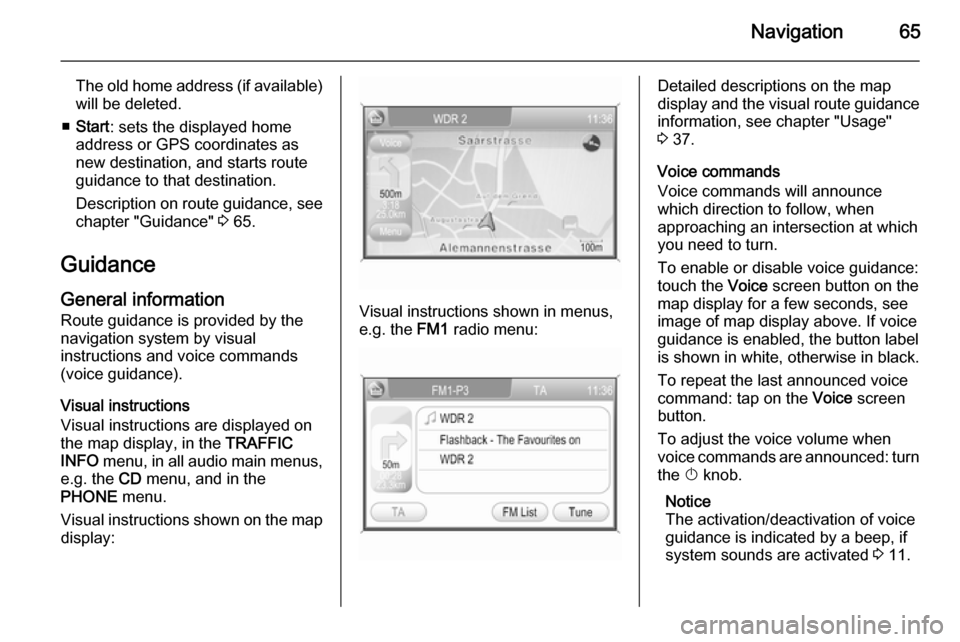
Visual instructions
Visual instructions are displayed on
the map display, in the TRAFFIC
INFO menu, in all audio main menus,
e.g. the CD menu, and in the
PHONE menu.
Visual instructions shown on the map display:
Visual instructions shown in menus,
e.g. the FM1 radio menu:
Detailed descriptions on the map
display and the visual route guidance information, see chapter "Usage"3 37.
Voice commands
Voice commands will announce
which direction to follow, when
approaching an intersection at which you need to turn.
To enable or disable voice guidance:
touch the Voice screen button on the
map display for a few seconds, see
image of map display above. If voice
guidance is enabled, the button label
is shown in white, otherwise in black.
To repeat the last announced voice
command: tap on the Voice screen
button.
To adjust the voice volume when
voice commands are announced: turn
the X knob.
Notice
The activation/deactivation of voice
guidance is indicated by a beep, if system sounds are activated 3 11.
Page 76 of 151
76Phonephones is prohibited, if
interference is caused by the
mobile phone or if dangerous
situations can occur.
Bluetooth
The Phone portal is certified by the
Bluetooth Special Interest Group
(SIG).
You will find further information about the specification on the Internet at
http://www.bluetooth.com
Bluetooth connection Bluetooth is a radio standard for the
wireless connection of, for example, a
mobile phone or an MP3 player to
other devices.
To be able to set up a Bluetooth
connection to the Infotainment
system, the Bluetooth function of the
Bluetooth device has to be activated and the Bluetooth device has to be set to "visible" (discovery mode). For
further information please consult the
user guide of the Bluetooth device.
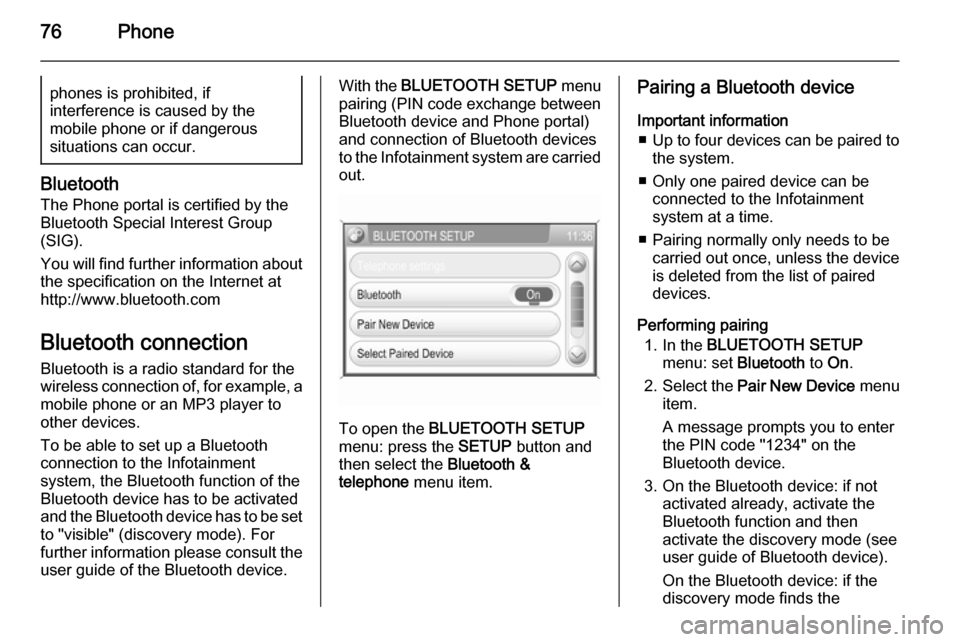
With the BLUETOOTH SETUP menu
pairing (PIN code exchange between Bluetooth device and Phone portal)
and connection of Bluetooth devices
to the Infotainment system are carried
out.
To open the BLUETOOTH SETUP
menu: press the SETUP button and
then select the Bluetooth &
telephone menu item.
Pairing a Bluetooth device
Important information ■ Up to four devices can be paired to
the system.
■ Only one paired device can be connected to the Infotainment
system at a time.
■ Pairing normally only needs to be carried out once, unless the device
is deleted from the list of paired
devices.
Performing pairing 1. In the BLUETOOTH SETUP
menu: set Bluetooth to On.
2. Select the Pair New Device menu
item.
A message prompts you to enter
the PIN code "1234" on the
Bluetooth device.
3. On the Bluetooth device: if not activated already, activate the
Bluetooth function and then
activate the discovery mode (see
user guide of Bluetooth device).
On the Bluetooth device: if the
discovery mode finds the
Page 83 of 151

Phone83
To initiate a phone call: select the
{ screen button. The displayed
phone number is dialled.
Manually entering a phone number
In the PHONE menu: select the
{ screen button to display the menu
for manual number input.
To initiate a phone call: enter the
desired phone number (select the
Delete screen button to delete
already entered numbers), and then
select the OK screen button. The
entered phone number is dialled.
Accessing the voicemail box
Enter the phone number of the
connected mobile phone manually,
see "Manually entering a phone
number" above.
Or (if available in the PHONEBOOK
menu): select the voicemail entry with
the phone number of the connected
mobile phone (the name of that entry
differs depending on the mobile
phone), see "Using the phone book"
above.
Notice
Depending on the network provider
it may be required to enter a
voicemail passcode on the mobile
phone to get access to the voicemail box.
Incoming phone call If an audio mode, e.g. the radio or CD
mode, is active at the time of an
incoming call, the relating audio
source will be muted and stay muted
until the call ends.
A message with the caller's phone
number or name (if available) is
displayed.To answer the call: select the green
{ screen button.
To reject the call: select the red }
screen button.
Second incoming phone call
If a second phone call comes in
during an ongoing call, a message
with the caller's phone number or
name (if available) is displayed.
Notice
If provided by the network provider,
beeps will additionally signalize the
second incoming call.
To answer the second call and end
the ongoing call: select the green
{ screen button.
To reject the second call and continue the ongoing call: select the red }
screen button.
Functions during a phone call
During an ongoing phone call the
PHONE menu view shown below will
be displayed.
Page 86 of 151

86IndexAActivating the CD player ...............26
Activating the radio .......................20
Adding waypoints .........................65
Address book................................ 48
Address entry ............................... 48
AUX input socket ........................................ 30
usage ........................................ 30
B
Bluetooth ...................................... 75
Bluetooth connection ....................76
C CD player activating ................................... 26
important information ................25
usage ........................................ 26
Connecting a Bluetooth device .....76
Control elements overview .............9
D Destination input ..........................48
Dynamic guidance ........................70
E Emergency call ............................. 78G
General information ...................
................ 6, 25, 30, 31, 34, 36, 75
Guidance ..................................... 65
H Home address .............................. 48
I
Infotainment system control elements .......................... 9
instrument panel.......................... 9
setting volume ........................... 11
speed compensated volume .....11
steering wheel audio controls .....9
switching on .............................. 11
tone settings .............................. 11
usage ........................................ 11
volume settings ......................... 11
M Map display .................................. 37
Maps ............................................ 71
Map SD card handling..................................... 71
replace ...................................... 71
Multifunction knob......................... 11
Page 87 of 151

87
NNavigation adding waypoints ......................65
address book............................. 48
control elements ........................37
creating user POIs ....................37
direct address entry................... 48
dynamic guidance .....................70
functioning ................................. 36
guidance.................................... 65
home address ........................... 48
map display ............................... 37
map SD card ....................... 36, 71
points of interest ........................48
previous destinations ................48
replacing a map SD card ..........37
route calculation ........................65
route guidance .......................... 65
route list..................................... 65
selecting user POIs ...................48
setup ......................................... 37
symbols overview ......................73
TMC (traffic) messages .............65
traffic information system (TMC) 36
usage ........................................ 37
visual instructions ......................65
voice commands .......................65
Navigation setup ........................... 37O
Operating a Bluetooth music device ........................................ 34
Operation ......................... 11, 34, 79
P Pairing a Bluetooth device ............76
Phone ........................................... 75
Bluetooth ................................... 75
call lists...................................... 79
control elements ........................75
dialling a number .......................79
emergency calls ........................78
functions during a call ...............79
important information ................75
phone book ............................... 79
privacy mode ............................. 79
Playing saved audio files ..............32
POI symbols ................................. 73
Previous destinations ...................48
R
Radio Radio data system (RDS) .........22
activating ................................... 20
selecting the waveband ............20
station search ............................ 21
usage ........................................ 20
Radio data system (RDS) ............22
RDS .............................................. 22Regionalization............................. 22
Replacing a map SD card............. 37
Route calculation ..........................65
Route guidance ......................65, 70
Route list....................................... 65
S SD card......................................... 71
Selecting the waveband ...............20
Setting the volume ........................11
Speed compensated volume ........11
Starting CD replay ........................26
Station search............................... 21
Switching the Infotainment system on or off......................... 11
Switching the radio on ..................20
Symbols overview ........................ 73
T
Theft-deterrent feature ................... 7
TMC .............................................. 36
TMC messages ............................ 65
TMC symbols................................ 73
Touch screen ................................ 11
Traffic information system ............36
Traffic messages .......................... 65
Traffic symbols ............................. 73
Page 88 of 151

88
UUsage ......................... 20, 26, 30, 37
USB port important information ................31
playing saved audio files ...........32
User POIs creating and downloading .........37
selecting .................................... 48
Using the AUX input .....................30
Using the CD player .....................26
Using the Infotainment system .....11
Using the navigation system ........37
Using the radio ............................. 20
Using the USB port .......................31
V Visual instructions......................... 65
Voice commands ..........................65
W
Waypoints ..................................... 65