USB VAUXHALL ASTRA J 2015.5 Infotainment system
[x] Cancel search | Manufacturer: VAUXHALL, Model Year: 2015.5, Model line: ASTRA J, Model: VAUXHALL ASTRA J 2015.5Pages: 177, PDF Size: 2.77 MB
Page 140 of 177
140Introduction
Press the multifunction knob to open
the relevant menus with options for
the track selection.
For a detailed description of CD
player functions 3 153, AUX
functions 3 156, USB port functions
3 157 and Bluetooth music functions
3 160.
Phone
Press PHONE briefly to open the
telephone menu.
Press the multifunction knob to open
the phone menu with options for the
input and selection of numbers.
For a detailed description of the
Phone portal 3 162.
System settings Adjusting the language
The menu texts on the Infotainment
system's display can be displayed in
various languages.
Press CONFIG to open the Settings
menu.
Select Languages in the Settings
menu to display the respective menu.Choose the desired language for the
menu texts.
Notice
For a detailed description of menu
operation 3 140.
Time and date settings
For a detailed description, refer to your Owner's manual.
Basic operation Multifunction knobThe multifunction knob is the central
control element for the menus.
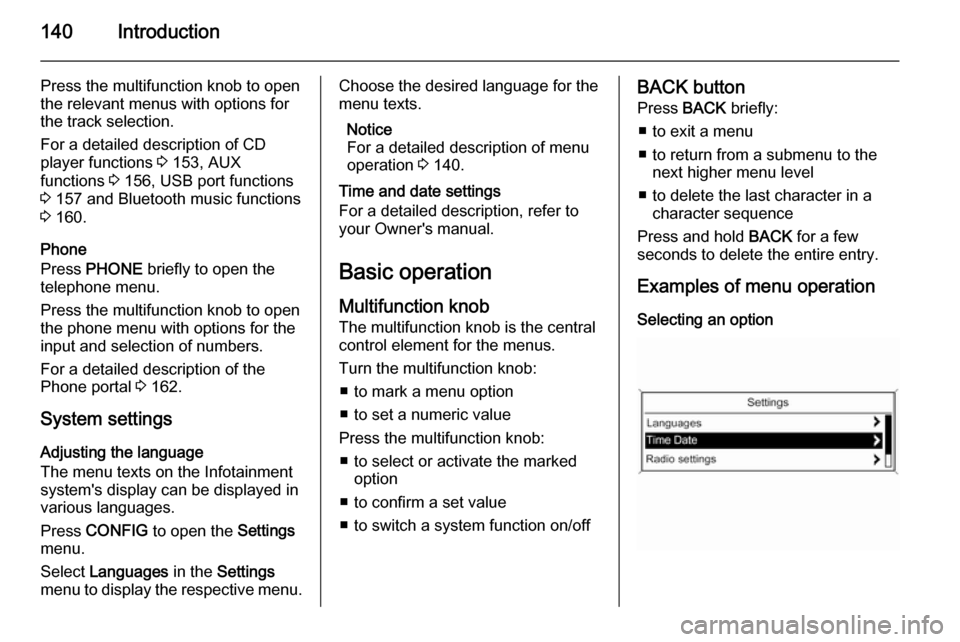
Turn the multifunction knob: ■ to mark a menu option
■ to set a numeric value
Press the multifunction knob: ■ to select or activate the marked option
■ to confirm a set value
■ to switch a system function on/offBACK button
Press BACK briefly:
■ to exit a menu
■ to return from a submenu to the next higher menu level
■ to delete the last character in a character sequence
Press and hold BACK for a few
seconds to delete the entire entry.
Examples of menu operation Selecting an option
Page 157 of 177

USB port157USB portGeneral information...................157
Playing saved audio files ...........158General information
In the centre console below the
climate controls there is a USB socket for the connection of external audio
data sources.
Notice
The socket must always be kept
clean and dry.
An MP3 player, USB drive, SD card
(via USB connector/adapter), or iPod
can be connected to the USB port.
When connected to the USB port,
various functions of the above
devices can be operated via the
controls and menus of the
Infotainment system.
Notice
Not all MP3 player, USB drive, SD
card or iPod models are supported
by the Infotainment system.
Important information ■ The external devices connected to the USB port must comply with the
USB Mass Storage Class
specification (USB MSC).■ Devices connected via USB are supported according to USB
Specification V 2.0. Maximum
supported speed: 12 Mbit/s.
■ Only devices with a FAT16/FAT32 file system are supported.
■ Hard disk drives (HDD) are not supported.
■ USB hubs are not supported.
■ The following file formats can be used:
ISO9660 Level 1, Level 2 (Romeo,
Joliet).
MP3 and WMA files written in
another format than listed above
may not play correctly, and their file names and folder names may not
be displayed correctly.
■ The following restrictions apply to the files stored on the external
device:
Bit rate: 8 kbit/s - 320 kbit/s.
Sampling frequency: 48 kHz,
44.1 kHz, 32 kHz (for MPEG-1) and
Page 158 of 177
158USB port
24 kHz, 22.05 kHz, 16kHz (forMPEG-2).
■ The following restrictions apply to the data stored on external devicesconnected to the USB port:
Number of tracks: max. 999.
Number of tracks per folder level:
max. 512.
Folder structure depth: max.
10 levels.
WMA files with Digital Rights
Management (DRM) from online
music shops cannot be played.
WMA files can only be played
safely, if they were created with
Windows Media Player version 9 or later.
Applicable playlist
extensions: .m3u, .pls, .wpl.
Playlist entries must be in the form
of relative paths.
The system attribute for folders/
files that contain audio data must
not be set.Playing saved audio files
Press AUX once or several times to
activate the MP3 or iPod mode.
Playback of the audio data stored on
the device is started automatically.
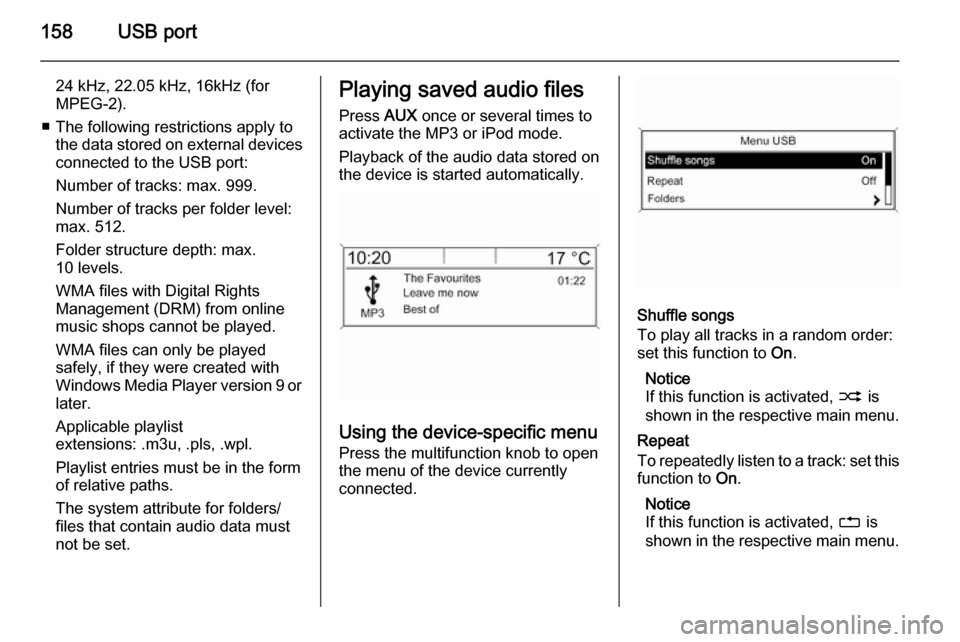
Using the device-specific menu
Press the multifunction knob to open
the menu of the device currently
connected.
Shuffle songs
To play all tracks in a random order: set this function to On.
Notice
If this function is activated, 2 is
shown in the respective main menu.
Repeat
To repeatedly listen to a track: set this function to On.
Notice
If this function is activated, 1 is
shown in the respective main menu.
Page 159 of 177

USB port159
Folders
To select a track from a folder: select
Folders . A list of the folders stored on
the device is displayed.
Select one of the folders and then
select the desired track.
Notice
This menu item is not available, if an
iPod is connected.
Search...
To open a menu for track search and
selection: select Search....
Select one of the categories and then select the desired track.
Removing the device
To safely remove the device, select
Remove USB or Eject iPod and then
disconnect the device.
Page 170 of 177

170IndexAActivating Bluetooth music .........160
Activating CD player ...................154
Activating the AUX function ........156
Activating the handsfree Phone mode ....................................... 165
Activating the radio .....................144
Activating the USB function ........158
Autostore lists ............................. 145
Retrieving stations................... 145
Storing stations .......................145
Auto volume control ....................143
AUX input Activating................................. 156
Adjusting the volume ...............156
General information ................156
Operation ................................ 156
B Basic operation ........................... 140
Blocking out traffic announcements ......................149
Bluetooth Bluetooth connection ..............163
Bluetooth music....................... 160
Phone ...................................... 165
Bluetooth connection ..................163Bluetooth music
Activating................................. 160General information ................160
Operation ................................ 160
Prerequisites ........................... 160
C Call Functions during a call ............165
Incoming call ........................... 165
Initiating a phone call ..............165
Ring tone ................................. 165
Call lists ...................................... 165
Category list................................ 146
CD menu .................................... 154
CD player Activating................................. 154
CD menu ................................. 154
General information ................153
Inserting a CD ......................... 154
Removing a CD .......................154
Starting CD playback ..............154
Usage ...................................... 154
Control elements Infotainment system ................136
Phone ...................................... 162
Steering wheel ........................ 136
Control elements overview .........136
Page 171 of 177

171
DDAB ............................................ 150
Date settings............................... 139
Digital audio broadcasting ..........150
Dynamic audio adaption .............150
E Emergency call ........................... 165
F Favourite lists ..................... 145, 146
Retrieving stations................... 145
Storing stations .......................145
G
General information ...153, 156,
157, 160, 162
AUX input ................................ 156
Bluetooth music....................... 160
CD player ................................ 153
Infotainment system ................134
Phone ...................................... 162
USB port.................................. 157
I
Infotainment control panel ..........136
L
Language settings ......................139M
Maximum start-up volume ..........143
Menu operation .......................... 140
Mobile phones and CB radio equipment .............................. 169
Multifunction knob....................... 140
Mute............................................ 139
O Operation ............................ 160, 165
AUX input ................................ 156
Bluetooth music....................... 160
CD player ................................ 154
Menu ....................................... 140
Phone ...................................... 165
Radio ....................................... 144
USB port.................................. 158
P Phone Activating................................. 165Bluetooth ................................. 162
Bluetooth connection ..............163
Call lists ................................... 165
Control elements .....................162
Dialling a number ....................165
Emergency calls ......................165
Functions during a call ............165
General information ................162
Important information ..............162Incoming call ........................... 165
Phone book ............................. 165
Prerequisites ........................... 165
Redialling a phone number .....165
Selecting the ring tone ............165
Phone book ................................ 165
Playing saved audio files ............158
R Radio Activating................................. 144Autostore lists.......................... 145
Band selection ........................ 150
Category list ............................ 146
Configuring DAB .....................150
Configuring RDS .....................149
DAB announcements ..............146
Digital audio broadcasting
(DAB) ...................................... 150
Dynamic audio adaption .........150
Favourite lists ..................145, 146
Radio data system (RDS) .......149
Radio traffic service................. 149
Regionalisation ....................... 149
Retrieving stations................... 145
Selecting the waveband ..........144
Station lists .............................. 146
Station search ......................... 144
Station tuning .......................... 144
Storing stations .......................145
Page 172 of 177

172
Traffic announcements...........149
Updating station lists ...............146
Usage ...................................... 144
Waveband menus ...................146
Radio data system (RDS) ..........149
Radio traffic service ....................149
RDS ............................................ 149
Redial function ............................ 165
Regionalisation ........................... 149
Retrieving stations ......................145
Ring tone Ring tone volume ....................143
Selecting the ring tone ............165
S Selecting the waveband .............144
Starting CD playback ..................154
Station lists ................................. 146
Station search............................. 144
Steering wheel audio controls ....136
Storing stations ........................... 145
Switching the Infotainment system on ................................ 139
Switching the radio on ................144
System settings Language ................................ 139
Restore factory settings ..........139
Time and date ......................... 139
Vehicle settings .......................139T
TA volume .................................. 143
Theft-deterrent feature ..............135
Time settings .............................. 139
Tone settings .............................. 142
Traffic announcements ...............149
U
Updating station lists ..................146
Usage ................. 139, 144, 154, 156
AUX input ................................ 156
Bluetooth music....................... 160
CD player ................................ 154
Menu ....................................... 140
Phone ...................................... 165
Radio ....................................... 144
USB port.................................. 158
USB menu .................................. 158
USB port Activation................................. 158
Connecting the USB device ....157
General information ................157
Important information ..............157
Operation ................................ 158
Removing the USB device ......158
USB menu ............................... 158V
Volume Auto volume control ................143
Maximum start-up volume .......143
Mute function........................... 139
Ring tone volume ....................143
Setting the volume ..................139
Speed compensated volume ..143
TA volume ............................... 143
Volume limitation at high
temperatures ........................... 139
Volume settings .......................... 143
W
Waveband menus....................... 146
Page 174 of 177

174FlexDockFlexDockGeneral information...................174
Usage ........................................ 175General information
FlexDock consists of a built-in base plate and different types of cradleswhich can be attached to the base
plate. By inserting an iPhone or a
different smartphone to the cradle,
the smartphone can be controlled via
the Infotainment system, steering
wheel control or touch screen.
Detailed cradle usage information
can be found in the cradle manual supplied with each cradle.9 Warning
Devices attached to the FlexDock
must be used in a way that driver
distraction is avoided and the
vehicle can be driven safely at all times.
You must always comply with the
respective laws and regulations of the country in which you find
yourself at present. These laws
may differ from the information in
this manual. If in doubt, stop your
vehicle and operate devices while
the vehicle is stationary.
Notice
Do not operate a further audio
source via the USB socket at the
same time due to superimpositions
of both audio sources.
Caution
To avoid theft, do not leave the mobile phone in the FlexDock
when leaving the vehicle.
Page 175 of 177

FlexDock175UsageAttaching the cradle to the base
plate
1. Remove the cover from the base plate.
2. Push the cradle in the base plate and fold down.
Connecting the smartphone to
the Infotainment system
Universal smartphone
Connect the smartphone to the cradle
by using the connecting cable.
iPhone
The iPhone is connected
automatically when it is inserted into
the cradle.
Depending on the status of the
software and hardware equipment,
the functionality of the iPhone can be restricted.
Operating the smartphone When the smartphone is connectedvia FlexDock, it has the same
functionality as if it is connected via
the USB socket. See the
corresponding instructions in this
manual for detailed information.
To use the phone function or the
Bluetooth Music function, a Bluetooth
connection must be established. See
the corresponding instructions in this
manual and the operating instructions
for the smartphone for detailed
information.
Removing the cradle from the
base plate
1. Push the release button and remove the cradle.
2.Attach the cover to the base plate.