radio VAUXHALL ASTRA J 2015.5 Infotainment system
[x] Cancel search | Manufacturer: VAUXHALL, Model Year: 2015.5, Model line: ASTRA J, Model: VAUXHALL ASTRA J 2015.5Pages: 177, PDF Size: 2.77 MB
Page 133 of 177

Introduction................................ 134
Radio ......................................... 144
CD Player .................................. 153
AUX input ................................... 156
USB port .................................... 157
Bluetooth music ......................... 160
Phone ........................................ 162
Index .......................................... 170CD 400plus (2)
Page 134 of 177
134IntroductionIntroductionGeneral information...................134
Theft-deterrent feature ...............135
Control elements overview ........136
Usage ........................................ 139
Basic operation .......................... 140
Tone settings ............................. 142
Volume settings .........................143General information
The Infotainment system provides
you with state-of-the-art in-car
infotainment.
Using the FM, AM or DAB radio
functions, you may register up to
36 stations on six favourites pages.
The integrated audio player will
entertain you with audio CDs and
MP3/WMA CDs.
You can connect external data
storage devices, e.g. iPod, MP3
player, USB stick, or a portable CD
player to the Infotainment system as
further audio sources; either via cable or via Bluetooth.
In addition, the Infotainment system is equipped with a Phone portal that
allows for comfortable and safe use of
your mobile phone in the vehicle.
Optionally, the Infotainment system
can be operated using controls on the steering wheel.
The well-thought-out design of the
control elements and the clear
displays enable you to control the
system easily and intuitively.Notice
This manual describes all options
and features available for the
various Infotainment systems.
Certain descriptions, including those for display and menu functions, may
not apply to your vehicle due to
model variant, country
specifications, special equipment or
accessories.
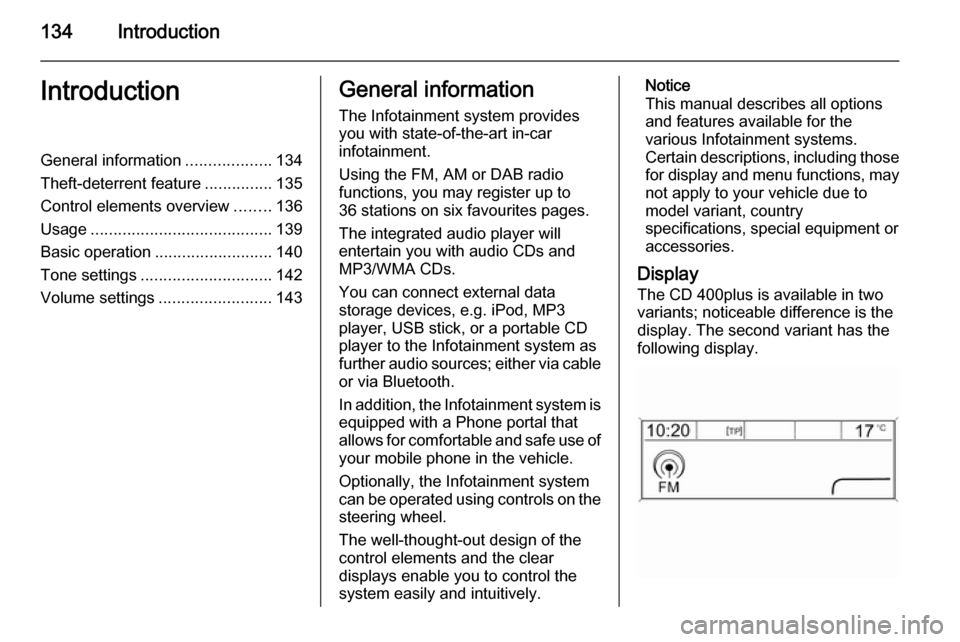
Display The CD 400plus is available in two
variants; noticeable difference is the
display. The second variant has the
following display.
Page 135 of 177

Introduction135
Important information onoperation and traffic safety9 Warning
The Infotainment system must be
used so that the vehicle can be
driven safely at all times. If in
doubt, stop the vehicle and
operate the Infotainment system
while the vehicle is stationary.
Radio reception
Radio reception may be disrupted bystatic, noise, distortion or loss of
reception due to:
■ changes in distance from the transmitter
■ multipath reception due to reflection
■ shadowing
Theft-deterrent feature
The Infotainment system is equipped
with an electronic security system for
the purpose of theft deterrence.
The Infotainment system therefore functions only in your vehicle and isworthless to a thief.
Page 137 of 177

Introduction137
1 RADIO................................. 144
Activate radio or change
waveband ........................... 144
2 CD ....................................... 156
Start CD/MP3/WMA
playback .............................. 156
3 Search backwards ..............144
Radio: search backwards ...144
CD/MP3/WMA: skip track
backwards ........................... 154
4 Radio station buttons 1...6 ..145
Long press: save station .....145
Short press: select station ..145
5 m......................................... 139
Press: switch on/off ............139
Infotainment system ...........139
Turn: adjust volume ............139
6 Search forwards ..................144
Radio: search forwards .......144
CD/MP3/WMA: skip track
forwards .............................. 1547 AS 1/2................................. 145
Automatic memory levels
(preset radio stations) .........145
Short press: select
autostore list ........................ 145
Long press: save stations
automatically ....................... 145
8 FAV 1/2/3 ............................ 145
Lists of favourites (preset radio stations) .....................145
9 TP ....................................... 149
Activate or deactivate
radio traffic service ..............149
If Infotainment system is
switched off: display time
and date .............................. 149
10 CD ejection ......................... 154
11 CONFIG .............................. 143
Open settings menu ............14312 INFO ................................... 136
Radio: information on the
currently played station .......144
CD/MP3/WMA:
information on the
currently inserted CD ..........154
13 Multifunction knob ...............140
Turn: mark menu options
or set numeric values .........140
Press: select/activate the
marked option; confirm set
value; switch function on/off 140
14 CD slot ................................ 154
15 BACK .................................. 140
Menu: one level back ..........140
Input: delete last character
or entire entry ...................... 140
16 TONE .................................. 142
Tone settings ...................... 142
17 PHONE ............................... 162
Open telephone main menu 165
Activate mute ...................... 139
Page 138 of 177

138Introduction
18 AUX..................................... 156
Change audio source ..........156Steering wheel audio controls
1qw
Short press: take phone call 162
or dial number in call list .....165
Long press: show call list ....165
2 SRC (Source) ...................... 139
Press: select audio source ..139
With radio active: turn
upwards/downwards to
select next/previous
preset radio station .............144
With CD player active: turn
upwards/downwards to
select next/previous CD/
MP3/WMA track ..................154
With Phone portal active:
turn upwards/downwards
to select next/previous
entry in call list ....................165
With Phone portal active
and calls waiting: turn
upwards/downwards to
switch between calls ...........165
3 w
Increase volume .................. 139
4 ─
Reduce volume ...................139
5 xn
Short press: end/decline
call ....................................... 165
or close call list .................... 165
or activate/deactivate mute . 139
Page 139 of 177

Introduction139UsageControl elements
The Infotainment system is operated
via function buttons, a multifunction
knob and menus that are shown on
the display.
Inputs are made optionally via: ■ the control panel on the Infotainment system 3 136
■ audio controls on the steering wheel 3 136
Switching the Infotainment
system on or off Press X briefly. After switching on,
the last selected Infotainment source
becomes active.
Press X again to turn the system off.
Automatic switch-off
If the Infotainment system is switched
on pressing X while the ignition is
turned off, it will switch off again automatically 10 minutes after the last
user input.Setting the volume
Turn m. The current setting is shown
on the display.
When the Infotainment system is
switched on, the last selected volume
is set, provided this setting is lower
than the maximum start-up volume
(see below).
The following inputs can be made
separately:
■ the maximum start-up volume 3 143
■ the volume of traffic announcements 3 143
Speed compensated volume
When speed compensated volume is
activated 3 143, the volume is
adapted automatically to make up for the road and wind noises as you
drive.
Mute function
Press PHONE (if Phone portal
available: press for a few seconds) to
mute the audio sources.To cancel the mute function: turn m or
press PHONE (if Phone portal
available: press for a few seconds).
Volume limitation at high
temperatures
At very high temperatures inside the
vehicle the Infotainment system limits
the maximum adjustable volume. If
necessary, the volume is decreased
automatically.
Modes of operation
Radio
Press RADIO to open the radio main
menu or to change between the
different wavebands.
Press the multifunction knob to open
the waveband menus with options for the station selection.
For a detailed description of the radio functions 3 144.
Audio players
Press CD or AUX once or several
times to open the USB, iPod or AUX
main menu (if available) or to switch
between these menus.
Page 142 of 177

142Introduction
Switching a function on or off
Turn the multifunction knob to mark
the function to be switched on or off.
Press the multifunction knob to switch
between the settings On and Off.
Entering a character sequence
To enter character sequences, e.g.
PIN codes or telephone numbers:
Turn the multifunction knob to mark
the desired character.
Press the multifunction knob to
confirm the marked character.
The last character in the character
sequence can be deleted by selecting
k on the display or pressing BACK
on the instrument panel. Pressing
and holding BACK deletes the entire
entry.
To change the position of the cursor
in the character sequence already
entered, select ◀ or ▶ on the display.
Tone settings
In the tone settings menu the tone
characteristics can be set differently
for each radio waveband and each audio player source.
Press TONE to open the tone settings
menu.
Setting bass, midrange, and
treble
Scroll through the list and select
Bass , Midrange or Treble .
Set the desired value for the selected
option.
Setting the volume distribution
between front and rear
Scroll through the list and select
Fader .
Set the desired value.
Page 143 of 177

Introduction143
Setting the volume distributionbetween right and left Scroll through the list and select
Balance .
Set the desired value.
Selecting a tone style
Scroll through the list and select EQ
(Equaliser). The EQ presets menu is
displayed.
The displayed options offer optimised
bass, middle, and treble presettings
for the relevant style of music.
Select the desired option.
Setting an individual setting to
"0"
Select the desired option and press
the multifunction knob for a few
seconds.
The value is reset to "0".
Setting all settings to "0" or
"OFF"
Press TONE for a few seconds.
All values are reset to "0", the EQ
preset is set to " OFF".
Volume settings Adjusting the speed
compensated volume
Press CONFIG to open the Settings
menu.
Select Radio settings and then Auto
volume control .
The Auto volume control function can
be deactivated or the degree of the
volume adaptation can be selected in the menu displayed.
Select the desired option.Adjusting the maximum startup volume Press CONFIG to open the Settings
menu.
Select Radio settings and then
Maximum startup volume .
Set the desired value.
Adjusting the volume of traffic
announcements The volume of traffic announcements
can be preset to increase or decrease
in proportion to the normal audio
volume.
Press CONFIG to open the Settings
menu.
Select Radio settings , RDS options
and then TA volume .
Set the desired value.
Adjusting the volume of the ringtone Press CONFIG to open the Settings
menu.
Select Phone settings , Sound &
Signals and then Ring Volume .
Set the desired value.
Page 144 of 177

144RadioRadioUsage........................................ 144
Station search ............................ 144
Autostore lists ............................ 145
Favourite lists ............................. 145
Waveband menus ......................146
Radio data system (RDS) ..........149
Digital audio broadcasting .........150Usage
Activating the radio
Press RADIO to open the radio main
menu.
The station last played will be
received.
Selecting the waveband
Press RADIO once or several times to
select the desired waveband.
The station last played in that
waveband will be received.
Station search
Automatic station search
Briefly press s or u to play the
previous or next station in the station memory.
Manual station search
Press and hold s or u . Release
the respective button when the
required frequency has almost been
reached on the frequency display.
A search is made for the next stationthat can be received and it is played
automatically.
Notice
Manual station search: If the radio
does not find a station, it switches
automatically to a more sensitive
search level. If it still does not find a
station, the frequency that was last
active is set again.
Notice
FM waveband: when the RDS
function is activated, only RDS
stations 3 149 are searched for, and
Page 145 of 177
Radio145
when the radio traffic service (TP) isactivated, only traffic service
stations 3 149 are searched for.
Manual station tuning In the radio main menu, press the
multifunction knob to open the
respective waveband menu and
select manual tuning, e.g. FM manual
tuning .
On the pop-up frequency display, turn
the multifunction knob and set the
optimal reception frequency.
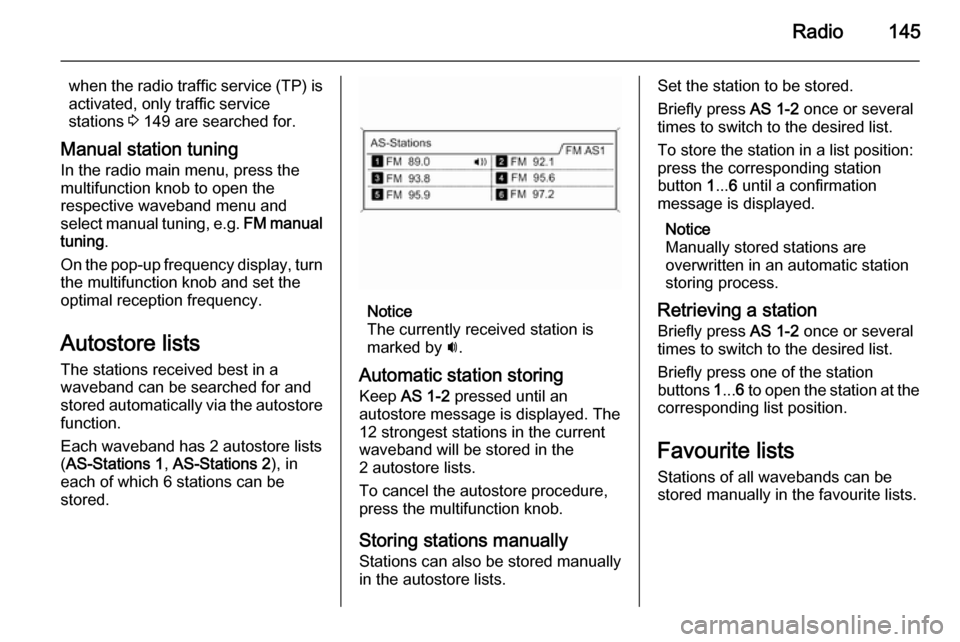
Autostore lists The stations received best in a
waveband can be searched for and
stored automatically via the autostore function.
Each waveband has 2 autostore lists
( AS-Stations 1 , AS-Stations 2 ), in
each of which 6 stations can be stored.
Notice
The currently received station is marked by i.
Automatic station storing
Keep AS 1-2 pressed until an
autostore message is displayed. The
12 strongest stations in the current
waveband will be stored in the
2 autostore lists.
To cancel the autostore procedure, press the multifunction knob.
Storing stations manually
Stations can also be stored manually
in the autostore lists.
Set the station to be stored.
Briefly press AS 1-2 once or several
times to switch to the desired list.
To store the station in a list position:
press the corresponding station
button 1... 6 until a confirmation
message is displayed.
Notice
Manually stored stations are
overwritten in an automatic station
storing process.
Retrieving a station
Briefly press AS 1-2 once or several
times to switch to the desired list.
Briefly press one of the station
buttons 1... 6 to open the station at the
corresponding list position.
Favourite lists Stations of all wavebands can be
stored manually in the favourite lists.