steering VAUXHALL ASTRA J 2016.25 Infotainment system
[x] Cancel search | Manufacturer: VAUXHALL, Model Year: 2016.25, Model line: ASTRA J, Model: VAUXHALL ASTRA J 2016.25Pages: 161, PDF Size: 2.95 MB
Page 112 of 161

112Speech recognitionSpeech recognitionGeneral information...................112
Usage ........................................ 112General information
The voice pass-thru application of the Infotainment system allows access tothe speech recognition commands on
your smartphone. See your
smartphone manufacturer's user
guide to find out whether your
smartphone supports this feature.
In order to use the voice pass-thru
application, the smartphone must be
connected to the Infotainment system
via USB cable 3 105 or via Bluetooth
3 114.
Usage
Activating speech recognition Press and hold g on the control panel
or 7w on the steering wheel to start a
speech recognition session. A voice
command message is displayed on
the screen.
As soon as a beep is heard, you can
say a command. For information on
the commands supported, see the
operating instructions for your
smartphone.Adjusting the volume of voice
prompts
Turn m on the control panel or press
+ / - on the right side of the steering
wheel to increase or decrease the volume of voice prompts.
Deactivating speech recognition
Press xn on the steering wheel.
The voice command message
disappears, the speech recognition
session is ended.
Page 117 of 161
Phone117Operation
As soon as a connection via
Bluetooth has been set up between
your mobile phone and the
Infotainment system, you can operate many functions of your mobile phone
via the Infotainment system.
Notice
In the handsfree mode mobile phone
operation continues to be possible,
e.g. taking a call or adjusting the
volume.
After the setup of a connection
between the mobile phone and the
Infotainment system, mobile phone data is transmitted to the Infotainment system. This can take some time
depending on the mobile phone and
the amount of data to be transferred.
During this period, operation of the
mobile phone via the Infotainment
system is possible only to a limited extent.Notice
Not every mobile phone supports all
functions of the Phone portal.
Therefore deviations from the range of functions described with these
specific mobile phones are possible.
Phone main menu
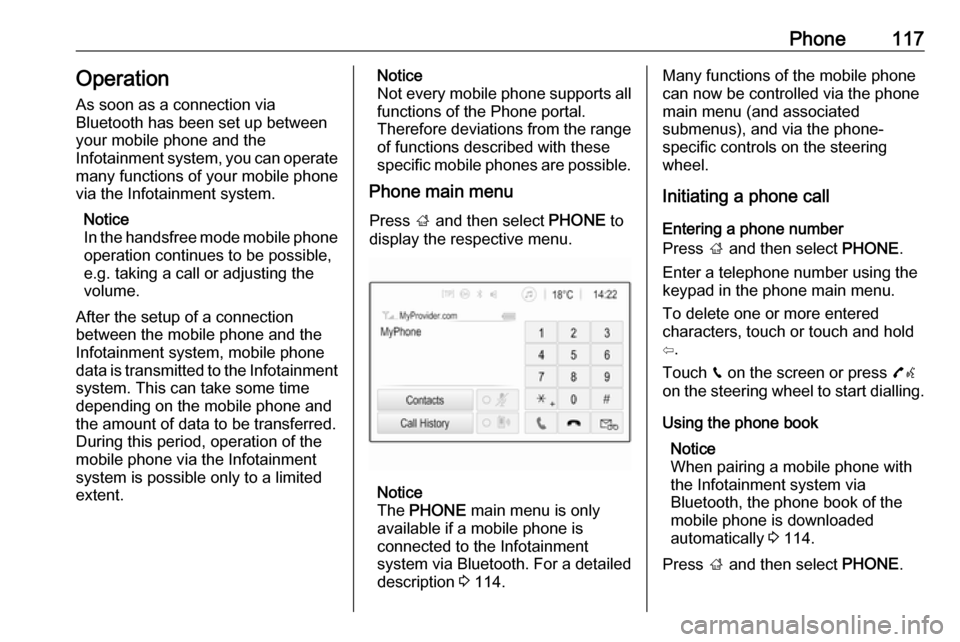
Press ; and then select PHONE to
display the respective menu.
Notice
The PHONE main menu is only
available if a mobile phone is connected to the Infotainment
system via Bluetooth. For a detailed
description 3 114.
Many functions of the mobile phone
can now be controlled via the phone
main menu (and associated
submenus), and via the phone-
specific controls on the steering
wheel.
Initiating a phone call
Entering a phone number
Press ; and then select PHONE.
Enter a telephone number using the
keypad in the phone main menu.
To delete one or more entered
characters, touch or touch and hold
⇦.
Touch v on the screen or press 7w
on the steering wheel to start dialling.
Using the phone book Notice
When pairing a mobile phone with
the Infotainment system via
Bluetooth, the phone book of the
mobile phone is downloaded
automatically 3 114.
Press ; and then select PHONE.
Page 119 of 161
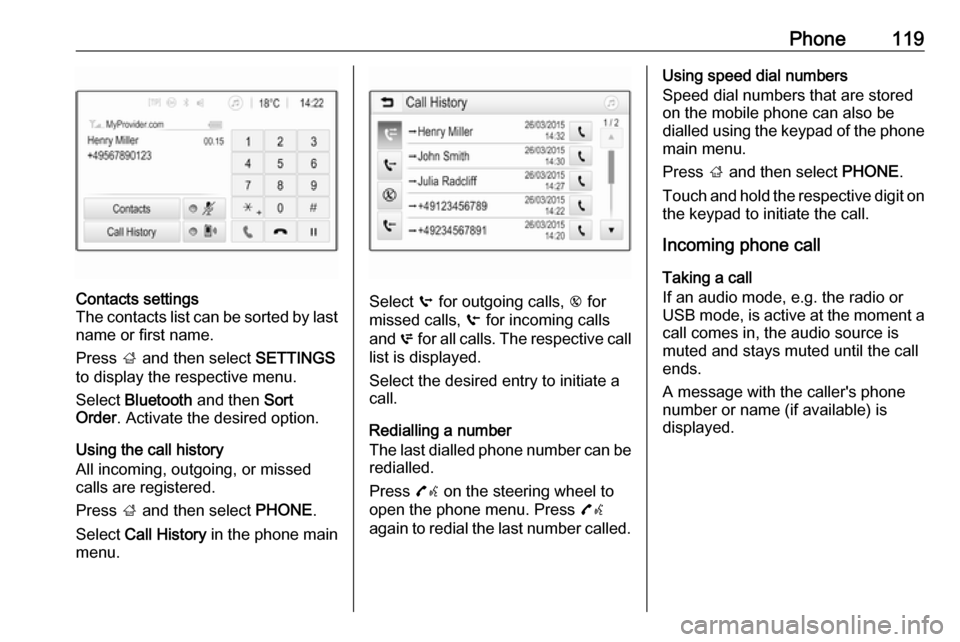
Phone119Contacts settings
The contacts list can be sorted by last name or first name.
Press ; and then select SETTINGS
to display the respective menu.
Select Bluetooth and then Sort
Order . Activate the desired option.
Using the call history
All incoming, outgoing, or missed
calls are registered.
Press ; and then select PHONE.
Select Call History in the phone main
menu.
Select q for outgoing calls, r for
missed calls, s for incoming calls
and p for all calls. The respective call
list is displayed.
Select the desired entry to initiate a
call.
Redialling a number
The last dialled phone number can be
redialled.
Press 7w on the steering wheel to
open the phone menu. Press 7w
again to redial the last number called.
Using speed dial numbers
Speed dial numbers that are stored
on the mobile phone can also be
dialled using the keypad of the phone main menu.
Press ; and then select PHONE.
Touch and hold the respective digit on the keypad to initiate the call.
Incoming phone call
Taking a call
If an audio mode, e.g. the radio or
USB mode, is active at the moment a call comes in, the audio source is
muted and stays muted until the call
ends.
A message with the caller's phone
number or name (if available) is
displayed.
Page 120 of 161
120Phone
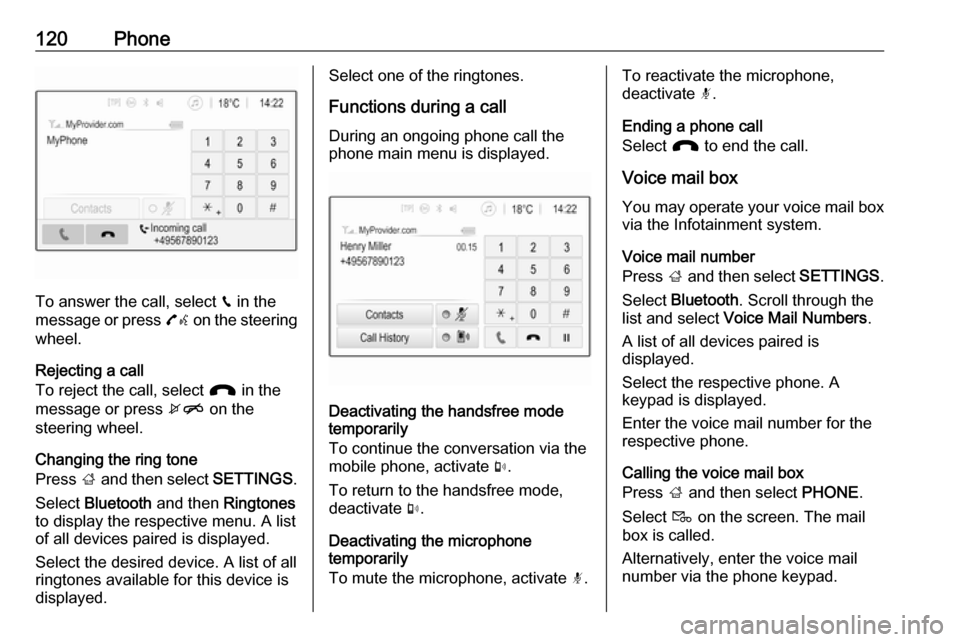
To answer the call, select v in the
message or press 7w on the steering
wheel.
Rejecting a call
To reject the call, select J in the
message or press xn on the
steering wheel.
Changing the ring tone
Press ; and then select SETTINGS.
Select Bluetooth and then Ringtones
to display the respective menu. A list
of all devices paired is displayed.
Select the desired device. A list of all
ringtones available for this device is
displayed.
Select one of the ringtones.
Functions during a call During an ongoing phone call the
phone main menu is displayed.
Deactivating the handsfree mode
temporarily
To continue the conversation via the
mobile phone, activate m.
To return to the handsfree mode,
deactivate m.
Deactivating the microphone
temporarily
To mute the microphone, activate n.
To reactivate the microphone,
deactivate n.
Ending a phone call
Select J to end the call.
Voice mail box You may operate your voice mail box
via the Infotainment system.
Voice mail number
Press ; and then select SETTINGS.
Select Bluetooth . Scroll through the
list and select Voice Mail Numbers .
A list of all devices paired is
displayed.
Select the respective phone. A
keypad is displayed.
Enter the voice mail number for the
respective phone.
Calling the voice mail box
Press ; and then select PHONE.
Select t on the screen. The mail
box is called.
Alternatively, enter the voice mail
number via the phone keypad.
Page 122 of 161

122IndexAActivating AUX audio ..................107
Activating Bluetooth music .........107
Activating iPod audio ..................107
Activating phone .........................117
Activating phone projection ........110
Activating radio ............................. 99
Activating USB audio ..................107
Activating USB movie .................109
Activating USB picture ................108
Audio files ................................... 105
Auto volume.................................. 96
AUX AUX audio menu .....................107
Connecting device ..................105
General information ................105
B Basic operation ............................. 93
Bluetooth Bluetooth connection ..............114
Bluetooth music menu ............107
Connecting device ..................105
General information ................105
Pairing ..................................... 114
Phone ...................................... 117
Bluetooth connection ..................114C
Call Functions during a call ............117
Incoming call ........................... 117
Initiating a phone call ..............117
Ring tone ................................. 117
Call history .................................. 117
Control elements Infotainment system ..................88
Steering wheel .......................... 88
Control elements overview ...........88
D DAB ............................................ 103
Digital audio broadcasting ..........103
Displaying pictures .....................108
Display settings ..................108, 109
E Emergency call ........................... 116
F Favourite lists ............................. 101
Retrieving stations................... 101
Storing stations .......................101
File formats Audio files................................ 105
Movie files ............................... 105
Picture files.............................. 105
Page 123 of 161

123GGeneral information ....105, 112, 113
AUX ......................................... 105
Bluetooth ................................. 105
DAB ......................................... 103
Infotainment system ..................86
Phone ...................................... 113
Smartphone applications ........105
USB ......................................... 105
H Home menu .................................. 93
I
Infotainment control panel ............88
Intellitext ..................................... 103
iPod ............................................ 105
Connecting device ..................105
iPod audio menu .....................107
M
Maximum startup volume .............96
Menu operation............................. 93
Mobile phones and CB radio equipment .............................. 121
Movie files................................... 105
Mute.............................................. 91
O Operation .................................... 117
External devices ......................105Menu......................................... 93
Phone ...................................... 117
Radio ......................................... 99
P Pairing ........................................ 114
Phone Bluetooth ................................. 113
Bluetooth connection ..............114
Call history .............................. 117
Emergency calls ......................116
Entering a number ..................117
Functions during a call ............117
General information ................113
Incoming call ........................... 117
Phone book ............................. 117
Phone main menu ...................117
Selecting the ring tone ............117
Speed dial number ..................117
Phone book ................................ 117
Phone projection ........................110
Picture files ................................. 105
Playing audio .............................. 107
Playing movies ........................... 109
R Radio Activating................................... 99
Configuring DAB .....................103
Configuring RDS .....................102
DAB announcements ..............103Digital audio broadcasting
(DAB) ...................................... 103
Favourite lists .......................... 101
Intellitext .................................. 103
Radio data system (RDS) .......102
Regional .................................. 102
Regionalisation ....................... 102
Retrieving stations................... 101
Selecting the waveband ............99
Station search ........................... 99
Station tuning ............................ 99
Storing stations .......................101
Usage ........................................ 99
Radio data system (RDS) ..........102
RDS ............................................ 102
Regional ..................................... 102
Regionalisation ........................... 102
Retrieving stations ......................101
Ring tone Changing the ring tone ............117
Ring tone volume ......................96
S Smartphone ................................ 105
Phone projection .....................110
Speech recognition .....................112
Speed dial numbers ...................117
Station search............................... 99
Steering wheel audio controls ......88
Storing stations ........................... 101
Page 126 of 161

126IntroductionIntroductionGeneral information...................126
Theft-deterrent feature ...............127
Control elements overview ........128
Usage ........................................ 130General information
The Infotainment system provides
you with state-of-the-art in-car
infotainment.
Using the FM, AM or DAB radio
functions, you can register a large
number of stations on different
favourites pages.
You can connect external data
storage devices, e.g. iPod, USB
devices, or other auxiliary devices to
the Infotainment system as further
audio sources; either via a cable or
via Bluetooth.
The digital sound processor provides
you with several preset equaliser
modes for sound optimisation.
In addition, the Infotainment system is equipped with a Phone portal that
allows comfortable and safe use of
your mobile phone in the vehicle.
Optionally, the Infotainment system
can be operated using the control
panel or the controls on the steering
wheel, or - if provided by your mobile
phone - via speech recognition.Notice
This manual describes all options
and features available for the
various Infotainment systems.
Certain descriptions, including those
for display and menu functions, may not apply to your vehicle due to
model variant, country
specifications, special equipment or
accessories.
Important information on
operation and traffic safety9 Warning
Drive safely at all times when
using the Infotainment system.
If in doubt, stop the vehicle before operating the Infotainment
system.
Page 130 of 161

130IntroductionSteering wheel audio controls
1qw
Short press: accept phone
call ....................................... 145
or dial number in call list .....148
With Phone portal active
and calls waiting: short
press: switch between calls 148
Long press: activate
speech recognition ..............144
2 SRC (Source) ...................... 130
Press: select audio source ..130
With radio active: turn
upwards/downwards to
select next/previous
preset radio station .............136
With Phone portal active
and call list open: turn
upwards/downwards to
select next/previous entry
in call list ............................. 148
3 w
Increase volume .................. 130
4 ─
Reduce volume ...................130
5 xn
Short press: end/decline
call ....................................... 148
or close call list .................... 148
or deactivate speech
recognition .......................... 144
or activate/deactivate mute . 130Usage
Control elements
The Infotainment system is operated
via function buttons, a MENU knob
and menus that are shown on the display.
Inputs are made optionally via: ● the control panel on the Infotainment system 3 128
● audio controls on the steering wheel 3 128
● the speech recognition 3 144
Switching the Infotainment
system on or off
Press X briefly. After switching on,
the last selected Infotainment source
becomes active.
Press and hold X again to turn the
system off.
Automatic switch-off
If the Infotainment system is switched
on, pressing X while the ignition is
switched off, it switches off again
automatically after 10 minutes.
Page 144 of 161

144Speech recognitionSpeech recognitionGeneral information...................144
Usage ........................................ 144General information
The voice pass-thru application of the Infotainment system allows access tothe speech recognition commands on
your smartphone. See your
smartphone manufacturer's user
guide to find out whether your
smartphone supports this feature.
In order to use the voice pass-thru
application, the smartphone must be
connected to the Infotainment system
via USB cable 3 141 or via Bluetooth
3 146.
Usage
Activating speech recognition Press and hold PHONE on the control
panel or 7w on the steering wheel to
start a speech recognition session. A voice command message is
displayed on the screen.
As soon as a beep is heard, you can
say a command. For information on
the commands supported, see the
operating instructions for your
smartphone.Adjusting the volume of voice
prompts
Turn m on the control panel or press
+ / - on the right side of the steering
wheel to increase or decrease the volume of voice prompts.
Deactivating speech recognition
Press xn on the steering wheel.
The voice command message
disappears, the speech recognition
session is ended.
Page 149 of 161
Phone149
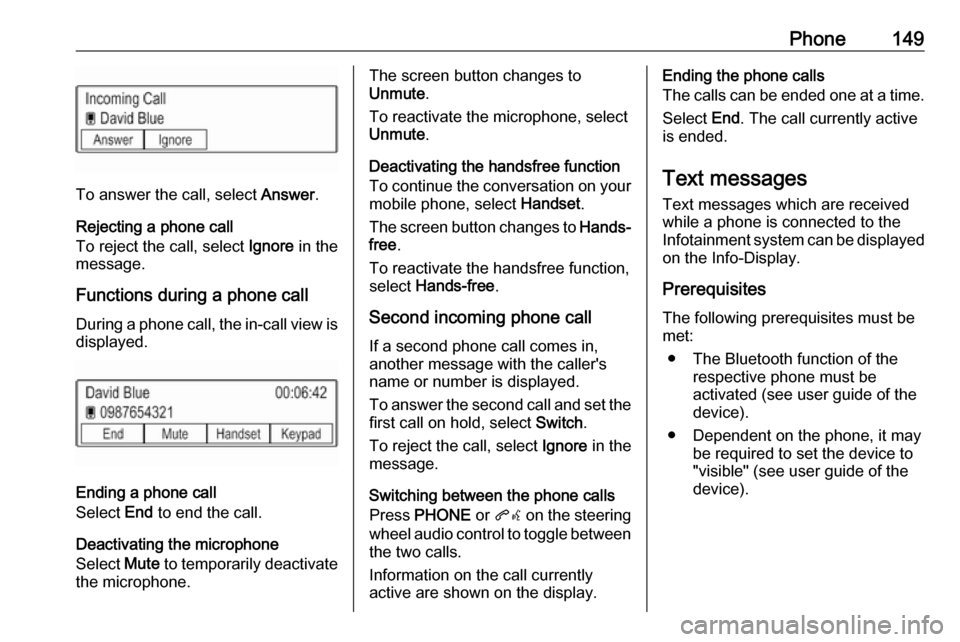
To answer the call, select Answer.
Rejecting a phone call
To reject the call, select Ignore in the
message.
Functions during a phone call During a phone call, the in-call view is displayed.
Ending a phone call
Select End to end the call.
Deactivating the microphone
Select Mute to temporarily deactivate
the microphone.
The screen button changes to
Unmute .
To reactivate the microphone, select
Unmute .
Deactivating the handsfree function
To continue the conversation on your mobile phone, select Handset.
The screen button changes to Hands-
free .
To reactivate the handsfree function,
select Hands-free .
Second incoming phone call If a second phone call comes in,
another message with the caller's
name or number is displayed.
To answer the second call and set the
first call on hold, select Switch.
To reject the call, select Ignore in the
message.
Switching between the phone calls
Press PHONE or qw on the steering
wheel audio control to toggle between the two calls.
Information on the call currently
active are shown on the display.Ending the phone calls
The calls can be ended one at a time.
Select End. The call currently active
is ended.
Text messages
Text messages which are received
while a phone is connected to the
Infotainment system can be displayed
on the Info-Display.
Prerequisites
The following prerequisites must be
met:
● The Bluetooth function of the respective phone must be
activated (see user guide of the
device).
● Dependent on the phone, it may be required to set the device to"visible" (see user guide of the
device).