Voice VAUXHALL ASTRA J 2016.75 Infotainment system
[x] Cancel search | Manufacturer: VAUXHALL, Model Year: 2016.75, Model line: ASTRA J, Model: VAUXHALL ASTRA J 2016.75Pages: 175, PDF Size: 2.8 MB
Page 75 of 175

75Audio files.................................. 31
Picture files................................ 31
Frequently asked questions .........71
G
General information 29, 31 , 36 , 53 , 62
AUX ........................................... 31
Bluetooth music......................... 31
CD ............................................. 29
Infotainment system ....................6
Navigation ................................. 36
Phone portal .............................. 62
Radio ......................................... 23
USB ........................................... 31
Gracenote ..................................... 31
Guidance ..................................... 49
H
Home address .............................. 41
Home Page............................. 16, 20
I
Infotainment control panel ..............8
K Keyboard ...................................... 41
L
Language ..................................... 20M
Maps ............................................. 37
Maximum startup volume .............19
Menu operation............................. 16
Messages ..................................... 16
Midrange....................................... 18 Mobile phones and CB radio equipment ................................ 69
Multifunction knob......................... 16
Mute.............................................. 14
N
Navigation Address book ............................ 41
Bread crumbs ............................ 49
Coordinates ............................... 41
Current location ......................... 37
Destination input .......................41
Favourite routes ........................41
General settings ........................37
Guidance alerts ......................... 49
Home address ........................... 41
Keyboard ................................... 41
Map display ............................... 37
Map manipulation ......................37
POIs .......................................... 41
Recent destinations ..................41
Route guidance ......................... 49
Route options ............................ 49
Route simulation .......................37Route tracking........................... 49
TMC stations ............................. 49
Traffic incidents ......................... 49
Turn list ..................................... 49
Voice prompts ........................... 49
Waypoint trip ............................. 41
Navigation system ........................36
Navigation volume ........................19
O Operation ...................................... 65
AUX ........................................... 33
Bluetooth music......................... 33
CD ............................................. 30
Infotainment system ..................14
Menu ......................................... 16
Navigation system .....................37
Phone ........................................ 65
Radio ......................................... 23
USB ..................................... 33, 34
P Pairing .......................................... 63
Phone Bluetooth ................................... 62
Bluetooth connection ................63
Conference call ......................... 65
Emergency calls ........................64
Functions during a call ..............65
Phone book ............................... 65
Page 76 of 175

76Recent calls............................... 65
Text messages .......................... 68
Phone book ............................ 41, 65
Phone call Initiating ..................................... 65
Taking ....................................... 65
Picture files ................................... 31
Pictures......................................... 34
Playing audio ................................ 33
POIs.............................................. 41
R Radio Autostore lists............................ 24
Category list .............................. 23
DAB ........................................... 27
DAB announcements ................27
Digital Audio Broadcasting ........27
Favourite lists ............................ 25
Radio Data System ...................26
RDS........................................... 26
RDS Options menu ...................26
Regional .................................... 26
Retrieving stations ..............24, 25
Station list.................................. 23
Station search ........................... 23
Storing stations ...................24, 25
TP.............................................. 26 Traffic Programme ....................26
Waveband selection ..................23Radio data system (RDS) ............26
Regionalisation ............................. 26
Route guidance ............................ 49
Route simulation ........................... 37
S Smartphone .................................. 35
Software update ........................... 20
Speech commands overview........ 57
Speech recognition .......................53
Station list ..................................... 23
Station search............................... 23
Switching the Infotainment system on .................................. 14
System settings ............................ 20
Display ...................................... 20
Home Page ............................... 20
Language .................................. 20
Software .................................... 20
Time and Date........................... 20
T
TA ................................................. 26
TA volume .................................... 19
Text messages ............................. 68
Theft-deterrent feature ................... 7
Time.............................................. 20
Time format .................................. 20
TMC .............................................. 49
Tone settings ................................ 18
TP ................................................. 26Traffic incidents............................ 49
Traffic programme ........................26
Treble ........................................... 18
Turn list ......................................... 49
U Usage ................... 14, 23, 30, 37, 54
AUX ........................................... 33
Bluetooth music......................... 33
CD ............................................. 30
Infotainment system ..................14
Navigation system .....................37
Phone ........................................ 65
USB ..................................... 33, 34
USB .............................................. 31
Using apps.................................... 35
V
Voice recognition ..........................53
Volume Audio Cue volume .....................19
Auto volume .............................. 19
Chime volume ........................... 19
Maximum startup volume ..........19
Mute function............................. 14
Navigation volume..................... 19
Volume of traffic
announcements ........................ 19
Volume settings ............................ 19
Page 112 of 175

112Speech recognitionSpeech recognitionGeneral information...................112
Phone control ............................ 113General information
The speech recognition of the
Infotainment system enables you to operate the phone portal via voice
input. It recognises commands and
numeric sequences independently of
the current speaker. The commands
and numeric sequences can be
spoken without a voice pause
between the individual words.
You can save telephone numbers
assigning a name of your choice
(voice tag). Using these names, you
can later set up a telephone
connection.
In the event of incorrect operation or
commands, the speech recognition
gives you visual and/or acoustic
feedback and requests you to re-
enter the desired command. Apart
from this, the speech recognition
acknowledges important commands
and will enquire if necessary.
To ensure that conversations inside
the vehicle do not lead to
unintentional triggering of system
functions, the speech recognition
does not start until it has been
activated.Important notes on language
support
● Not all languages available for the display of the Infotainment
system are also available for the
speech recognition.
● If the currently selected language
for the display is not supported by the speech recognition, you must enter the voice commands in
English.
To be able to enter voice
commands in English, you must
first activate the phone main
menu by pressing PHONE on the
Infotainment system, and then
activate the speech recognition
of the phone portal by pressing
w on the steering wheel.
Page 113 of 175

Speech recognition113Phone control
Activating speech recognition To activate the speech recognition of
the Phone portal, press w on the
steering wheel. For the duration of the
dialogue any active audio source is
muted and any traffic news fade-in is
cancelled.
Adjusting the volume for voice
output
Turn the volume knob on the
Infotainment system, or press + or ― on the steering wheel.
Cancelling a dialogue
There are various ways of
deactivating the speech recognition
and cancelling the dialogue:
● Press x on the steering wheel.
● Say " Cancel".
● Do not enter (say) any commands for some time.
● After the third unrecognised command.Operation
With the aid of the speech recognition the mobile phone can be operated
very conveniently via voice input. It is
sufficient to activate the speech
recognition and to enter (say) the
desired command. After input of the
command the Infotainment system
guides you through the dialogue with
appropriate questions and feedback
to achieve the desired action.
Main commands
After activation of the speech
recognition a short tone signals that
the speech recognition is expecting
input.
Main commands available: ● " Dial"
● " Call"
● " Redialing "
● " Save "
● " Delete "
● " Directory "
● " Pair"● " Select device "
● " Voice feedback "
Commands that are frequently
available
● " Help ": the dialogue is terminated
and all commands available
within the actual function are enumerated.
● " Cancel ": the speech recognition
is deactivated.
● " Yes": a suitable action is
triggered depending on the
context.
● " No": a suitable action is
triggered depending on the
context.
Entering a telephone number
After the command " Dial" the speech
recognition requests input of a
number.
The telephone number must be
spoken in your normal voice without
any artificial pauses between the
individual numbers.
Page 114 of 175

114Speech recognitionRecognition works best if a pause of
at least half a second is made after
every three to five digits. The
Infotainment system then repeats the
numbers recognised.
You can then enter further numbers
or the following commands:
● " Dial": the inputs are accepted.
● " Delete ": the number last entered
or the block of numbers last
entered is deleted.
● " Plus": a preceding "+" is entered
for a call abroad.
● " Verify ": the inputs are repeated
by the voice output.
● " Asterisk ": An asterisk "*" is
entered.
● " Hash ": A hash "#" is entered.
● " Help "
● " Cancel "
The maximum length of the telephone
number entered is 25 digits.
To be able to make a call abroad you can say the word "Plus" (+) at the
beginning of your number. The plus allows you to call from any countrywithout knowing the prefix for calls
made abroad in that country. Then say the required country code.Example of a dialogue
User: " Dial"
Voice output: " Please, say the
number to dial "
User: " Plus Four Nine "
Voice output: " Plus Four Nine "
User: " Seven Three One "
Voice output: " Seven Three One "
User: " One One Nine Nine "
Voice output: " One One Nine Nine "
User: " Dial"
Voice output: " The number is being
dialled "
Entering a name
Using the " Call" command a
telephone number is entered that has been stored in the telephone book
under a name (voice tag).
Commands available: ● " Yes"
● " No"
● " Help "
● " Cancel "Example of a dialogue
User: " Call"
Voice output: " Please, say the
nametag to call "
User:
Voice output: " Do you want to call
User: " Yes"
Voice output: " The number is being
dialled "
Starting a second call
A second call can be started during an active telephone call. To do so, press
w .
Commands available: ● " Send ": activate manual DTMF
(touch-tone dialling), e.g. for
voice mail or telephone banking.
● " Send nametag ": activate DTMF
(touch-tone dialling) by entering a
name (voice tag).
● " Dial"
● " Call"
Page 115 of 175

Speech recognition115● "Redialing "
● " Help "
● " Cancel "Example of a dialogue
User: if a telephone call is active:
press w
User: " Send"
Voice output: " Please, say the
number to send. "
(for number input see the dialogue
example for Entering a telephone
number )
User: " Send"
Redialing
The number last dialled is redialled with the command " Redialing".
Saving
With the command " Save" a
telephone number is stored in the
telephone book under a name (voice
tag).
The name entered must be repeated
once. The pitch and pronunciation
must be as identical as possible for
both name inputs, otherwise the
speech recognition will reject the
inputs.
A maximum of 50 voice tags can be
stored in the telephone book.
Voice tags are speaker-dependent,
i.e. only the person who recorded a
voice tag can open it.
To avoid the start of the recording of
a saved name from being cut-off, a
short pause should be left after an
input request.
To be able to use the voice tag
independently of the location, i.e.
including other countries, all
telephone numbers should be
entered with a "plus" character and a
country code.
Commands available: ● " Save ": the inputs are accepted.
● " Verify ": the last input is
repeated.
● " Help "
● " Cancel "Example of a dialogue
User: " Save"Voice output: " Please, say the
number to save "
(for number input see the dialogue
example for Entering a telephone
number )
User: " Save"
Voice output: " Please, say the
nametag to save "
User:
Voice output: " Please, repeat the
nametag to confirm "
User:
Voice output: " Saving the nametag "
Deleting
A previously saved voice tag is
deleted with the command " Delete".
Commands available: ● " Yes"
● " No"
● " Help "
● " Cancel "
Listening to stored names
The voice output of all stored names
(voice tags) is started with the
command " Directory".
Page 116 of 175

116Speech recognitionCommands available during voice
output of the voice tags:
● " Call": the telephone number of
the voice tag last read aloud is
selected.
● " Delete ": the entry of the voice
tag last read aloud is deleted.
Saving a mobile phone to or deleting
it from the device list
With the command " Pair" a mobile
phone can be saved to or deleted from the device list of the Phone
portal 3 118.
Commands available: ● " Add"
● " Delete "
● " Help "
● " Cancel "Example of a dialogue
User: " Pair"
Voice output: " Do you want to add or
delete a device? "
User: " Add"
Voice output: " Using the pair function
in the external device, enter <1234>
to pair. "Voice output: " Do you want to pair the
device? "
User: " Yes"
Voice output: " The device is
connected as the number
Selecting a mobile phone from the
device list
Using the " Select device " command,
a mobile phone can be selected in the
device list for setting up a Bluetooth
connection.Example of a dialogue
User: " Select device "
Voice output: " Please, say a device
number to select "
User:
Voice output: " Do you want to select
the device number
User: " Yes"
Voice output: " Do you want to pair the
device? "
User: " Yes"Voice output: " One moment. The
system searches for the selected
device "
Voice output: " Device number
Voice feedback
Each voice input is answered or
commented on by the Infotainment
system by way of a voice output that
is adapted to the situation.
To switch the voice output on or off,
enter " Voice feedback " or press w.
Page 118 of 175
118Phoneinterference is caused by the
mobile phone or if dangerous
situations can occur.
Bluetooth
The Phone portal is certified by the
Bluetooth Special Interest Group
(SIG).
You will find further information about the specification on the Internet at
http://www.bluetooth.com
Operating the speech recognition
Do not use the speech recognition in
emergencies, because in stress
situations your voice can change so
much that it can no longer be
recognised sufficiently to set up the
desired connection quickly enough.
Bluetooth connection
Bluetooth is a radio standard for the
wireless connection of, e.g., a
telephone with other devices.
Information such as a telephone
book, call lists, the network operator's
name and field strength can be
transferred. The functionality can be
restricted depending on the
telephone type.
To be able to set up a Bluetooth
connection with the Phone portal, the
Bluetooth function of the mobile
phone must be activated and the
mobile phone must be set to "visible". For further information, please refer tothe operating instructions for the
mobile phone.
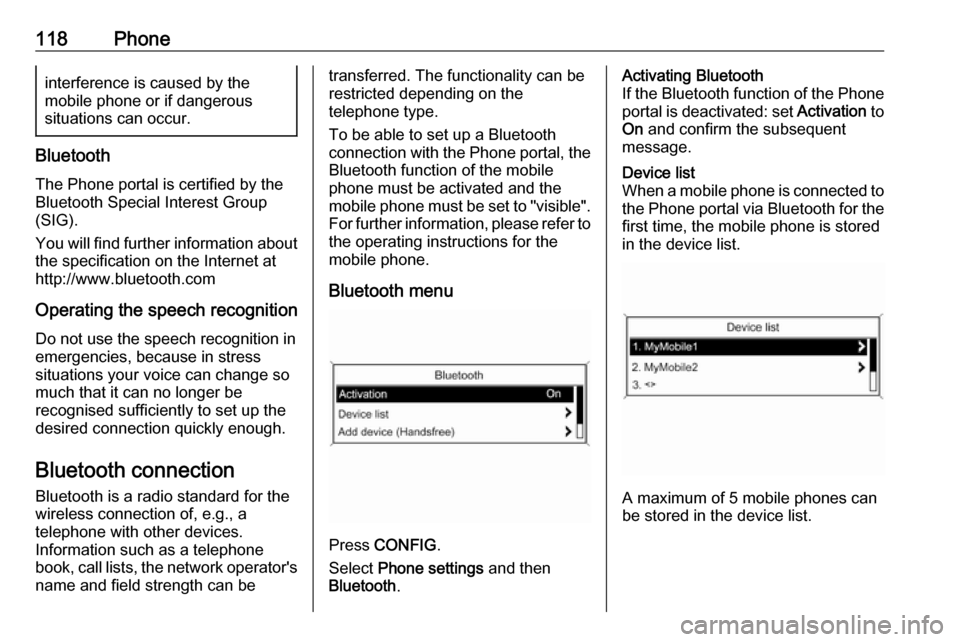
Bluetooth menu
Press CONFIG .
Select Phone settings and then
Bluetooth .
Activating Bluetooth
If the Bluetooth function of the Phone portal is deactivated: set Activation to
On and confirm the subsequent
message.Device list
When a mobile phone is connected to the Phone portal via Bluetooth for the first time, the mobile phone is stored
in the device list.
A maximum of 5 mobile phones can
be stored in the device list.
Page 126 of 175

126PhoneIncoming callWhen there is an incoming call a
menu is displayed to accept or
decline the telephone call.
Select required option.
Functions during a telephone call If you currently have a telephone call,
press the multifunction knob to open
a submenu.
Various options are available
depending on the situation and range of functions of the mobile phone:
● Hang up : disconnect the
telephone connection.
● Call number : enter a telephone
number to make a second
telephone call or perform DTMF
(touch-tone dialling), e.g. for
voice mail or telephone banking.
● Detach call : detach the
connection to a conference
participant in a telephone
conference.
● Merge calls : merge two calls
when there are several active
calls.● Switch calls : switch between
calls, if there are several calls.
● Mute call : mute a call.
Mobile phones and CB radio
equipment
Installation instructions and
operating guidelines
The vehicle specific installation
instructions and the operating
guidelines of the mobile phone and
handsfree manufacturer must be observed when installing and
operating a mobile telephone. Failure to do so could invalidate the vehicle
type approval (EU directive 95/54/
EC).Recommendations for fault-free
operation:
● The exterior antenna needs to be
professionally installed to obtain the maximum range possible.
● Maximum transmission power: 10 watts.
● The mobile phone needs to be installed in a suitable spot.
Consider relevant note in the
Owner's manual, section Airbag
system .
Seek advice on predetermined
installation points for the external
antenna or equipment holder and
ways of using devices with a
transmission power exceeding
10 watts.
Use of a handsfree attachment
without external antenna with mobile
telephone standards
GSM 900/1800/1900 and UMTS is
only permitted if the maximum
transmission power of the mobile telephone is 2 watts for GSM 900 or
1 watt for the other types.
Page 129 of 175

129control elements......................117
dialling a number .....................123
emergency calls ......................122
functions during a call .............123
handsfree mode ......................118
important information ..............117
messaging functions ...............123
recharging the battery .............117
setting the volume ...................123
SIM Access Profile (SAP) .......118
telephone book ....................... 123
Phone control ............................. 113
Playing saved audio files ............110
R Radio Radio data system (RDS) .......101
activating ................................... 96
autostore lists ............................ 97
Digital audio broadcasting
(DAB) ...................................... 103
favourite lists ............................. 97
selecting the waveband ............96
station lists ................................ 98
station search ............................ 96
usage ........................................ 96
waveband menus ......................98
Radio data system (RDS) ..........101
RDS ............................................ 101
Recharging the phone battery ....117Regionalization ........................... 101
Retrieving stations ........................97
S SAP mode .................................. 118
Selecting the waveband ...............96
Setting the volume ........................88
SIM Access Profile (SAP) ...........118
Speech recognition .............112, 113
activating ................................. 113
phone control .......................... 113
usage ...................................... 113
volume for voice output ...........113
Speed compensated volume ........88
Starting CD playback ..................106
Station search............................... 96
Storing stations ............................. 97
Switching the Infotainment system on or off......................... 88
Switching the radio on ..................96
T
Theft-deterrent feature ................. 81
Tone settings ................................ 93
Traffic announcements .................95
U Updating station lists ....................98
Usage ..................... 88, 96, 106, 109
Using the AUX input ...................109
Using the CD player ...................106Using the Infotainment system .....88
Using the radio ............................. 96
Using the USB port .....................110
V Voice recognition ........................112
Volume for voice output ..............113
Volume settings ............................ 95
W
Waveband menus......................... 98