fuel VAUXHALL ASTRA J 2016 User Guide
[x] Cancel search | Manufacturer: VAUXHALL, Model Year: 2016, Model line: ASTRA J, Model: VAUXHALL ASTRA J 2016Pages: 341, PDF Size: 10.35 MB
Page 123 of 341
Instruments and controls121Reset trip odometer by pressing
SET/CLR on the turn signal lever for
a few seconds or by pressing the
reset knob between speedometer
and DIC with the ignition on.
On vehicles with trip computer, more
submenus are available.
Selection and indication can be
different between Midlevel-Display
and Uplevel-Combi-Display.
Trip/Fuel Information Menu, Trip
Computer 3 128.
ECO Information Menu
Press MENU to select s in the top
line of the Uplevel-Combi-Display.
Turn the adjuster wheel to select a
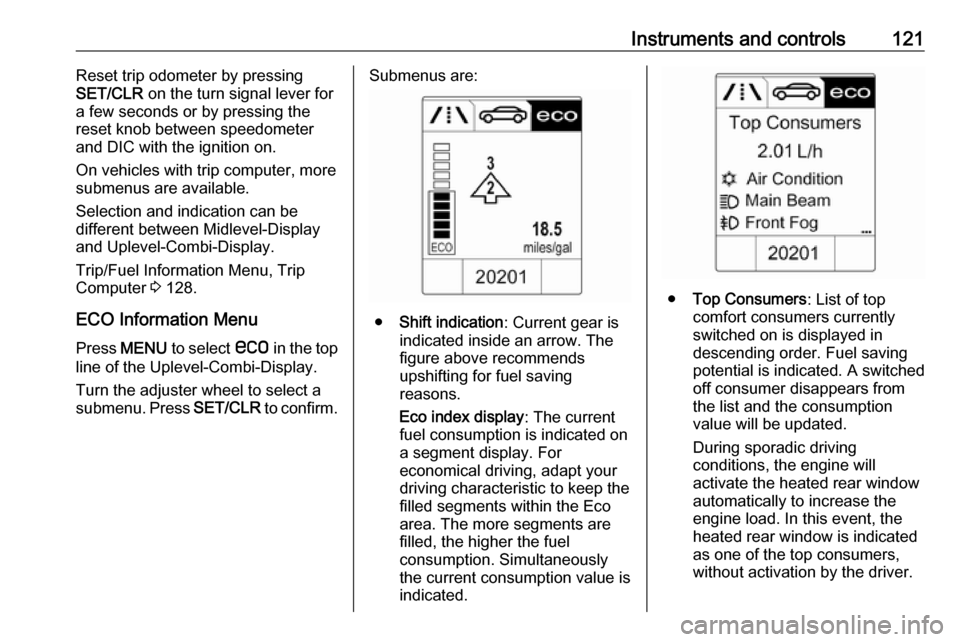
submenu. Press SET/CLR to confirm.Submenus are:
●Shift indication : Current gear is
indicated inside an arrow. The
figure above recommends
upshifting for fuel saving
reasons.
Eco index display : The current
fuel consumption is indicated on a segment display. For
economical driving, adapt your driving characteristic to keep the
filled segments within the Eco
area. The more segments are
filled, the higher the fuel
consumption. Simultaneously
the current consumption value is
indicated.
● Top Consumers : List of top
comfort consumers currently
switched on is displayed in
descending order. Fuel saving
potential is indicated. A switched off consumer disappears from
the list and the consumption
value will be updated.
During sporadic driving
conditions, the engine will
activate the heated rear window
automatically to increase the
engine load. In this event, the
heated rear window is indicated
as one of the top consumers,
without activation by the driver.
Page 124 of 341
122Instruments and controls
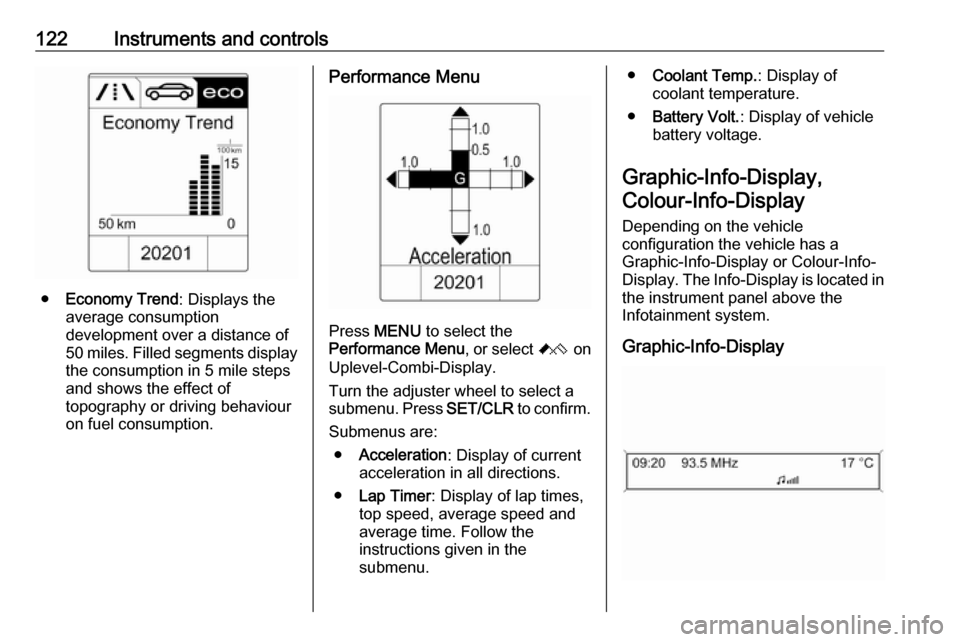
●Economy Trend : Displays the
average consumption
development over a distance of
50 miles. Filled segments display
the consumption in 5 mile steps
and shows the effect of
topography or driving behaviour
on fuel consumption.
Performance Menu
Press MENU to select the
Performance Menu , or select C on
Uplevel-Combi-Display.
Turn the adjuster wheel to select a
submenu. Press SET/CLR to confirm.
Submenus are: ● Acceleration : Display of current
acceleration in all directions.
● Lap Timer : Display of lap times,
top speed, average speed and
average time. Follow the
instructions given in the
submenu.
● Coolant Temp. : Display of
coolant temperature.
● Battery Volt. : Display of vehicle
battery voltage.
Graphic-Info-Display, Colour-Info-Display
Depending on the vehicle
configuration the vehicle has a
Graphic-Info-Display or Colour-Info-
Display. The Info-Display is located in
the instrument panel above the
Infotainment system.
Graphic-Info-Display
Page 127 of 341
Instruments and controls125Vehicle messages on the
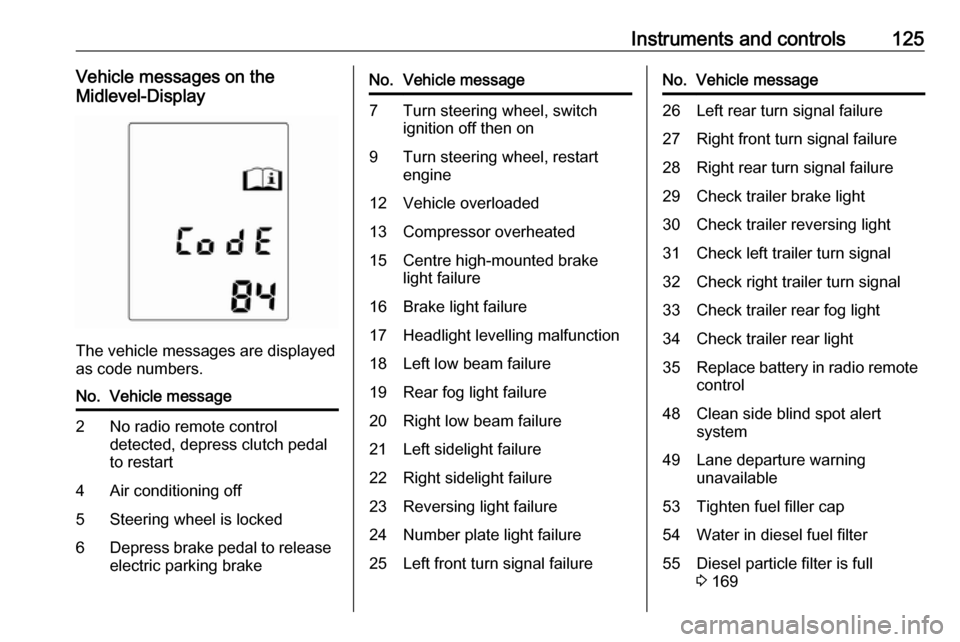
Midlevel-Display
The vehicle messages are displayed
as code numbers.
No.Vehicle message2No radio remote control
detected, depress clutch pedal
to restart4Air conditioning off5Steering wheel is locked6Depress brake pedal to release
electric parking brakeNo.Vehicle message7Turn steering wheel, switch ignition off then on9Turn steering wheel, restart
engine12Vehicle overloaded13Compressor overheated15Centre high-mounted brake
light failure16Brake light failure17Headlight levelling malfunction18Left low beam failure19Rear fog light failure20Right low beam failure21Left sidelight failure22Right sidelight failure23Reversing light failure24Number plate light failure25Left front turn signal failureNo.Vehicle message26Left rear turn signal failure27Right front turn signal failure28Right rear turn signal failure29Check trailer brake light30Check trailer reversing light31Check left trailer turn signal32Check right trailer turn signal33Check trailer rear fog light34Check trailer rear light35Replace battery in radio remote
control48Clean side blind spot alert
system49Lane departure warning
unavailable53Tighten fuel filler cap54Water in diesel fuel filter55Diesel particle filter is full
3 169
Page 130 of 341
128Instruments and controls1. Switch off immediately anyelectric consumers which are not
required for a safe ride, e.g. seat
heating, heated rear window or
other main consumers.
2. Charge the vehicle battery by driving continuously for a while or
by using a charging device.
The warning message or warning
code will disappear after the engine
has been started twice consecutively
without a voltage drop.
If the vehicle battery cannot be
recharged, have the cause of the fault
remedied by a workshop.Trip computer
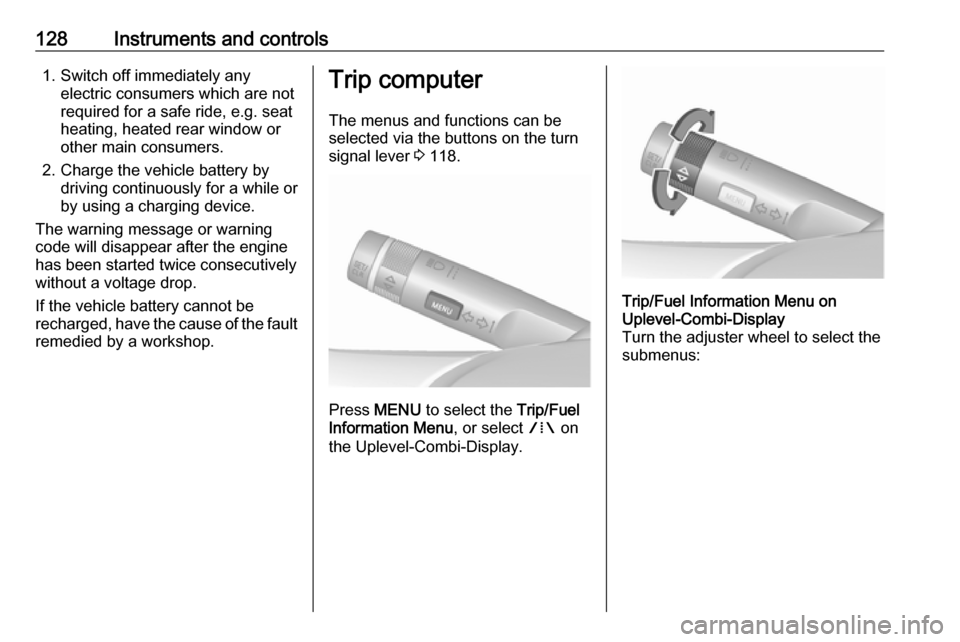
The menus and functions can be selected via the buttons on the turn
signal lever 3 118.
Press MENU to select the Trip/Fuel
Information Menu , or select W on
the Uplevel-Combi-Display.
Trip/Fuel Information Menu on
Uplevel-Combi-Display
Turn the adjuster wheel to select the
submenus:
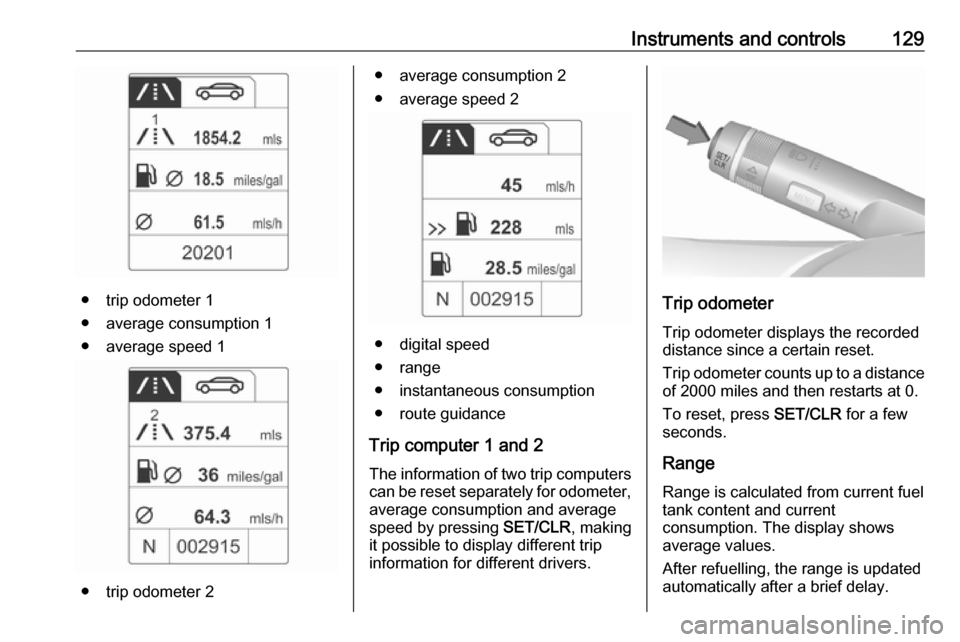
Page 131 of 341
Instruments and controls129
● trip odometer 1
● average consumption 1
● average speed 1
● trip odometer 2
● average consumption 2
● average speed 2
● digital speed
● range
● instantaneous consumption
● route guidance
Trip computer 1 and 2 The information of two trip computerscan be reset separately for odometer,
average consumption and average
speed by pressing SET/CLR, making
it possible to display different trip
information for different drivers.
Trip odometer
Trip odometer displays the recorded
distance since a certain reset.
Trip odometer counts up to a distance
of 2000 miles and then restarts at 0.
To reset, press SET/CLR for a few
seconds.
Range Range is calculated from current fuel
tank content and current
consumption. The display shows
average values.
After refuelling, the range is updated
automatically after a brief delay.
Page 132 of 341

130Instruments and controlsWhen the fuel level in the tank is low,
a message appears on vehicles with
Uplevel-Combi-Display.
When the tank needs to be refuelled
immediately, a warning code or
warning message is displayed on
vehicles with Midlevel-Display or
Uplevel-Combi-Display.
Additionally control indicator i
illuminates or flashes in the fuel gauge 3 116.
Average consumption Display of average consumption. Themeasurement can be reset at any
time and starts with a default value.
To reset, press SET/CLR for a few
seconds.
Instantaneous consumption
Display of the instantaneous
consumption.
Average speedDisplay of average speed. The
measurement can be reset at any
time.To reset, press SET/CLR for a few
seconds.
Digital speed Digital display of the instantaneous
speed.
Traffic sign assistant
Indicates detected traffic signs for the current route section 3 209.
Route guidance In addition to the navigation
information in the Colour-Info-
Display, route guidance is displayed
in the Driver Information Centre
(DIC).Vehicle personalisation
The vehicle's behaviour can be
personalised by changing the settings in the Info-Display.
Some of the personal settings for
different drivers can be memorised
individually for each vehicle key.
Memorised settings 3 22.
Depending on vehicle equipment and
country-specific regulations some of
the functions described below may
not be available.
Some functions are only displayed or
active when the engine is running.
Personal settings in the
Graphic-Info-Display
CD 400plus/CD 400/CD 300
Page 138 of 341

136Instruments and controls● OnStar smartphone application
● OnStar remote services, e.g. location of the vehicle, activation
of horn and lights, control of
central locking system
● Stolen vehicle assistance
● Vehicle health check
● Destination download
Notice
All functions requiring data
connection to the vehicle are no
longer available if the vehicle ignition
has not been turned on for ten days.
OnStar buttonsNotice
Depending on the equipment, the
OnStar buttons can also be
integrated in the rear view mirror.
Privacy button
Press and hold j until an audio
message is heard to activate or
deactivate the transmission of the
vehicle location.
Press j to answer a call or to end a
call to an OnStar advisor.
Press j to access the Wi-Fi settings.
OnStar button
Press Z to establish a connection to
an OnStar advisor.
SOS button
Press [ to establish a priority
emergency connection to a specially trained emergency advisor.
Status light
Green: The system is ready.
Green flashing: The system is on a
call.
Red: A problem arose.
Off: System is off.Red / green flashing for a short period of time: Transmission of the vehicle
location has been deactivated.
OnStar services
OnStar emergency services
OnStar emergency provides a service with specially trained emergency
advisors for contact, assistance and
information during an emergency.
In the case of an emergency situation
including vehicle breakdown, a flat
tyre or empty fuel tank, press [ and
talk to the advisor. The advisor then
contacts emergency or assistance
service providers and directs them to
your vehicle.
In the case of an accident with
activation of airbags or belt
tensioners, an automatic emergency
call is established. The advisor is
immediately connected to your
vehicle to see whether help is
needed.
OnStar Wi-Fi hotspot
The Wi-Fi hotspot of the vehicle
provides internet connectivity through
the 4G/LTE mobile network.
Page 139 of 341

Instruments and controls137Notice
The Wi-Fi hotspot functionality is not
available for all markets.
Up to seven devices may be
connected.
To connect a mobile device with the
OnStar Wi-Fi hotspot:
1. Press j and then select Wi-Fi
settings on the Info-Display. The
settings displayed include the Wi- Fi hotspot name (SSID),
password and connection type.
2. Start a Wi-Fi network search on your mobile device.
3. Select your vehicle hotspot (SSID) when listed.
4. When prompted, enter the password on your mobile device.
Notice
To change the SSID or password, select Z and talk to an OnStar
advisor or logon to your account.
To switch off the Wi-Fi hotspot
functionality, press Z to call an
OnStar advisor.Smartphone app
With the My Vauxhall smartphone
app, some vehicle functions can be
operated via a smartphone.
The following functions are available: ● Lock or unlock doors.
● Honk horn or flash lights.
● Check fuel level, engine oil life and tyre pressure (only with tyre
pressure monitoring system).
● Send navigation destination to the vehicle, if equipped with a
built-in navigation system.
● Locate vehicle on a map.
● Manage Wi-Fi settings.
To operate these functions, download
the app from the respective app store.
Remote service
If desired, use any phone to call an
OnStar advisor, who can remotely
operate specific vehicle functions.
Find the respective OnStar phone
number on our country-specific
website.The following functions are available:
● Lock or unlock doors.
● Provide information on the vehicle location.
● Honk horn or flash lights.
Stolen vehicle assistance
If a vehicle is stolen, the OnStar
stolen vehicle assistance service can
provide support in locating and
recovering the vehicle.Theft alert
When the anti-theft alarm system is triggered, a notification is sent to
OnStar. You are then informed about
this event by text message or email.
If required, report the theft to the
authorities and request OnStar stolen
vehicle assistance. Use any phone to call an OnStar advisor. Find the
respective OnStar phone number on
our country-specific website.Remote ignition block
By sending remote signals, OnStar
can block the ignition cycle
preventing the vehicle from restarting once it has been turned off.
Page 157 of 341
Climate control155If no cooling or drying is required,
switch off the cooling system for fuel
saving reasons. Activated cooling
may inhibit Autostops.
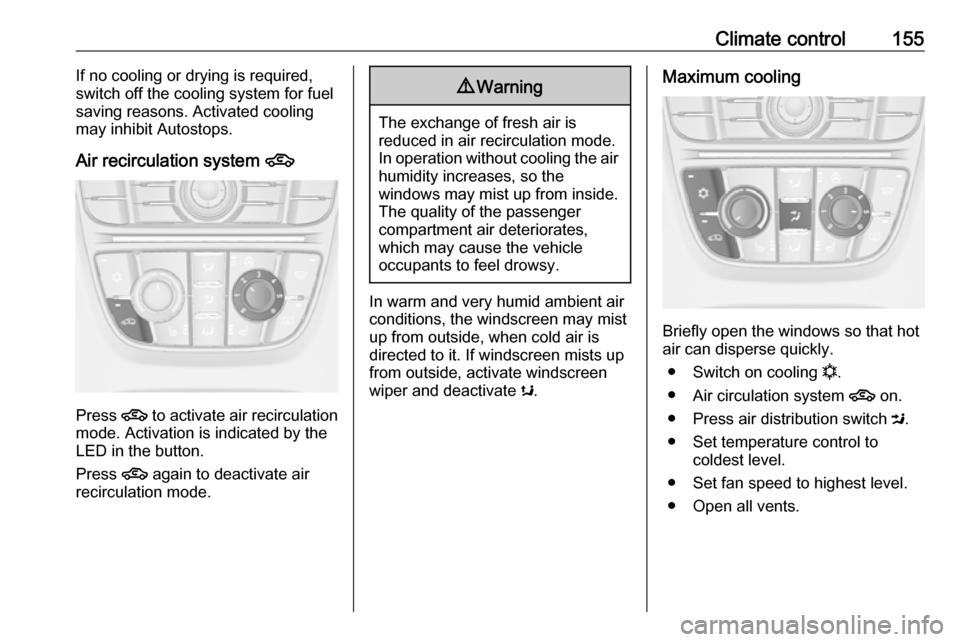
Air recirculation system 4
Press 4
to activate air recirculation
mode. Activation is indicated by the
LED in the button.
Press 4 again to deactivate air
recirculation mode.
9 Warning
The exchange of fresh air is
reduced in air recirculation mode.
In operation without cooling the air humidity increases, so the
windows may mist up from inside.
The quality of the passenger
compartment air deteriorates,
which may cause the vehicle
occupants to feel drowsy.
In warm and very humid ambient air conditions, the windscreen may mist
up from outside, when cold air is
directed to it. If windscreen mists up
from outside, activate windscreen
wiper and deactivate s.
Maximum cooling
Briefly open the windows so that hot
air can disperse quickly.
● Switch on cooling n.
● Air circulation system 4 on.
● Press air distribution switch M.
● Set temperature control to coldest level.
● Set fan speed to highest level.
● Open all vents.
Page 161 of 341
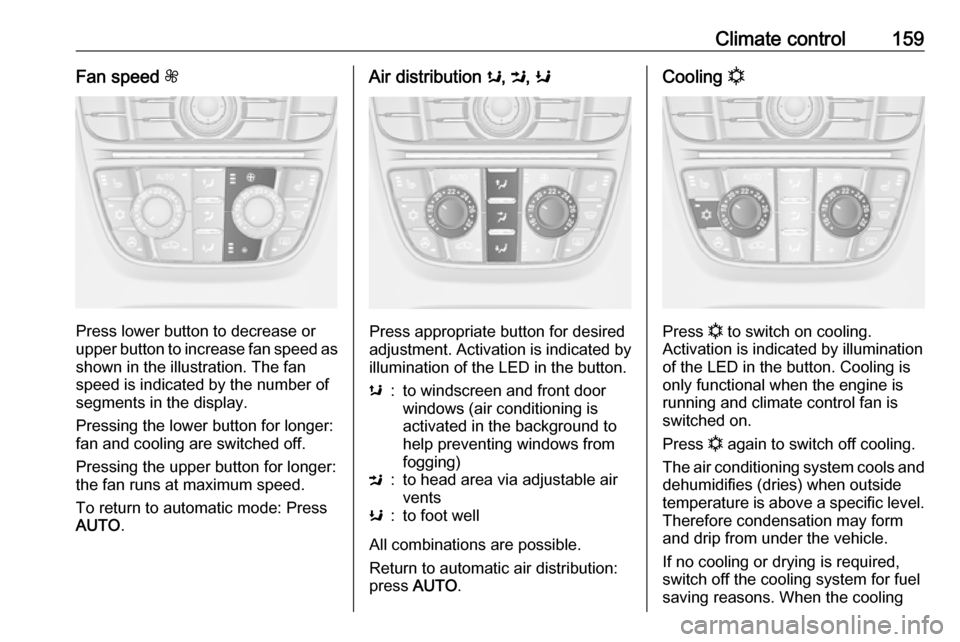
Climate control159Fan speed Z
Press lower button to decrease or
upper button to increase fan speed as shown in the illustration. The fan
speed is indicated by the number of
segments in the display.
Pressing the lower button for longer:
fan and cooling are switched off.
Pressing the upper button for longer:
the fan runs at maximum speed.
To return to automatic mode: Press
AUTO .
Air distribution s, M , K
Press appropriate button for desired
adjustment. Activation is indicated by
illumination of the LED in the button.
s:to windscreen and front door
windows (air conditioning is
activated in the background to
help preventing windows from
fogging)M:to head area via adjustable air ventsK:to foot well
All combinations are possible.
Return to automatic air distribution:
press AUTO .
Cooling n
Press n to switch on cooling.
Activation is indicated by illumination
of the LED in the button. Cooling is
only functional when the engine is
running and climate control fan is switched on.
Press n again to switch off cooling.
The air conditioning system cools and
dehumidifies (dries) when outside
temperature is above a specific level. Therefore condensation may form
and drip from under the vehicle.
If no cooling or drying is required,
switch off the cooling system for fuel
saving reasons. When the cooling