audio VAUXHALL CASCADA 2014.5 Infotainment system
[x] Cancel search | Manufacturer: VAUXHALL, Model Year: 2014.5, Model line: CASCADA, Model: VAUXHALL CASCADA 2014.5Pages: 131, PDF Size: 2.26 MB
Page 52 of 131

52Navigation
Cancelling route guidance
When route guidance is active, press the DEST button to display the Route
Menu .
Select the Cancel Route menu item to
cancel the current navigation session.
Guidance instructions
Route guidance is provided by voice
prompts and visual instructions on the map (if activated).
Voice prompts
Navigation voice prompts announce
which direction to follow, when
approaching an intersection at which
you need to turn.
Press the CONFIG button and then
select the Navigation Settings menu
item.
Select the Voice Prompt menu item to
display the respective submenu.
If you wish the system to audibly
indicate the next turning manoeuvre,
activate Navigation Voice Prompts .
If you wish traffic alerts to be read out,
activate Traffic Alert Prompts .
To adjust the volume during voice
prompts, select the Navigation
Volume menu item. The respective
submenu is displayed.
To adjust the volume of voice
prompts, select Announcement and
then adjust the setting as desired.
To adjust the volume of the audio
source possibly playing in the
background, select Background and
then adjust the setting as desired.Select Volume Test to get an audio
example of the settings.
Guidance alerts
Guidance alerts show in a close-up
view of the respective map section
which direction to follow when
approaching an intersection at which you need to turn.
Press the CONFIG button and then
select the Navigation Settings menu
item.
Select the Guidance Alert menu item
to display the respective submenu.
If you wish the display to
automatically show the map when
approaching the next turning
manoeuvre, activate Guidance Alert
in Primary .
If you wish turning manoeuvres to be
displayed in a close-up view, activate
Guidance Alert in Map .
Page 57 of 131

Speech recognition57
In such a case you need to select
another language for the display if
you want to control the Infotainment system via voice input. Changing
the display language, see
"Language" in chapter "System
settings" 3 21.
Address input for destinations in foreign countries
In case you want to enter the address of a destination located in a foreign
country via voice input, you need to
change the language of the
Infotainment display to the language
of the foreign country.
E.g. if the display is currently set to English and you want to enter the
name of a city located in France, you
need to change the display language
to French.
Exceptions: If you want to enter
addresses in Belgium, you may
optionally change the display
language to French or Dutch. For
addresses in Switzerland you may
optionally change the display
language to French, German, or
Italian.For changing the display language, see "Language" in chapter "Systemsettings" 3 21.
Input order for destination addresses
The order in which the parts of an
address need to be entered using the speech recognition system is
dependent on the country where the
destination is located.
An example for the respective input
order is given out by the system.
Voice pass-thru application
The voice pass-thru application of the Infotainment system allows access tothe speech recognition commands on
your smartphone. See your
smarphone manufacturer's user
guide to find out whether your
smartphone supports this feature.Usage
Embedded speech recognition Activating speech recognition Notice
Speech recognition is not available
during an active phone call.
Press the w button on the right side of
the steering wheel.
The audio system mutes, the w
symbol on the display is highlighted, and a voice output message prompts
you to say a command.
As soon as the speech recognition is
ready for voice input, a beep is heard.
You can now say a voice command to
directly initiate a system function
(e.g. playing a radio station), or to
start a dialogue sequence with
several dialogue steps (e.g. entering a destination address), see
"Operation via speech commands"
further below.
Page 58 of 131

58Speech recognition
After a dialogue sequence is finished,
the speech recognition is deactivated
automatically. To initiate another
dialogue sequence, you must activate the speech recognition again.
Adjusting the volume of voice
prompts
Press the w or ─ buttons on the right
side of the steering wheel.
Interrupting a voice prompt
As an experienced user, you can
interrupt a voice prompt by briefly
pressing the w button on the steering
wheel.
A beep is heard immediately, and a
command can be stated without
having to wait.
Cancelling a dialogue sequence
There are several possibilities to
cancel a dialogue sequence and to
deactivate the speech recognition:
■ Say " Cancel" or "Exit".
■ Press the n button on the right
side of the steering wheel.In the following situations a dialogue
sequence is automatically cancelled:
■ If you do not say any commands for
some time (by default you are
prompted three times to say a
command).
■ If you say commands that are not recognised by the system (by
default you are prompted three
times to say a correct command).
Operation via speech commands
The speech recognition can
understand commands that are either naturally stated in sentence form, or
direct commands stating the
application and the task.
For best results: ■ Listen for the voice prompt and wait
for the beep before saying a
command or replying.
■ Say " Help" if you want to listen
again to the help prompt for the
current dialogue step.■ The voice prompt can be interrupted by pressing the w button
again. If you wish to directly speak
your command, press the w button
twice.
■ Wait for the beep and then speak the command naturally. In most
cases, recognition rates will be higher if pauses are kept to a
minimum. Use short and direct
commands.
Usually phone and audio commands
can be spoken in a single command. For example, "Call David Smith at
work", "Play" followed by the artist or
song name, or "Tune to" followed by
the radio frequency and the
waveband.
Navigation destinations, however,
are too complex for a single
command. First, state "Navigation" and then, e.g. "Address" or "Point of
Interest". The system responds with
requesting more details.
After saying "Point of Interest", only
major chains may be selected by
name. Chains are businesses with at
Page 70 of 131

70Frequently asked questions
Phone?How can I pair my phone with the
Infotainment system?
! In order to pair a phone, press the
O button, select the Phone
Settings menu item and then
Bluetooth . Select Pair device and
follow the instrucation on the
Infotainment system and your
mobile phone. Make sure
Bluetooth is enabled.
Detailed description 3 61.? How can I access my phone book
or recent calls list via the
Infotainment system?
! Depending on the phone, you have
to allow access to the respective
data in the settings of your mobile
phone. In general, the download of
the phone book and recent calls list is not supported by all mobile
phones.
Detailed description 3 61.? Although access to my phone book
has been granted, not all contacts
are available in the Infotainment
system. Why is that?
! Depending on the phone, contacts
stored on the SIM card cannot be read by the Infotainment system.
Detailed description 3 61.
Navigation? How can I toggle between total
driving time or remaining driving
time and total distance or partial
distance?
! When the navigation application is
active, press the multifunction
knob to display the Navigation
Menu . Select Switch Route Time/
Destination and adjust the settings
as desired.
Detailed description 3 39.? When pressing the DEST/NAV
button, different menus are
displayed sometimes. Why is that?
! If route guidance is active, the
destination application is
displayed for you to select a
destination.
Detailed description 3 43.
If route guidance is not active, the
Route Menu is displayed.
Detailed description 3 51.
Audio? When playing media files from a
device connected via Bluetooth,
the track title and artist are not
displayed in the Infotainment
system and the media browse
function is not available. Why is
that?
! When connecting a device via
Bluetooth, due to the Bluetooth
protocol supported only restricted
functions are available.
Detailed description 3 34.
Page 72 of 131

72IndexAActivating AUX.............................. 34
Activating Bluetooth music ...........34
Activating CD player .....................31
Activating radio ............................. 24
Activating the Infotainment system 14
Activating the navigation system ..39
Activating the phone portal ...........63
Activating USB audio ....................34
Activating USB picture ..................35
Address book................................ 43
Audio CUE volume .......................20
Audio files ..................................... 32
Autostore lists ............................... 25
Retrieving stations..................... 25
Storing stations ......................... 25
Auto volume.................................. 20
AUX .............................................. 32
B BACK button ................................. 16
Balance......................................... 19
Basic operation ............................. 16
Bass.............................................. 19 Bluetooth connection ....................61
Bluetooth music ............................ 32
Bread crumbs ............................... 51C
Category list.................................. 24
CD player...................................... 30
Chime volume............................... 20
Control elements Infotainment system ....................8
Steering wheel ............................ 8
Control elements overview .............8
D DAB .............................................. 29
Date .............................................. 21
Destination input ..........................43
Digital audio broadcasting ............29
Display .......................................... 21
Displaying pictures .......................35
E Emergency call ............................. 62
EQ ................................................ 19
Equaliser....................................... 19
F
Factory defaults ............................ 21
Fader ............................................ 19
Favourite lists ............................... 26
Retrieving stations..................... 26
Storing stations ......................... 26
File formats ................................... 30
Page 73 of 131

73
Audio files.................................. 32
Picture files................................ 32
Frequently asked questions .........69
G General information 30, 32 , 38 , 56 , 60
AUX ........................................... 32
Bluetooth music......................... 32
CD ............................................. 30
Infotainment system ....................6
Navigation ................................. 38
Phone portal .............................. 60
Radio ......................................... 24
USB ........................................... 32
Guidance ..................................... 51
H Home address .............................. 43
Home Page............................. 16, 21
I
Infotainment control panel ..............8
K Keyboard ...................................... 43
L
Language ..................................... 21M
Maps ............................................. 39
Maximum startup volume .............20
Menu operation............................. 16
Messages ..................................... 16
Midrange....................................... 19 Mobile phones and CB radio equipment ................................ 68
Multifunction knob......................... 16
Mute.............................................. 14
N Navigation Address book ............................ 43
Bread crumbs ............................ 51
Coordinates ............................... 43
Current location ......................... 39
Destination input .......................43
Favourite routes ........................43
General settings ........................39
Guidance alerts ......................... 51
Home address ........................... 43
Keyboard ................................... 43
Map display ............................... 39
Map manipulation ......................39
POIs .......................................... 43
Recent destinations ..................43
Route guidance ......................... 51
Route options ............................ 51Route simulation.......................39
Route tracking ........................... 51
TMC stations ............................. 51
Traffic incidents ......................... 51
Turn list ..................................... 51
Voice prompts ........................... 51
Waypoint trip ............................. 43
Navigation system ........................38
Navigation volume ........................20
O Operation ...................................... 63
AUX ........................................... 34
Blueotooth music....................... 34
CD ............................................. 31
Infotainment system ..................14
Menu ......................................... 16
Navigation system .....................39
Phone ........................................ 63
Radio ......................................... 24
USB ..................................... 34, 35
P Pairing .......................................... 61
Phone Bluetooth ................................... 60
Bluetooth connection ................61
Conference call ......................... 63
Emergency calls ........................62
Functions during a call ..............63
Page 74 of 131

74
Phone book............................... 63
Recent calls............................... 63
Text messages .......................... 66
Phone book ............................ 43, 63
Phone call Initiating ..................................... 63
Taking ....................................... 63
Picture files ................................... 32
Pictures......................................... 35
Playing audio ................................ 34
POIs.............................................. 43
R
Radio Autostore lists............................ 25
Category list .............................. 24
DAB ........................................... 29
DAB announcements ................29
Digital Audio Broadcasting ........29
Favourite lists ............................ 26
Radio Data System ...................27
RDS........................................... 27
RDS Options menu ...................27
Regional .................................... 27
Retrieving stations ..............25, 26
Station list.................................. 24
Station search ........................... 24
Storing stations ...................25, 26
TP.............................................. 27Traffic Programme ....................27
Waveband selection ..................24
Radio data system (RDS) ............27
Regionalisation ............................. 27
Route guidance ............................ 51
Route simulation ........................... 39
S Software update ........................... 21
Speech recognition .......................56
Station list ..................................... 24
Station search............................... 24
Switching the Infotainment system on .................................. 14
System settings ............................ 21
Display ...................................... 21
Home Page ............................... 21
Language .................................. 21
Software .................................... 21
Time and Date........................... 21
T
TA ................................................. 27
TA volume .................................... 20
Text messages ............................. 66
Theft-deterrent feature ................... 7
Time.............................................. 21
Time format .................................. 21
TMC .............................................. 51
Tone settings ................................ 19TP................................................. 27
Traffic incidents ............................ 51
Traffic programme ........................27
Treble ........................................... 19
Turn list ......................................... 51
U Usage ................... 14, 24, 31, 39, 57
AUX ........................................... 34
Bluetooth music......................... 34
CD ............................................. 31
Infotainment system ..................14
Navigation system .....................39
Phone ........................................ 63
USB ..................................... 34, 35
USB .............................................. 32
Using apps.................................... 36
V
Voice recognition ..........................56
Volume Audio Cue volume .....................20
Auto volume .............................. 20
Chime volume ........................... 20
Maximum startup volume ..........20
Mute function............................. 14
Navigation volume..................... 20
Volume of traffic
announcements ........................ 20
Volume settings ............................ 20
Page 78 of 131

78IntroductionIntroductionGeneral information.....................78
Theft-deterrent feature .................79
Control elements overview ..........80
Usage .......................................... 86
Basic operation ............................ 87
Tone settings ............................... 91
Volume settings ........................... 93
Personalisation ............................ 94General information
The Infotainment system provides
you with state-of-the-art in-car
infotainment.
For the AM, FM and DAB wavebands the radio is equipped with twelve
automatically assignable channel presets. Furthermore, various
channels can be allocated manually
(waveband-independent).
The integrated audio player will
entertain you with audio CDs and MP3/WMA CDs.
Furthermore, you can connect
external data storage devices, e.g.
iPod, MP3 player or USB stick, or a
portable CD player to the
Infotainment system as further audio
sources.
The digital sound processor provides
you with several preset equalizer
modes for sound optimisation.
Optionally, the Infotainment system
can be operated using controls on the steering wheel or via the speech
recognition system.In addition the Infotainment system
can be equipped with a mobile phone portal.
The well-thought-out design of the
control elements, the clear displays
and a large multifunction knob enable
you to control the system easily and
intuitively.
Notice
This manual describes all options
and features available for the
various Infotainment systems.
Certain descriptions, including those for display and menu functions, may
not apply to your vehicle due to
model variant, country
specifications, special equipment or
accessories.
Important information on operation and traffic safety9 Warning
The Infotainment system must be
used so that the vehicle can be
driven safely at all times. If in
Page 82 of 131

82Introduction
18AUX ..................................... 108
Change audio source ..........108
Page 85 of 131
Introduction85
19PHONE ............................... 116
Open telephone main menu 122
Activate mute ........................ 86
20 AUX ..................................... 108
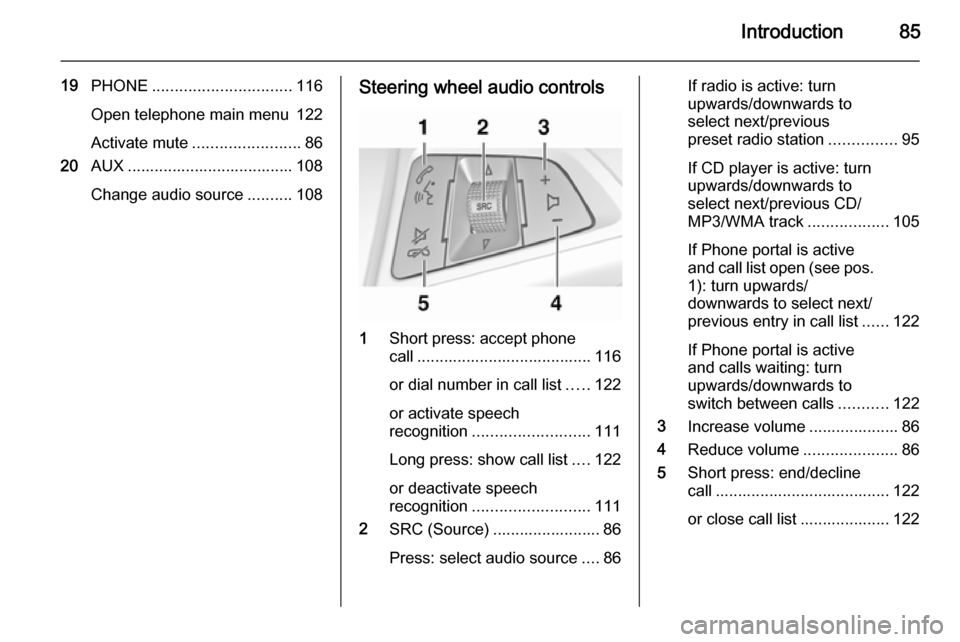
Change audio source ..........108Steering wheel audio controls
1
Short press: accept phone
call ....................................... 116
or dial number in call list .....122
or activate speech
recognition .......................... 111
Long press: show call list ....122
or deactivate speech
recognition .......................... 111
2 SRC (Source) ........................ 86
Press: select audio source ....86
If radio is active: turn
upwards/downwards to
select next/previous
preset radio station ...............95
If CD player is active: turn
upwards/downwards to
select next/previous CD/
MP3/WMA track ..................105
If Phone portal is active
and call list open (see pos. 1): turn upwards/
downwards to select next/
previous entry in call list ......122
If Phone portal is active
and calls waiting: turn
upwards/downwards to
switch between calls ...........122
3 Increase volume .................... 86
4 Reduce volume .....................86
5 Short press: end/decline
call ....................................... 122
or close call list .................... 122