change time VAUXHALL CASCADA 2015.5 Infotainment system
[x] Cancel search | Manufacturer: VAUXHALL, Model Year: 2015.5, Model line: CASCADA, Model: VAUXHALL CASCADA 2015.5Pages: 133, PDF Size: 2.29 MB
Page 109 of 133
CD Player109
Changing the folder levelPress g or e to change to a higher
or lower folder level.
Skipping to the next track or
previous track Briefly press s or u .
Fast forward or rewind Press and hold s or u to fast
forward or rewind the current track.
Selecting tracks using the audio
CD or MP3 menu
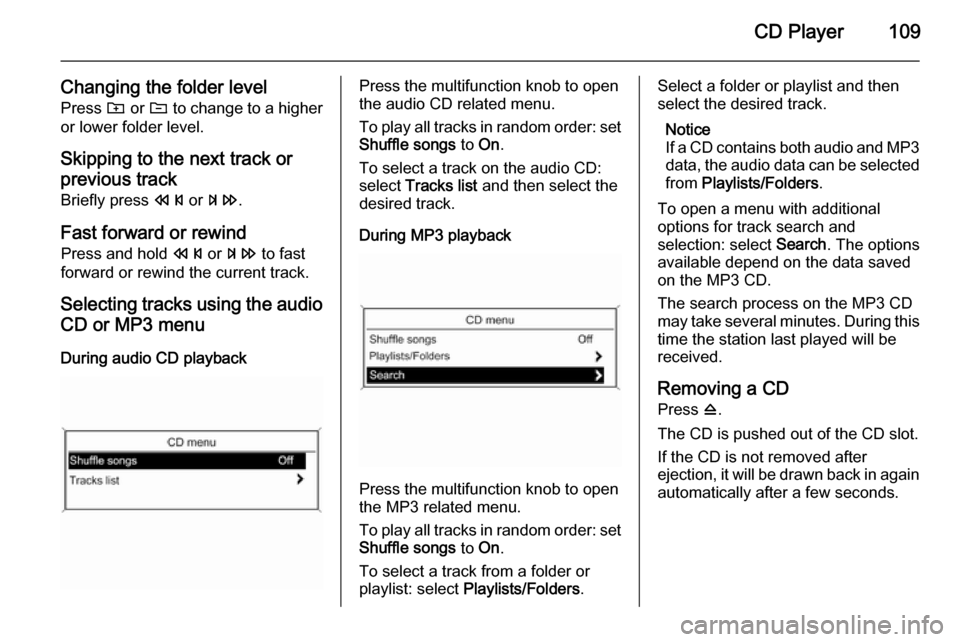
During audio CD playbackPress the multifunction knob to open
the audio CD related menu.
To play all tracks in random order: set
Shuffle songs to On.
To select a track on the audio CD:
select Tracks list and then select the
desired track.
During MP3 playback
Press the multifunction knob to open
the MP3 related menu.
To play all tracks in random order: set
Shuffle songs to On.
To select a track from a folder or playlist: select Playlists/Folders .
Select a folder or playlist and then
select the desired track.
Notice
If a CD contains both audio and MP3
data, the audio data can be selected from Playlists/Folders .
To open a menu with additional options for track search and
selection: select Search. The options
available depend on the data saved
on the MP3 CD.
The search process on the MP3 CD
may take several minutes. During this
time the station last played will be
received.
Removing a CDPress d.
The CD is pushed out of the CD slot.
If the CD is not removed after
ejection, it will be drawn back in again
automatically after a few seconds.
Page 119 of 133
Phone119phones is prohibited, if
interference is caused by the
mobile phone or if dangerous
situations can occur.
Bluetooth
The Phone portal is certified by the
Bluetooth Special Interest Group
(SIG).
You will find further information about the specification on the Internet at
http://www.bluetooth.com
Operating the speech
recognition Do not use the speech recognition in
emergencies, because in stress
situations your voice can change so
much that it can no longer be
recognised sufficiently to set up the
desired connection quickly enough.
Bluetooth connection
Bluetooth is a radio standard for the
wireless connection of, e.g., a
telephone with other devices.
Information such as a telephone
book, call lists, the network operator's name and field strength can be
transferred. The functionality can be
restricted depending on the
telephone type.
To be able to set up a Bluetooth
connection with the Phone portal, the
Bluetooth function of the mobile
phone must be activated and the
mobile phone must be set to "visible". For further information, please refer tothe operating instructions for the
mobile phone.
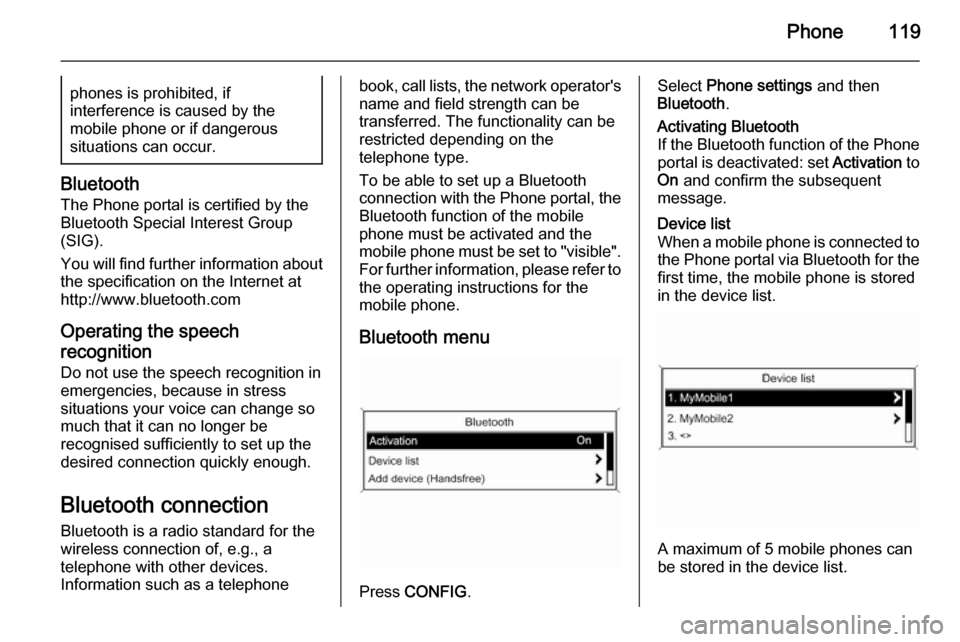
Bluetooth menu
Press CONFIG .
Select Phone settings and then
Bluetooth .Activating Bluetooth
If the Bluetooth function of the Phone portal is deactivated: set Activation to
On and confirm the subsequent
message.Device list
When a mobile phone is connected to the Phone portal via Bluetooth for the first time, the mobile phone is stored
in the device list.
A maximum of 5 mobile phones can
be stored in the device list.
Page 121 of 133

Phone121
can be changed at any time. For
security reasons a four-digit,
randomly selected code must be
used for pairing devices.
Select Change Bluetooth code . On
the menu displayed, edit the actual
Bluetooth code and accept the
modified code using OK.
Connecting a mobile phone via SIM
Access Profile (SAP)
Select Add SIM access device .
The Phone portal scans for available devices and displays a list of devices
found.
Notice
The mobile phone must have
Bluetooth activated and be set to
visible.
Select the desired mobile phone from
the list. The SAP passcode prompt is shown on the Infotainment display
containing a 16-digit code.
Enter the displayed SAP passcode in
the mobile phone (without spaces).
The mobile phone PIN code is shown
on the Infotainment display.
If the PIN request function is active,
the user will have to enter the PIN code of the SIM card in the mobile
phone.
Page 124 of 133

124Phonea sufficiently strong signal. Undercertain circumstances emergency
calls cannot be made on all mobile
phone networks; it is possible that
they cannot be made when certain network services and/or telephonefunctions are active. You can
enquire about this with the local
network operators.
The emergency call number can
differ depending on the region and
country. Please enquire
beforehand about the correct
emergency call number for the
relevant region.
Making an emergency call
Dial the emergency call number (e.g.
112 ).
The telephone connection to the
emergency call centre is set up.
Answer when the service personnel
questions you about the emergency.
9 Warning
Do not end the call until you are
requested to do so by the
emergency call centre.
Operation
Introduction As soon as a connection via
Bluetooth has been set up between
your mobile phone and the
Infotainment system, you can also
operate many functions of your
mobile phone via the Infotainment
system.
Via the Infotainment system, you can,
e.g., set up a connection to the
telephone numbers stored in your
mobile phone or change the
telephone numbers.
Notice
In the handsfree mode, mobile
phone operation is still possible,
e.g. taking a call or adjusting the
volume.
After setup of a connection between
the mobile phone and the
Infotainment system the mobile
phone data is transmitted to the
Infotainment system. This can take some time depending on the phone
model. During this period operation of
the mobile phone is possible via the
Infotainment system only to a limited
extent.
Not every telephone supports all
functions of the Phone portal.
Therefore deviations from the range
of functions described with these
specific telephones are possible.
Setting the volume for hands-free facility
Turn m on the Infotainment system or
press + or - on the steering wheel.