Touch pad VAUXHALL INSIGNIA 2014 Infotainment system
[x] Cancel search | Manufacturer: VAUXHALL, Model Year: 2014, Model line: INSIGNIA, Model: VAUXHALL INSIGNIA 2014Pages: 143, PDF Size: 2.53 MB
Page 37 of 143

Basic operation37Touch operation overviewThe table below contains a summary of all movements (gestures) on the touch screen and touch pad that you have to make
with one, two or three fingers to trigger specific actions in the menus.MenuActionTouch screenTouch padAll menusNavigate to a screen
element1 finger, move across the
touch padSelect/activate element1 finger, tap on the element once1 finger, press on the touch
padScrolling lists1 finger, move up or down2 fingers, move up or down1 finger, move slider on scroll bar1 finger, repeatedly tap or tap and hold the
n or o buttons at the top or bottom of the
scroll barScrolling text1 finger, move up or down2 fingers, move up or downFavouritesLifting/lowering rows of
favourites1 finger, tap onto selector bar and drag it up or down3 fingers, move up or downMoving to previous/next
page of favourites1 finger, move left or right3 fingers, move left or rightStoring favourites1 finger, tap and hold favourites button1 finger, press and hold
favourites button
Page 38 of 143

38Basic operation
MenuActionTouch screenTouch padRadio menuSending current audio
information to Driver
Information Centre1 finger, move in the direction of the Driver
Information CentreSeeking for radio stations2 fingers, move left or right
to seek up or downChanging waveband2 fingers, move up or down
to skip to previous or next
radio bandBrowsing2 fingers, press and hold
the touch pad
Page 39 of 143

Basic operation39
MenuActionTouch screenTouch padMedia menuSending current audio
information to the Driver
Information Centre1 finger, move in the direction of the Driver
Information CentreChanging track2 fingers, move left or right
to skip to previous or next
trackChanging media source2 fingers, move up or down
to skip to previous or next
media sourceBrowsing2 fingers, press and hold
the touch padActivating quick play1 finger, tap and hold
respective menu item
Page 40 of 143

40Basic operation
MenuActionTouch screenTouch padNavigation menuSending current audio
information to the Driver
Information Centre1 finger, move in the direction of the Driver
Information CentrePanning map1 finger, move across the screen2 fingers, move up, down,
left or rightCentring map1 finger, tap on a location on the map you wish it to centre aroundZoom in on the mapw screen button2 fingers, move apart
(spread)Zoom out on the map─ screen button2 fingers, move together
(pinch)Phone menuSending current audio
information to the Driver
Information Centre1 finger, move in the direction of the Driver
Information CentreCharacter
recognition
functionDraw character1 finger, move across the screen1 finger, move across the
padStart destination search2 fingers, press and hold on
the padClosing function2 fingers, press on the pad
Page 46 of 143
46Basic operation
Restore Radio Settings
Select Restore Radio Settings to
reset the following data:
■ Tone settings
■ Volume settings
■ Speech settings
■ Application tray
■ Contacts sources.
A warning message is displayed.
Select the Restore screen button.
The settings are reset.
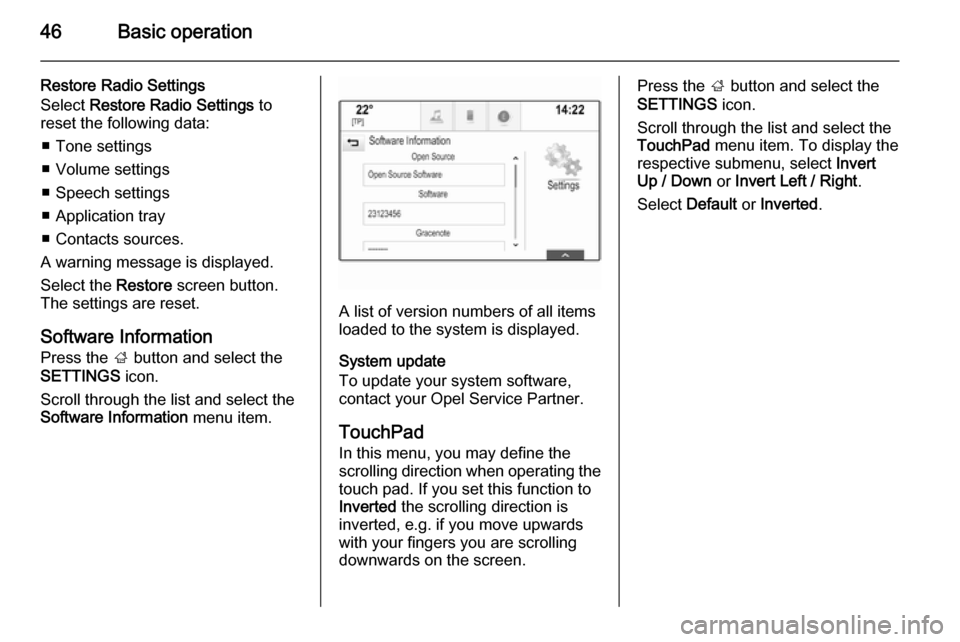
Software Information
Press the ; button and select the
SETTINGS icon.
Scroll through the list and select the
Software Information menu item.
A list of version numbers of all items
loaded to the system is displayed.
System update
To update your system software,
contact your Opel Service Partner.
TouchPad In this menu, you may define the
scrolling direction when operating the touch pad. If you set this function to
Inverted the scrolling direction is
inverted, e.g. if you move upwards
with your fingers you are scrolling downwards on the screen.
Press the ; button and select the
SETTINGS icon.
Scroll through the list and select the
TouchPad menu item. To display the
respective submenu, select Invert
Up / Down or Invert Left / Right .
Select Default or Inverted .
Page 65 of 143

Navigation65
■ The map view is displayed.
■ The active route is indicated by a coloured line.
■ The moving vehicle is marked by a circle.
■ The next turning manoeuvre is indicated by an arrow symbol on
the right side of the screen.
■ Lane guidance is provided on the left side of the screen.
■ The arrival time is shown above the
arrow symbol.
■ The distance to the next turning manoeuvre is shown below the
arrow symbol.
Driver Information Centre, Sport
theme:
■ The name of the route you are currently on is displayed.
■ The next turning manoeuvre is indicated by an arrow symbol.
■ The distance to the next turning manoeuvre is displayed.
Map manipulation
Scrolling
To scroll the map, you may optionally:
■ Place your finger anywhere on the screen and move it up, down, left orright depending on the direction in
which you want to scroll.
■ Place two fingers on the touch pad and move them up, down, left or
right depending on the direction in
which you want to scroll.
The map moves accordingly
displaying a new section.
To return to the current location,
select the RESET screen button in
the interaction selector bar.
Centring
Tap on a desired location on the
screen. The map centres around this
location.
A red v symbol is displayed at the
respective location and the
corresponding address is shown on a
label.
Page 95 of 143

Frequently asked questions95Frequently asked
questionsFrequently asked questions .........95Frequently asked
questions
Phone? How can I pair my phone with the
Infotainment system?
! In order to pair a phone, press
the ; button, select the PHONE
icon and then select the Pair
Device screen button. Follow the
instructions on your device and
make sure Bluetooth is enabled.
Detailed description 3 87.? How can I access my phone book
contacts and recent calls?
! In order to access the contacts or
calls list, press the ; button,
select the PHONE icon and then
select CONTACTS or RECENT .
Make sure access to the phone
book and recent calls list is allowed
on the phone . Depending on the
phone, loading the phone book
and recent calls list might take a
few minutes.Detailed description 3 89.
Touch pad? How can I select a button with the
touch pad? When tapping on the
touch pad nothing happens.
! Press the touch pad down.
Tapping will not trigger an action.
Detailed description 3 15.? What multi-finger gestures does
the touch pad support?
! Several multi-finger gestures are
supported by the touch pad, such
as moving 3 fingers up/down to lift/ lower the favourite row.
Detailed description 3 37.? How can I improve multi-finger
gesture detection?
! Try to place the fingers on the
touch pad at the same time and
then perform the gesture. Do not
press the touch pad down while
performing a gesture.
Detailed description 3 15.
Page 96 of 143

96Frequently asked questions
?How can I increase the touch pad's
character recognition
performance?
! Try out different drawing speed
settings ( Default, Faster or
Slower ). You may access this
setting from the character
recognition screen. For a
navigation destination input, only
draw uppercase letters.
Detailed description 3 24.
Favourites? What can be stored as a favourite?
! Up to 60 favourites of almost all
elements can be stored, e.g.
destinations, phone contacts,
playlists, radio stations, etc.
Detailed description 3 28.? How can I store a new favourite?
! Activate the respective application
and tap and hold a favourite screen
button to store a new favourite in
this location. A short beep sound
confirms storing. In some cases, it
is required to select a specific item.Detailed description 3 28.? How can I rename, delete or move
my favourites?
! Press the
; button, select the
SETTINGS icon on the Home
screen, the Radio list item in the
settings list and then Manage
Favourites in order to rename,
delete or move the favourites.
Detailed description 3 28.? Where are the favourites stored
and how can I recall them?
! The favourites are stored in the
favourites list. To recall a favourite, select the respective screen button
on the favourites row displayed.
On certain screens, the favourites list is hidden to extend the main
content view. On this screens,
select the n screen button on the
lower right of the screen or drag
the interaction selector bar
upwards with a finger.
Detailed description 3 28.Navigation? After entering a destination
address, an error message is
shown. What am I doing wrong?
! For full address entry, the
navigation system expects a
certain input order. Depending on
the country in which the entered
address is located, a different input
order might be required. Add the
country name at the end of the
entry, if a destination in another
country has been entered.
Detailed description 3 70.? How can I cancel active route
guidance?
! To cancel route guidance, select
the MENU screen button in the
interaction selector bar and then
select the Cancel Route menu
item.
Detailed description 3 74.
Page 98 of 143

98IndexAActivating an application ...............21
Activating a screen button ............15
Activating AUX.............................. 57
Activating Bluetooth music ...........57
Activating CD player .....................53
Activating radio ............................. 47
Activating SD card ........................57
Activating the Infotainment system 12
Activating the navigation system ..64
Activating the phone portal ...........89
Activating USB........................ 57, 59
Address book.......................... 32, 70
Application tray ............................. 21
Audible Touch Feedback ..............42
Audio Cue Volume........................ 42 Audio files ..................................... 55
Automatic volume adjustment Auto volume .............................. 42
Bose AudioPilot ......................... 42
Auto Set ........................................ 43
Auto volume.................................. 42
AUX .............................................. 55
B
BACK button ................................. 15
Balance......................................... 41Basic operation Application tray.......................... 21
Character recognition pane .......24
Contacts .................................... 32
Controls ..................................... 15
Displays..................................... 14
Favourites ........................... 28, 37
Five-way-controller ....................15
Home screen ............................. 21
Instrument panel .......................15
Interaction selector bar .............21
Keyboard ................................... 24
Keypad ...................................... 24
Menus ....................................... 37
Steering wheel controls .............15
Touch pad ................................. 15
Touch screen ............................ 15
Bass.............................................. 41 Bluetooth connection ....................87
Bluetooth music ............................ 55
Bose AudioPilot ............................ 42
C Category list.................................. 47
CD player...................................... 52
Character modifiers ......................24
Character recognition pane ..........24
Clock display ................................ 43
Contacts ....................................... 32
Modifying ................................... 32
Page 101 of 143

101
Return to factory settings.............. 43
Ringtone ....................................... 89
Route guidance ............................ 74
Route style.................................... 74
S Scrolling lists................................. 15
Scrolling pages .......................15, 21
SD card......................................... 55
Speech recognition .......................80
Station list ..................................... 47
Station search............................... 47
Steering wheel controls ................15
Storing favourites.......................... 28
Surround ....................................... 41
Surround system .......................... 41
Switching the Infotainment system on .................................. 12
System settings ............................ 43
Display ...................................... 43
Language .................................. 43
Return to factory settings ..........43
Time and Date........................... 43
Touch pad ................................. 43
Valet mode ................................ 43
T
TA ................................................. 49
Theft-deterrent feature ................... 7
Time.............................................. 43TMC stations ................................ 62
Tone settings ................................ 41
Touch operation overview ............37
Touch pad............................... 15, 43 Scrolling .................................... 43
Touch screen ................................ 15
Touch screen calibration ..............43
TP ................................................. 49
Traffic incidents ............................ 74
Traffic Programme ........................49
Treble ........................................... 41
Turn list ......................................... 74
U Usage ................... 12, 47, 53, 64, 82
AUX ........................................... 57
Bluetooth music......................... 57
CD ............................................. 53
Displays..................................... 14
Infotainment controls .................15
Infotainment system ..................12
Navigation system .....................64
Phone ........................................ 89
SD card ..................................... 57
USB ..................................... 57, 59
USB .............................................. 55
Using apps.................................... 60V
Valet mode Locking ...................................... 43
Unlocking .................................. 43
Voice recognition ..........................80
Volume Audible Touch Feedback ..........42
Audio Cue Volume ....................42
Auto Volume.............................. 42
Bose AudioPilot ......................... 42
Maximum startup volume ..........42
Mute function............................. 12 Setting the volume ....................12
Volume settings ............................ 42
W
Waveband menus......................... 48
Waveband selection .....................47
Waypoint list ................................. 74
Waypoint trip................................. 70
Wrong scrolling direction ..............43