audio VAUXHALL INSIGNIA 2015 Infotainment system
[x] Cancel search | Manufacturer: VAUXHALL, Model Year: 2015, Model line: INSIGNIA, Model: VAUXHALL INSIGNIA 2015Pages: 143, PDF Size: 2.56 MB
Page 41 of 143

Basic operation41Tone settingsIn the tone settings menu, the tone
characteristics can be set. If adjusted
in one main menu, they are globally
set within all source modes. The
menu may be accessed from each
individual audio main menu.
Notice
A customised set of tone settings
may be stored as a favourite. Find a detailed description 3 28.
To open the tone settings menu, select the MENU screen button in the
respective audio main menu. Select
Tone Settings .Treble
Use this setting to enhance or
attenuate the high frequencies of the
audio sources.
Adjust the setting using the ─ or w
screen buttons.
Midrange Use this setting to enhance or
attenuate the midrange frequencies
of the audio source.
Adjust the settings using the ─ or w
screen buttons.
Bass
Use this setting to enhance or
attenuate the deep frequencies of the
audio sources.
Adjust the settings using the ─ or w
screen buttons.
Balance and fader
In the illustration at the right side of
the menu, define the point within the passenger compartment which is to
have the best sound.
To adjust the settings, use the n,
o , p and q screen buttons.To quickly change between the front
and rear speakers, select the Front or
Rear screen button at the top and
bottom of the vehicle diagram.
Surround
(if Surround system equipped)
Use this setting to enhance or
attenuate the surround effect.
Adjust the settings using the ─ or w
screen buttons.
Equaliser modes(if no Surround system equipped)
Select one of the screen buttons in
the interaction selector bar to
optimise the tone for the specific
styles of music.
Select the Custom screen button, if
you wish to define the tone settings
yourself.
Surround modes
(if Surround system equipped)
Select one of the screen buttons in
the interaction selector bar of the
screen to optimise the tone for the
different seating positions.
Page 47 of 143

Radio47RadioUsage.......................................... 47
Station search .............................. 47
Waveband menus ........................48
Radio data system (RDS) ............49
Digital audio broadcasting ...........50Usage
The radio function is part of the
AUDIO application.
Activating the radio function
Press the RADIO button.
Selecting the waveband
Repeatedly press the RADIO button
on the instrument panel to toggle between the different wavebands.
Station search
Automatic station search
Press the t or v buttons to play the
previous or next station.
Manual station search Press and hold the t or v buttons.
Release the respective button when
the desired frequency has almost
been reached.
Station lists
In the station lists, all receivable radio stations within the current reception
area are available for selection.
To display the station list of the
waveband currently active, you may
optionally:
■ Tap anywhere on the screen.
■ Select the BROWSE screen button
on the left side of the screen.
■ Turn the MENU knob.
The station list is displayed.
Page 50 of 143
![VAUXHALL INSIGNIA 2015 Infotainment system 50Radio
played is not a radio traffic service
station, [ ] is displayed and a search
is started automatically for the next
radio traffic service station available.
As soon as a radio traffic service](/img/38/19477/w960_19477-49.png "VAUXHALL INSIGNIA 2015 Infotainment system 50Radio
played is not a radio traffic service
station, [ ] is displayed and a search
is started automatically for the next
radio traffic service station available.
As soon as a radio traffic service")
50Radio
played is not a radio traffic service
station, [ ] is displayed and a search
is started automatically for the next
radio traffic service station available.
As soon as a radio traffic service
station is found, [TP] is highlighted. If
no radio traffic service station is
found, [ ] remains on the screen.
If a traffic announcement is
broadcasted on the respective radio
traffic service station, a message is
displayed.
To interrupt the announcement and
return to the function previously
activated, dismiss the alert.
Region
Sometimes RDS stations broadcast
regionally different programmes on
different frequencies.
Set Region - On or Region - Off .
If regionalisation is switched on,
alternative frequencies with the same
regional programmes are selected if
necessary. If regionalisation is
switched off, alternative frequencies
of the stations are selected without
regard to regional programmes.Digital audio broadcasting
Digital audio broadcasting (DAB) is
an innovative and universal
broadcasting system.
Advantages of DAB ■ DAB stations are indicated by the programme name instead of the
broadcasting frequency.
■ With DAB, several radio programmes (services) can be
broadcasted on a single frequency (ensemble).
■ Besides high-quality digital audio services, DAB is also able to
transmit programme-associated
data and a multitude of other data
services including travel and traffic
information.
■ As long as a given DAB receiver can pick up the signal sent out by abroadcasting station (even if thesignal is very weak), sound
reproduction is ensured.
■ There is no fading (weakening of the sound that is typical of AM orFM reception). The DAB signal is
reproduced at a constant volume.
If the DAB signal is too weak to be
picked up by the receiver, reception
is interrupted completely. This can
be avoided by activating DAB to
DAB Linking and/or DAB to FM
Linking in the DAB option menu
(see below).
■ Interference caused by stations that are on nearby frequencies (a
phenomenon that is typical of AM
and FM reception) does not occur
with DAB.
■ If the DAB signal is reflected by natural obstacles or buildings, the
reception quality of DAB is
improved, whereas AM or FM
reception is considerably impaired in such cases.
■ When DAB reception is enabled, the FM tuner of the Infotainment
system remains active in the
background and continually
searches for the best receivable FM stations. If TP 3 49 is activated,
traffic announcements of the FM
station which is currently best
Page 52 of 143
52CD PlayerCD PlayerGeneral information.....................52
Usage .......................................... 53General information
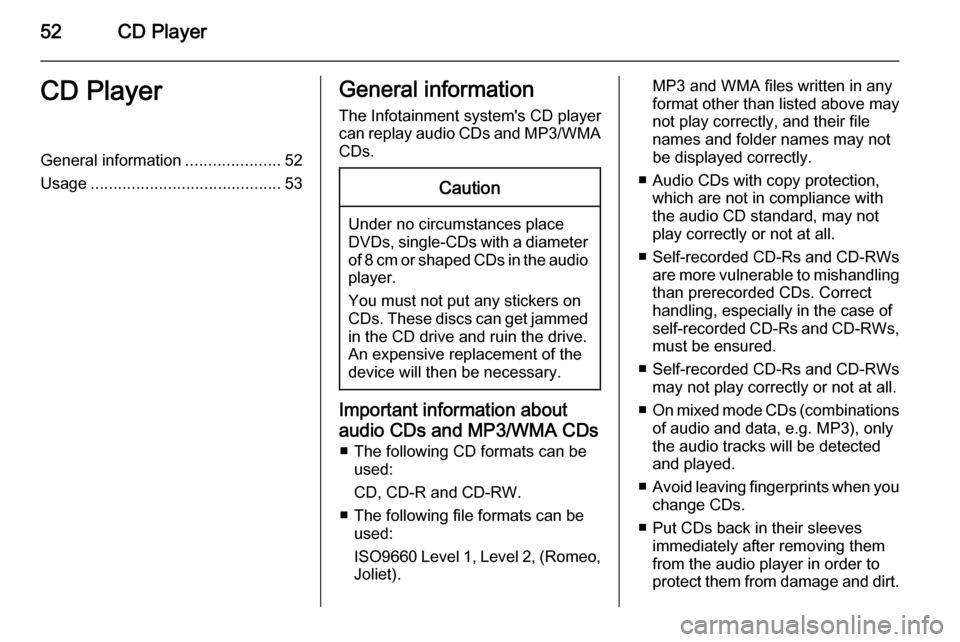
The Infotainment system's CD player
can replay audio CDs and MP3/WMA CDs.Caution
Under no circumstances place
DVDs, single-CDs with a diameter
of 8 cm or shaped CDs in the audio
player.
You must not put any stickers on
CDs. These discs can get jammed
in the CD drive and ruin the drive.
An expensive replacement of the
device will then be necessary.
Important information about
audio CDs and MP3/WMA CDs ■ The following CD formats can be used:
CD, CD-R and CD-RW.
■ The following file formats can be used:
ISO9660 Level 1, Level 2, (Romeo,
Joliet).
MP3 and WMA files written in any
format other than listed above may
not play correctly, and their file names and folder names may not
be displayed correctly.
■ Audio CDs with copy protection, which are not in compliance with
the audio CD standard, may not
play correctly or not at all.
■ Self-recorded CD-Rs and CD-RWs
are more vulnerable to mishandling than prerecorded CDs. Correct
handling, especially in the case of
self-recorded CD-Rs and CD-RWs,
must be ensured.
■ Self-recorded CD-Rs and CD-RWs
may not play correctly or not at all.
■ On mixed mode CDs (combinations
of audio and data, e.g. MP3), only
the audio tracks will be detected and played.
■ Avoid leaving fingerprints when you
change CDs.
■ Put CDs back in their sleeves immediately after removing them
from the audio player in order to
protect them from damage and dirt.
Page 53 of 143
CD Player53
■ Dirt and liquids on CDs can smearthe lens of the audio player inside
the device and cause faults.
■ Protect CDs from heat and direct sunlight.
■ The following restrictions apply for the data stored on an MP3/WMACD:
Maximum file/song number: 800.
Maximum folders in depth
hierarchy: 8.
WMA files with Digital Rights
Management (DRM) from online music shops cannot be played.
WMA files can only be played
safely if they were created with Windows Media Player version 9 or later.
Applicable playlist
extensions: .m3u, .pls.
Playlist entries must be in the form
of relative paths.Notice
This chapter only deals with playing
MP3 files since the operation for
MP3 and WMA files is identical.
When a CD with WMA files is loaded
MP3 related menus are displayed.
Usage
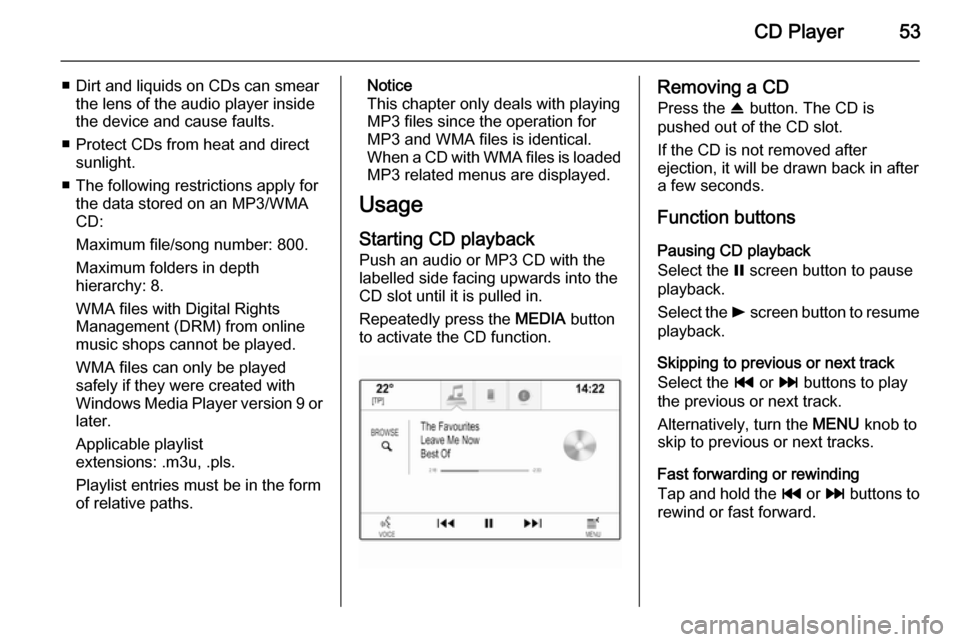
Starting CD playback Push an audio or MP3 CD with the
labelled side facing upwards into the
CD slot until it is pulled in.
Repeatedly press the MEDIA button
to activate the CD function.Removing a CD
Press the R button. The CD is
pushed out of the CD slot.
If the CD is not removed after
ejection, it will be drawn back in after
a few seconds.
Function buttons
Pausing CD playback
Select the = screen button to pause
playback.
Select the l screen button to resume
playback.
Skipping to previous or next track
Select the t or v buttons to play
the previous or next track.
Alternatively, turn the MENU knob to
skip to previous or next tracks.
Fast forwarding or rewinding
Tap and hold the t or v buttons to
rewind or fast forward.
Page 55 of 143
External devices55External devicesGeneral information.....................55
Playing audio ............................... 57
Playing movies ............................. 59General information
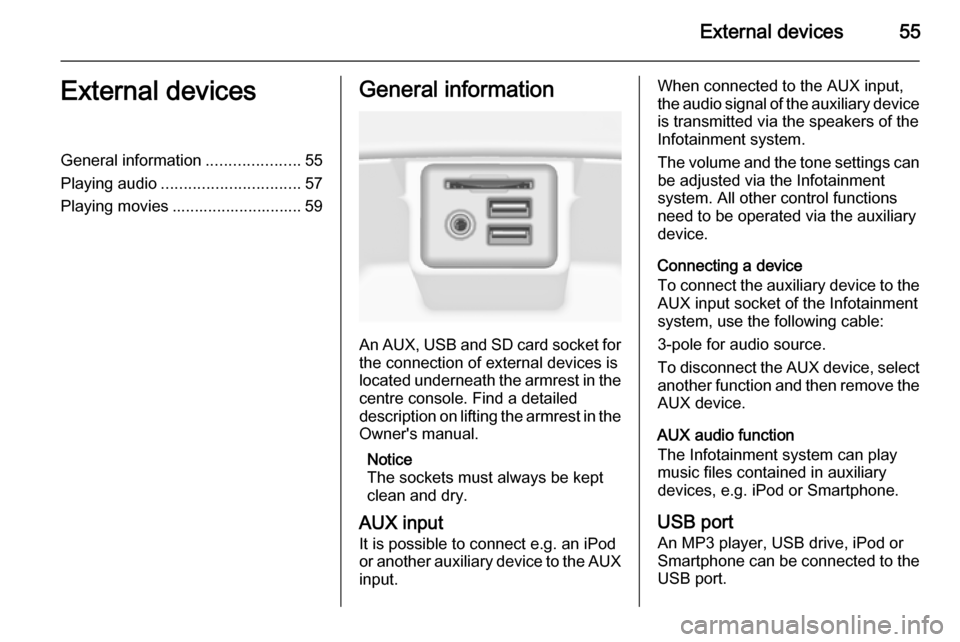
An AUX, USB and SD card socket for
the connection of external devices is
located underneath the armrest in the centre console. Find a detailed
description on lifting the armrest in the
Owner's manual.
Notice
The sockets must always be kept
clean and dry.
AUX input It is possible to connect e.g. an iPod
or another auxiliary device to the AUX
input.
When connected to the AUX input,
the audio signal of the auxiliary device is transmitted via the speakers of the
Infotainment system.
The volume and the tone settings can
be adjusted via the Infotainment
system. All other control functions
need to be operated via the auxiliary
device.
Connecting a device
To connect the auxiliary device to the AUX input socket of the Infotainment
system, use the following cable:
3-pole for audio source.
To disconnect the AUX device, select
another function and then remove the
AUX device.
AUX audio function
The Infotainment system can play
music files contained in auxiliary
devices, e.g. iPod or Smartphone.
USB port An MP3 player, USB drive, iPod or
Smartphone can be connected to the USB port.
Page 56 of 143
56External devices
When connected to the USB port, the
devices mentioned above can be
operated via the controls and menus
of the Infotainment system.
Notice
Not all MP3 players, USB drives,
iPod models or Smartphones are
supported by the Infotainment
system.
Connecting/disconnecting a device
Connect the USB device or iPod to
the USB port. For the iPod, use the
appropriate connection cable.
Notice
If a non-readable USB device or iPod is connected, a corresponding
error message will appear and the
Infotainment system will
automatically switch to the previous
function.
To disconnect the USB device or
iPod, select another function and then remove the USB storage device.Caution
Avoid disconnecting the device
during playback. This may
damage the device or the
Infotainment system.
USB audio function
The Infotainment system can play music files contained in USB storage
devices or iPod/iPhone products.
USB movie function
The Infotainment system can play
movies contained in USB storage
devices.
SD card
An SD card may be inserted in the SD
card slot.
When inserted, the SD card can be
operated via the controls and menus
of the Infotainment system.
Notice
Not all SD card types are supported
by the Infotainment system.
Inserting/removing an SD cardCaution
Never attempt to use an SD card
that has been cracked, deformed
or repaired using adhesive tape.
Doing so may damage the
equipment.
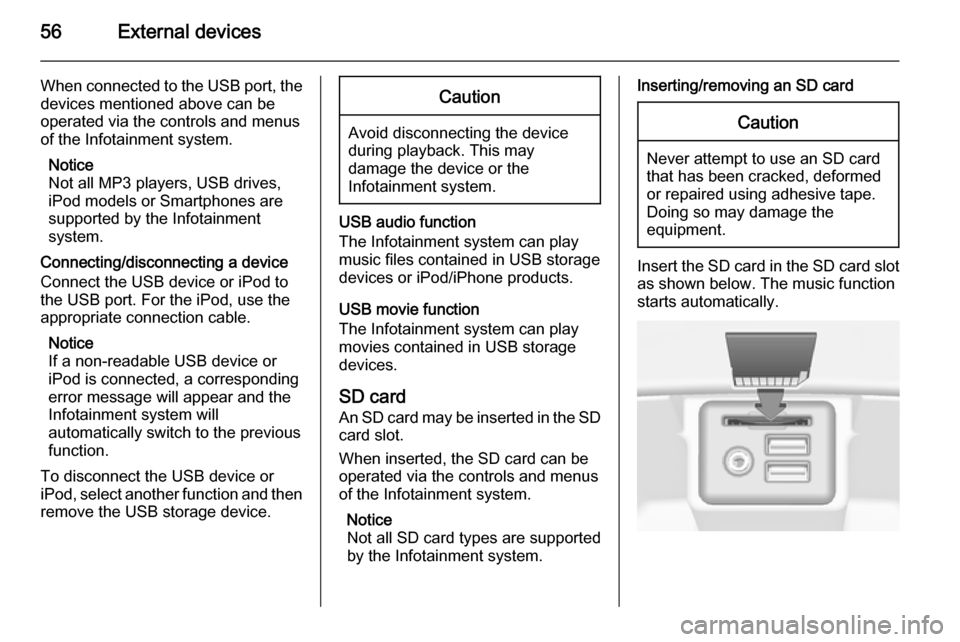
Insert the SD card in the SD card slot
as shown below. The music function
starts automatically.
Page 57 of 143

External devices57
Notice
If a non-readable SD card is connected, a corresponding error
message will appear and the
Infotainment system will
automatically switch to the previous
function.
To remove the SD card, first activate
another function. Then, gently push
the SD card deeper into the slot. The
SD card is pushed out of the slot and
may be removed.Caution
Avoid disconnecting the device
during playback. This may
damage the device or the
Infotainment system.
SD audio function
The Infotainment system can play music files stored on the SD card.
SD movie function
The Infotainment system can play movies stored on the SD card.
Bluetooth
Bluetooth enabled audio sources
(e.g. music mobile phones, MP3
players featuring Bluetooth, etc.),
which support the Bluetooth music profiles A2DP and AVRCP can be
connected wirelessly to the
Infotainment system.
Connecting a device
Find a detailed description on the
Bluetooth connection 3 87.
Bluetooth audio function
The Infotainment system can play
music files contained in Bluetooth
devices like iPod or Smartphone.
File formats Only devices formatted in the FAT32,
NTFS and HFS+ file systems are
supported.
Notice
Some files may not be played
properly. This might be due to a
different recording format or the
condition of the file.Files from online shops to which
Digital Rights Management (DRM)
has been applied cannot be played.
The Infotainment system can play the following audio and movie files stored on external devices.
Audio files
The playable audio file formats
are .mp3, .wma, .aac, .m4a and .aif.
When playing a file with ID3 tag
information, the Infotainment system
can display information, e.g. on the
track title and artist.
Movie files
The playable movie file formats
are .avi, .mpg, .mp4, .xvid and .wmv.
Common audio and video
combinations for mobile devices are
generally supported.
Playing audio
Starting playback If not connected, connect the device
3 55.
Page 58 of 143
58External devices
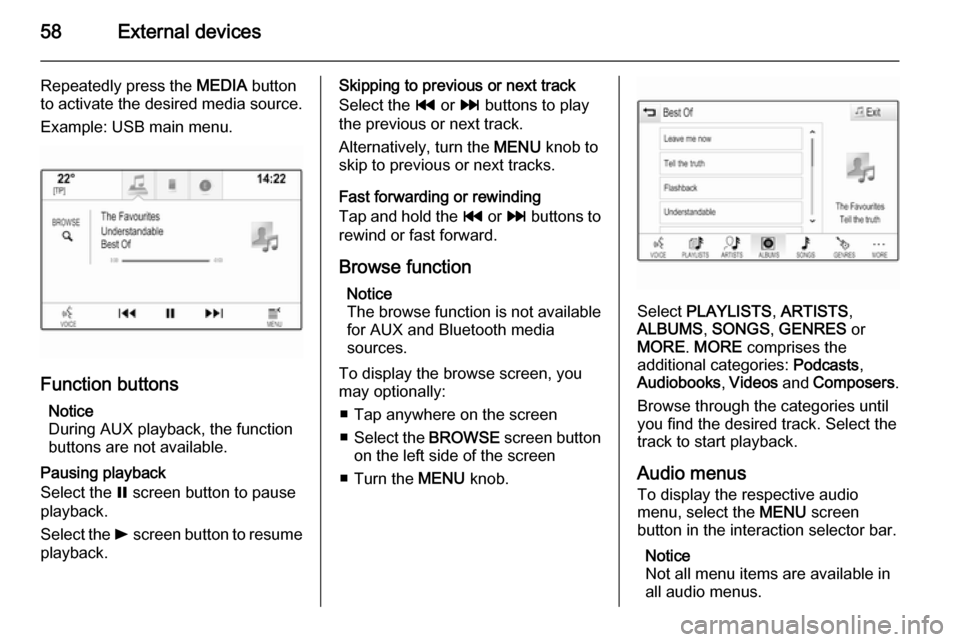
Repeatedly press the MEDIA button
to activate the desired media source.
Example: USB main menu.
Function buttons
Notice
During AUX playback, the function buttons are not available.
Pausing playback
Select the = screen button to pause
playback.
Select the l screen button to resume
playback.
Skipping to previous or next track
Select the t or v buttons to play
the previous or next track.
Alternatively, turn the MENU knob to
skip to previous or next tracks.
Fast forwarding or rewinding
Tap and hold the t or v buttons to
rewind or fast forward.
Browse function Notice
The browse function is not available
for AUX and Bluetooth media
sources.
To display the browse screen, you
may optionally:
■ Tap anywhere on the screen
■ Select the BROWSE screen button
on the left side of the screen
■ Turn the MENU knob.
Select PLAYLISTS , ARTISTS ,
ALBUMS , SONGS , GENRES or
MORE . MORE comprises the
additional categories: Podcasts,
Audiobooks , Videos and Composers .
Browse through the categories until
you find the desired track. Select the
track to start playback.
Audio menus To display the respective audio
menu, select the MENU screen
button in the interaction selector bar.
Notice
Not all menu items are available in
all audio menus.
Page 66 of 143
66Navigation
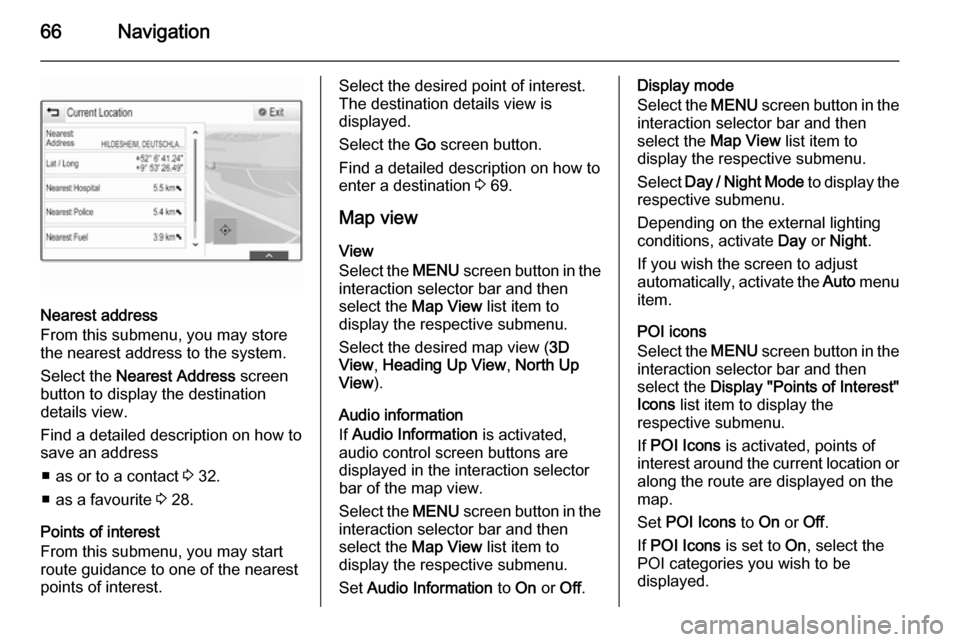
Nearest address
From this submenu, you may store
the nearest address to the system.
Select the Nearest Address screen
button to display the destination
details view.
Find a detailed description on how to save an address
■ as or to a contact 3 32.
■ as a favourite 3 28.
Points of interest
From this submenu, you may start
route guidance to one of the nearest
points of interest.
Select the desired point of interest.
The destination details view is
displayed.
Select the Go screen button.
Find a detailed description on how to
enter a destination 3 69.
Map view
View
Select the MENU screen button in the
interaction selector bar and then
select the Map View list item to
display the respective submenu.
Select the desired map view ( 3D
View , Heading Up View , North Up
View ).
Audio information
If Audio Information is activated,
audio control screen buttons are
displayed in the interaction selector
bar of the map view.
Select the MENU screen button in the
interaction selector bar and then
select the Map View list item to
display the respective submenu.
Set Audio Information to On or Off.Display mode
Select the MENU screen button in the
interaction selector bar and then
select the Map View list item to
display the respective submenu.
Select Day / Night Mode to display the
respective submenu.
Depending on the external lighting
conditions, activate Day or Night .
If you wish the screen to adjust
automatically, activate the Auto menu
item.
POI icons
Select the MENU screen button in the
interaction selector bar and then
select the Display "Points of Interest"
Icons list item to display the
respective submenu.
If POI Icons is activated, points of
interest around the current location or
along the route are displayed on the
map.
Set POI Icons to On or Off.
If POI Icons is set to On, select the
POI categories you wish to be
displayed.