phone VAUXHALL INSIGNIA 2016 Infotainment system
[x] Cancel search | Manufacturer: VAUXHALL, Model Year: 2016, Model line: INSIGNIA, Model: VAUXHALL INSIGNIA 2016Pages: 123, PDF Size: 2.33 MB
Page 23 of 123

Basic operation23The contacts list displayed upon first
access differs depending on the
application active and the devices
connected.
Changing the source To display a contacts list, press ;,
activate the phone or navigation
application and then select
CONTACTS in the interaction
selector bar.
Select Change Contacts List on the
right side of the screen. A list of all contact sources available is
displayed. The currently active
contacts list is marked with 9.Select the desired contacts list. The
respective list is displayed.
Notice
The system remembers a list chosen within an application. When re-
entering the contacts list from this
application, the list previously
selected is redisplayed.
Using the contacts list
To display a contacts list, press ;,
activate the phone or navigation
application and then select
CONTACTS in the interaction
selector bar.
Navigation application:Phone application:
To display the contact details view,
select one of the entries from the list.
The contact details view may
comprise:
● first name and last name● several phone numbers
● several email addresses
● several addresses (e.g. home and work)
● in the vehicle contacts list: category entry
Page 24 of 123

24Basic operation● in the vehicle contacts list: notesfield
● for POI entries: information on business hours, menu (e.g.
restaurant), prices etc.
Notice
The data is ordered depending on
the application active, e.g. in the
phone application, the phone
numbers are displayed first.
Select the desired entry.
Adding new contacts
To add information from the
application menus to the vehicle
contacts list, open the respective
application.
Navigation application: Select or
enter a destination 3 51. The
destination details view is displayed.
Select Save. A menu is displayed.
Phone application: Select RECENT.
Select w beside the phone number
you wish to add to the contacts list. A menu is displayed.
Select one of the options.
Create New Contact
A data category selection menu is displayed.
Select the respective data category
for the information you wish to store,
e.g. work address or mobile phone.
The contact details view is displayed.
Notice
The data categories presented in the new menu correspond to the
information you wish to store, e.g. if
the information to be stored is an
address, only address types are
presented in the list.Complete the entry and select Save
to save the contact.Add to Existing Contact
The vehicle contacts list is displayed. Select the desired contact.
The contact details view is displayed with the information to be added
shown separately on the right side of
the screen.
Select the respective data category
for the information you wish to store,
e.g. work address or mobile phone.
If you choose an existing data
category, the existing information is
overwritten.
Select Save to save the new
information.
Editing contacts
To edit a contact, open the vehicle
contact list. Select the desired contact
entry in the vehicle contacts list.
Select Edit Contact on the right side
of the screen.
Page 25 of 123

Basic operation25
The editing view is displayed.
Modifying information
Select the field you wish to modify.
Depending on the field selected, the
keyboard or keypad is displayed.
Enter your changes 3 17.
Select Save in the contact details
view to save your changes.
Adding new information
Select the field where you wish to
enter additional information.
If you wish to create a new field for a
data category already existing, e.g. a
second mobile phone number, select
w in the respective data field.
Notice
The w screen button is only
displayed if it is possible to add more information for that data category.
Depending on the field selected, the
keyboard or keypad is displayed
3 17.
Enter the new data and select the
screen button in front of the entry
field.
Select Save in the contact details
view to save your changes.
Deleting contacts
Deleting a single contact
To delete a single contact, open the
vehicle contact list. Select the desired
contact entry in the vehicle contacts
list.
Select Edit Contact on the right side
of the screen.
To delete the contact entry and all
associated information, select
Delete . A confirmation message is
displayed.
Confirm the message. The entry is
deleted.Delete the whole vehicle contacts list
To delete the whole vehicle contacts
list, open the vehicle contacts list.
Select Change Contacts List on the
right side of the screen. A list of all
available contacts sources is
displayed. The currently active
contacts list is marked with 9.
Select the ─ screen button next to
Vehicle . A confirmation message is
displayed.
Confirm the message to delete the
list.
Sorting the contacts lists By default, the lists are ordered
alphabetically by first name. If there is
no first name available, the last name is taken instead. If there is no first or
last name, one of the first characters
entered is used as sorting criteria.
The sorting order may be changed, if
first name and last name are stored in
two different fields.
To change the sorting order, select
Sort .
Choose the desired sorting order.
The list is resorted accordingly.
Page 30 of 123
30Basic operationRestore Vehicle Settings
Select Restore Vehicle Settings to
restore all vehicle personalisation
settings. A warning message is
displayed.
Select Restore . The settings are
reset.
Clear All Private Data
Select Clear All Private Data to delete
the following data:
● paired Bluetooth devices
● stored phone books
● vehicle contacts list
● destination lists
● favourites
A warning message is displayed.
Select Delete. The data is deleted.
Restore Radio Settings
Select Restore Radio Settings to
reset the following data:
● tone settings
● volume settings
● speech settings● application tray
● contacts sources
A warning message is displayed.
Select Restore . The settings are
reset.
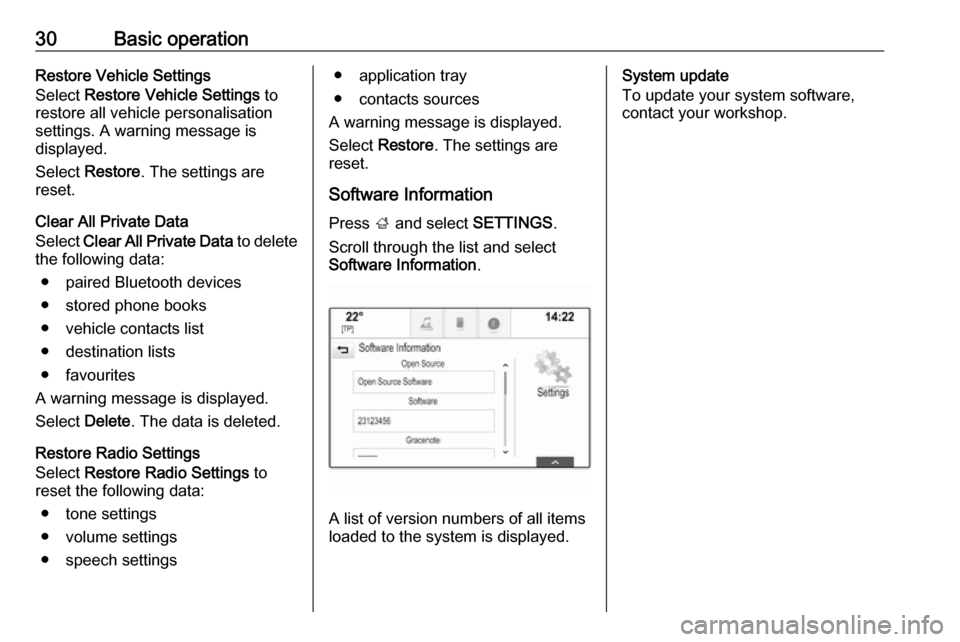
Software Information Press ; and select SETTINGS.
Scroll through the list and select
Software Information .
A list of version numbers of all items
loaded to the system is displayed.
System update
To update your system software,
contact your workshop.
Page 39 of 123

External devices39External devicesGeneral information.....................39
Playing audio ............................... 40
Playing movies ............................. 42
Using smartphone applications ...42General information
An AUX and USB card socket for the
connection of external devices is
located underneath the armrest in the centre console. Find a detailed
description on raising the armrest in
the Owner's manual.
Notice
The socket must always be kept
clean and dry.
AUX input
It is possible to connect e.g. an iPod
or another auxiliary device to the AUX
input.
The Infotainment system can play
music files contained in these
devices.
When connected to the AUX input,
the audio signal of the auxiliary device is transmitted via the speakers of the
Infotainment system.
The volume and the tone settings can
be adjusted via the Infotainment
system. All other control functions
must be operated via the auxiliary
device.Connecting/disconnecting a device
To connect the auxiliary device to the
AUX input socket of the Infotainment
system, use the following cable:
3-pole for audio source.
To disconnect the AUX device, select
another function and then remove the AUX device.
USB port An MP3 player, USB drive, iPod or
smartphone can be connected to the
USB port.
The Infotainment system can play
music files and movies contained in
these devices.
When connected to the USB port, the
devices mentioned above can be
operated via the controls and menus
of the Infotainment system.
Notice
Not all MP3 players, USB drives,
iPod models or smartphones are
supported by the Infotainment
system. Check the compatibility list
on our website.
Page 40 of 123

40External devicesConnecting/disconnecting a device
Connect the USB device or iPod to
the USB port. For the iPod, use the
appropriate connection cable.
Notice
If a non-readable USB device or
iPod is connected, a corresponding
error message appears and the
Infotainment system automatically
switches to the previous function.
To disconnect the USB device or
iPod, select another function and then
remove the USB storage device.Caution
Avoid disconnecting the device
during playback. This may
damage the device or the
Infotainment system.
Bluetooth
Bluetooth enabled audio sources
(e.g. music mobile phones, MP3
players featuring Bluetooth, etc.),
which support the Bluetooth music
profiles A2DP and AVRCP can be
connected wirelessly to the
Infotainment system.
The Infotainment system can play
music files contained in these
devices.
Connecting/disconnecting a device
For a detailed description on the
Bluetooth connection 3 69.
Bluetooth device management To change the Bluetooth device
connected, select MENU in the
interaction selector bar.
Select Manage Bluetooth Devices to
display the device list.
For a detailed description 3 69.
File formats
Only devices formatted in the FAT32, NTFS and HFS+ file systems are
supported.
Notice
Some files may not be played
properly. This might be due to a
different recording format or the
condition of the file.Files from online shops to which
Digital Rights Management (DRM)
has been applied cannot be played.
The Infotainment system can play the following audio and movie files stored
on external devices.
Audio files
The playable audio file formats
are .mp3, .wma, .aac, .m4a and .aif.
When playing a file with ID3 tag
information, the Infotainment system
can display information, e.g. on the
track title and artist.
Movie files
The playable movie file formats
are .avi, .mpg, .mp4, .xvid and .wmv.
Common audio and video
combinations for mobile devices are
generally supported.
Playing audio Starting playback
If not connected, connect the device
3 39.
Page 42 of 123

42External devicesNotice
In USB or iPod playback, the shuffle function is dependent on the filter
mode selected for song playback,
e.g. album, artist, genre.
To display the respective audio
menu, select MENU in the interaction
selector bar.
Set Shuffle - On or Shuffle - Off .
Playing movies Starting video playback
Connect the device 3 39.
Repeatedly select MEDIA in the
interaction selector bar or press
MEDIA to activate the desired media
source.
Select BROWSE and then MORE.
Select Videos and then the desired
movie file. Video playback is started.
Notice
Videos may only be played, if the
parking brake is applied.
Function buttons
Pausing playback
Select = to pause playback.
Select l to resume playback.
Skipping to previous or next file
Select t or v to play the previous
or next movie file.
Alternatively, turn MENU to skip to
previous or next movie files.
Fast forwarding or rewinding
Touch and hold t or v to rewind or
fast forward.
Alternatively, move the slider on the
time bar.
Video menu
To display the video menu, select
MENU in the interaction selector bar.
Using smartphone applications
The phone projection applications
Apple CarPlay and Android Auto 1)
display selected apps from your
smartphone on the Infotainment
screen and allow their operation
directly via the Infotainment controls.
Check with the device's manufacturer if this function is compatible with your
smartphone and if this application is
available in the country you live in.
Downloading the app
Depending on the smartphone, it may be required to first download the
application to your smartphone.
Android phone: Download the
Android Auto app to your smartphone from the Google Play store.1) Function was not available at time of printing.
Page 43 of 123

External devices43iPhone: There is no additional app
required to use Apple CarPlay. Check
on the manufacturer's website
whether Apple CarPlay is available
with your smartphone.
Activating phone projection in the
settings menu
Press ; to display the Home screen
and then select SETTINGS.
Scroll through the list and select
Apple CarPlay or Android Auto to
display a submenu.
Make sure, the respective application is activated.
Notice
If phone projection is deactivated,
you can use the USB port only for
charging your mobile device.
To display a list of all devices
registered for this function, select Manage Devices .
Connecting the mobile phone Connect the smartphone to the USB
port 3 39.Notice
The application may be launched
automatically upon connection.
Starting phone projection
To start the phone projection function,
press ; and then select
PROJECTION .
Notice
If the application is recognised by
the Infotainment system, the
application icon may change to
Apple CarPlay or Android Auto .
To start the function, you can
alternatively press and hold ; for a
few seconds.
The phone projection screen
displayed depends on your
smartphone and software version.
Returning to the Infotainment
screen
Press ;.
Page 50 of 123

50NavigationDownloading contacts data
You can exchange your vehicle
contacts list data with Infotainment
systems in other vehicles:
To upload the data to a USB device,
see "Uploading navigation data to a
USB device" above.
Connect the USB device to the
Infotainment system of another
vehicle 3 39.
A message is displayed that prompts
you to confirm the download.
After confirmation, the contacts data
is downloaded to the Infotainment
system.
The downloaded contacts are then
selectable via the CONTACTS menu
3 22.
Creating and downloading user
defined POIs (My POIs)
In addition to the predefined POIs
already stored in the Infotainment
system, you can create user defined
POIs that meet your personal
requirements. After creation, suchuser defined POIs can be
downloaded to the Infotainment
system.
For each POI, you must define the GPS coordinates (longitude and
latitude values) of the respective
location and a descriptive name.
After downloading the POI data to the Infotainment system, you will find the
respective POIs as selectable
destinations in the My POIs menu,
see "Selecting a point of interest" in chapter "Destination input" 3 51.
Creating a text file with POI data
Create a text file (e.g. by using a
simple text editor software) with an
arbitrary name and the file
extension .poi, e.g. "TomsPOIs.poi".
Notice
Character encoding UTF-8
(Unicode) must be selected when
storing the text file. Otherwise the
POI data may not be imported
correctly to the system.
Enter the POI data into the text file in
the following format:
Longitude coordinate, Latitude
coordinate, "Name of POI",
"Additional information", "Phone
number"
Example:
7.0350000, 50.6318040, "Michaels
Home", "Bonn, Hellweg 6",
"02379234567" , see image above.
The GPS coordinates must be expressed in decimal degrees and
can be taken, e.g., from a
topographical map.
Page 51 of 123

Navigation51The additional information and phone
number strings are optional. If, e.g.,
no additional information is required,
"" must be entered at the respective
position.
Example:
7.0350000, 50.6318040, "Michaels
Home", "", "02379234567" .
The POI name and the additional
information string may not exceed 60 characters each. The phone number
string may not exceed 30 characters.
The POI data of each destination
address must be entered in a single
separate line, see image above.
Storing the POI data on a USB drive
In the root directory of a USB drive,
create a folder named " myPOIs",
e.g. "F:\myPOIs", where "F:\" is the
root directory of the USB drive.
In the "myPOIs" folder, store the text
file with your POIs, e.g. "F:\myPOIs
\TomsPOIs.poi".Organising the POI data in several
subfolders
Optionally, you can organise the text
files in several randomly named
subfolders (max. depth of subfolder
structure: 2).
Examples: F:\myPOIs\AnnsPOIs or F:\myPOIs\MyJourney\London,
where F:\ is the root directory of the
USB drive.
Notice
In a folder only subfolders or only POI files may be stored. A mixture of both will not be imported correctly to
the system.
After downloading individual POI data
organised in that way to the
Infotainment system (see download
description further below), the My
POIs menu will show a list of
selectable submenus.
After selecting a submenu, further
submenus or the related list of
imported POI categories will be
displayed.Downloading the POI data to the
Infotainment system
Connect the USB device with your
user defined POI data to the USB port 3 39 of the Infotainment system.
A message is displayed that prompts
you to confirm the download.
After confirmation, the POI data will
be downloaded to the Infotainment system.
The downloaded POIs are then
selectable as destinations via the My
POIs menu, see "Selecting a point of
interest" in chapter "Destination input" 3 51.
Destination input
The navigation application provides
different options to set a destination
for route guidance.
Press ; and then select NAV to
display the navigation map.
Select DESTINATION in the
interaction selector bar and then select one of the different address
entry options.