display VAUXHALL INSIGNIA 2016 Owner's Guide
[x] Cancel search | Manufacturer: VAUXHALL, Model Year: 2016, Model line: INSIGNIA, Model: VAUXHALL INSIGNIA 2016Pages: 327, PDF Size: 9.26 MB
Page 117 of 327
Instruments and controls115Economy trend
Displays the average consumption
development over a distance of
50 miles. Filled segments display the
consumption in 5 mile steps and
shows the effect of topography or driving behaviour on fuel
consumption.
Economy index
The current fuel consumption is
indicated on an economic scale. For
economical driving adapt your driving
style to keep the indicator within the
Eco area. Indicator outside the Eco
area means higher fuel consumption. On Baselevel display, the currentconsumption value is indicated.
Shift indication : On Baselevel display
the current gear is indicated inside an arrow. The figure above recommends
upshifting for fuel saving reasons.
Blank page
Shows a blank page without any
information.
Performance Menu
Performance menu is only viewable
on Uplevel display.The following list contains all possible Performance Menu pages. Somemay not be available for your
particular vehicle.
Press Q or P to select a page:
● oil temperature
● oil pressure
● battery voltage
● g-force indication
● lap timer
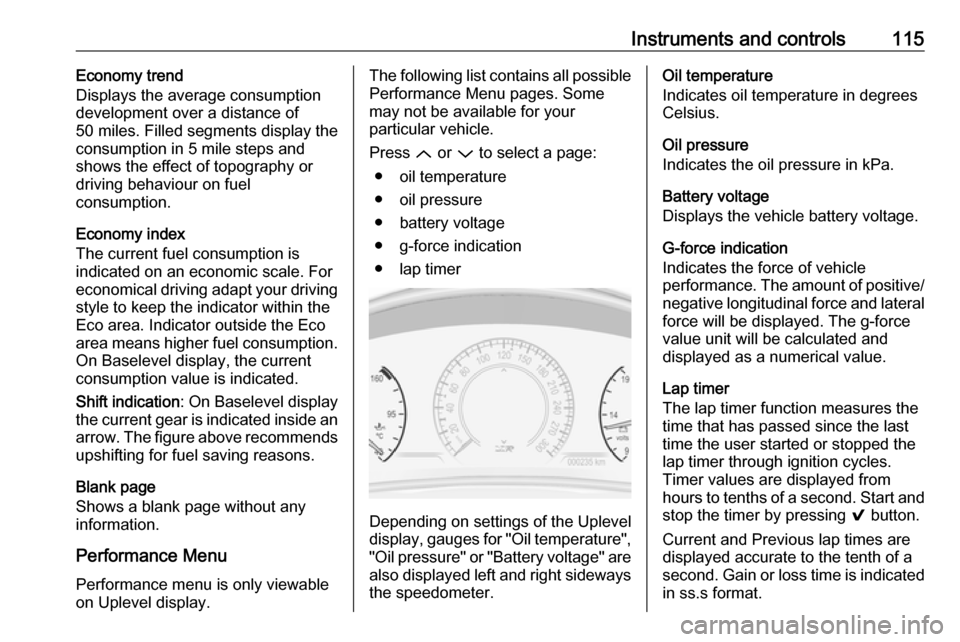
Depending on settings of the Uplevel
display, gauges for "Oil temperature",
"Oil pressure" or "Battery voltage" are
also displayed left and right sideways the speedometer.
Oil temperature
Indicates oil temperature in degrees
Celsius.
Oil pressure
Indicates the oil pressure in kPa.
Battery voltage
Displays the vehicle battery voltage.
G-force indication
Indicates the force of vehicle
performance. The amount of positive/
negative longitudinal force and lateral force will be displayed. The g-force
value unit will be calculated and
displayed as a numerical value.
Lap timer
The lap timer function measures the time that has passed since the last
time the user started or stopped the lap timer through ignition cycles.
Timer values are displayed from
hours to tenths of a second. Start and
stop the timer by pressing 9 button.
Current and Previous lap times are displayed accurate to the tenth of a second. Gain or loss time is indicated in ss.s format.
Page 118 of 327

116Instruments and controlsAudio Menu
Audio menu enables browsing for
music, selecting from favourites or
changing the audio source.
See Infotainment manual.
Phone Menu
Phone menu enables managing and performing of phone calls, scrolling through contacts or operating
handsfree phoning.
See Infotainment manual.
Navigation Menu Navigation menu enables route
guidance.
See Infotainment manual.
Settings Menu The following list contains all possible Settings Menu pages. Some may not
be available for your particular
vehicle. Depending on the display
some functions are symbolised.Turn the adjuster wheel or press Q
or P to select a page and follow the
instructions given in the submenus:
● units
● display themes
● info pages
● speed warning
● tyre loading
● software information
Units
Press > while units is displayed.
Select imperial or metric units by
pressing 9.
Display themes
Press > while display themes is
displayed. Select Sport or Touring
mode by pressing 9. Sport mode
includes more vehicle information,
Tour mode includes more media
information.
This setting is only available with
Uplevel display.Info pages
Press > while Info pages is displayed.
A list of all items in the Info Menu is displayed. Select the functions to be
displayed in the Info page by pressing
9 . Selected pages have a 9 in a
checkbox. Non viewable functions
have a blank checkbox. See Info
Menu above.
Speed warning
The speed warning display allows
you to set a speed that you do not
want to exceed.
To set the speed warning, press >
while the page is displayed. Press
Q or P to adjust the value. Press
9 to set the speed. Once the speed
is set, this feature can be turned off by
pressing 9 while viewing this page. If
the selected speed limit is exceeded,
a pop-up warning is displayed with a
chime.
Tyre loading
The tyre pressure category according
to the actually inflated tyre pressure
can be selected 3 254.
Page 119 of 327

Instruments and controls117Software information
Displays the open source software
information.
Valet mode
Some functions of the Driver
Information Centre and the Colour-
Info-Display can be limited for some
drivers.
Activation or deactivation of valet
mode can be set in the menu
Settings in the vehicle personalisation
menu.
Colour-Info-Display 3 117.
Vehicle personalisation 3 121.
For more information see
Infotainment manual.
Colour-Info-Display The Colour-Info-Display is located in
the instrument panel near the
instrument cluster.Depending on the vehicle
configuration the vehicle has a
● 4.2'' colour display
or
● 8'' colour display with Touch-
Screen functionality
The Info displays indicate: ● time 3 89
● outside temperature 3 89
● date 3 89
● Infotainment system, see description in the Infotainment
manual
● navigation, see description in the
Infotainment manual
● system messages
● vehicle messages 3 119
● settings for vehicle personalisation 3 121
4.2'' Colour display
Selecting menus and settings
Menus and settings are accessed via the display.
Press X to switch on the display.
Press ; to display the homepage.
Turn MENU to select a menu display
icon.
Press MENU to confirm a selection
Press BACK to exit a menu without
changing a setting.
Press ; to return to the homepage.
For further information, see
Infotainment manual.
Vehicle personalisation 3 121.
Page 120 of 327
118Instruments and controls8'' Colour display
Selecting menus and settings
There are three options to operate the
system:
● via buttons below the display
● directly per touchscreen operation by the finger
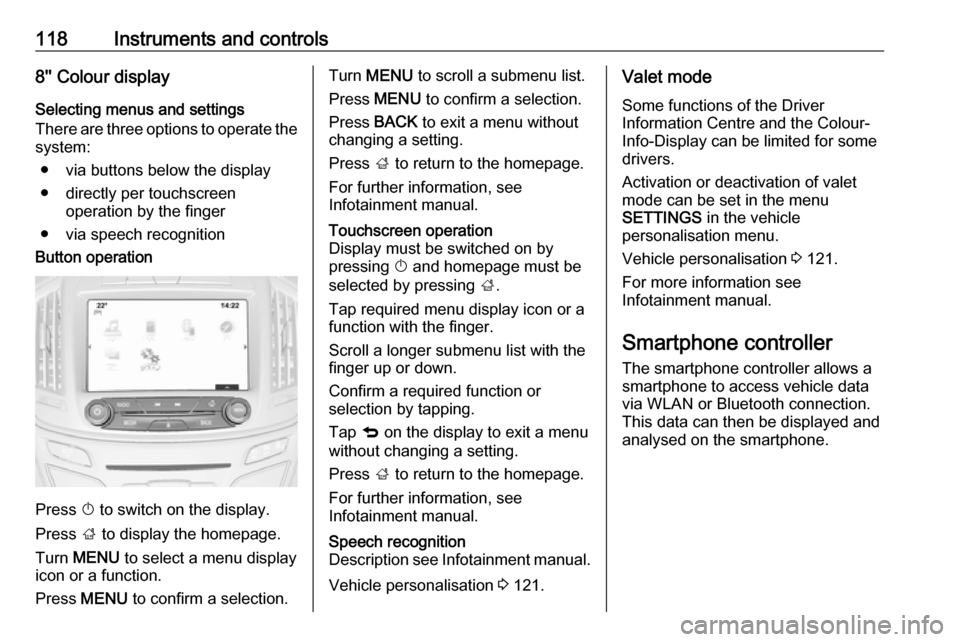
● via speech recognitionButton operation
Press X to switch on the display.
Press ; to display the homepage.
Turn MENU to select a menu display
icon or a function.
Press MENU to confirm a selection.
Turn MENU to scroll a submenu list.
Press MENU to confirm a selection.
Press BACK to exit a menu without
changing a setting.
Press ; to return to the homepage.
For further information, see
Infotainment manual.Touchscreen operation
Display must be switched on by
pressing X and homepage must be
selected by pressing ;.
Tap required menu display icon or a function with the finger.
Scroll a longer submenu list with the
finger up or down.
Confirm a required function or
selection by tapping.
Tap q on the display to exit a menu
without changing a setting.
Press ; to return to the homepage.
For further information, see
Infotainment manual.Speech recognition
Description see Infotainment manual.
Vehicle personalisation 3 121.
Valet mode
Some functions of the Driver
Information Centre and the Colour-
Info-Display can be limited for some
drivers.
Activation or deactivation of valet
mode can be set in the menu
SETTINGS in the vehicle
personalisation menu.
Vehicle personalisation 3 121.
For more information see
Infotainment manual.
Smartphone controller
The smartphone controller allows a
smartphone to access vehicle data
via WLAN or Bluetooth connection.
This data can then be displayed and analysed on the smartphone.
Page 121 of 327
Instruments and controls119Vehicle messages
Messages are indicated in the Driver
Information Centre, in some cases
together with a warning and signal
buzzer.
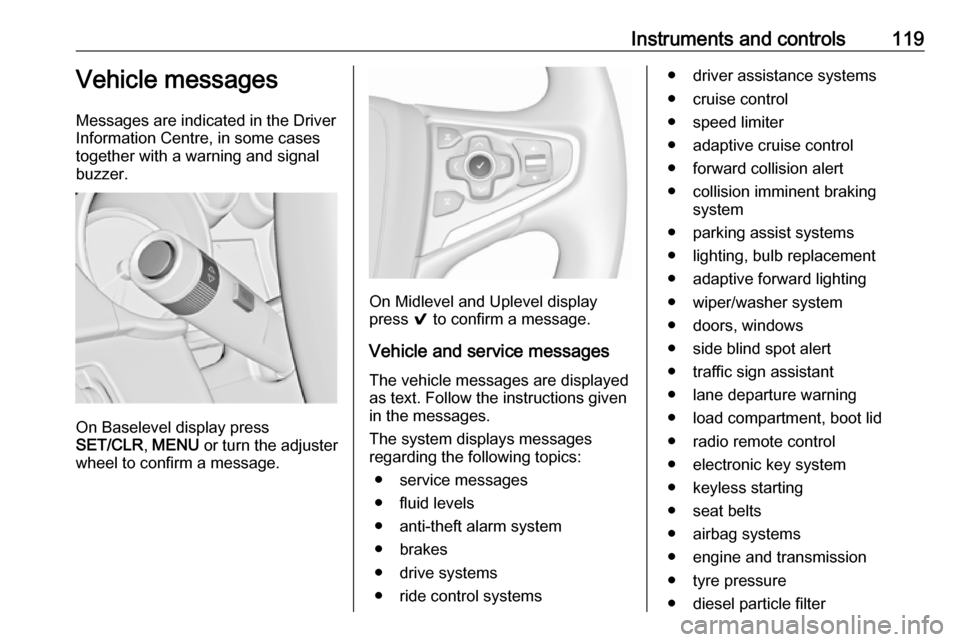
On Baselevel display press
SET/CLR , MENU or turn the adjuster
wheel to confirm a message.
On Midlevel and Uplevel display
press 9 to confirm a message.
Vehicle and service messages The vehicle messages are displayed
as text. Follow the instructions given
in the messages.
The system displays messages
regarding the following topics:
● service messages
● fluid levels
● anti-theft alarm system
● brakes
● drive systems
● ride control systems
● driver assistance systems
● cruise control
● speed limiter
● adaptive cruise control
● forward collision alert
● collision imminent braking system
● parking assist systems
● lighting, bulb replacement
● adaptive forward lighting
● wiper/washer system
● doors, windows
● side blind spot alert
● traffic sign assistant
● lane departure warning
● load compartment, boot lid
● radio remote control
● electronic key system
● keyless starting
● seat belts
● airbag systems
● engine and transmission
● tyre pressure
● diesel particle filter
Page 122 of 327

120Instruments and controls● vehicle battery status
● selective catalytic reduction, diesel exhaust fluid (DEF),
AdBlue 3 164
Messages in the
Colour-Info-Display
Some important messages may
appear additionally in the
Colour-Info-Display. Press the
multifunction knob to confirm a
message. Some messages only pop-
up for a few seconds.
Warning chimes
When starting the engine or whilst driving
Only one warning chime will sound at a time.
The warning chime regarding not
fastened seat belts has priority over
any other warning chime.
● If seat belt is not fastened.
● If a door or the tailgate is not fully
closed when starting off.● If a certain speed is exceeded with parking brake applied.
● If adaptive cruise control deactivates automatically.
● If approaching a vehicle ahead too closely.
● If a programmed speed or speed
limit is exceeded.
● If a warning message appears in the Driver Information Centre.
● If the electronic key is not in the passenger compartment.
● If the parking assist detects an object.
● If an unintended lane change occurs.
● If the diesel particle filter has reached the maximum filling
level.
● If AdBlue needs to be refilled.
When the vehicle is parked and/or the driver's door is opened
● With exterior lights on.
● If the trailer hitch is not engaged.During an Autostop
● If the driver's door is opened.
Battery voltage
When the vehicle battery voltage is
running low, a warning message will
appear in the Driver Information
Centre.
1. Switch off any electrical consumers which are not requiredfor a safe ride, e.g. seat heating,
heated rear window or other main consumers.
2. Charge the vehicle battery by driving continuously for a while or
by using a charging device.
The warning message will disappear
after the engine has been started
twice without a voltage drop.
If the vehicle battery cannot be
recharged, have the cause of the fault
remedied by a workshop.
Page 123 of 327
Instruments and controls121Vehicle personalisation
The vehicle's behaviour can be
personalised by changing the settings in the Colour-Info-Display.
Some of the personal settings for
different drivers can be memorised
individually for each vehicle key.
Memorised settings 3 23.
Depending on vehicle equipment and
country-specific regulations some of
the functions described below might
not be available.
Some functions are only displayed or
active when the engine is running.
Personal settings Following the changing of personal
settings is described via the buttons
below the display. This is valid for
4.2'' as well as 8'' Colour-Info-Display.
Additionally, the 8'' display is operable
as a touchscreen. See description
'Colour-Info-Display' 3 117 and the
Infotainment manual.
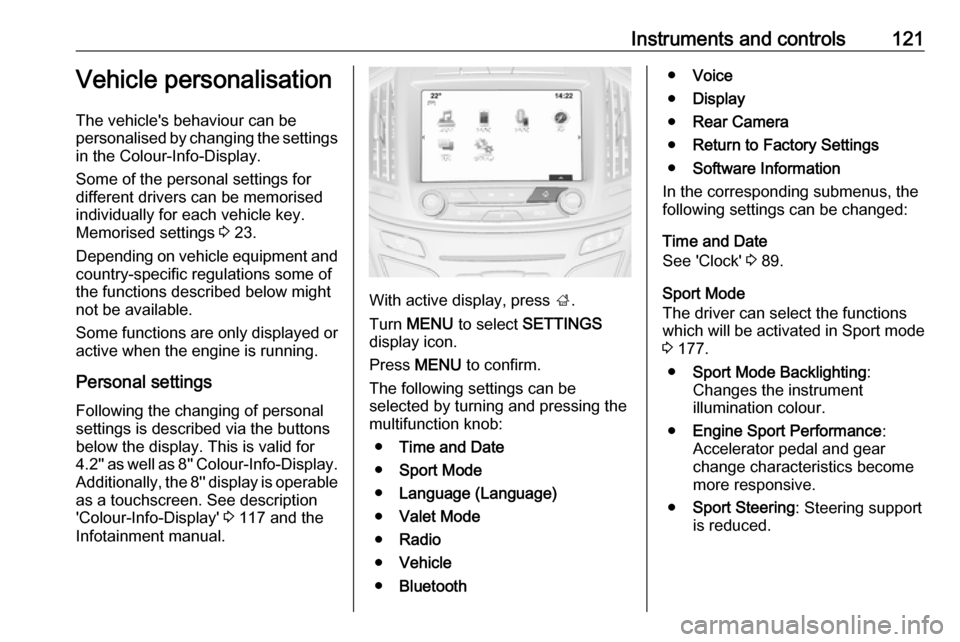
With active display, press ;.
Turn MENU to select SETTINGS
display icon.
Press MENU to confirm.
The following settings can be selected by turning and pressing the
multifunction knob:
● Time and Date
● Sport Mode
● Language (Language)
● Valet Mode
● Radio
● Vehicle
● Bluetooth
●Voice
● Display
● Rear Camera
● Return to Factory Settings
● Software Information
In the corresponding submenus, the
following settings can be changed:
Time and Date
See 'Clock' 3 89.
Sport Mode
The driver can select the functions
which will be activated in Sport mode
3 177.
● Sport Mode Backlighting :
Changes the instrument
illumination colour.
● Engine Sport Performance :
Accelerator pedal and gear
change characteristics become
more responsive.
● Sport Steering : Steering support
is reduced.
Page 125 of 327

Instruments and controls123Rainsense Wipers: Activates or
deactivates automatic wiping
with rain sensor.
Auto Wipe in Reverse Gear :
Activates or deactivates
automatic switching on of the
rear window wiper when reverse
gear is engaged.
● Lighting
Vehicle Locator Lights : Activates
or deactivates the welcome
lighting.
Exit Lighting : Activates or
deactivates and changes the
duration of exit lighting.
Left or Right Hand Traffic :
Changes between lighting for left or right hand traffic.
Adaptive Forward Lighting :
Changes the settings of the
functions of the adaptive forward
lighting.
● Power Door Locks
Unlocked Door Anti-Lockout :
Activates or deactivates the
automatic driver's door locking
function when the door is open.Auto Door Lock : Activates or
deactivates the automatic door locking function after switching
on ignition.
Auto Door Unlock : Changes the
configuration to unlock only the
driver's door or the whole vehicle after switching off ignition.
Delayed Door Lock : Activates or
deactivates the delayed door
locking function. This feature
delays the actual locking of the
doors until all doors are closed.
● Remote Lock, Unlock, Start
Remote Unlock Light Feedback :
Activates or deactivates the
hazard warning flasher feedback whilst unlocking.
Remote Lock Feedback :
Changes what kind of feedback
is given when locking the vehicle.
Remote Door Unlock : Changes
the configuration to unlock only
the driver's door or the whole
vehicle whilst unlocking.
Relock Remote Unlocked Doors :
Activates or deactivates the
automatic relock function afterunlocking without opening the
vehicle.
Passive Door Lock : Activates or
deactivates the passive locking
function. This feature locks the
vehicle automatically after
several seconds if all doors have
been closed and an electronic
key has been removed from the
vehicle.
Remote Left in Vehicle Alert :
Activates or deactivates the
warning chime when the
electronic key remains in the
vehicle.
Bluetooth
See Infotainment manual.
Voice
See Infotainment manual.
Display
See Infotainment manual.
Rear Camera
Guidance Lines : Activates or
deactivates the guiding lines.
Page 127 of 327

Instruments and controls125Notice
Depending on the equipment, the
OnStar buttons can also be
integrated in the rear view mirror.
Privacy button
Press and hold j until an audio
message is heard to activate or
deactivate the transmission of the
vehicle location.
Press j to answer a call or to end a
call to an OnStar advisor.
Press j to access the Wi-Fi settings.
OnStar button
Press Z to establish a connection to
an OnStar advisor.
SOS button
Press [ to establish a priority
emergency connection to a specially
trained emergency advisor.
Status light
Green: The system is ready.
Green flashing: The system is on a
call.
Red: A problem arose.
Off: System is off.Red / green flashing for a short period
of time: Transmission of the vehicle
location has been deactivated.
OnStar services
OnStar emergency services
OnStar emergency provides a service
with specially trained emergency
advisors for contact, assistance and
information during an emergency.
In the case of an emergency situation including vehicle breakdown, a flat
tyre or empty fuel tank, press [ and
talk to the advisor. The advisor then contacts emergency or assistance
service providers and directs them to
your vehicle.
In the case of an accident with
activation of airbags or belt
tensioners, an automatic emergency
call is established. The advisor is
immediately connected to your
vehicle to see whether help is
needed.
OnStar Wi-Fi hotspot
The Wi-Fi hotspot of the vehicle
provides internet connectivity through
the 4G/LTE mobile network.Notice
The Wi-Fi hotspot functionality is not
available for all markets.
Up to seven devices may be
connected.
To connect a mobile device with the
OnStar Wi-Fi hotspot:
1. Press j and then select Wi-Fi
settings on the Info-Display. The
settings displayed include the Wi- Fi hotspot name (SSID),
password and connection type.
2. Start a Wi-Fi network search on your mobile device.
3. Select your vehicle hotspot (SSID) when listed.
4. When prompted, enter the password on your mobile device.
Notice
To change the SSID or password,
select Z and talk to an OnStar
advisor or logon to your account.
To switch off the Wi-Fi hotspot
functionality, press Z to call an
OnStar advisor.
Page 128 of 327

126Instruments and controlsSmartphone app
With the My Vauxhall smartphone
app, some vehicle functions can be
operated via a smartphone.
The following functions are available: ● Lock or unlock doors.
● Honk horn or flash lights.
● Check fuel level, engine oil life and tyre pressure (only with tyre
pressure monitoring system).
● Send navigation destination to the vehicle, if equipped with a
built-in navigation system.
● Locate vehicle on a map.
● Manage Wi-Fi settings.
To operate these functions, download the app from the respective app store.
Remote service
If desired, use any phone to call an
OnStar advisor, who can remotely
operate specific vehicle functions.
Find the respective OnStar phone
number on our country-specific
website.The following functions are available:
● Lock or unlock doors.
● Provide information on the vehicle location.
● Honk horn or flash lights.
Stolen vehicle assistance
If a vehicle is stolen, the OnStar
stolen vehicle assistance service can
provide support in locating and
recovering the vehicle.Theft alert
When the anti-theft alarm system is
triggered, a notification is sent to
OnStar. You are then informed about
this event by text message or email.
If required, report the theft to the
authorities and request OnStar stolen
vehicle assistance. Use any phone to call an OnStar advisor. Find the
respective OnStar phone number on
our country-specific website.Remote ignition block
By sending remote signals, OnStar
can block the ignition cycle
preventing the vehicle from restarting once it has been turned off.On-demand diagnostics
At any time e.g. if the vehicle displays a service message, press Z to
contact an OnStar advisor and ask to complete a real-time diagnostic check
to directly determine the issue.
Depending on the results, the advisor
will provide further support.
Monthly vehicle diagnostics
The vehicle automatically transmits
diagnostic data to OnStar which
sends a monthly email report to you
and your preferred workshop.
Notice
The workshop notification function
can be disabled in your account.
The report contains the status of key
operating systems of the vehicle like
engine, transmission, airbags,
antilock brakes, and other major
systems. It also provides information
on possible maintenance items and
tyre pressure (only with tyre pressure
monitoring system).
To look at the information in greater
detail, select the link within the email
and log into your account.