phone VAUXHALL INSIGNIA 2017 Owner's Manual
[x] Cancel search | Manufacturer: VAUXHALL, Model Year: 2017, Model line: INSIGNIA, Model: VAUXHALL INSIGNIA 2017Pages: 327, PDF Size: 9.34 MB
Page 57 of 327
Seats, restraints55pretensioners. Do not make anymodifications to belt pretensioner
components as this will invalidate
the vehicle type approval.
Three-point seat belt
Fasten
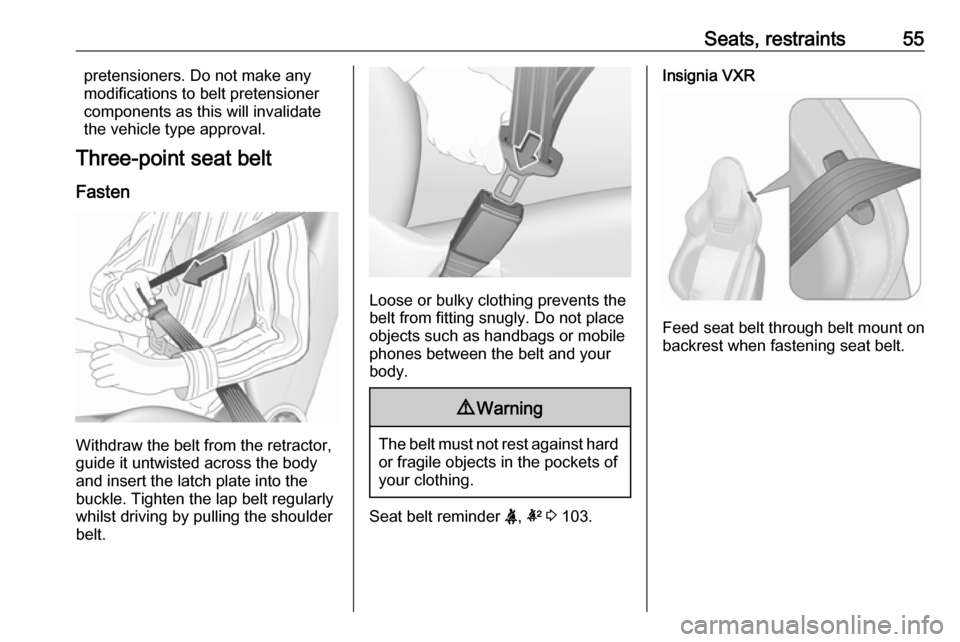
Withdraw the belt from the retractor,
guide it untwisted across the body
and insert the latch plate into the
buckle. Tighten the lap belt regularly
whilst driving by pulling the shoulder
belt.
Loose or bulky clothing prevents the
belt from fitting snugly. Do not place
objects such as handbags or mobile
phones between the belt and your body.
9 Warning
The belt must not rest against hard
or fragile objects in the pockets of
your clothing.
Seat belt reminder X, k 3 103.
Insignia VXR
Feed seat belt through belt mount on
backrest when fastening seat belt.
Page 86 of 327

84Instruments and controlsInstruments and
controlsControls ....................................... 85
Steering wheel adjustment ........85
Steering wheel controls .............85
Heated steering wheel ...............85
Horn ........................................... 86
Windscreen wiper/washer .........86
Rear window wiper/washer .......88
Outside temperature ..................89
Clock ......................................... 89
Power outlets ............................. 91
Ashtrays .................................... 92
Warning lights, gauges and indi‐ cators ........................................... 93
Instrument cluster ......................93
Speedometer ............................. 99
Odometer .................................. 99
Trip odometer ............................ 99
Tachometer ............................. 100
Fuel gauge .............................. 100
Fuel selector ............................ 101
Engine coolant temperature gauge ..................................... 101
Service display ........................ 101
Control indicators ....................103Turn signal............................... 103
Seat belt reminder ...................103
Airbag and belt tensioners .......104
Airbag deactivation ..................104
Charging system .....................104
Malfunction indicator light ........105
Brake and clutch system .........105
Operate pedal .......................... 105
Electric parking brake ..............105
Electric parking brake fault ......105
Antilock brake system (ABS) ...106
Upshift ..................................... 106
Variable effort steering ............106
Following distance ...................106
Lane departure warning ..........106
Ultrasonic parking assist .........106
Electronic Stability Control off . 107
Electronic Stability Control and Traction Control system .........107
Traction Control system off .....107
Engine coolant temperature ....107
Preheating ............................... 107
Diesel particle filter ..................107
AdBlue ..................................... 107
Tyre pressure monitoring system .................................... 108
Engine oil pressure ..................108
Low fuel ................................... 108
Immobiliser .............................. 108
Autostop .................................. 109Exterior light............................ 109
High beam ............................... 109
High beam assist .....................109
Adaptive forward lighting .........109
Fog light ................................... 109
Rear fog light ........................... 109
Cruise control .......................... 109
Adaptive cruise control ............109
Vehicle detected ahead ...........109
Speed limiter ........................... 110
Traffic sign assistant ................110
Door open ................................ 110
Information displays ...................110
Driver Information Centre ........110
Colour-Info-Display ..................117
Smartphone controller .............118
Vehicle messages ......................119
Warning chimes .......................119
Battery voltage ........................ 120
Vehicle personalisation ..............120
Telematics service .....................124
OnStar ..................................... 124
Page 87 of 327
Instruments and controls85Controls
Steering wheel adjustment
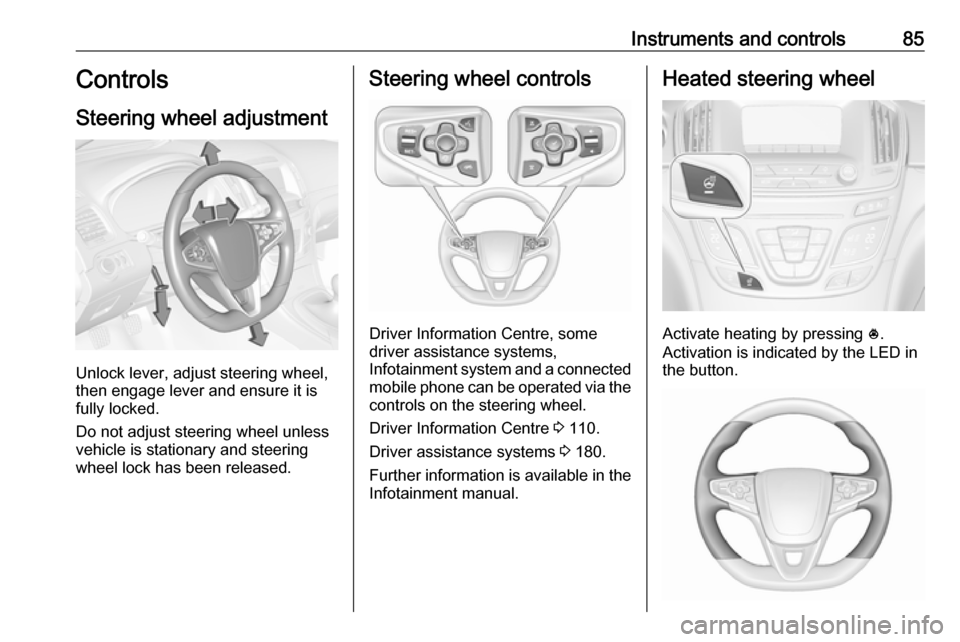
Unlock lever, adjust steering wheel,
then engage lever and ensure it is
fully locked.
Do not adjust steering wheel unless
vehicle is stationary and steering
wheel lock has been released.
Steering wheel controls
Driver Information Centre, some
driver assistance systems,
Infotainment system and a connected
mobile phone can be operated via the controls on the steering wheel.
Driver Information Centre 3 110.
Driver assistance systems 3 180.
Further information is available in the
Infotainment manual.
Heated steering wheel
Activate heating by pressing *.
Activation is indicated by the LED in
the button.
Page 112 of 327

110Instruments and controlsIlluminates yellowThe distance to a preceding moving
vehicle gets too small or when
approaching another vehicle too
rapidly.
Forward collision alert 3 191,
Adaptive cruise control 3 183.
Speed limiter L illuminates white or green.
Illuminates white The system is on.
Illuminates green
Speed limiter is active. Set speed is
indicated near L symbol.
Speed limiter 3 182.
Traffic sign assistant
L displays detected traffic signs as
control indicator.
Traffic sign assistant 3 208.Door open
h illuminates red.
A door or the tailgate is open.Information displays
Driver Information Centre The Driver Information Centre is
located in the instrument cluster.
Depending on the version and the
instrument cluster, the Driver
Information Centre is available as
Baselevel display, Midlevel display or Uplevel display.
Driver Information Centre indicates
depending on the equipment:
● overall and trip odometer
● vehicle information
● trip/fuel information
● economic information
● performance information
● vehicle and warning messages
● audio and infotainment information
● phone information
● navigation information
● vehicle settings
Page 114 of 327
112Instruments and controls●Phone
● Navigation
● Settings
Some of the displayed functions differ
when the vehicle is being driven or at
a standstill. Some functions are only
available when the vehicle is being
driven.
Uplevel instrument cluster can be
displayed as Sport mode or Tour
mode. See below: Settings Menu,
Display Themes.
Vehicle personalisation 3 120.
Memorised settings 3 23.
Selecting menus and functions
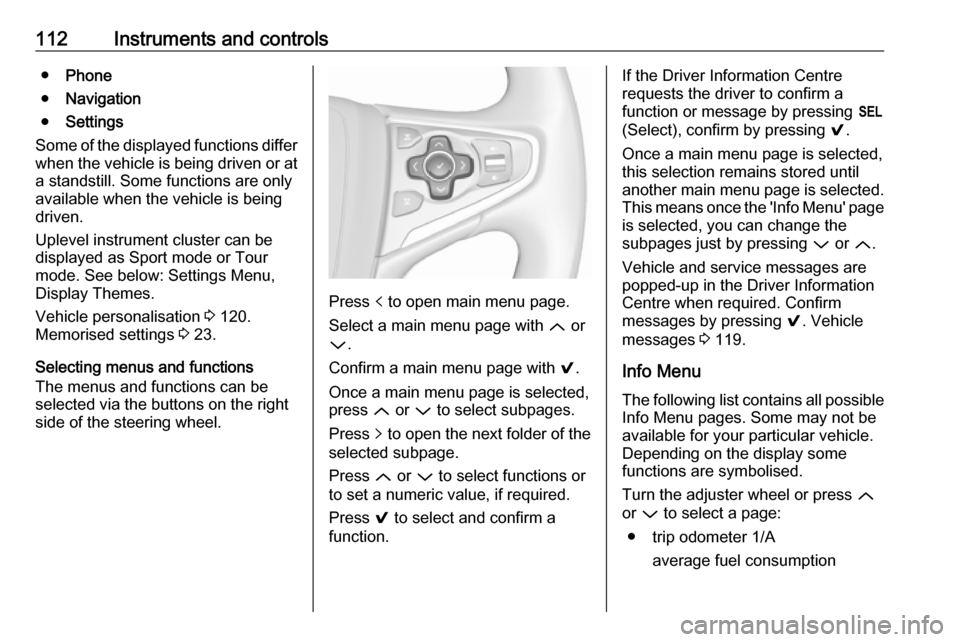
The menus and functions can be
selected via the buttons on the right
side of the steering wheel.
Press p to open main menu page.
Select a main menu page with Q or
P .
Confirm a main menu page with 9.
Once a main menu page is selected, press Q or P to select subpages.
Press q to open the next folder of the
selected subpage.
Press Q or P to select functions or
to set a numeric value, if required.
Press 9 to select and confirm a
function.
If the Driver Information Centre
requests the driver to confirm a
function or message by pressing H
(Select), confirm by pressing 9.
Once a main menu page is selected, this selection remains stored until
another main menu page is selected.
This means once the 'Info Menu' page
is selected, you can change the
subpages just by pressing P or Q.
Vehicle and service messages are
popped-up in the Driver Information
Centre when required. Confirm
messages by pressing 9. Vehicle
messages 3 119.
Info Menu The following list contains all possible Info Menu pages. Some may not be
available for your particular vehicle.
Depending on the display some
functions are symbolised.
Turn the adjuster wheel or press Q
or P to select a page:
● trip odometer 1/A average fuel consumption
Page 118 of 327

116Instruments and controlsAudio Menu
Audio menu enables browsing for
music, selecting from favourites or
changing the audio source.
See Infotainment manual.
Phone Menu
Phone menu enables managing and performing of phone calls, scrolling through contacts or operating
handsfree phoning.
See Infotainment manual.
Navigation Menu Navigation menu enables route
guidance.
See Infotainment manual.
Settings Menu The following list contains all possible Settings Menu pages. Some may not
be available for your particular
vehicle. Depending on the display
some functions are symbolised.Turn the adjuster wheel or press Q
or P to select a page and follow the
instructions given in the submenus:
● units
● display themes
● info pages
● speed warning
● tyre loading
● software information
Units
Press > while units page is displayed.
Select imperial or metric units by
pressing 9.
Display themes
Press > while display themes is
displayed. Select Sport or Touring
mode by pressing 9. Sport mode
includes more vehicle information, Tour mode includes more media information.
This setting is only available with
Uplevel display.Info pages
Press > while Info pages is displayed.
A list of all items in the Info Menu is
displayed. Select the functions to be
displayed in the Info page by pressing 9 . Selected pages have a 9 in a
checkbox. Non viewable functions
have a blank checkbox. See Info
Menu above.
Speed warning
The speed warning display allows
you to set a speed that you do not
want to exceed.
To set the speed warning, press >
while the page is displayed. Press
Q or P to adjust the value. Press
9 to set the speed. Once the speed
is set, this feature can be turned off by
pressing 9 while viewing this page. If
the selected speed limit is exceeded,
a pop-up warning is displayed with a
chime.
Tyre loading
The tyre pressure category according to the actual tyre inflation pressure
can be selected 3 255.
Page 120 of 327
118Instruments and controls8'' Colour display
Selecting menus and settings
There are three options to operate the
system:
● via buttons below the display
● directly per touchscreen operation by the finger
● via speech recognitionButton operation
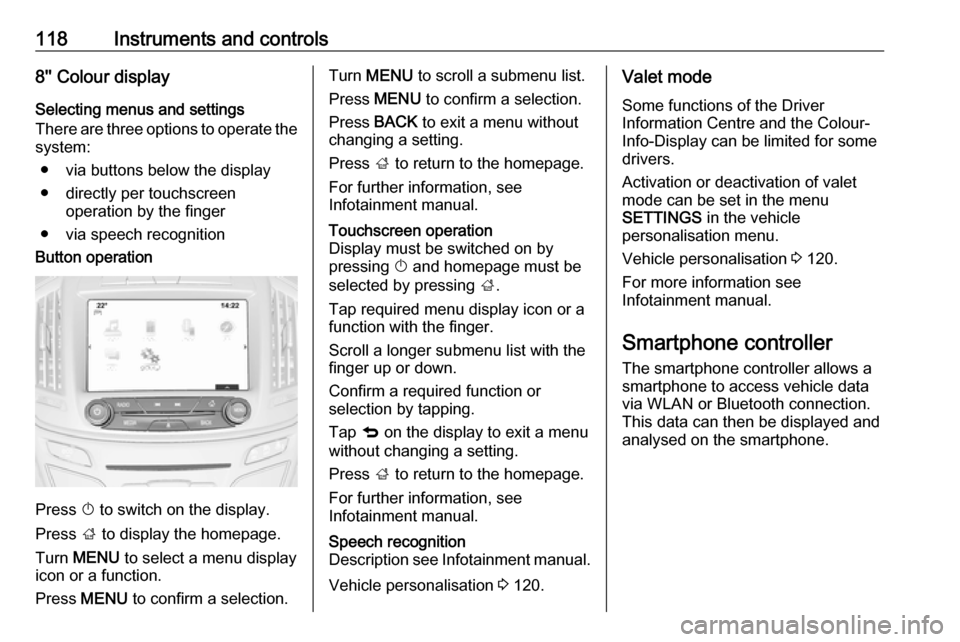
Press X to switch on the display.
Press ; to display the homepage.
Turn MENU to select a menu display
icon or a function.
Press MENU to confirm a selection.
Turn MENU to scroll a submenu list.
Press MENU to confirm a selection.
Press BACK to exit a menu without
changing a setting.
Press ; to return to the homepage.
For further information, see
Infotainment manual.Touchscreen operation
Display must be switched on by
pressing X and homepage must be
selected by pressing ;.
Tap required menu display icon or a function with the finger.
Scroll a longer submenu list with the
finger up or down.
Confirm a required function or
selection by tapping.
Tap q on the display to exit a menu
without changing a setting.
Press ; to return to the homepage.
For further information, see
Infotainment manual.Speech recognition
Description see Infotainment manual.
Vehicle personalisation 3 120.
Valet mode
Some functions of the Driver
Information Centre and the Colour-
Info-Display can be limited for some
drivers.
Activation or deactivation of valet
mode can be set in the menu
SETTINGS in the vehicle
personalisation menu.
Vehicle personalisation 3 120.
For more information see
Infotainment manual.
Smartphone controller
The smartphone controller allows a
smartphone to access vehicle data
via WLAN or Bluetooth connection.
This data can then be displayed and analysed on the smartphone.
Page 126 of 327
124Instruments and controlsTelematics service
OnStar OnStar is a personal connectivity and
service assistant with integrated
Wi-Fi hotspot. The OnStar service is
available 24 hours a day, seven days
a week.
Notice
OnStar is not available for all
markets. For further information,
contact your workshop.
Notice
In order to be available and
operational, OnStar needs a valid
OnStar subscription, functioning
vehicle electrics, mobile service and
GPS satellite link.
To activate the OnStar services and
set up an account, press Z and speak
with an advisor.Depending on the equipment of the vehicle, the following services areavailable:
● Emergency services and support
in the case of a vehicle
breakdown
● Wi-Fi hotspot
● Smartphone application
● Remote control, e.g. location of the vehicle, activation of horn and
lights, control of central locking system
● Stolen vehicle assistance
● Vehicle diagnostics
● Destination download
Notice
The OnStar module of the vehicle is
deactivated after ten days without an
ignition cycle. Functions requiring a
data connection will be available
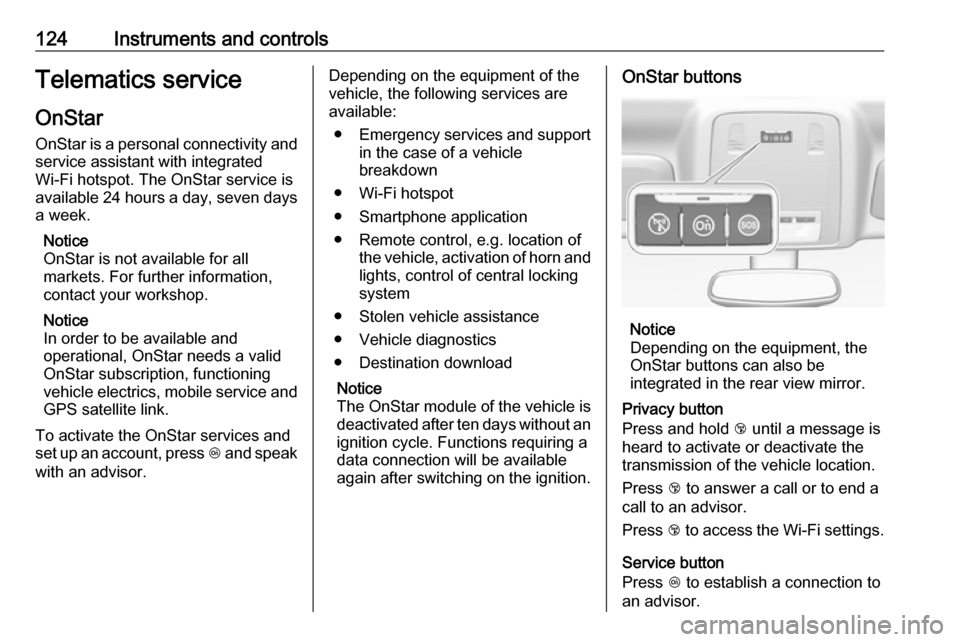
again after switching on the ignition.OnStar buttons
Notice
Depending on the equipment, the
OnStar buttons can also be
integrated in the rear view mirror.
Privacy button
Press and hold j until a message is
heard to activate or deactivate the transmission of the vehicle location.
Press j to answer a call or to end a
call to an advisor.
Press j to access the Wi-Fi settings.
Service button
Press Z to establish a connection to
an advisor.
Page 127 of 327

Instruments and controls125SOS button
Press [ to establish a priority
emergency connection to a specially
trained emergency advisor.
Status LED
Green: The system is ready with activated transmission of the vehicle
location.
Green flashing: The system is on a
call.
Red: A problem arose.
Off: The system is ready with
deactivated transmission of the
vehicle location or the system is in
standby mode.
Red / green flashing for a short period
of time: The transmission of the
vehicle location has been
deactivated.
OnStar services
General services
If you need any information e.g.
opening hours, points of interest and
destinations or if you need any
support e.g. in the case of a vehiclebreakdown, a flat tyre and empty fuel
tank, press Z to establish a
connection to an advisor.
Emergency services
In the case of an emergency situation,
press [ and talk to an advisor. The
advisor then contacts emergency or
assistance service providers and
directs them to your vehicle.
In the case of an accident with
activation of airbags or belt
tensioners, an automatic emergency
call is established. The advisor is
immediately connected to your
vehicle to see whether help is
needed.
Wi-Fi hotspot
The Wi-Fi hotspot of the vehicle
provides internet connectivity with a
maximum speed of 4G/LTE.
Notice
The Wi-Fi hotspot functionality is not available for all markets.
Up to seven devices may be
connected.To connect a mobile device with the
Wi-Fi hotspot:
1. Press j and then select Wi-Fi
settings on the Info-Display. The
settings displayed include the Wi-
Fi hotspot name (SSID),
password and connection type.
2. Start a Wi-Fi network search on your mobile device.
3. Select your vehicle hotspot (SSID) when listed.
4. When prompted, enter the password on your mobile device.
Notice
To change the SSID or password,
press Z and talk to an advisor or log
in to your account.
To switch off the Wi-Fi hotspot
functionality, press Z to call an
advisor.
Smartphone app
With the My Vauxhall smartphone
app, some vehicle functions can be
operated remotely.
Page 128 of 327

126Instruments and controlsThe following functions are available:● Lock or unlock vehicle.
● Honk horn or flash lights.
● Check fuel level, engine oil life and tyre pressure (only with tyre
pressure monitoring system).
● Send navigation destination to the vehicle, if equipped with a
built-in navigation system.
● Locate vehicle on a map.
● Manage Wi-Fi settings.
To operate these functions, download the app from App Store ®
or
Google Play™ Store.
Remote control
If desired, use any phone to call an
advisor, who can remotely operate
specific vehicle functions. Find the
respective OnStar phone number on
our country-specific website.
The following functions are available: ● Lock or unlock vehicle.
● Provide information on the vehicle location.
● Honk horn or flash lights.Stolen vehicle assistance
If the vehicle is stolen, report the theft
to the authorities and request OnStar
stolen vehicle assistance. Use any
phone to call an advisor. Find the
respective OnStar phone number on
our country-specific website.
OnStar can provide support in
locating and recovering the vehicle.Theft alert
When the anti-theft alarm system is
triggered, a notification is sent to
OnStar. You are then informed about
this event by text message or email.Restart prevention
By sending remote signals, OnStar can prevent the vehicle from
restarting once it has been turned off.
On-demand diagnostics
At any time e.g. if the vehicle displays a vehicle message, press Z to
contact an advisor and ask to
complete a real-time diagnostic check
to directly determine the issue.
Depending on the results, the advisor
will provide further support.
Diagnostic report
The vehicle automatically transmits
diagnostic data to OnStar which
sends a monthly email report to you
and your preferred workshop.
Notice
The workshop notification function
can be disabled in your account.
The report contains the status of key
operating systems of the vehicle like
engine, transmission, airbags, ABS,
and other major systems. It also
provides information on possible
maintenance items and tyre pressure (only with tyre pressure monitoring
system).
To look at the information in greater
detail, select the link within the email and log in to your account.
Destination download
A desired destination can be directly
downloaded to the navigation system.
Press Z to call an advisor and
describe the destination or point of
interest.