change time VAUXHALL INSIGNIA 2019 User Guide
[x] Cancel search | Manufacturer: VAUXHALL, Model Year: 2019, Model line: INSIGNIA, Model: VAUXHALL INSIGNIA 2019Pages: 345, PDF Size: 9.61 MB
Page 130 of 345

128Instruments and controls3. Select your vehicle hotspot(SSID) when listed.
4. When prompted, enter the password on your mobile device.
Notice
To change the SSID or password,
press Z and talk to an advisor or log
in to your account.
To switch off the Wi-Fi hotspot
functionality, press Z to call an
advisor.
Smartphone app
With the My Vauxhall smartphone
app, some vehicle functions can be
operated remotely.
The following functions are available: ● Lock or unlock vehicle.
● Honk horn or flash lights.
● Check fuel level, engine oil life and tyre pressure (only with tyre
pressure monitoring system).
● Send navigation destination to the vehicle, if equipped with a
built-in navigation system.
● Locate vehicle on a map.
● Manage Wi-Fi settings.To operate these functions, download
the app from App Store ®
or
Google Play™ Store.
Remote control
If desired, use any phone to call an
advisor, who can remotely operate
specific vehicle functions. Find the respective OnStar phone number on
our country-specific website.
The following functions are available: ● Lock or unlock vehicle.
● Provide information on the vehicle location.
● Honk horn or flash lights.
Stolen vehicle assistance
If the vehicle is stolen, report the theft to the authorities and request OnStar
stolen vehicle assistance. Use any
phone to call an advisor. Find the
respective OnStar phone number on
our country-specific website.
OnStar can provide support in
locating and recovering the vehicle.Theft alert
When the anti-theft alarm system is
triggered, a notification is sent to
OnStar. You are then informed about
this event by text message or email.Restart prevention
By sending remote signals, OnStar
can prevent the vehicle from
restarting once it has been turned off.
On-demand diagnostics
At any time e.g. if the vehicle displays
a vehicle message, press Z to
contact an advisor and ask to
complete a real-time diagnostic check to directly determine the issue.
Depending on the results, the advisor
will provide further support.
Diagnostic report
The vehicle automatically transmits
diagnostic data to OnStar which
sends a monthly email report to you
and your preferred workshop.
Notice
The workshop notification function
can be disabled in your account.
Page 131 of 345

Instruments and controls129The report contains the status of key
operating systems of the vehicle like
engine, transmission, airbags, ABS,
and other major systems. It also
provides information on possible
maintenance items and tyre pressure
(only with tyre pressure monitoring
system).
To look at the information in greater
detail, select the link within the email and log in to your account.
Destination download
A desired destination can be directly
downloaded to the navigation system.
Press Z to call an advisor and
describe the destination or point of
interest.
The advisor can look up any address
or point of interest and directly send
the destination to the built-in
navigation system.
OnStar settings
OnStar PIN
To have full access to all OnStar
services, a four-digit PIN is required. The PIN has to be personalised when
first talking to an advisor.To change the PIN, press Z to call an
advisor.
Account data
An OnStar subscriber has an account
where all the data is stored. To
request a change of the account
information, press Z and talk to an
advisor or log in to your account.
If the OnStar service is used on
another vehicle, press Z and request
that the account be transferred to the
new vehicle.
Notice
In any case, if the vehicle is disposed of, sold or otherwise transferred,
immediately inform OnStar about
the changes and terminate the
OnStar service on this vehicle.
Vehicle location
The vehicle location is transmitted to
OnStar when service is requested or
triggered. A message on the Info-
Display informs about this
transmission.To activate or deactivate the
transmission of the vehicle location,
press and hold j until an audio
message is heard.
The deactivation is indicated by the
status light flashing red and green for
a short period of time and each time
the vehicle is started.
Notice
If the transmission of the vehicle
location is deactivated, some
services are no longer available.
Notice
The vehicle location always remains accessible to OnStar in the case of
an emergency.
Find the privacy policy in your
account.
Software updates
OnStar may remotely carry out
software updates without further
notice or consent. These updates are
to enhance or maintain safety and
security or the operation of the
vehicle.
Page 140 of 345
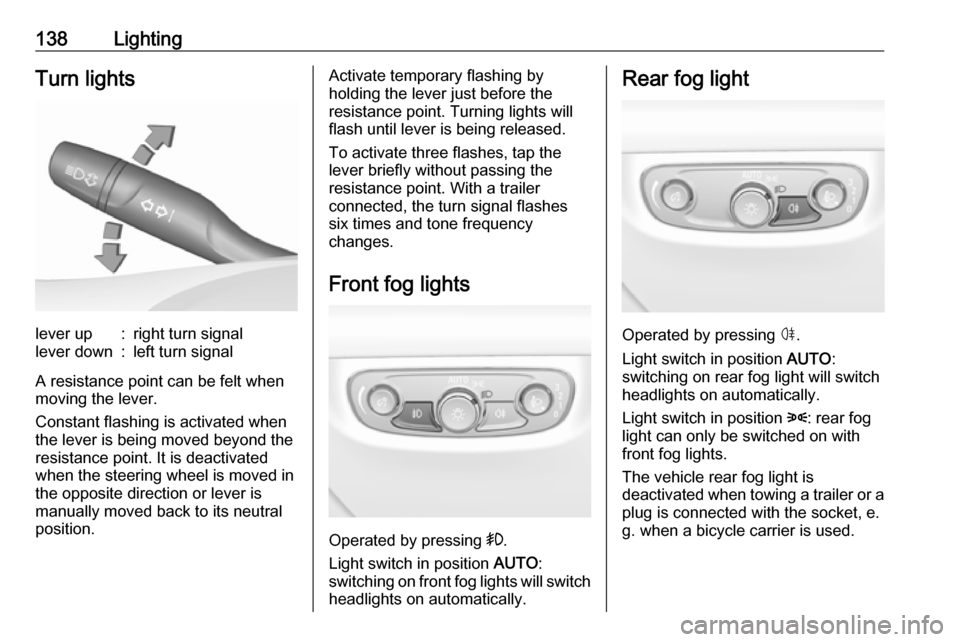
138LightingTurn lightslever up:right turn signallever down:left turn signal
A resistance point can be felt when
moving the lever.
Constant flashing is activated when
the lever is being moved beyond the
resistance point. It is deactivated
when the steering wheel is moved in
the opposite direction or lever is
manually moved back to its neutral
position.
Activate temporary flashing by
holding the lever just before the
resistance point. Turning lights will
flash until lever is being released.
To activate three flashes, tap the
lever briefly without passing the
resistance point. With a trailer
connected, the turn signal flashes
six times and tone frequency
changes.
Front fog lights
Operated by pressing >.
Light switch in position AUTO:
switching on front fog lights will switch headlights on automatically.
Rear fog light
Operated by pressing ø.
Light switch in position AUTO:
switching on rear fog light will switch
headlights on automatically.
Light switch in position 8: rear fog
light can only be switched on with
front fog lights.
The vehicle rear fog light is
deactivated when towing a trailer or a
plug is connected with the socket, e.
g. when a bicycle carrier is used.
Page 147 of 345
Infotainment system145Radio receptionRadio reception may be disrupted bystatic, noise, distortion or loss of
reception due to:
● changes in distance from the transmitter
● multipath reception due to reflection
● shadowing
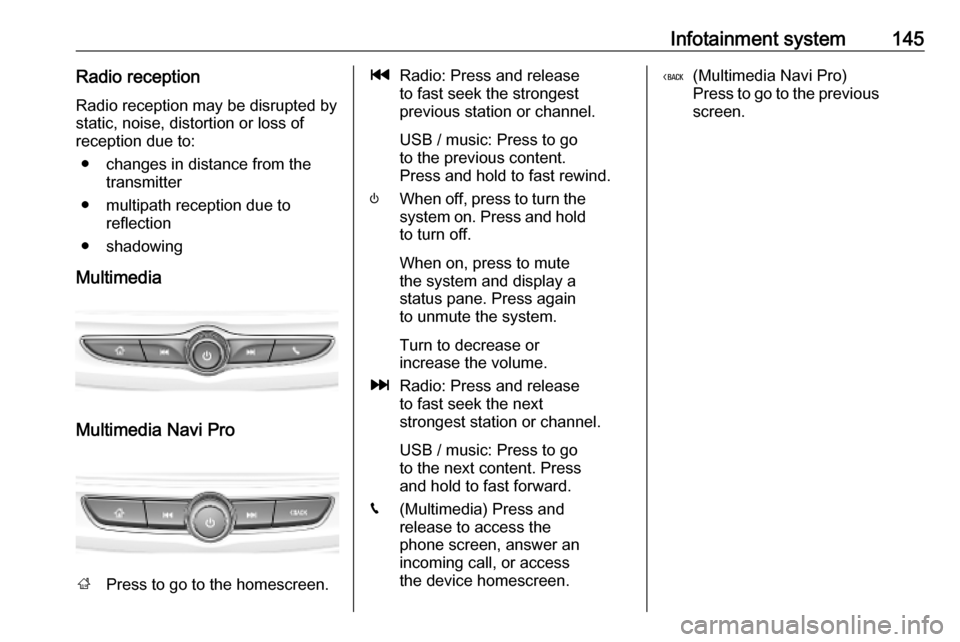
Multimedia
Multimedia Navi Pro
; Press to go to the homescreen.
tRadio: Press and release
to fast seek the strongest
previous station or channel.
USB / music: Press to go
to the previous content.
Press and hold to fast rewind.
) When off, press to turn the
system on. Press and hold
to turn off.
When on, press to mute
the system and display a
status pane. Press again
to unmute the system.
Turn to decrease or
increase the volume.
v Radio: Press and release
to fast seek the next
strongest station or channel.
USB / music: Press to go
to the next content. Press
and hold to fast forward.
g (Multimedia) Press and
release to access the
phone screen, answer an
incoming call, or access
the device homescreen.( (Multimedia Navi Pro)
Press to go to the previous
screen.
Page 152 of 345

150Infotainment systemReturning to the homescreen
To return to the homescreen,
touch ;.
Wi-Fi connection
The Infotainment system can be
connected to a Wi-Fi network, e.g. the hotspot of a mobile phone, or activate
an own Wi-Fi hotspot if OnStar is
available.
Connecting to a Wi-Fi network
To connect to a Wi-Fi network, go to
the homescreen and select Settings.
Then go to the System tab and select
Wi-Fi Networks .
A list of all available Wi-Fi networks is displayed. After choosing a Wi-Fi
network, it might be necessary to log
in by entering a corresponding
password on the Info Display. In this
case, a corresponding window will
pop up.Activating the Wi-Fi hotspot
If OnStar is available, a Wi-Fi hotspot
can be activated. There are two ways
to go to the Wi-Fi hotspot menu:
● Go to the homescreen and select
the Wi-Fi Hotspot icon.
● Go to the homescreen and select
Settings . Then go to the System
tab and select Wi-Fi Hotspot.
In the Wi-Fi Hotspot menu, the Wi-Fi
hotspot can be activated or deactivated and the name and the
password of the Wi-Fi hotspot can be changed. Also the connected devicesare indicated.
System settings To go to the system settings menu, go
to the homescreen and select
Settings . The settings are divided into
System and Apps .
The following settings can be
changed under System:
● Time/Date
● Language
● Phones : Display connected / not
connected phones or add a
phone.● Wi-Fi Networks : Connect to an
available Wi-Fi network.
● Wi-Fi Hotspot : Activate /
deactivate Wi-Fi services and display name, password and
connected devices.
● Display : Select display mode,
calibrate touchscreen and turn
display off.
● Privacy : Activate / deactivate
location services and data
services.
● Sounds : Set maximum startup
volume, activate / deactivate audio cues and audible touch
feedback.
● Voice : Set prompt lenght, audio
feedback speed and activate /
deactivate tutorial mode.
● Favourites : Manage favourites
and set number of audio
favourites.
● About : Display information about
open soure software and device registration.
Page 153 of 345

Infotainment system151●Running Applications : Stop
applications, e.g. Climate or
Users .
● Restore Factory Settings : Reset
vehicle settings, delete settings
and personal data and clear
default applications
The following settings can be
changed under Apps:
● Android Auto : Activate /
deactivate the Android Auto
application.
● Apple CarPlay : Activate /
deactivate the Apple CarPlay
application.
● Audio (options depend on current
audio source): Change the tone
settings, auto volume, activate /
deactivate traffic programme,
DAB-FM linking, DAB
announcements, etc.
● Navigation : Change the
navigation settings.
● Phone : Sort contacts, re-
synchronise contacts, delete all
vehicle contacts, etc.Profiles
This application is only applicable toMultimedia Navi Pro.
Touch Users on the homescreen to
display a list of all available profiles:
Due to the option of creating profiles,
the Infotainment system can be fitted
to several drivers. Different settings
as well as favourite radio stations and destinations will be connected to aspecific profile. Thereby, the settings
and favourites don't need to be
adjusted every time another person is driving the vehicle.
A profile can be connected to a
specific vehicle key. While unlocking the vehicle, the corresponding profile
will be activated, if available.
Creating a profile 1. Select Users on the homescreen.
2. Select Add User Profile .
3. Select Create Profile .
4. Enter a profile name and select Next .5.If desired, choose a profile picture
and select Next. Otherwise, select
Skip .
6. If desired, choose a vehicle key which is intended to be connectedto the profile and select Next.
Otherwise, select Skip.
7. Select Done.
A new profile is created. The settings
of the profile can be changed at any
time.
Notice
Whenever a new profile is created or the active profile is switched, the
audio application is paused and
restarted.
Creating a PIN for a profile
Every profile can be secured with a
PIN. After switching on the vehicle,
the PIN has to be entered.
To create a PIN, go to the
homescreen and select Settings, go
to the Personal tab and select
Security .
Page 154 of 345

152Infotainment systemSwitching the profileThere are two ways to switch the
profile:
● Select Users on the homescreen
and select the desired profile.
● Only if the Guest profile is not
active: Select Settings on the
homescreen, go to Personal and
select Switch User . Select the
desired profile.
Editing a profile
Only the currently active profile can
be edited. There are two ways to edit
a profile:
● Select Users on the homescreen
and select / next to the profile.
● Select Settings on the
homescreen and go to the
Personal tab.
All profile settings, e.g. name, profile
picture, connected vehicle key, can
be changed.Deleting a profiles
To delete a profile, select f next to the
corresponding profile. The Guest
profile cannot be deleted.
The Guest profile is a default profile.
It is active when no other profile is
created or active.Audio
OverviewHold to
Set:Preset button. Hold to save active radio station as a
favourite.c:Display further preset
buttons.b:Adjust the sound settings.a:Display station list / folders.e:Touch to go to the next
station / song or touch and
hold for fast forwarding._:Enter a frequency.d:Touch to go to the previous
station / song or touch and
hold for rewinding.::(Multimedia Navi Pro)
Select the audio source.More:(Multimedia) Select the
audio source.
Sources
Touch : and select the desired audio
source.
The last three selected sources are
indicated above : on the screen. If
one of the last three selected audio
Page 157 of 345
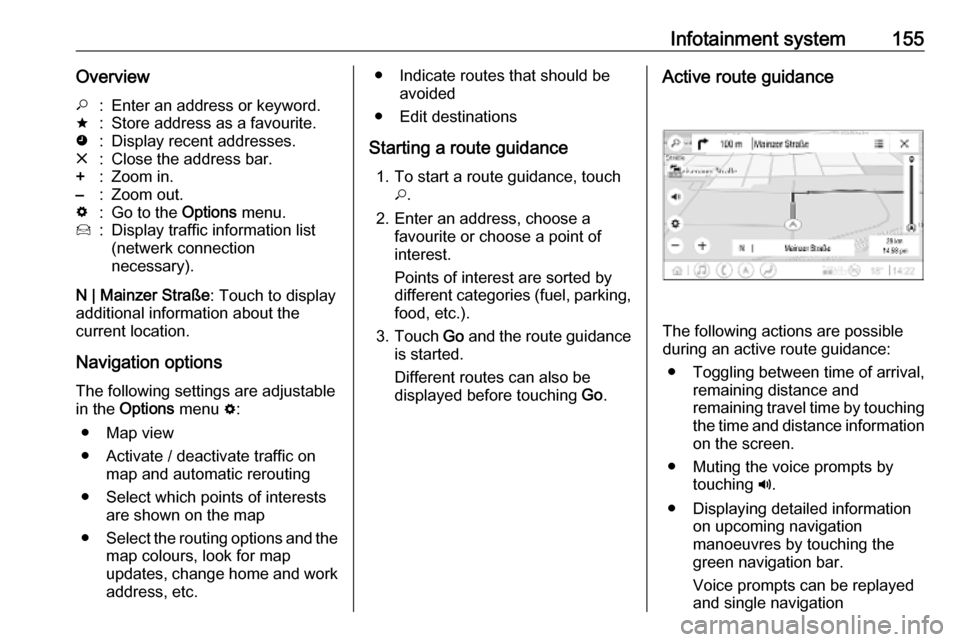
Infotainment system155Overview*:Enter an address or keyword.;:Store address as a favourite.':Display recent addresses.&:Close the address bar.+:Zoom in.–:Zoom out.%:Go to the Options menu.7:Display traffic information list
(netwerk connection
necessary).
N | Mainzer Straße : Touch to display
additional information about the
current location.
Navigation optionsThe following settings are adjustable
in the Options menu %:
● Map view
● Activate / deactivate traffic on map and automatic rerouting
● Select which points of interests are shown on the map
● Select the routing options and the
map colours, look for map
updates, change home and work
address, etc.
● Indicate routes that should be avoided
● Edit destinations
Starting a route guidance 1. To start a route guidance, touch *.
2. Enter an address, choose a favourite or choose a point of
interest.
Points of interest are sorted by
different categories (fuel, parking,
food, etc.).
3. Touch Go and the route guidance
is started.
Different routes can also be
displayed before touching Go.Active route guidance
The following actions are possible
during an active route guidance:
● Toggling between time of arrival, remaining distance and
remaining travel time by touching
the time and distance information on the screen.
● Muting the voice prompts by touching ?.
● Displaying detailed information on upcoming navigation
manoeuvres by touching the
green navigation bar.
Voice prompts can be replayed
and single navigation
Page 161 of 345

Infotainment system159The availability of this function
depends on the smartphone. For more information on compatibility,
see our website.
Usage
Activating speech recognition Notice
Speech recognition is not available
during an active phone call.
1. Press w on the steering wheel.
The audio system mutes, a voice
output message prompts you to
say a command, and help menus
with the most important
commands currently available are
shown on the Info Display. It is
highly recommended to follow the
wording suggestions of the
system.
Do not talk when the speech
recognition symbol is red and no
beep sound has been heard.2. As soon as the speech recognition is ready for voice
input, a beep is heard. The
speech recognition symbol
changes to green.
3. Start now with a voice command to initiate a system function (e.g.
playing a preset radio station).
Adjusting the volume of voice
prompts
Turn ) on the control panel or press
À or Á on the steering wheel
upwards or downwards during a voice prompt.
Interrupting a voice prompt
A voice prompt can be interrupted by
briefly pressing w on the steering
wheel.
A beep is heard immediately, the
speech recognition symbol changes
to green, and a command can be
stated without having to wait.Cancelling a dialogue sequence
There are various ways to cancel a
dialogue sequence and to deactivate
the speech recognition:
● Say " Cancel".
● Press n on the steering wheel.
● Press ; on the control panel.
● Select & or < in the help menu.
In the following situations, a dialogue sequence is automatically cancelled:
● If you do not say any command for a certain period of time.
● If you say commands that are not
recognised by the system.
Operation via speech commands The speech recognition can
understand direct commands stating
the application and the action.
For best results: ● Listen for the voice prompt and wait for the beep or the green
speech recognition symbol
before saying a command or
replying.
Page 192 of 345

190Driving and operatingThe selected gear is indicated in the
instrument cluster.
Temporary manual mode in drive
mode D
Manual paddle shifting is also
possible in automatic mode D. Upon
completion of manual shifting
operation, transmission changes to
automatic mode D after a defined
time.
To interrupt manual mode and return
to D, do one of the following:
● Press + paddle for 1 second.
● Move selector lever towards the left to manual mode and back toposition D.
If the vehicle is at a standstill and
engine is idling, the transmission will remain in temporary manual mode. It
changes to automatic mode when
accelerator pedal is operated for a
defined time, and no paddle shifting
at the steering wheel is performed.
General
If a higher gear is selected when
vehicle speed is too low, or a lower
gear when vehicle speed is too high,the shift is not executed. This can
cause a message in the Driver
Information Centre.
In manual mode, no automatic
shifting to a higher gear takes place
at high engine revolutions, except
activating the kickdown function.
Gear shift indication
The symbol R or S with a number
beside it is indicated when gear
shifting is recommended for fuel
saving reasons.
Shift indication appears only in
manual mode.
Electronic driving programmes ● When SPORT mode is engaged,
the vehicle shifts at higher engine
speeds (unless cruise control is
on). SPORT mode 3 199.
● Special programmes automatically adapt the shiftingpoints when driving up inclines or down hills.
● In snowy or icy conditions or on other slippery surfaces, the
electronic transmission controlenables the driver to manually
select first, second or third gear
for starting off.
Kickdown
Pressing down the accelerator pedal
beyond the kickdown detent will lead
to maximum acceleration even in manual mode. The transmission
shifts to a lower gear depending on
engine speed and shifts to a higher
gear at high engine revolutions.
Overheat protection
In the event of transmission-
overheating due to high outside
temperatures or sporty driving style, the torque and the maximum speed of
the engine can be temporarily
reduced.
Fault
In the event of a fault a vehicle
message is displayed in the Driver
Information Centre. Vehicle
messages 3 122.
6-gear automatic transmission:
electronic transmission control
enables only fourth gear; 8-gear
automatic transmission: electronic