service VAUXHALL INSIGNIA 2019 User Guide
[x] Cancel search | Manufacturer: VAUXHALL, Model Year: 2019, Model line: INSIGNIA, Model: VAUXHALL INSIGNIA 2019Pages: 345, PDF Size: 9.61 MB
Page 128 of 345
126Instruments and controlsTelematics service
OnStar OnStar is a personal connectivity and
service assistant with integrated
Wi-Fi hotspot. The OnStar service is
available 24 hours a day, seven days
a week.
Notice
OnStar is not available for all
markets. For further information,
contact your workshop.
Notice
In order to be available and
operational, OnStar needs a valid
OnStar subscription, functioning
vehicle electrics, mobile service and
GPS satellite link.
To activate the OnStar services and
set up an account, press Z and speak
with an advisor.Depending on the equipment of the vehicle, the following services areavailable:
● Emergency services and support
in the case of a vehicle
breakdown
● Wi-Fi hotspot
● Smartphone application
● Remote control, e.g. location of the vehicle, activation of horn and
lights, control of central locking system
● Stolen vehicle assistance
● Vehicle diagnostics
● Destination download
Notice
The OnStar module of the vehicle is
deactivated after ten days without an
ignition cycle. Functions requiring a
data connection will be available
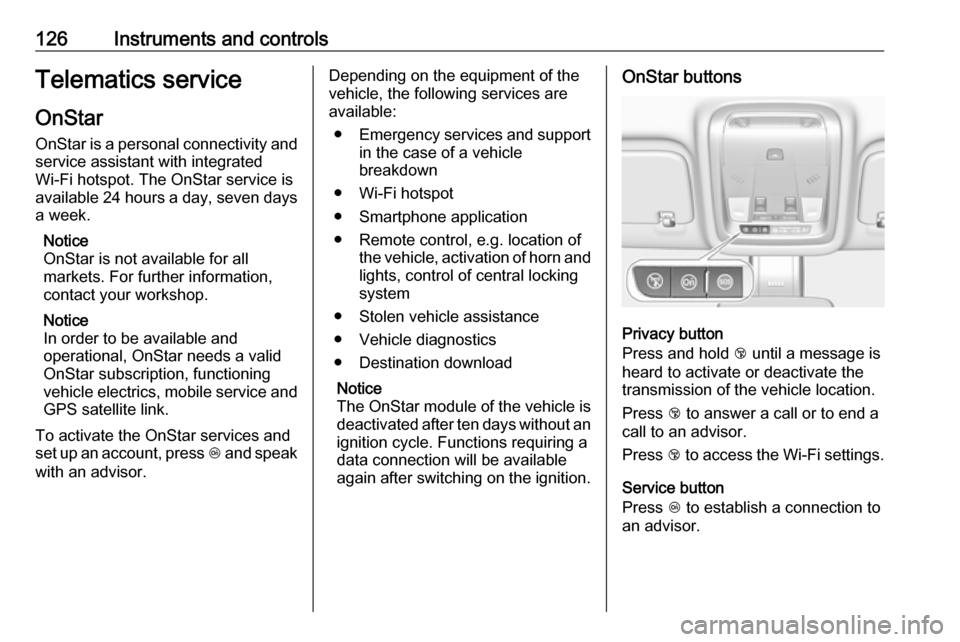
again after switching on the ignition.OnStar buttons
Privacy button
Press and hold j until a message is
heard to activate or deactivate the
transmission of the vehicle location.
Press j to answer a call or to end a
call to an advisor.
Press j to access the Wi-Fi settings.
Service button
Press Z to establish a connection to
an advisor.
Page 129 of 345

Instruments and controls127SOS button
Press [ to establish a priority
emergency connection to a specially
trained emergency advisor.
Status LED
Green: The system is ready with activated transmission of the vehicle
location.
Green flashing: The system is on a
call.
Red: A problem arose.
Off: The system is ready with
deactivated transmission of the
vehicle location or the system is in
standby mode.
Red / green flashing for a short period
of time: The transmission of the
vehicle location has been
deactivated.
OnStar services
General services
If you need any information e.g.
opening hours, points of interest and
destinations or if you need any
support e.g. in the case of a vehiclebreakdown, a flat tyre and empty fuel
tank, press Z to establish a
connection to an advisor.
Emergency services
In the case of an emergency situation,
press [ and talk to an advisor. The
advisor then contacts emergency or
assistance service providers and
directs them to your vehicle.
In the case of an accident with
activation of airbags or belt
tensioners, an automatic emergency
call is established. The advisor is
immediately connected to your
vehicle to see whether help is
needed.
Notice
Establishing an emergency call may
not be possible in areas without
sufficient network availability or due
to hardware damage during an
accident.
Wi-Fi hotspot
The Wi-Fi hotspot of the vehicle
provides internet connectivity with a
maximum speed of 4G/LTE.Notice
The Wi-Fi hotspot functionality is not available for all markets.
Notice
Some mobile devices connect to Wi- Fi hotspots automatically and use
mobile data capacity in the
background, even if they are not in use. This includes automatic
updates, downloads, as well as
programme or app synchronisation
traffic. The data volume purchased
via OnStar might be consumed
rapidly. Turn off automatic
synchronisations in the settings of
your device.
Up to seven devices may be
connected.
To connect a mobile device with the
Wi-Fi hotspot:
1. Press j and then select Wi-Fi
settings on the Info-Display. The
settings displayed include the Wi- Fi hotspot name (SSID),
password and connection type.
2. Start a Wi-Fi network search on your mobile device.
Page 131 of 345

Instruments and controls129The report contains the status of key
operating systems of the vehicle like
engine, transmission, airbags, ABS,
and other major systems. It also
provides information on possible
maintenance items and tyre pressure
(only with tyre pressure monitoring
system).
To look at the information in greater
detail, select the link within the email and log in to your account.
Destination download
A desired destination can be directly
downloaded to the navigation system.
Press Z to call an advisor and
describe the destination or point of
interest.
The advisor can look up any address
or point of interest and directly send
the destination to the built-in
navigation system.
OnStar settings
OnStar PIN
To have full access to all OnStar
services, a four-digit PIN is required. The PIN has to be personalised when
first talking to an advisor.To change the PIN, press Z to call an
advisor.
Account data
An OnStar subscriber has an account
where all the data is stored. To
request a change of the account
information, press Z and talk to an
advisor or log in to your account.
If the OnStar service is used on
another vehicle, press Z and request
that the account be transferred to the
new vehicle.
Notice
In any case, if the vehicle is disposed of, sold or otherwise transferred,
immediately inform OnStar about
the changes and terminate the
OnStar service on this vehicle.
Vehicle location
The vehicle location is transmitted to
OnStar when service is requested or
triggered. A message on the Info-
Display informs about this
transmission.To activate or deactivate the
transmission of the vehicle location,
press and hold j until an audio
message is heard.
The deactivation is indicated by the
status light flashing red and green for
a short period of time and each time
the vehicle is started.
Notice
If the transmission of the vehicle
location is deactivated, some
services are no longer available.
Notice
The vehicle location always remains accessible to OnStar in the case of
an emergency.
Find the privacy policy in your
account.
Software updates
OnStar may remotely carry out
software updates without further
notice or consent. These updates are
to enhance or maintain safety and
security or the operation of the
vehicle.
Page 149 of 345
Infotainment system147●OnStar Services : Display the
OnStar Services screen if
available.
● Wi-Fi Hotspot : Display the Wi-Fi
hotspot settings if available.
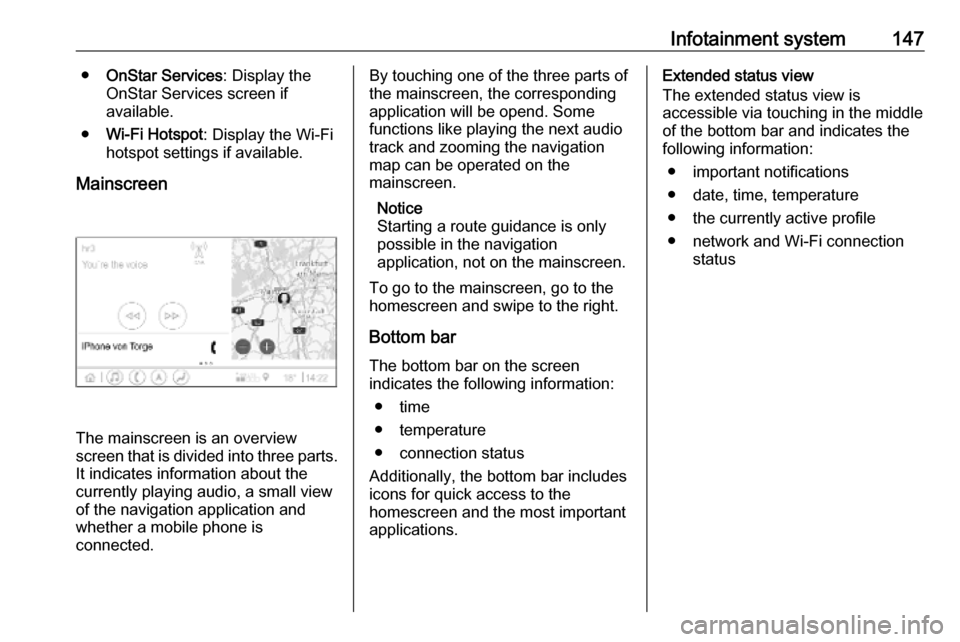
Mainscreen
The mainscreen is an overview
screen that is divided into three parts.
It indicates information about the
currently playing audio, a small view
of the navigation application and
whether a mobile phone is
connected.
By touching one of the three parts of the mainscreen, the corresponding
application will be opend. Some
functions like playing the next audio
track and zooming the navigation
map can be operated on the
mainscreen.
Notice
Starting a route guidance is only possible in the navigation
application, not on the mainscreen.
To go to the mainscreen, go to the
homescreen and swipe to the right.
Bottom bar The bottom bar on the screen
indicates the following information:
● time
● temperature
● connection status
Additionally, the bottom bar includes
icons for quick access to the
homescreen and the most important
applications.Extended status view
The extended status view is
accessible via touching in the middle
of the bottom bar and indicates the
following information:
● important notifications
● date, time, temperature
● the currently active profile
● network and Wi-Fi connection status
Page 152 of 345

150Infotainment systemReturning to the homescreen
To return to the homescreen,
touch ;.
Wi-Fi connection
The Infotainment system can be
connected to a Wi-Fi network, e.g. the hotspot of a mobile phone, or activate
an own Wi-Fi hotspot if OnStar is
available.
Connecting to a Wi-Fi network
To connect to a Wi-Fi network, go to
the homescreen and select Settings.
Then go to the System tab and select
Wi-Fi Networks .
A list of all available Wi-Fi networks is displayed. After choosing a Wi-Fi
network, it might be necessary to log
in by entering a corresponding
password on the Info Display. In this
case, a corresponding window will
pop up.Activating the Wi-Fi hotspot
If OnStar is available, a Wi-Fi hotspot
can be activated. There are two ways
to go to the Wi-Fi hotspot menu:
● Go to the homescreen and select
the Wi-Fi Hotspot icon.
● Go to the homescreen and select
Settings . Then go to the System
tab and select Wi-Fi Hotspot.
In the Wi-Fi Hotspot menu, the Wi-Fi
hotspot can be activated or deactivated and the name and the
password of the Wi-Fi hotspot can be changed. Also the connected devicesare indicated.
System settings To go to the system settings menu, go
to the homescreen and select
Settings . The settings are divided into
System and Apps .
The following settings can be
changed under System:
● Time/Date
● Language
● Phones : Display connected / not
connected phones or add a
phone.● Wi-Fi Networks : Connect to an
available Wi-Fi network.
● Wi-Fi Hotspot : Activate /
deactivate Wi-Fi services and display name, password and
connected devices.
● Display : Select display mode,
calibrate touchscreen and turn
display off.
● Privacy : Activate / deactivate
location services and data
services.
● Sounds : Set maximum startup
volume, activate / deactivate audio cues and audible touch
feedback.
● Voice : Set prompt lenght, audio
feedback speed and activate /
deactivate tutorial mode.
● Favourites : Manage favourites
and set number of audio
favourites.
● About : Display information about
open soure software and device registration.
Page 155 of 345

Infotainment system153sources is an external device, it will
still be indicated although the device is not connected anymore.
When an external device will be
connected, the Infotainment system
doesn't automatically switch to the
external device. The external device
needs to be selected as an audio
source. When the external device will
be disconnected, another audio
source needs to be selected.
External devicesTwo USB ports for the connection of
external devices are located below
the foldable armrest.
When an external audio source (via
USB or Bluetooth) is connected and
selected as audio source, the
following additional symbols will be
displayed on the audio screen:= or l:Interrupt or resume
playback.n:Play tracks in random
order.Audio files
The playable audio file formats are
MPEG-4 (AAC LC, HE AAC, ALAC),
FLAC, MP3, Vorbis, PCM/WAVE, SBC.
Saving favourites There are two ways to save a radio
station as a favourite:
● Touch and hold one of the preset
buttons until a corresponding
message is displayed. The
currently active radio station is
now saved as a favourite and can
be tuned in by touching the
respective preset button.
● Touch a and then the ; symbol
next to the corresponding radio
station. The radio station is saved as a favourite when the ; symbol
is green.
Traffic programme
Traffic programme is a service of FM
radio stations. When traffic
programme is activated, the currently
playing audio source will be
interrupted when an FM radio station
is broadcasting traffic news. Theaudio source will be switched back
when the traffic news are over. During the broadcast of traffic news, the
volume will be increased.
There are two ways to activate or
deactivate traffic programme:
● Go to the homescreen, select Settings and go to Apps. Traffic
programme can be activated or
deactivated in the Audio menu.
● When FM is the active audio source, there is a TP button on
the audio screen. By touching TP , traffic programme will be
activated or deactivated. A yellow
line indicates that traffic
programme is activated.
DAB announcements
DAB announcements are a service of DAB radio stations. DAB
announcements are divided into
different categories like traffic, news, weather, etc.
To activate or deactivate DAB
announcements, go to the
homescreen, select Settings, go to
Apps and select the Audio menu. The
different DAB announcement
Page 156 of 345
154Infotainment systemcategories can be activated or
deactivated under DAB
Announcements .
Notice
The volume will not increase during DAB announcements.
DAB-DAB linking
If this function is activated, the device
switches over to the same service
(programme) on another DAB
ensemble (if available) when the DAB signal is too weak to be picked up by
the receiver.
To activate or deactivate DAB-DAB
linking, go to the homescreen, select Settings , go to the Apps tab and
activate or deactivate the function in
the Audio menu.
DAB-FM linking
This function enables switching from
a DAB station to a corresponding FM
station and vice versa.
If this function is activated, the device switches over to a corresponding FM
station of the active DAB service (if
available) when the DAB signal is too
weak to be picked up by the receiver.To activate or deactivate DAB-FM
linking, go to the homescreen, select
Settings , go to the Apps tab and
activate or deactivate the function in
the Audio menu.
Adjusting the sound settings
To adjust the sound settings, touch
b . The following settings can be
adjusted:
● Equalizer
● Fade / BalanceNavigation
Navigation system
This application is only applicable to
Multimedia Navi Pro.
For each profile, the terms and
conditions and a privacy statement of
the navigation function need to be
accepted when starting the
navigation application for the first
time. After a short introduction about
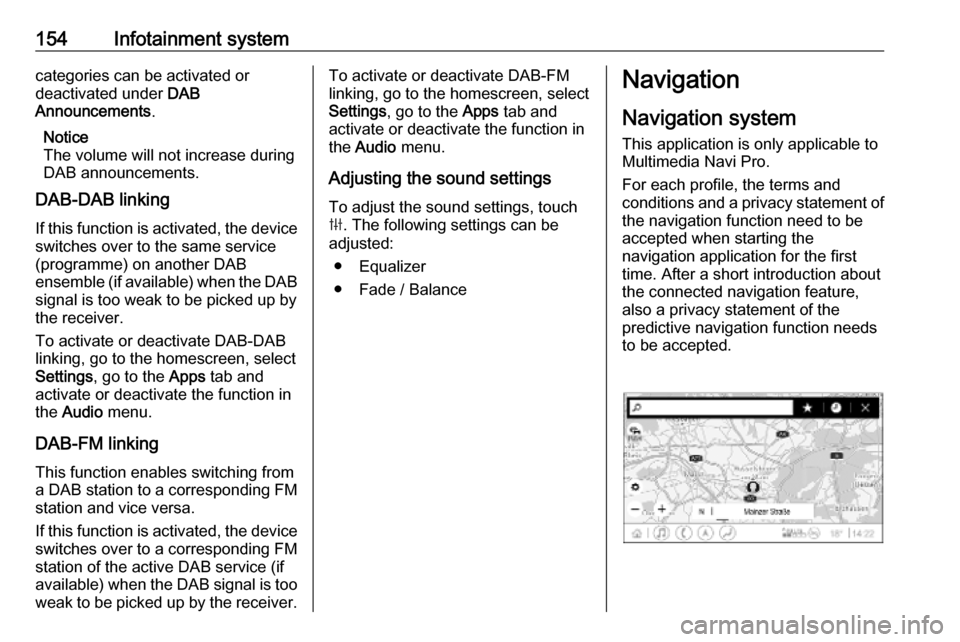
the connected navigation feature,
also a privacy statement of the
predictive navigation function needs
to be accepted.
Page 165 of 345
Climate control163Climate controlClimate control systems.............163
Air conditioning system ...........163
Electronic climate control system .................................... 166
Auxiliary heater ........................172
Air vents ..................................... 172
Adjustable air vents .................172
Fixed air vents ......................... 173
Maintenance .............................. 173
Air intake ................................. 173
Air conditioning regular operation ................................ 174
Service .................................... 174Climate control systems
Air conditioning system
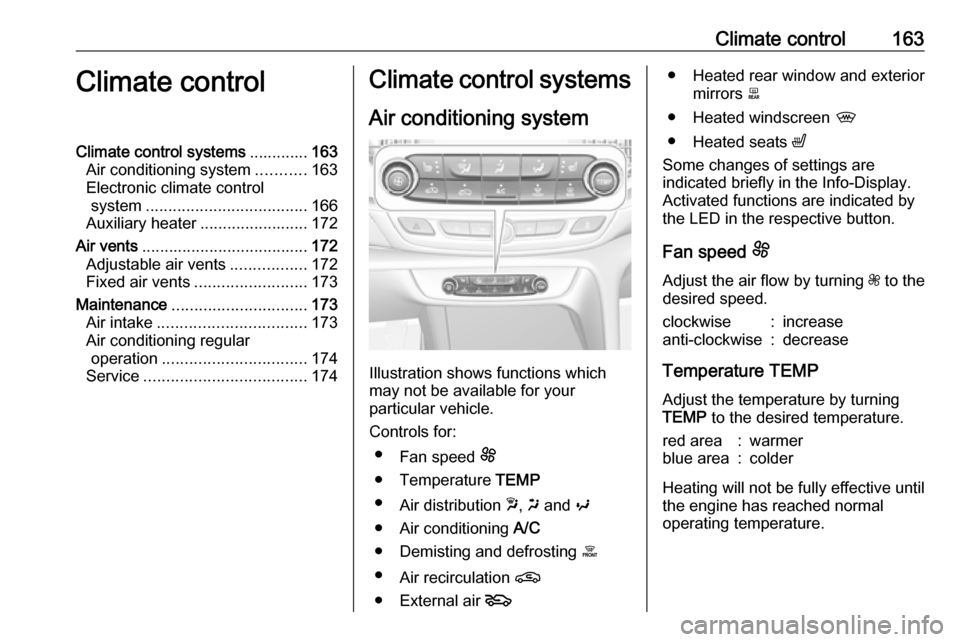
Illustration shows functions which
may not be available for your
particular vehicle.
Controls for: ● Fan speed E
● Temperature TEMP
● Air distribution w, x and y
● Air conditioning A/C
● Demisting and defrosting á
● Air recirculation n
● External air 5
● Heated rear window and exterior
mirrors b
● Heated windscreen ,
● Heated seats ß
Some changes of settings are
indicated briefly in the Info-Display.
Activated functions are indicated by
the LED in the respective button.
Fan speed E
Adjust the air flow by turning Z to the
desired speed.clockwise:increaseanti-clockwise:decrease
Temperature TEMP
Adjust the temperature by turning
TEMP to the desired temperature.
red area:warmerblue area:colder
Heating will not be fully effective until
the engine has reached normal
operating temperature.
Page 176 of 345

174Climate controlAir conditioning regularoperation
In order to ensure continuously
efficient performance, cooling must
be operated for a few minutes once a
month, irrespective of the weather
and time of year. Operation with
cooling is not possible when the
outside temperature is too low.
Service For optimal cooling performance, it is recommended to annually check the
climate control system, starting
three years after initial vehicle
registration, including:
● functionality and pressure test
● heating functionality
● leakage check
● check of drive belts
● cleaning of condenser and evaporator drainage
● performance check
● cabin air filter check
Page 181 of 345

Driving and operating179Press Engine Start/Stop briefly: an
automatic procedure operates the
starter with a short delay until the engine is running.
To switch off the engine when vehicle
is stationary, press
Engine Start/Stop briefly. Automatic
transmission: apply the parking brake
and engage P.
To start the engine during an
Autostop:
Manual transmission: during an
Autostop, the engine can be started
by depressing the clutch pedal
3 180.
Automatic transmission: during an
Autostop, the engine can be started
by releasing the brake pedal 3 180.
Emergency engine shut off during driving
If the engine needs to be switched off during driving in case of emergency,
press Engine Start/Stop for more than
two seconds or press twice briefly
within five seconds.9 Danger
Switching off the engine during
driving may cause loss of power
support for brake and steering
systems. Assistance systems and
airbag systems are disabled.
Lighting and brake lights will
extinguish. Therefore power down the engine and ignition while
driving only when required in case of emergency.
Starting the vehicle at low
temperatures
Starting the engine without additional
heaters is possible down to -25 °С for diesel engines and -30 °C for petrol
engines. Required is an engine oil
with the correct viscosity, the correct fuel, performed services and a
sufficiently charged vehicle battery.
With temperatures below -30 °C the
automatic transmission requires a
warming phase of approx.
five minutes. The selector lever must
be in position P.
Automatic Starter Control
This function controls the engine
starting procedure. The driver does
not need to hold Engine Start/Stop
pressed. Once applied, the system
will go on starting automatically until
the engine is running. Because of the checking procedure, the engine startsrunning after a short delay.
Possible reasons for a non-starting
engine:
● Clutch pedal not operated (manual transmission).
● Brake pedal not operated or selector lever not in P or N
(automatic transmission).
● Timeout occurred.
Turbo engine warm-up
Upon start-up, engine available
torque may be limited for a short time, especially when the engine
temperature is cold. The limitation is
to allow the lubrication system to fully
protect the engine.