infotainment VAUXHALL MERIVA 2014.5 Infotainment system
[x] Cancel search | Manufacturer: VAUXHALL, Model Year: 2014.5, Model line: MERIVA, Model: VAUXHALL MERIVA 2014.5Pages: 129, PDF Size: 2.38 MB
Page 113 of 129

Speech recognition113
Commands available during voice
output of the voice tags:
■ " Call ": the telephone number of the
voice tag last read aloud is
selected.
■ " Delete ": the entry of the voice tag
last read aloud is deleted.
Saving a mobile phone to or deleting
it from the device list
With the command " Pair" a mobile
phone can be saved to or deleted from the device list of the Phone
portal 3 115.
Commands available: ■ " Add "
■ " Delete "
■ " Help "
■ " Cancel "Example of a dialogue
User: " Pair"
Voice output: " Do you want to add or
delete a device? "
User: " Add"Voice output: " Using the pair function
in the external device, enter <1234>
to pair. "
Voice output: " Do you want to pair the
device? "
User: " Yes"
Voice output: " The device is
connected as the number
Selecting a mobile phone from the
device list
Using the " Select device " command,
a mobile phone can be selected in the
device list for setting up a Bluetooth
connection.Example of a dialogue
User: " Select device "
Voice output: " Please, say a device
number to select "
User:
Voice output: " Do you want to select
the device number
User: " Yes"
Voice output: " Do you want to pair the
device? "User: "Yes"
Voice output: " One moment. The
system searches for the selected
device "
Voice output: " Device number
Voice feedback
Each voice input is answered or
commented on by the Infotainment
system by way of a voice output that
is adapted to the situation.
To switch the voice output on or off,
enter " Voice feedback " or press
button w.
Page 114 of 129

114PhonePhoneGeneral information...................114
Bluetooth connection .................115
Emergency call .......................... 119
Operation ................................... 120
Mobile phones and CB radio equipment .................................. 123General information
The Phone portal provides you with
the possibility of having mobile phone conversations via a vehicle
microphone and the vehicle
loudspeakers as well as operating the
most important mobile phone
functions via the Infotainment system in the vehicle. To be able to use the
Phone portal, the mobile phone has
to be connected with it via Bluetooth.
The Phone portal can be operated
optionally via the speech recognition
system.
Not all Phone portal functions are
supported by every mobile phone.
The possible phone functions depend on the relevant mobile phone andnetwork provider. You will find further
information on this in the operating
instructions for your mobile phone or you can enquire about them with your network provider.Important information for
operation and traffic safety9 Warning
Mobile phones have effects on
your environment. For this reason safety regulations and directions
have been prepared. You should
be familiar with the related
directions before you use the
telephone function.
9 Warning
Use of the hands-free facility while
driving can be dangerous because
your concentration is reduced
when telephoning. Park your
vehicle before you use the hands- free facility. Follow the stipulations
of the country in which you find
yourself at present.
Do not forget to follow the special
regulations that apply in specific areas and always switch off the
mobile phone if the use of mobile
Page 117 of 129
Phone117
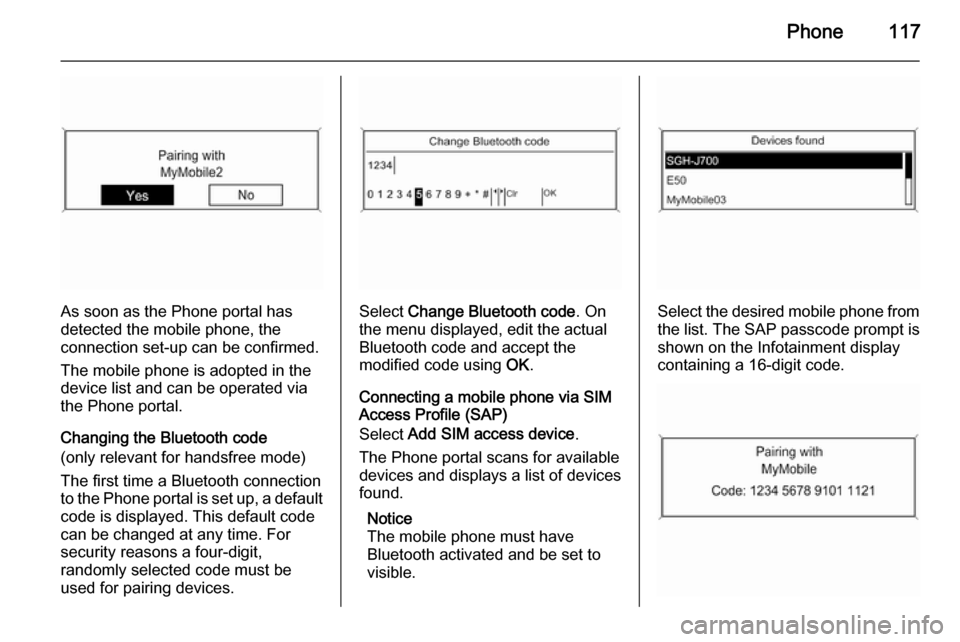
As soon as the Phone portal has
detected the mobile phone, the
connection set-up can be confirmed.
The mobile phone is adopted in the
device list and can be operated via
the Phone portal.
Changing the Bluetooth code
(only relevant for handsfree mode)
The first time a Bluetooth connection
to the Phone portal is set up, a default code is displayed. This default code
can be changed at any time. For
security reasons a four-digit,
randomly selected code must be
used for pairing devices.Select Change Bluetooth code . On
the menu displayed, edit the actual
Bluetooth code and accept the
modified code using OK.
Connecting a mobile phone via SIM
Access Profile (SAP)
Select Add SIM access device .
The Phone portal scans for available
devices and displays a list of devices
found.
Notice
The mobile phone must have
Bluetooth activated and be set to visible.Select the desired mobile phone from
the list. The SAP passcode prompt is
shown on the Infotainment display
containing a 16-digit code.
Page 118 of 129

118Phone
Enter the displayed SAP passcode in
the mobile phone (without spaces).
The mobile phone PIN code is shown
on the Infotainment display.
If the PIN request function is active,
the user will have to enter the PIN code of the SIM card in the mobile
phone.
Enter the PIN code of the mobile
phone SIM. The mobile phone is
paired with the Phone portal.
Services of the mobile network
provider can be used via the Phone
portal.
Connecting a mobile phone
saved in the device list
Select the desired mobile phone and
then select the option Select in the
menu displayed.
As soon as the Phone portal has
detected the mobile phone, the
connection setup can be confirmed.
The mobile phone can be operated
via the Phone portal.
Removing mobile phone from
device list Select the desired mobile phone from
the device list. In the menu displayed
select Delete and confirm the
subsequent message.
Setting up a connected phone
Various mobile phone settings can be configured in the Phone settings
menu, if the phone is connected via
SAP.
Adjusting the ring tone
To change the ring tone
characteristic:
Press CONFIG button.
Select Phone settings and then Ring
tone .
Select the desired option.
To change the ring tone volume:
While the phone rings turn the m knob
of the Infotainment system or press
the buttons + / - on the steering wheel.
Changing security settings
Press CONFIG button.
Page 120 of 129

120Phonea sufficiently strong signal. Undercertain circumstances emergency
calls cannot be made on all mobile
phone networks; it is possible that
they cannot be made when certain network services and/or telephonefunctions are active. You can
enquire about this with the local
network operators.
The emergency call number can
differ depending on the region and
country. Please enquire
beforehand about the correct
emergency call number for the
relevant region.
Making an emergency call
Dial the emergency call number (e.g.
112 ).
The telephone connection to the
emergency call centre is set up.
Answer when the service personnel
questions you about the emergency.
9 Warning
Do not end the call until you are
requested to do so by the
emergency call centre.
Operation
Introduction As soon as a connection via
Bluetooth has been set up between
your mobile phone and the
Infotainment system, you can also
operate many functions of your
mobile phone via the Infotainment
system.
Via the Infotainment system, you can,
e.g., set up a connection to the
telephone numbers stored in your
mobile phone or change the
telephone numbers.
Notice
In the handsfree mode mobile phone
operation continues to be possible,
e. g. taking a call or adjusting the
volume.
After setup of a connection between
the mobile phone and the
Infotainment system the mobile
phone data is transmitted to the
Infotainment system. This can take
some time depending on the phone
model. During this period operation of
the mobile phone is possible via the
Infotainment system only to a limited
extent.
Not every telephone supports all
functions of the Phone portal.
Therefore deviations from the range
of functions described with these
specific telephones are possible.
Setting the volume for hands-
free facility
Turn the m knob on the Infotainment
system or press the buttons + / - on
the steering wheel.
Page 122 of 129
122Phone
Notice
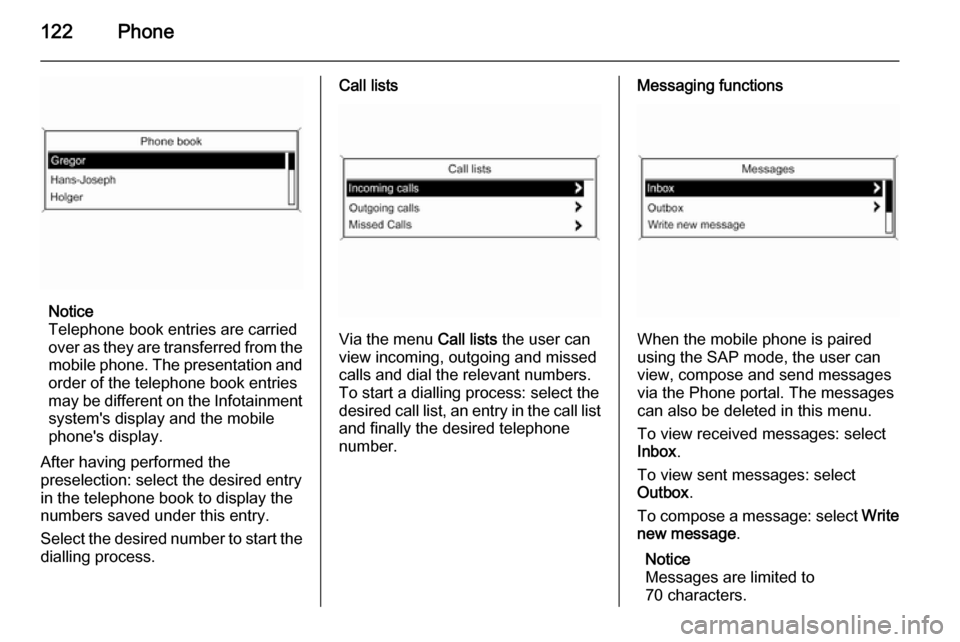
Telephone book entries are carried
over as they are transferred from the mobile phone. The presentation and
order of the telephone book entries
may be different on the Infotainment system's display and the mobile
phone's display.
After having performed the
preselection: select the desired entry
in the telephone book to display the
numbers saved under this entry.
Select the desired number to start the dialling process.
Call lists
Via the menu Call lists the user can
view incoming, outgoing and missed
calls and dial the relevant numbers.
To start a dialling process: select the desired call list, an entry in the call list and finally the desired telephone
number.
Messaging functions
When the mobile phone is paired
using the SAP mode, the user can
view, compose and send messages
via the Phone portal. The messages
can also be deleted in this menu.
To view received messages: select
Inbox .
To view sent messages: select
Outbox .
To compose a message: select Write
new message .
Notice
Messages are limited to
70 characters.
Page 126 of 129

126IndexAActivating CD player ...................103
Activating speech recognition .....110
Activating the radio .......................93
Autostore lists ............................... 94
B BACK button ................................. 85
Basic operation ............................. 85
Bluetooth .................................... 114
Bluetooth connection ..................115
C CD player activating ................................. 103
important information ..............102
usage ...................................... 103
Configuring DAB .........................100
Configuring RDS........................... 98
Control elements overview ...........78
D
DAB ............................................ 100
Digital audio broadcasting ..........100
E Emergency call ........................... 119
Enhanced Other Networks ...........98
EON .............................................. 98F
Favourite lists ............................... 94
G General information ...................
.......... 76, 102, 106, 107, 109, 114
H Handsfree mode .........................115
I
Infotainment system maximum startup volume ..........91
personalisation .......................... 92
speed dependent volume ..........91
tone settings .............................. 89
volume of the traffic
announcements ........................ 91
volume settings ......................... 91
M
Menu operation............................. 85
Mobile phones and CB radio equipment .............................. 123
Multifunction knob......................... 85
Mute.............................................. 84
O Operation .................................... 120
Page 127 of 129

127
PPersonalisation ............................. 92
Phone adjusting ring tones .................115
Bluetooth ................................. 114
Bluetooth connection ..............115
call lists.................................... 120
control elements ......................114
dialling a number .....................120
emergency calls ......................119
functions during a call .............120
handsfree mode ......................115
important information ..............114
messaging functions ...............120
recharging the battery .............114
setting the volume ...................120
SIM Access Profile (SAP) .......115
telephone book ....................... 120
Phone control ............................. 110
Playing saved audio files ............107
R Radio Radio data system (RDS) .........98
activating ................................... 93
autostore lists ............................ 94
Digital audio broadcasting
(DAB) ...................................... 100
favourite lists ............................. 94selecting the waveband ............93
station lists ................................ 95
station search ............................ 93
usage ........................................ 93
waveband menus ......................95
Radio data system (RDS) ............98
RDS .............................................. 98
Recharging the phone battery ....114
Regionalization ............................. 98
Retrieving stations ........................94
S SAP mode .................................. 115
Selecting the waveband ...............93
Setting the volume ........................84
SIM Access Profile (SAP) ...........115
Speech recognition .............109, 110
activating ................................. 110
phone control .......................... 110
usage ...................................... 110
volume for voice output ...........110
Speed compensated volume ........84
Starting CD replay ......................103
Station search............................... 93
Storing stations ............................. 94
Switching the Infotainment system on or off......................... 84
Switching the radio on ..................93T
Theft-deterrent feature ................. 77
Tone settings ................................ 89
Traffic announcements .................91
U Updating station lists ....................95
Usage ..................... 84, 93, 103, 106
Using the AUX input ...................106
Using the CD player ...................103
Using the Infotainment system .....84
Using the radio ............................. 93
Using the USB port .....................107
V
Voice recognition ........................109
Volume for voice output ..............110
Volume settings ............................ 91
W
Waveband menus......................... 95