Mobile phone VAUXHALL MERIVA 2016 Infotainment system
[x] Cancel search | Manufacturer: VAUXHALL, Model Year: 2016, Model line: MERIVA, Model: VAUXHALL MERIVA 2016Pages: 171, PDF Size: 2.86 MB
Page 118 of 171

118PhoneConnecting a mobile phone for
the first time
There are two options for connecting
a mobile phone to the Phone portal: by adding it as a handsfree device or
by using the SIM Access Profile
(SAP).
Handsfree mode
When the mobile phone is added as
a handsfree device, the user can
make or receive calls and use other
functions via the Phone portal. The
range of functions available depends
on the mobile phone. While it is
connected with the Phone portal the
mobile phone can be operated as
usual. Note that the mobile phone
battery may discharge at a higher
speed than usual due to the Bluetooth connection active along with normal
operation of the mobile phone.
SAP mode
When using the SAP option, a wider
range of functions is available via the
Phone portal such as various security
and messaging options. The actual
range of functions depends on the
network provider. Additionally, in theSAP mode the mobile phone is in the standby mode. Only the Bluetooth
connection and the SIM card are
active, which leads to lower energy
consumption of the connected mobile
phone.
Connecting a mobile phone as a
handsfree device
Select Add device (Handsfree) . The
Bluetooth code to be entered into the
mobile phone is displayed.
The Phone portal can now be
detected by other Bluetooth devices.
As soon as the mobile phone has
detected the Phone portal the
Bluetooth code can be entered into
the mobile phone.
As soon as the Phone portal has
detected the mobile phone, the
connection set-up can be confirmed.
The mobile phone is adopted in the
device list and can be operated via
the Phone portal.
Changing the Bluetooth code
(only relevant for handsfree mode)
Page 119 of 171

Phone119The first time a Bluetooth connection
to the Phone portal is set up, a default
code is displayed. This default code
can be changed at any time. For
security reasons a four-digit,
randomly selected code must be
used for pairing devices.
Select Change Bluetooth code . On
the menu displayed, edit the actual
Bluetooth code and accept the
modified code using OK.
Connecting a mobile phone via SIM
Access Profile (SAP)
Select Add SIM access device .
The Phone portal scans for available
devices and displays a list of devices
found.
Notice
The mobile phone must have
Bluetooth activated and be set to
visible.
Select the desired mobile phone from
the list. The SAP passcode prompt is shown on the Infotainment display
containing a 16-digit code.
Enter the displayed SAP passcode in
the mobile phone (without spaces).
The mobile phone PIN code is shown
on the Infotainment display.
If the PIN request function is active,
the user will have to enter the PIN
code of the SIM card in the mobile
phone.
Page 120 of 171
120Phone
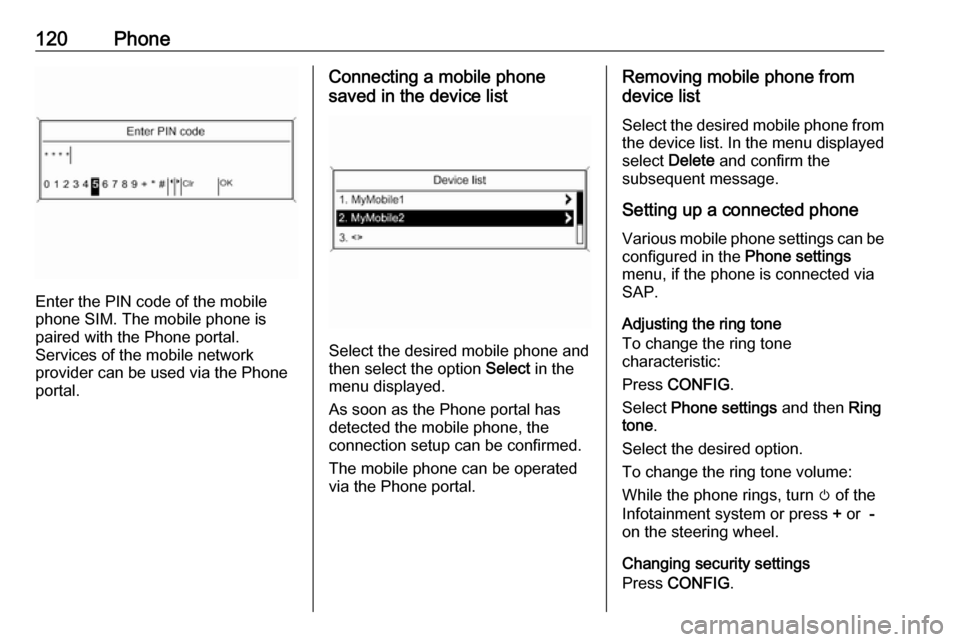
Enter the PIN code of the mobile
phone SIM. The mobile phone is
paired with the Phone portal.
Services of the mobile network
provider can be used via the Phone
portal.
Connecting a mobile phone
saved in the device list
Select the desired mobile phone and
then select the option Select in the
menu displayed.
As soon as the Phone portal has
detected the mobile phone, the
connection setup can be confirmed.
The mobile phone can be operated
via the Phone portal.
Removing mobile phone from
device list
Select the desired mobile phone from
the device list. In the menu displayed select Delete and confirm the
subsequent message.
Setting up a connected phone Various mobile phone settings can be
configured in the Phone settings
menu, if the phone is connected via
SAP.
Adjusting the ring tone
To change the ring tone
characteristic:
Press CONFIG .
Select Phone settings and then Ring
tone .
Select the desired option.
To change the ring tone volume:
While the phone rings, turn m of the
Infotainment system or press + or -
on the steering wheel.
Changing security settings
Press CONFIG .
Page 121 of 171

Phone121Select Phone settings and then
Security .
The security dialogue is displayed.
Activating/Deactivating PIN request
Select PIN request On or Off.
Enter the PIN code of the mobile
phone SIM card and confirm.
Notice
This option depends on the
individual network provider.
Changing the PIN codeSelect Change PIN .
Enter the current PIN code. Enter the
new PIN code. Repeat the new PIN code and confirm. The PIN has beenchanged.Configuring network services
Select Phone settings and then
Network services . The Network
services dialogue is displayed.
Depending on the network provider
and mobile phone, there are several options available.● Network selection : choose
between automatic or manual
network selection.
● Call waiting : activate or
deactivate call waiting.
● Call diverting : select diverting
options depending on the
situation.
● Call barring : configure call
barring options depending on the
situation.
For details on network services
configuration refer to the mobile
phone manual or enquire with the
mobile network provider.
Configuring SMS centre number
The SMS centre number is a phone
number that acts as a gateway for
transferring SMS messages between mobile phones. This number is
usually preset by the network
provider.
To configure the SMS centre number
select Phone settings and then SMS
centre number . If required, modify the
SMS centre number.Resetting the mobile phone to factory
settings
Select Phone settings and then
Restore factory settings .
Emergency call9 Warning
Connection setup cannot be
guaranteed in all situations. For
this reason you should not rely
exclusively on a mobile phone
when a vitally important
communication (e. g. a medical
emergency) is concerned.
In some networks it may be
necessary for a valid SIM card to
be properly inserted in the mobile
phone.
9 Warning
Bear in mind that you can make
and receive calls with the mobile
phone, if it is in a service area with
a sufficiently strong signal. Under
certain circumstances emergency
Page 122 of 171

122Phonecalls cannot be made on all mobile
phone networks; it is possible that
they cannot be made when certain network services and/or telephonefunctions are active. You can
enquire about this with the local
network operators.
The emergency call number can
differ depending on the region and
country. Please enquire
beforehand about the correct
emergency call number for the
relevant region.
Making an emergency call
Dial the emergency call number (e.g.
112 ).
The telephone connection to the
emergency call centre is set up.
Answer when the service personnel
questions you about the emergency.
9 Warning
Do not end the call until you are
requested to do so by the
emergency call centre.
Operation
Introduction As soon as a connection via
Bluetooth has been set up between
your mobile phone and the
Infotainment system, you can also
operate many functions of your
mobile phone via the Infotainment
system.
Via the Infotainment system, you can,
e.g., set up a connection to the
telephone numbers stored in your
mobile phone or change the
telephone numbers.
Notice
In the handsfree mode mobile phone
operation continues to be possible,
e. g. taking a call or adjusting the
volume.
After setup of a connection between
the mobile phone and the
Infotainment system, the mobile
phone data is transmitted to the
Infotainment system. This can take
some time depending on the phone
model. During this period, operationof the mobile phone is possible via the Infotainment system only to a limited
extent.
Not every telephone supports all
functions of the Phone portal.
Therefore, deviations from the range
of functions described with these
specific telephones are possible.
Setting the volume for hands-free
facility
Turn m on the Infotainment system or
press w or ─ on the steering wheel.
Dialling a telephone number
Page 124 of 171
124Phone
Notice
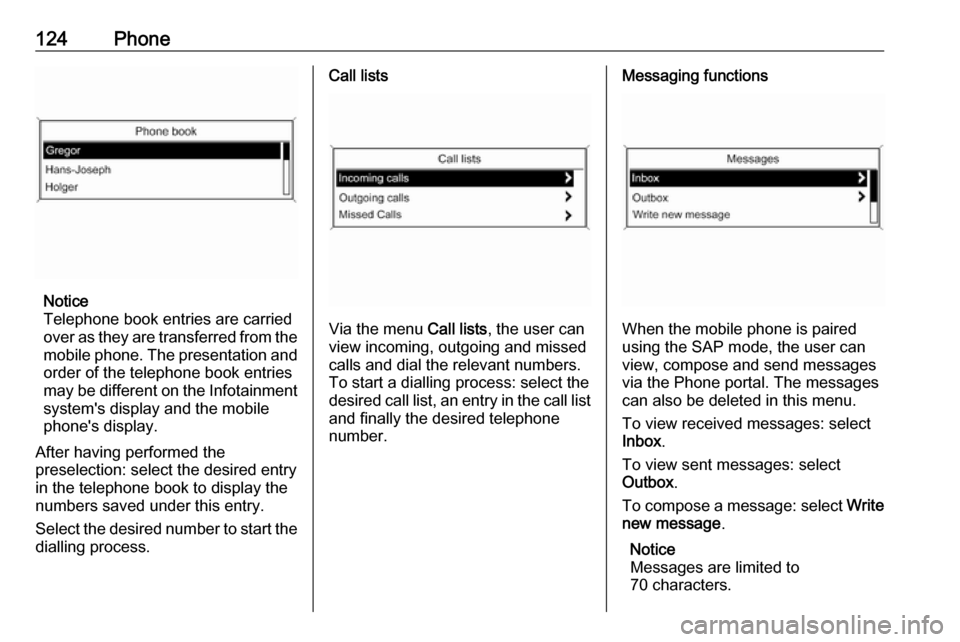
Telephone book entries are carried
over as they are transferred from the mobile phone. The presentation and
order of the telephone book entries
may be different on the Infotainment system's display and the mobile
phone's display.
After having performed the
preselection: select the desired entry
in the telephone book to display the
numbers saved under this entry.
Select the desired number to start the dialling process.
Call lists
Via the menu Call lists, the user can
view incoming, outgoing and missed
calls and dial the relevant numbers.
To start a dialling process: select the desired call list, an entry in the call list and finally the desired telephone
number.
Messaging functions
When the mobile phone is paired
using the SAP mode, the user can
view, compose and send messages
via the Phone portal. The messages
can also be deleted in this menu.
To view received messages: select
Inbox .
To view sent messages: select
Outbox .
To compose a message: select Write
new message .
Notice
Messages are limited to
70 characters.
Page 125 of 171

Phone125Incoming callWhen there is an incoming call, a
menu is displayed to accept or
decline the telephone call.
Select required option.
Functions during a telephone call If you currently have a telephone call, press the multifunction knob to open
a submenu.
Various options are available depending on the situation and range
of functions of the mobile phone:
● Hang up : disconnect the
telephone connection.
● Call number : enter a telephone
number to make a second
telephone call or perform DTMF
(touch-tone dialling), e.g. for
voice mail or telephone banking.
● Detach call : detach the
connection to a conference
participant in a telephone
conference.
● Merge calls : merge two calls
when there are several active calls.● Switch calls : switch between
calls, if there are several calls.
● Mute call : mute a call.
Mobile phones and CB radio
equipment
Installation instructions and
operating guidelines
The vehicle specific installation
instructions and the operating
guidelines of the mobile phone and
handsfree manufacturer must be
observed when installing and
operating a mobile telephone. Failure to do so could invalidate the vehicle
type approval (EU directive 95/54/
EC).Recommendations for fault-free
operation:
● The exterior antenna needs to be
professionally installed to obtain
the maximum range possible.
● Maximum transmission power: 10 watts.
● The mobile phone needs to be installed in a suitable spot.
Consider relevant note in the
Owner's Manual, chapter Airbag
system .
Seek advice on predetermined
installation points for the external
antenna or equipment holder and
ways of using devices with a
transmission power exceeding
10 watts.
Use of a handsfree attachment
without external antenna with mobile
telephone standards GSM
900/1800/1900 and UMTS is only
permitted if the maximum
transmission power of the mobile
telephone is 2 watts for GSM 900 or
1 watt for the other types.
Page 126 of 171

126PhoneFor reasons of safety, do not use the
phone while driving. Even use of a
handsfree set can be a distraction while driving.9 Warning
Operation of radio equipment and
mobile telephones which fail to
meet above mentioned mobile
telephone standards is only
permitted using an antenna
located outside of the vehicle.
Caution
Mobile telephones and radio
equipment may lead to
malfunctions in the vehicle
electronics when operated inside
the vehicle with no exterior
antenna, unless the above
mentioned regulations are
observed.
Page 128 of 171

128IndexAActivating CD player ...................106
Activating speech recognition .....112
Activating the radio .......................96
Autostore lists ............................... 97
B BACK button ................................. 89
Basic operation ............................. 89
Bluetooth .................................... 116
Bluetooth connection ..................117
C CD player activating ................................. 106
important information ..............105
usage ...................................... 106
Configuring DAB .........................103
Configuring RDS......................... 101
Control elements overview ...........82
D
DAB ............................................ 103
Digital audio broadcasting ..........103
E Emergency call ........................... 121
Enhanced Other Networks .........101
EON ............................................ 101
F
Favourite lists ............................... 97G
General information .....80, 105,
108, 109, 111, 116
H Handsfree mode .........................117
I
Infotainment system maximum startup volume ..........95
speed dependent volume ..........95
tone settings .............................. 93
volume of the traffic
announcements ........................ 95
volume settings ......................... 95
M
Menu operation............................. 89 Mobile phones and CB radio equipment .............................. 125
Multifunction knob......................... 89
Mute.............................................. 88
O
Operation .................................... 122
P Phone adjusting ring tones .................117
Bluetooth ................................. 116
Bluetooth connection ..............117
call lists.................................... 122
Page 132 of 171

132IntroductionIntroductionGeneral information...................132
Theft-deterrent feature ...............133
Control elements overview ........134
Usage ........................................ 137
Basic operation .......................... 138
Tone settings ............................. 140
Volume settings .........................141General information
The Infotainment system provides
you with state-of-the-art in-car
infotainment.
Using the FM, AM or DAB radio
functions, you may register up to 36 stations on six favourites pages.
The integrated audio player will
entertain you with audio CDs and
MP3/WMA CDs.
You can connect external data
storage devices, e.g. iPod, MP3
player, USB stick, or a portable CD
player to the Infotainment system as
further audio sources; either via cable or via Bluetooth.
In addition, the Infotainment system is equipped with a Phone portal that
allows for comfortable and safe use of
your mobile phone in the vehicle.
Optionally, the Infotainment system
can be operated using controls on the steering wheel.
The well-thought-out design of the
control elements and the clear
displays enable you to control the
system easily and intuitively.Notice
This manual describes all options
and features available for the
various Infotainment systems.
Certain descriptions, including those
for display and menu functions, may not apply to your vehicle due to
model variant, country
specifications, special equipment or
accessories.
Display
The CD 400plus is available in two
variants; noticeable difference is the
display. The second variant has the
following display.