Eco VAUXHALL MOKKA X 2018 Owner's Guide
[x] Cancel search | Manufacturer: VAUXHALL, Model Year: 2018, Model line: MOKKA X, Model: VAUXHALL MOKKA X 2018Pages: 249, PDF Size: 6.83 MB
Page 99 of 249
Instruments and controls97Illuminates green
Speed limiter is active. Set speed is
indicated near L symbol.
Speed limiter 3 154.
Traffic sign assistant
L displays detected traffic signs as a
control indicator.
Traffic sign assistant 3 162.
Door open h illuminates red.
A door or the tailgate is open.Information displays
Driver Information Centre The Driver Information Centre is
located in the instrument cluster.
Depending on the version and the
instrument cluster, the Driver
Information Centre is available as
Midlevel display or Uplevel display.
Driver Information Centre indicates
depending on the equipment:
● overall and trip odometer
● vehicle information
● trip/fuel information
● driving economy information ● vehicle and warning messages
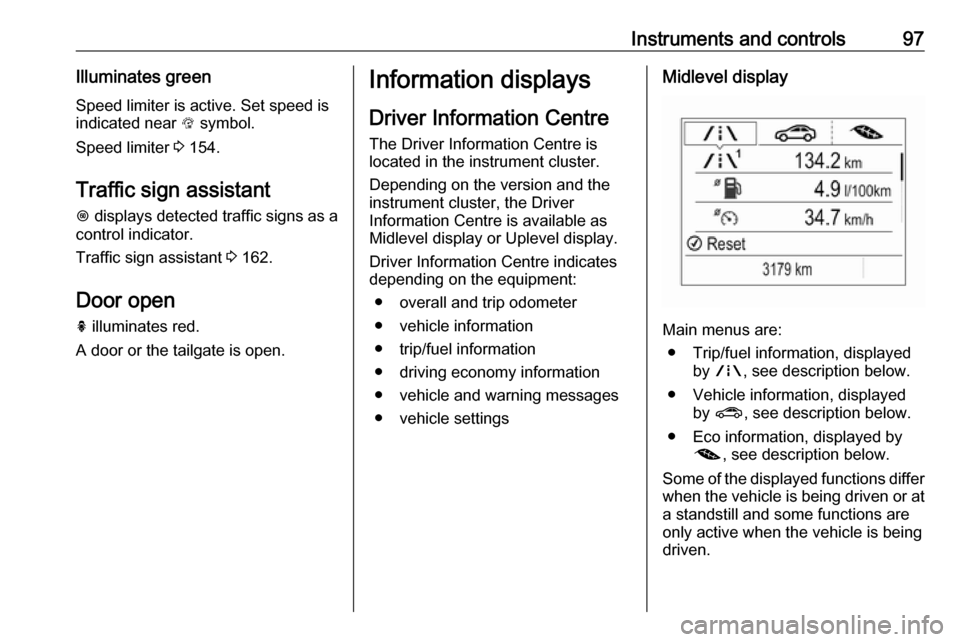
● vehicle settingsMidlevel display
Main menus are: ● Trip/fuel information, displayed by ; , see description below.
● Vehicle information, displayed by ? , see description below.
● Eco information, displayed by @ , see description below.
Some of the displayed functions differ
when the vehicle is being driven or at a standstill and some functions are
only active when the vehicle is being
driven.
Page 101 of 249

Instruments and controls99On Midlevel display the pages
Remaining Oil Life, Tyre Pressure,
Traffic Sign Assistant and Following
Distance are displayed in the Vehicle
information menu, select ?.
Trip odometer 1/2 or A/B
Trip odometer displays the current
distance since a certain reset.
Trip odometer counts up to a distance
of 9,999 miles then restarts at 0.
To reset press SET/CLR for a few
seconds.
The information of trip odometer page 1/A and 2/B can be reset separately
while the respective display is active.
Average Fuel Consumption
Display of average consumption. The measurement can be reset at any
time and starts with a default value.
To reset press SET/CLR for a few
seconds.
Average speed
Display of average speed. The
measurement can be reset at any
time.To reset press SET/CLR for a few
seconds.
Digital speed
Digital display of the instantaneous
speed.
Fuel range
Range is calculated from current fuel
level and current consumption. The
display shows average values.
After refuelling, the range is updated
automatically after a brief delay.
When the level in the fuel tank is low,
a message appears on the display
and the control indicator Y in the fuel
gauge illuminates.
When the fuel tank must be refuelled
immediately, a warning message
appears and remains on the display.
Additionally, the control indicator Y in
the fuel gauge flashes 3 95.
Instantaneous Fuel Consumption
Display of the instantaneous
consumption.Remaining Oil Life
Indicates an estimate of the oil's
useful life. The number in percentage means the remainder of current oil life
3 87.
Tyre Pressure
Checks tyre pressure of all wheels
during driving 3 197.
Traffic sign assistant
Displays the detected traffic signs for
the current route section 3 162.
Following Distance
Displays the distance in seconds to a preceding moving vehicle 3 157.
Timer
To start and stop follow the
instructions on the display. To reset,
press SET/CLR .
Eco information menu, @
● Top consumers
● Economy trend
● Eco index
Page 102 of 249

100Instruments and controlsOn Uplevel display the pages Top
Consumers, Economy Trend and Eco
index, are displayed in the Trip/fuel
information menu, select Info.
Top Consumers
List of top comfort consumers
currently switched on is displayed in
descending order. Fuel saving
potential is indicated.
During sporadic driving conditions,
the engine will activate the heated
rear window automatically to increase
the engine load. In this event, the
heated rear window is indicated as
one of the top consumers, without
activation by the driver.Economy Trend
Displays the average consumption
development over a distance of
31 miles. Filled segments display the
consumption in 3.1 mile steps and
shows the effect of topography or
driving behaviour on fuel
consumption.
Economy index
The current fuel consumption is
indicated on an economic scale. For
economical driving, adapt driving
style to keep the filled segments
within the Eco area. The more
segments are filled, the higher the
fuel consumption.
Simultaneously the average
consumption value is indicated.
Vehicle information menu, ? or
Options L
The following list contains all possible
Options Menu pages. Some may not
be available for your particular
vehicle. Depending on the display
some functions are symbolised.
Turn the adjuster wheel to select a
page and follow the instructions given in the submenus:
● Units
● Info pages
● Speed warning
● Tyre loading
Units
Press SET/CLR while units is
displayed. Select imperial or metric units by turning adjuster wheel.
Confirm by pressing SET/CLR.
Info pages
Press SET/CLR while Info pages is
displayed. A list of all items in the Info
Menu is displayed. Select the
Page 103 of 249
Instruments and controls101functions to be displayed in the Info
page by turning the adjuster wheel and confirm by pressing SET/CLR.
Selected pages have a 9 in a
checkbox. Non-viewable functions
have a blank checkbox. See Info
Menu above.
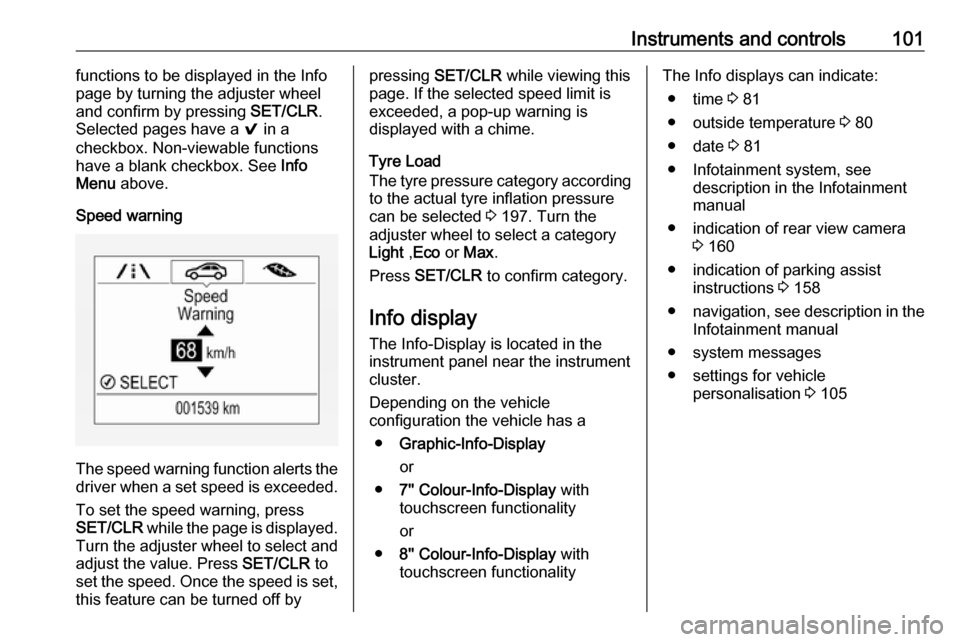
Speed warning
The speed warning function alerts the driver when a set speed is exceeded.
To set the speed warning, press
SET/CLR while the page is displayed.
Turn the adjuster wheel to select and
adjust the value. Press SET/CLR to
set the speed. Once the speed is set, this feature can be turned off by
pressing SET/CLR while viewing this
page. If the selected speed limit is
exceeded, a pop-up warning is
displayed with a chime.
Tyre Load
The tyre pressure category according
to the actual tyre inflation pressure
can be selected 3 197. Turn the
adjuster wheel to select a category Light ,Eco or Max .
Press SET/CLR to confirm category.
Info display
The Info-Display is located in the
instrument panel near the instrument
cluster.
Depending on the vehicle
configuration the vehicle has a
● Graphic-Info-Display
or
● 7'' Colour-Info-Display with
touchscreen functionality
or
● 8'' Colour-Info-Display with
touchscreen functionalityThe Info displays can indicate:
● time 3 81
● outside temperature 3 80
● date 3 81
● Infotainment system, see description in the Infotainment
manual
● indication of rear view camera 3 160
● indication of parking assist instructions 3 158
● navigation, see description in the
Infotainment manual
● system messages
● settings for vehicle personalisation 3 105
Page 104 of 249

102Instruments and controlsGraphic-Info-Display
Press X to switch on the display.
Press MENU to select main menu
page.
Turn MENU to select a menu page.
Press MENU to confirm a selection.
Press BACK to exit a menu without
changing a setting.
7'' Colour-Info-Display
Selecting menus and settings
Menus and settings are accessed via
the display.
Press X to switch on the display.
Press ; to display the homepage.
Touch required menu display icon
with the finger.
Touch a respective icon to confirm a
selection.
Touch 9 to return to the next higher
menu level.
Press ; to return to the homepage.
For further information, see
Infotainment manual.
Vehicle personalisation 3 105.
8'' Colour-Info-Display
Selecting menus and settings
There are three options to operate the
display:
● via buttons below the display● by touching the touchscreen with
the finger
● via speech recognitionButton operation
Press X to switch on the display.
Press ; to display the homepage.
Turn MENU to select a menu display
icon or a function or to scroll a
submenu list.
Page 105 of 249

Instruments and controls103Press MENU to confirm a selection.
Press BACK to exit a menu without
changing a setting.
Press ; to return to the homepage.
For further information, see
Infotainment manual.Touchscreen operation
Display must be switched on by
pressing X. Press ; to select
homepage.
Touch required menu display icon or
a function with the finger.
Scroll a longer submenu list with the
finger up or down.
Confirm a required function or
selection by touching.
Touch q on the display to exit a
menu without changing a setting.
Press ; to return to the homepage.
For further information, see
Infotainment manual.Speech recognition
Description see Infotainment manual.
Vehicle personalisation 3 105.
Valet mode
Some functions of the Driver
Information Centre and the Info-
Display can be limited for some
drivers.
Activation or deactivation of valet
mode can be set in the menu
Settings in the vehicle personalisation
menu.
Vehicle personalisation 3 105.
For more information see
Infotainment manual.Vehicle messages
Messages are indicated mainly in the
Driver Information Centre, in some
cases together with a warning chime.
Press SET/CLR on the turn signal
lever to confirm a message.
Vehicle and service messages The vehicle messages are displayed
as text. Follow the instructions given
in the messages.
Page 108 of 249
106Instruments and controlsDelayed Door Lock: Activates or
deactivates the delayed door
locking function.
● Remote Lock, Unlock, and Start
Remote Unlock Feedback :
Activates or deactivates the
hazard warning flasher feedback
whilst unlocking.
Remote Lock Feedback :
Changes what kind of feedback
is given when locking the vehicle.
Remote Door Unlock : Changes
the configuration to unlock only
the driver's door or the whole
vehicle whilst unlocking.
Auto Relock Doors : Activates or
deactivates the automatic relock
function after unlocking without
opening the vehicle.
Remote Window Operation :
Activates or deactivates the
operation of power windows with
remote control.
Passive Door Unlock : Changes
the configuration to unlock only
the driver's door or the whole
vehicle whilst unlocking.Passive Door Lock : Activates or
deactivates the passive locking
function. This feature locks the
vehicle automatically after
several seconds if all doors have
been closed and an electronic
key has been removed from the
vehicle.
Remote Left in Vehicle Alarm :
Activates or deactivates the warning chime when the
electronic key remains in the
vehicle.
● Restore Factory Settings :
Resets all settings to the default settings.
● Valet Mode :
See infotainment manual.
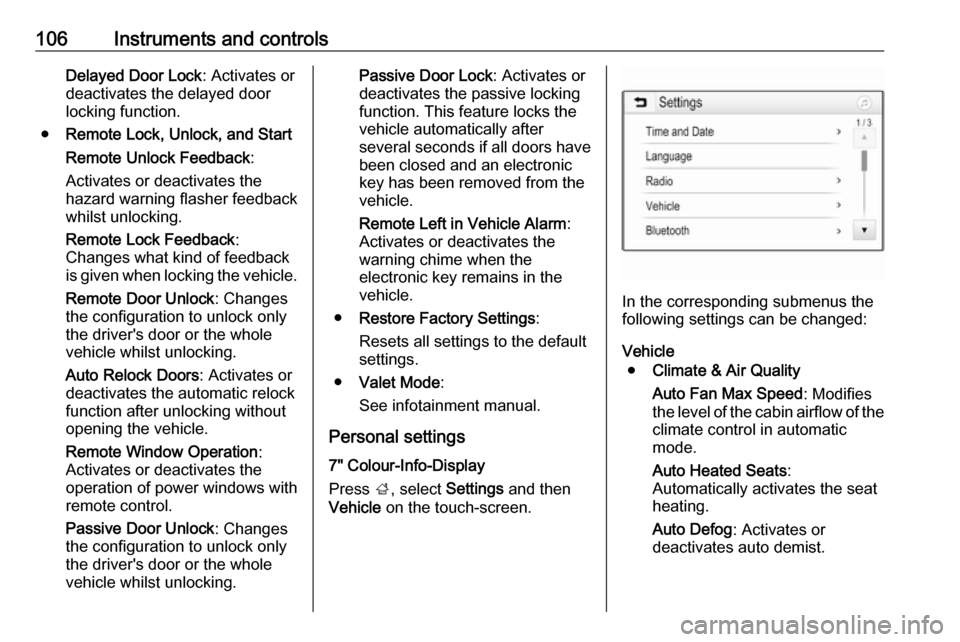
Personal settings 7" Colour-Info-Display
Press ;, select Settings and then
Vehicle on the touch-screen.
In the corresponding submenus the
following settings can be changed:
Vehicle ● Climate & Air Quality
Auto Fan Max Speed : Modifies
the level of the cabin airflow of the climate control in automatic
mode.
Auto Heated Seats :
Automatically activates the seat
heating.
Auto Defog : Activates or
deactivates auto demist.
Page 109 of 249

Instruments and controls107Auto Rear Defog: Activates the
heated rear window
automatically.
● Collision / Detection Systems
Park Assist : Activates or
deactivates the ultrasonic
sensors.
● Comfort and Convenience
Chime Volume : Changes the
volume of warning chimes.
Personalization By Driver :
Activates or deactivates the
personalisation function.
Auto Wipe in Reverse Gear :
Activates or deactivates
automatic switching on of the
rear window wiper when reverse gear is engaged.
● Lighting
Vehicle Locator Lights : Activates
or deactivates the entry lighting.
Exit Lighting : Activates or
deactivates and changes the
duration of exit lighting.
Left or Right Hand Traffic :
Changes between lighting for left or right-hand traffic.Adaptive Forward Lighting :
Changes the settings of the
functions of the LED headlights.
● Power Door Locks
Unlocked Door Anti Lock Out :
Activates or deactivates the door locking function while a door is
open.
Auto Door Lock : Activates or
deactivates the automatic door
locking function after switching
on ignition.
Delayed Door Lock : Activates or
deactivates the delayed door
locking function.
● Remote Lock, Unlock, Start
Remote Unlock Light Feedback :
Activates or deactivates the
hazard warning flasher feedback whilst unlocking.
Remote Lock Feedback :
Changes what kind of feedback
is given when locking the vehicle.
Remote Door Unlock : Changes
the configuration to unlock only
the driver's door or the whole
vehicle whilst unlocking.Relock Remotely Unlocked
Doors : Activates or deactivates
the automatic relock function
after unlocking without opening
the vehicle.
Remote Window Operation :
Activates or deactivates the
operation of power windows with
remote control.
Passive Door Unlock : Changes
the configuration to unlock only
the driver's door or the whole
vehicle whilst unlocking.
Passive Door Lock : Activates or
deactivates the passive locking
function. This feature locks the
vehicle automatically after
several seconds if all doors have
been closed and an electronic
key has been removed from the
vehicle.
Remote Left in Vehicle Alert :
Activates or deactivates the
warning chime when the
electronic key remains in the
vehicle.
Personal settings
8" Colour-Info-Display
Page 111 of 249

Instruments and controls109the driver's door or the whole
vehicle whilst unlocking.
Relock Remote Unlocked Doors :
Activates or deactivates the
automatic relock function after
unlocking without opening the vehicle.
Remote Window Operation :
Activates or deactivates the
operation of power windows with
remote control.
Passive Door Unlock : Changes
the configuration to unlock only
the driver's door or the whole
vehicle whilst unlocking.
Passive Door Lock : Activates or
deactivates the passive locking
function. This feature locks the
vehicle automatically after
several seconds if all doors have been closed and an electronickey has been removed from the
vehicle.
Remote Left in Vehicle Alert :
Activates or deactivates the
warning chime when the
electronic key remains in the
vehicle.Telematics service
OnStar
OnStar is a personal connectivity and
service assistant with integrated
Wi-Fi hotspot. The OnStar service is
available 24 hours a day, seven days
a week.
Notice
OnStar is not available for all
markets. For further information,
contact your workshop.
Notice
In order to be available and
operational, OnStar needs a valid
OnStar subscription, functioning
vehicle electrics, mobile service and GPS satellite link.
To activate the OnStar services and
set up an account, press Z and speak
with an advisor.Depending on the equipment of the
vehicle, the following services are
available:
● Emergency services and support
in the case of a vehicle
breakdown
● Wi-Fi hotspot
● Smartphone application
● Remote control, e.g. location of the vehicle, activation of horn and
lights, control of central locking
system
● Stolen vehicle assistance
● Vehicle diagnostics
● Destination download
Notice
The OnStar module of the vehicle is
deactivated after ten days without an
ignition cycle. Functions requiring a
data connection will be available
again after switching on the ignition.
Page 113 of 249

Instruments and controls111To connect a mobile device with the
Wi-Fi hotspot:
1. Press j and then select Wi-Fi
settings on the Info-Display. The
settings displayed include the Wi- Fi hotspot name (SSID),
password and connection type.
2. Start a Wi-Fi network search on your mobile device.
3. Select your vehicle hotspot (SSID) when listed.
4. When prompted, enter the password on your mobile device.
Notice
To change the SSID or password, press Z and talk to an advisor or log
in to your account.
To switch off the Wi-Fi hotspot
functionality, press Z to call an
advisor.
Smartphone app
With the My Vauxhall smartphone
app, some vehicle functions can be
operated remotely.The following functions are available:
● Lock or unlock vehicle.
● Honk horn or flash lights.
● Check fuel level, engine oil life and tyre pressure (only with tyre
pressure monitoring system).
● Send navigation destination to the vehicle, if equipped with a
built-in navigation system.
● Locate vehicle on a map.
● Manage Wi-Fi settings.
To operate these functions, download the app from App Store ®
or
Google Play™ Store.
Remote control
If desired, use any phone to call an
advisor, who can remotely operate
specific vehicle functions. Find the respective OnStar phone number on
our country-specific website.
The following functions are available: ● Lock or unlock vehicle.
● Provide information on the vehicle location.
● Honk horn or flash lights.Stolen vehicle assistance
If the vehicle is stolen, report the theft to the authorities and request OnStar
stolen vehicle assistance. Use any
phone to call an advisor. Find the
respective OnStar phone number on
our country-specific website.
OnStar can provide support in
locating and recovering the vehicle.Theft alert
When the anti-theft alarm system is
triggered, a notification is sent to
OnStar. You are then informed about
this event by text message or email.Restart prevention
By sending remote signals, OnStar
can prevent the vehicle from
restarting once it has been turned off.
On-demand diagnostics
At any time e.g. if the vehicle displays a vehicle message, press Z to
contact an advisor and ask to
complete a real-time diagnostic check
to directly determine the issue.
Depending on the results, the advisor
will provide further support.