radio VAUXHALL MOVANO_B 2014.5 Infotainment system
[x] Cancel search | Manufacturer: VAUXHALL, Model Year: 2014.5, Model line: MOVANO_B, Model: VAUXHALL MOVANO_B 2014.5Pages: 93, PDF Size: 1.45 MB
Page 19 of 93
Introduction19
1 RADIO/CD - Change
audio source ......................... 28
MEDIA - Change audio
source ................................... 28
2 ! - Increase volume .............20
3 @ - Mute/unmute ...................20
4 # - Decrease volume ............20
5 Short press: Change radio
source/waveband ..................28
Long press: Automatic station storing ........................ 32
6 Turn: Change radio
frequency .............................. 29
Short press: Select audio
track (CD player mode) .........37
Long press: Fast forward/
rewind an audio track (CD
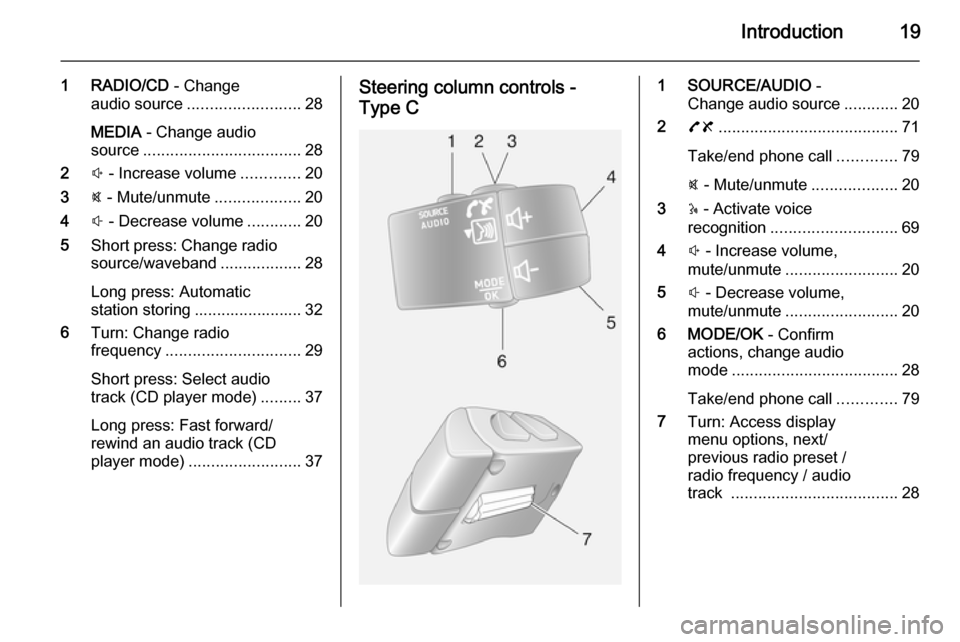
player mode) ......................... 37Steering column controls -
Type C1 SOURCE/AUDIO -
Change audio source ............20
2 78 ........................................ 71
Take/end phone call .............79
@ - Mute/unmute ...................20
3 5 - Activate voice
recognition ............................ 69
4 ! - Increase volume,
mute/unmute ......................... 20
5 # - Decrease volume,
mute/unmute ......................... 20
6 MODE/OK - Confirm
actions, change audio
mode ..................................... 28
Take/end phone call .............79
7 Turn: Access display
menu options, next/
previous radio preset /
radio frequency / audio
track ..................................... 28
Page 20 of 93

20IntroductionTheft-deterrent feature
An electronic security system is
included for the purpose of theft
deterrence. The Infotainment system
functions only in your vehicle and is therefore worthless to a thief.
The security code (supplied
separately) must be entered upon
first use of the system and after
prolonged interruptions to the power
supply.
Entering the security code
When first switching on the
Infotainment system, the message Radio code then 0000 appears on the
display screen.
To enter first digit of security code,
press numbered button 1 on the unit
repeatedly until desired number is
displayed. Enter second, third and
fourth digits using buttons 2, 3 and 4
in the same way.
When the full code is displayed, press and hold button 6 until an audible
signal sounds. The system is
unlocked when the correct code has
been entered.Incorrect code entered
When an incorrect code has been
entered, Error code then Wait 100 is
displayed.
Wait until the countdown has expired, then enter the correct code. Each
time the code is entered incorrectly,
the countdown time is doubled.
Changing the geographical area
When the security code is entered,
you may be prompted to choose a
geographical area, e.g.:
■ Europe
■ Asia
■ Arabia
■ America
Switch off the Infotainment system,
then simultaneously press button 1
and 5 and the m rotary knob. Then
press button _ or 6 until desired area
is highlighted on the display screen
and set with button 6.Usage
Infotainment controls
The Infotainment system is operated
via buttons, rotary knobs and display menus.
Inputs are made via: ■ the central control unit in the instrument panel 3 6, or
■ the controls on the steering column
3 6
■ the voice recognition system (if available) 3 69
Switching the Infotainment
system on or off
Press the X knob to switch the
Infotainment system on.
The previously used audio source is
active.
Press the X knob (or press and hold)
to switch the Infotainment system off.
Page 23 of 93

Introduction23
Set the clock
To set the time, access the Clock
menu. Turn the central rotary knob to adjust the Hours setting, then press
the knob to confirm. Turn the knob to
adjust the Minutes setting and press
to confirm.
Change system language
Change the display language by accessing the Language menu. Turn
the central rotary knob to select one
of the 9 languages from the list, then
press the knob to confirm.
Restore default system settings
To restore system settings to their
default values, select Default
settings by turning and pressing the
central rotary knob. Confirm
modification when prompted by
pressing the knob again.
Modes of operation Radio
To change the audio source to radio:
Press the RADIO, RADIO/CD or
AUDIO/SOURCE button.Detailed description of the radio
functions 3 28.
Audio players
To change the audio source to CD,
USB , AUX , Bluetooth or iPod (where
applicable): Press the MEDIA,
RADIO/CD or AUDIO/SOURCE
button.R15 BT / R16 BT
Detailed descriptions of:
■ AUX input functions 3 41
■ USB port functions 3 43
■ Bluetooth music operation 3 46CD15 BT / CD 16 BT / CD18 BT
Detailed descriptions of:
■ CD player functions 3 37
■ AUX input functions 3 41
■ USB port functions 3 43
■ Bluetooth music operation 3 46CD30 BT
Detailed descriptions of:
■ CD player functions 3 37
■ AUX input functions 3 41■ USB port functions 3 43
■ Bluetooth music operation 3 46CD35 BT
Detailed descriptions of:
■ CD player functions 3 37
■ AUX input functions 3 41
■ USB port functions 3 43
■ Bluetooth music operation 3 46
Navigation system
CD30 BT, CD35 BT
Detailed description of the Navigation system 3 52.
Phone
R15 BT / CD15 BT / R16 BT /
CD16 BT / CD18 BT - Phone
To access the Phone menu: Press
the 6 or TEL button.
To access the phone settings menu: Press the TEL button and select
Phone settings .CD30 BT - Phone
To access the Phone menu: Press
the 6 or TEL button.
Page 28 of 93

28RadioRadioUsage.......................................... 28
Station search .............................. 29
Autostore lists .............................. 32
Radio data system (RDS) ............33Usage
Radio reception
Radio reception may be disrupted by static, noise, distortion or loss of
reception due to:
■ changes in distance from the transmitter,
■ multi-path reception due to reflection,
■ shadowing.
Control buttons - R15 BT / CD15 BT / R16 BT / CD16 BT /
CD18 BT
The most important buttons for
control of the radio are:
■ RADIO : Activate radio, change
waveband
■ 2 3 : Station search
■ OK rotary knob: Change frequency
■ Station buttons 1...6: Preset station
buttons■ SETUP : System settings,
automatic station storing
■ TEXT : Display radio text
information
Activating the radio
Press the RADIO button to switch the
audio source to radio.
The station previously selected will be
received.
Selecting the waveband
Press the RADIO button repeatedly to
switch between the available
wavebands (e.g. FM1, FM2, AM).
The station previously selected in that waveband will be received.
Control buttons - CD30 BT
The most important buttons for
control of the radio are:
■ RADIO/CD : Activate radio
■ Central rotary knob: Change waveband and frequency
■ ⊲ ⊳: Change search mode (frequency, station name, stored
station number)
Page 29 of 93

Radio29
■2 3 : Station search
■ MEM : Access stored radio station
list
■ Station buttons 1...6: Preset station
buttons
■ 0 : System settings
Activating the radio
Press the RADIO/CD button to switch
the audio source to radio.
The station previously selected will be
received.
Selecting the waveband
Press button ⊲ or ⊳ to highlight the
waveband in the display menu then
turn the rotary knob to select the
desired waveband.
The station previously selected in that waveband will be received.Control buttons - CD35 BT
The most important buttons for
control of the radio are:
■ RADIO : Activate radio, change
waveband
■ 2 3 : Change frequency, station
search
■ Central rotary knob: Access stored radio station list
■ Station buttons 1...6: Preset station
buttons
■ SETUP / TEXT : System settings
Activating the radio
Press the RADIO button to switch the
audio source to radio.
The station previously selected will be
received.
Selecting the waveband
Press the RADIO button repeatedly to
switch between the available
wavebands (e.g. FM1, FM2, MW,
LW).
The station previously selected in that waveband will be received.Station search
Automatic station search
R15 BT / CD15 BT / R16 BT /
CD16 BT / CD18 BT - Automatic
station search
Briefly press button 2 or 3 to
search for the next receivable station
in the current waveband.
If no station is found, automatic
searching continues until 2 or 3 is
pressed again.
CD30 BT - Automatic station search
Highlight the frequency in the display
using button ⊲ or ⊳.
Press button 2 or 3 to search for
the next receivable station in the
current waveband.
CD35 BT - Automatic station search
Press button 2 or 3 for approx.
2 seconds to search for the next
receivable station in the current
waveband.
Page 30 of 93

30Radio
If no station is found, automatic
searching continues until 2 or 3 is
pressed again.
Manual station search Stored station search
This allows you to recall radio stations that you have previously stored.
To store a station, select the desired
waveband and station then press
station button 1...6 until an audible
signal sounds, confirming that the
station has been stored to the
appropriate station button. 6 stations
per waveband can be stored.
Recalling a stored station
To recall a station, select the desired
waveband then briefly press station
button 1...6.
R15 BT / CD15 BT / R16 BT /
CD16 BT / CD18 BT - Manual station
search
Select the desired waveband then press and hold button 2 or 3 to
scan the selected waveband.Release the button when close to the
required frequency. An automatic
search is then made for the next
receivable station and it is played
automatically.
Turn the OK rotary knob to change
the frequency in increments.
Stored station search
This allows you to recall radio stations that you have previously stored.
To store a station, select the desired
waveband and station then press
station button 1...6 until an audible
signal sounds, confirming that the
station has been stored to the
appropriate station button. 6 stations
per waveband can be stored.
Recalling a stored station
To recall a station, select the desired
waveband then briefly press station
button 1...6.
Stored station search
This allows you to recall radio stations that you have previously stored.
You can store up to 12 FM, 6 LW or
6 MW stations in this way.Alternatively, press and hold station
button 1...6 until an audible signal
sounds, confirming that the station
has been stored to the appropriate
station button. 6 stations per
waveband can be stored in this way.
Search radio station name (FM only)
Select the FM waveband then
highlight the station name in the
display using button _ or 6.
Press button 1 or 4 repeatedly to
manually search for the required
station name. The frequency may be displayed instead if the station name
is unavailable.
The alphabetical list contains up to
60 FM radio stations with the best
reception. This list can be updated at
any time 3 32.
CD30 BT - Manual station search
Select the desired waveband then
highlight the frequency in the display
using button ⊲ or ⊳.
Turn rotary knob or press and hold
button 2 or 3 to scan the
frequencies in the current waveband.
Page 31 of 93

Radio31
Release the button when the desired
frequency has been reached. The
station is played automatically.
Stored station search
This allows you to recall radio stations that you have previously stored.
To store a station, select the desired
waveband and station then press the
MEM button (to access the stored
radio station list) and select a digit by
turning and pressing the rotary knob.
You can store 12 stations in this way.
Alternatively, press and hold station
button 1...6 until an audible signal
sounds, confirming that the station
has been stored to the appropriate
station button. 6 stations per
waveband can be stored in this way.
Recalling a stored station
To recall a station, select the desired
waveband then briefly press station
button 1...6.
Alternatively, select the desired
waveband then highlight the stored
station number field in the display,using button ⊲ or ⊳. Turn the rotary knob to manually search the stored
station list.
Search radio station name (FM only) Select the FM waveband then
highlight the station name in the
display using button ⊲ or ⊳.
Turn rotary knob to manually search
for the required station name.
The alphabetical list contains up to
50 FM radio stations with the best
reception. This list can be updated at
any time 3 32.
CD35 BT - Manual station search
Select the desired waveband then
press and hold button 2 or 3 to
scan the selected waveband.
Release the button when close to the required frequency. An automatic
search is then made for the next
receivable station and it is played
automatically.
Press button 2 or 3 briefly to
change the frequency in increments.Stored station search
This allows you to recall radio stations that you have previously stored.
To store a station, select the desired
waveband and station then press
station button 1...6 until an audible
signal sounds, confirming that the
station has been stored to the
appropriate station button. 6 stations
per waveband can be stored.
Recalling a stored station
To recall a station, select the desired
waveband then briefly press station
button 1...6.
Search radio station name (FM only) Select the FM waveband and open
the FM radio station list by turning the central rotary knob.
Turn the knob to manually search for
the required station name and press the knob to select.
The alphabetical list contains up to
50 FM radio stations with the best
reception. This list can be updated at
any time 3 32.
Page 32 of 93

32RadioAutostore listsThe stations with the best reception in a waveband can be searched for and
stored automatically via the autostore
function.
Automatic station storing
R15 BT / CD15 BT / R16 BT /
CD16 BT / CD18 BT - Automatic
station storing
The FM waveband has an autostore
list (AST ), on which 6 stations can be
stored.
While listening to the radio, press and hold the SETUP button: The
6 stations with the strongest reception
will be automatically stored on AST.
Notice
Due to signal strength, it is possible
that less than 6 stations will be
stored.
CD30 BT - Automatic station storing Depending on vehicle, up to 50 radio
stations are continually updated and
stored automatically by the system.CD35 BT - Automatic station storing
Depending on vehicle, up to 50 radio
stations are continually updated and
stored automatically by the system.
Recalling a station
R15 BT / CD15 BT / R16 BT /
CD16 BT / CD18 BT - Recalling a
station
Select the desired waveband, then
briefly press station button 1...6 to
recall a stored station.
To recall a station on the autostore list
(AST), while listening to the radio
briefly press the SETUP button to
activate AST mode. The station
previously selected will be received.
Briefly press station button 1...6 to
recall another stored station on the
autostore list.
CD30 BT - Recalling a station
Select the desired waveband, then
briefly press station button 1...6 to
recall a stored station.Alternatively, select the desired
waveband then highlight the stored
station number field in the display,
using button ⊲ or ⊳. Turn the rotary
knob to manually search the stored
station list.
CD35 BT - Recalling a station
Select the desired waveband, then
briefly press station button 1...6 to
recall a stored station.
Alternatively, select the FM
waveband and open the FM radio
station list by turning the central rotary
knob. Turn the knob to manually
search for the required station name
and press the knob to select.
Updating stations manually
Stations can also be stored manually
in the autostore list 1)
.
To update the list of stations and
obtain the most recent ones, activate
the system update manually. The sound will be muted during a manual
update.1) Only CD30 BT / CD35 BT
Page 33 of 93

Radio33
CD30 BT - Updating stations
manually
Press the 0 button to access the
Radio functions menu.
Turn the rotary knob to select Update
FM list and press to confirm update.
CD35 BT - Updating stations
manually
Press the SETUP / TEXT button and
turn the central rotary knob to access Radio functions .
Turn the rotary knob to select Update
FM list and press to confirm update.
Radio data system (RDS)
RDS is an FM station service that
helps you find the desired station and ensures its fault-free reception.Advantages of RDS
■ The programme name of the chosen station appears on the
display screen instead of its
frequency.
■ During an automatic station search,
the Infotainment system tunes into RDS stations only.
■ The Infotainment system always tunes into the best receivable
broadcasting frequency of the
chosen station, by means of AF
(Alternative Frequency).
R15 BT / CD15 BT / R16 BT /
CD16 BT / CD18 BT - RDS
functions
Configuring RDS
Press the SETUP button and turn the
OK rotary knob to access the RDS
menu. Press knob to select.
Turn the rotary knob to select RDS
SETUP .Switching RDS on and off
Switch on/off RDS-AF by pressing the
OK rotary knob. AF is shown on the
display screen when RDS is active.
Text information (Radio text)
Certain FM radio stations issue text
information relating to the broadcast
program (e.g. song name).
Press the SETUP button and turn the
OK rotary knob to access the Radio
texts menu.
Turn the rotary knob to select Radio
and press the knob to see this
information.
CD30 BT - RDS functions Configuring RDS
With the radio on, press the
RADIO/CD button to access the
Radio functions menu.
Switching RDS on and off
Switch on/off RDS-AF and press the
rotary knob to confirm. RDS-AF will
appear on the display screen when
switched on.
Page 34 of 93

34Radio
I Traffic service (Traffic information)
Radio traffic service stations are FM
RDS stations that broadcast traffic
news.Switching the I Traffic service on and
off
To switch the traffic announcement
on and off:
With the radio on, press the
RADIO/CD button to access the
Radio functions menu.
Switch on/off i Traffic and press the
rotary knob to confirm.
■ If the radio traffic service is switched on, i Traffic is displayed in
the radio main menu.
■ Only radio traffic service stations are received.
■ If the radio traffic service is switched on, CD/MP3 playback is
interrupted for the duration of the
traffic announcement.
■ Traffic announcements will not be broadcast automatically when the
LW or MW waveband is selected.
Change the audio source orwaveband to FM to ensure traffic
announcements are broadcast
automatically.Blocking out traffic announcements
To block out a traffic announcement
e.g. during CD/MP3 playback: Press
the rotary knob.
The traffic announcement is
interrupted, but the radio traffic
service remains switched on.
Program type search (PTY)
Press the RADIO/CD button to
access the Radio functions menu.
Press ⊲ or ⊳ to access the waveband.
Turn the rotary knob to select PTY.
Press rotary knob or button ⊲ or ⊳ to
display the list of program types.
Select a program from the following
options:
■ News
■ Pop music
■ Sport
■ Serious classics
■ Varied speech
Select a station from the list.
The system automatically suggests a
program that corresponds to the initial selection.
Text information (Radio text)
Certain FM radio stations issue text
information relating to the broadcast
program (e.g. song name).
Briefly press the A button to see this
information.
Press A again or change the source
to return to the original display
screen.
CD35 BT - RDS functions Configuring RDS
Press the SETUP / TEXT button and
turn the central rotary knob to access the Radio functions menu. Press
knob to select.
Turn the rotary knob to select
RDS-AF .
Switching RDS on and off
Switch on/off RDS-AF by pressing the
central rotary knob.