lock VAUXHALL MOVANO_B 2015.5 Infotainment system
[x] Cancel search | Manufacturer: VAUXHALL, Model Year: 2015.5, Model line: MOVANO_B, Model: VAUXHALL MOVANO_B 2015.5Pages: 139, PDF Size: 1.84 MB
Page 46 of 139

46Radio
Switching RDS on and off
Press Options on the display screen.
The following settings can be
changed:
Switch on/off RDS-AF by pressing the
OK rotary knob. AF is shown on the
display screen when RDS is active.
Text information (Radio text)
Certain FM radio stations issue text
information relating to the broadcast
program (e.g. song name).
Press the SETUP button and turn the
OK rotary knob to access the Radio
texts menu.
Turn the rotary knob to select Radio
and press the knob to see this
information.
CD35 BT USB - RDS functions
Configuring RDS
Press the SETUP / TEXT button and
turn the central rotary knob to access the Radio functions menu. Press
knob to select.
Turn the rotary knob to select
RDS-AF .Switching RDS on and off
Switch on/off RDS-AF by pressing the
central rotary knob.
I-Traffic service (Traffic information)
Radio traffic service stations are FM
RDS stations that broadcast traffic
news.Switching the I-Traffic service on and
off
To switch the traffic announcement
on and off:
Press the SETUP / TEXT button and
turn the central rotary knob to access the Radio functions menu. Press
knob to select.
Turn the rotary knob to select i
Traffic and switch on/off by pressing
the knob.
■ If the radio traffic service is switched on, CD/MP3 playback is
interrupted for the duration of the traffic announcement.
■ Traffic announcements will not be broadcast automatically when the
LW or MW waveband is selected.
Change the audio source orwaveband to FM to ensure traffic
announcements are broadcast
automatically.Blocking out traffic announcements
To block out a traffic announcement
e.g. during CD/MP3 playback: Press
the central rotary knob (or the /
button).
The traffic announcement is
interrupted, but the radio traffic
service remains switched on.
Text information (Radio text)
Certain FM radio stations issue text
information relating to the broadcast
program (e.g. song name).
Press and hold the SETUP / TEXT
button to see this information.
Press the / button or wait for
30 seconds to return to the original
display screen.
Page 75 of 139
Navigation75
The LED on the remote control
flashes once when the remote control is connected to the Navigation
system. To connect it more quickly, press one of the remote control
buttons when the system starts,
before the legal notices appear.
If the LED flashes and a message appears on the screen, the batteries
require replacing.
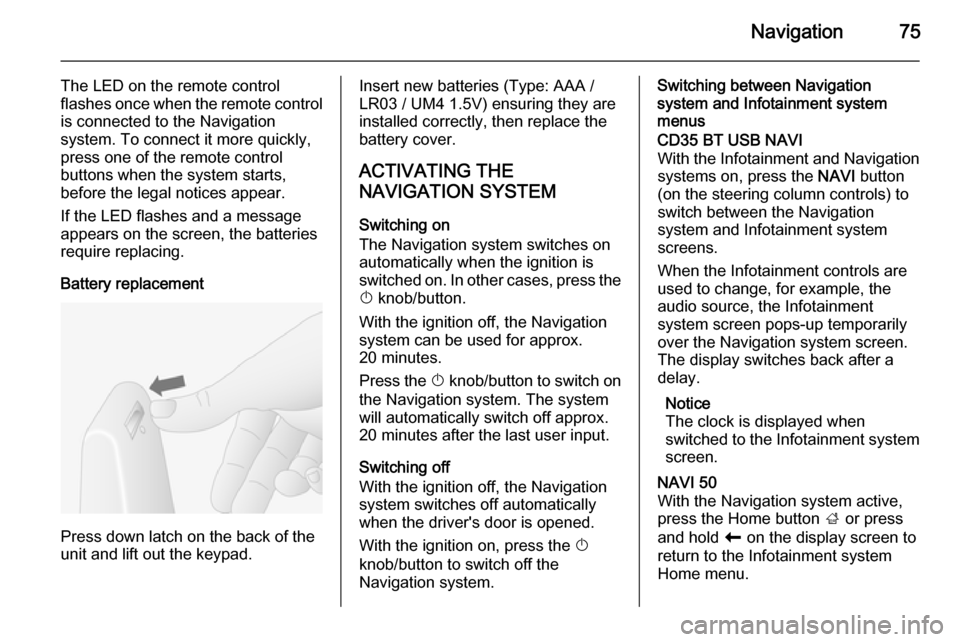
Battery replacement
Press down latch on the back of the
unit and lift out the keypad.
Insert new batteries (Type: AAA / LR03 / UM4 1.5V) ensuring they are
installed correctly, then replace the
battery cover.
ACTIVATING THE
NAVIGATION SYSTEM
Switching on
The Navigation system switches on
automatically when the ignition is
switched on. In other cases, press the X knob/button.
With the ignition off, the Navigation
system can be used for approx.
20 minutes.
Press the X knob/button to switch on
the Navigation system. The system
will automatically switch off approx.
20 minutes after the last user input.
Switching off
With the ignition off, the Navigation
system switches off automatically
when the driver's door is opened.
With the ignition on, press the X
knob/button to switch off the
Navigation system.Switching between Navigation
system and Infotainment system
menusCD35 BT USB NAVI
With the Infotainment and Navigation
systems on, press the NAVI button
(on the steering column controls) to switch between the Navigation
system and Infotainment system
screens.
When the Infotainment controls are
used to change, for example, the
audio source, the Infotainment
system screen pops-up temporarily
over the Navigation system screen.
The display switches back after a
delay.
Notice
The clock is displayed when
switched to the Infotainment system screen.NAVI 50
With the Navigation system active,
press the Home button ; or press
and hold r on the display screen to
return to the Infotainment system
Home menu.
Page 79 of 139
Navigation79
16.l/l x: Voice guidance on/off
17. Speed limitIntersection view
During route guidance, before each
change of direction a close-up view of
the intersection is automatically
displayed. The normal view is
resumed after passing the
intersection.Motorway view
During route guidance, before each
motorway junction a 3D view of the
junction is automatically displayed.
The normal view is resumed after
passing the junction.
Notice
For some motorway junctions, only
a small turn arrow may appear on
the map.NAVI 80 - Information on the displayMenu screen
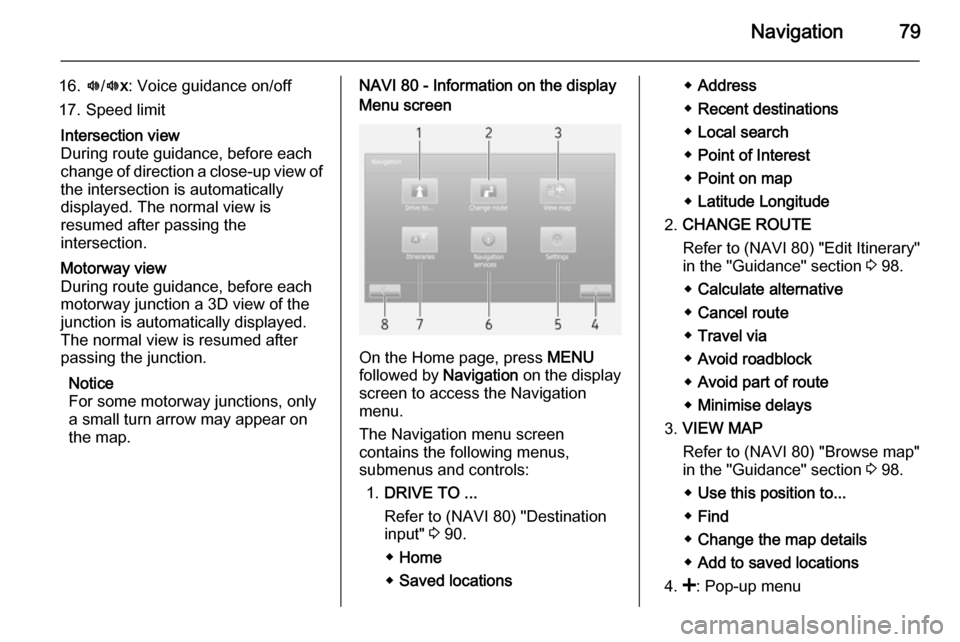
On the Home page, press MENU
followed by Navigation on the display
screen to access the Navigation
menu.
The Navigation menu screen
contains the following menus,
submenus and controls:
1. DRIVE TO ...
Refer to (NAVI 80) "Destination
input" 3 90.
◆ Home
◆ Saved locations
◆Address
◆ Recent destinations
◆ Local search
◆ Point of Interest
◆ Point on map
◆ Latitude Longitude
2. CHANGE ROUTE
Refer to (NAVI 80) "Edit Itinerary"
in the "Guidance" section 3 98.
◆ Calculate alternative
◆ Cancel route
◆ Travel via
◆ Avoid roadblock
◆ Avoid part of route
◆ Minimise delays
3. VIEW MAP
Refer to (NAVI 80) "Browse map"
in the "Guidance" section 3 98.
◆ Use this position to...
◆ Find
◆ Change the map details
◆ Add to saved locations
4. <: Pop-up menu
Page 80 of 139

80Navigation
5.SETTINGS
Refer to (NAVI 80) "Setting up the
navigation system" below.
◆ Turn off voice guidance
◆ Route planning
◆ Show POI on map
◆ Manage POIs
◆ Voice
◆ EV settings
◆ Set home location
◆ Manage saved locations
◆ Switch map
◆ Change map colours
◆ Car symbol
◆ Advanced
6. NAVIGATION SERVICES
Refer to (NAVI 80) "LIVE
services" below.
◆ Traffic
◆ Speed Cameras
◆ Local search
◆ My TomTom live
◆ Weather7. ITINERARIES
Refer to (NAVI 80) "Edit Itinerary"
in the "Guidance" section 3 98.
8. r : Return to previous screenMap screen
To access the map screen without navigation, on the Home page press
MENU , then Navigation followed by
View Map on the display screen.
Press anywhere on the map. The
cursor indicates the current selected
position. To scroll within the map,
drag the cursor in the required
direction.
To access the map screen with
navigation, on the Home page press
MENU followed by Navigation on the
display screen and enter a
destination. Refer to (NAVI 80)
"Destination input" 3 90.
The map screen (with or without route guidance) contains the following
controls and information:
1. Speed limit (illuminates red and flashes if speed limit is exceeded)
2. o: Change scale (zoom in/out)
3. Name of the next major road or road sign information, if
applicable
4. ô Outside air quality
5. g : Phone information
6. Outside temperature
7. Clock
8. Traffic information, e.g. route incidents, reception indicator,
traffic map
Page 85 of 139

Navigation85
Turn off sound
To deactivate all sound, including
voice instructions and alerts etc.. To
turn the sound back on, select Turn
on sound .Safety preferences
To activate sound warnings during
driving (e.g. when exceeding a set
speed or when approaching schools
etc.). This option can also be used to
simplify the menus.Planning preferences
Five types of planning preferences
are selectable. The recommended
preference is Fastest route.
After having selected the planning
criteria, the system permits the
activation of the IQ Routes™
function. If activated, this function
plans the best route taking the actual road speeds into account.
Toll road preferences: After having
entered a destination, the system
asks if you wish to change this
request. Select one of the 3 types of
planning preferences, then finish
using the right soft button ⌟.Road types: Select preferences in
terms of particular sections of the
journey, such as unmade roads and
ferry transfers.Show lane images
When approaching a major road
change, the system may switch to a
close-up view of the junction with a
turn arrow and road signs. This
feature can be deactivated, if
preferred.Automatic zooming
During guidance, the display
gradually zooms in before each
change of direction. If preferred, this mode can be deactivated.Show POI on map
To select the points of interest (POIs) which appear on the map.Manage POIs
To add, modify or delete points of
interest (POIs) or POI categories.Set units
Units of distance: Select Miles or
Kilometres , then select Done using
the soft button.Clock display : Select from the 3 clock
display mode options, then select
Done using the soft button to move to
the next step.
Coordinates : Select from the 3
latitude and longitude display options, then select Done using the soft button
to move to the next step.Show/hide tips
When using the Navigation system,
the system will display tips to help get
the best use of the functions. These
can be deactivated by selecting Hide
tips . To reactivate, select Show tips.Change car symbol
Changes the style of the car symbol.2D map settings
To change the default map settings
between 2D and 3D.Compass preferences
Changes the compass display on the
map screen.Status bar preferences
Add to the list of options that appear
on the navigation map status bar.
Page 86 of 139

86Navigation
Name preferences
To display street and house numbers on the map.Use day/night colours
In the default automatic mode, the
system will automatically switch
between day and night modes.
If manual mode is preferred,
automatic mode can be deactivated
by selecting Use day colours or Use
night colours .
Automatic switching can be
reactivated using the Brightness
preferences menu.Change map colours
New colours can also be
downloaded. To select a downloaded colour, select an additional colour
scheme, then the colour required.Brightness preferences
Adjust the screen brightness to suit
the external lighting conditions.Set clock
When the clocks change in summer
or winter, or when travelling abroad,
the time on the system will need
adjusting. Select Set clock; thesystem offers three display modes.
Select the desired mode, then Done
using the soft button. Set the clock,
then select Done.
Clock synchronisation: The
synchronisation option allows the time to be set directly using GPS
information. Select the Sync option
with the left soft button ⌞.Start-up preferences
Used to change the system start-up
settings and also the start-up page by
customising it with a chosen photo.Show fewer menu options
Allows simplification of the menu to
facilitate better use. To reactivate all
options, select this icon again.Change language
To change language, select
Language: , the required language
can then be selected from the list.Reset factory settings
To reset all system parameters and delete all personal data.
Select Reset factory settings in the
main menu, then follow the on-screen instructions using the soft buttons.Partial reset: allows the deletion of allpersonal data (favourites, recent
destinations, etc.).
After resetting, the system will restart
in English.
NAVI 50 - Setting up the navigation
system
The Options menu allows you to
check and update the following map
and navigation settings:
■ Warnings
■ Route settings
■ Map settings
■ Voice settings
■ Coordinate format
■ GPS
■ Map updateWarnings
Press the Home button ; followed by
NAVI , Options then Warnings to
access the following:
■ Warn when speeding (On/Off)
■ Speed limit always visible (On/Off)
■ Alert point warnings (On/Off)
Page 101 of 139

Navigation101
Avoid roadblock
Select this if there is a roadblock or a
line of traffic ahead which was not
indicated by the Traffic info service.
How much of the route to be avoided
can be chosen: Avoid 100m, 500m,
2000m or 5000m.
The system will recalculate the route avoiding the section of the route for
the selected distance.Recalculate original
Returns to the original route.Avoid part of route
Avoids a specific part of the route, such as a road or a junction. Choose the road to be avoided from the list of roads on the route.Minimise traffic delays
Select this menu to plan the route
based on the latest traffic information.Travel via...
Select this to change the route so that
it passes a particular location, e.g. to
pick someone up. The location is
chosen in the same way the
destination is chosen, so all the sameoptions can be selected: Address,
Favourite , Point of Interest and Point
on map .
The system will calculate a new route to the destination that passes the
chosen location.
NAVI 50 - Edit Itinerary
This function makes it possible to
view the route plan to the destination
entered.
The following information will appear: ■ Direction change arrows
■ Road number
■ Distance before a direction change
Press Options to change and sort the
details of the route.
The following options are available: ■ Summary
Shows each waypoint and the
destination, including the waypoint distance, time left to next waypoint
and arrival time.■ Normal
Shows each manoeuvre, with
street or place names, distance,
and route section numbers.
This option also shows signpost information, access and
manoeuvre restrictions, warnings
and system preference information.
■ Road list
Shows only the main sections of the
route using road names/numbers.
This option also shows the length of each section, time left to next
section, arrival time and average
direction.
Alternatively, these itinerary options
can be changed by pressing the
"Direction and distance to next
change of direction" tab on the display during route guidance. Press
Options to change and sort the details
of the route.
Refer to (NAVI 50) "Information on the display", "Map screen" in the Usage
section 3 73.
Page 102 of 139

102Navigation
Edit route
To edit the route by modifying the list
of waypoints, press the Home
button ; followed by Route then Edit
Route on the display screen.
The following options are available:Top <=Add waypointBottom <=Add new destinationë=Delete destination
To change the order of the waypoints
in the list, press Options followed by
Re-order then move the waypoints
up/down.
For the various methods of entering a
destination, refer to (NAVI 50)
"Destination input" 3 90.
Avoidances
To edit the route by avoiding
particular sections, press the Home
button ; followed by Route then
Avoidances on the display screen.
Select a section from the list on the display screen to be avoided. The
avoided section is highlighted in red.Alternative routes
To change the route planning
method, press the Home button ;
followed by Route then Alternative
routes on the display screen.
The following options are available,
each with a distance and estimated
time:
■ Fast
■ Short
■ Eco
Select one of the options and confirm
the new route by pressing r.
For further information, refer to
(NAVI 50) "Setting up the navigation
system" in the "Usage" section 3 73.
NAVI 80 - Edit Itinerary
Journeys can be planned in advance
by selecting both the starting point
and the destination.
From the Home page, press MENU
then Navigation , followed by
Itineraries on the display screen.Select a point of departure in the
same way as entering a destination.
Refer to (NAVI 80) "Destination input" 3 90. Then select a destination,
choose the type of route and confirm.
The system plans the route and
allows you to view the details.Change route
To change the route during active
route guidance, from the Home page, press MENU then Navigation ,
followed by Change route on the
display screen.
The following options are available: ■ Calculate alternative
■ Cancel route
■ Travel via
■ Avoid roadblock
■ Avoid part of route
■ Minimise delaysCalculate alternative
Select to calculate an alternative
route to the destination.Cancel route
Select to stop the current route
guidance.
Page 103 of 139

Navigation103
To restart guidance, press Drive to..,
followed by Recent destinations on
the display screen and select the
route again.Travel via (waypoints)
Select to change the calculated route to your destination so that it includes
a particular location (waypoint).
The location to be included is entered
the same way as entering a
destination.
Select from the same list of options,
e.g. "Address", "Saved locations",
"Point of Interest", "Point on map".
Refer to (NAVI 80) "Destination input"
3 90.Avoid roadblock
Select this option in the event a
roadblock is not currently indicated by
the Traffic information service.
Refer to (NAVI 80) "Traffic
information" below.
Choose the distance (in metres) of
the route ahead to be avoided, e.g.
"100m", "500m", "2000m", "5000m".The route is recalculated to avoid a
section of the route for the distance
selected.Avoid part of route
Select to avoid a part of the route.
Choose the road to be avoided from
the list of roads along the route.Minimise delays
Select to plan the route based on the
latest traffic information.
DEACTIVATING GUIDANCE
CD35 BT USB NAVI - Deactivating
guidance
To stop guidance when in progress,
select Clear route (or Cancel route ) in
the main menu and confirm. To resume guidance, select Navigate
to... , then Recent destination .
NAVI 50 - Deactivating guidance
To stop guidance when in progress,
press the Home button ; followed by
Route then Cancel Route on the
display screen.
NAVI 80 - Deactivating guidance
To stop guidance when in progress,
press < followed by Delete route on
the display screen.
BROWSE MAP CD35 BT USB NAVI - Browse map
Select Browse map from the main
menu or use one of the direction
buttons on the control. The right soft
button zooms using the up and down
keys. To access the options, press
the OK button, then the right soft
button.Options
Access the option from the map
browser. This menu allows the
selection of information that will be
shown on the browser. To change the
display preferences for points of
interest (POI), press the left soft
button. To confirm the selection,
press the right soft button.
Page 134 of 139

134IndexAAAC files ....................................... 50
ACC files....................................... 56
Activating Bluetooth function ......118
Activating the navigation system ..73
Activating voice recognition ........111
Adaptation volume km/h ...............33
Add a favourite destination ...........90
Adding contacts to the phonebook .............................. 122
AF (Alternative Frequency)........... 45
AGC Activated .............................. 31
Applications .................................. 22
AST (Autostore list) ......................44
Audio CDs .................................... 50
Audio players ................................ 22
Audio settings ......................... 31, 51
Automatic call waiting .................122
Automatic Gain Control (AGC) .....31
Automatic phone connection ......115
Automatic station search ..............41
Automatic station storing ..............44
Automatic switch-off .....................22
Automatic zoom ............................ 73
Autostore lists ............................... 44
AUX input ..................................... 54
AUX input usage........................... 54 Avoid part of route ........................98
Avoid roadblocks ..........................98B
Balance......................................... 31Bass.............................................. 31
Battery replacement .....................73
Bluetooth .................................... 113
Bluetooth connection ............60, 118
Bluetooth device list ...................118
Bluetooth music ............................ 60
Browse map.................................. 98
C
Calculate alternative route ............98
Call lists ...................................... 122
Call waiting ................................. 122
CD display .................................... 51
CD playback ................................. 51
CD player................................ 50, 51
CD-Text ........................................ 51
Change Home location .................73
Change passkey for Bluetooth connection ............................... 118
Change system language .......22, 34
Clock................................. 22, 34, 73
Compass ...................................... 73
Connecting an audio device .........60
Connection ................................. 115
Control elements overview .............6
Co-ordinates ........................... 73, 90
Country information ..............98, 121