navigation VAUXHALL MOVANO_B 2015.5 Infotainment system
[x] Cancel search | Manufacturer: VAUXHALL, Model Year: 2015.5, Model line: MOVANO_B, Model: VAUXHALL MOVANO_B 2015.5Pages: 139, PDF Size: 1.84 MB
Page 75 of 139
Navigation75
The LED on the remote control
flashes once when the remote control is connected to the Navigation
system. To connect it more quickly, press one of the remote control
buttons when the system starts,
before the legal notices appear.
If the LED flashes and a message appears on the screen, the batteries
require replacing.
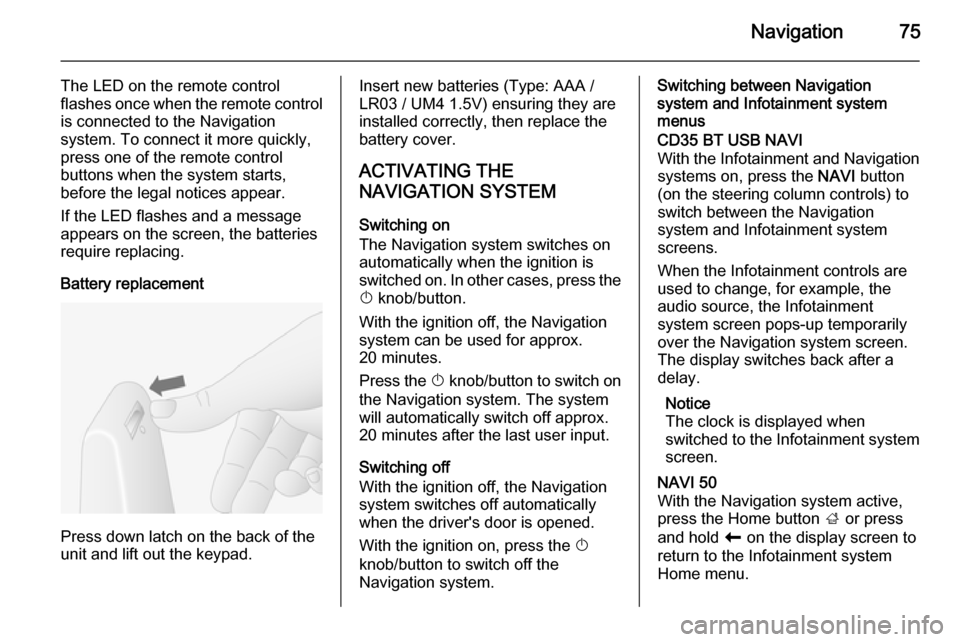
Battery replacement
Press down latch on the back of the
unit and lift out the keypad.
Insert new batteries (Type: AAA / LR03 / UM4 1.5V) ensuring they are
installed correctly, then replace the
battery cover.
ACTIVATING THE
NAVIGATION SYSTEM
Switching on
The Navigation system switches on
automatically when the ignition is
switched on. In other cases, press the X knob/button.
With the ignition off, the Navigation
system can be used for approx.
20 minutes.
Press the X knob/button to switch on
the Navigation system. The system
will automatically switch off approx.
20 minutes after the last user input.
Switching off
With the ignition off, the Navigation
system switches off automatically
when the driver's door is opened.
With the ignition on, press the X
knob/button to switch off the
Navigation system.Switching between Navigation
system and Infotainment system
menusCD35 BT USB NAVI
With the Infotainment and Navigation
systems on, press the NAVI button
(on the steering column controls) to switch between the Navigation
system and Infotainment system
screens.
When the Infotainment controls are
used to change, for example, the
audio source, the Infotainment
system screen pops-up temporarily
over the Navigation system screen.
The display switches back after a
delay.
Notice
The clock is displayed when
switched to the Infotainment system screen.NAVI 50
With the Navigation system active,
press the Home button ; or press
and hold r on the display screen to
return to the Infotainment system
Home menu.
Page 76 of 139

76Navigation
NAVI 80
With the Navigation system active,
press r on the display screen (one
or more times) to return to the
Infotainment system Home page.
INFORMATION ON THE
DISPLAY
CD35 BT USB NAVI - Information on
the displayMenu screenThe menu screen contains the
following:
1. Menu name
2. Sub-menu selection
3. Menu page scroll bar
To access the main menu, press the
MENU button.
Menus may contain multiple screen
pages. The scroll bar indicates the
current position.Quick menu
The Quick menu contains a preset
selection of some commonly used
menu items (e.g. hide map, cancel
route, report safety cameras, etc.).
To access the Quick menu, press the
central button on the remote control.Map screen
The map screen contains the
following:
1. Warning of the next risk area within distance (fixed or mobile
speed camera, school, etc.)
2. Speed limit. Illuminates red and flashes if speed limit is exceeded
3. Name of the next major road or road sign information, if
applicable
4. Traffic sidebar: Display of incidents on the route, traffic info
reception indicator
5. Current time
Page 77 of 139
Navigation77
6. Direction and distance to nextchange of direction
7. Exterior temperature (depending on vehicle)
8. Journey information, e.g. estimated arrival time, total
remaining distance
9. Current location
10. Audio system information
11. Compass To access the map screen at any
time, press the MAP 2D/3D button.
Ensure any changes made are
confirmed with the
soft buttons ( ⌞ and ⌟) before switching
to the map screen, otherwise the
changes will be lost.
In the map screen, press the
MAP 2D/3D button again to switch
between 2D/3D map modes.
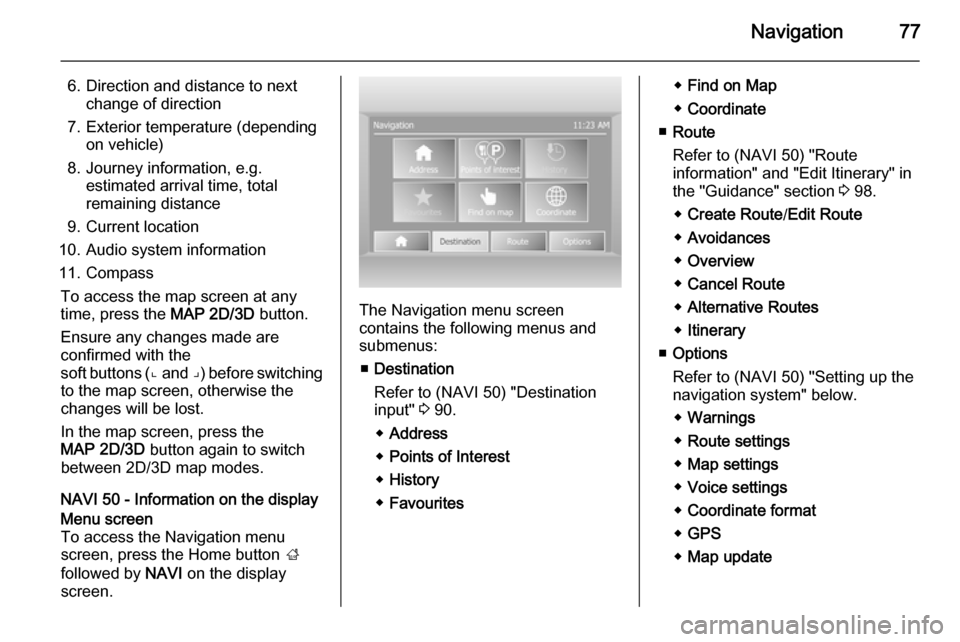
NAVI 50 - Information on the displayMenu screen
To access the Navigation menu
screen, press the Home button ;
followed by NAVI on the display
screen.
The Navigation menu screen
contains the following menus and
submenus:
■ Destination
Refer to (NAVI 50) "Destination
input" 3 90.
◆ Address
◆ Points of Interest
◆ History
◆ Favourites
◆Find on Map
◆ Coordinate
■ Route
Refer to (NAVI 50) "Route
information" and "Edit Itinerary" in
the "Guidance" section 3 98.
◆ Create Route /Edit Route
◆ Avoidances
◆ Overview
◆ Cancel Route
◆ Alternative Routes
◆ Itinerary
■ Options
Refer to (NAVI 50) "Setting up the
navigation system" below.
◆ Warnings
◆ Route settings
◆ Map settings
◆ Voice settings
◆ Coordinate format
◆ GPS
◆ Map update
Page 78 of 139
78Navigation
Map screen
To access the map screen without navigation, press the Home
button ; followed by MAP on the
display screen. Refer to (NAVI 50)
"Browse map" in the "Guidance"
section 3 98.
Press anywhere on the map. The
cursor indicates the current selected
position. To scroll within the map,
drag the cursor in the required
direction.
To access the map screen with
navigation, press the Home
button ; followed by NAVI on the
display screen and enter a
destination. Refer to (NAVI 50)
"Destination input" 3 90.
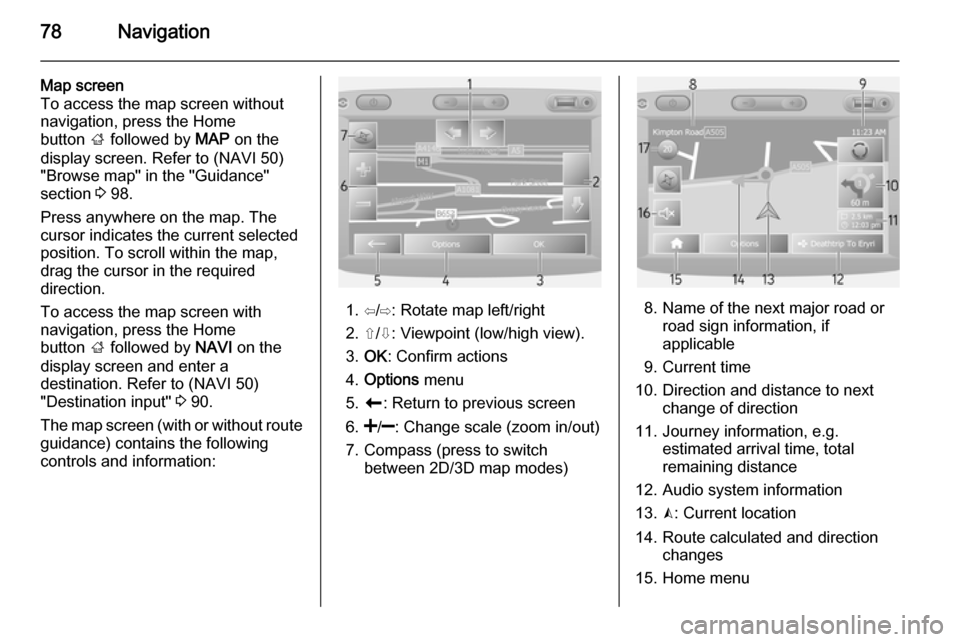
The map screen (with or without route
guidance) contains the following
controls and information:
1. ⇦/⇨: Rotate map left/right
2. ⇧/⇩: Viewpoint (low/high view).
3. OK : Confirm actions
4. Options menu
5. r : Return to previous screen
6.
7. Compass (press to switch between 2D/3D map modes)8. Name of the next major road orroad sign information, if
applicable
9. Current time
10. Direction and distance to next change of direction
11. Journey information, e.g. estimated arrival time, total
remaining distance
12. Audio system information
13. K: Current location
14. Route calculated and direction changes
15. Home menu
Page 79 of 139
Navigation79
16.l/l x: Voice guidance on/off
17. Speed limitIntersection view
During route guidance, before each
change of direction a close-up view of
the intersection is automatically
displayed. The normal view is
resumed after passing the
intersection.Motorway view
During route guidance, before each
motorway junction a 3D view of the
junction is automatically displayed.
The normal view is resumed after
passing the junction.
Notice
For some motorway junctions, only
a small turn arrow may appear on
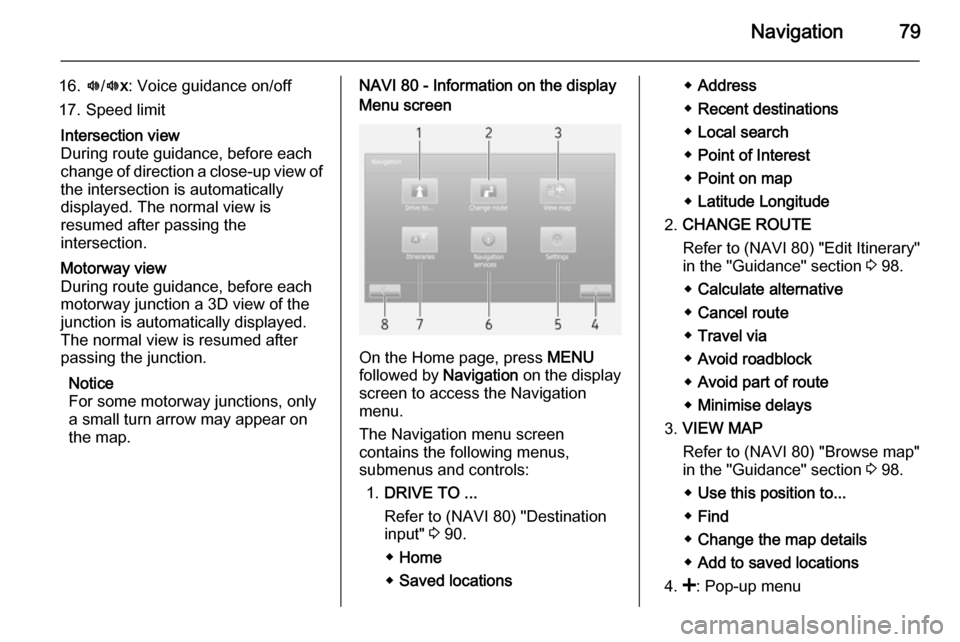
the map.NAVI 80 - Information on the displayMenu screen
On the Home page, press MENU
followed by Navigation on the display
screen to access the Navigation
menu.
The Navigation menu screen
contains the following menus,
submenus and controls:
1. DRIVE TO ...
Refer to (NAVI 80) "Destination
input" 3 90.
◆ Home
◆ Saved locations
◆Address
◆ Recent destinations
◆ Local search
◆ Point of Interest
◆ Point on map
◆ Latitude Longitude
2. CHANGE ROUTE
Refer to (NAVI 80) "Edit Itinerary"
in the "Guidance" section 3 98.
◆ Calculate alternative
◆ Cancel route
◆ Travel via
◆ Avoid roadblock
◆ Avoid part of route
◆ Minimise delays
3. VIEW MAP
Refer to (NAVI 80) "Browse map"
in the "Guidance" section 3 98.
◆ Use this position to...
◆ Find
◆ Change the map details
◆ Add to saved locations
4. <: Pop-up menu
Page 80 of 139

80Navigation
5.SETTINGS
Refer to (NAVI 80) "Setting up the
navigation system" below.
◆ Turn off voice guidance
◆ Route planning
◆ Show POI on map
◆ Manage POIs
◆ Voice
◆ EV settings
◆ Set home location
◆ Manage saved locations
◆ Switch map
◆ Change map colours
◆ Car symbol
◆ Advanced
6. NAVIGATION SERVICES
Refer to (NAVI 80) "LIVE
services" below.
◆ Traffic
◆ Speed Cameras
◆ Local search
◆ My TomTom live
◆ Weather7. ITINERARIES
Refer to (NAVI 80) "Edit Itinerary"
in the "Guidance" section 3 98.
8. r : Return to previous screenMap screen
To access the map screen without navigation, on the Home page press
MENU , then Navigation followed by
View Map on the display screen.
Press anywhere on the map. The
cursor indicates the current selected
position. To scroll within the map,
drag the cursor in the required
direction.
To access the map screen with
navigation, on the Home page press
MENU followed by Navigation on the
display screen and enter a
destination. Refer to (NAVI 80)
"Destination input" 3 90.
The map screen (with or without route guidance) contains the following
controls and information:
1. Speed limit (illuminates red and flashes if speed limit is exceeded)
2. o: Change scale (zoom in/out)
3. Name of the next major road or road sign information, if
applicable
4. ô Outside air quality
5. g : Phone information
6. Outside temperature
7. Clock
8. Traffic information, e.g. route incidents, reception indicator,
traffic map
Page 81 of 139

Navigation81
9. Journey information, e.g.estimated arrival time, total
remaining distance, journey
status (green flag/red flag)
Route summary
10. Compass (press to switch between 2D/3D map modes)
11. Change volume of guidance instructions
12. <: Pop-up menu
13. Direction and distance to next change of direction
14. Audio system information
15. K: Current location (cursor)
Route calculated and direction
changes
16. r: Return to previous screenLane images
During route guidance, before each
major road change, a 3D view of the
junction (with a turn arrow and road
signs) is automatically displayed. The
normal view is resumed after passing the junction.To switch off the lane images view,
refer to (NAVI 80) "Advanced
Settings" in "Setting up the navigation system" below.Automatic zoom
During route guidance, before each
change of direction a close-up view of
the junction is automatically
displayed. The normal view is
resumed after passing the junction.
To switch off the automatic zoom
feature, refer to (NAVI 80) "Advanced
Settings" in "Setting up the navigation system" below.
OPERATING KEYBOARDS IN
THE DISPLAY
NAVI 50
To move within and to enter
characters in both the alphabetical and numerical keyboards, make the
appropriate selection by touching the
display screen.
■ Select Options to change the
keyboard type (e.g. Qwerty, ABC).
■ Select 1^& to switch to numbers
and symbols.
■ Select the drop down menu icon ó
to display a list of results for the
current operation (e.g. destination
input).
■ Entries can be corrected during input with the k keyboard
character.
■ Press the r button to stop using
the keyboard and return to the
previous screen.
Notice
When making an entry, certain
letters and numbers are unavailable
for selection (grayed-out) based on
the information stored in the
Navigation system.
NAVI 80
To move within and to enter
characters in both the alphabetical and numerical keyboards, make the
appropriate selection by touching the
display screen.
Page 82 of 139

82Navigation
■ Entries can be corrected duringinput with the k keyboard
character.
■ Press the r button to stop using
the keyboard and return to the
previous screen.
GUIDED TOURS
CD35 BT USB NAVI
The system offers tutorials to enable
quick familiarisation with the different
functions.
Select Guided tours in the main
menu, then the required tour:
■ Remote control operation
■ Driving view
■ Menu options
■ Browse map
■ Route planning
■ Itinerary planning
■ Traffic information
■ Warnings and notifications
■ Quick menu
■ TomTom HOMELIVE SERVICES
CD35 BT USB NAVI - Live services
Live services includes road safety
alerts, up-to-date traffic information
with HD Traffic™, local search with
Google™ and a weather forecast.
These features are available for a free
3 month trial period, after which a
subscription is required. Visit the
TomTom website and refer to the
Services section to subscribe to LIVE
services .
Notice
LIVE services are not available in
some countries or regions.
To check the status of your
subscription at any time, select My
Services in the LIVE services menu.
Some features will not be available for
selection in the main menu until a
subscription to live services has been
set up. To access these features,
select LIVE services from the
Navigation system main menu.Safety alerts
This service includes the location of
mobile speed cameras in real-time,
fixed speed cameras and accident
blackspots.
The latest fixed camera updates can
be downloaded via the
TomTom HOME™ website.
This service can be activated or
deactivated at any time via Safety
Alerts in the LIVE services menu.HD Traffic™
To only receive up-to-date, real-time
traffic information and to plan the best
route to your destination, select HD
Traffic in the LIVE services menu.
Notice
The HD Traffic service is named
Traffic if a subscription has not been
activated.Google™ local search
This service allows you to use a
keyword to quickly find any Point of
Interest (POI) and set it as a
destination.
Page 83 of 139

Navigation83
Weather
The weather forecast service
provides up to 5 days of weather
reports for your current location and
your chosen destination.
NAVI 80 - Live services
In addition to the free navigation
services ( e.g. traffic information, fixed
speed cameras), extra features can
be added by subscribing to paid LIVE services.
LIVE services include up-to-date
traffic information with "HD Traffic™ ",
updates and locations of fixed and
mobile speed cameras, local search,
weather forecast and the "My
TomTom LIVE" subscription status.
Notice
LIVE services are not available in
some countries or regions.
The following menus are displayed: ■ Traffic /HD Traffic
Select to receive up-to-date, real-
time traffic information.Notice
The HD Traffic service is named
Traffic if a subscription has not been
activated.
■ Speed cameras
Displays alerts and location of
mobile speed cameras in real-time, fixed speed cameras and accident
blackspots.
Notice
Speed camera information is
updated online by the entire
community of system users.
Switch function off via the "Speed
Cameras" menu in "LIVE services", if required.
Notice
In certain countries it is illegal to
download and activate the camera warning option and this could lead to
prosecution.
■ Local search
This service allows you to use a keyword to quickly find any Point of
Interest (POI) and set it as a
destination.■ My TomTom LIVE
Displays expiry date of subscribed services. Renew subscriptions via
the Store.
Notice
A valid email address must be
entered to use this service.
Notice
Invoices are sent to the entered
email address, with (if necessary) the install instructions and user
information for the applications,
services or other downloaded
content.
■ Weather
The weather forecast service
provides up to 5 days of weather
reports for your current location and your chosen destination.
IMAGE VIEWER
CD35 BT USB NAVI - IMAGE
VIEWER
The system can be used to view
images. Select Image viewer in the
main menu; the image gallery opens
and an image can be selected.
Page 84 of 139

84Navigation
To scroll through the images in
slideshow mode, select Slideshow
using the right soft button ⌟ and set
the seconds-per-slide when
prompted, using the directional
buttons.
To set the slideshow to manual mode, select Manual by moving to the far
right of the seconds-per-slide display,
then use the directional buttons to
scroll through the images manually.
Start the slideshow by pressing the
right soft button ⌟.
Images can be added or deleted
when updating the Navigation
system.
Compatible image formats are: ■ JPG: Greyscale and RGB
■ BMP: 1-bit, 2 colours; 4-bit, 16 colours; 8-bit, 256 colours and24-bit, 16.7 million coloursSETTING UP THE
NAVIGATION SYSTEM
CD35 BT USB NAVI - Setting up the
navigation systemNavigation volume
To change the volume during a voice
instruction, turn the X knob or press
< or ].
Alternatively, press button ! or # on
the steering column controls to change the volume.
To repeat a voice instruction, press
the left soft button ⌞.System preferences
The system can be adjusted to suit
personal requirements. Select
Change preferences in the main
menu to view the adjustable
preferences.
Certain menu items can also be found more quickly in the Quick menu.
Press the central button on the
remote control to open the Quick
menu .Change Home location
To change the location of your
designated home.Manage favourites
To delete stored favourite
destinations. Select the desired entry followed by Done using the soft
button to delete the entry.Switch map
Used if installing several maps on the
SD card. To change map, select
Switch map , then select the map
required.Voice preferences
To select a voice used to give voice
instructions and to select either
human or synthesised voices.
The human voice instructions provide
simplified guidance only, while the
synthesised voice instructions
provide road directions plus
additional information (e.g. traffic
signs and traffic information etc.).Disable voice
To deactivate the voice instructions
and use only the map screen for
guidance.