CD player VAUXHALL MOVANO_B 2015.5 Infotainment system
[x] Cancel search | Manufacturer: VAUXHALL, Model Year: 2015.5, Model line: MOVANO_B, Model: VAUXHALL MOVANO_B 2015.5Pages: 139, PDF Size: 1.84 MB
Page 3 of 139

Introduction.................................... 4
Radio ........................................... 39
CD Player .................................... 50
AUX input ..................................... 54
USB port ...................................... 56
Bluetooth music ........................... 60
External devices .......................... 67
Navigation .................................... 69
Voice recognition .......................110
Phone ........................................ 113
Index .......................................... 134Contents
Page 4 of 139

4IntroductionIntroductionGeneral information.......................4
Control elements overview ............6
Theft-deterrent feature .................21
Usage .......................................... 22
Tone settings ............................... 31
Volume settings ........................... 33
System settings ........................... 34General information
The Infotainment system provides
state-of-the-art in-car information and entertainment.
The radio is equipped with assignable channel presets for FM, MW and LW
wavebands.
The audio player plays audio CDs,
MP3 CDs and also WMA CDs.
External data storage devices, e.g.
iPod, MP3 player or USB stick, or a
portable player can be connected to
the Infotainment system. External
audio sources can also be connected
via Bluetooth.
The digital sound processor provides
several preset equalizer modes for
sound optimisation.
The navigation system's dynamic route planning will reliably guide you
to your destination and can help avoid
traffic jams and other traffic problems.
Optionally, the Infotainment system
can be operated using controls on the steering column or via the voice
recognition system.In addition, the Infotainment system
can be equipped with a handsfree
phone system.
The well-thought-out design of the
controls and the clear displays enable
you to control the system easily and
intuitively.
Notice
This manual describes all options
and features available for the
various Infotainment systems.
Certain descriptions, including those for display and menu functions, may
not apply to your vehicle due to
model variant, country
specifications, special equipment or
accessories.
Important information on
operation and traffic safety9 Warning
Drive safely at all times when
using the Infotainment system.
If in doubt, stop the vehicle before operating the Infotainment
system.
Page 20 of 139
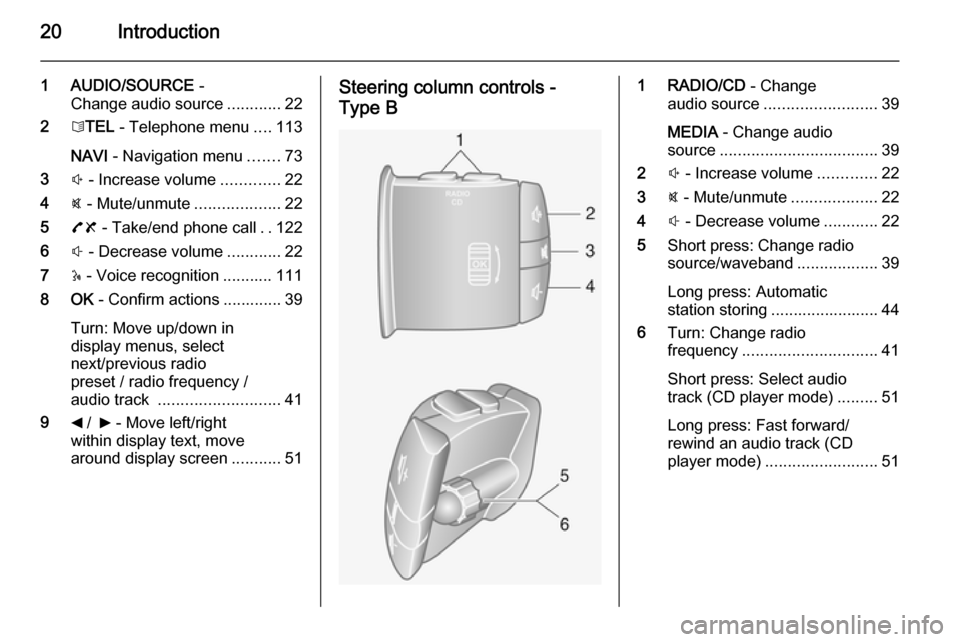
20Introduction
1 AUDIO/SOURCE -
Change audio source ............22
2 6TEL - Telephone menu ....113
NAVI - Navigation menu .......73
3 ! - Increase volume .............22
4 @ - Mute/unmute ...................22
5 78 - Take/end phone call ..122
6 # - Decrease volume ............22
7 5 - Voice recognition ........... 111
8 OK - Confirm actions ............. 39
Turn: Move up/down in
display menus, select
next/previous radio
preset / radio frequency /
audio track ........................... 41
9 _ / 6 - Move left/right
within display text, move
around display screen ...........51Steering column controls -
Type B1 RADIO/CD - Change
audio source ......................... 39
MEDIA - Change audio
source ................................... 39
2 ! - Increase volume .............22
3 @ - Mute/unmute ...................22
4 # - Decrease volume ............22
5 Short press: Change radio
source/waveband ..................39
Long press: Automatic
station storing ........................ 44
6 Turn: Change radio
frequency .............................. 41
Short press: Select audio
track (CD player mode) .........51
Long press: Fast forward/
rewind an audio track (CD
player mode) ......................... 51
Page 25 of 139

Introduction25
■G Vehicle
Press to open Driving Eco 2
, Care
(e.g. outside air quality), On-board
computer and Settings menus.
Refer to (NAVI 80) "Modes of
operation" below.
■ @ Services
Press to open Store, Navigation
services, Applications and Settings
menus.
Refer to (NAVI 80) "Modes of
operation" below.
■ t System
Refer to (NAVI 80) "System
settings" 3 34.
■ i: Move to previous page
■ j: Move to next page
■ <: Open pop-up menu
■ r : Return to previous menuThe display screen can also be
operated using the following controls on the Infotainment system fascia:
■ ; : Home page
■ R: Display lists; Scroll up
Map; Change scale
■ Central button: Enter menus, confirm actions
■ S: Display lists; Scroll down
Map; Change scale
Notice
Depending on vehicle, operation of
the touchscreen may be restricted
during driving.
Modes of operation
RADIO
To change the audio source to radio:
Depending on Infotainment system,
press the RADIO, RADIO/CD or
AUDIO/SOURCE button.NAVI 50
To access the radio menu at any time, press the Home button ; followed by
RADIO on the display screen.NAVI 80
To access the radio menu from the
Home page, press MENU then
Multimedia followed by Radio on the
display screen
Detailed description of the radio
functions 3 39.
AUDIO PLAYERS
To change the audio source to CD,
USB , AUX , Bluetooth or iPod (where
applicable): Depending on
Infotainment system, press the
MEDIA , RADIO/CD or
AUDIO/SOURCE button.
NAVI 50 : To access the menu for
auxiliary devices ( USB, iPod , BT
(Bluetooth), AUX) at any time, press
the Home button ; followed by
MEDIA on the display screen. Press
S in top left corner and select
auxiliary source.
NAVI 80 : To access the menu for
auxiliary devices (USB, SD card, AUX
input, Audio CD, Bluetooth) from the
Home page, press MENU then
Page 26 of 139

26Introduction
Multimedia followed by Media on the
display screen. Select auxiliary
source from the display list.R15 BT USB, R16 BT USB
Detailed descriptions of:
■ AUX input functions 3 54
■ USB port functions 3 56
■ Bluetooth music operation 3 60CD16 BT USB, CD18 BT USB
Detailed descriptions of:
■ CD player functions 3 51
■ AUX input functions 3 54
■ USB port functions 3 56
■ Bluetooth music operation 3 60CD35 BT USB
Detailed descriptions of:
■ CD player functions 3 51
■ AUX input functions 3 54
■ USB port functions 3 56
■ Bluetooth music operation 3 60NAVI 50
Detailed descriptions of:
■ AUX input functions 3 54
■ USB port functions 3 56
■ Bluetooth music operation 3 60NAVI 80
Detailed descriptions of:
■ AUX input functions 3 54
■ USB port functions 3 56
■ Bluetooth music operation 3 60
NAVIGATION, MAP
(CD35 BT USB NAVI, NAVI 50,
NAVI 80)
Detailed description of the Navigation system 3 69, Browse map 3 98.
PHONE
Use the display options in the
following menus to connect mobile
phones, make telephone calls, create
contacts lists and adjust various
settings.
Detailed description of the handsfree
phone system functions 3 113.
R15 BT USB, R16 BT USB,
CD16 BT USB, CD18 BT USB -
Phone
To access the Phone menu: Press
the 6 or TEL button.
To access the phone settings menu: Press the TEL button and select
Phone settings .CD35 BT USB - Phone
To access the Phone menu: Press
the 6 or TEL button.
To access the phone settings menu:
Press the SETUP / TEXT button and
select Phone settings .NAVI 50 - Phone
To access the Phone menu at any
time: Press the Home button ;
followed by PHONE on the display
screen.NAVI 80 - Phone
To access the Phone menu from the
Home page, press MENU followed by
Phone on the display screen.
Page 50 of 139
50CD PlayerCD PlayerGeneral information.....................50
Usage .......................................... 51General information
The Infotainment system's CD player
can playback audio CDs, MP3 CDs
and also WMA CDs.
CD16 BT, CD18 BT: AAC and WAV formats can also be played.
Important information aboutaudio CDs and MP3/WMA CDsCaution
Under no circumstances place
DVDs, single-CDs with a diameter of 8 cm or shaped CDs in the audio
player.
You must not put any stickers on
CDs. These discs can get jammed
in the CD drive and ruin the drive.
An expensive replacement of the
device will then be necessary.
■ Audio CDs with copy protection, which are not in compliance with
the audio CD standard, may not
play correctly or not at all.
■ Self-recorded CD-Rs and CD-RWs
and WMA files with Digital Rights
Management (DRM) from online
music shops may not play correctly
or not at all.
■ On mixed mode CDs (combinations
of audio and data, e.g. MP3), only
the audio tracks will be detected
and played.
■ Self-recorded CD-Rs and CD-RWs
are more vulnerable to mishandling than prerecorded CDs. Correct
handling, especially in the case of
self-recorded CD-Rs and CD-RWs,
must be ensured; see below.
■ Avoid leaving fingerprints when you
change CDs.
■ Put CDs back in their sleeves immediately after removing them
from the CD player, in order to
protect them from dirt and damage.
■ Dirt and liquids on CDs can smear the lens of the audio player inside
the device and cause faults.
■ Protect CDs from heat and direct sunlight.
Page 51 of 139

CD Player51
■ The following restrictions apply forMP3/WMA CDs:
Only MP3 files and WMA files can
be read.
Maximum folder structure depth:
11 levels
Maximum number of MP3 and/or
WMA files that can be saved:
1000 files
Applicable playlist
extensions: .m3u, .pls
Playlist entries must be in the form
of relative paths.
■ The operation of MP3 and WMA files is identical. When a CD with
WMA files is loaded, MP3-related
menus are displayed.Usage
CD16 BT USB, CD18 BT USB -
CD player usage
Starting CD playback
Switch on the Infotainment system
(by pressing the m knob) and push the
CD with the printed side up into the
CD slot until it is pulled in: CD
playback starts automatically.
If there is already a CD in the unit,
press the MEDIA button repeatedly to
select the desired audio source: CD
playback is started.
Notice
Depending on the data stored on the audio CD or MP3 CD, differing
information about the CD and the current music track will be shown on the display.
Selecting an album or track
Turn the OK rotary knob to select an
album or track from the list.Skipping to the next track or previous
track
Briefly press button 2 or 3 once or
several times.
Fast forward or rewind
Press and hold button 2 or 3 to
fast forward or rewind the current track.
Random playback
During CD playback, press and hold
the numbered button 2 or 4 (from the
Station buttons 1...6) to activate
random playback.
MIX appears on the display when
random playback is active.
Notice
On an MP3 CD, the random
playback function applies only to the
current album.
Press and hold the numbered button
2 or 4 again to deactivate.
MIX disappears from the display.
Random playback can also be
deactivated by ejecting the CD.
Page 52 of 139

52CD Player
Notice
Random playback is not deactivated
when the audio system is switched
off or the source changed.
Pause
Briefly press the m rotary knob, @ or
both ! and # buttons simultaneously
to interrupt CD/MP3 CD playback.
Press again to resume playback.
The pause function is deactivated
automatically when the volume is
adjusted, the audio source is
changed or automatic information
messages are issued.
Displaying additional text information
(CD-Text or ID3 tag)
After selecting a track or album,
briefly press TEXT or numbered
button 5 (from the
Station buttons 1...6) to access the
text information available on the CD
(e.g. artist name, album name or song
name).
To display all text information at once,
press and hold numbered button 5 or
TEXT .To exit the display, press the /
button.
Removing a CD
Press the d button: The CD is
pushed out of the CD slot.
If the CD is not removed after
ejection, it will be drawn back in again
automatically after a few seconds.
CD35 BT - CD player usage
Starting CD playback
Switch on the Infotainment system
(by pressing the m knob) and push the
CD with the printed side up into the
CD slot until it is pulled in: CD
playback starts automatically.
If there is already a CD in the unit,
press the MEDIA button repeatedly to
select the desired audio source: CD
playback is started.
Notice
Depending on the data stored on the audio CD or MP3 CD, differing
information about the CD and the
current music track will be shown on the display.Selecting an album or track
Turn the central rotary knob to select
an album or track from the list.
Skipping to the next track or previous
track
Briefly press button 2 or 3 once or
several times.
Fast forward or rewind
Press and hold button 2 or 3 to
fast forward or rewind the current
track.
Random playback
Press the SETUP / TEXT button to
access the settings menu.
Turn the central rotary knob to select
Audio settings and press knob to
confirm.
Select Random and press the knob to
activate.
Notice
On a CD MP3/WMA, the random
playback function applies to the
current album, then moves on to the next album.
Page 53 of 139

CD Player53
Pause
Briefly press the volume rotary knob,
@ or both ! and # buttons
simultaneously to interrupt CD/MP3
CD playback. Press again to resume
playback.
The pause function is deactivated
automatically when the volume is
adjusted, the audio source is
changed or automatic information
messages are issued.
Displaying additional text information
(CD-Text or ID3 tag)
After selecting a track or album, press and hold the central rotary knob to
access the text information available
on the CD (e.g. artist name, album
name or song name).
To exit the display, press the /
button.
Removing a CD
Press the d button: The CD is
pushed out of the CD slot.
If the CD is not removed after
ejection, it will be drawn back in again
automatically after a few seconds.
Page 54 of 139
54AUX inputAUX inputGeneral information.....................54
Usage .......................................... 54General information
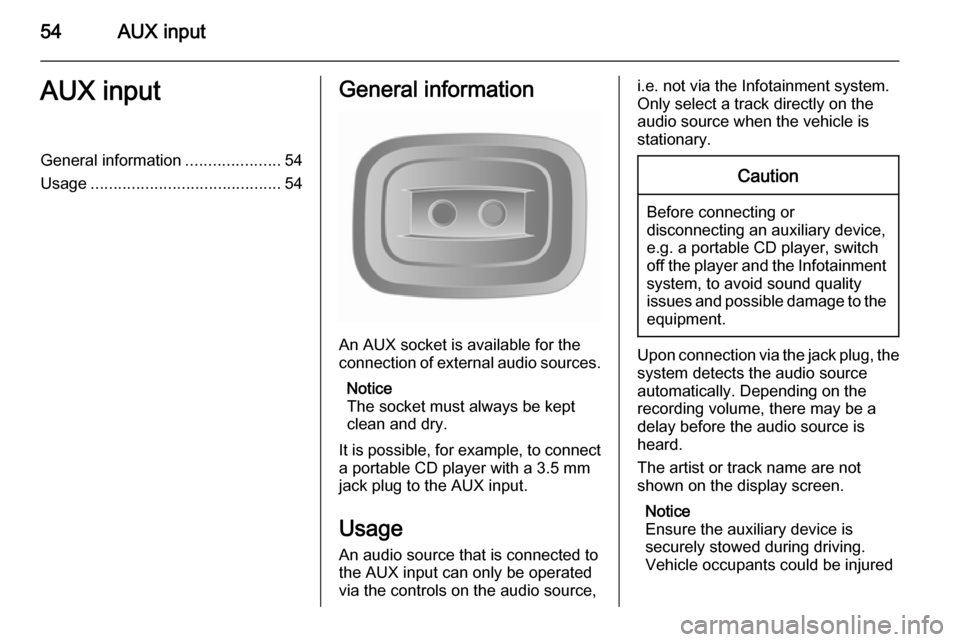
An AUX socket is available for the
connection of external audio sources.
Notice
The socket must always be kept
clean and dry.
It is possible, for example, to connect a portable CD player with a 3.5 mm
jack plug to the AUX input.
Usage An audio source that is connected to
the AUX input can only be operated
via the controls on the audio source,
i.e. not via the Infotainment system.
Only select a track directly on the
audio source when the vehicle is stationary.Caution
Before connecting or
disconnecting an auxiliary device,
e.g. a portable CD player, switch off the player and the Infotainment system, to avoid sound quality
issues and possible damage to the equipment.
Upon connection via the jack plug, thesystem detects the audio source
automatically. Depending on the
recording volume, there may be a
delay before the audio source is
heard.
The artist or track name are not
shown on the display screen.
Notice
Ensure the auxiliary device is
securely stowed during driving.
Vehicle occupants could be injured