ECO mode VAUXHALL MOVANO_B 2015.5 Infotainment system
[x] Cancel search | Manufacturer: VAUXHALL, Model Year: 2015.5, Model line: MOVANO_B, Model: VAUXHALL MOVANO_B 2015.5Pages: 139, PDF Size: 1.84 MB
Page 4 of 139

4IntroductionIntroductionGeneral information.......................4
Control elements overview ............6
Theft-deterrent feature .................21
Usage .......................................... 22
Tone settings ............................... 31
Volume settings ........................... 33
System settings ........................... 34General information
The Infotainment system provides
state-of-the-art in-car information and entertainment.
The radio is equipped with assignable channel presets for FM, MW and LW
wavebands.
The audio player plays audio CDs,
MP3 CDs and also WMA CDs.
External data storage devices, e.g.
iPod, MP3 player or USB stick, or a
portable player can be connected to
the Infotainment system. External
audio sources can also be connected
via Bluetooth.
The digital sound processor provides
several preset equalizer modes for
sound optimisation.
The navigation system's dynamic route planning will reliably guide you
to your destination and can help avoid
traffic jams and other traffic problems.
Optionally, the Infotainment system
can be operated using controls on the steering column or via the voice
recognition system.In addition, the Infotainment system
can be equipped with a handsfree
phone system.
The well-thought-out design of the
controls and the clear displays enable
you to control the system easily and
intuitively.
Notice
This manual describes all options
and features available for the
various Infotainment systems.
Certain descriptions, including those for display and menu functions, may
not apply to your vehicle due to
model variant, country
specifications, special equipment or
accessories.
Important information on
operation and traffic safety9 Warning
Drive safely at all times when
using the Infotainment system.
If in doubt, stop the vehicle before operating the Infotainment
system.
Page 20 of 139
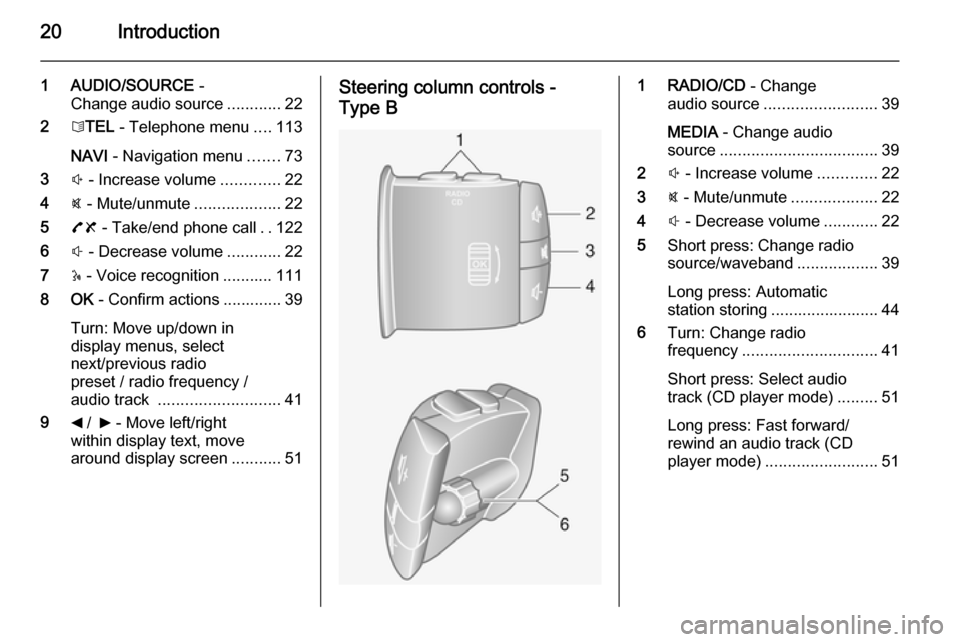
20Introduction
1 AUDIO/SOURCE -
Change audio source ............22
2 6TEL - Telephone menu ....113
NAVI - Navigation menu .......73
3 ! - Increase volume .............22
4 @ - Mute/unmute ...................22
5 78 - Take/end phone call ..122
6 # - Decrease volume ............22
7 5 - Voice recognition ........... 111
8 OK - Confirm actions ............. 39
Turn: Move up/down in
display menus, select
next/previous radio
preset / radio frequency /
audio track ........................... 41
9 _ / 6 - Move left/right
within display text, move
around display screen ...........51Steering column controls -
Type B1 RADIO/CD - Change
audio source ......................... 39
MEDIA - Change audio
source ................................... 39
2 ! - Increase volume .............22
3 @ - Mute/unmute ...................22
4 # - Decrease volume ............22
5 Short press: Change radio
source/waveband ..................39
Long press: Automatic
station storing ........................ 44
6 Turn: Change radio
frequency .............................. 41
Short press: Select audio
track (CD player mode) .........51
Long press: Fast forward/
rewind an audio track (CD
player mode) ......................... 51
Page 21 of 139

Introduction21
Steering column controls -
Type C1 SOURCE/AUDIO -
Change audio source ............22
2 78 ...................................... 113
Take/end phone call ...........122
@ - Mute/unmute ...................22
3 5 - Activate voice
recognition .......................... 111
4 ! - Increase volume,
mute/unmute ......................... 22
5 # - Decrease volume,
mute/unmute ......................... 22
6 MODE/OK - Confirm
actions, change audio
mode ..................................... 39
Take/end phone call ...........122
7 Turn: Access display
menu options, next/
previous radio preset /
radio frequency / audio
track ..................................... 39Theft-deterrent feature
An electronic security system is
included for the purpose of theft
deterrence. The Infotainment system
functions only in your vehicle and is
therefore worthless to a thief.
The security code (supplied
separately) must be entered upon
first use of the system and after
prolonged interruptions to the power
supply.
Entering the security code
When first switching on the
Infotainment system, the message
Radio code then 0000 appears on the
display screen.
To enter first digit of security code,
press numbered button 1 on the unit
repeatedly until desired number is displayed. Enter second, third and
fourth digits using buttons 2, 3 and 4
in the same way.
When the full code is displayed, press and hold button 6 until an audible
signal sounds. The system is
unlocked when the correct code has
been entered.
Page 25 of 139

Introduction25
■G Vehicle
Press to open Driving Eco 2
, Care
(e.g. outside air quality), On-board
computer and Settings menus.
Refer to (NAVI 80) "Modes of
operation" below.
■ @ Services
Press to open Store, Navigation
services, Applications and Settings
menus.
Refer to (NAVI 80) "Modes of
operation" below.
■ t System
Refer to (NAVI 80) "System
settings" 3 34.
■ i: Move to previous page
■ j: Move to next page
■ <: Open pop-up menu
■ r : Return to previous menuThe display screen can also be
operated using the following controls on the Infotainment system fascia:
■ ; : Home page
■ R: Display lists; Scroll up
Map; Change scale
■ Central button: Enter menus, confirm actions
■ S: Display lists; Scroll down
Map; Change scale
Notice
Depending on vehicle, operation of
the touchscreen may be restricted
during driving.
Modes of operation
RADIO
To change the audio source to radio:
Depending on Infotainment system,
press the RADIO, RADIO/CD or
AUDIO/SOURCE button.NAVI 50
To access the radio menu at any time, press the Home button ; followed by
RADIO on the display screen.NAVI 80
To access the radio menu from the
Home page, press MENU then
Multimedia followed by Radio on the
display screen
Detailed description of the radio
functions 3 39.
AUDIO PLAYERS
To change the audio source to CD,
USB , AUX , Bluetooth or iPod (where
applicable): Depending on
Infotainment system, press the
MEDIA , RADIO/CD or
AUDIO/SOURCE button.
NAVI 50 : To access the menu for
auxiliary devices ( USB, iPod , BT
(Bluetooth), AUX) at any time, press
the Home button ; followed by
MEDIA on the display screen. Press
S in top left corner and select
auxiliary source.
NAVI 80 : To access the menu for
auxiliary devices (USB, SD card, AUX
input, Audio CD, Bluetooth) from the
Home page, press MENU then
Page 27 of 139

Introduction27
VEHICLE INFORMATION (NAVI 80)
To access the Vehicle menu from the Home page, press MENU followed by
Vehicle on the display screen.
Depending on vehicle, the following menus are displayed:
■ Driving Eco 2
■ Care
■ On-board computer
■ SettingsDriving Eco 2
The following features are available: ■ Trip report
Displays the following data from the last journey:
Average fuel consumption,
average speed, total fuel
consumption, recovered energy or mileage completed, average
environmental driving
performance, braking anticipation,
ability to manage vehicle speed.
To save journey data: Press 'Save' then select the journey type from
the following list:Home/work, holiday, weekend, trip,
personal.
To reset journey data: Press
'Reset'. Confirm or cancel with 'Yes' or 'No'.
■ My preferred trips
Displays changes in your driving
style (when journey data has been saved).
The 'Summary' tab displays the
following: Total route distance,
distance covered, date of
information update, average rating
out of 100.
The 'Details' tab displays journey
record information.
■ Eco coaching
Displays advice for reducing fuel consumption
Scroll through the pages and
familiarise yourself with the advice.Care
The following features are available:
■ Ioniser : Select 'Clean' mode to help
reduce bacteria and allergens in
the air, or select 'Relax' mode toimprove the driving environment
through the emission of ions.
Operation stops automatically after
30 minutes.
Switch off if not required.
To activate automatic operation, press 'Start ioniser at each vehicle
start' (tick box checked).
■ Scent diffuser : Change fragrance
type and diffusion intensity in the
passenger compartment.
■ Outside air quality : Displays a chart
of exterior air quality over a period
of time, rated from ô 'Good' to
õ 'Polluted ]' (low level) to
ö 'Polluted <' (high level).
Press Done to confirm changes.On-board computer
Displays the following information since the last reset:
■ Start date of calculation
■ Total distance
■ Average speed
■ Average fuel consumption ■ Total fuel or energy consumption
Page 36 of 139

36Introduction
The following settings submenus aredisplayed:
■ Language
■ Display
■ Sound
■ Clock
■ Safety warnings
■ Home screen
■ Keyboards
■ Set units
■ Status & Information
■ Remove SD-card
■ Restore factory settings
After system settings are changed,
press Done to confirm.Language
To change Infotainment system
language then voice type.Display
The following settings are displayed:
■ Daytime brightness : Change
screen brightness to suit external
light levels (daylight).During low external light levels, the
display screen is easier to view
when the display is not too bright.
■ Night brightness : Change screen
brightness to suit external light
levels (night light).
During low external light levels, the
display screen is easier to view
when the display is not too bright.
■ Switch to night mode at night : To
activate automatic switching
between daytime/night brightness.
Night mode is activated during low
external light levels and when the headlights are switched on.
■ Use night mode : To activate night
mode.Sound
The following settings submenus are displayed:
■ Sound levels : To change volume
and sounds for traffic information,
handsfree phone system, phone
ringtone, application alerts, system
voice and navigation instructions.■ Alerts : To adjust alert volume, and
switch on/off alerts when display
screen is switched off.
■ Speed sensitivity : To set volume
adjustment based on vehicle
speed.
■ Computer voice : Adjust types of
information to be given by the
Infotainment system voice.
■ Voice : Change the voice used by
the Infotainment system.Clock
To set the system clock and the time
display format.
Keeping the automatic time setting
switched on is recommended.Safety warnings
To switch on/off various alerts
provided by the Infotainment system.
Check appropriate boxes to switch
on.Home screen
To change the home page
configuration.
Select from list of options to see a
preview of each home page layout.
Page 41 of 139

Radio41
NAVI 80 - ControlsUse the touchscreen to operate the
radio.
The main controls are: ■ FM /AM : Press tab in top left corner
of the display and switch between
FM and AM wavebands.
■ Y /Z : Press to start automatic
search for next/previous radio
station.
■ : Press to change to next/
previous frequency in increments of
0.1 MHz.
■ 4/1 : Press to scroll through a list of
stations.
Activating the radio
To access the Radio from the Home
page, press MENU then Multimedia ,
followed by Radio on the display
screen.
The following modes are available: ■ Preset :
Displays stored favourite radio
stations.■ List :
Displays an alphabetical list of
available radio stations (maximum
50 stations).
Notice
Radio stations without RDS: Only
the frequency is displayed. These
stations appear at the end of the list.
■ Frequency :
Search manually or automatically
by scanning the selected range of
frequencies.
Selecting the waveband
Press FM/AM tab in top left corner of
the display and switch between
wavebands.
The station previously selected in that
waveband will be received.Station search
Automatic station search
R15 BT USB, R16 BT USB,
CD16 BT USB, CD18 BT USB -
Automatic station search
Briefly press button 2 or 3 to
search for the next receivable station
in the current waveband.
If no station is found, automatic
searching continues until 2 or 3 is
pressed again.
CD35 BT USB - Automatic station
search
Press button 2 or 3 for approx.
2 seconds to search for the next
receivable station in the current
waveband.
If no station is found, automatic
searching continues until 2 or 3 is
pressed again.
NAVI 50 - Automatic station search
Press l or m in the display to
search for the next receivable station
in the current waveband.
Page 50 of 139

50CD PlayerCD PlayerGeneral information.....................50
Usage .......................................... 51General information
The Infotainment system's CD player
can playback audio CDs, MP3 CDs
and also WMA CDs.
CD16 BT, CD18 BT: AAC and WAV formats can also be played.
Important information aboutaudio CDs and MP3/WMA CDsCaution
Under no circumstances place
DVDs, single-CDs with a diameter of 8 cm or shaped CDs in the audio
player.
You must not put any stickers on
CDs. These discs can get jammed
in the CD drive and ruin the drive.
An expensive replacement of the
device will then be necessary.
■ Audio CDs with copy protection, which are not in compliance with
the audio CD standard, may not
play correctly or not at all.
■ Self-recorded CD-Rs and CD-RWs
and WMA files with Digital Rights
Management (DRM) from online
music shops may not play correctly
or not at all.
■ On mixed mode CDs (combinations
of audio and data, e.g. MP3), only
the audio tracks will be detected
and played.
■ Self-recorded CD-Rs and CD-RWs
are more vulnerable to mishandling than prerecorded CDs. Correct
handling, especially in the case of
self-recorded CD-Rs and CD-RWs,
must be ensured; see below.
■ Avoid leaving fingerprints when you
change CDs.
■ Put CDs back in their sleeves immediately after removing them
from the CD player, in order to
protect them from dirt and damage.
■ Dirt and liquids on CDs can smear the lens of the audio player inside
the device and cause faults.
■ Protect CDs from heat and direct sunlight.
Page 84 of 139

84Navigation
To scroll through the images in
slideshow mode, select Slideshow
using the right soft button ⌟ and set
the seconds-per-slide when
prompted, using the directional
buttons.
To set the slideshow to manual mode, select Manual by moving to the far
right of the seconds-per-slide display,
then use the directional buttons to
scroll through the images manually.
Start the slideshow by pressing the
right soft button ⌟.
Images can be added or deleted
when updating the Navigation
system.
Compatible image formats are: ■ JPG: Greyscale and RGB
■ BMP: 1-bit, 2 colours; 4-bit, 16 colours; 8-bit, 256 colours and24-bit, 16.7 million coloursSETTING UP THE
NAVIGATION SYSTEM
CD35 BT USB NAVI - Setting up the
navigation systemNavigation volume
To change the volume during a voice
instruction, turn the X knob or press
< or ].
Alternatively, press button ! or # on
the steering column controls to change the volume.
To repeat a voice instruction, press
the left soft button ⌞.System preferences
The system can be adjusted to suit
personal requirements. Select
Change preferences in the main
menu to view the adjustable
preferences.
Certain menu items can also be found more quickly in the Quick menu.
Press the central button on the
remote control to open the Quick
menu .Change Home location
To change the location of your
designated home.Manage favourites
To delete stored favourite
destinations. Select the desired entry followed by Done using the soft
button to delete the entry.Switch map
Used if installing several maps on the
SD card. To change map, select
Switch map , then select the map
required.Voice preferences
To select a voice used to give voice
instructions and to select either
human or synthesised voices.
The human voice instructions provide
simplified guidance only, while the
synthesised voice instructions
provide road directions plus
additional information (e.g. traffic
signs and traffic information etc.).Disable voice
To deactivate the voice instructions
and use only the map screen for
guidance.
Page 85 of 139

Navigation85
Turn off sound
To deactivate all sound, including
voice instructions and alerts etc.. To
turn the sound back on, select Turn
on sound .Safety preferences
To activate sound warnings during
driving (e.g. when exceeding a set
speed or when approaching schools
etc.). This option can also be used to
simplify the menus.Planning preferences
Five types of planning preferences
are selectable. The recommended
preference is Fastest route.
After having selected the planning
criteria, the system permits the
activation of the IQ Routes™
function. If activated, this function
plans the best route taking the actual road speeds into account.
Toll road preferences: After having
entered a destination, the system
asks if you wish to change this
request. Select one of the 3 types of
planning preferences, then finish
using the right soft button ⌟.Road types: Select preferences in
terms of particular sections of the
journey, such as unmade roads and
ferry transfers.Show lane images
When approaching a major road
change, the system may switch to a
close-up view of the junction with a
turn arrow and road signs. This
feature can be deactivated, if
preferred.Automatic zooming
During guidance, the display
gradually zooms in before each
change of direction. If preferred, this mode can be deactivated.Show POI on map
To select the points of interest (POIs) which appear on the map.Manage POIs
To add, modify or delete points of
interest (POIs) or POI categories.Set units
Units of distance: Select Miles or
Kilometres , then select Done using
the soft button.Clock display : Select from the 3 clock
display mode options, then select
Done using the soft button to move to
the next step.
Coordinates : Select from the 3
latitude and longitude display options, then select Done using the soft button
to move to the next step.Show/hide tips
When using the Navigation system,
the system will display tips to help get
the best use of the functions. These
can be deactivated by selecting Hide
tips . To reactivate, select Show tips.Change car symbol
Changes the style of the car symbol.2D map settings
To change the default map settings
between 2D and 3D.Compass preferences
Changes the compass display on the
map screen.Status bar preferences
Add to the list of options that appear
on the navigation map status bar.