lights VAUXHALL MOVANO_B 2020 Owner's Guide
[x] Cancel search | Manufacturer: VAUXHALL, Model Year: 2020, Model line: MOVANO_B, Model: VAUXHALL MOVANO_B 2020Pages: 351, PDF Size: 9.32 MB
Page 116 of 351
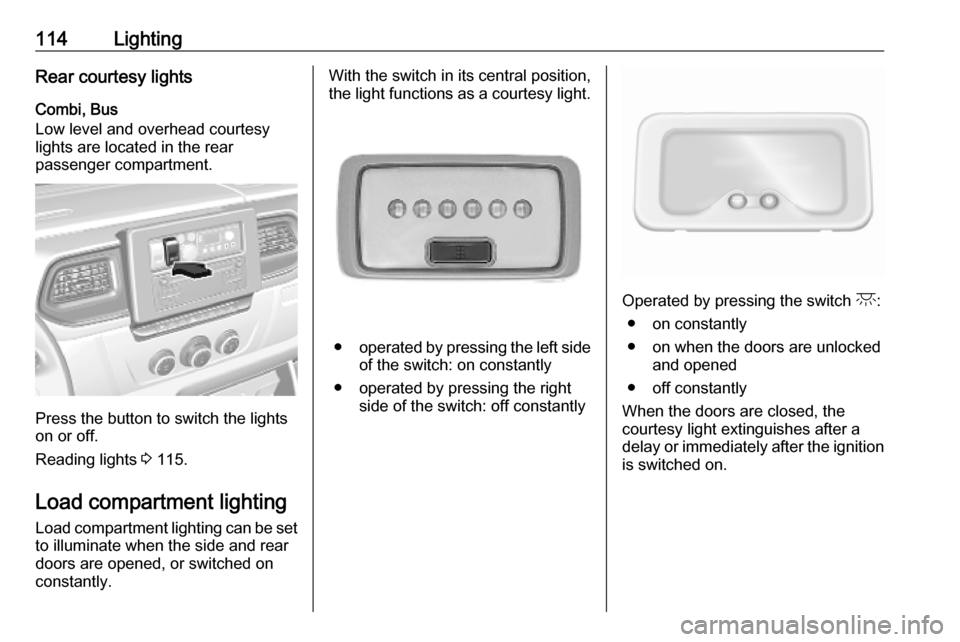
114LightingRear courtesy lights
Combi, Bus
Low level and overhead courtesy
lights are located in the rear
passenger compartment.
Press the button to switch the lights
on or off.
Reading lights 3 115.
Load compartment lighting Load compartment lighting can be setto illuminate when the side and rear
doors are opened, or switched on
constantly.
With the switch in its central position,
the light functions as a courtesy light.
● operated by pressing the left side
of the switch: on constantly
● operated by pressing the right side of the switch: off constantly
Operated by pressing the switch c:
● on constantly
● on when the doors are unlocked and opened
● off constantly
When the doors are closed, the courtesy light extinguishes after a
delay or immediately after the ignition
is switched on.
Page 117 of 351
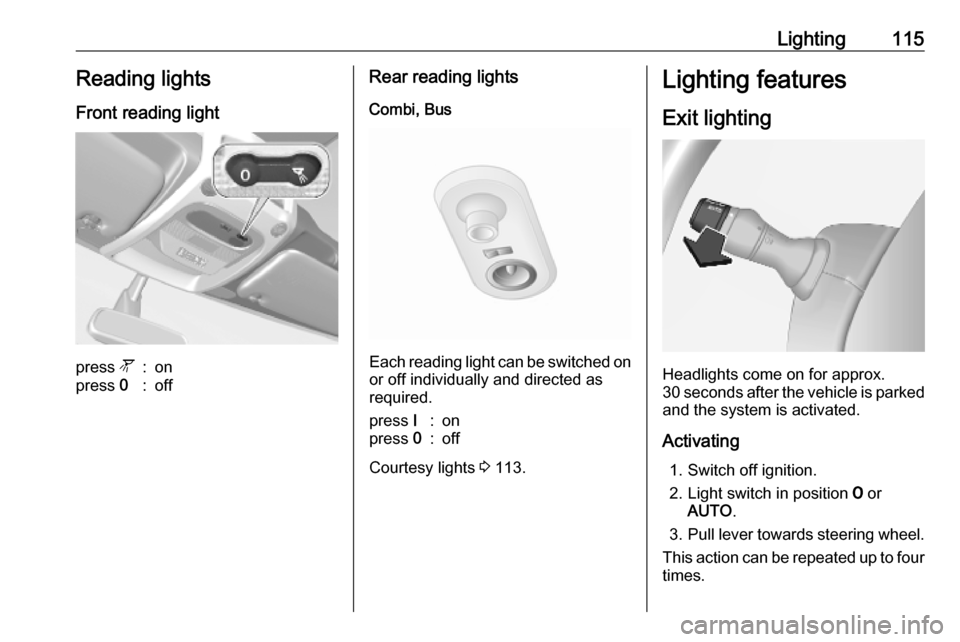
Lighting115Reading lightsFront reading lightpress l:onpress 0:offRear reading lights
Combi, Bus
Each reading light can be switched on
or off individually and directed as
required.
press I:onpress 0:off
Courtesy lights 3 113.
Lighting features
Exit lighting
Headlights come on for approx.
30 seconds after the vehicle is parked
and the system is activated.
Activating 1. Switch off ignition.
2. Light switch in position 7 or
AUTO .
3. Pull lever towards steering wheel.
This action can be repeated up to four
times.
Page 118 of 351

116LightingThe headlights are turned off
immediately by turning the light switch
to any position and returning to 7 or
AUTO .
Battery discharge protection
To prevent discharge of the vehicle
battery when the ignition is switched off, some interior lights may be
switched off automatically after some
time.
Page 135 of 351

Infotainment system133●My preferred trips
Displays changes in driving style
(when journey data has been
saved).
The 'Summary' tab for each
journey type (e.g. Home/work)
displays the following: Total route distance, distance covered, date
of information update and
average driving economy rating
out of 100.
The 'Detailed report'/'Details' tab displays journey record
information.
● Eco-coaching
Displays advice for reducing fuel
consumption.
Scroll through the pages and
familiarise yourself with the
advice.Onboard computer
Displays the following information
since the last reset:
● start date of calculation
● total distance
● average speed● average fuel consumption
● total fuel consumption
To reset onboard computer and
instrument panel trip computer
information, touch Reset then Yes to
confirm.
For further information, refer to "Trip
computer" in the Owner's Manual.Settings
The following settings can be
changed:
● Park assist
● Volume :
Touch < or ] alongside the
volume bar to change volume of the ultrasonic parking
assist system. For further
information, refer to "Parking
assist" in the Owner's
Manual.
● Rear camera view settings
(available depending on
version):
Select to switch rear view
camera on/off, change
guidelines (static/dynamic)
and adjust image settings(e.g. brightness, colour and
contrast).
Touch Done to save
changes. For further
information, refer to "Rear view camera" in the Owner's
Manual.
● < (pop-up menu):
Touch < in the Park Assist
menu or submenus followed
by Reset to the default
values to restore default
factory settings for all or
current park assist options.
● Image settings (available
depending on version)
To adjust e.g., brightness, colour
and contrast.
● The following options (depending
on vehicle) can also be adjusted:
● Daytime running lights (switch on/off).
● Unlock the driver's door only when opening the door
(switch on/off).
● Easy access (switch on/off).
Page 142 of 351

140Infotainment systemNotice
Navigation maps for the current
country must be installed on the
system to ensure the local time is
correct.
● Factory settings
The following settings can be
reset to the factory default:
● All
● Phone - Smartphone
● Navigation
● Audio-Media-Radio-System
● Navigation (On/Off)
● System version (displays
Infotainment system software
version number)
When system setting adjustments
have been made, touch 7 (and select
another menu on the display) to exit
the settings menu and save changes.
The system also saves and exits
automatically after a delay.
NAVI 80 IntelliLink To access the system settings menufrom the Home page, touch MENU
followed by System.The following settings submenus are
displayed:
● Language
● Display
● Sound
● Clock
● Safety warnings
● Home screen
● Keyboards
● Set units
● Status & Information
● Remove SD-card
● Restore factory settings
● Android Auto Settings ™
After system settings are changed,
touch Done to confirm.Language
To change Infotainment system
language then voice type (depending on version).Display
The following settings are displayed:
● Daytime brightness : Change
screen brightness to suit external light levels (daylight).During low external light levels,
the display screen is easier to
view when the display is not too
bright.
● Nighttime brightness /Night
brightness : Change screen
brightness to suit external light
levels (night light).
During low external light levels,
the display screen is easier to
view when the display is not too
bright.
● Automatic day/night mode /
Change to night colours : To
activate automatic switching
between daytime/night
brightness.
Night mode is activated during
low external light levels and when
the headlights are switched on.
● Force night mode /Use night
colours : To activate night mode.
Page 190 of 351

188Infotainment systemThis menu option contains the
following information:
● speed limits
● phone country code (International dialling code, e.g.
+49)
● emergency number (e.g. 112)
● legal restrictions, e.g.: ● vehicle equipment requirements, e.g. warning
triangle, first aid kit, fire
extinguisher, spare bulbs,
high-visibility jacket etc.
● headlights legislation
● maximum blood alcohol level
● snow chains legislation
● winter tyres legislationHelp Nearby
This function allows you to search for
assistance near the current location.
When the Where am I? screen is
displayed, touch Help Nearby.This menu option contains the
following information:
● Car repair around here (Vehicle
repair services)
● Health around here (Medical and
emergency services)
● Police around here (Police
stations)
● Petrol station around here (Fuel
stations)
Select the appropriate option to
access a list of local Points of Interest (POI).
For information on Points of Interest
(POI), refer to (NAVI 50 IntelliLink)
"Destination input" 3 176.
Traffic information NAVI 50 IntelliLink
Available depending on version, up-
to-date traffic information from local
sources can be received. Information
is provided for the current route or for
the current vehicle location.
During route guidance, touch
Options then select Current traffic , or
touch the traffic icon Ö on the mapscreen. Traffic incidents along the
route and estimated delay times are
displayed.
The following options are available: ● Event list : Select to change event
display settings.
● Offer detour : Create an
alternative route to the selected
destination.
● Options : Access traffic options.
To access these traffic options at any time, touch 7 followed by yNAVI /
ý Nav then Options . Then select
Ö Traffic .
Touch q to return to route guidance.
NAVI 80 IntelliLink
Allows up-to-date traffic information from local sources to be received.
From the Home page, touch MENU
then Navigation , followed by
Navigation Services . Then select
Traffic /HD Traffic .
The navigation system indicates
traffic incidents with voice messages, the traffic information bar and also by
displaying symbols on the map.
Page 256 of 351
254Driving and operatingpedal to override the automatic
braking if the situation and the
surroundings permit.
In the following cases, active
emergency braking performance is limited:
● driving on winding or hilly roads
● detecting all vehicles, especially vehicles with a trailer, tractors,
muddy vehicles, etc.
● detecting a vehicle when weather
limits visibility, such as in fog,
rain, or snow
● driving during nighttime
● sensor in the windscreen or radar
unit behind the front bumper blocked by snow, ice, slush, mud, dirt, etc.
● windscreen damaged or affected
by foreign objects, e.g. stickers
Complete attention is always required
while driving, and you should be
ready to take action and apply the
brakes and / or steer the vehicle to
avoid crashes.Fault
In case the system requires a service, a message is displayed in the Driver
Information Centre.
Additionally, warning lights l and
j illuminate at the same time.
When the system detects that its
function is not available, warning light
l or j illuminates and stays on.
Additionally, a message in the Driver
Information Centre appears. The system may be temporarily disrupted
(for example: radar or camera
obscured by dirt, mud, snow etc.). In
this case, park the vehicle and switch off the engine. Clean the windscreen
area around the camera and the
detection zone of the radar in the front bumper. When the warning lights and
messages still appear after starting
the vehicle again, seek the
assistance of a workshop.Parking assist9 Warning
It is the driver who bears full
responsibility for the parking
manoeuvre.
Always check the surrounding
area while reversing and using the rear parking assist system.
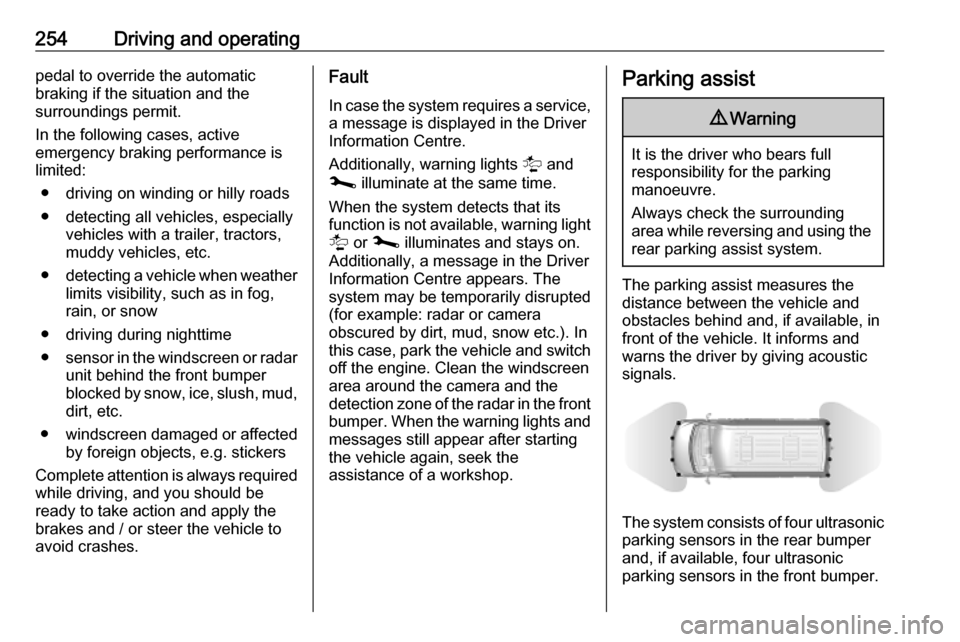
The parking assist measures the
distance between the vehicle and
obstacles behind and, if available, in
front of the vehicle. It informs and
warns the driver by giving acoustic
signals.
The system consists of four ultrasonic parking sensors in the rear bumper
and, if available, four ultrasonic
parking sensors in the front bumper.
Page 259 of 351
Driving and operating257Deactivation
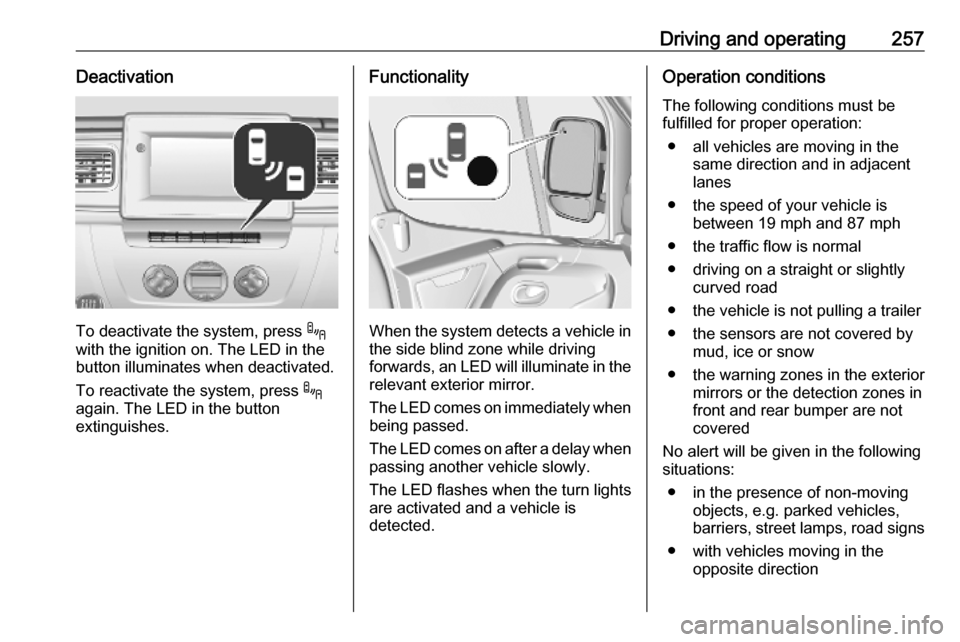
To deactivate the system, press .
with the ignition on. The LED in the
button illuminates when deactivated.
To reactivate the system, press .
again. The LED in the button
extinguishes.
Functionality
When the system detects a vehicle in the side blind zone while driving
forwards, an LED will illuminate in the
relevant exterior mirror.
The LED comes on immediately when being passed.
The LED comes on after a delay when
passing another vehicle slowly.
The LED flashes when the turn lights
are activated and a vehicle is
detected.
Operation conditions
The following conditions must be
fulfilled for proper operation:
● all vehicles are moving in the same direction and in adjacent
lanes
● the speed of your vehicle is between 19 mph and 87 mph
● the traffic flow is normal
● driving on a straight or slightly curved road
● the vehicle is not pulling a trailer ● the sensors are not covered by mud, ice or snow
● the warning zones in the exterior mirrors or the detection zones in
front and rear bumper are not
covered
No alert will be given in the following
situations:
● in the presence of non-moving objects, e.g. parked vehicles,
barriers, street lamps, road signs
● with vehicles moving in the opposite direction
Page 261 of 351
Driving and operating259Info Display
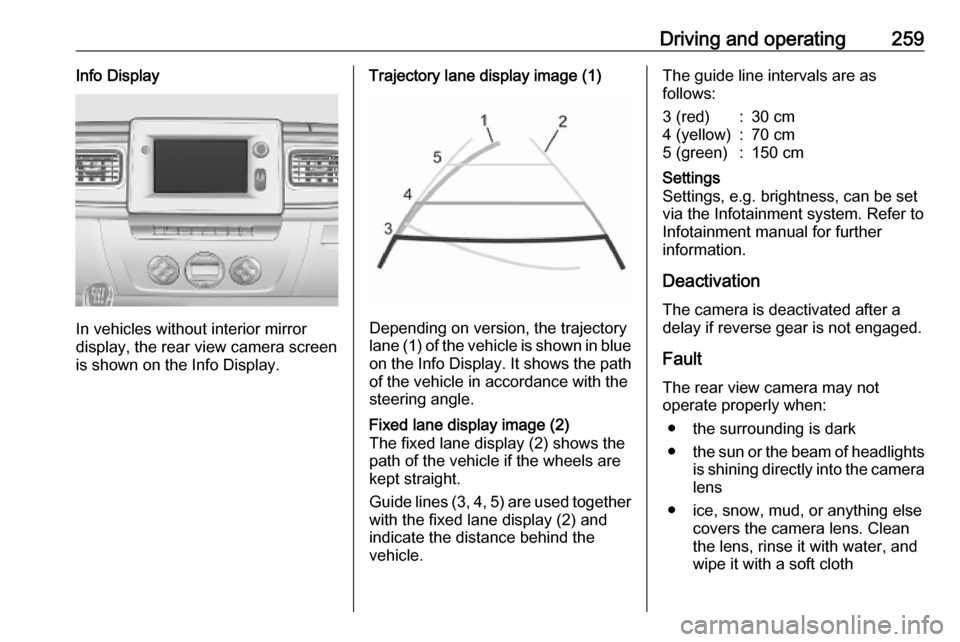
In vehicles without interior mirror
display, the rear view camera screen
is shown on the Info Display.
Trajectory lane display image (1)
Depending on version, the trajectory
lane (1) of the vehicle is shown in blue
on the Info Display. It shows the path of the vehicle in accordance with the
steering angle.
Fixed lane display image (2)
The fixed lane display (2) shows the
path of the vehicle if the wheels are
kept straight.
Guide lines (3, 4, 5) are used together
with the fixed lane display (2) and
indicate the distance behind the
vehicle.The guide line intervals are as
follows:3 (red):30 cm4 (yellow):70 cm5 (green):150 cmSettings
Settings, e.g. brightness, can be set
via the Infotainment system. Refer to
Infotainment manual for further
information.
Deactivation
The camera is deactivated after a
delay if reverse gear is not engaged.
Fault
The rear view camera may not
operate properly when:
● the surrounding is dark
● the sun or the beam of headlights
is shining directly into the camera lens
● ice, snow, mud, or anything else covers the camera lens. Clean
the lens, rinse it with water, and
wipe it with a soft cloth
Page 262 of 351
260Driving and operating● the rear doors are not closedcorrectly
● the vehicle had a rear-end accident
● there are extreme temperature changes
Lane departure warning The lane departure warning system
uses a front camera to observe the
lane markings between which the
vehicle is driving. The system detects
lane changes and warns the driver in
the event of an unintended lane
change via visual and acoustic
signals.
Criteria for the detection of an
unintended lane change are:
● no operation of turn lights
● no active steering
If the driver is performing these
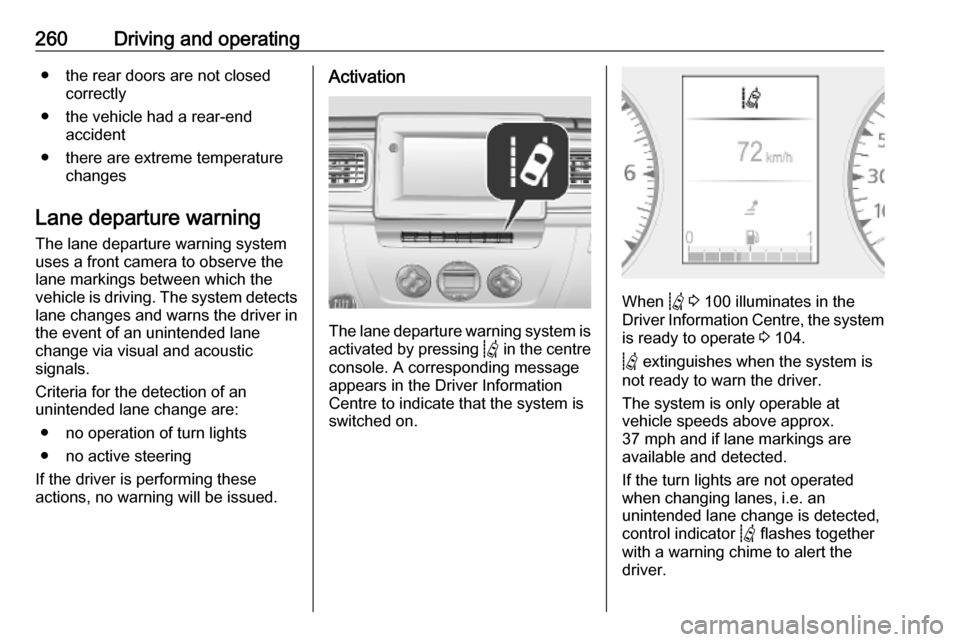
actions, no warning will be issued.Activation
The lane departure warning system is activated by pressing Q in the centre
console. A corresponding message
appears in the Driver Information
Centre to indicate that the system is
switched on.
When Q 3 100 illuminates in the
Driver Information Centre, the system is ready to operate 3 104.
Q extinguishes when the system is
not ready to warn the driver.
The system is only operable at
vehicle speeds above approx.
37 mph and if lane markings are
available and detected.
If the turn lights are not operated
when changing lanes, i.e. an
unintended lane change is detected,
control indicator Q flashes together
with a warning chime to alert the
driver.