reset VAUXHALL MOVANO_B 2020 Owner's Guide
[x] Cancel search | Manufacturer: VAUXHALL, Model Year: 2020, Model line: MOVANO_B, Model: VAUXHALL MOVANO_B 2020Pages: 351, PDF Size: 9.32 MB
Page 151 of 351

Infotainment system149News
If News is switched on:
● News announcements from certain FM radio stations (and
DAB stations, if available) are
broadcast automatically.
● Radio and auxiliary audio source
playback is interrupted for the
duration of the traffic
announcement.
Text information (Radio text)
Certain FM radio stations (and DAB
stations, if available) issue text
information relating to the broadcast
program (e.g. song name).
NAVI 80 IntelliLink
Configuring RDS
To access the Radio settings menu
from the Home page, select MENU
then Multimedia , followed by
Settings then Radio .
Depending on version, touch < to
open a pop-up menu, and access the 'Radio settings' option.The following radio settings can be
updated:
● switch searching for Alternative Frequencies (AF) on/off
● switch i-traffic (Traffic program information) on/off
● switch programme type (PTY) on/off
● switch simulcast on/off
● display i-announcement information (e.g. Area weather
information, Event information)
● update list of saved radio stationsAlternative Frequency (AF)
Switch on the RDS-AF function to
always tune into the best receivable
broadcasting frequency of the chosen station.i-traffic (Traffic program information)
Radio traffic service stations are FM
RDS stations that broadcast traffic
news.
Switch on I-Traffic to automatically
receive traffic bulletins when they are broadcast.Programme type search (PTY)
Switch on PTY to display the type of
programme (e.g. news, sport)
currently being broadcastUpdate radio list
Refer to (NAVI 80 IntelliLink)
"Autostore lists" 3 146.Simulcast
Switch on the simulcast function to
automatically change from a DR
(digital radio) station to the same
station on the FM waveband in the
event of a loss of reception.i-announcement
Select to display information such as
weather or events in the vicinity.
Text information (Radio text)
Certain FM radio stations issue text
information relating to the broadcast
program (e.g. song name).
To check for text information, from
any radio mode (e.g. Preset, List ,
Frequency ) touch < to open a pop-up
menu, and access the text
information option, by selecting e.g. "Show radio text".
Page 175 of 351

Infotainment system173●Map update
● Traffic (depending on version)Warnings
Select Warnings to access the
following settings (switch off if not
required):
● Warn when speeding (On/Off)
● Speed limit always visible (On/
Off)
● Alert point warnings (On/Off)
● Pre-alert distance (0 m/200 m/
500 m)
Available depending on version.
Warn when speeding : The digital map
contains speed limits for certain
roads. Audio and/or visual warnings
are given when the vehicle exceeds
the speed limit.
Speed limit always visible : The speed
limit for certain roads is always visible on the screen.
Alert point warnings : When the
vehicle passes an alert point
(permanent or temporary) - i.e. when
entering a hazardous section of road
requiring extra caution, or nearing aspeed camera location (depending on country) - audio and visual warnings
are given.
Pre-alert distance : Select a distance
from which notifications of alert point
warnings should be given.
Notice
Warnings may not be available for
some roads and regions.Route settings
Select Route settings to update the
following settings for route
calculation:
● Route planning method (Fast/
Short/ECO)
● Motorways (On/Off)
● Period charge (On/Off)
● Per-use toll (On/Off)
● Ferries (On/Off)
● Carpool/HOV (On/Off)
● Unpaved roads (On/Off)
● Permits needed (On/Off)
(depending on version)If necessary, touch Options then
Reset to defaults to set each of these
options back to the factory default
settings.
Alternatively, when the map is
displayed (no route guidance is
active), the Route settings menu can
be accessed by touching Options.
Refer to (NAVI 50 IntelliLink)
"Information on the display", "Map
screen" above for further information.
Route planning method : Select Fast
to set the fastest route to the
destination entered. This method
assumes the vehicle travels at or near
the speed limit on all roads.
Select Short to set the shortest route
and minimise the total distance to
travel to the destination entered.
Select Eco to set a compromise
between the fastest and the shortest
route planning methods. The route
provided may be shorter than the
fastest method, but not significantly
slower.
Motorways : To include or exclude
motorways from the route plan.
Page 179 of 351

Infotainment system177The following menu options are
available for entering a destination:
● Address
Enter an address using the
keyboard.
● Points of Interest
Select Points of Interest (POI),
e.g. petrol station, restaurant,
parking.
● History
Select from a list of previous destinations.
● Favourites
Select from a saved list of
favourite destinations.
● Find on map
Select a destination by using the
digital map.
● Coordinate
Enter the co-ordinates of the
destination.
After a destination has been entered,
wait for the ten second countdown to
expire or touch OK to begin route
guidance immediately.Enter an address
Select Address and enter part or all of
an address, e.g.:
● Country
● Town or Postcode
● Street
● Number
● Intersecting street
Notice
Full addresses can only be entered
if they are recognised by the
navigation system.
When entering an address for the first
time, touch Country, then use the
keyboard to enter the name of the
country required. Alternatively, use
the drop down menu icon ó and select
from a list of suggested countries.
Notice
When entering an address, certain letters and numbers are unavailable
for selection (greyed-out) based on
the addresses recognised by the
navigation system.
Proceed in the same way to enter
details for Town or Postcode , Street ,
Number and Intersecting street .Notice
If a Postcode consists of several
parts, insert a space after the first
part of the postcode.
The address is automatically stored in the memory, available for future
selection.
For keyboard operation, refer to
(NAVI 50 IntelliLink) "Operating
keyboards in the display" in the
"Usage" section 3 165.
Notice
Number and Intersecting Street are
only available after a Street has
been entered.
When entering a Street, it is not
necessary to specify the type of road (street, avenue, boulevard etc.).Select Points of Interest (POI)
POIs can be selected as a destination
using the following search options:
● preset POI list
● POI categories
● quick search for POIs via the map
Page 180 of 351

178Infotainment systemPreset POI list
Select Points of Interest to choose
from the frequently-used preset
categories list (e.g. petrol station,
parking, restaurant).POI categories
Select Points of Interest followed by
Custom Search to select from the list
of categories and subcategories.
The search for POIs differs
depending on the current situation:
● If route guidance is active, Petrol
station and Restaurant POIs are
searched for along the route, and
Parking POIs are searched for
around the destination.
● If there is no active route guidance, POIs are searched for
around the current position.
● If the current position is not available (i.e. no GPS signal),
POIs are searched for around the last known position.
The following options are available: ● In a Town
To search for a POI within a
selected town (the resulting list isordered by distance from the
town centre).
● Along Route
To search for a POI along the
current route (the resulting list is
ordered by length of the required
detour).
● Around My Position
To search for a POI around the
current position (the resulting list is ordered by distance from this
position).
● Around Destination
To search for a POI around the
destination of the current route
(the resulting list is ordered by
distance from the destination).
When a list of POIs is displayed, they
can be sorted or displayed on the map. Touch Options to display the
following:
● Sort by name
● Sort by distance
● Sort by detour (if route guidance
is active)
● Show all on mapQuick search for POIs
Touch anywhere on the map. The
cursor indicates the current selected
position. To scroll within the map,
drag the cursor in the required
direction.
Touch Options followed by Points of
Interest Around Cursor to show
nearby POI names and their distance
from the selected position on the
map.
Alternatively, touch Find and use the
keyboard to search for a destination
by name.Select from previous destinations list
Select History to access a list of
previously entered destinations.
To sort the list, touch Options to
display the following:
● Sort by name
● Sort by distance
● Delete all
Alternatively, touch Find and use the
keyboard to search for a destination
by name.
Page 215 of 351
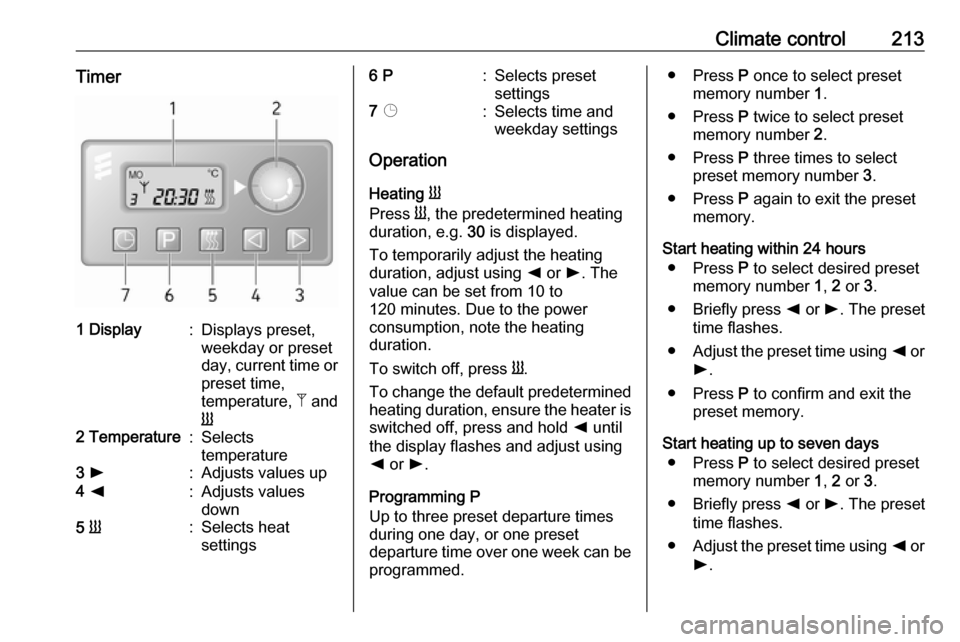
Climate control213Timer1 Display:Displays preset,
weekday or preset
day, current time or preset time,
temperature, Z and
Y2 Temperature:Selects
temperature3 l:Adjusts values up4 k:Adjusts values
down5 Y:Selects heat
settings6 P:Selects preset
settings7 Þ:Selects time and
weekday settings
Operation
Heating Y
Press Y, the predetermined heating
duration, e.g. 30 is displayed.
To temporarily adjust the heating
duration, adjust using k or l. The
value can be set from 10 to
120 minutes. Due to the power
consumption, note the heating
duration.
To switch off, press Y.
To change the default predetermined heating duration, ensure the heater is switched off, press and hold k until
the display flashes and adjust using
k or l.
Programming P
Up to three preset departure times during one day, or one preset
departure time over one week can be programmed.
● Press P once to select preset
memory number 1.
● Press P twice to select preset
memory number 2.
● Press P three times to select
preset memory number 3.
● Press P again to exit the preset
memory.
Start heating within 24 hours ● Press P to select desired preset
memory number 1, 2 or 3.
● Briefly press k or l. The preset
time flashes.
● Adjust the preset time using k or
l .
● Press P to confirm and exit the
preset memory.
Start heating up to seven days ● Press P to select desired preset
memory number 1, 2 or 3.
● Briefly press k or l. The preset
time flashes.
● Adjust the preset time using k or
l .
Page 216 of 351
214Climate control● After 5 seconds the preset dayflashes.
● Adjust the preset day using k or
l .
● The preset time and day are set once the display changes to the
current time.
Set time and weekday Þ
If the vehicle battery is disconnected or its voltage is too low, the unit will
need to be reset.
● Press Þ until the time flashes.
● Press k or l to change the
current time.
● Time is stored when the display stops flashing.
● Wait for weekday to flash.
● Press k or l to change the
weekday.
● Weekday is stored when the display stops flashing.
Heating level
The preferred heating level for
programmed departure times can be set between 10 to 30 ℃.To adjust the temperature of theheating, turn the rotary knob located
on the control panel.turn clockwise:increase
temperatureturn anticlock‐
wise:decrease
temperature
Rear air conditioning
system
The rear air conditioning system is
activated in conjunction with the front passenger compartment air
conditioning system.
Bus
Fan speed
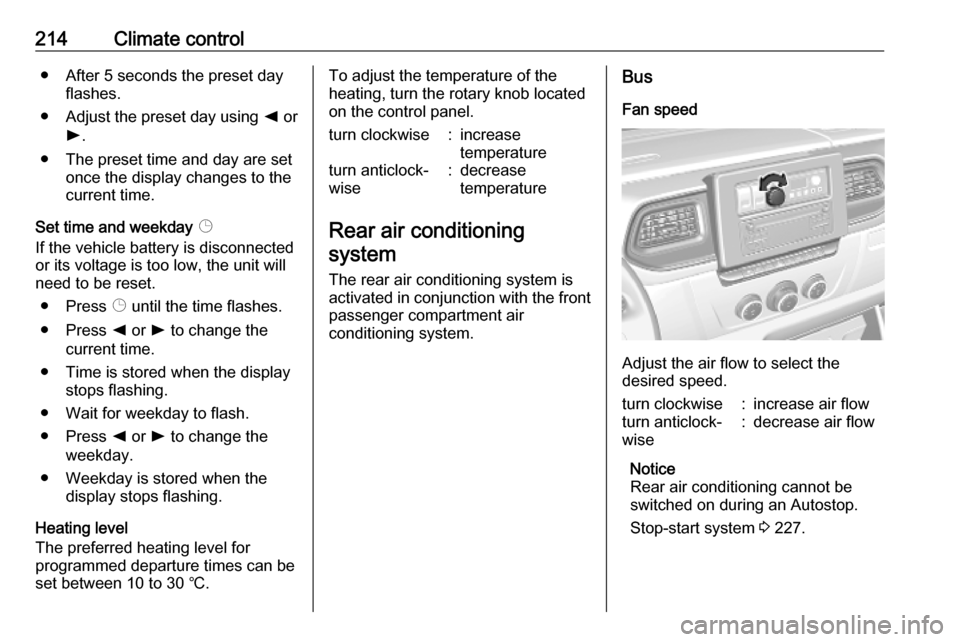
Adjust the air flow to select the
desired speed.
turn clockwise:increase air flowturn anticlock‐
wise:decrease air flow
Notice
Rear air conditioning cannot be
switched on during an Autostop.
Stop-start system 3 227.
Page 217 of 351
Climate control215Combi
Additional air conditioning is supplied to the rear passenger compartment
via the air vents located above the
driver and front passenger
compartment.
With the front passenger
compartment air conditioning system
switched on, adjust the air flow to
select the desired speed.
Ensure the air vents are open when in use, to prevent ice forming in the
system due to lack of air movement.
Auxiliary heater Coolant heater
The engine-independent, fuel-
powered coolant heater provides
rapid heating of the engine coolant to
enable heating of the vehicle interior
without the engine running.
Notice
Depending on version, an additional coolant heater may be switched on
automatically to speed up heating
when the ignition is on and the
outside temperature is below 5 ℃.9 Warning
Do not operate the system when
refuelling, when dust or
combustible vapours are present
or in enclosed spaces (e.g.
garage).
Before starting or programming the
system to start, turn the vehicle's
climate control system to heat, set the
air distribution to V and turn the fan
on.
Switch off when not required. Heating stops automatically after the
programmed runtime. It will also
cease to operate if the vehicle fuel
level drops too low.
During operation, power from the
vehicle battery is used. The driving
time should therefore be at least as
long as the heating time. For short
journey times, check the vehicle
battery regularly and recharge if
necessary.
To ensure efficient performance,
briefly operate the auxiliary heater
once a month.
Control units
The timer or remote control unit turns the system on and off, and is used to
programme specific departure times.
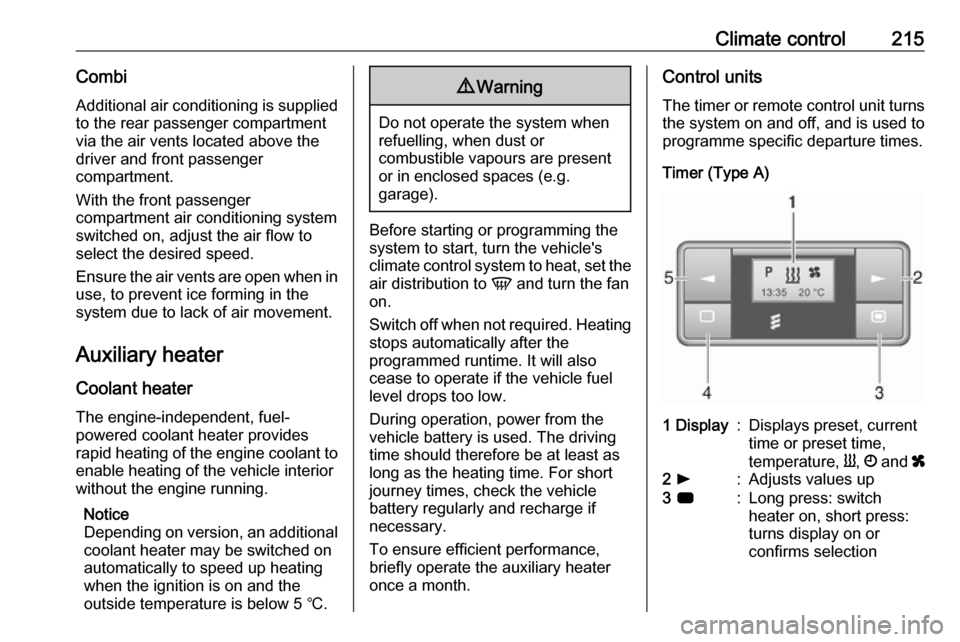
Timer (Type A)1 Display:Displays preset, current
time or preset time,
temperature, Y, Ö and x2 l:Adjusts values up3 7:Long press: switch
heater on, short press:
turns display on or
confirms selection
Page 218 of 351
216Climate control4 k:Adjusts values down5 d:Long press: switch
heater off, short press:
turns display on or exit
menu
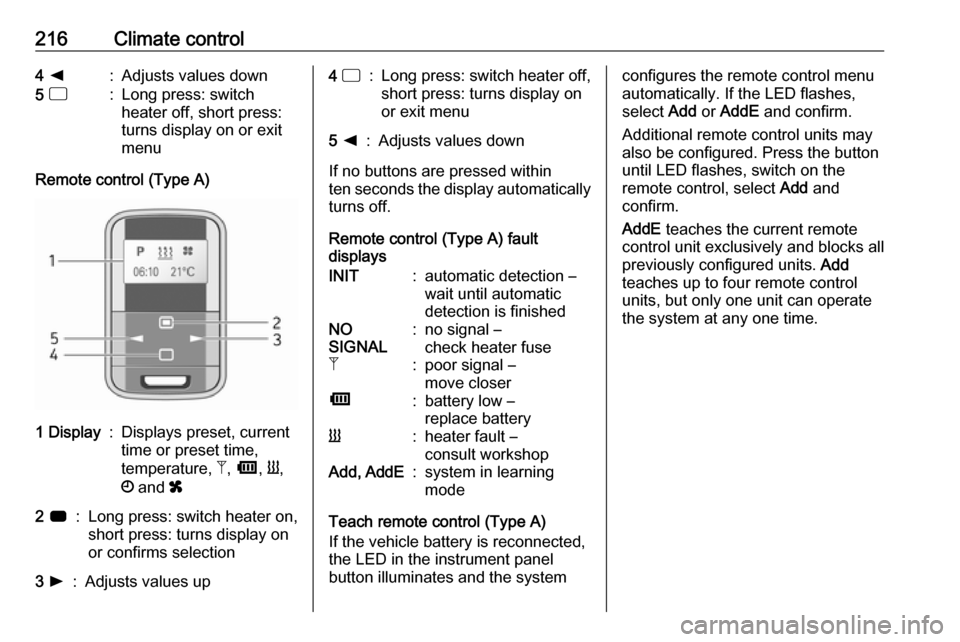
Remote control (Type A)
1 Display:Displays preset, current
time or preset time,
temperature, Z, Ü , Y ,
Ö and x2 7:Long press: switch heater on,
short press: turns display on
or confirms selection3 l:Adjusts values up4 d:Long press: switch heater off,
short press: turns display on
or exit menu5 k:Adjusts values down
If no buttons are pressed within
ten seconds the display automatically
turns off.
Remote control (Type A) fault
displays
INIT:automatic detection –
wait until automatic
detection is finishedNO
SIGNAL:no signal –
check heater fuseZ:poor signal –
move closerÜ:battery low –
replace batteryY:heater fault –
consult workshopAdd, AddE:system in learning
mode
Teach remote control (Type A)
If the vehicle battery is reconnected,
the LED in the instrument panel
button illuminates and the system
configures the remote control menu
automatically. If the LED flashes,
select Add or AddE and confirm.
Additional remote control units may
also be configured. Press the button
until LED flashes, switch on the
remote control, select Add and
confirm.
AddE teaches the current remote
control unit exclusively and blocks all
previously configured units. Add
teaches up to four remote control
units, but only one unit can operate
the system at any one time.
Page 219 of 351
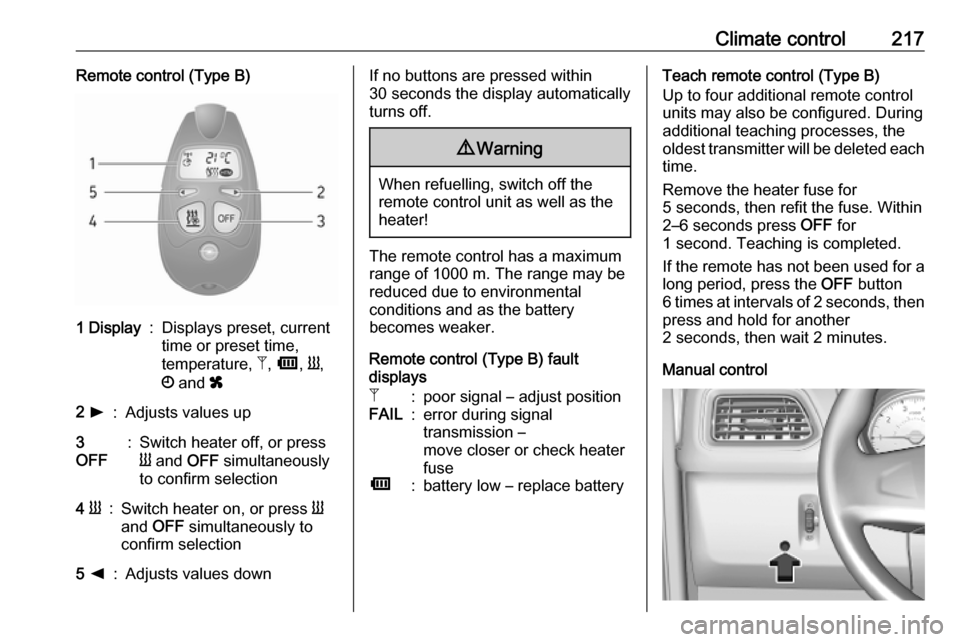
Climate control217Remote control (Type B)1 Display:Displays preset, current
time or preset time,
temperature, Z, Ü , Y ,
Ö and x2 l:Adjusts values up3
OFF:Switch heater off, or press
Y and OFF simultaneously
to confirm selection4 Y:Switch heater on, or press Y
and OFF simultaneously to
confirm selection5 k:Adjusts values downIf no buttons are pressed within
30 seconds the display automatically
turns off.9 Warning
When refuelling, switch off the
remote control unit as well as the
heater!
The remote control has a maximum
range of 1000 m. The range may be
reduced due to environmental
conditions and as the battery
becomes weaker.
Remote control (Type B) fault
displays
Z:poor signal – adjust positionFAIL:error during signal
transmission –
move closer or check heater
fuseÜ:battery low – replace batteryTeach remote control (Type B)
Up to four additional remote control
units may also be configured. During
additional teaching processes, the
oldest transmitter will be deleted each
time.
Remove the heater fuse for
5 seconds, then refit the fuse. Within 2–6 seconds press OFF for
1 second. Teaching is completed.
If the remote has not been used for a long period, press the OFF button
6 times at intervals of 2 seconds, then
press and hold for another
2 seconds, then wait 2 minutes.
Manual control
Page 220 of 351

218Climate controlDepending on version, the auxiliary
heater can also be switched on for the last duration time or the default
duration 30 minutes, or cut-off immediately, using the button on the
instrument panel. The LED in the
button confirms operation.
Battery replacement Replace the battery when the range
of the remote control is reduced or
when the battery charge symbol
flashes.
Open the cover and replace the
battery (Type A: CR 2430, Type B:
2CR 11108, or equivalent), ensuring
the new battery is correctly installed
with the positive ( <) side facing the
positive terminals. Replace the cover
securely.
Dispose of old batteries in
accordance with environmental
regulations.Batteries do not belong in household
waste. They must be disposed of at
an appropriate recycling collection
point.
Operation (Type A)
Heating Y
Select Y in the menu bar and press
G to confirm. The predetermined
heating duration, e.g. L 30, flashes in
the display. The factory setting is 30 minutes.
Adjust the heating duration using k
or l and confirm. The value can be
set from 10 to 120 minutes. Due to the
power consumption, note the heating duration.
To switch off, select Y in the menu bar
again and press d.
Ventilation x
Select x in the menu bar and press
G to confirm.
Adjust the ventilation duration using k or l and confirm. The value can
be set from 10 to 120 minutes. Due to the power consumption, note the
heating duration.To switch off, select x in the menu bar
again and press d.
Programming P
Up to three preset departure times
can be programmed, either during
one day or over one week.
● Select P in the menu bar and
press G to confirm.
● Select desired preset memory number P1, P2 or P3 and
confirm.
● Select F and confirm.
● Select weekday or weekday group and confirm.
● Select hour and confirm.
● Select minutes and confirm.
● Select Y or x and confirm.
● Select ECO or HIGH and confirm.
● Select duration and confirm.
● Press d to exit.
Repeat the procedure to programme
the other preset memory numbers if
required.