audio VAUXHALL VIVA 2015.75 Owner's Manual
[x] Cancel search | Manufacturer: VAUXHALL, Model Year: 2015.75, Model line: VIVA, Model: VAUXHALL VIVA 2015.75Pages: 222, PDF Size: 4.12 MB
Page 93 of 222
Vauxhall Viva Owner Manual (GMK-Localizing-EU RHD-9231169) - 2016 -
CRC - 5/7/15
92 Infotainment System
Infotainment
System
Introduction
Introduction . . . . . . . . . . . . . . . . . . . . 92
Theft-Deterrent Feature . . . . . . . . 92
Overview . . . . . . . . . . . . . . . . . . . . . . 93
Operation . . . . . . . . . . . . . . . . . . . . . . 99
Radio
AM-FM Radio . . . . . . . . . . . . . . . . 102
Radio Data System (RDS) . . . . 106
Audio Players
Auxiliary Devices . . . . . . . . . . . . . 108
Personalisation
Personalisation . . . . . . . . . . . . . . . 115
Phone
Bluetooth ((Type A/B only)) . . . 116
OnStar System
OnStar System . . . . . . . . . . . . . . . 125
Introduction
General
The Infotainment system provides
Infotainment in your car, using the
latest technology.
The radio can be easily used by
registering up to 24 AM-FM radio or
DAB stations with the−(preset)
buttons 1 ~ 4 per every six pages.
The USB player can play connected
USB storage devices or iPod
products.
The function of the Bluetooth phone
connection allows for the use of
wireless hands-free phone calls, as
well as a phone music player.
Connect a portable music player to
the exterior sound input and enjoy
the rich sound of the Infotainment
system.
The digital sound processor
provides a number of preset
equaliser modes for sound
optimisation.
Specifications
‐ Maximum output power : 25 W x
4 channels
‐ Speaker impedance : 4 ohms
The system can be easily adjusted
using the carefully designed
adjusting device, smart display, and
multifunctional menu dial regulator.
. The "Overview " section
provides a simple overview of
the Infotainment system
functions and a summary of all
regulatory devices.
. The "Operation " section
explains the basic controls for
the Infotainment system.
Theft-Deterrent Feature
The Infotainment system is
equipped with an electronic security
system for the purpose of theft
deterrence.
The Infotainment system therefore
functions only in your vehicle and is
worthless to a thief.
Page 95 of 222

Vauxhall Viva Owner Manual (GMK-Localizing-EU RHD-9231169) - 2016 -
CRC - 5/7/15
94 Infotainment System
1.P(power) button with
VOLUME dial
. When power is off, press to
turn power on.
. When power is on, press
and hold to turn power off.
. When power is on, press
shortly to turn the mute
function on or off.
. Turn to control volume.
2. RADIO Select Radio mode. Each time
the button is pressed, the
system switches between AM
RADIO →FM RADIO →DAB
→ AM RADIO →….
3. MEDIA Press the button to change the
mode in the order of USB/iPod
→AUX →Bluetooth music →
USB/iPod →…. 4. Display
Display for Play, Reception,
Menu state and information.
5.
g/d(seek)
. In Radio or DAB mode:
When pressed shortly,
automatically seeks station
with superior reception.
When pressed and held,
continuously changes the
station until the button is
released. When releasing,
the system stops on the
current frequency displayed
or seeks the next station.
. In USB/iPod/Bluetooth
audio playback:
When pressed shortly,
move to the previous or
next file.
When pressed and held,
rewind or fast forward
the file. 6. PHONE
Press this button to enter the
phone application mode.
7. BACK Cancel input content or return
to the previous menu.
8. MENU button with TUNE dial .Turn dial to search the
station/file on the list screen
or move/change setup
content or setup values.
. Press the button to display
the currently functioning
menu or select/practice
setup content and setup
values.
Page 98 of 222

Vauxhall Viva Owner Manual (GMK-Localizing-EU RHD-9231169) - 2016 -
CRC - 5/7/15
Infotainment System 97
1.P(power) button with
VOLUME dial
. When power is off, press to
turn power on.
. When power is on, press
and hold to turn power off.
. When power is on, press
shortly to turn the mute
function on or off.
. Turn to control volume.
2. RADIO Select Radio mode. Each time
the button is pressed, the
system switches between AM
RADIO →FM RADIO →AM
RADIO →….
3. MEDIA Press the button to enter the
Aux mode.
4. Display Display for Play, Reception,
Menu state and information. 5.g/d(seek)
When pressed shortly,
automatically seeks station
with superior reception.
When pressed and held,
continuously changes the
station until the button is
released. When releasing, the
system stops on the current
frequency displayed or seeks
the next station.
6. TONE
Press this button to enter the
Tone Settings mode.
7. BACK Cancel input content or return
to the previous menu.
8. MENU button with TUNE dial .Turn dial to search the
station on the list screen or
move/change setup content
or setup values. .
Press the button to display
the currently functioning
menu or select/practice
setup content and setup
values.
9. AUX port
Connect the external audio
device.
10. - (preset) buttons .In Radio mode:
When pressed shortly,
recall the stored radio
station.
When pressed and held,
store the current radio
station to the
Favourites page.
. In Menu mode:
Press any of these buttons
to select the function linked
to that button.
11. FAV (favourites) Press this button to select the
page of saved favourite
channels.
Page 99 of 222
Vauxhall Viva Owner Manual (GMK-Localizing-EU RHD-9231169) - 2016 -
CRC - 5/7/15
98 Infotainment System
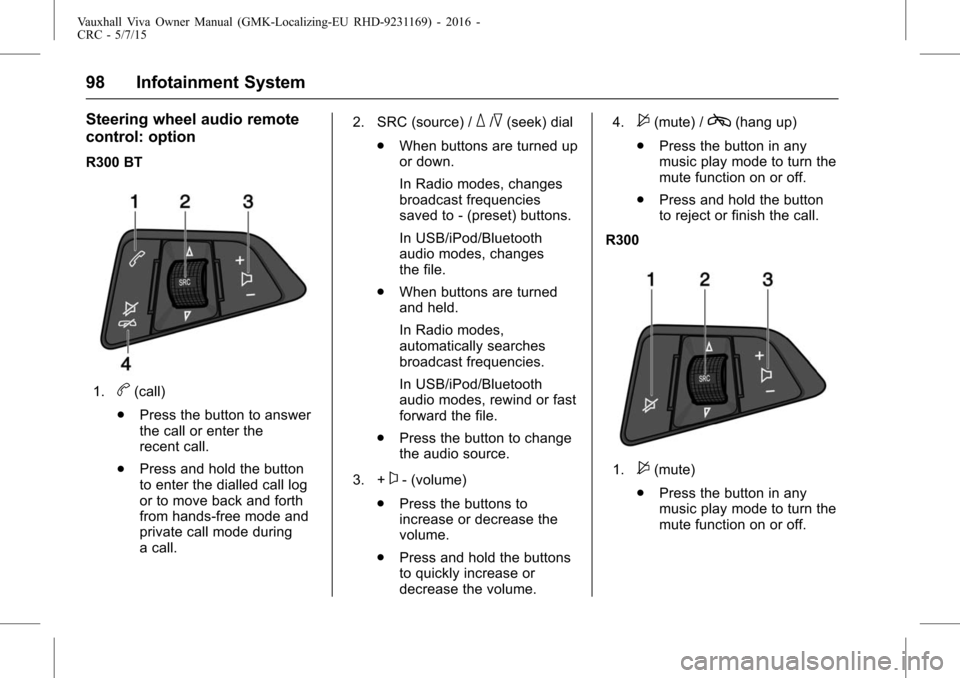
Steering wheel audio remote
control: option
R300 BT
1.b(call)
. Press the button to answer
the call or enter the
recent call.
. Press and hold the button
to enter the dialled call log
or to move back and forth
from hands-free mode and
private call mode during
a call. 2. SRC (source) /
_/^(seek) dial
. When buttons are turned up
or down.
In Radio modes, changes
broadcast frequencies
saved to - (preset) buttons.
In USB/iPod/Bluetooth
audio modes, changes
the file.
. When buttons are turned
and held.
In Radio modes,
automatically searches
broadcast frequencies.
In USB/iPod/Bluetooth
audio modes, rewind or fast
forward the file.
. Press the button to change
the audio source.
3. +
x- (volume)
. Press the buttons to
increase or decrease the
volume.
. Press and hold the buttons
to quickly increase or
decrease the volume. 4.
$(mute) /c(hang up)
. Press the button in any
music play mode to turn the
mute function on or off.
. Press and hold the button
to reject or finish the call.
R300
1.$(mute)
. Press the button in any
music play mode to turn the
mute function on or off.
Page 100 of 222
Vauxhall Viva Owner Manual (GMK-Localizing-EU RHD-9231169) - 2016 -
CRC - 5/7/15
Infotainment System 99
2. SRC (source) /_/^(seek) dial
. When buttons are turned
up/down.
In Radio modes, changes
broadcast frequencies
saved to Presets.
. When buttons are turned
and held.
In Radio modes,
automatically searches
broadcast frequencies.
. Press the button to change
the audio source.
3. +
x- (volume)
. Press the buttons to
increase or decrease the
volume.
. Press and hold the buttons
to quickly increase or
decrease the volume.
Operation
Buttons and controlling device
the Infotainment system is operated
by using the function buttons,
multifunctional dial, and the menu
indicated on the screen display.
the buttons and control devices
used in the system are the
following:
.the Infotainment system buttons
and dials
. the Steering wheel audio remote
control buttons
System on/off
PressPto turn the power on.
When the power is off, pressing
P
will turn the power on and play a
radio broadcast.
Automatically turn power on
. When the external source is
connected in the power off
mode, system will turn power on
and play.
If this connection is removed,
system will automatically turn
power off.
. When a call is received or
initiated, the power is turned on
and the action is carried out.
If this action is ended, system
will automatically turn power off.
. When pressing an HVAC
(Heating,Ventilation, and Air
Conditioning) related button,
system will turn power on and
operate this action.
If no action is taken within
5 seconds, the system will
automatically turn power off.
Page 101 of 222
Vauxhall Viva Owner Manual (GMK-Localizing-EU RHD-9231169) - 2016 -
CRC - 5/7/15
100 Infotainment System
Press and holdPto turn the
power off.
When the System is turned off, the
time of Day is displayed.
Volume control
Turn the VOLUME dial to control the
volume.
. Using the Steering wheel audio
remote control, press +
x- to
control the volume.
. Available volume range: 1 ~ 63.
. When the volume is turned down
to zero, this is not equivalent to
mute mode.
. Turning on the Infotainment
system power will set the
volume level to its previous
selection (when it is less than
the maximum starting volume).
Mute control
PressPto turn mute on.
. Mute symbol “
$”will display in
the status field and mute the
sound.
. Press
Pagain or turn VOLUME
dial to restore sound.
. In USB mode, when the system
is set to mute, playback is
paused.
Tone settings
Press TONE to enter the Tone
Settings screen.
Or press MENU > select Settings >
select Tone Settings to enter the
Tone Settings screen.
Page 103 of 222
Vauxhall Viva Owner Manual (GMK-Localizing-EU RHD-9231169) - 2016 -
CRC - 5/7/15
102 Infotainment System
USB/iPod/Bluetooth music or
exterior sound (AUX) input play
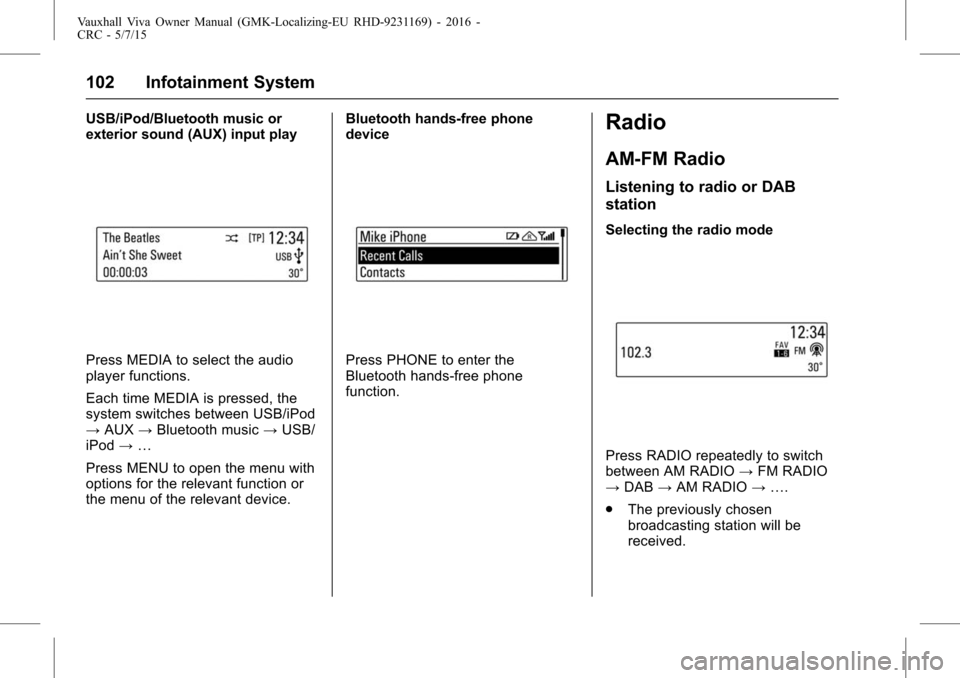
Press MEDIA to select the audio
player functions.
Each time MEDIA is pressed, the
system switches between USB/iPod
→AUX →Bluetooth music →USB/
iPod →…
Press MENU to open the menu with
options for the relevant function or
the menu of the relevant device. Bluetooth hands-free phone
devicePress PHONE to enter the
Bluetooth hands-free phone
function.
Radio
AM-FM Radio
Listening to radio or DAB
station
Selecting the radio mode
Press RADIO repeatedly to switch
between AM RADIO
→FM RADIO
→ DAB →AM RADIO →….
. The previously chosen
broadcasting station will be
received.
Page 104 of 222
Vauxhall Viva Owner Manual (GMK-Localizing-EU RHD-9231169) - 2016 -
CRC - 5/7/15
Infotainment System 103
.When changing Radio mode/
band by pressing RADIO, the
system displays radio intro view
firstly.
. The playing screen contains the
data elements related to the
broadcast audio source.
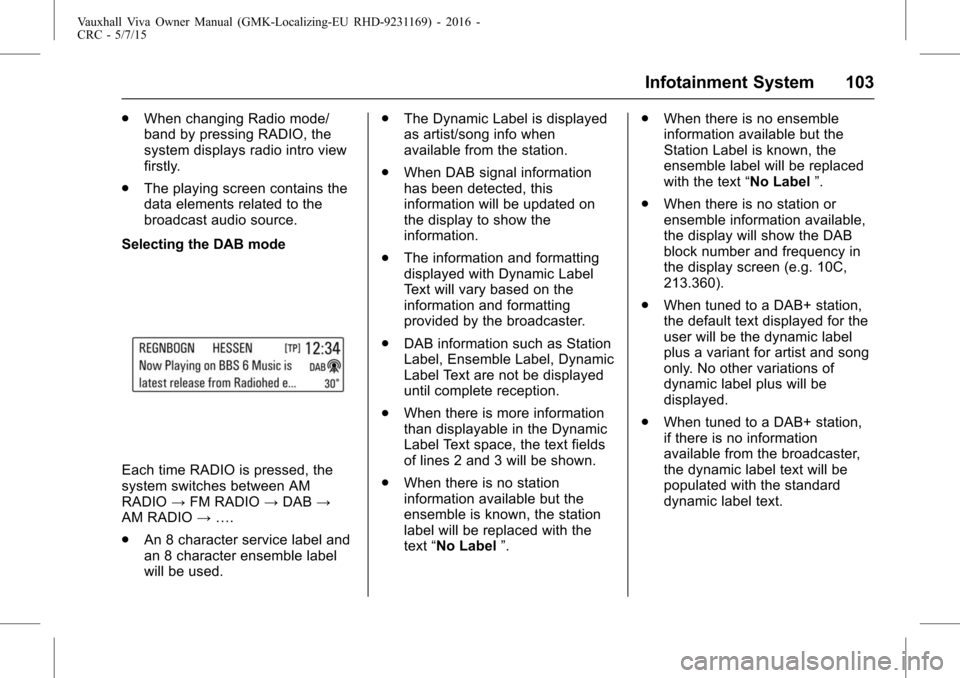
Selecting the DAB mode
Each time RADIO is pressed, the
system switches between AM
RADIO →FM RADIO →DAB →
AM RADIO →….
. An 8 character service label and
an 8 character ensemble label
will be used. .
The Dynamic Label is displayed
as artist/song info when
available from the station.
. When DAB signal information
has been detected, this
information will be updated on
the display to show the
information.
. The information and formatting
displayed with Dynamic Label
Text will vary based on the
information and formatting
provided by the broadcaster.
. DAB information such as Station
Label, Ensemble Label, Dynamic
Label Text are not be displayed
until complete reception.
. When there is more information
than displayable in the Dynamic
Label Text space, the text fields
of lines 2 and 3 will be shown.
. When there is no station
information available but the
ensemble is known, the station
label will be replaced with the
text “No Label ”. .
When there is no ensemble
information available but the
Station Label is known, the
ensemble label will be replaced
with the text “No Label”.
. When there is no station or
ensemble information available,
the display will show the DAB
block number and frequency in
the display screen (e.g. 10C,
213.360).
. When tuned to a DAB+ station,
the default text displayed for the
user will be the dynamic label
plus a variant for artist and song
only. No other variations of
dynamic label plus will be
displayed.
. When tuned to a DAB+ station,
if there is no information
available from the broadcaster,
the dynamic label text will be
populated with the standard
dynamic label text.
Page 109 of 222
Vauxhall Viva Owner Manual (GMK-Localizing-EU RHD-9231169) - 2016 -
CRC - 5/7/15
108 Infotainment System
Blocking out traffic
announcements
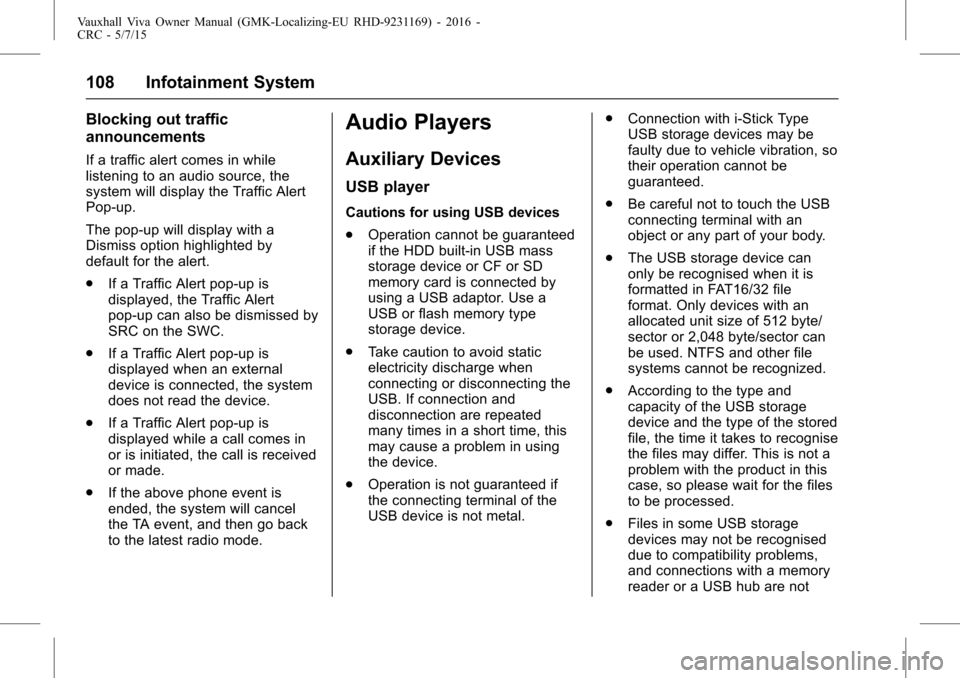
If a traffic alert comes in while
listening to an audio source, the
system will display the Traffic Alert
Pop-up.
The pop-up will display with a
Dismiss option highlighted by
default for the alert.
.If a Traffic Alert pop-up is
displayed, the Traffic Alert
pop-up can also be dismissed by
SRC on the SWC.
. If a Traffic Alert pop-up is
displayed when an external
device is connected, the system
does not read the device.
. If a Traffic Alert pop-up is
displayed while a call comes in
or is initiated, the call is received
or made.
. If the above phone event is
ended, the system will cancel
the TA event, and then go back
to the latest radio mode.
Audio Players
Auxiliary Devices
USB player
Cautions for using USB devices
.Operation cannot be guaranteed
if the HDD built-in USB mass
storage device or CF or SD
memory card is connected by
using a USB adaptor. Use a
USB or flash memory type
storage device.
. Take caution to avoid static
electricity discharge when
connecting or disconnecting the
USB. If connection and
disconnection are repeated
many times in a short time, this
may cause a problem in using
the device.
. Operation is not guaranteed if
the connecting terminal of the
USB device is not metal. .
Connection with i-Stick Type
USB storage devices may be
faulty due to vehicle vibration, so
their operation cannot be
guaranteed.
. Be careful not to touch the USB
connecting terminal with an
object or any part of your body.
. The USB storage device can
only be recognised when it is
formatted in FAT16/32 file
format. Only devices with an
allocated unit size of 512 byte/
sector or 2,048 byte/sector can
be used. NTFS and other file
systems cannot be recognized.
. According to the type and
capacity of the USB storage
device and the type of the stored
file, the time it takes to recognise
the files may differ. This is not a
problem with the product in this
case, so please wait for the files
to be processed.
. Files in some USB storage
devices may not be recognised
due to compatibility problems,
and connections with a memory
reader or a USB hub are not
Page 112 of 222
Vauxhall Viva Owner Manual (GMK-Localizing-EU RHD-9231169) - 2016 -
CRC - 5/7/15
Infotainment System 111
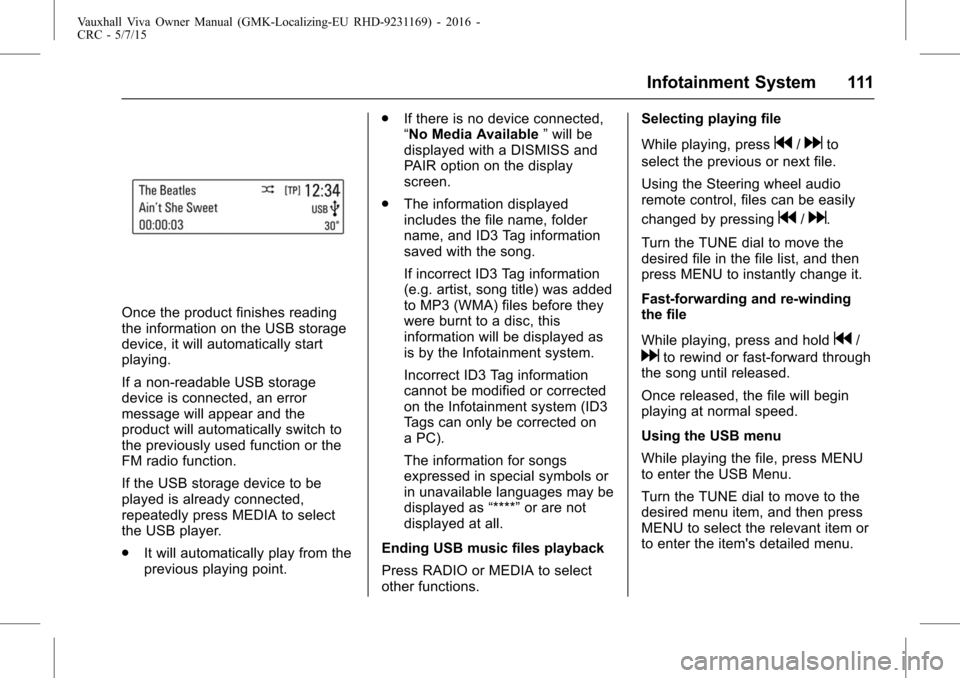
Once the product finishes reading
the information on the USB storage
device, it will automatically start
playing.
If a non-readable USB storage
device is connected, an error
message will appear and the
product will automatically switch to
the previously used function or the
FM radio function.
If the USB storage device to be
played is already connected,
repeatedly press MEDIA to select
the USB player.
.It will automatically play from the
previous playing point. .
If there is no device connected,
“No Media Available ”will be
displayed with a DISMISS and
PAIR option on the display
screen.
. The information displayed
includes the file name, folder
name, and ID3 Tag information
saved with the song.
If incorrect ID3 Tag information
(e.g. artist, song title) was added
to MP3 (WMA) files before they
were burnt to a disc, this
information will be displayed as
is by the Infotainment system.
Incorrect ID3 Tag information
cannot be modified or corrected
on the Infotainment system (ID3
Tags can only be corrected on
a PC).
The information for songs
expressed in special symbols or
in unavailable languages may be
displayed as “****”or are not
displayed at all.
Ending USB music files playback
Press RADIO or MEDIA to select
other functions. Selecting playing file
While playing, press
g/dto
select the previous or next file.
Using the Steering wheel audio
remote control, files can be easily
changed by pressing
g/d.
Turn the TUNE dial to move the
desired file in the file list, and then
press MENU to instantly change it.
Fast-forwarding and re-winding
the file
While playing, press and hold
g/
dto rewind or fast-forward through
the song until released.
Once released, the file will begin
playing at normal speed.
Using the USB menu
While playing the file, press MENU
to enter the USB Menu.
Turn the TUNE dial to move to the
desired menu item, and then press
MENU to select the relevant item or
to enter the item's detailed menu.