USB VAUXHALL VIVA 2016.5 Infotainment system
[x] Cancel search | Manufacturer: VAUXHALL, Model Year: 2016.5, Model line: VIVA, Model: VAUXHALL VIVA 2016.5Pages: 81, PDF Size: 1.55 MB
Page 33 of 81

Speech recognition33Speech recognitionGeneral information.....................33
Usage .......................................... 33General information
The voice pass-thru application of the Infotainment system allows access tothe speech recognition commands on
your smartphone. See your
smartphone manufacturer's user
guide to find out whether your
smartphone supports this feature.
In order to use the voice pass-thru
application, the smartphone must be
connected to the Infotainment system
via USB cable 3 26 or via Bluetooth
3 35.
Usage
Activating speech recognition Press and hold g on the control panel
or qw on the steering wheel to start
a speech recognition session. A voice
command message is displayed on
the screen.
As soon as a beep is heard, you can
say a command. For information on
the commands supported, see the
operating instructions for your
smartphone.Adjusting the volume of voice
prompts
Turn m on the control panel or press
+ / - on the right side of the steering
wheel to increase or decrease the
volume of voice prompts.
Deactivating speech recognition
Press xn on the steering wheel.
The voice command message
disappears and the speech
recognition session is ended.
Page 35 of 81

Phone35interference is caused by the
mobile phone or if dangerous
situations can occur.
Bluetooth
The phone portal is certified by theBluetooth Special Interest Group
(SIG).
You can find further information about the specification on the Internet at
http://www.bluetooth.com
Bluetooth connection Bluetooth is a radio standard for the
wireless connection of e.g. mobile
phones, smartphones, iPod/iPhone
models, or other devices.
Via the Bluetooth menu, pairing (PIN
code exchange between Bluetooth device and Infotainment system) and
connecting of the Bluetooth devices
to the Infotainment system are carried out.
Bluetooth menu Press ; and then select SETTINGS.
Select Bluetooth to display the
Bluetooth menu.
Pairing a device
Important information ● Up to ten devices can be paired to the system.
● Only one paired device can be connected to the Infotainment
system at a time.
● Pairing normally only needs to be
carried out once, unless the
device is deleted from the list of
paired devices. If the device has
been connected previously, the
Infotainment system establishes
the connection automatically.
● Bluetooth operation considerably
drains the device's battery.
Therefore, connect the device to
the USB port for charging.
Pairing a new device 1. Activate the Bluetooth function of the Bluetooth device. For furtherinformation, see the user guide of
the Bluetooth device.
2. Press ; and then select
SETTINGS on the Info-Display.
Select Bluetooth and then Device
Management to display the
respective menu.
Page 40 of 81
40PhoneContacts settings
The contacts list can be sorted by last name or first name.
Press ; and then select SETTINGS
to display the respective menu.
Select Bluetooth and then Sort
Order . Activate the desired option.
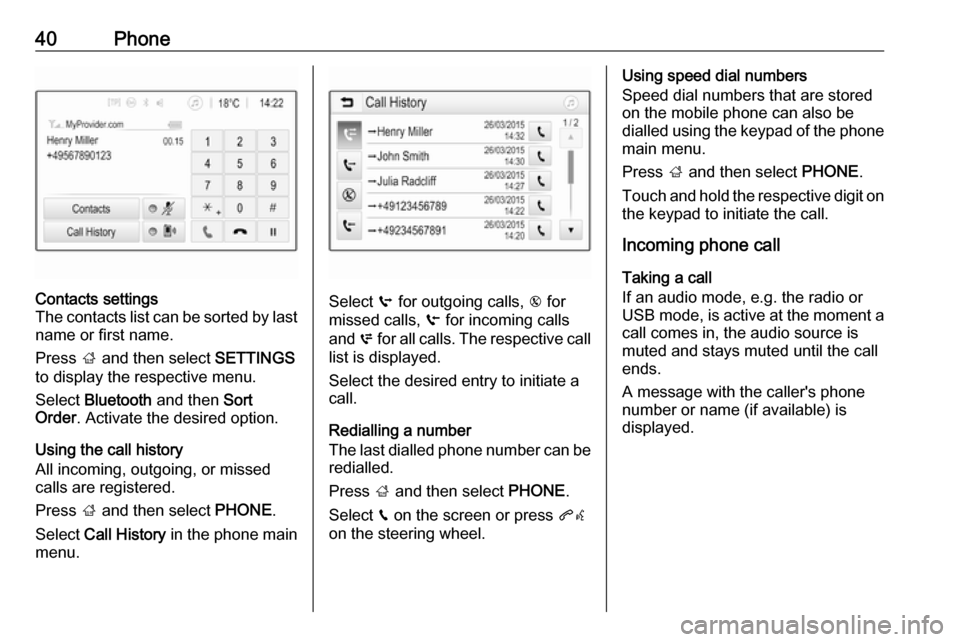
Using the call history
All incoming, outgoing, or missed
calls are registered.
Press ; and then select PHONE.
Select Call History in the phone main
menu.
Select q for outgoing calls, r for
missed calls, s for incoming calls
and p for all calls. The respective call
list is displayed.
Select the desired entry to initiate a
call.
Redialling a number
The last dialled phone number can be
redialled.
Press ; and then select PHONE.
Select v on the screen or press qw
on the steering wheel.
Using speed dial numbers
Speed dial numbers that are stored
on the mobile phone can also be
dialled using the keypad of the phone
main menu.
Press ; and then select PHONE.
Touch and hold the respective digit on the keypad to initiate the call.
Incoming phone call
Taking a call
If an audio mode, e.g. the radio or
USB mode, is active at the moment a
call comes in, the audio source is
muted and stays muted until the call
ends.
A message with the caller's phone
number or name (if available) is
displayed.
Page 44 of 81

44IndexAActivating AUX audio ....................28
Activating Bluetooth music ...........28
Activating iPod audio ....................28
Activating phone ........................... 38
Activating phone projection ..........32
Activating radio ............................. 20
Activating USB audio ....................28
Activating USB movie ...................31
Activating USB picture ..................29
Audio files ..................................... 26
Auto volume.................................. 17 AUX AUX audio menu .......................28
Connecting device ....................26
General information................... 26
B Basic operation ............................. 14
Bluetooth Bluetooth connection ................35
Bluetooth music menu ..............28
Connecting device ....................26
General information................... 26
Pairing ....................................... 35
Phone ........................................ 38
Bluetooth connection ....................35C
Call Functions during a call ..............38
Incoming call ............................. 38
Initiating a phone call ................38
Ring tone ................................... 38
Call history .................................... 38
Control elements Infotainment system ....................8
Steering wheel ............................ 8
Control elements overview .............8
D DAB .............................................. 24
Digital audio broadcasting ............24
Displaying pictures .......................29
Display settings ......................29, 31
E Emergency call ............................. 37
F
Favourite lists ............................... 22
Retrieving stations..................... 22
Storing stations ......................... 22
File formats Audio files.................................. 26
Movie files ................................. 26
Picture files................................ 26
Page 45 of 81

45GGeneral information ..........26, 33, 34
AUX ........................................... 26
Bluetooth ................................... 26
DAB ........................................... 24
Infotainment system ....................6
Phone ........................................ 34
Smartphone applications ..........26
USB ........................................... 26
H Home menu .................................. 14
I
Infotainment control panel ..............8
Intellitext ....................................... 24
iPod .............................................. 26
Connecting device ....................26
iPod audio menu .......................28
M Maximum startup volume .............17
Menu operation............................. 14
Mobile phones and CB radio equipment ................................ 42
Movie files..................................... 26
Mute.............................................. 11
O Operation ...................................... 38
External devices ........................26Menu......................................... 14
Phone ........................................ 38
Radio ......................................... 20
P Pairing .......................................... 35
Phone Bluetooth ................................... 34
Bluetooth connection ................35
Call history ................................ 38
Emergency calls ........................37
Entering a number ....................38
Functions during a call ..............38
General information................... 34
Incoming call ............................. 38
Phone book ............................... 38
Phone main menu .....................38
Selecting the ring tone ..............38
Speed dial number ....................38
Phone book .................................. 38
Phone projection .......................... 32
Picture files ................................... 26
Playing audio ................................ 28
Playing movies ............................. 31
R Radio Activating................................... 20
Configuring DAB .......................24
Configuring RDS .......................23
DAB announcements ................24Digital audio broadcasting
(DAB) ........................................ 24
Favourite lists ............................ 22
Intellitext .................................... 24
Radio data system (RDS) .........23
Regional .................................... 23
Regionalisation ......................... 23
Retrieving stations..................... 22
Selecting the waveband ............20
Station search ........................... 20
Station tuning ............................ 20
Storing stations ......................... 22
Usage ........................................ 20
Radio data system (RDS) ............23
RDS .............................................. 23
Regional ....................................... 23
Regionalisation ............................. 23
Retrieving stations ........................22
Ring tone Changing the ring tone ..............38
Ring tone volume ......................17
S Smartphone .................................. 26
Phone projection .......................32
Speech recognition .......................33
Speed dial numbers .....................38
Station search............................... 20
Steering wheel audio controls ........8
Storing stations ............................. 22
Page 46 of 81

46Switching the Infotainmentsystem on .................................. 11
System settings ............................ 18
T
Theft-deterrent feature ................... 7
Tone settings ................................ 16
Touch beep volume ......................17
TP volume .................................... 17
U Usage ............................... 11, 20, 33
AUX ........................................... 26
Bluetooth ................................... 26
iPod ........................................... 26
Menu ......................................... 14
Phone ........................................ 38
Radio ......................................... 20
USB ........................................... 26
USB Connecting device ....................26
General information................... 26
USB audio menu .......................28
USB movie menu ......................31
USB picture menu .....................29
Using smartphone applications ....32V
Voice recognition ..........................33
Volume Auto volume .............................. 17
Maximum startup volume ..........17
Mute function............................. 11
Ring tone volume ......................17
Setting the volume ....................11
Speed compensated volume ....17
Touch beep volume ..................17
TP volume ................................. 17
Volume limitation at high
temperatures ............................. 11
Volume settings ............................ 17
W
Waveband selection .....................20
Page 48 of 81

48IntroductionIntroductionGeneral information.....................48
Theft-deterrent feature .................49
Control elements overview ..........50
Usage .......................................... 54General information
The Infotainment system provides
you with state-of-the-art in-car
infotainment.
Using the radio tuner functions, you
can register a large number of
stations on different favourites pages.
You can connect external data
storage devices, e.g. iPod, USB
devices, or other auxiliary devices to
the Infotainment system as further
audio sources; either via a cable or
via Bluetooth.
The digital sound processor provides
you with several preset equaliser
modes for sound optimisation.
In addition, the Infotainment system is equipped with a Phone portal that
allows comfortable and safe use of
your mobile phone in the vehicle.
Optionally, the Infotainment system
can be operated using the control
panel or the controls on the steering
wheel.
If provided by your mobile phone, the system can also be operated via
speech recognition.Notice
This manual describes all options
and features available for the
various Infotainment systems.
Certain descriptions, including those
for display and menu functions, may
not apply to your vehicle due to
model variant, country
specifications, special equipment or
accessories.
Important information on
operation and traffic safety9 Warning
Drive safely at all times when
using the Infotainment system.
If in doubt, stop the vehicle before operating the Infotainment
system.
Page 65 of 81

External devices65External devicesGeneral information.....................65
Playing audio ............................... 67General information
An AUX and USB socket for the
connection of external devices is located in the centre console.
Two USB ports for charging devices
only are located at the rear of the
centre console.
Notice
The sockets must always be kept
clean and dry.
AUX input
It is possible to connect e.g. an iPod,
a smartphone or another auxiliary
device to the AUX input.
When connected to the AUX input, the audio signal of the auxiliary device
is transmitted via the speakers of the
Infotainment system.
The volume and the tone settings can be adjusted via the Infotainment
system. All other control functions
must be operated via the auxiliary device.
The Infotainment system can play music files contained in auxiliary
devices, e.g. iPod or smartphone.Connecting/disconnecting a device
To connect the auxiliary device to the
AUX input socket of the Infotainment
system, use the following cable:
3-pole for audio source.
To disconnect the AUX device, select
another function and then remove the AUX device.Caution
Avoid disconnecting the device
during playback. This may
damage the device or the
Infotainment system.
USB port
An MP3 player, USB drive, iPod or
smartphone can be connected to the
USB port.
When connected to the USB port, the devices mentioned above can be
operated via the controls and menus
of the Infotainment system.
Page 66 of 81
66External devicesNotice
Not all MP3 players, USB drives,
iPod models or smartphones are
supported by the Infotainment
system.
The Infotainment system can play
music files contained in USB storage
devices or iPod/iPhone products.
Connecting/disconnecting a device
Connect the USB device or iPod to
the USB port. For the iPod, use the
appropriate connection cable.
Notice
If a non-readable USB device or iPod is connected, a corresponding
error message appears and the
Infotainment system automatically
switches to the previous function.
To disconnect the USB device or
iPod, select another function and then
remove the USB storage device.Caution
Avoid disconnecting the device
during playback. This may
damage the device or the
Infotainment system.
MTP device settings
For devices connected via MTP,
additional settings can be adjusted in
the settings menu.
In an active audio source, press
MENU , scroll through the list and
select Settings . Select Phone
Connection (MTP Only) .
If you want the device to be only
charged on the USB port, activate Charge Only . If you switch to the USB
audio source while this setting is
activated, you are prompted with a
charging message.
If you wish to play music files stored
on the device, activate Scan Music
Folder Only or Scan All Folder .
Bluetooth
Bluetooth enabled audio sources
(e.g. music mobile phones, MP3
players featuring Bluetooth, etc.),
which support the Bluetooth profiles
PBAP, HFP, A2DP and AVRCP can
be connected wirelessly to the
Infotainment system.
The Infotainment system can play
music files contained in Bluetooth
devices like iPod or smartphone.
Connecting/disconnecting a device
For a detailed description of the
Bluetooth connection 3 71.
Bluetooth device list
To access the Bluetooth device list,
activate the Bluetooth audio source,
press MENU and then select Manage
Bluetooth Devices .
For a detailed description of the Bluetooth device list 3 71.
File formats Only devices formatted in the
FAT16/32 file systems are supported.
Page 67 of 81

External devices67Notice
Some files may not be played
properly. This might be due to a
different recording format or the
condition of the file.
Files from online shops to which
Digital Rights Management (DRM)
has been applied cannot be played.
The playable MP3 and WMA files are
the following:
● Bit rate: 8 kbps ~ 320 kbps
● Sampling frequency: 48 kHz, 44.1 kHz, 32 kHz (for MPEG-1)
and 24 kHz, 22.05 kHz, 16 kHz
(for MPEG-2)
MP3 files using VBR can be played.
When playing a file with ID3 tag
information (version 1.0, 1.1, 2.2, 2.3,
2.4), the Infotainment system can display information, e.g. on the track
title and artist.
Playing audio
Starting playback Connect the device 3 65.Repeatedly press MEDIA to activate
the desired media source.
Example: USB source.
Notice
The following operation functions
are not available for AUX devices.
Function buttons
Skipping to previous or next file
Press t or v to play the previous
or next track.
If t is pressed within the first five
seconds of the song playing, the
system skips to the beginning of the
current track.
Fast forwarding or rewinding
Press and hold t or v to rewind or
fast forward.
Playback order
Press MENU in the respective audio
source and scroll through the list to
Shuffle Songs .
To play the songs on the device in
random order, set Shuffle Songs to
On .
To play the songs in normal order, set
Shuffle Songs to Off.
Browsing for a song
Depending on the device, you may
browse for songs in categories and
subcategories or a folder structure.
Notice
For this function to be available, the
indexing process must be
completed.
Categories
To browse for a song, press MENU in
the respective audio source and then select Browse .
Navigate through the browse
structure and select the desired track.