infotainment VAUXHALL VIVA 2016.5 Infotainment system
[x] Cancel search | Manufacturer: VAUXHALL, Model Year: 2016.5, Model line: VIVA, Model: VAUXHALL VIVA 2016.5Pages: 81, PDF Size: 1.55 MB
Page 24 of 81

24RadioSelect Menu in the bottom line of the
FM radio main menu to open the
corresponding waveband-specific
submenu and scroll to Region.
Activate or deactivate Region.
If regionalisation is activated,
alternative frequencies with the same
regional programmes are selected
where necessary. If regionalisation is
switched off, alternative frequencies
of the stations are selected without
regard to regional programmes.
Digital audio broadcasting
DAB broadcasts radio stations
digitally.
DAB stations are indicated by the
programme name instead of the
broadcasting frequency.
General information ● With DAB, several radio programmes (services) can be
broadcasted on a single
ensemble.
● Besides high-quality digital audio
services, DAB is also able to
transmit programme-associateddata and a multitude of other data services including travel and
traffic information.
● As long as a given DAB receiver can pick up the signal sent out bya broadcasting station (even if
the signal is very weak), sound
reproduction is ensured.
● In the event of poor reception, the
volume is reduced automatically
to avoid the output of
disagreeable noises.
If the DAB signal is too weak to
be picked up by the receiver,
reception is interrupted
completely. This incident can be
avoided by activating DAB-DAB
Linking and/or DAB-FM Linking
in the DAB menu (see below).
● Interference caused by stations that are on nearby frequencies (a
phenomenon that is typical of AM and FM reception) does not
occur with DAB.
● If the DAB signal is reflected by natural obstacles or buildings,
the reception quality of DAB isimproved, whereas AM or FM
reception is considerably
impaired in such cases.
● When DAB reception is enabled, the FM tuner of the Infotainmentsystem remains active in the
background and continually
searches for the FM stations with
the best reception. If TP 3 23 is
activated, traffic announcements
of the FM station with the best
reception are issued. Deactivate
TP if DAB reception should not
be interrupted by FM traffic
announcements.
DAB Announcements
Besides their music programmes, a
lot of DAB stations also broadcast
announcements of various
categories. If you activate some or all categories, the currently received
DAB service is interrupted when an
announcement of these categories is
made.
Select Menu in the bottom line of the
DAB radio main menu to open the corresponding waveband-specific
submenu.
Page 25 of 81

Radio25Scroll through the list and select DAB
Announcements to display a list of the
categories available.
Activate all or just the desired
announcement categories. Different
announcement categories can be
selected at the same time.
DAB-DAB Linking If this function is activated, the device
switches over to the same service
(programme) on another DAB
ensemble (if available) when the DAB
signal is too weak to be picked up bythe receiver.
Select Menu in the bottom line of the
DAB radio main menu to open the corresponding waveband-specific
submenu.
Scroll through the list and activate or
deactivate DAB-DAB Linking .
DAB-FM Linking If this function is activated, the device
switches over to a corresponding FM
station of the active DAB service (if
available) when the DAB signal is too
weak to be picked up by the receiver.Scroll through the list and activate or
deactivate DAB-FM Linking .
L Band With this function, you may define
which DAB wavebands are to be
received by the Infotainment system.
L Band (earth and satellite radio) is
another radio band that can be
received additionally.
Select Menu in the bottom line of the
DAB radio main menu to open the
corresponding waveband-specific
submenu.
Scroll through the list and activate or
deactivate L Band.
Intellitext The Intellitext function allows the
reception of additional information
such as financial information, sports,
news etc.
Notice
The content available depends on
the station and region.Select Menu in the bottom line of the
DAB radio main menu to open the
corresponding waveband-specific
submenu.
Scroll through the list and select
Intellitext .
Select one of the categories and choose a specific item to display
detailed information.
EPG The Electronic Programme Guide
provides information on the current and upcoming programme of therespective DAB station.
Select Menu in the bottom line of the
DAB radio main menu and then select Station List .
To display the programme of the
desired station, touch the icon next to
the station.
Page 26 of 81

26External devicesExternal devicesGeneral information.....................26
Playing audio ............................... 28
Displaying pictures ....................... 29
Playing movies ............................. 31
Using smartphone applications ...32General information
An AUX and USB socket for the
connection of external devices is located in the centre console.
Notice
The sockets must always be kept
clean and dry.
AUX input
It is possible to connect e.g. an iPod
or another auxiliary device with a
3.5 mm jack plug to the AUX input.
When connected to the AUX input,
the audio signal of the auxiliary device
is transmitted via the speakers of the
Infotainment system.
The volume and the tone settings can be adjusted via the Infotainment
system. All other control functions
must be operated via the auxiliary
device.
Connecting a device
To connect the auxiliary device to the
AUX input socket of the Infotainment
system, use a 3-pole connector for
audio and a 4-pole connector for
movie sources.Connect the AUX device to the AUX
port.
USB port
An MP3 player, USB drive, SD card
(via USB connector/adapter), iPod or
smartphone can be connected to the
USB port.
The Infotainment system can play
audio files, show picture files or play
movie files contained in USB storage
devices.
When connected to the USB port,
various functions of the devices
mentioned above can be operated via the controls and menus of the
Infotainment system.
Notice
Not all MP3 players, USB drives,
iPod models or smartphones are
supported by the Infotainment
system. Check the compatibility list
on our website.
Page 27 of 81

External devices27Connecting/disconnecting a device
Connect one of the devices
mentioned above to the USB port. If
required, use the appropriate
connection cable. The music function
starts automatically.
Notice
If a non-readable USB device or
iPod is connected, a corresponding
error message appears and the
Infotainment system automatically
switches to the previous function.
To disconnect the USB device or
iPod, select another function and then remove the USB storage device.Caution
Avoid disconnecting the device
during playback. This may
damage the device or the
Infotainment system.
USB Auto Launch
By default, the USB audio menu is displayed automatically as soon as a
USB device is connected.
If desired, this function can be
deactivated.
Press ; and then select Settings to
open the settings menu.
Select Radio, scroll to USB Auto
Launch and touch the screen button
next to the function.
To reactivate the function, touch the
screen button again.
Bluetooth Bluetooth enabled audio sources
(e.g. music mobile phones, MP3
players featuring Bluetooth, etc.),
which support the Bluetooth music
profiles A2DP and AVRCP can be
connected wirelessly to the
Infotainment system.
The Infotainment system can play
music files contained in Bluetooth
devices e.g. smartphones or iPod/
iPhone products.
Connecting a device
For a detailed description on how to
establish a Bluetooth connection
3 35.File formats and folders
This product can support USB
storage device with a storage
capacity of 5000 files (music, photo
and video), and 15 stages of folder
structure. Normal usage cannot be
guaranteed for storage devices that
exceed this limit. The iPod/iPhone
can play all music files supported. But
the music file lists are displayed up to 5000 files on the screen in
alphabetical order.
Notice
Some files may not be played
properly. This may be due to a
different recording format or the
condition of the file.
Files from online shops to which
Digital Rights Management (DRM)
has been applied cannot be played.
The Infotainment system can play the
following audio, picture and movie
files stored on external devices.
Audio files
MP3 (MPEG-1 Layer 3, MPEG-2
Layer 3)
Page 28 of 81
28External devicesConstant Bit Rate (CBR) between 8
and 320 kbps
Variable Bit Rate (VBR)
Sampling frequencies of 8, 11.025,
12, 16, 22.05, 24, 32, 44.1, and 48
kHz.
Windows Media Audio
Windows Media Audio 10
CBR between 32 and 768 kbps
VBR (Standard), Professional,
Lossless, or higher according to
Microsoft specifications
Sampling frequencies of 8, 12, 16, 22,
32, 44.1, and 48 kHz
AAC (MPEG-4 AAC, Low Complexity Profile) and AAC+
CBR between 8 and 320 kbps.
OGG Vorbis
Waveform (WAV – PCM Windows
format)
Audio Interchange File Format (AIFF) 3GPP (Generally used for mobile
devices)
Audio Books (MP3, WMA, AAC, AA)Picture files
Only the following file extensions are
supported: '*.jpg', '*.bmp', '*.png',
'*.gif' (Animated GIF is not
supported.) Some files may not
operate due to a different format or
the condition of file.
Movie files
The playable movie file formats are
AVI and MP4.
The maximum resolution is 1280 x
720 pixels. The frame rate must be
less than 30 fps.
The usable codec is H.264/MPEG-4 AVC.
The playable audio formats are MP3,
AC3, AAC and WMA.
The displayable subtitle format is
SMI.
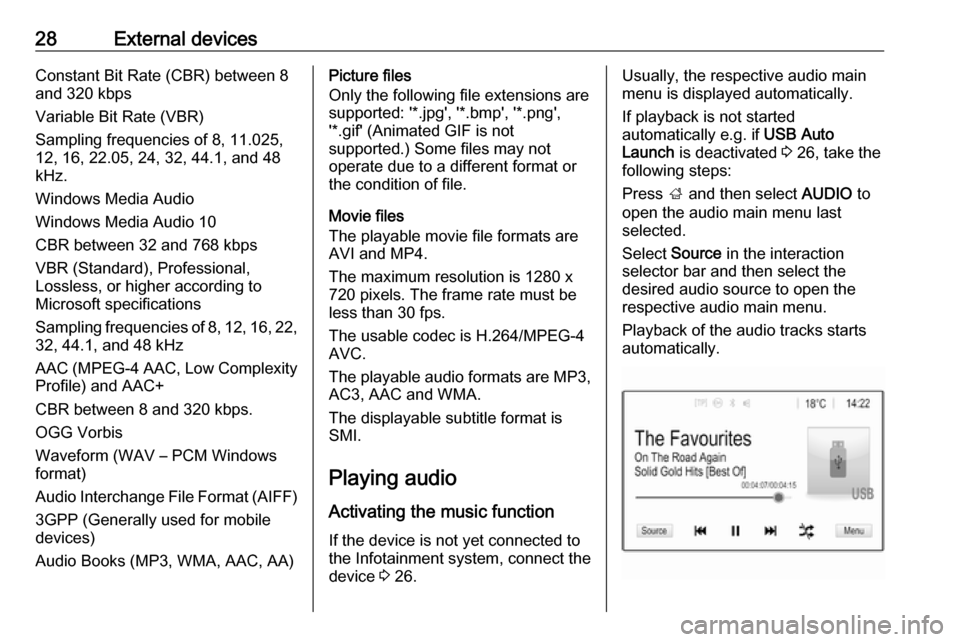
Playing audio
Activating the music function
If the device is not yet connected to
the Infotainment system, connect the
device 3 26.Usually, the respective audio main
menu is displayed automatically.
If playback is not started
automatically e.g. if USB Auto
Launch is deactivated 3 26, take the
following steps:
Press ; and then select AUDIO to
open the audio main menu last
selected.
Select Source in the interaction
selector bar and then select the
desired audio source to open the
respective audio main menu.
Playback of the audio tracks starts
automatically.
Page 29 of 81

External devices29Function buttonsNotice
During AUX playback, the function
buttons are not available.
Interrupting and resuming playback
Touch = to interrupt playback. The
screen button changes to l.
Touch l to resume playback.
Playing the next or previous track
Touch v to play the next track.
Touch t within the first 2 seconds of
the track playing to return to the
previous track.
Returning to the beginning of the
current track
Touch t after 2 seconds of the track
playing.
Fast forwarding and rewinding
Touch and hold t or v. Release to
return to normal playback mode.
Alternatively, you can move the slider showing the current track position to
the left or right.Playing tracks randomly
Touch n to play the tracks in random
order. The screen button changes to
o .
Touch o again to deactivate the
shuffle function and go back to the
normal playback mode.
Browse Music function Notice
The browse function is not available
for AUX sources and, depending on
the device, it may only be partially
available for Bluetooth sources.
To display the browse screen, touch
the screen. Alternatively, select
Menu in the bottom line of the audio
main screen to display the respective
audio menu and then select Browse
Music .
Different categories, in which the
tracks are sorted, are displayed, e.g.
Playlists , Artists , or Albums .
Select the desired category,
subcategory (if available) and then
choose a track.
Select the track to start playback.
Displaying pictures You can view pictures from a USB
device connected to the USB port.
Notice
For your safety, some features are
disabled while driving.
Activating the picture function
If the device is not yet connected to
the Infotainment system, connect the
device 3 26.
Page 31 of 81

External devices31Playing moviesYou can view movies from a USB
device connected to the USB port.
Notice
For your safety, the movie function is
not available while driving.
Activating the movie function
If the device is not yet connected to
the Infotainment system, connect the
device 3 26.
Press ; and then select GALLERY
to open the media main menu.
Touch m to open the movie main
menu and then select the desired folder and/or movie.
The movie is shown.
Function buttons
Full screen
Select x to display the movie in full
screen mode. Touch the screen to
exit full screen mode.
Interrupting and resuming playback
Touch = to interrupt playback. The
screen button changes to l.
Touch l to resume playback.
Playing the next or previous track Touch c to play the next movie file.
Touch d within the first 5 seconds of
the movie playing to return to the
previous movie file.
Returning to the beginning of the
current movie
Touch d after 5 seconds of the movie
playing.
Fast forwarding and rewinding
Touch and hold d or c. Release to
return to normal playback mode.
Movie menuSelect Menu in the bottom line of the
screen to display the Movie Menu.
Clock and temperature display
If you want the time and temperature
to be displayed in full screen mode,
activate Clock. Temp. Display .
Page 32 of 81

32External devicesDisplay settings
Select Display Settings to open a
submenu for adjustment of brightness
and contrast.
Touch + and - to adjust the settings.
Using smartphone
applications
The phone projection applications
Apple CarPlay and Android Auto
display selected apps from your
smartphone on the Infotainment
screen and allow their operation
directly via the Infotainment controls.
Check with the device's manufacturer
if this function is compatible with your smartphone and if this application is
available in the country you live in.
Preparing the smartphone Android phone: Download the
Android Auto app to your smartphone from the Google Play store.
iPhone: Make sure SIRI is activated
on your smartphone.Activating phone projection in the
settings menu
Press ; to display the Home screen
and then select SETTINGS.
Scroll through the list to
Apple CarPlay or Android Auto .
Make sure the respective application
is activated.
Connecting the mobile phone Connect the smartphone to the USB
port 3 26.
Starting phone projection
To start the phone projection function, press ; and then select
PROJECTION .
Notice
If the application is recognised by
the Infotainment system, the
application icon may change to
Apple CarPlay or Android Auto .
To start the function, you can
alternatively press and hold ; for a
few seconds.The phone projection screen
displayed depends on your
smartphone and software version.
Returning to the Infotainment
screen
Press ;.
Page 33 of 81

Speech recognition33Speech recognitionGeneral information.....................33
Usage .......................................... 33General information
The voice pass-thru application of the Infotainment system allows access tothe speech recognition commands on
your smartphone. See your
smartphone manufacturer's user
guide to find out whether your
smartphone supports this feature.
In order to use the voice pass-thru
application, the smartphone must be
connected to the Infotainment system
via USB cable 3 26 or via Bluetooth
3 35.
Usage
Activating speech recognition Press and hold g on the control panel
or qw on the steering wheel to start
a speech recognition session. A voice
command message is displayed on
the screen.
As soon as a beep is heard, you can
say a command. For information on
the commands supported, see the
operating instructions for your
smartphone.Adjusting the volume of voice
prompts
Turn m on the control panel or press
+ / - on the right side of the steering
wheel to increase or decrease the
volume of voice prompts.
Deactivating speech recognition
Press xn on the steering wheel.
The voice command message
disappears and the speech
recognition session is ended.
Page 34 of 81

34PhonePhoneGeneral information.....................34
Bluetooth connection ...................35
Emergency call ............................ 37
Operation ..................................... 38
Mobile phones and CB radio equipment .................................... 42General information
The phone portal provides you with
the possibility of having mobile phone conversations via a vehicle
microphone and the vehicle
loudspeakers as well as operating the
most important mobile phone
functions via the Infotainment system in the vehicle. To be able to use the
phone portal, the mobile phone must
be connected to the Infotainment system via Bluetooth.
Not all phone functions are supported
by every mobile phone. The usable
phone functions depend on the
relevant mobile phone and network
provider. You can find further
information on this in the operating
instructions for your mobile phone, or you can enquire about them with yournetwork provider.Important information for
operation and traffic safety9 Warning
Mobile phones have effects on
your environment. For this reason safety regulations and directions
have been prepared. You should
be familiar with the related
directions before you use the
telephone function.
9 Warning
Use of the hands-free facility while
driving can be dangerous because
your concentration is reduced
when telephoning. Park your
vehicle before you use the hands- free facility. Follow the stipulations
of the country in which you find
yourself at present.
Do not forget to follow the special
regulations that apply in specific
areas and always switch off the
mobile phone if the use of mobile
phones is prohibited, if