USB port VAUXHALL ZAFIRA 2014.5 Infotainment system
[x] Cancel search | Manufacturer: VAUXHALL, Model Year: 2014.5, Model line: ZAFIRA, Model: VAUXHALL ZAFIRA 2014.5Pages: 133, PDF Size: 2.34 MB
Page 6 of 133

6IntroductionIntroductionGeneral information.......................6
Theft-deterrent feature ...................7
Control elements overview ............8
Usage .......................................... 14General information
The Infotainment system provides
you with state-of-the-art in-car
infotainment.
The radio can easily be used by
registering a large number of FM, AM
and DAB (Digital Audio Broadcasting) radio stations with the 1...6 preset
buttons.
You can connect external data
storage devices, e.g. iPod, USB
devices, or other auxiliary devices to
the Infotainment system as further
audio sources; either via cable or via
Bluetooth.
Using the controls and menus of the Infotainment system, you can operate
approved smartphone applications.
In addition, the Infotainment system is equipped with a phone application
that allows for comfortable and safe
use of your mobile phone in the
vehicle.Optionally, the Infotainment system
can be operated using the instrument panel controls, the controls on thesteering wheel or the speech
recognition function.
The well-thought-out design of the
control elements and the clear
displays enable you to control the
system easily and intuitively.
Notice
This manual describes all options
and features available for the
various Infotainment systems.
Certain descriptions, including those for display and menu functions, may
not apply to your vehicle due to
model variant, country
specifications, special equipment or
accessories.
Important information on operation and traffic safety9 Warning
The Infotainment system must be
used so that the vehicle can be
driven safely at all times. If in
Page 13 of 133
Introduction13
18 SRCE (Source) button
Press to toggle through the
different audio sources
CD/MP3 player ...................... 30
USB ....................................... 32
AUX ....................................... 32
Bluetooth ............................... 32
AM ......................................... 24
FM ......................................... 24
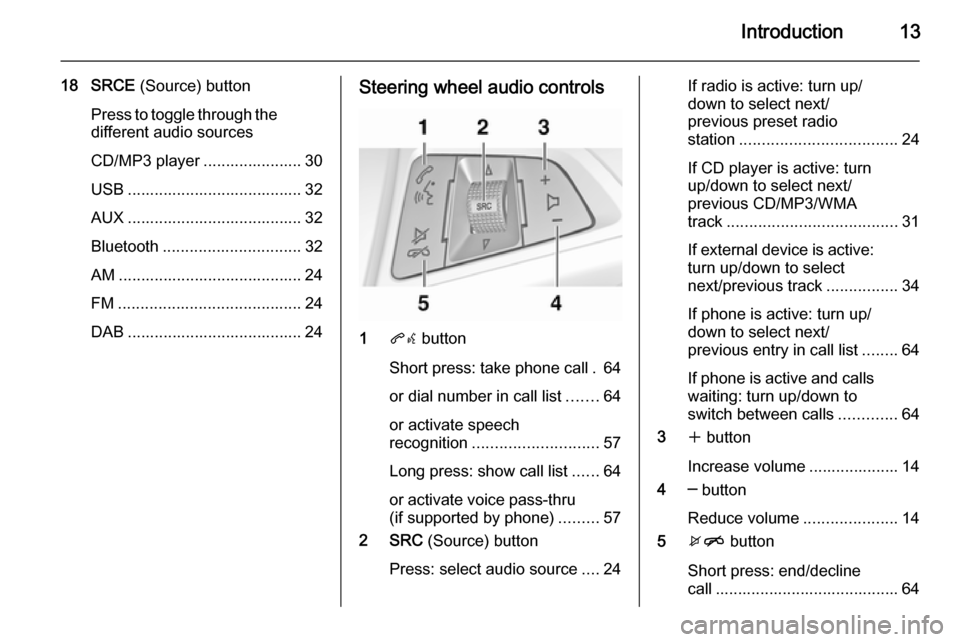
DAB ....................................... 24Steering wheel audio controls
1 qw button
Short press: take phone call . 64
or dial number in call list .......64
or activate speech
recognition ............................ 57
Long press: show call list ......64
or activate voice pass-thru
(if supported by phone) .........57
2 SRC (Source) button
Press: select audio source ....24
If radio is active: turn up/
down to select next/
previous preset radio
station ................................... 24
If CD player is active: turn
up/down to select next/
previous CD/MP3/WMA
track ...................................... 31
If external device is active:
turn up/down to select
next/previous track ................34
If phone is active: turn up/
down to select next/
previous entry in call list ........64
If phone is active and calls
waiting: turn up/down to
switch between calls .............64
3 w button
Increase volume .................... 14
4 ─ button
Reduce volume .....................14
5 xn button
Short press: end/decline
call ......................................... 64
Page 15 of 133

Introduction15
Auto volume
When auto volume is activated
3 20, the volume is adapted
automatically to compensate for the
road and wind noise as you drive.
Mute
Press the O button (if Phone portal
is available: press for a few seconds) to mute the audio sources.
To cancel mute again: turn the X
VOL knob or press the O button
again (if Phone portal is available: press for a few seconds).
Volume limitation at high
temperatures
At very high temperatures inside the
vehicle, the Infotainment system
limits the maximum adjustable
volume. If necessary, the volume is
decreased automatically.Modes of operation
Audio players
Repeatedly press the SRCE button to
toggle between the AM, FM, CD, USB, AUX, Bluetooth or DAB main
menus.
Find detailed descriptions of: ■ CD/MP3 player 3 30
■ USB port 3 32
■ AUX input 3 32
■ Bluetooth audio 3 32
■ AM radio 3 24
■ FM radio 3 24
■ DAB radio 3 29.
Navigation
Press the NAV button to display the
map of the navigation application.
Press the multifunction knob to open
a submenu with options for the input
of destinations and the structuring of
a route.
Find a detailed description of the
navigation functions 3 39.Phone
Press the O button to display the
phone main menu with options for the input or selection of numbers.
Find a detailed description of the
mobile phone functions 3 61.
Notice
Short information on the audio
sources and the current navigation
session may be displayed via the
Quick Info application.
Page 32 of 133

32External devicesExternal devicesGeneral information.....................32
Playing audio ............................... 34
Displaying pictures ....................... 35
Using apps ................................... 36General information
Sockets for the connection of external
devices are located in the centre
console on a hinged panel.
Notice
The sockets must always be kept
clean and dry.
AUX input
It is possible to connect e.g. an iPod,
Smartphone or another auxiliary
device to the AUX input. The
Infotainment system can play music
files contained in auxiliary devices.
When connected to the AUX input,
the audio signal of the auxiliary device is transmitted via the speakers of the
Infotainment system.
The volume can be adjusted via the Infotainment system. All other control functions must be operated via the
auxiliary device.
Connecting a device
To connect the auxiliary device to the
AUX input socket of the Infotainment
system, use the following cable:
3-pole for audio source.
To disconnect the AUX device, select
another function and then remove the AUX device.
USB port
An MP3 player, USB device, iPod or
Smartphone can be connected to the USB port. The Infotainment system
can play music files or display
pictures contained in auxiliary
devices.
Page 33 of 133

External devices33
When connected to the USB port, thedevices mentioned above can be
operated via the controls and menus
of the Infotainment system.
Notice
Not all MP3 player, USB drive, iPod
models or Smartphones are
supported by the Infotainment
system.
Connecting/disconnecting a device
Connect the device to the USB port.
For the iPod, use the appropriate
connection cable.
Notice
If a non-readable USB device or
iPod is connected, a corresponding
error message will appear and the
Infotainment system will
automatically switch to the previous
function.
To disconnect the USB device or
iPod, select another function and then
remove the USB storage device.Caution
Avoid disconnecting the device
during playback. This may
damage the device or the
Infotainment system.
Bluetooth
Bluetooth enabled audio sources
(e.g. music mobile phones, MP3
players featuring Bluetooth, etc.),
which support the Bluetooth music profiles A2DP and AVRCP can be
connected wirelessly to the
Infotainment system.
The Infotainment system can play
music files contained in Bluetooth
devices, e.g. iPod or Smartphone.
Connecting a device
Find a detailed description on the Bluetooth connection 3 62.
File formats
Audio files
Only devices formatted in the FAT32,
NTFS and HFS+ file systems are supported.
Notice
Some files may not be played
properly. This might be due to a
different recording format or the
condition of the file.
Files from online shops to which
Digital Rights Management (DRM)
has been applied cannot be played.
The playable audio file formats
are .mp3, .wma, .aac and .m4a.
When playing a file with ID3 tag
information, the Infotainment system
can display information, e.g. on the
track title and artist.
Picture files
The displayable picture file formats
are .jpg, .jpeg, .bmp, .png and .gif.
The files must have a maximum size
of 2048 pixels in widths and
2048 pixels in heights (4MP).
Page 74 of 133

74IndexAActivating AUX.............................. 34
Activating Bluetooth music ...........34
Activating CD player .....................31
Activating radio ............................. 24
Activating the Infotainment system 14
Activating the navigation system ..40
Activating the phone portal ...........64
Activating USB audio ....................34
Activating USB picture ..................35
Address book................................ 44
Audio CUE volume .......................20
Audio files ..................................... 32
Autostore lists ............................... 25
Retrieving stations..................... 25
Storing stations ......................... 25
Auto volume.................................. 20
AUX .............................................. 32
B BACK button ................................. 16
Balance......................................... 19
Basic operation ............................. 16
Bass.............................................. 19 Bluetooth connection ....................62
Bluetooth music ............................ 32
Bread crumbs ............................... 52C
Category list.................................. 24
CD player...................................... 30
Chime volume............................... 20
Control elements Infotainment system ....................8
Steering wheel ............................ 8
Control elements overview .............8
D DAB .............................................. 29
Date .............................................. 21
Destination input ..........................44
Digital audio broadcasting ............29
Display .......................................... 21
Displaying pictures .......................35
E Emergency call ............................. 63
EQ ................................................ 19
Equaliser....................................... 19
F
Factory defaults ............................ 21
Fader ............................................ 19
Favourite lists ............................... 26
Retrieving stations..................... 26
Storing stations ......................... 26
File formats ................................... 30
Page 75 of 133

75
Audio files.................................. 32
Picture files................................ 32
Frequently asked questions .........70
G General information 30, 32 , 39 , 57 , 61
AUX ........................................... 32
Bluetooth music......................... 32
CD ............................................. 30
Infotainment system ....................6
Navigation ................................. 39
Phone portal .............................. 61
Radio ......................................... 24
USB ........................................... 32
Guidance ..................................... 52
H Home address .............................. 44
Home Page............................. 16, 21
I
Infotainment control panel ..............8
K Keyboard ...................................... 44
L
Language ..................................... 21M
Maps ............................................. 40
Maximum startup volume .............20
Menu operation............................. 16
Messages ..................................... 16
Midrange....................................... 19 Mobile phones and CB radio equipment ................................ 69
Multifunction knob......................... 16
Mute.............................................. 14
N Navigation Address book ............................ 44
Bread crumbs ............................ 52
Coordinates ............................... 44
Current location ......................... 40
Destination input .......................44
Favourite routes ........................44
General settings ........................40
Guidance alerts ......................... 52
Home address ........................... 44
Keyboard ................................... 44
Map display ............................... 40
Map manipulation ......................40
POIs .......................................... 44
Recent destinations ..................44
Route guidance ......................... 52
Route options ............................ 52Route simulation.......................40
Route tracking ........................... 52
TMC stations ............................. 52
Traffic incidents ......................... 52
Turn list ..................................... 52
Voice prompts ........................... 52
Waypoint trip ............................. 44
Navigation system ........................39
Navigation volume ........................20
O Operation ...................................... 64
AUX ........................................... 34
Blueotooth music....................... 34
CD ............................................. 31
Infotainment system ..................14
Menu ......................................... 16
Navigation system .....................40
Phone ........................................ 64
Radio ......................................... 24
USB ..................................... 34, 35
P Pairing .......................................... 62
Phone Bluetooth ................................... 61
Bluetooth connection ................62
Conference call ......................... 64
Emergency calls ........................63
Functions during a call ..............64
Page 79 of 133

Introduction.................................. 80
Radio ........................................... 97
CD Player .................................. 106
AUX input ................................... 110
USB port .................................... 111
Speech recognition ....................113
Phone ........................................ 118
Index .......................................... 130CD 400plus/400/300
Page 80 of 133

80IntroductionIntroductionGeneral information.....................80
Theft-deterrent feature .................81
Control elements overview ..........82
Usage .......................................... 88
Basic operation ............................ 89
Tone settings ............................... 93
Volume settings ........................... 94
Personalisation ............................ 95General information
The Infotainment system provides
you with state-of-the-art in-car
infotainment.
For the AM, FM and DAB wavebands the radio is equipped with twelve
automatically assignable channel presets. Furthermore, various
channels can be allocated manually
(waveband-independent).
The integrated audio player will
entertain you with audio CDs and MP3/WMA CDs.
Furthermore, you can connect
external data storage devices, e.g.
iPod, MP3 player or USB stick, or a
portable CD player to the
Infotainment system as further audio
sources.
The digital sound processor provides
you with several preset equalizer
modes for sound optimisation.
Optionally, the Infotainment system
can be operated using controls on the steering wheel or via the speech
recognition system.In addition the Infotainment system
can be equipped with a mobile phone portal.
The well-thought-out design of the
control elements, the clear displays
and a large multifunction knob enable
you to control the system easily and
intuitively.
Notice
This manual describes all options
and features available for the
various Infotainment systems.
Certain descriptions, including those for display and menu functions, may
not apply to your vehicle due to
model variant, country
specifications, special equipment or
accessories.
Important information on operation and traffic safety9 Warning
The Infotainment system must be
used so that the vehicle can be
driven safely at all times. If in
Page 88 of 133

88IntroductionUsageControl elements
The Infotainment system is operated
via function buttons, multifunctional
knobs and menus that are shown on
the display.
Inputs are made optionally via: ■ the central control unit in the instrument panel 3 82
■ controls on the steering wheel 3 82
■ the speech recognition system 3 113
Switching the Infotainment
system on or off Press the X knob briefly. After
switching on, the last selected
Infotainment source is active.
Automatic switch-off
If the Infotainment system has been switched on using the X knob when
the ignition was switched off, it will switch off again automatically after
30 minutes.Setting the volume
Turn the X knob. The current setting
is shown on the display.
When the Infotainment system is
switched on, the last selected volume
is set, provided that volume is lower
than the maximum start-up volume.
The following can be set separately: ■ the maximum start-up volume 3 94
■ the volume of the traffic announcements 3 94
Speed compensated volume
When speed compensated volume is
activated 3 94 the volume is
adapted automatically to make up for the road and wind noise as you drive.
Mute
Press the v/G button (if Phone portal
is available: press for a few seconds) to mute the audio sources.
To cancel mute again: turn the X
knob or press the v/G button again
(if Phone portal is available: press for
a few seconds).Volume limitation at high
temperatures
At very high temperatures inside the vehicle the Infotainment system limits the maximum adjustable volume. If
necessary the volume is decreased automatically.
Modes of operation
Radio
Press the RADIO button to open the
radio main menu or to change
between the different wavebands.
Press the multifunction knob to open
a submenu with options for station
selection.
Detailed description of the radio
functions 3 97.
Audio players
Press the CD / AUX / CD/AUX button
to open the CD, USB, iPod or AUX
menus or to switch between these
menus.
Press the multifunction knob to open
a submenu with options for track
selection.