buttons VAUXHALL ZAFIRA TOURER 2018.5 Owner's Manual
[x] Cancel search | Manufacturer: VAUXHALL, Model Year: 2018.5, Model line: ZAFIRA TOURER, Model: VAUXHALL ZAFIRA TOURER 2018.5Pages: 339, PDF Size: 10.02 MB
Page 13 of 339

In brief111Power windows .....................31
2 Exterior mirrors .....................28
3 Cruise control .....................218
Speed limiter ....................... 220
Adaptive cruise control .......221
Forward collision alert .........228
4 Turn and lane-change
signals, headlight flash,
low beam and high beam,
high beam assist ................134
Exit lighting ......................... 137
Parking lights ...................... 135
Buttons for Driver
Information Centre ..............116
5 Instruments ........................ 102
6 Driver Information Centre .... 116
7 Steering wheel controls .......96
8 Windscreen wiper,
windscreen washer
system, headlight washer
system, rear wiper, rear
washer system ......................97
9 Info-Display ........................ 12110Central locking system ..........21
Hazard warning flashers ....134
Sport mode ........................ 217
Tour mode .......................... 217
Fuel selector ....................... 104
Control indicator for airbag deactivation ........................ 111
11 Anti-theft alarm system
status LED ........................... 26
12 Centre air vents .................. 194
13 Side air vents ...................... 194
14 Glovebox .............................. 65
15 Climate control system ........ 188
16 USB input .............................. 10
Power outlet ........................ 100
17 Selector lever, manual
transmission ....................... 211
Automatic transmission ......208
18 Traction Control system .....215
Electronic Stability Control . 216
Lane departure warning .....243
19 Electric parking brake .........21220Manual parking brake .........212
21 Parking assist systems .......233
Eco button for stop-start
system ................................. 200
22 Ignition switch with
steering wheel lock ............197
23 Horn ..................................... 97
Driver airbag ........................ 56
24 Bonnet release lever ..........259
25 Fuse box ............................ 277
Storage compartment ...........67
26 Light switch ........................ 129
Headlight range
adjustment ......................... 131
Front fog lights ...................134
Rear fog light ...................... 135
Instrument illumination .......136
27 Steering wheel adjustment ..96
Page 25 of 339
Keys, doors and windows23Unlocking and opening the
tailgate
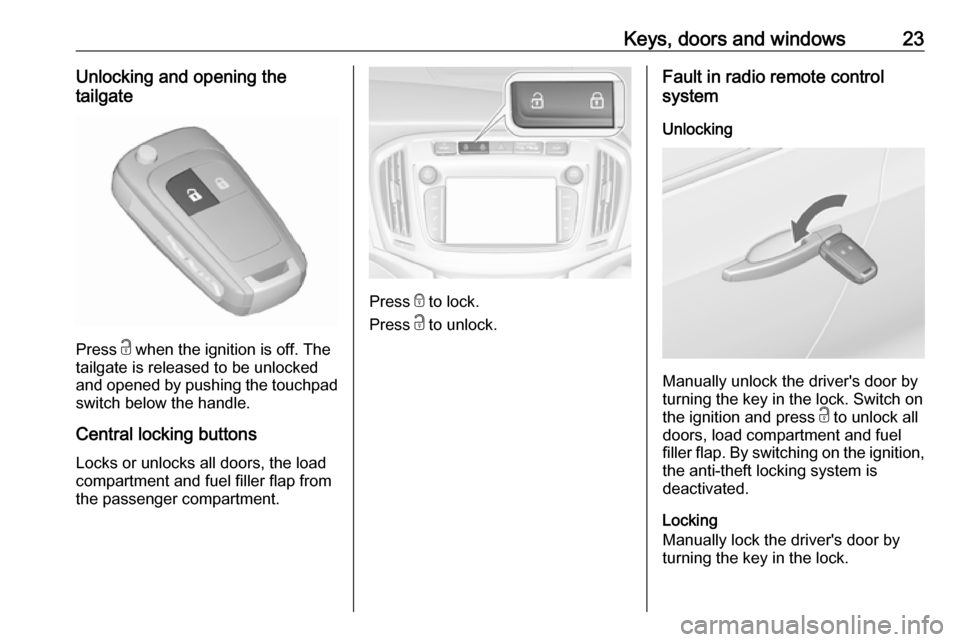
Press c when the ignition is off. The
tailgate is released to be unlocked
and opened by pushing the touchpad switch below the handle.
Central locking buttons Locks or unlocks all doors, the load
compartment and fuel filler flap from
the passenger compartment.
Press e to lock.
Press c to unlock.
Fault in radio remote control
system
Unlocking
Manually unlock the driver's door by
turning the key in the lock. Switch on
the ignition and press c to unlock all
doors, load compartment and fuel
filler flap. By switching on the ignition, the anti-theft locking system is
deactivated.
Locking
Manually lock the driver's door by
turning the key in the lock.
Page 47 of 339
Seats, restraints45
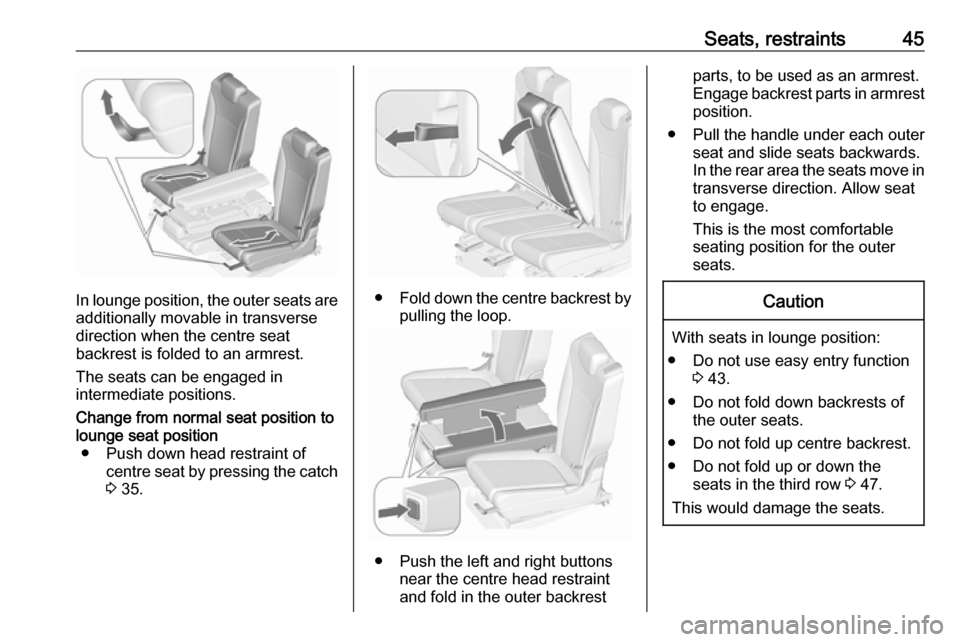
In lounge position, the outer seats are
additionally movable in transverse
direction when the centre seat
backrest is folded to an armrest.
The seats can be engaged in
intermediate positions.
Change from normal seat position to
lounge seat position ● Push down head restraint of centre seat by pressing the catch3 35.
● Fold down the centre backrest by
pulling the loop.
● Push the left and right buttons near the centre head restraint
and fold in the outer backrest
parts, to be used as an armrest.
Engage backrest parts in armrest position.
● Pull the handle under each outer seat and slide seats backwards.
In the rear area the seats move in
transverse direction. Allow seat
to engage.
This is the most comfortable seating position for the outer
seats.Caution
With seats in lounge position:
● Do not use easy entry function 3 43.
● Do not fold down backrests of the outer seats.
● Do not fold up centre backrest.
● Do not fold up or down the seats in the third row 3 47.
This would damage the seats.
Page 48 of 339
46Seats, restraints9Warning
Move seats only to lounge position
if seats in the third row are not
occupied.
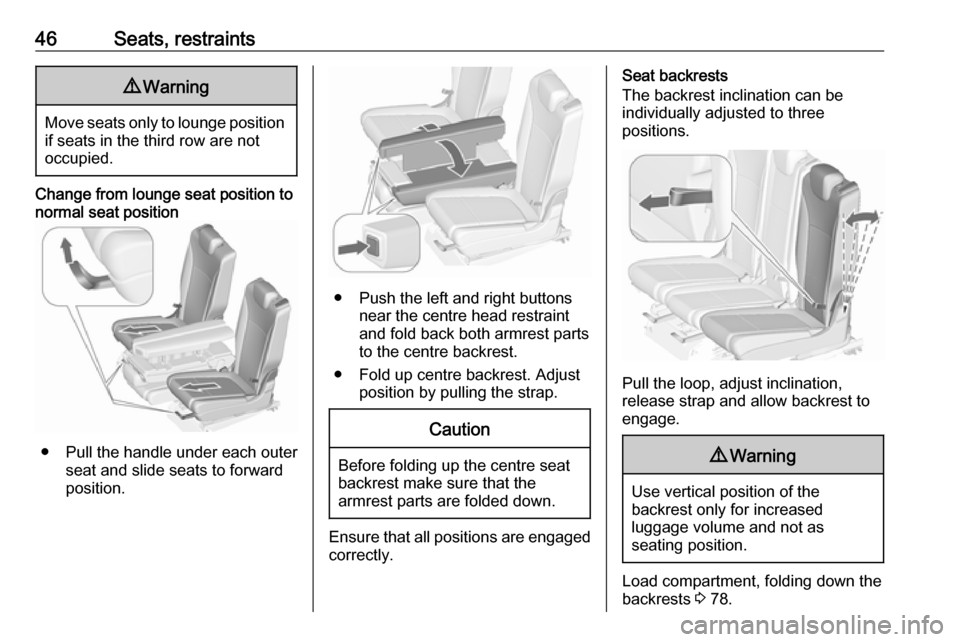
Change from lounge seat position to normal seat position
● Pull the handle under each outer seat and slide seats to forward
position.
● Push the left and right buttons near the centre head restraint
and fold back both armrest parts
to the centre backrest.
● Fold up centre backrest. Adjust position by pulling the strap.
Caution
Before folding up the centre seat
backrest make sure that the
armrest parts are folded down.
Ensure that all positions are engaged
correctly.
Seat backrests
The backrest inclination can be
individually adjusted to three
positions.
Pull the loop, adjust inclination,
release strap and allow backrest to
engage.
9 Warning
Use vertical position of the
backrest only for increased
luggage volume and not as
seating position.
Load compartment, folding down the
backrests 3 78.
Page 102 of 339
100Instruments and controls
Set Time Format
To select the desired time format,
touch the screen buttons 12 h or 24 h .
Set Date Format
To select the desired date format,
select Set Date Format and choose
between the available options in the
submenu.
Auto Set
To choose whether time and date are
to be set automatically or manually,
select Auto Set .
For time and date to be set
automatically, select On - RDS.
For time and date to be set manually,
select Off - Manual . If Auto Set is set
to Off - Manual , the submenu items
Set Time and Set Date become
available.
Set time and date
To adjust the time and date settings, select Set Time or Set Date .
Touch + and - to adjust the settings.
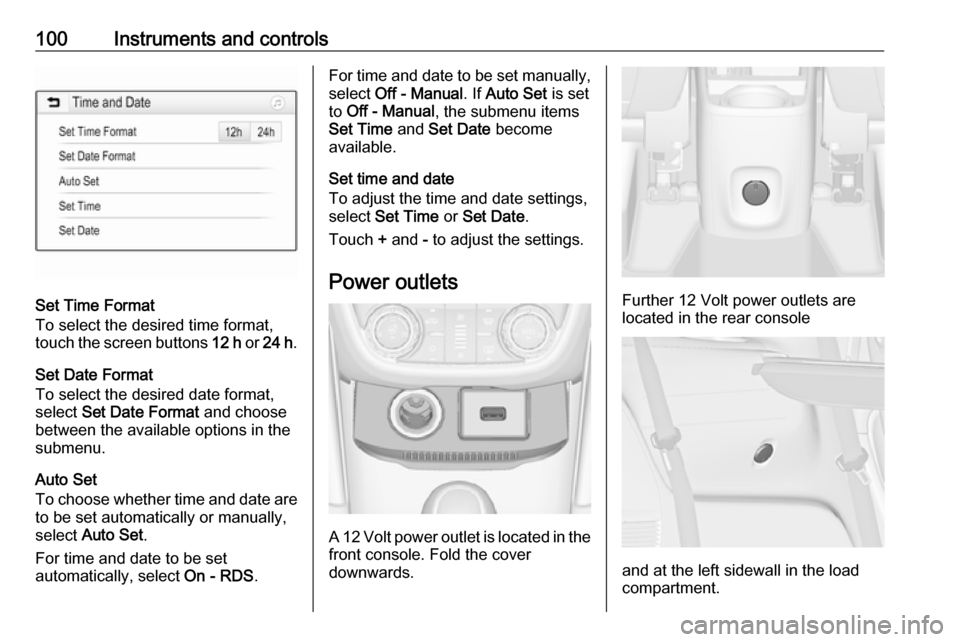
Power outlets
A 12 Volt power outlet is located in the
front console. Fold the cover
downwards.
Further 12 Volt power outlets are
located in the rear console
and at the left sidewall in the load
compartment.
Page 118 of 339
116Instruments and controlsIlluminates whiteThe system is on.
Illuminates green Cruise control is active. Set speed is
indicated in the Driver Information
Centre.
Cruise control 3 218.
Adaptive cruise control
m illuminates white or green.
C illuminates in the Driver
Information Centre.
m illuminates white
The system is on.
m illuminates green
Adaptive cruise control is active.
When Adaptive cruise control is on or active, C with the set speed is
indicated in the Driver Information
Centre.
Adaptive cruise control 3 221.Vehicle detected ahead
A illuminates green.
Illuminates green
A vehicle ahead is detected in the
same lane.
Adaptive cruise control 3 221,
Forward collision alert 3 228.
Speed limiter
L illuminates in the Driver
Information Centre when Speed
limiter is active. Set speed is indicated
alongside L symbol.
Speed limiter 3 220.
Traffic sign assistant
L displays detected traffic signs as a
control indicator.
Traffic sign assistant 3 239.
Door open h illuminates red.
A door or the tailgate is open.Displays
Driver Information Centre
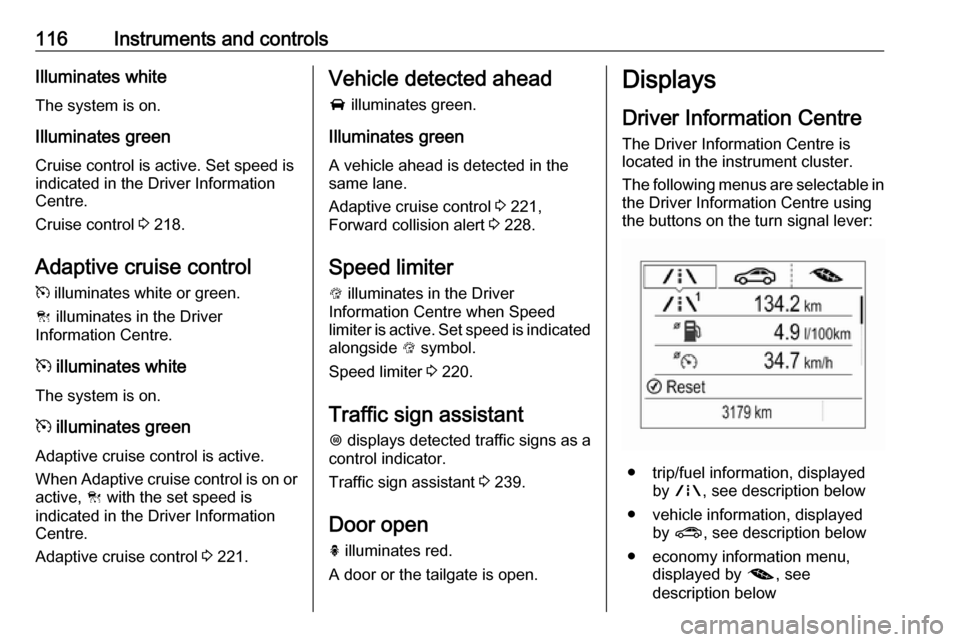
The Driver Information Centre is
located in the instrument cluster.
The following menus are selectable in
the Driver Information Centre using
the buttons on the turn signal lever:
● trip/fuel information, displayed by ; , see description below
● vehicle information, displayed by ? , see description below
● economy information menu, displayed by @, see
description below
Page 119 of 339
Instruments and controls117The following indications appear if
required:
● warning messages 3 122
● gear shift indication 3 113
● drive mode indication 3 208
● tyre pressure warning 3 282
● seat belt reminder indication 3 110
● service information 3 106
Some of the displayed functions differ
when the vehicle is being driven or at
a standstill. Some functions are only
available when the vehicle is being
driven.
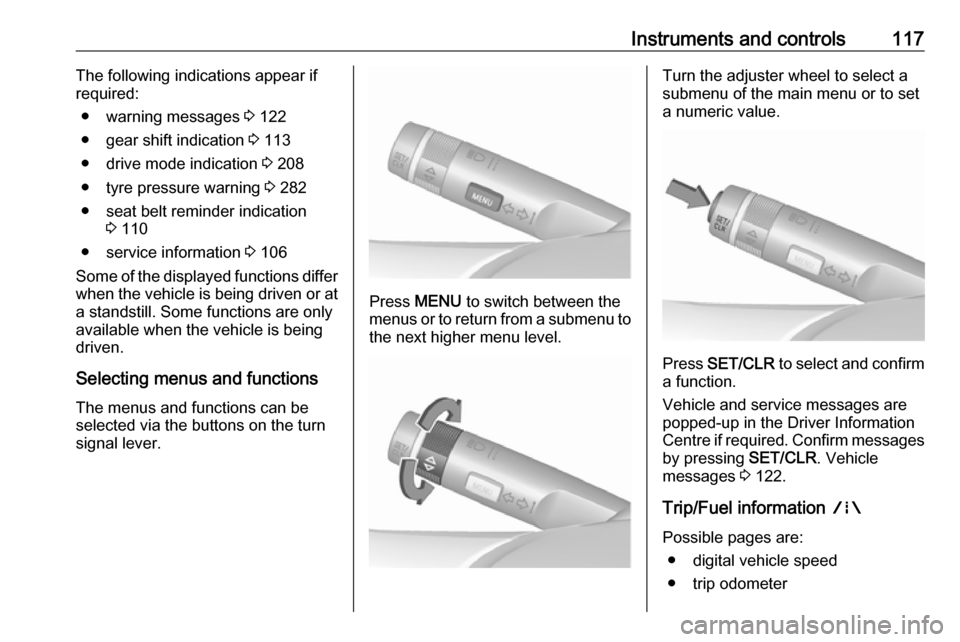
Selecting menus and functions The menus and functions can be
selected via the buttons on the turn signal lever.
Press MENU to switch between the
menus or to return from a submenu to the next higher menu level.
Turn the adjuster wheel to select a
submenu of the main menu or to set a numeric value.
Press SET/CLR to select and confirm
a function.
Vehicle and service messages are
popped-up in the Driver Information
Centre if required. Confirm messages
by pressing SET/CLR. Vehicle
messages 3 122.
Trip/Fuel information ;
Possible pages are: ● digital vehicle speed
● trip odometer
Page 127 of 339
Instruments and controls125Telematics service
OnStar
OnStar is a personal connectivity and
service assistant with integrated
Wi-Fi hotspot. The OnStar service is
available 24 hours a day, seven days
a week.
Notice
OnStar is not available for all
markets. For further information,
contact your workshop.
Notice
In order to be available and
operational, OnStar needs a valid
OnStar subscription, functioning
vehicle electrics, mobile service and GPS satellite link.
To activate the OnStar services and
set up an account, press Z and speak
with an advisor.Depending on the equipment of the
vehicle, the following services are available:
● Emergency services and support
in the case of a vehicle
breakdown
● Wi-Fi hotspot
● Smartphone application
● Remote control, e.g. location of the vehicle, activation of horn and
lights, control of central locking
system
● Stolen vehicle assistance
● Vehicle diagnostics
● Destination download
Notice
The OnStar module of the vehicle is
deactivated after ten days without an
ignition cycle. Functions requiring a
data connection will be available
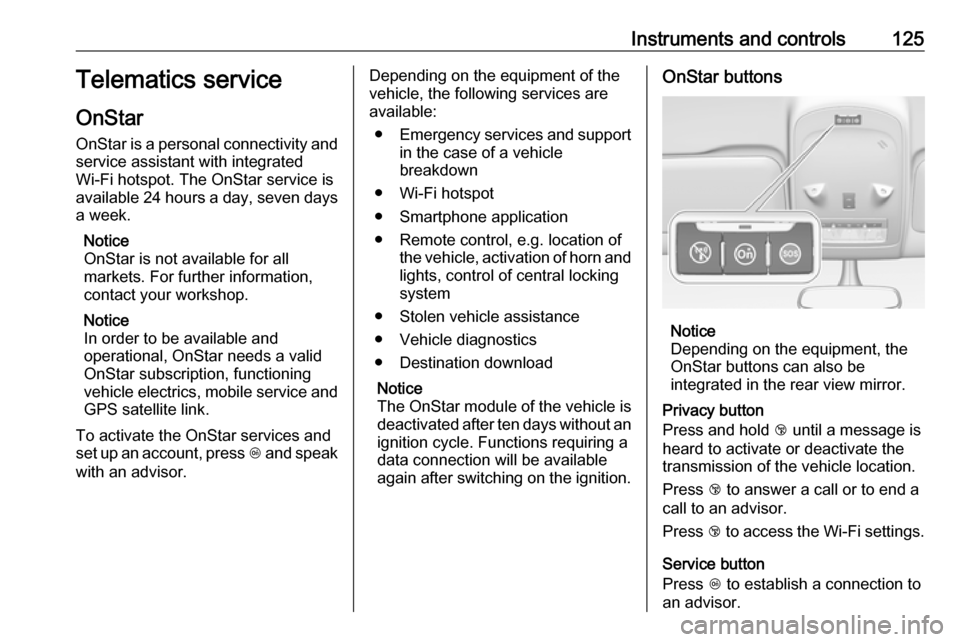
again after switching on the ignition.OnStar buttons
Notice
Depending on the equipment, the
OnStar buttons can also be
integrated in the rear view mirror.
Privacy button
Press and hold j until a message is
heard to activate or deactivate the transmission of the vehicle location.
Press j to answer a call or to end a
call to an advisor.
Press j to access the Wi-Fi settings.
Service button
Press Z to establish a connection to
an advisor.
Page 141 of 339

Infotainment system139Infotainment systemIntroduction................................ 139
General information .................139
Theft-deterrent feature ............140
Control elements overview ......141
Usage ...................................... 144
Basic operation .......................... 146
Tone settings ........................... 148
Volume settings .......................149
System settings .......................150
Radio ......................................... 152
Usage ...................................... 152
Station search ......................... 153
Favourite lists .......................... 154
Radio data system ...................155
Digital audio broadcasting .......156
External devices ........................158
General information .................158
Playing audio ........................... 160
Displaying pictures ..................161
Playing movies ........................ 162
Using smartphone applications ............................ 163
Navigation .................................. 164
General information .................164
Usage ...................................... 166Destination input......................170
Guidance ................................. 175
Speech recognition ....................178
General information .................178
Usage ...................................... 178
Phone ........................................ 179
General information .................179
Bluetooth connection ...............180
Emergency call ........................182
Operation ................................. 183
Mobile phones and CB radio equipment ............................... 187Introduction
General information
The Infotainment system provides
you with state-of-the-art in-car
infotainment.
Using radio tuner functions, you may
register up to 25 stations on five
favourite lists.
You can connect external data
storage devices to the Infotainment
system as further audio sources;
either via cable or via Bluetooth ®
.
The navigation system with dynamic
route planning will reliably guide you
to your destination, and, if desired,
automatically avoid traffic jams or
other traffic problems.
In addition, the Infotainment system allows comfortable and safe use of
your mobile phone in the vehicle.
You can also operate specific
smartphone applications via the
Infotainment system.
Optionally, the Infotainment system
can be operated using the touch
screen and buttons on the control
Page 144 of 339

142Infotainment system1Info Display / Touch screen 146
2 Home menu ........................ 146
Screen buttons for access to:
Audio : audio functions
Gallery : picture and movie
functions
Phone : mobile phone functions
Projection : phone projection
or Nav : BringGo ®
app
Navigation : embedded
navigation
Settings : system settings
OnStar : OnStar Wi-Fi
settings ................................ 144
3 Time, date and
temperature indicators ........150
4 g
Short press: open phone
menu ................................... 183or open phone projection
function (if activated) ...........163
Long press: activate
speech recognition ..............178
5 v
Short press: skip to next
station when radio active ....153
or skip to next track when
external devices active .......160
Long press: seek up when
radio active .......................... 153
or fast forward when
external devices active .......160
6 m
Short press: switch on
Infotainment system if
turned off ............................. 144
or mute system if turned on 144
Long press: switch off
Infotainment system ............144
Turn: adjust volume ............1447t
Short press: skip to
previous station when
radio active .......................... 153
or skip to previous track
when external devices
active ................................... 160
Long press: seek down
when radio active ................153
or fast rewind when
external devices active .......160
8 ;
Short press: open home
menu ................................... 144
Long press: open phone
projection function (if
activated) ............................ 163