RADIO VOLKSWAGEN GOLF PLUS 2006 Owner's Manual
[x] Cancel search | Manufacturer: VOLKSWAGEN, Model Year: 2006, Model line: GOLF PLUS, Model: VOLKSWAGEN GOLF PLUS 2006Pages: 541, PDF Size: 98.86 MB
Page 408 of 541
Disconnecting the connection
Or: the appropriate menu on the ment
a paired
Go to the sub -menu in the menu using the multi-function steeri ng
User in the sub-menu .
in the sub-me nu . The
on page 4 and the introduction and on page 12 first.
such as key deact ivatio n of the buttons and warning tones or activation of the
Media
the on page 4 and the introduction and on page 12 first.
some factory radios and
radio-navigation devices, the "Biuetooth Audio"
The phone
package =>page 12.
Navigation system.
To use a connected device as a media
Advanced Audio Distribution support " (A2DP). A2 DP is used for trans fer ring of stereo audio
1
) D epe ndin g on the mobile phone.
2) Vehicle-related
3) Depending on the radio or navigation system.
Connection of
Th e device search is performed automatically
in the order of the most recently connected phones, after the ignition is switched on.
Certain settings may have to be carried out on
the
can aut omat ically connect with the phone
package (authorizat ion).1
)
The
phone must support the " Audio Video Remote (AVRCP) . phones , the media must first be started on the
and ending music
Voice command to start music =>page
music in the
Phone .
music on the
Where appropria te , choose the audio source on
t he radio or navigation system Radio or Navigation system .3)
Op eration
Page 418 of 541
Upon the initial use of the menu item, the bile phone package searches for the phone
box" or "Answe ring mach ine ".
The number for the voicemai l must be the same as in the radio or naviga tion system
and in the instrument clust er. T he number
can be changed in the ph one menu in the instrument cluster. The modi fied number is atso availa-
When no appropriate entry is found, th e num ber for the voicemail be dialed
on page 4 and the introduction and on
code
request might be required in the instrumen t cluste r disp lay
New user in order to start the device search for compatible Bluetooth mobile
phones . While trying to pair an "unre cognized " mobile phone, a check for four exist-
New user ing user
first. After that, the linking proce-
dure
1 5 . Corresponding ly , selec t the
and pair with the new devices in the Bluetooth accessibili-
ty area.
An individual name can be assigned to the mobi le phone package . The name
of the
Phon e name visible mobile phone package is displ ayed to other Bluetoo th devices after device
searches .
vw Phone is stored at the factory.
For privacy reasons , delete the "user in the User menu or contact a Volkswagen
dealersh ip whe n
Page 426 of 541
RCD 310
Radio
Page 428 of 541
.......... 2
Before using ....................... 3
instructions ..... 3
Devi ce Overview .. ..
6
Operation basics ... .
8
Audio mode
FM and AM Radio Mode . . . . . . . . . . . . . . . .
1 6
(Traffi c .. 18
DAB Radio mode....................... 19
Radio mode ......... 22
Media mode ........... 24
(AUX , Audio) .............................. ... 31
. . . . . . . . . . 33
Changer ............. .. 37
Settings Menus
Settings . . . . . . . . . . . . . . . 39
. .
Abbreviations ... 44
...................... .......... 45
Table of contents
Page 433 of 541
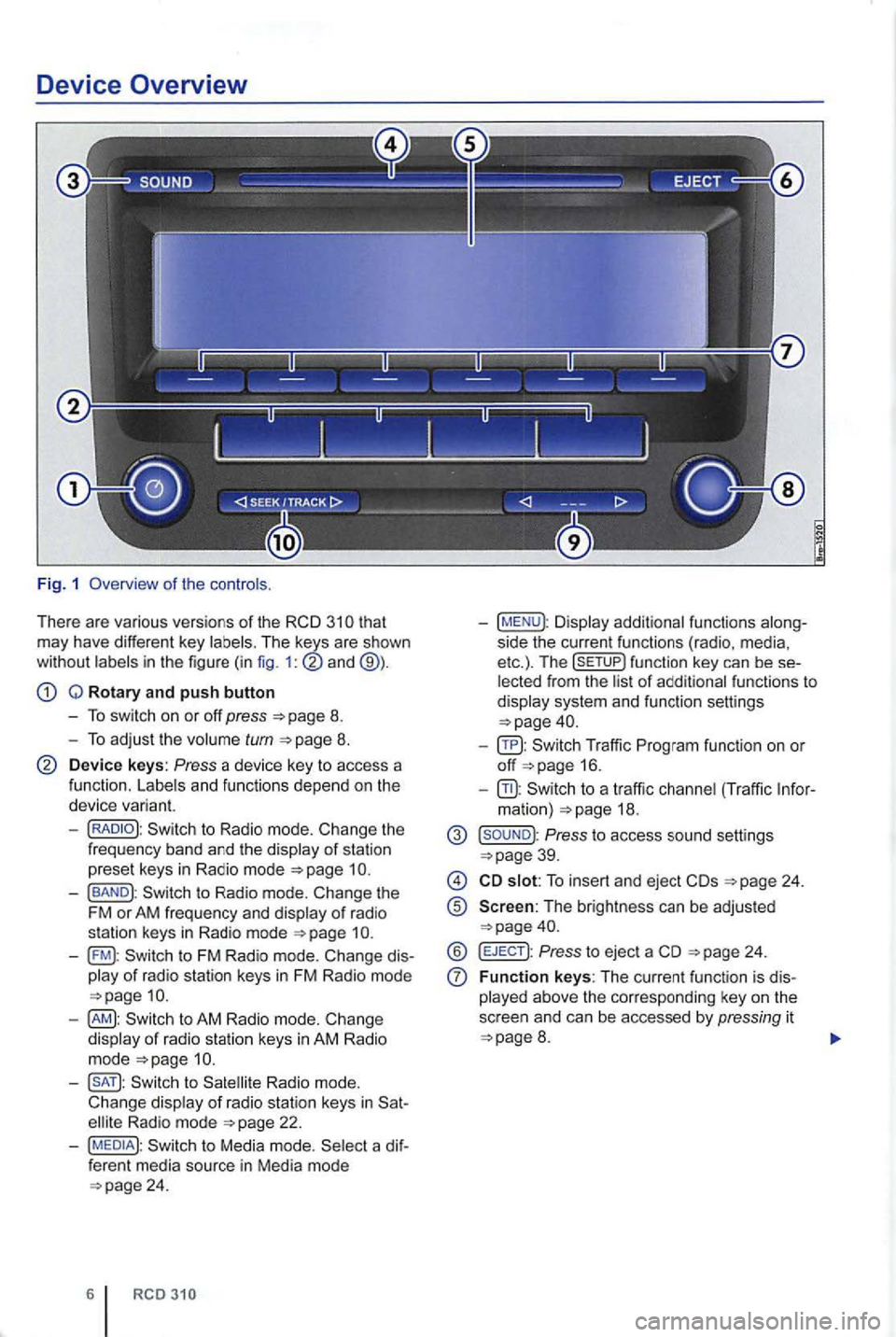
Device Overview
Fig . 1 Overview of the controls .
T here are various versions
of the that may have different key The keys are shown
wi thout in the figure ( in fig. 1:
Q Rotary and push button
- To switch on or off press
Device keys : Press a device key to access a
fu nct ion.
to Radi o mode. Change the
frequ ency band and the
- (BAND): to Radio mode. Change the
FM or AM frequency and of rad io
s ta tion keys in Radio mode
-to FM Radio mode . Change of radio station keys in FM Radio mode
of radio stat ion keys in Rad io mode 22.
-to Media mode. a ferent media source in Media mode
- (MENU): side the curren t fun ctions (radio. media.
etc.). T he function key can be from the system and function settings
-16.
-to a traffic (Traffic mation)
Pre ss to access sound sett ings 39.
To insert and eject 24.
® Screen: The brightn ess can be adjusted
® (EJECT): Press to ejec t a 24.
F unction keys: The cu rrent function is
8 .
Page 436 of 541
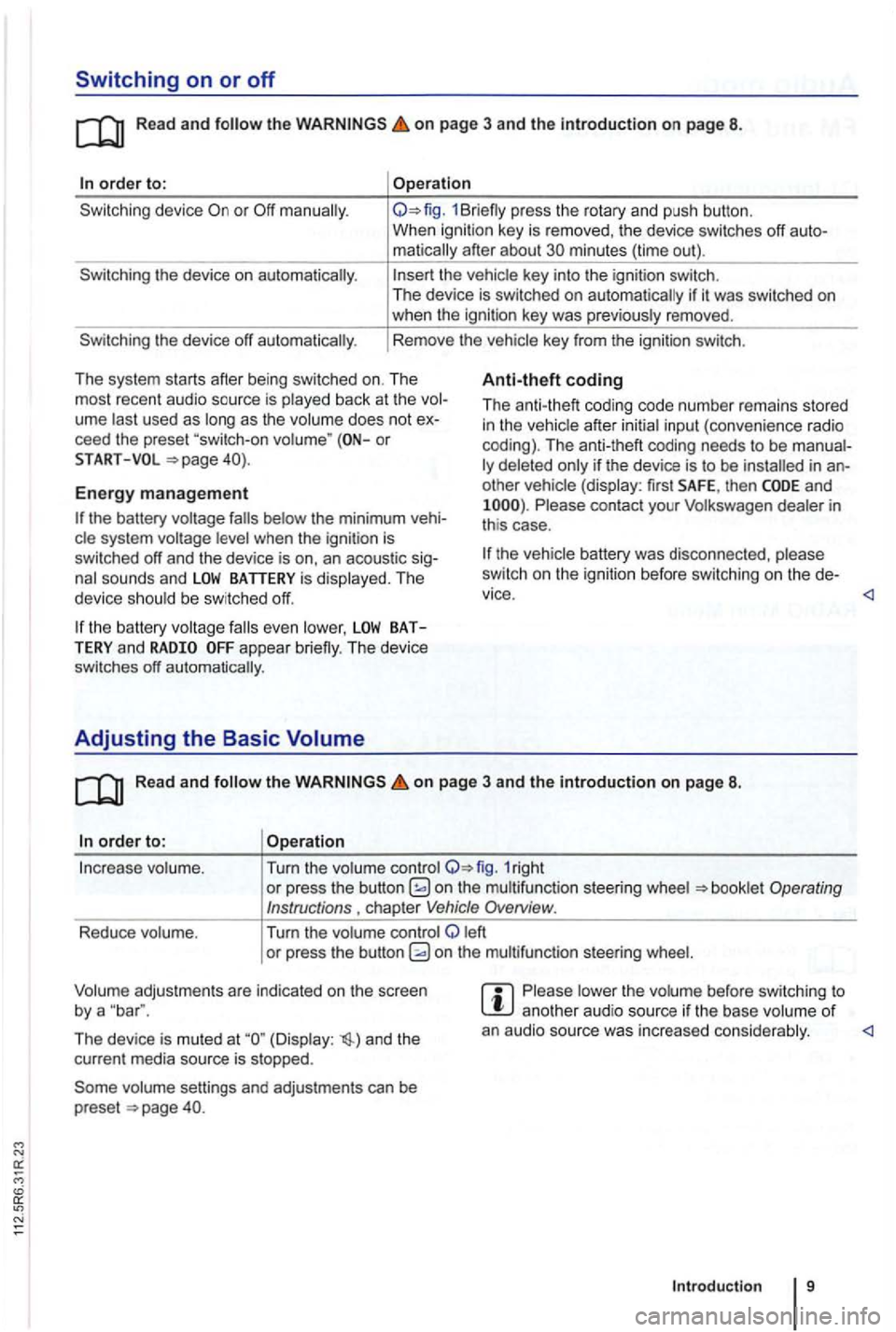
Switching on or off
Read and on page 3 and the in troduction on page 8.
order to:
the device on automatically.
the device off automatically .
Operation
1Br iefly press the rotary and push button.
When ignition key is removed , the device switches off
matically after about minutes (time out).
the vehicle key into the ignition switch.
The device is switched on auto matically if it was switched on when the ignition key was previously removed .
Rem ove the vehicle key from the ignition switch.
Th e system starts after being switched on. The
most recent audio source is play ed back at the
ume last used as long as the volume does not ceed the preset or
Anti-theft coding
Th e anti-theft coding code numb er remains stored in the vehicle after initial input (conven ience radio
coding). The anti-theft coding needs to be
other vehicle (display: first SAFE, then and Please contact your Volkswagen dealer in
th is case .
START
Energy management
the battery was disco nnec ted , please
sw itch on the ignition before switchin g o n the
the battery system voltage
the battery BATTERY and appear briefly. The device
switches off automatically.
Adjusting the Basic Volume
Read and the on page 3 and the introduction on page 8.
order to: Operation
In crease volume . Turn the volume control 1right or press the button on the multifunct ion steer ing wheel
left
o r pre ss the button
The device is muted at (Display : and the
cur rent media source is stopped.
vo lume settings and adjustments can be
preset .
Please lower the volume before switc hing to another aud io source if th e base volume of an audio source was increased conside rably.
Introduction 9
Page 437 of 541
Audio mode
FM and AM Radio Mode
Introduction
ing:
. . . . . 11 Changing . . . . . . . . . . . . . . . . . . . . . . 12
. . . . . . . . . . . . . . . . . . . . . . . . . . . . . . . . . 13
. . . . . . . 14
and Accessi ng . . . . . . . . . . . . 15
Different versions of the radio system are shipped,
depending on the country of deliv ery and the
1.
Accessing and operating Radio mode depends to
a certain extent
on the device variant.
Device overview 6
radio data services and TP (tr affic gram ) 16
Parking garages, tu nn els , h ig h buildin gs or mountains can in te rfere with the radio signal.
Decals or metal-coated stickers on the cle windows can affect ra dio recep tion in ve -
hicles with window antennas .
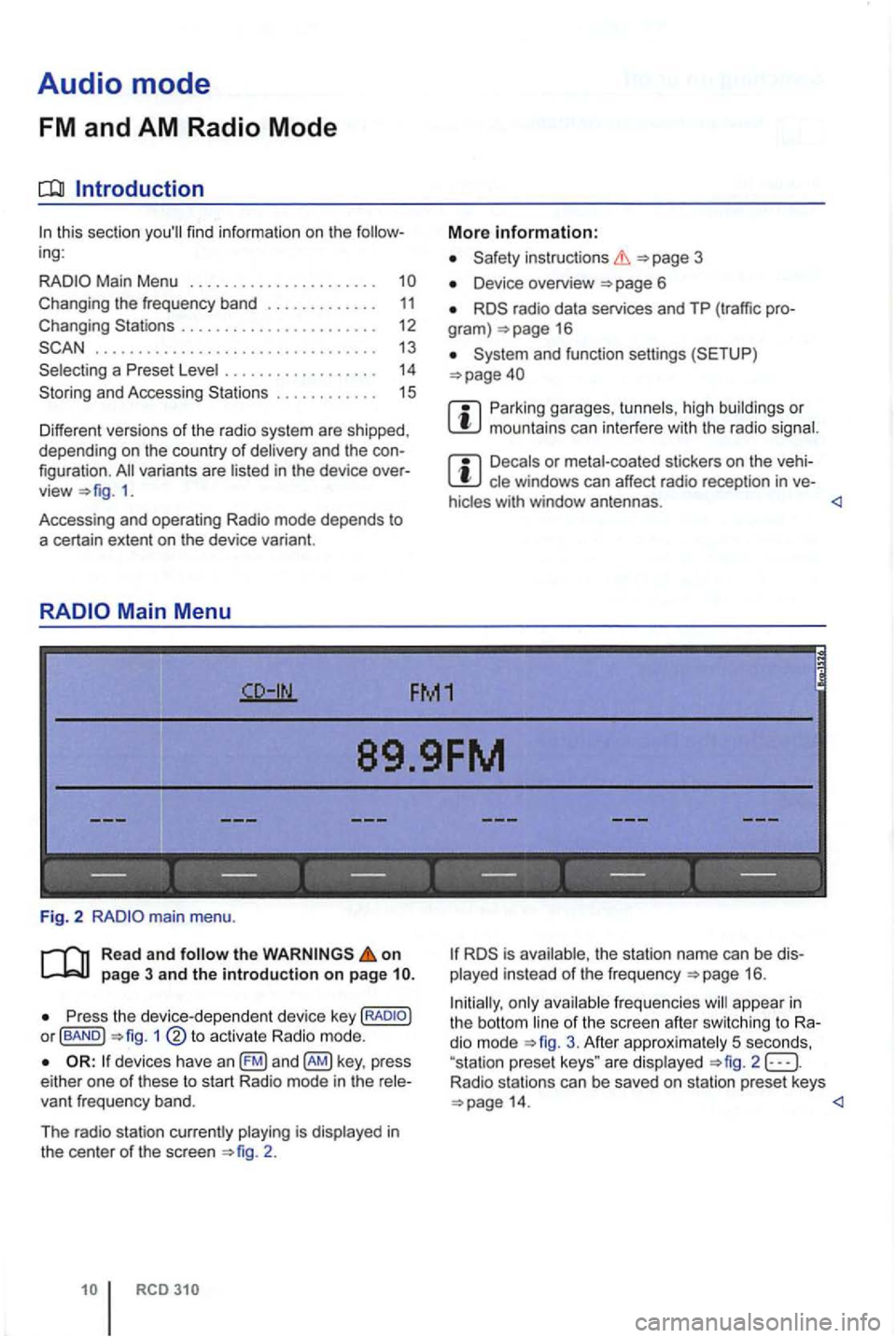
89.9FM
------------------
Fig. 2
Read and follow the on page 3 and the introduction on page
P ress the device -d ep en dent devic e key or fBAND ) 1
devices have an key , press
e ither one of these to s tart Radio mode in the
2 .
is ava ilable, th e s tation name can be played instead of the frequ e n cy 16 .
Initially, only ava
ilable freq ue ncies will appea r in the bott om line of the sc ree n afte r sw itc hing to dio mode 3. Afte r approx imately 5 seco nds,
"sta tion prese t keys " are disp layed 2 Radio stations can be saved on station preset keys
Page 438 of 541
Changing the frequency band
FM1
89.9FM
FM2 AM1 AM2
------------------
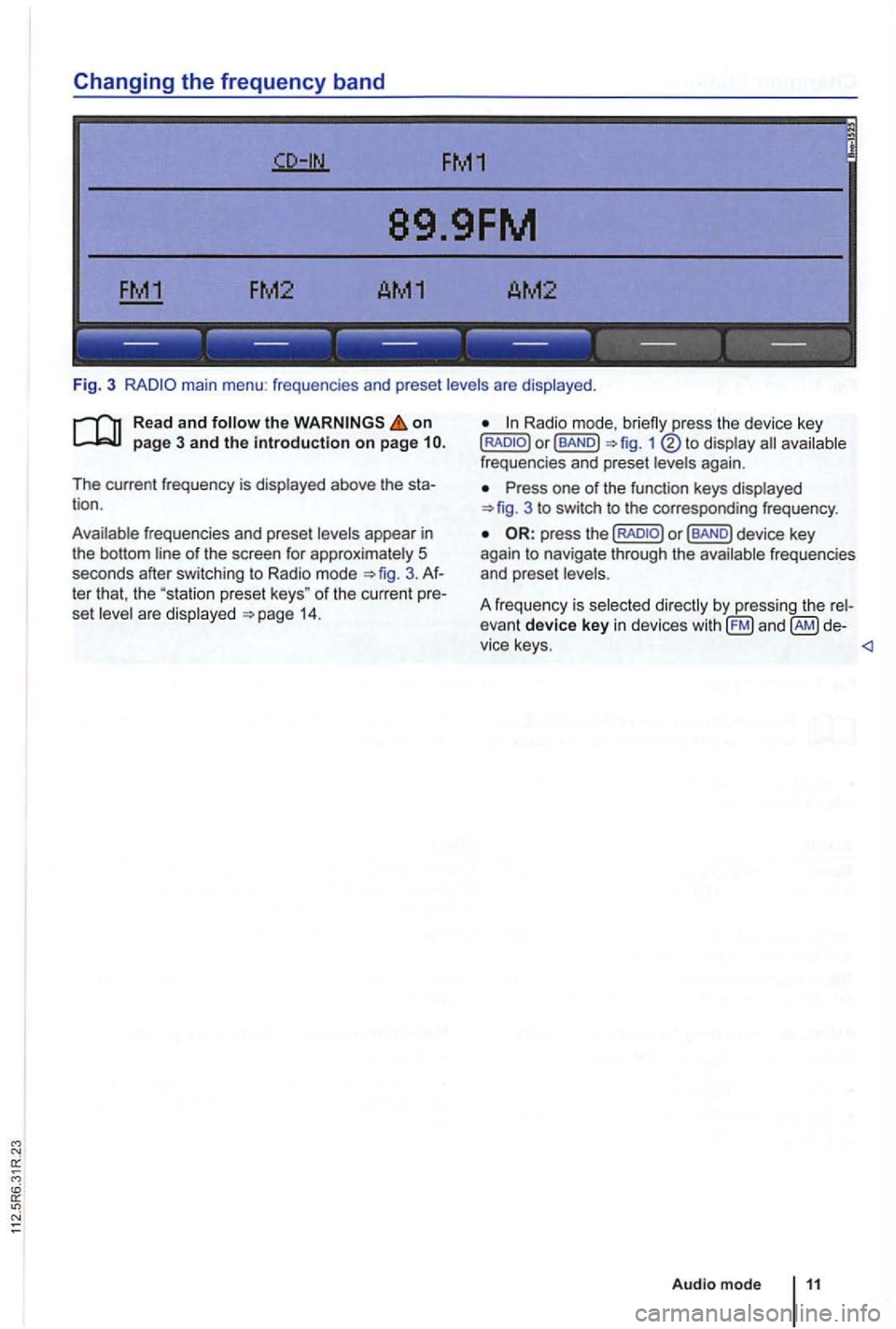
Fig. 3 main menu : frequenc ies and preset levels are displayed .
on page 3 and the introduction on page
The current frequency is disp layed above the tion .
Ava ilable frequencies and preset levels appear in
the bottom line
of the screen for approximately 5
seconds after sw itching to Radio mode 3.
set leve l a re disp layed 14.
Radio mode,
Press one of the function keys displayed 3 to switch to the corresp onding frequency .
Page 439 of 541
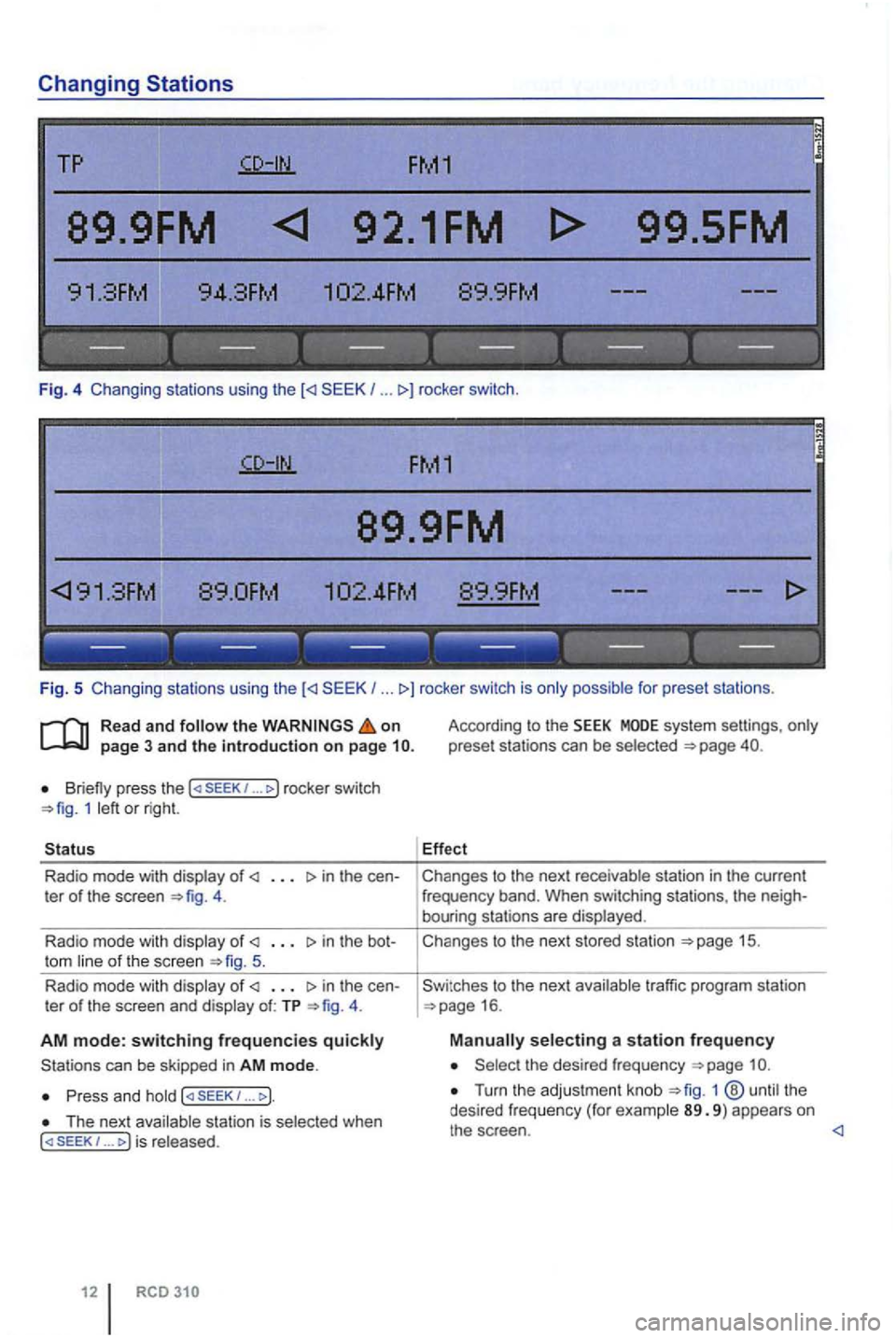
Changing Stations
TP FM1
89.9FM 92.1FM
.
.
------ --- ---------
Fig. 5 Changing stations using the (
Read and the on page 3 and the introduction on page
Briefly press the 1 ... rocker switch 1 or right.
Radio mode with of in the te r of the screen 4.
Radio mode with
of the screen 5.
Radio mode with
of in the ter of the screen and of: TP 4.
AM mode: switching frequencies
P ress and 1 .. . ).
stat ion is 1 ...
According to the SEEK system settings,
Effect
Ch anges to the next
Cha nges to the nex t sto red station
16 .
a station frequency
the desired freq uency
Turn the adjus tment knob 1 89. 9 ) appears on the sc reen .
Page 440 of 541
FM1
89.9FM
------------------
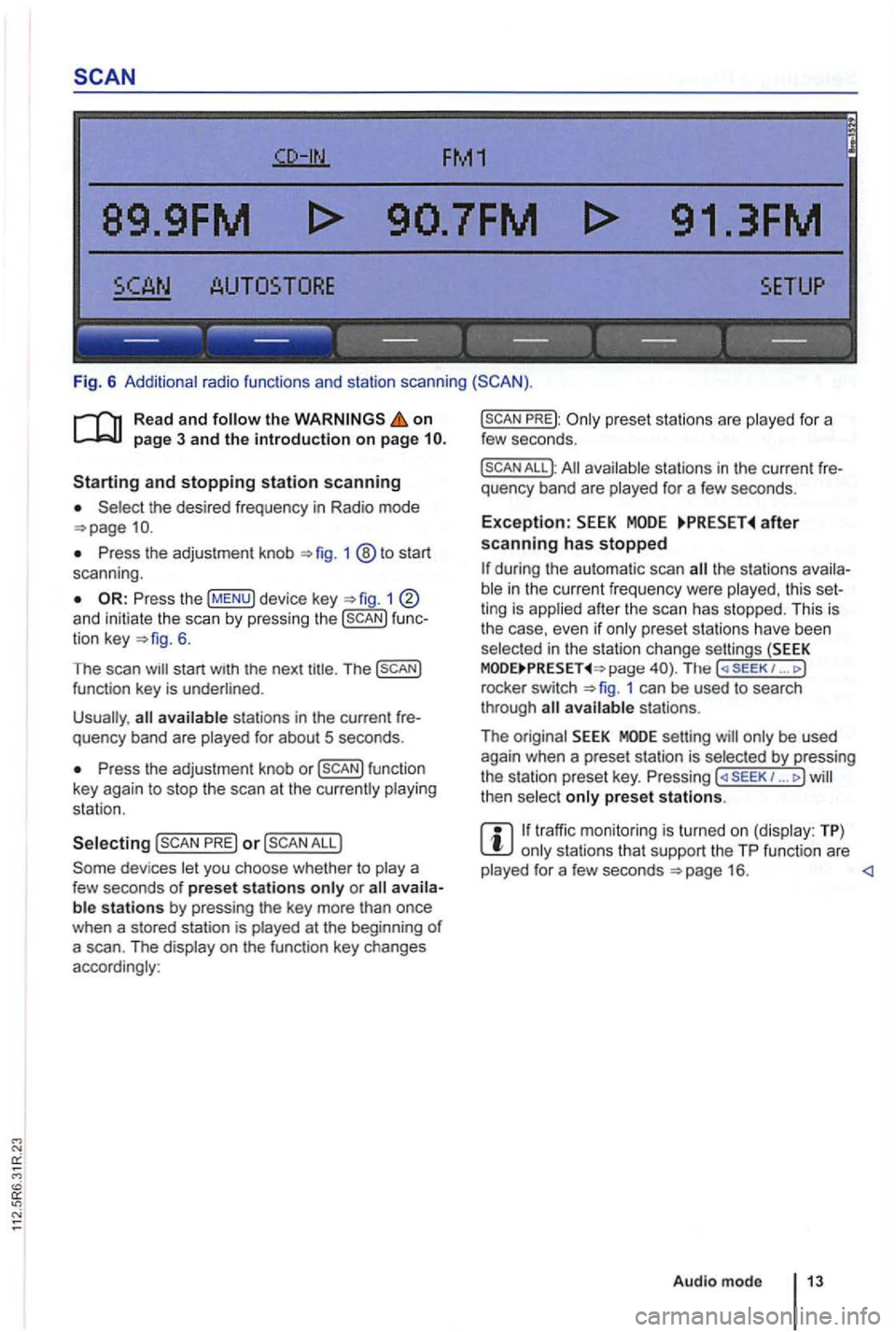
Fig. 6 Additional radio functions and station scanning
the on page 3 and the introduction on page
the desired frequency in Radio mode
Press the adjustment knob 1 ®to start
scan ning .
1 and initiate the scan by press ing the func
tion key 6.
The scan
Press the adjustment knob or
PRE) or
PREJ:
All available stations in the curre nt fre
quency band are played for a few seconds.
Exception: after scanning has stopped
the stations availa
ble in the curr ent fr equency were played , th is set
ting is applied after the scan has stopped. This is
the case, even
if only prese t sta tions have been
selec ted in the stati on change settings (SEEK page The ( SE EK 1 ... J
rocke r switch 1 can be used to search
through
setting will only be used
again when a preset station is selected by pressing
the station preset key. Pressing ... J then select only preset stations.
traffic monitoring is turned on (display: TP) only stations that support the TP function are
played for a few seconds