audio VOLKSWAGEN GOLF PLUS 2012 Owner's Manual
[x] Cancel search | Manufacturer: VOLKSWAGEN, Model Year: 2012, Model line: GOLF PLUS, Model: VOLKSWAGEN GOLF PLUS 2012Pages: 541, PDF Size: 98.86 MB
Page 455 of 541
------------------
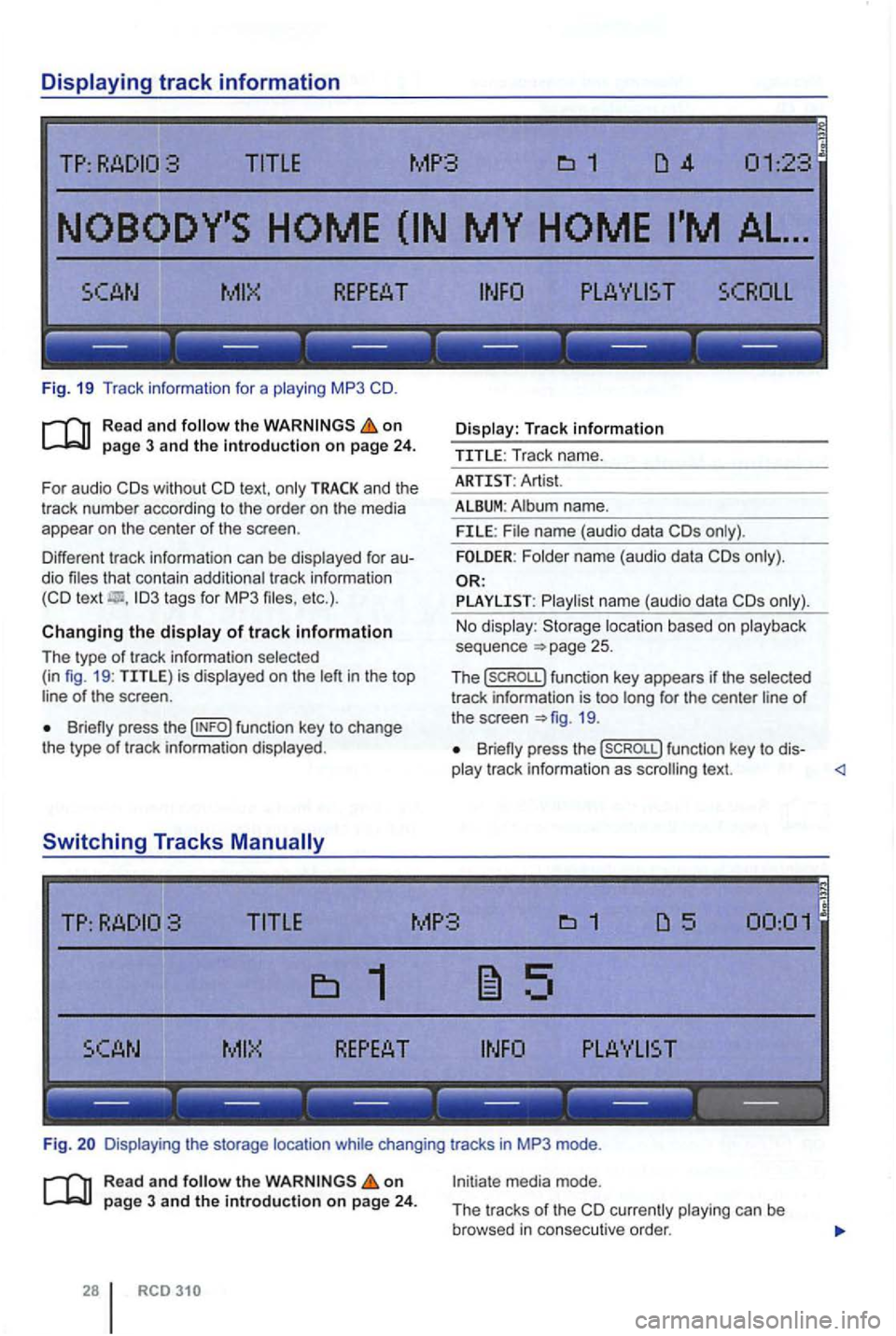
Fig. 19 Tr ack information for a playing MP3
on
and the
t rack number according to the order on the media
appear on the center of the scree n.
Different tr ack information can be displayed
for au
dio files that contain add itiona l tr ack information
Briefly press the
Display : Track information
TITLE : Track name.
ARTI ST: Artist.
ALBUM: Album name.
FILE: File name (audio data
Folder name (audio data
PLAYLIST : P lay list na me (a udi o data
loca tion based on play back
seq uence 25 .
The (sCROLL) funct ion key appears if the selec ted
track information is too long for the center line of the screen 19.
Briefly press the (SCROLL) function key to dis-
play track information as scrolling text.
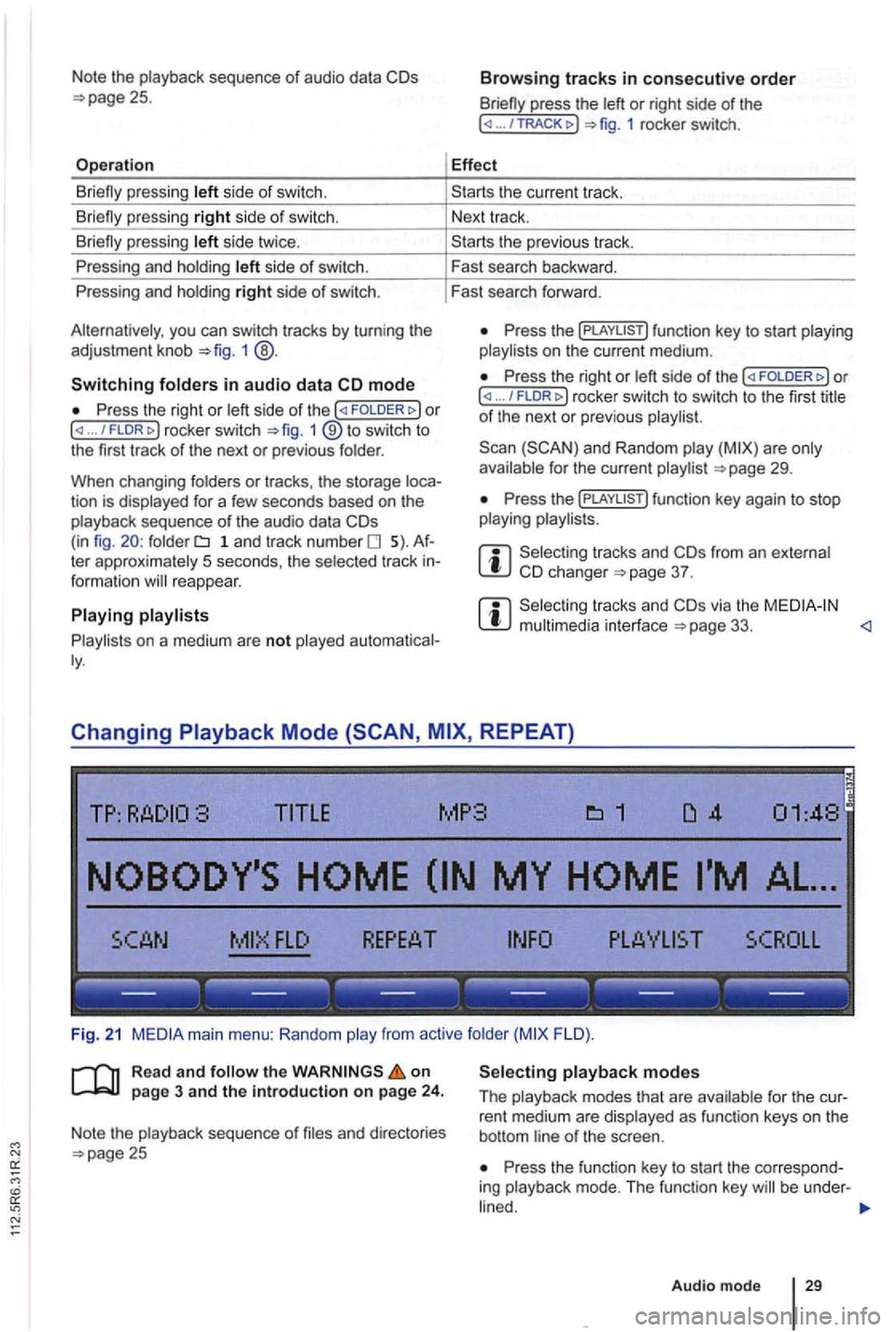
Fig. Disp laying the storage location while changing tracks in MP3 mode .
Rea d and the on page 3 and the introduction on pag e 24.
RCD
Initiate media mode.
The tracks
of th e currently playing can be
browsed in consecu tive order.
Page 456 of 541
Note the playback sequence of audio data
side of swi tch.
si de twice .
P ressing and holdi ng
side of switch.
Pressing and holdi ng
right side of switch.
you can switch tracks by turn ing the
adjustment knob 1 @ .
Switching in audio data mode
P ress the right or / FLDR fig . 1 ® to swi tc h to
the first track of the next or previous folder.
When changing folders
or tracks , the storage tion is displayed for a few seconds based on the
playback sequence of th e a udio data folder 1 a n d tr ac k number 5). te r approximately 5 seco nds, the selected track reappear.
on a medium are not played
press the or right side of the ... 1 rocker switch.
Effect
th e previous tr ac k.
F ast search backward .
Fast search forward .
Press the on t he current medium.
Press the right or ... / rocker switch to switch to th e firs t title of th e next or pre vio us
for the current page 29.
Press th e
from an e xternal 37 .
via the page 33. <1
Changing REPEAT)
TITLE MP3
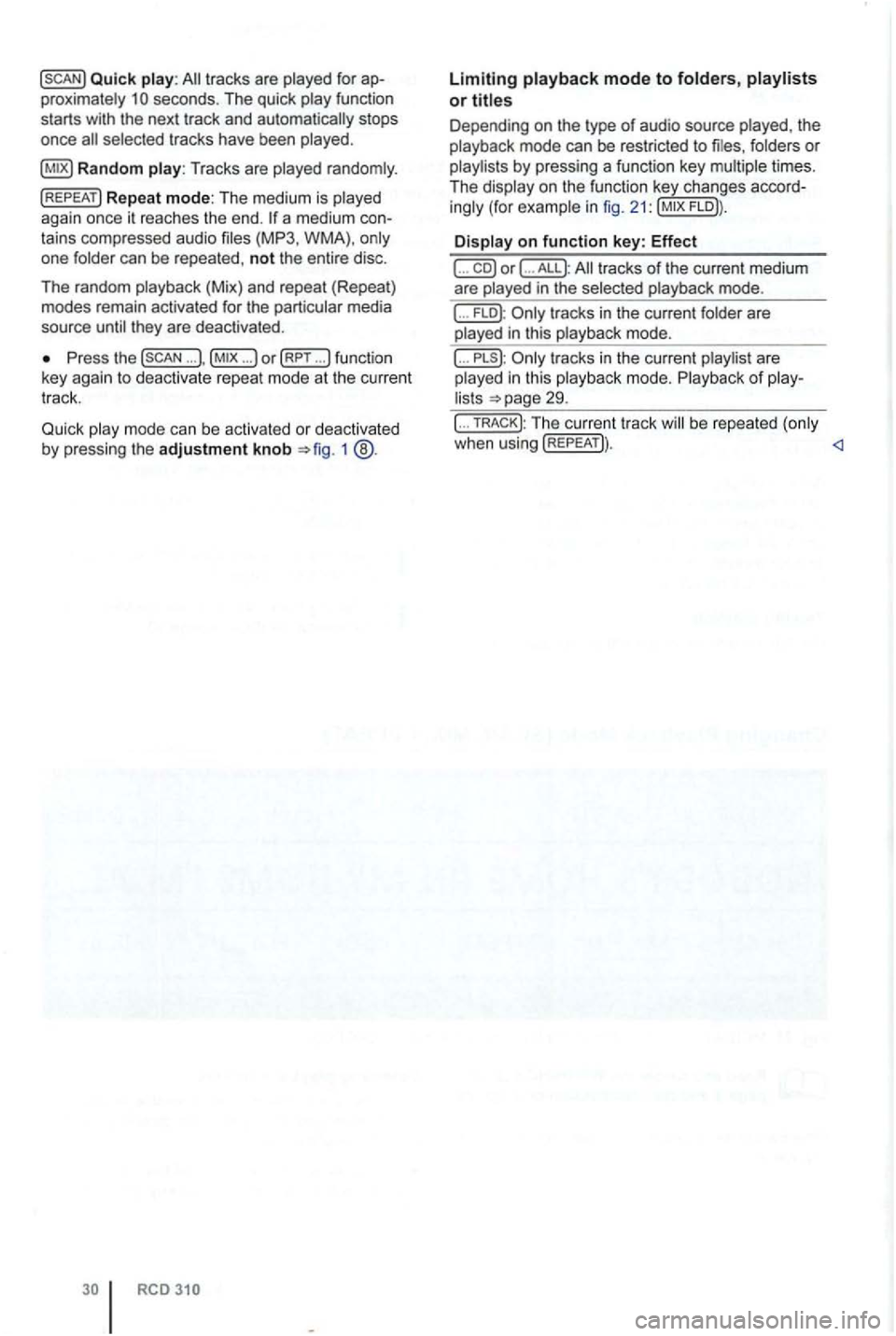
FLO ).
R ea d
and on page 3 and the introduction on page 24.
Note the playback sequence of and directories 25 Press the function key to start the correspo nd
ing playback mode. T he functi on key be under -
Audio mode 29
Page 457 of 541
Quick play: tracks are played for ap
proximately secon ds. The quick
selected tracks have been played.
Press the ... ... )o r (RPT ... !function
key agai n to deact ivate repeat mode at the current
tr ack.
Quick
m ode can be activated or deactivated by pressing the adjustment knob 1
RCD
Limiting playback mode to folders,
Depending on the type of audio source folders or
playlists by press ing a function key
Display on function key: Effect
( ... co) or ( ... ALL): tracks of the current medium
are played in the selected playback mode.
... FLO ): tracks in the current folder are
played in this playback mode.
( ... tracks in the current are
played in thi s playback mode. Playback of playlists 29.
( ... TRACK); Th e curren t tr ack be repeated (only
when using (REPEAT)) .
Page 458 of 541
Introduction
this sec tio n find infor m atio n on the ing:
External audio sources connected to the instructio ns 3
Device overview
Media page 24
Read and the instructions for use of
Read and on
multimedia
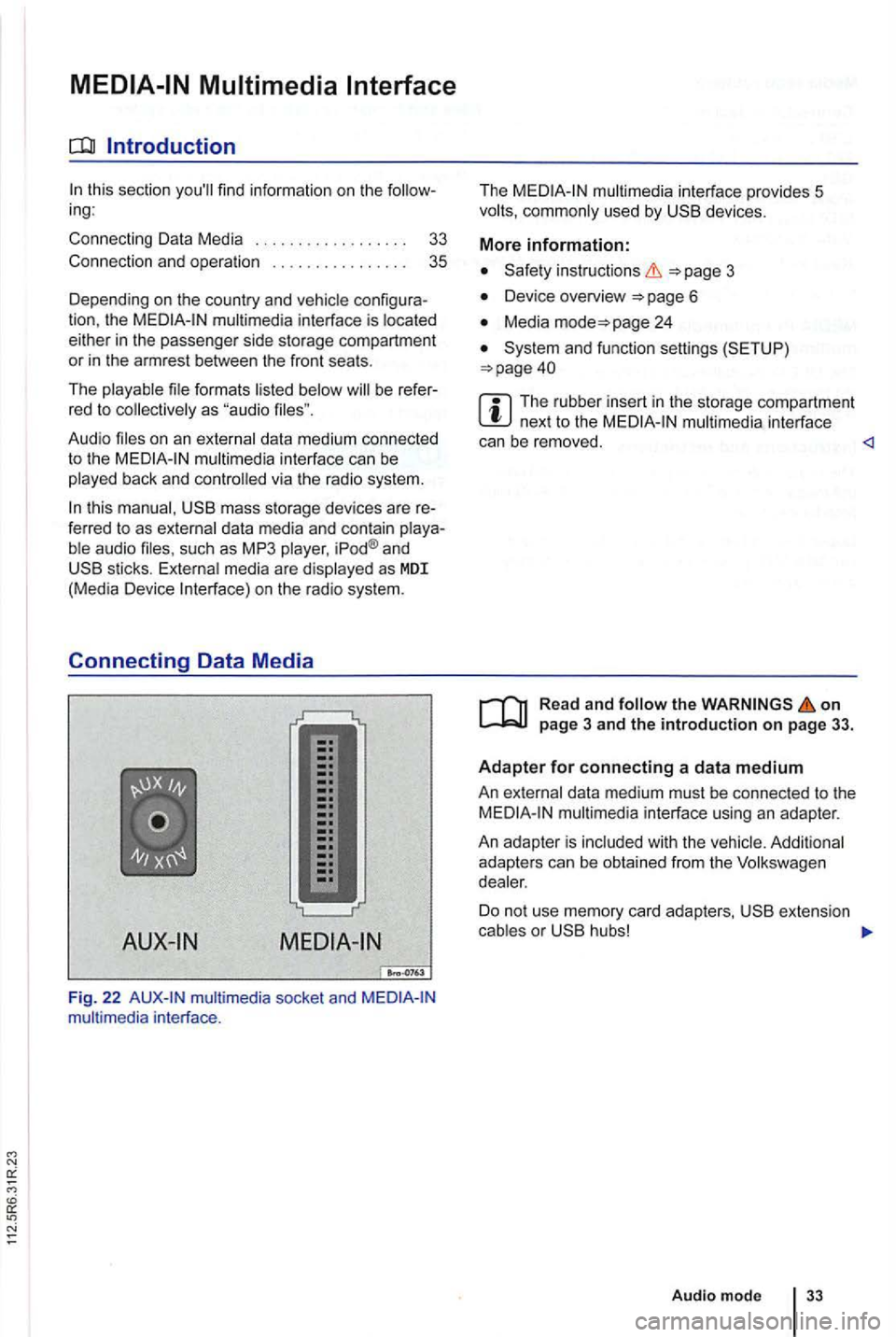
socke t may be found in the passe nge r side storage
compart ment, in the cent er conso le
or in the rest between the front seats.
Th e
mul timedia socket only wor ks with a
3 .5 mm jack plug.
A co nnected audio source is indic ated by the
menu
Connect an external audio source to the mu ltimedia socket.
Lowe r the radio's default volume
the Media selection menu and selec t th e 27 . The
volume shoul
d be adjusted to match the ume of othe r aud io sources 41 .
multimedia interfaces
of function key, the be display ed on the screen in
page 33.
An audio source con nected to an
dia socket can only be played when no exte rnal
media is con nected to the multimedia terface .
The radio system remains in the AUX menu after playba ck of an exte rnal audio source
ends or afte r the connecto r is disconnecte d from
the
the ext ernal audio source is powered by the 12 volt
Read and the on page 3 and the Introduction on page 31.
Bluetooth audio mode is onl y possible in let Mobile Phone Package .
The external media pla yer (a mob ile phone , for ex-
ample ) must supp ort Blu etoo th A2DP
Audio mod e 31
Page 460 of 541
Introduction
this section find info rm atio n on th e ing:
Co nnecting Data Media
..
Connection and op erati on 33 3
5
Dep ending on th e country an d co nfigura
tion , th e interface is
formats b e refer
red to
interface can be
this mass storage dev ices are re
ferred to as data media and con tain aud io such as MP3 iPod ® and sticks. media are on the radio system.
Connecting Data Media
Fig. 22 socket and interface . T
he
used by devices.
More information:
3
Device overview
Media page 24
and functio n sett ings (S ETUP )
The ru bber insert in the storage compa rtment next to the interface
can be removed.
the on page 3 and the introduction on page 33.
Adapter for connecting a data medium
An data med iu m m ust be connec ted to the multimedia interface using an adap ter.
An adapte r is adapte rs can be obtain ed from the
Do no t us e me mory card adapters,
Audio mode
Page 461 of 541
Media requirements
Connectable da ta media
o r "R eady For-
Vis ta " trade mark . Fi
les
and fo rmats re adable by the ra dio system
-Audio mat. -in 848,
the o perat iona l ins tructions of the external data medi um .
and ar e prot ected tra demarks o f Apple
m ult imedia interface is often
they a re rea dy to
RCD
must not be jamme d or s e ve re ly bent. This c an damage the adapter ble an d lea d t o functional faults.
Page 462 of 541
Connection and operation
TP:
SCROLL
--- --- --- --- --- ---
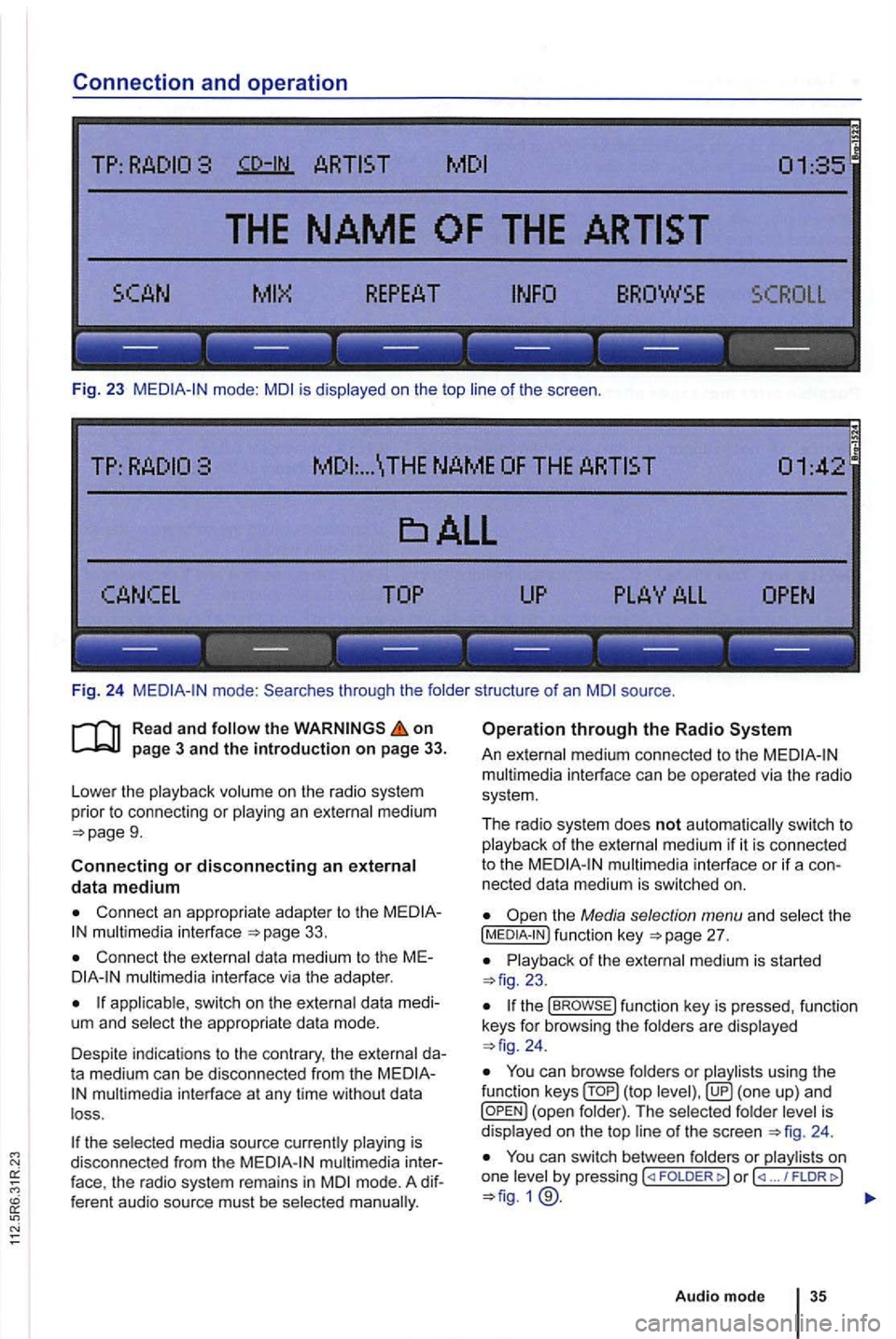
Fig. 23 mode: is displayed on the top of the scree n.
... \THE NAME
------------------
Fi g. 24 through the folde r structure of an source .
on
9.
Connecting or disconnecting an external data medium
Connect an appropriate adapter to the 33.
Connect the external dat a med ium to the M Emultimedia interface via the adapte r.
app licab le, switch on the externa l data medi
um and select the appropriate data mode.
Despite in dicat ions to the contrary , the external da
t a medium can be discon nected from the
multimedia in terface at any time withou t da ta
l oss .
the selected media source currently playing is
disconnected from the
mode. A dif
f eren t audio source must be selec ted
Operation through the Radio
An external medium connected to the multim edia interface can be operated via the radio
sys tem .
The r
adio system does not auto matic ally switc h to p la yback of the externa l medium if it is connected
to the
the Media selection menu and select the [MEDIA-IN ) fu nctio n page 27.
23.
the func tion key is pressed , functio n
keys for browsi ng the folders are displayed 24 .
You ca n browse folders or playlists using the
function ( top is
d isplaye d on the top 24 .
You can switch between folders or play lis ts on
one by pressing FOLDER ... / FLDRt>)
Audio mode
Page 463 of 541
tracks in a or track .
press the or rig ht side of the ... / TRACK 1 rocker switch .
D iffe rent
and
an ®or an ®is con nected , can be
men u is operat ed as usual.
The music
of a connected or is
Th e or be adjuste d to match the of other
audio sources 41.
of the data
med ium or communicatio n via
the adap ter
is not
Commu nicatio n malfun ctioning . Check
the adap ter
U pdate software of th e media interface via th e er. u pda te the softwa re of th e data medium.
Ver i
fy the connection and of data medium .
D ue to the
number of different types of data media and and generatio n s, no
g uar antee can be made that all fun ctions described can be exec uted without errors.
Page 464 of 541
find information on the ing:
Overview . . . . . . . . . . . . . . . . . . . . . . . . . . . .
37
Ope ration through the Radio System . . . . . . . 38
Depending on the
into
the CD changer. The changer does not have
to be
L oaded via the
Safety instructions
Device overview
Media page 24
Audio data and audio DVDs cannot be CD changer.
Copy-protected and CD -RW media may ited or no playback .
No CD text can be disp layed for back in the changer .
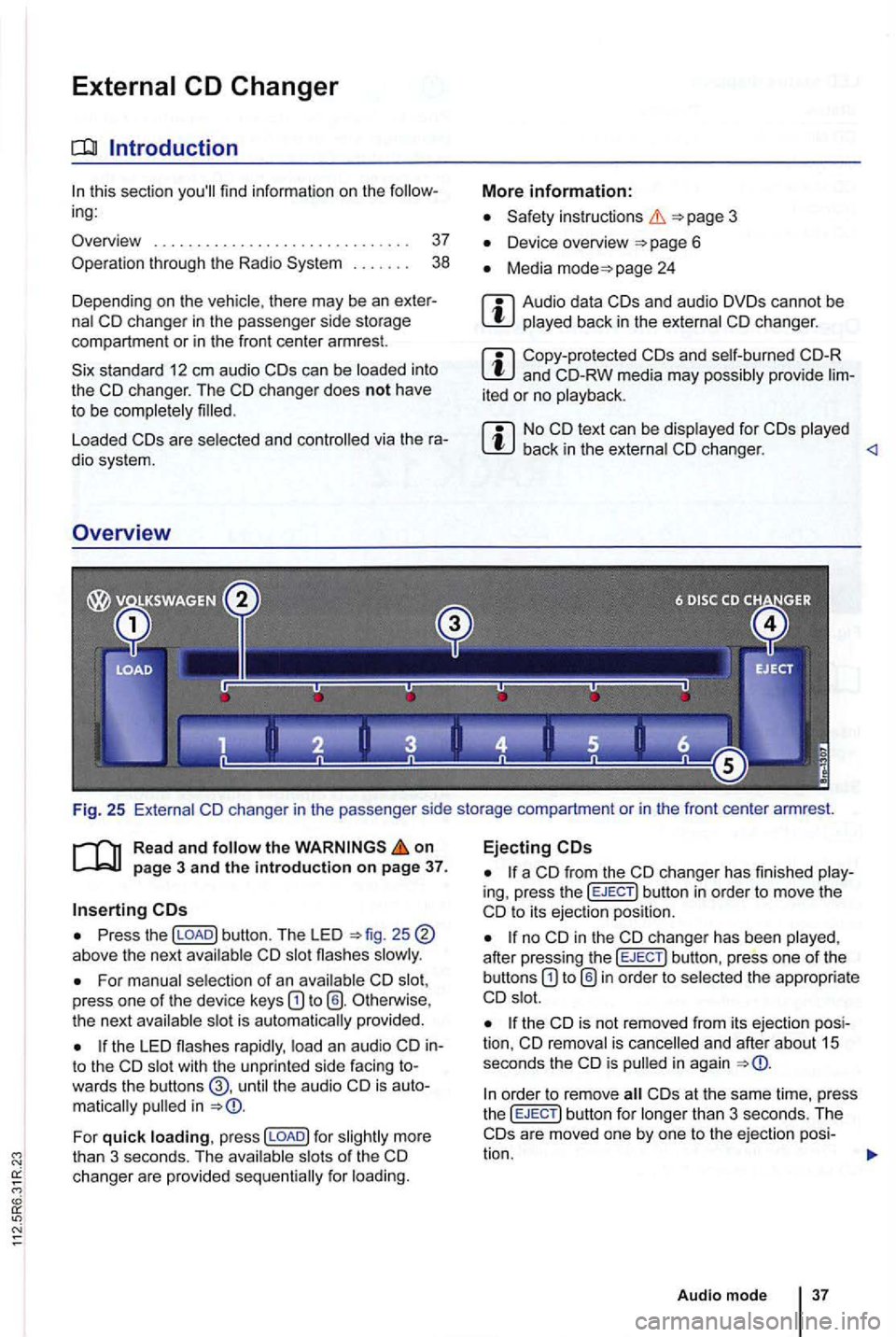
Fig. 25
on pa ge 3 and th e intro duction on page 37 .
Press the above the next
For of an CD press one of the device keys is provided.
to the CD with the unprinted side facing wards the buttons the audio CD is in
For quick press !LOAD] for more
than 3 seconds. The
for
Ejecting
a CD from the CD changer has finished ing, press the !EJECT ] button in order to move the
CD to its ejection position.
after pressing the EJECT] button , press one of the
buttons the appropria te
the CD is not removed from its ejection is and after about 15
seconds the is
EJECT ] button fo r
Audi o mod e 3 7
Page 467 of 541
find information on the ing :
Changing
settings . . . . . . . . . . . . . . . . . . . . . . . 40
Gen eral and Function Settings . . . . . 40
DAB settings . . . . . . . . . . . . . . . . . . . . . . . . . . . 42
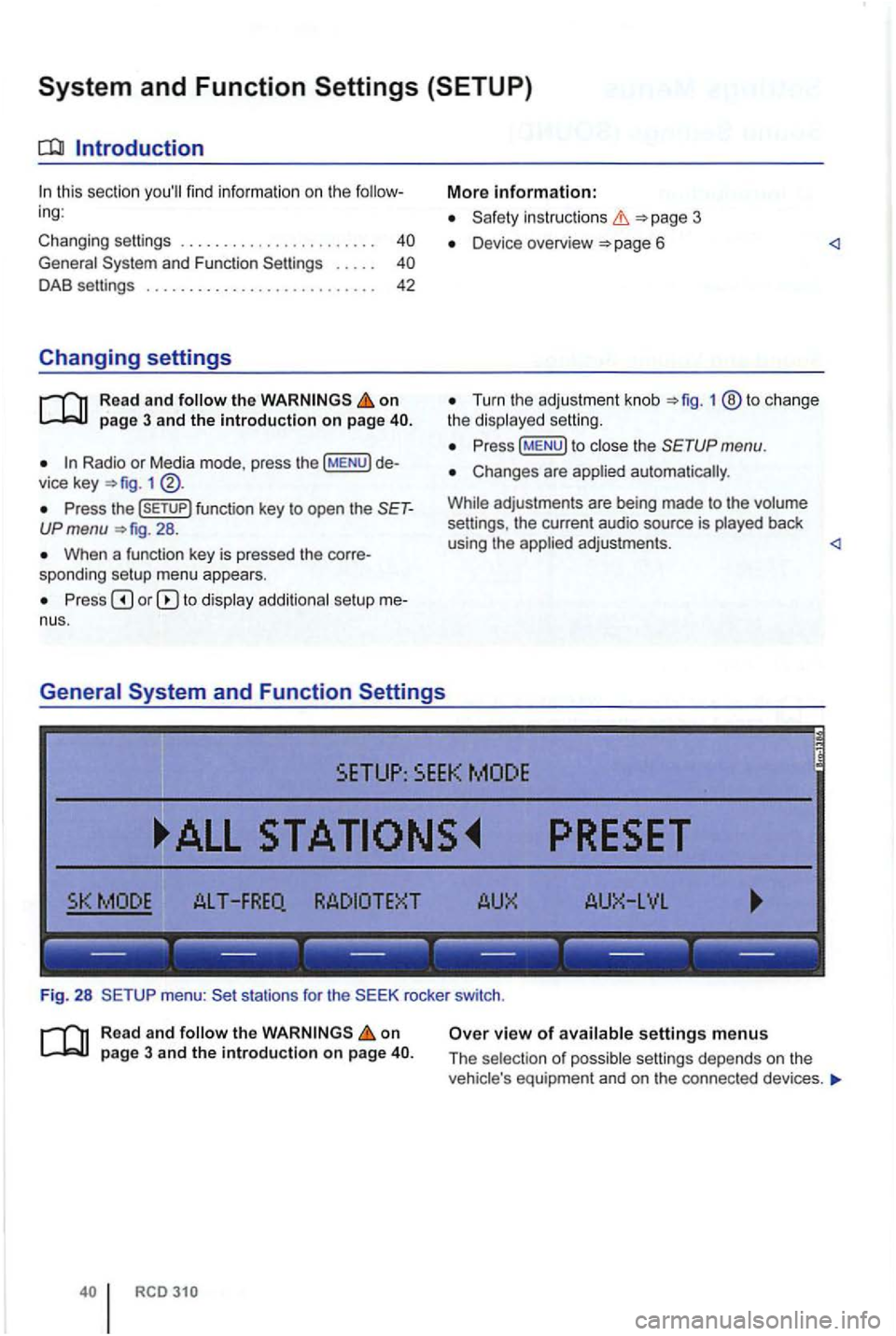
Changing settings
on page 3 and the introduction on page
1
More information:
instructions 3
D evice overview 6
Turn the ad justment knob 1 ® to change
the
(MENU) to menu.
Changes are applied automati call y.
While adjustme nts are being made
to the settings, the cur rent audio source is played back
When a function key is pressed the corre
sponding setup menu appears . using
the appl ied adjustments .
to display setup me
nus .
menu: rocker switc h.
Read and on page 3 and the introduction on page view of a vailable settings m enus
Th e se lect ion of po ssi ble settings depends on the
eq uipm ent and on th e con necte d devi ces .