service VOLKSWAGEN ID.4 2022 User Guide
[x] Cancel search | Manufacturer: VOLKSWAGEN, Model Year: 2022, Model line: ID.4, Model: VOLKSWAGEN ID.4 2022Pages: 417, PDF Size: 5.39 MB
Page 239 of 417
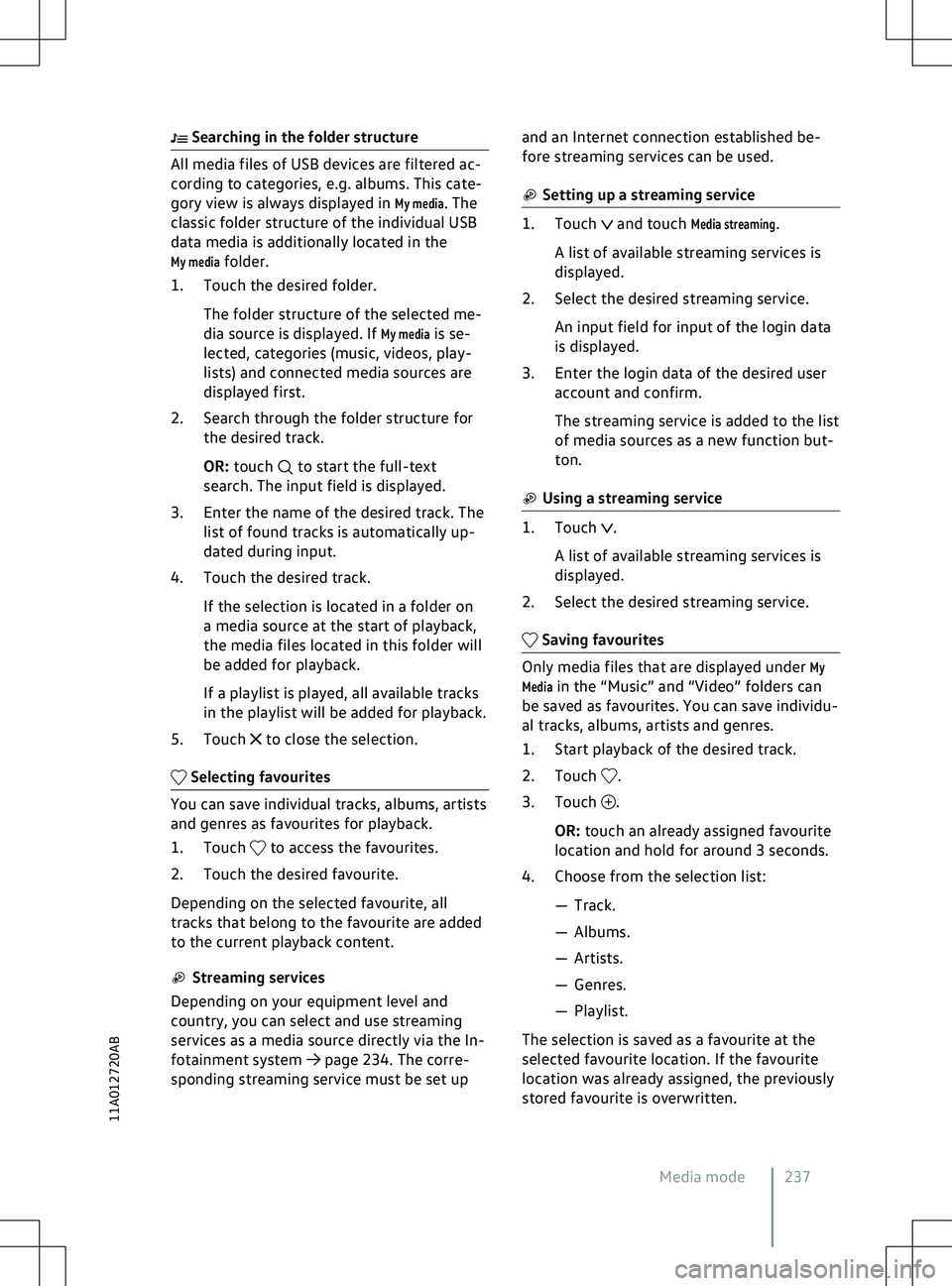
Searching in the folder structure
to start the full-text
search. The input field is displayed.
3.
Enter the name of the desired track. The
list of found tracks is automatically up-
dated during input.
4. Touch the desired track.
If the selection is located in a folder on
a media source at the start of playback,
the media files located in this folder will
be added for playback.
If a playlist is played, all available tracks
in the playlist will be added for playback.
5. Touch to close the selection.
to access the favourites.
2.
Touch the desired favourite.
Depending on the selected favourite, all
tracks that belong to the favourite are added
to the current playback content. and touch
Media streaming.
A list of available streaming services is
displayed.
2. Select the desired streaming service.
An input field for input of the login data
is displayed.
3. Enter the login data of the desired user account and confirm.
The streaming service is added to the list
of media sources as a new function but-
ton. .
A list of a
vailable streaming services is
displayed.
2. Select the desired streaming service. .
3.
Touch .
OR: touch an already assigned fa
vourite
location and hold for around 3 seconds.
4. Choose from the selection list:
Page 240 of 417
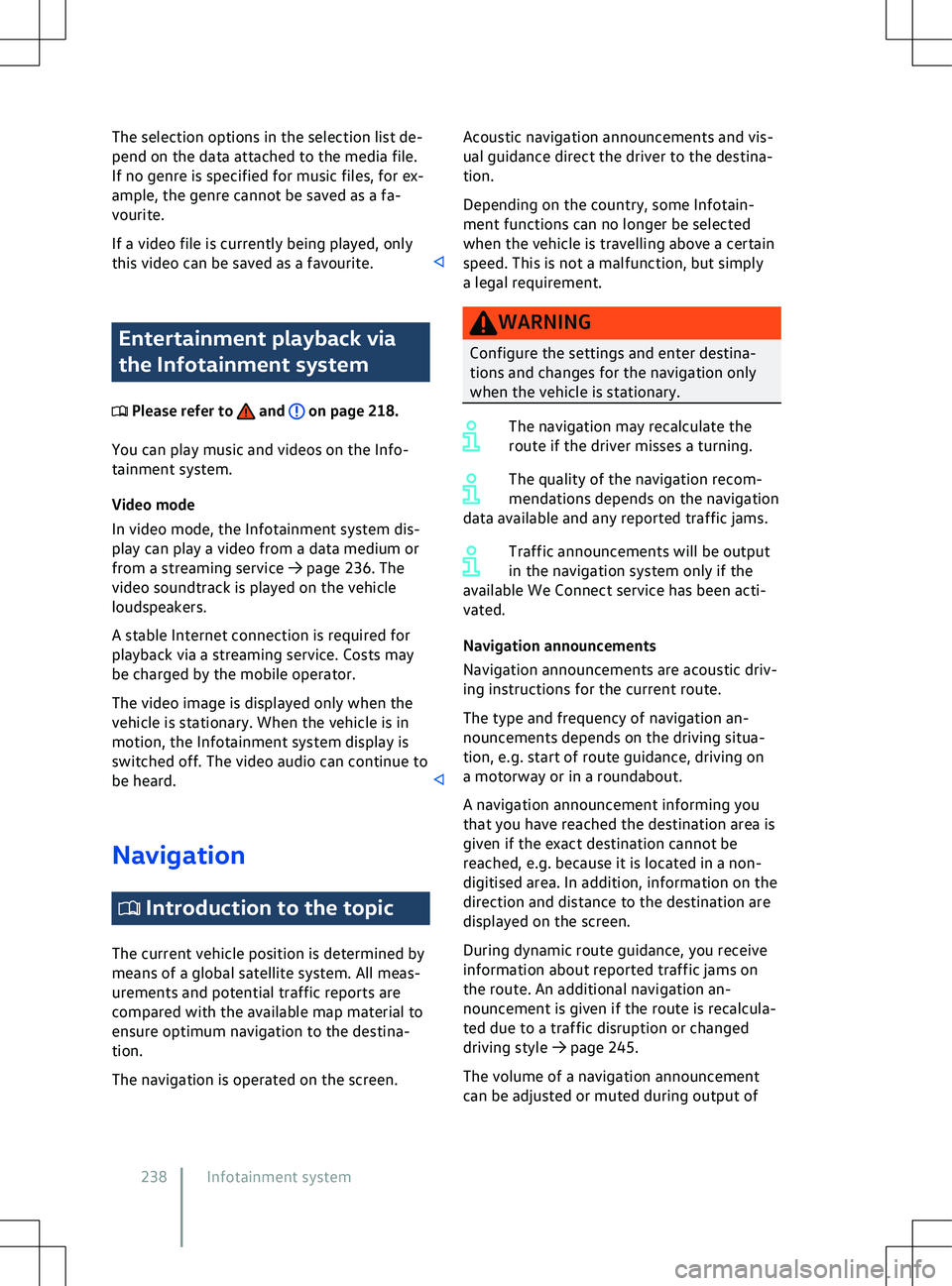
The selection options in the selection list de-
pend on the data attached to the media file.
If no genre is specified f
or music files, for ex-
ample, the genre cannot be saved as a fa-
vourite.
If a video file is currently being played, only
this video can be saved as a favourite. Entertainment playback via
the Inf
otainment system Please refer to and on page 218.
You can play music and videos on the Inf
o-
tainment system.
Video mode
In video mode, the Infotainment system dis-
play can play a video from a data medium or
from a streaming service
Page 276 of 417
x
Damage to the v ehicle or to the high-
voltage battery could lead to a leak of
toxic gases or fluids, either immediately
or at a later time. These emitted gases
could also potentially cause a fire. Do
not inhale these gases.
x Never touch the fluids that leak from the
high-voltage battery.
x In the event of a fire, move away from
the hazard area and call the fire service.
x Always inform any attending fire and
emergency services that the vehicle is
fitted with a high-voltage battery. NOTICE
After an accident, or after the underside of
the v
ehicle has struck an obstacle, the high-
voltage battery must be checked by appropri-
ately qualified and trained experts. Warning signs for the high-
v
oltage system Please refer to , and at the start
of the chapter on page 273.
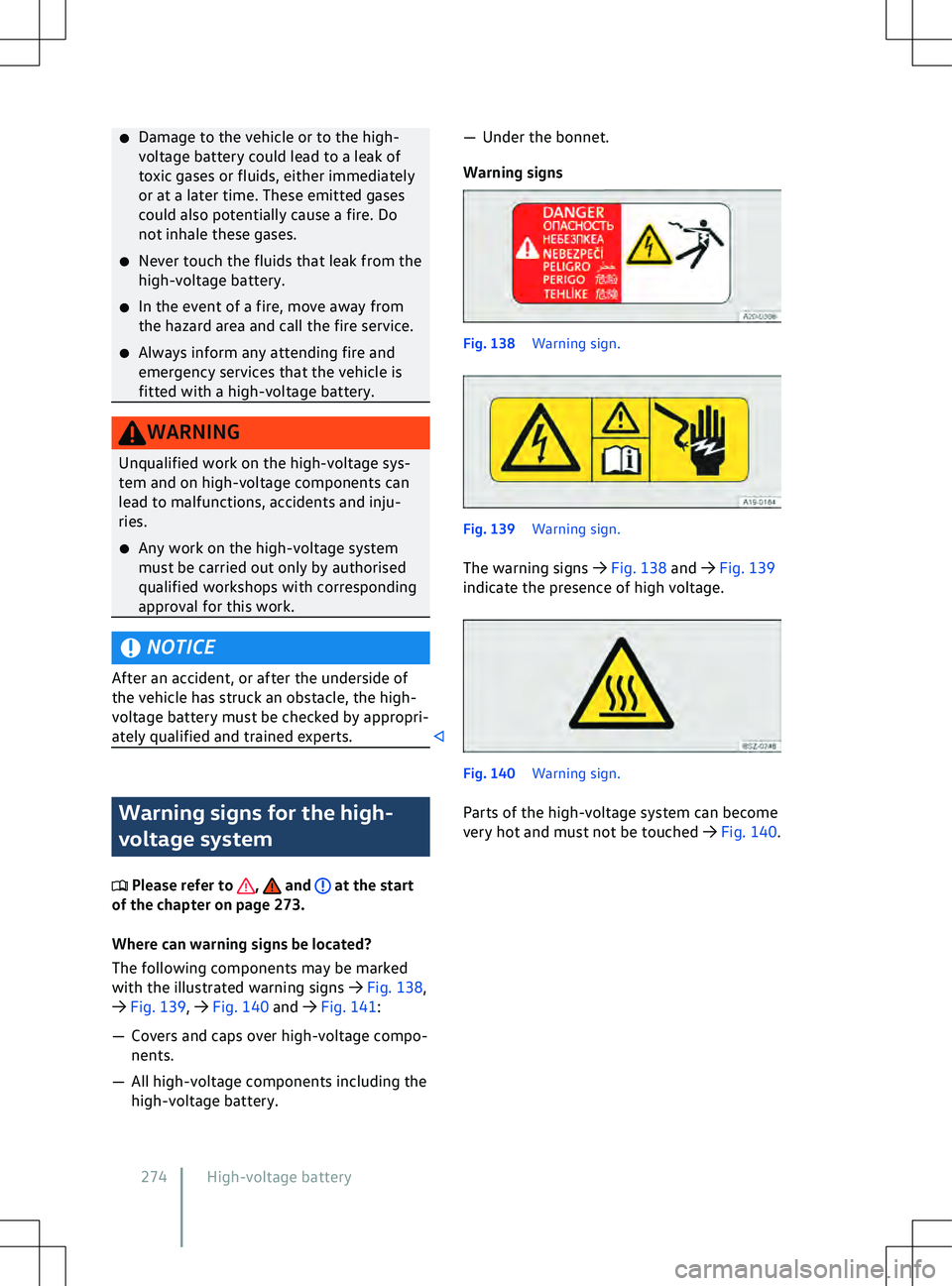
Where can warning signs be located?
The f
ollowing components may be marked
with the illustrated warning signs
Page 299 of 417
signed differently depending on the vehicle
equipment le vel and because several electri-
cal consumers may use a single fuse. You can
obtain further information about the fuse as-
signment from a Volkswagen dealership.
Several electrical consumers can share a sin-
gle fuse. Conversely, a single consumer could
have more than one fuse.
Therefore fuses should only be replaced
when the cause of the fault has been recti-
fied. If a new fuse blows again shortly after
fitting, have the electrical system checked by
a qualified workshop as soon as possible.
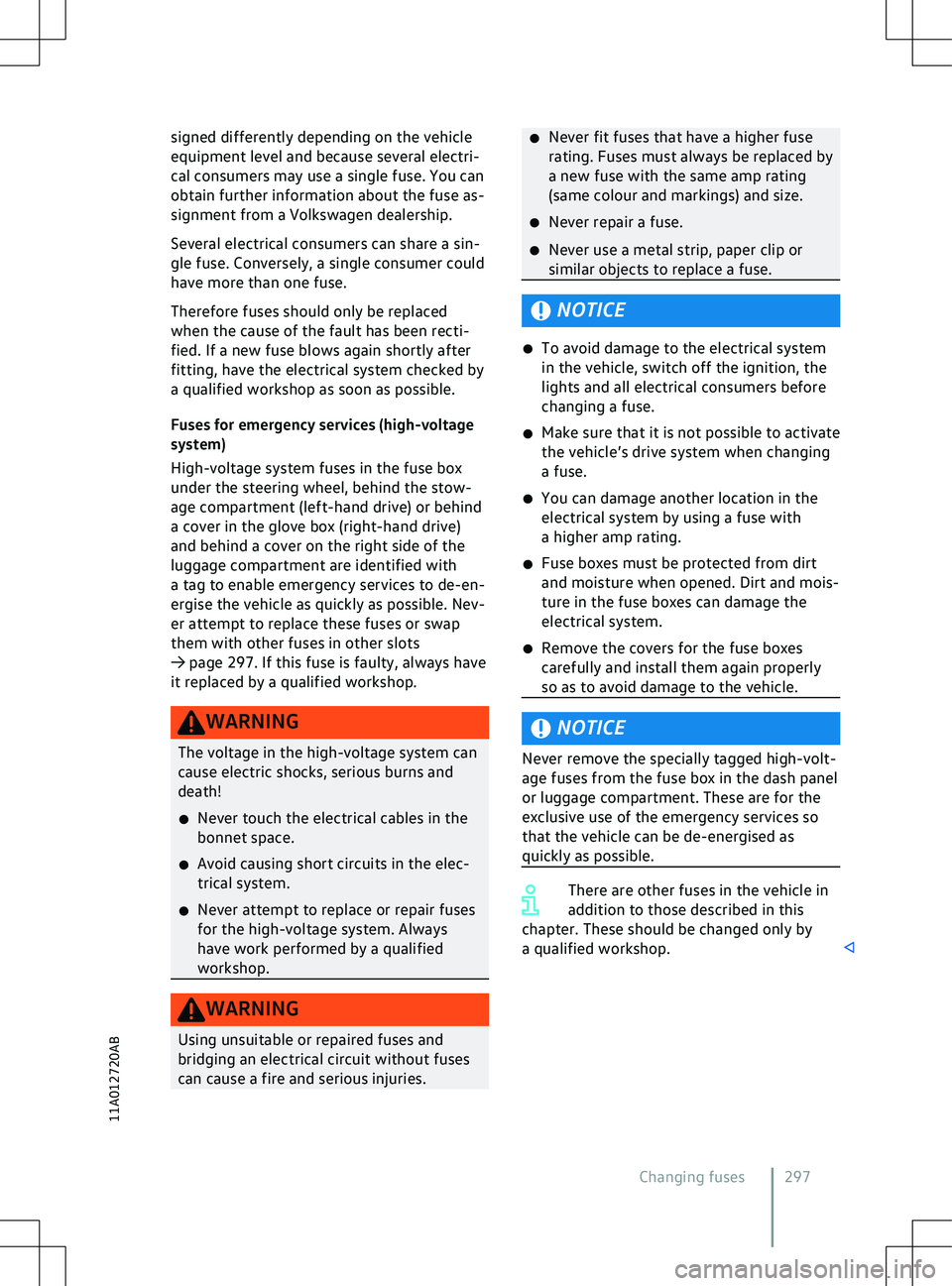
Fuses for emergency services (high-voltage
system)
High-voltage system fuses in the fuse box
under the steering wheel, behind the stow-
age compartment (left-hand drive) or behind
a cover in the glove box (right-hand drive)
and behind a cover on the right side of the
luggage compartment are identified with
a tag to enable emergency services to de-en-
ergise the vehicle as quickly as possible. Nev-
er attempt to replace these fuses or swap
them with other fuses in other slots
Page 311 of 417
Checking and refilling
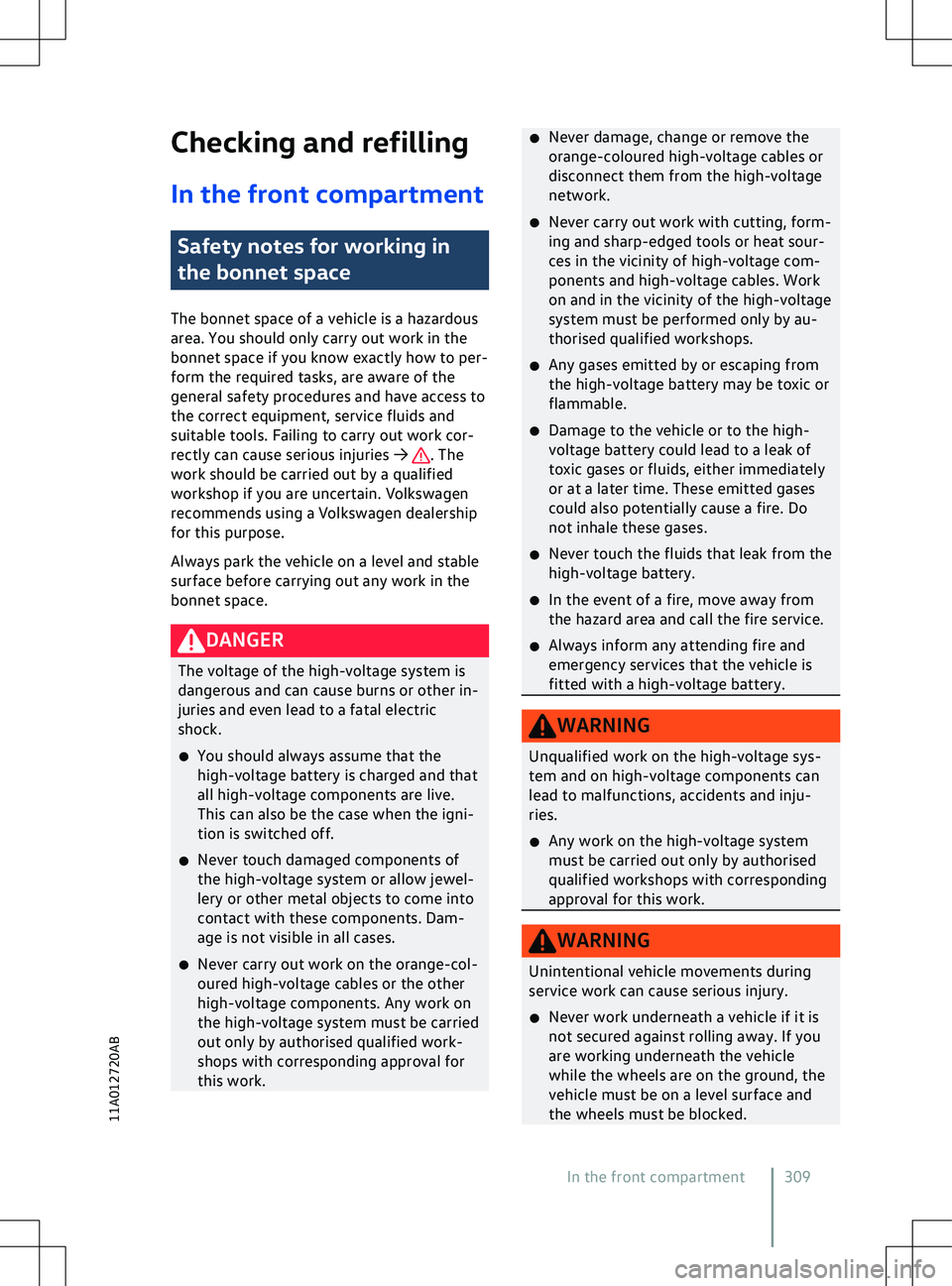
In the front compartment Safety notes for working in
the bonnet space
The bonnet space of a v
ehicle is a hazardous
area. You should only carry out work in the
bonnet space if you know exactly how to per-
form the required tasks, are aware of the
general safety procedures and have access to
the correct equipment, service fluids and
suitable tools. Failing to carry out work cor-
rectly can cause serious injuries
Page 316 of 417
oped. This also applies to engine oils in the
case of combustion engines. F or this reason,
service fluids and consumables should be re-
placed at a qualified workshop. Volkswagen
dealerships are kept up to date on all
changes. NOTICE
x Only use suitable service fluids f
or refilling.
Never use the wrong service fluid. Failure
to observe this warning can result in seri-
ous malfunctions and engine damage. Leaking service fluids can pollute the
en
vironment. Spilt service fluids must
be collected in suitable containers and dis-
posed of properly and in an environmentally
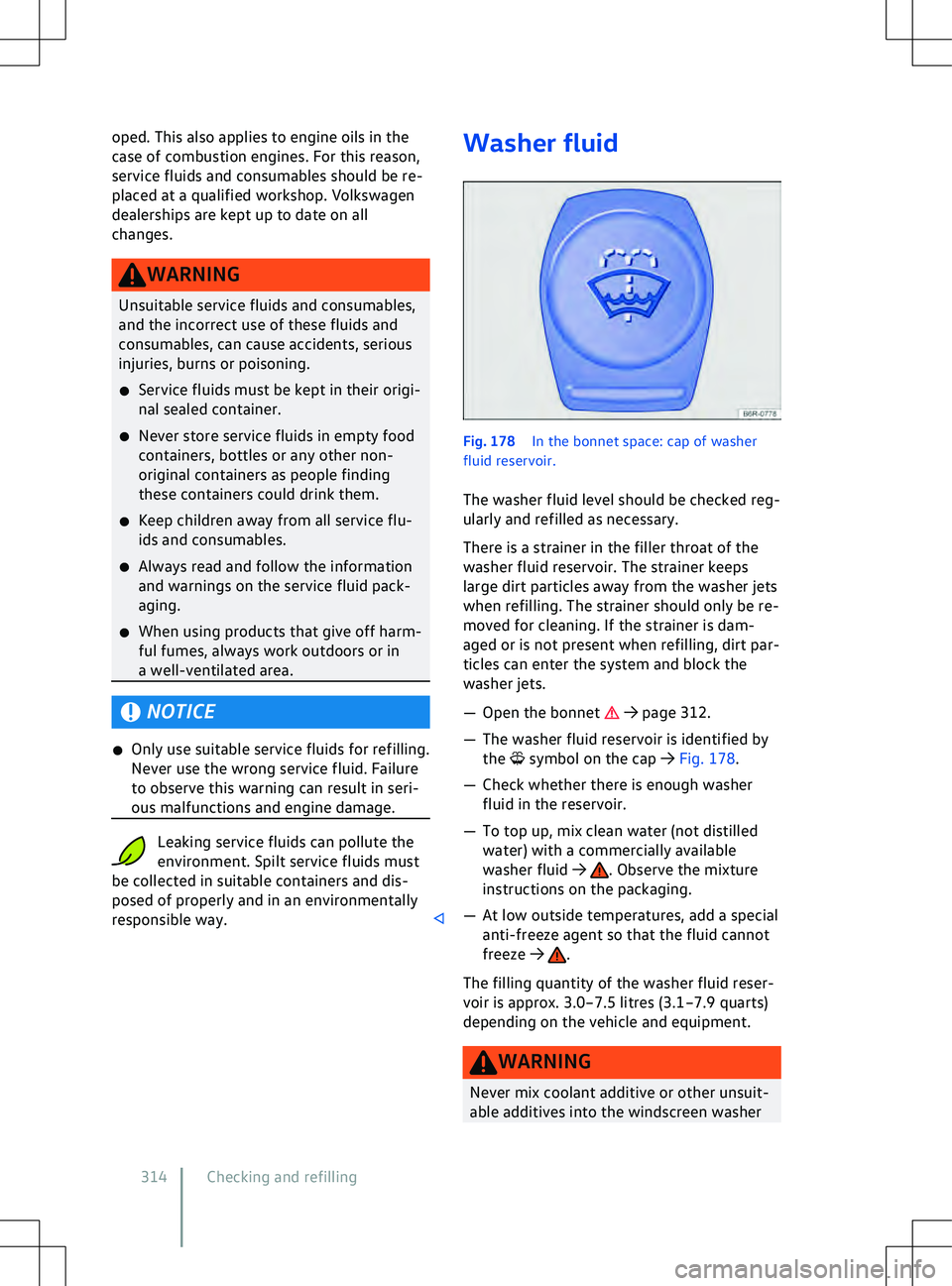
responsible way. Washer fluid
Page 317 of 417

fluid. These may leave an oily film on the
window, considerably restricting the field
of vision.
NOTICE
x Ne ver mix suitable cleaning agents with
other cleaning agents. This can cause the
ingredients to separate and block the
washer jets. Coolant
Introduction to the topic
Do not work on the cooling system unless
you are familiar with the task, aware of the
general saf
ety procedures and have the cor-
rect equipment, service fluids and suitable
tools. Failing to carry out work correctly can
cause serious injuries
Page 318 of 417
WARNING
Insufficient anti-freeze in the cooling sys-
tem of the v ehicle can cause the electric
drive to break down and thereby cause se-
rious injuries.
x The amount of correct coolant additive
used must be sufficient for the lowest
ambient temperature that you expect
the vehicle to be exposed to.
x Coolant can freeze at extremely cold
outside temperatures, causing the vehi-
cle to break down. Vehicle occupants
with inadequate winter clothing could
then freeze to death as the heating will
also no longer function. NOTICE
Never mix genuine coolant additives with
other coolants that ha
ve not been approved
by Volkswagen.
x If the liquid in the coolant expansion tank
is not pink (colouring results from mixing
the purple coolant additive with distilled
water) but for example brown instead of
purple, the suitable coolant has been
mixed with an unsuitable coolant additive.
The coolant must be changed as soon as
possible if this is the case. Failure to ob-
serve this warning can result in serious
malfunctions or damage to the electric
drive and cooling system. Coolant and coolant additives can pol-
lute the en
vironment. Spilt service flu-
ids must be collected and disposed of proper-
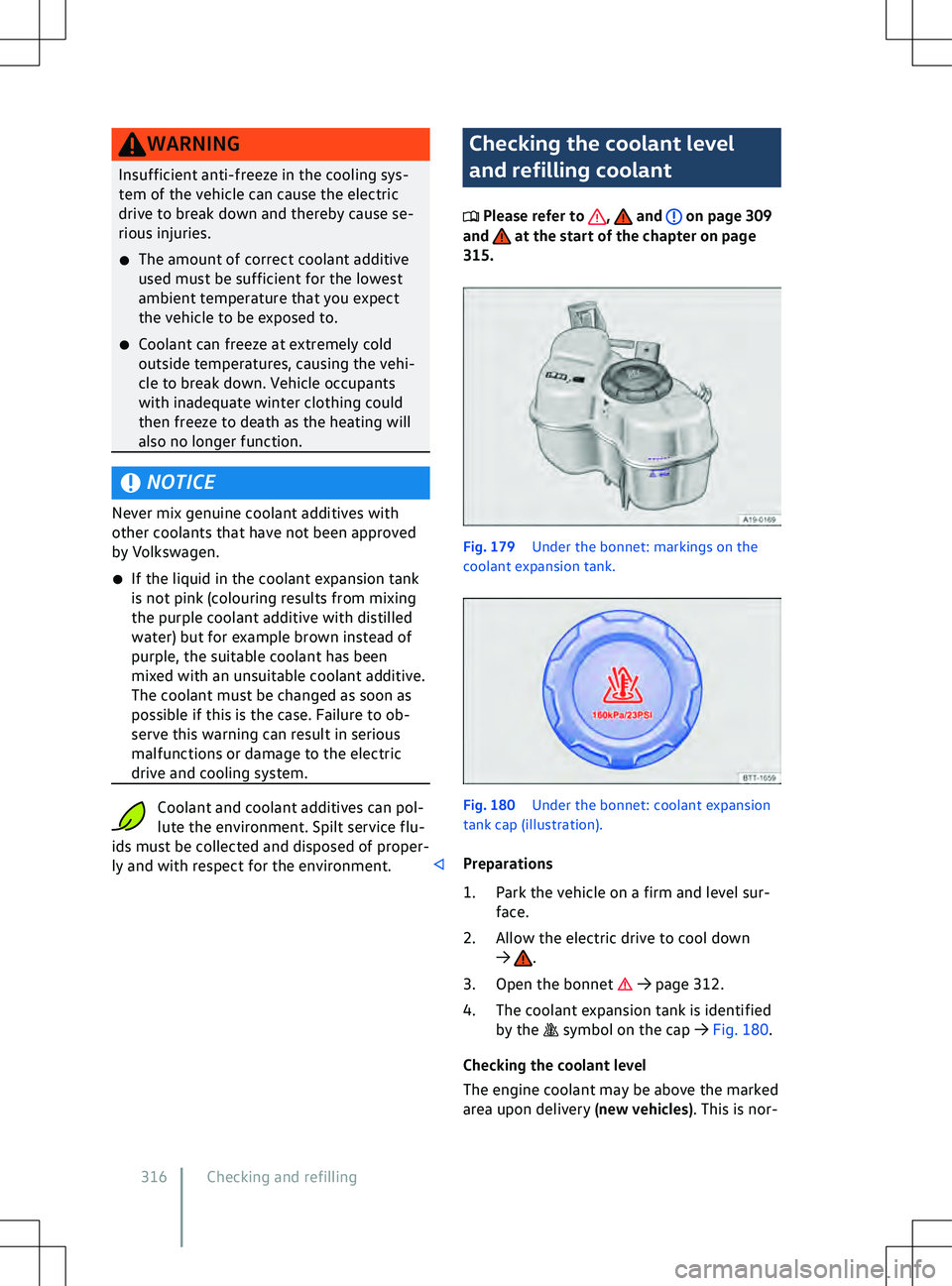
ly and with respect for the environment. Checking the coolant level
and refilling coolant
Please refer to , and on page 309
and at the start of the chapter on page
315. Fig. 179
Under the bonnet: markings on the
coolant e
xpansion tank. .
3.
Open the bonnet
Page 320 of 417
cooling system when the engine is hot and
could cause damage.
x If a large amount of coolant has been lost,
do not refill the coolant until the engine
has cooled completely. Hea
vy coolant loss
is an indication of leaks in the cooling sys-
tem. The cooling system should be
checked by a qualified workshop as soon
as possible. Failure to do so can result in
engine damage.
x Do not refill coolant if there is no more
coolant in the coolant expansion tank. Air
could have entered the cooling system. Do
not drive on! Seek expert assistance. Fail-
ure to do so can result in engine damage.
x When refilling service fluids, please ensure
that you pour the correct service fluids in-
to the correct openings. The use of incor-
rect service fluids can result in serious
malfunctions and damage to the electric
drive. Troubleshooting
Please refer to , and on page 309
and at the start of the chapter on page
315. Coolant
The indicator lamp flashes red.
Engine coolant temperature too high or en-
gine coolant le
vel too low. Do not driv
e on!
Stop the vehicle as soon as possible and
when safe to do so.
Page 322 of 417
x
The refilled brake fluid must be new. NOTICE
Brake fluid that has leaked or been spilt can
damage the v ehicle paintwork, plastic parts
and tyres. Wipe off brake fluid that has
leaked or been spilled immediately from all
parts of the vehicle. Brake fluid can pollute the environ-
ment. Any spilt service fluids must be
cleaned up and disposed of properly. 12-volt vehicle battery
Introduction to the topic
The 12-
volt vehicle battery is a component of
the electrical system and in event of the
high-voltage system failing, supplies the
safety-relevant systems of the vehicle with
energy. In the scope of maintenance work,
the 12-volt vehicle battery is checked and
where required, replaced.
You should only carry out work on the electri-
cal system if you know exactly how to per-
form the required tasks, are aware of the
general safety procedures and have access to
the correct equipment, service fluids and
suitable tools. Failing to carry out work cor-
rectly can cause serious injuries