buttons VOLKSWAGEN JETTA 2008 User Guide
[x] Cancel search | Manufacturer: VOLKSWAGEN, Model Year: 2008, Model line: JETTA, Model: VOLKSWAGEN JETTA 2008Pages: 477, PDF Size: 77.6 MB
Page 443 of 477
Booklet 3.4 Pre mium Sound System
Volume Knob
Volume Control
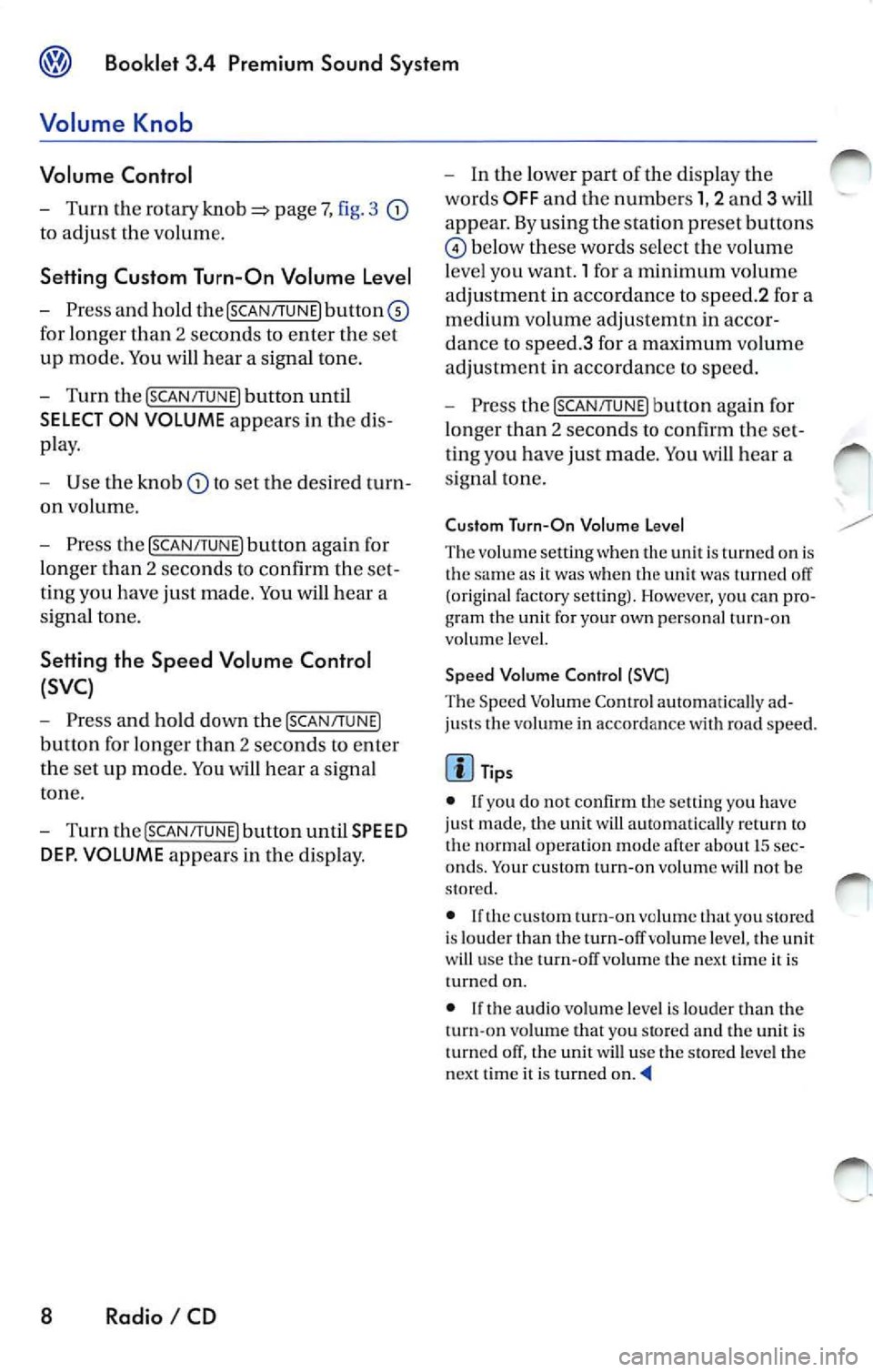
Turn the rotary page 7, fig. 3
to adjust the vo lum e.
Setting Custom Turn-On Volume Level
Press and hold the [SCAN/TUNE) button©
for longer than 2 seconds to enter the set
up mod e. You will hear a signal tone .
Turn the [SCAN/TUNE) button until
SELECT ON VOLUME appears in the dis
pla y.
Use the knob to set the desired turn
on volume.
Press the [SCAN /TUNE) button again for
lon ger than 2 seconds to confirm the set
ting you have just made. You will hear a
s ignal ton e.
Setting the Speed Volume Control
(SVC)
Press and hold down the [SCAN/TUNE)
button for longer than 2 seconds to ent er
th e set up mod e. You wi ll hear a sign al
ton e.
Turn the [SCA N/TUNE) button until SPEED
DEP. VOLUME
appears in the di sp lay.
8 Radio I CD
In the lower part of the display the
words OFF and the number s 1, 2 and 3
appear. By using the station preset buttons
below these words select the volume
l eve l you want. 1 for a minimum volum e
ad justme nt in accordance to spee d.2 for a
m ed ium volume adjustemtn in accor
dance to speed.3 for a maximum volum e
a djustment in accordance to spe ed.
Pre ss the [SCA N/TUNE) b utton again for
longer than 2 seconds to confirm the set
ting you ha ve just mad e. You will h ear a
s ignal tone.
Cu stom Turn-On Volume L evel
The volum e setting when the unit is tu rned on is
the same it was when the unit was turned off
(or ig inal factor y setting). However, yo u can pro-
g ram the unit for your own per sonal turn -on
vo lume level.
Speed Volume Control (SVC)
The Speed Volume Contro l automatica lly ad
justs the vol um e in accordance wit h road sp ee d.
Tips
• If you do not confirm the sellin g yo u ha ve
j u st made , th e unit automati cally return to
th e norma l operat io n m ode af te r about LS sec
onds . Your c usto m turn -on volume will no t b e
s tor ed.
• If
c u sto m turn-on volume th at you stored
is lo ud er than the t urn -off volum e leve l, the unit
wi ll use the turn-off volume th e nex t tim e it is
turn ed on.
• If the audio volume leve l is loud er than the
turn-on vo lume that you stor ed and
unit is
turn ed off, the unit will use the stor ed leve l the
next t im e it is turned on.
Page 444 of 477
Booklet 3.4 Premium Sound Sys tem
1
88. 89.1
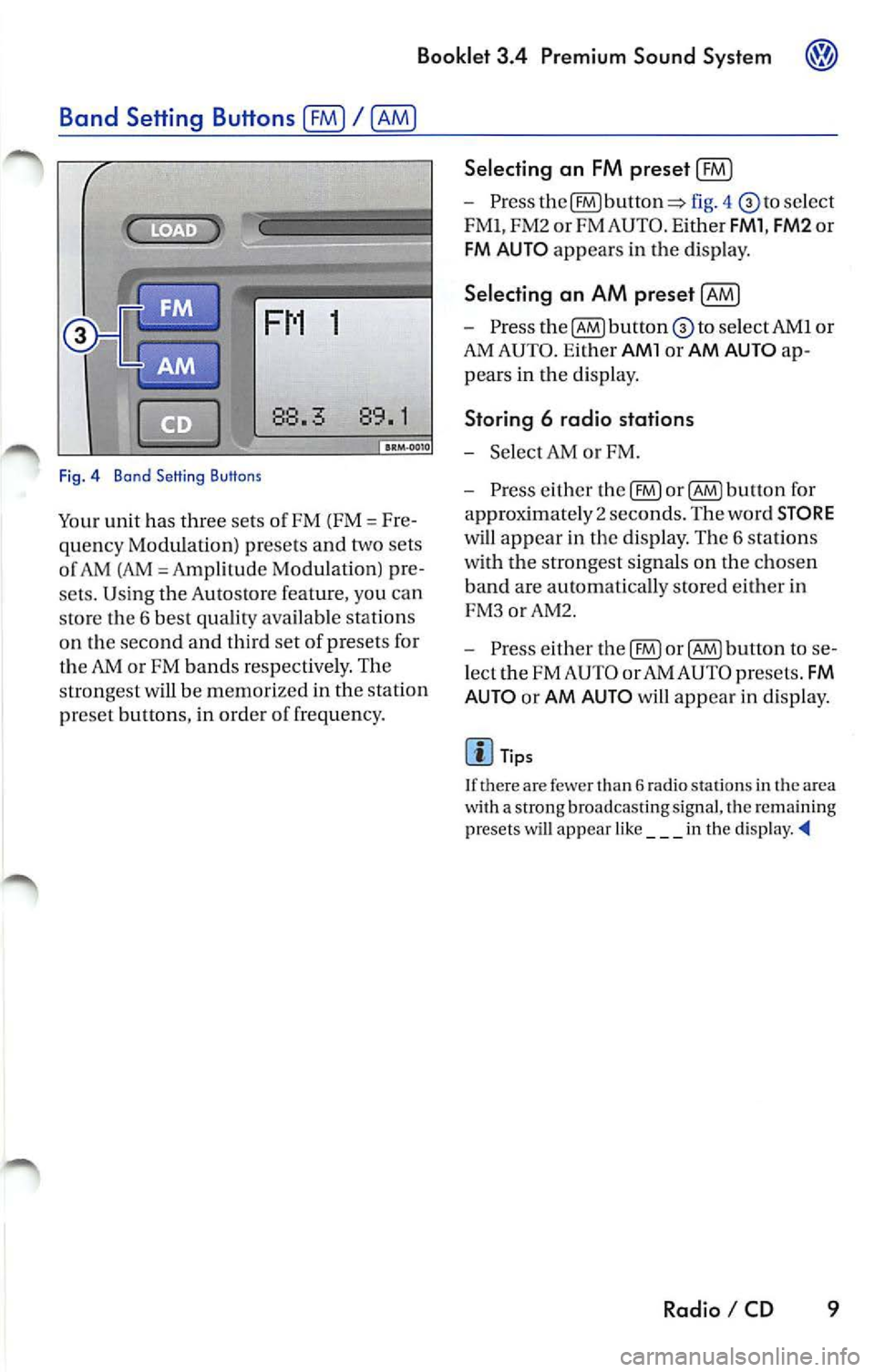
Fig . 4 Bond Setting Buttons
Your unit has three sets of FM (FM= Fre
quency Modulation) presets and two sets
o f AM (AM
Amp lilude Modula lion) pre
sets. Using the Autostore feature, you can
sto re the 6 best quality available stations
on the second and third set of presets for
the
or FM bands res pectively. The
strongest will be memor ized in the station
pr eset button s, in order o f frequency.
Selecting an FM preset (£0
-Press fig. 4 select
FMl, FM2 or FM AUTO . E ither
FMl , FM2 or
FM AU TO appears in the disp lay.
Selecting an AM preset [AM)
- Press to select AMI or
AM AUTO . Ei ther
AMl or AM AUTO ap
pears in the di sp lay.
Storing 6 radio stations
-Selec t AM or FM.
- Press either the
button fo r
approximate ly 2 seco nds. The word
STORE
will appear in the display. The 6 stations
with the strongest sig nals on the cho sen
band are automatically stored either in
FM 3orAM2.
- Press either
button to se
l ect the FM AUTO or AM AUTO presets .
FM
AUTO
or AM AUTO will appear in d isplay.
Tip s
I f there are few er than 6 radio stations in th e a rea
w ith a strong broadcasting signal, tl1e remaining
pr esets will ap pear like ___ in the
Radio I CD 9
Page 445 of 477
Booklet 3.4 Premium Sound System
Station Preset Buttons
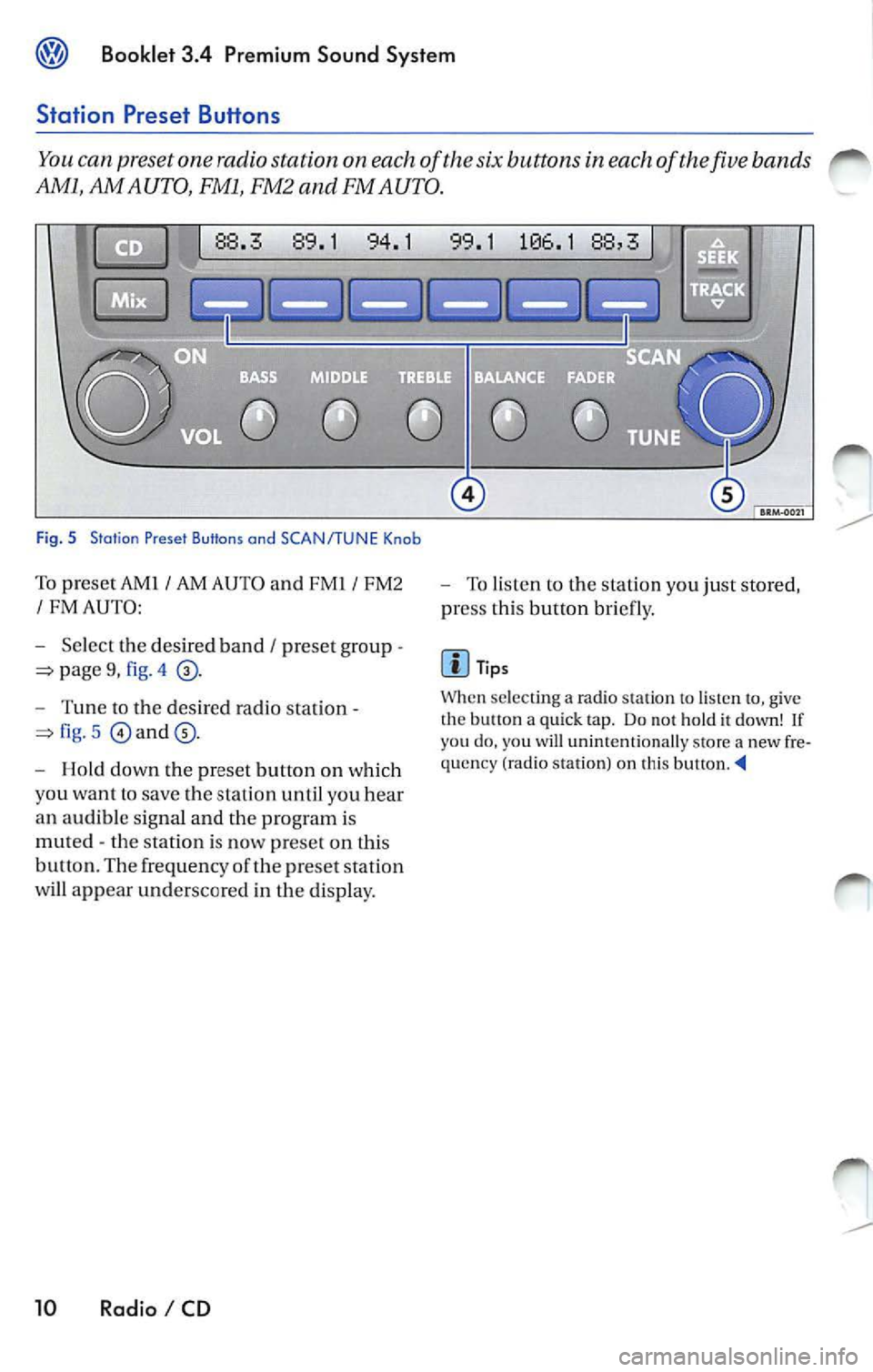
You can preset one radio station on each of the six buttons in each of the five bands
AMl, AM AUTO, FMl, FM2 and FM AUTO.
Fig. 5 Station Preset Buttons ond SCAN/TUNE Knob
To pr eset AMJ I AM AUTO and FMI I FMZ
I FM AUTO:
- Select the de sir ed band
I pr ese t group -
pag e 9, fig . 4
- Tun e to the desired radio station -
fig. 5 and
- Hold down the preset button on which
you wa nt lo save the stat io n until you hear
an aud ible sig nal and the program is
mut ed - t he station is now prese t on this
b utt on. Th e frequen cy of th e pr ese t station
w ill appear underscore d in the display.
10 Radio I CD
-To li sten to the s tation you ju st stored,
pr ess thi s button bri efl y.
Tip s
When sclec iin g a ra dio slal ion to, give
t he button a qui ck t ap . Do not h old it down! If yo u do , you will uninten tio nally store a new fre
qu en cy (radi o station ) on this button. --4
Page 447 of 477
@ Booklet 3.4 Premium Sound System
What you will se e in the di splay when you are listening to the rad io
88. 89. 1 94. 1 99. 1 106. 1 88.
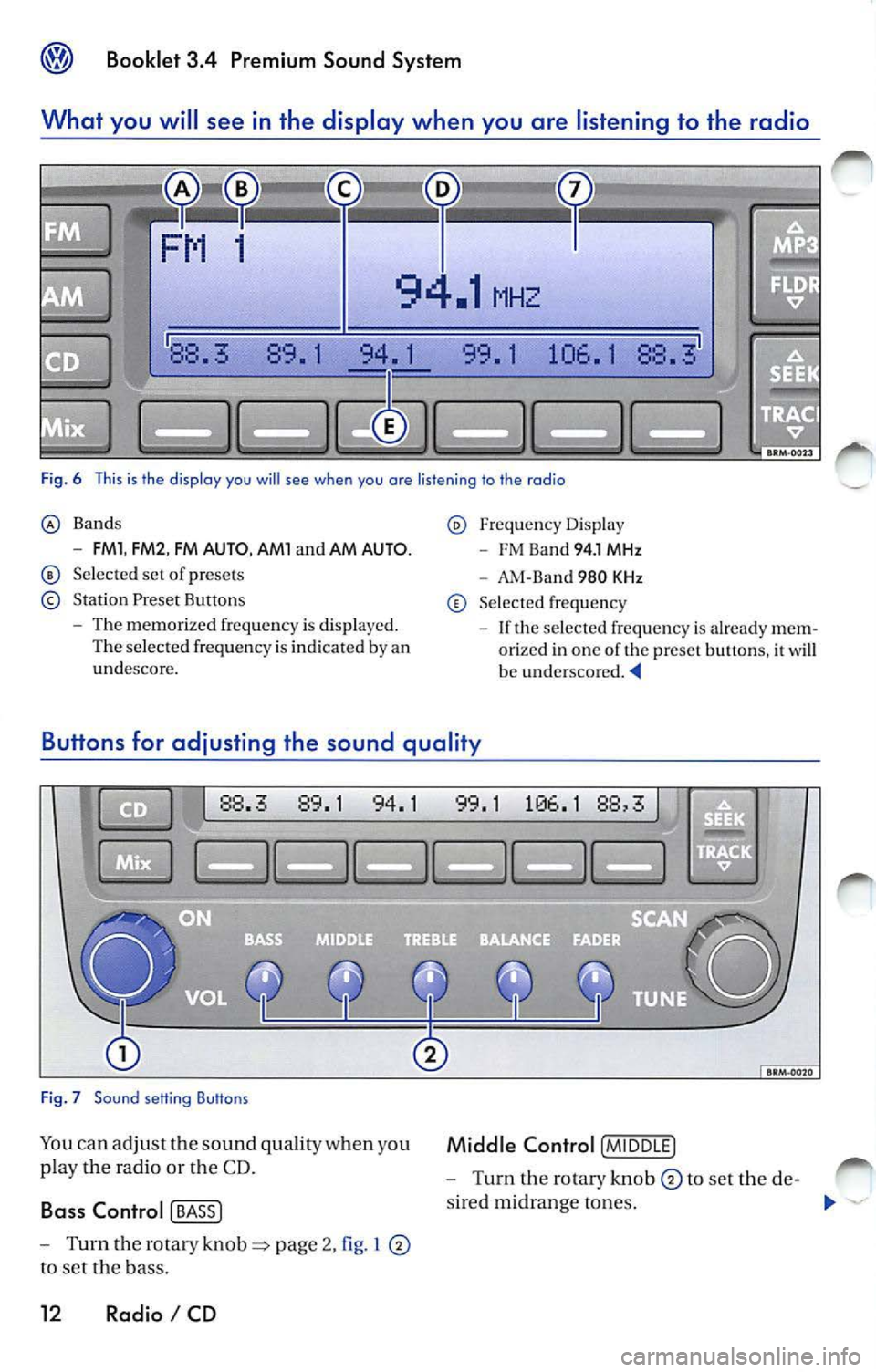
Fig. 6 This is th e display you will see when you are listening to the radio
Bands
- FMl , FM2 , FM AUTO , AMl and AM AUTO.
Se lected set of presets
Station Preset Buttons
- The memorized frequ ency is displayed.
The selected frequency is indicated by an
undescore.
Freq uency Displa y
- FM Ba nd 94. 1 MHz
- AM-Ba nd 980 KHz
Selec ted frequency
- If the selec ted frequency is alrea dy m em
orized in one of the preset buttons, it
w ill be underscored.
Bu tton s for adju sting the sound qualit y
88.3 89.1 94.1
Fig . 7 Sound setting Buttons
Yo u ca n adju st th e so und quality when you
p lay the radio or the CD.
Ba ss Control [ BASS J
- Turn the rotary page 2, I
to se t the bass.
12 Radio I CD
1 1 88,
Middle Control [M IDD LE]
- Turn the rotary knob to set the de-
s ire d m idrange to nes.
"'
Page 451 of 477
® Booklet 3.4 Premium Sound System
Selecting a category
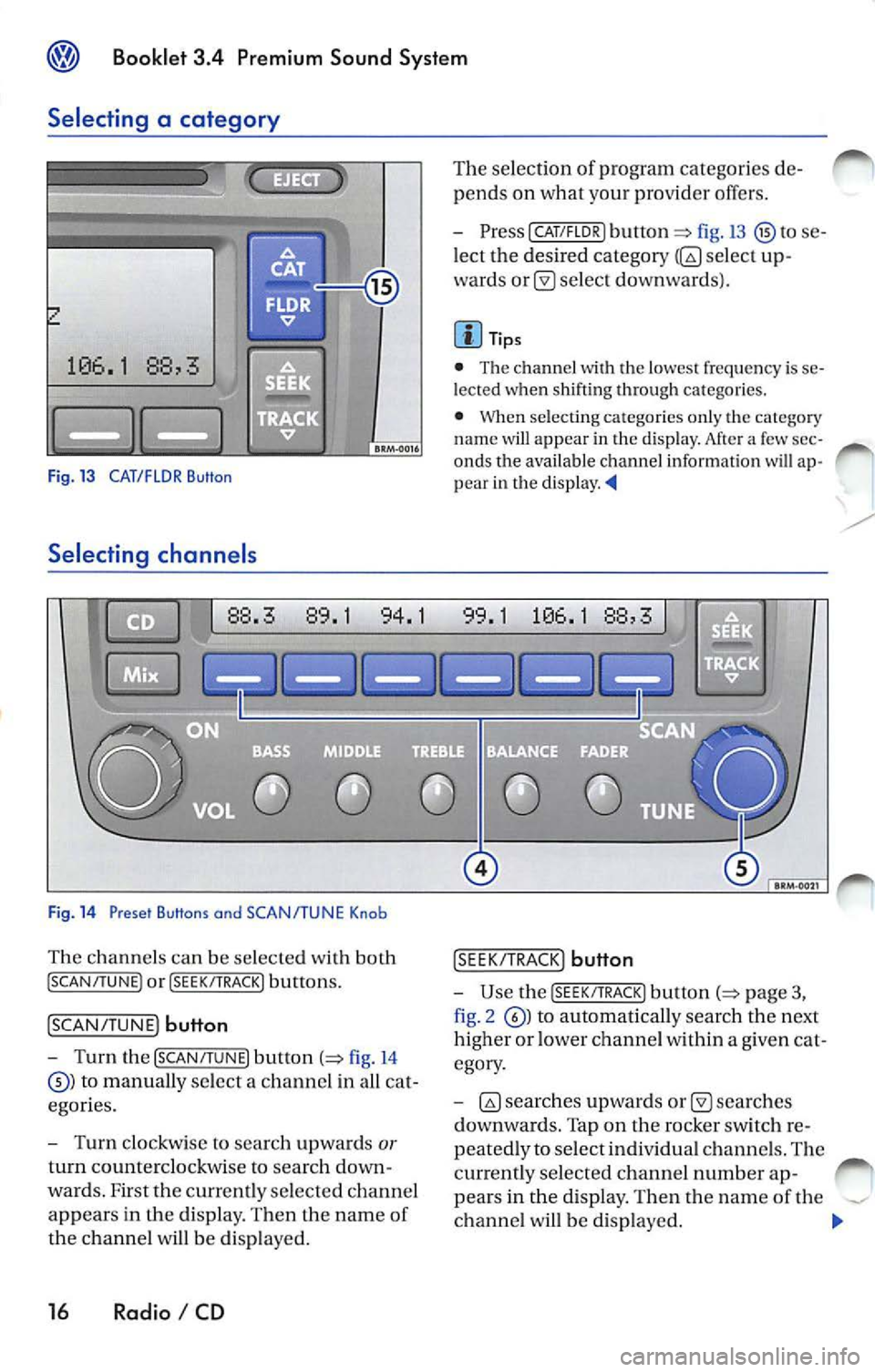
Fig. 13 CAT/FLOR Button
Selecting channe ls
Fig . 14 Preset Buttons and SCAN/TUNE Knob
Th e chan nels can be selected with both
! SCAN/TUNE ) or !SEEK/ TRACK) buttons.
!SCAN/ TUNE) button
- Turn the [SCAN /TUNE) button (=> fig. 14
to manually select a channe l in a ll ca t
egor ies.
- Turn clockwis e to sea rc h up wards
or
turn coun tercl ockwise to searc h down
wards. F irst the currently selecte d ch a nnel
appears in the di sp lay. Then the name of
the ch anne l w ill be di spla yed.
16 Radio I CD
The se lection of program categorie s de
pends on what your provid er offers.
- PresslCAT/FLDR) button
fig.13 to se
l ect the desired category
selec t up
wards
se lec t do wnwa rds).
Tips
• The chann el
th e lo wes t frequency is se
l e cted when shifti ng through ca tego ries.
•
se lecting ca tegories on ly th e category
nam e will appear in the disp lay. Af te r a few sec
onds the availa ble channel informatio n will ap
p ear in th e d is play.
!S EE K/TRA CK) button
-Use the [S EE K/TRACK ) button p age 3,
fig . 2
to autom ati ca lly sea rch the next
higher or lower ch anne l w ith in a g iven cat
egory .
-
sea rche s
d ownwa rds. Tap on the rocker switch r e
peated ly to selec t indi vidual ch anne ls. The
currently selected ch ann el numb er ap-
pea rs in the displa y. The n the nam e of the
ch anne l w ill b e disp layed.
Page 460 of 477
Booklet 3.4 Premium Sound System ®
MP3
MP3 player operation
The interna l CD-C hanger also allows you to play
CD-Rs co ntaining MP3 data. Howeve r, t he re
flectivity rate must be 60
% or high er.
D iff ere nt kind s of info rmation (e.g. name of the
so ng and artist) may appear in th e di sp lay
during MP3 player operation
On ly use s tandar d 12 cm (4.72 in ch) CDs. The
s h ape d CDs or 8 cm (3.15 inch ) CDs can not b e
p layed.
Tips
• The u nit ca n only play either discs con
taining audio or MP 3 data. If a CD co ntaining
both audio and M P3 data is inserted, an error
message will appear in the display and the CD
will be automatica lly ejected ..
• The ex terna l CD changer • can not play dis cs
co ntainin g MP3 files.
<4
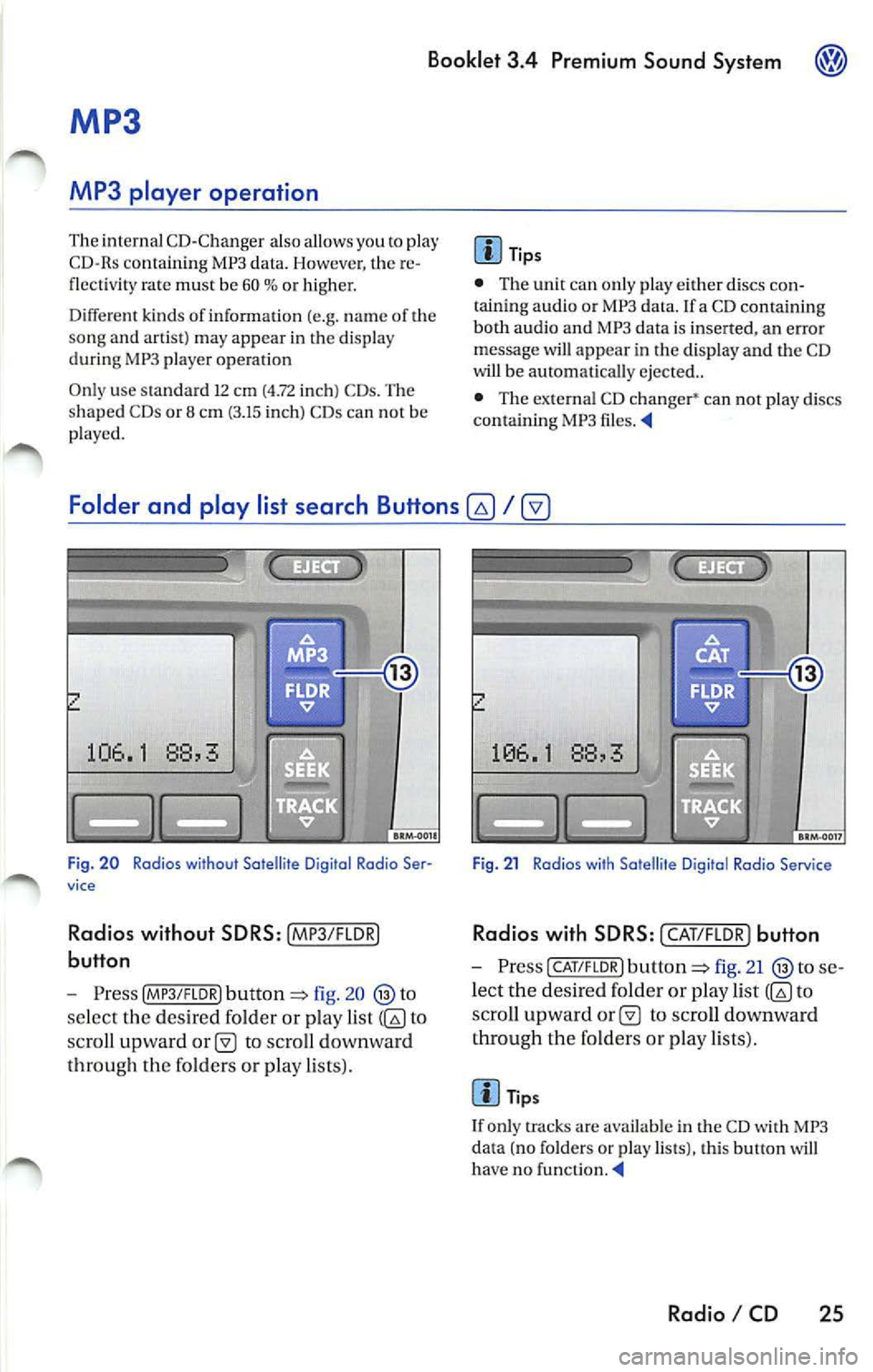
Folder and play list search Buttons
fig. 20
se lect the des ired folder or play list to
sc ro ll upward
to scro ll downward
th roug h th e fo lders or pla y lists).
Fig . 21 Radios with Satellite D igital Rodia Service
Rad ios with SD RS: I CAT/F LOR) button
- Press CAT/FLOR l fig. 21 se
l ec t the desired folder or p lay list
to
s cro ll upward
to scro ll downward
th rough the fo lder s or p lay lists) .
Tips
I f only tracks are availab le in the CD with MP3
da ta (no folders or play lists), this button will
ha ve no funct ion . ._
Radio I CD 25
Page 461 of 477
Booklet 3.4 Premium Sound System
Mix Mode button
The MIX mode causes the tracks the disc to b e played random order .
1
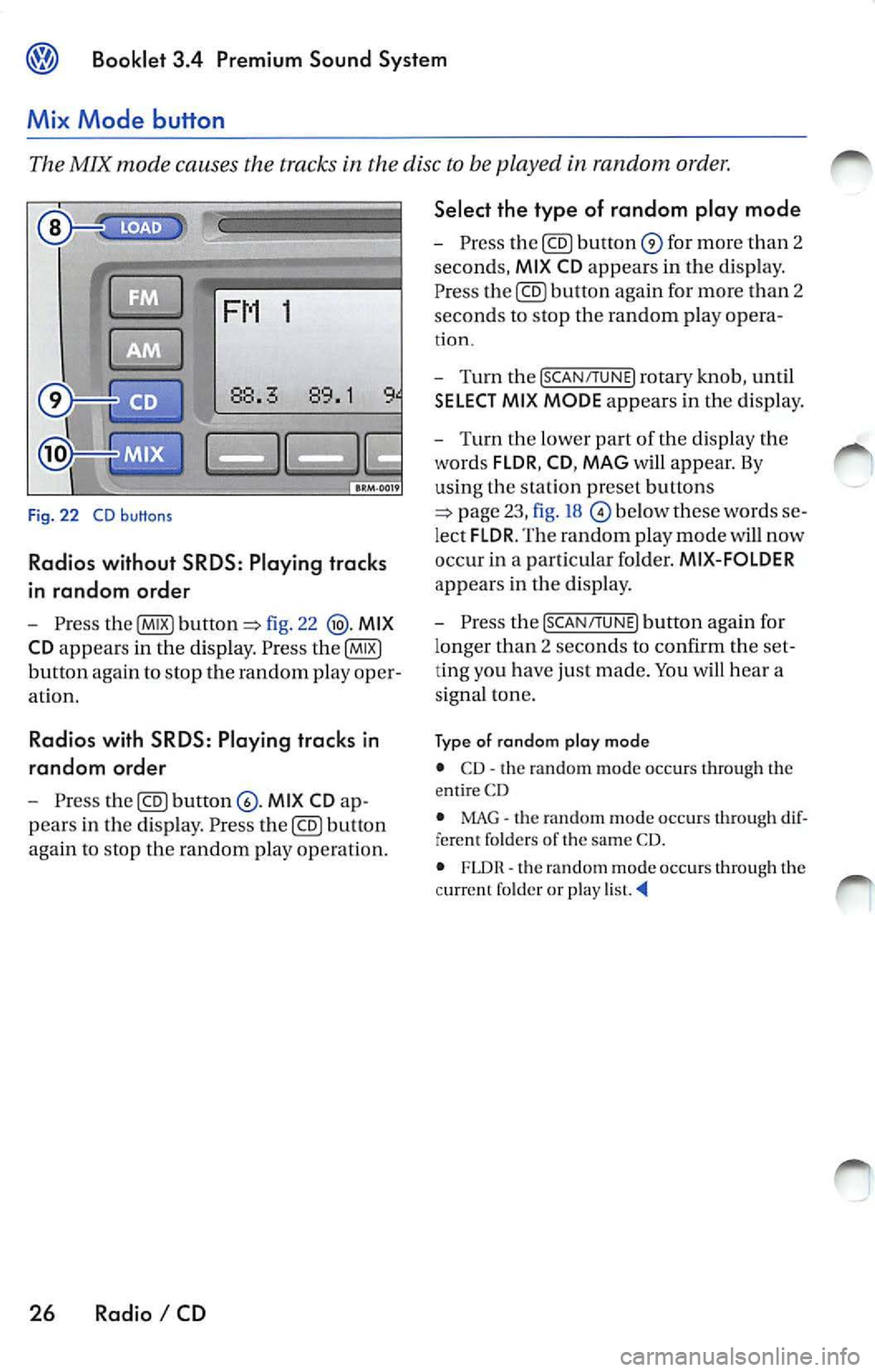
Fig. 22 CD buttons
Radios without SRDS: Play ing tracks
in random order
Pre ss fig. 22 MIX
CD
appears in the dis pl ay . P ress
button again to stop th e random play oper
at io n .
Radio s with SRDS : Playing tracks in
random ord er
Press MI X CD
pears in the disp lay . Pre ss button
again to stop the random play op eration.
26 Radio I CD Select the type of random play mode
-
Press for mor e than 2
seconds,
MI X CD appears in th e d is p lay.
P re ss
again for more than 2
sec ond s to stop th e random play opera -
tion.
- Turn the [SCAN/TUNE] rotary knob , u ntil
SELECT MI X MODE appears in the dis play.
- T urn the lower part of th e dis p la y the
words
FLDR , CD , MAG w ill appear. By
us in g th e s ta tion pr eset buttons
below th ese words
lec t FLDR . The random play mode will now
occ ur in a part ic u la r fo lder.
MIX-FOLDER
appears in the disp lay .
- Pres s the
[SCAN/TUNE] button aga in for
l onger than 2 se conds to confirm the
ting you h ave just made. You hea r a
s igna l ton e.
Ty p e of rando m plo y mod e
• CD· th e random mode oc cur s through th e
e ntir e CD
• MAG
the random mode oc cur s through fere nt folder s of the sa me CD.
• FLDR th e rando m mode occurs throug h the
c urrent f older or play
Page 463 of 477
![VOLKSWAGEN JETTA 2008 User Guide Booklet 3.4 Premium Sound System
Track search Buttons
"Scroll" through the same track (Fast
Forward /Fast R ev ie w)
- Press and hold the !SEEK/TRACK ] button
page fig . 2 to scro ll](/img/18/55688/w960_55688-462.png "VOLKSWAGEN JETTA 2008 User Guide Booklet 3.4 Premium Sound System
Track search Buttons
\"Scroll\" through the same track (Fast
Forward /Fast R ev ie w)
- Press and hold the !SEEK/TRACK ] button
page fig . 2 to scro ll")
Booklet 3.4 Premium Sound System
Track search Buttons
"Scroll" through the same track (Fast
Forward /Fast R ev ie w)
- Press and hold the !SEEK/TRACK ] button
page fig . 2 to scro ll upwards or
downwards
trough the same track.
The track elapsed time appears in the
upper left corne r of the d isp lay.
Information displayed
Fig. 24 SCAN/ TUNE button
MP3 display selection
It is possible to select betwee n a basic MP3 dis
play and a more detailed one. If th e bas ic MP3
display is selec ted the file informat ion (such as
s ong and artist name) w ill not be displayed.
• Press and ho ld down
(SCAN/TUNE) butt on fig. 24 for longer than 2 seconds to ent er
the set up mode. You will hear a sig nal tone.
• Turn the
(SCAN/TUNE) rotary knob, un til SELEC T MP3 DISPLAY appears i n the display.
• In
low er part of the display words BASIC and DETAIL will appear. By usi ng th e s ta
tion pr eset bu tto ns © select eith er the bas ic o r
deta il di splay.
• Press the
SCAN/TUNE buu on again fo r
long er th an 2 second s to confirm the setting
you've just made . Yo u will hear a signa l tone.
28 Radio I CD
-Release t he button to stop skipp ing
through the track.
Text sc roll select ion
You can decide whether the available informa
tion in the MP3 file is scrolled or not in the di s
play.
• Press and hold down the
(SCAN/TUNE) button
for longer than 2 seconds to enter the set u p
mode. You w ill hear a signal tone.
• Turn the
(SCAN/T UNE) rotary knob,
station preset buttons © select eith er ON or OFF.
• Press the (SCAN/TUNE) button again for longer
th an 2 seco nds to confirm the settin g yo u've just
made. You'll hear a signal to ne.
• If yo u decide to scroll the fil e information
follow ing warn ing will appear in the d isplay: CAUTION! THIS MAY CAUSE DRIVER
DISTRACTION.
Page 464 of 477
Booklet 3.4 Premium Sound System
• By using the stati on preset buttons© select
eit her ACCEPT t o scroll the file information or
DECLINE not to scro ll th e ava ilabl e file inform a
tion.
File information
T he file informat ion which is available, will be
scro lled or will appear in the displa y if the detail
display has been selected. The type of informa
tion displayed depends on the follow ing:
• lflD3 tag data is ava ila bl e in an MP3 file this
unit can display the title (t rack title) and art is t name. If
no ID3 tag is av ailable, th e name of the
fold er an d the name of the file w ill appear in the
di sp lay.
• The fo lder and
names can be displa yed
like titles. Capital letters and/ or numerals and
(und erscores) are scro lled.
• A maximum o f32 characte rs can be dis
p layed .
• Folder a nd file nam es usin g other symbo ls
will not b e disp layed properly.
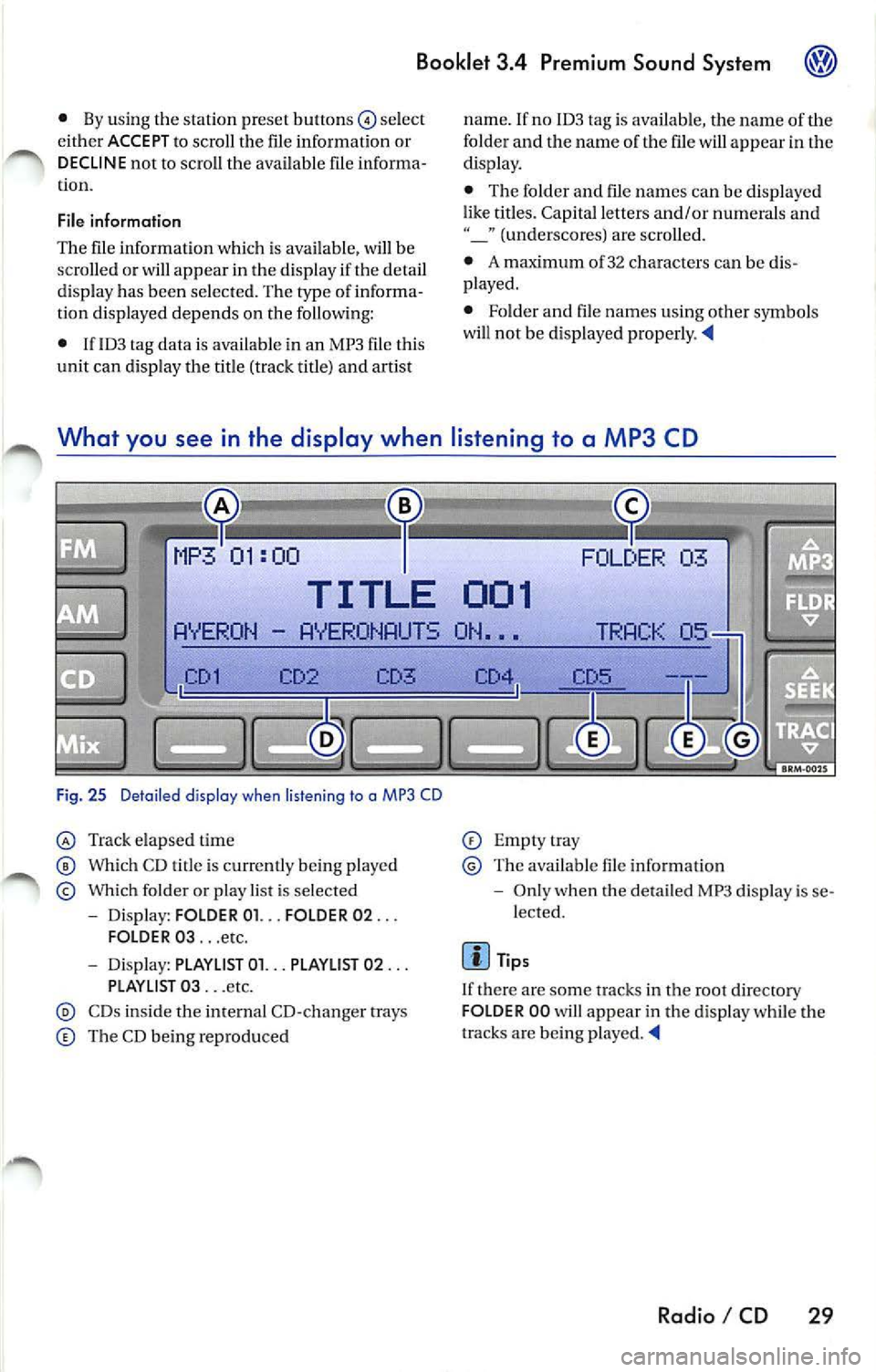
What you see in the display when listening to a MP3 CD
03
TITLE 001
AYER ON AYERONAUTS ON •••
CD3
Fi g. 25 Deta iled display when listen ing to a MP3 CD
Tra ck elapsed time
Which CD t itle is cu rrentl y being playe d
Which folder o r play list is se lected
- Dis play: FOLD ER 01. .. FOLDER 02 ...
FOLDER 03 ... etc.
- Dis pl ay: PLAYLlST 01. .. PLAYLIST 02 ...
PLAYLI ST 03 ... etc.
CDs ins ide tl1e internal CD- cha nger trays
The CD bein g repro duced
Empt ytray
Th e available file informat io n
- Onl y when the detail ed MP3 di spl ay is se
lected.
Tip s
I f there a re some tracks in the root directory
FOLD ER 00 will appear in the disp lay while the
tracks are being played.
Radio I CD 29
Page 467 of 477
Booklet 3.4 Premium Sound System
will be played in the order th ey appear. In th e ex
ample there are three p lay lists (see numbers 10,
11 and 12).
• The number of each folder and subfo lderwill
appear in the disp lay as they a re accessed.
CD changer
Applies to vehicles: with external CD chonger
• Fo r root directo ry or folder s or play lists
w ith out any fil es in th em, the rad io unit shall ig
nor e th e folder or play list
automat ically a d
va nce to th e nex t folde r in th e
External CD changer in the front armrest
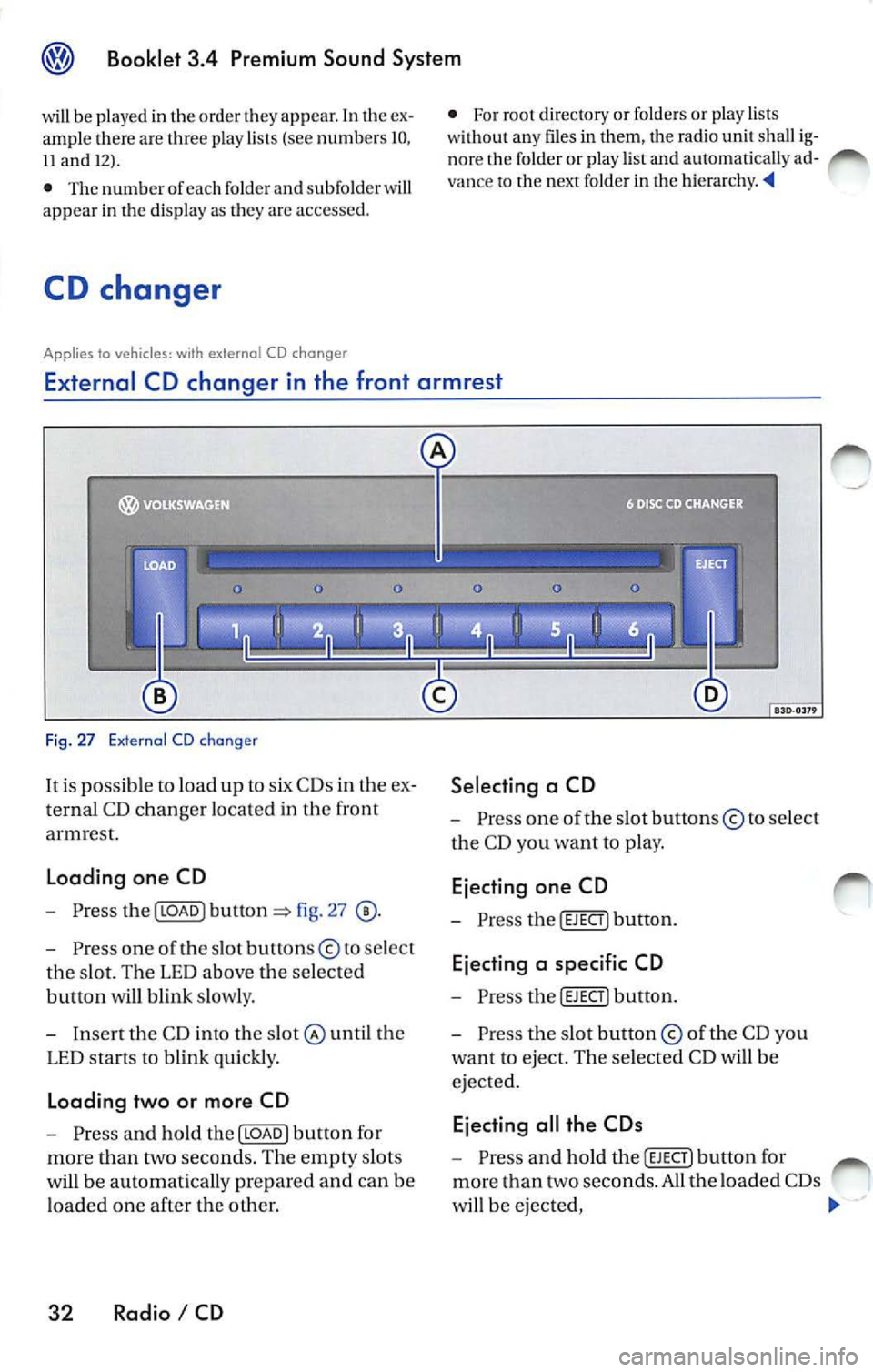
Fig. 27 External CD cha ng er
It is po ssible to loa d up to six C Ds in th e ex
ternal CD chan ger lo ca te d in the front
armrest.
Loading one CD
- Press the I LO AD I button 27
- Pre ss on e of the s lot button s© to se lect
th e s lot. The LED abo ve the se lec te d
button will blink slowly.
- Insert the CD in to the
until the
LED sta rt s to blin k qui ckly .
Loading two or more CD
- Press and hold th e I LOAD J button for
mo re than two seconds. The e mpt y slo ts
will be a utomatically pre p ared a nd can be
load ed one after the other.
32 Radio I CD Selecting a CD
-
Press one of the slot buttons © to selec t
th e CD yo u want t o pla y.
Ejecting one CD
- Press the I EJECT] button .
Ejecting a specific CD
- Pres s the I EJECT] bu tton .
- Pre ss the s lot button © of th e CD yo u
wa nt to e ject. T he se lected CD will be
e jec te d.
Ejecting all the CDs
- Press a nd hold the I EJE CT] butt on for
mor e than two seconds. All the load ed CD s
w ill b e ejec ted ,